1(self.webpackChunk_N_E=self.webpackChunk_N_E||[]).push([[5410],{8725:function(e,n,t){(window.__NEXT_P=window.__NEXT_P||[]).push(["/documentation",function(){return t(8023)}])},8191:function(e,n,t){"use strict";var i,a;t.d(n,{K:function(){return i}}),(a=i||(i={}))[a.SUCCESS=0]="SUCCESS",a[a.ERROR=1]="ERROR"},7389:function(e,n,t){"use strict";function i(e,n){let t;return function(){for(var i=arguments.length,a=Array(i),o=0;o<i;o++)a[o]=arguments[o];clearTimeout(t),t=setTimeout(()=>{e.apply(this,a)},n)}}t.d(n,{D:function(){return i}})},7383:function(e,n,t){"use strict";t.d(n,{c:function(){return i}});let i=e=>{let n=document.getElementById(e);if(n){let e=n.getBoundingClientRect().top+window.pageYOffset-100;window.scrollTo({top:e,behavior:"smooth"})}}},8023:function(e,n,t){"use strict";t.r(n),t.d(n,{default:function(){return eh}});var i,a,o=t(2676),s=t(8897),r=t.n(s),l=t(391),c=t(5614),d=t(1518),p=t.n(d),u=t(1064),g=t.n(u),m=t(9608),h=t(3221),f=t(5271),b=t(4956);function y(){let[e,n]=(0,f.useState)(!1);return((0,f.useEffect)(()=>{let e=()=>{n(window.scrollY>400)};return window.addEventListener("scroll",e),()=>window.removeEventListener("scroll",e)},[]),e)?(0,o.jsx)("button",{onClick:()=>{window.scrollTo({top:0,behavior:"smooth"})},className:"fixed bottom-6 flex justify-center items-center right-8 z-50 p-2 w-10 h-10 rounded-full bg-black/10 text-white shadow-md hover:bg-black/20 transition","aria-label":"Scroll to top",children:(0,o.jsx)(b.U,{size:20,color:"#5a5a5a"})}):null}var w=t(4251),_=e=>{let{heading:n}=e,t=e=>{let n=document.getElementById(e);if(n){let t="".concat(window.location.pathname).concat(window.location.search,"#").concat(e);window.history.replaceState(null,"",t);let i=n.getBoundingClientRect().top+window.scrollY+-100;window.scrollTo({top:i,behavior:"smooth"})}};return(0,f.useEffect)(()=>{let e=document.getElementById("markdown-table-of-content");if(!e)return;let n=()=>{window.scrollY>90?e.style.padding="90px 0 16px":e.style.padding="0 0 16px"};return window.addEventListener("scroll",n),()=>window.removeEventListener("scroll",n)},[]),(0,o.jsxs)("div",{className:"markdown-table-of-content mt-6 hidden xl:block w-1/4 max-w-[320px]",id:"markdown-table-of-content",children:[(0,o.jsxs)("div",{className:"flex flex-row gap-2 items-center font-semibold text-base",children:[(0,o.jsx)(w.a,{size:16}),(0,o.jsx)("span",{children:"On this page"})]}),(0,o.jsx)("ul",{className:"toc-entry w-full",children:n.map((e,n)=>{let{depth:i,id:a,value:s}=e;return(0,o.jsx)("li",{className:"toc-entry-item toc-entry-level-".concat(i),children:(0,o.jsx)("div",{className:"text-sm",onClick:()=>{t(a);let e="".concat(window.location.pathname).concat(window.location.search,"#").concat(a);window.history.replaceState(null,"",e)},children:s})},a+n)})})]})},S=t(1814),v=t(5491),x=t(2485),A=t(3151),T=t(1284),C=t(6229),E=t(752),k=t(3931),D=t(554),I=t(7495),P=t(8191),B=e=>{let{loading:n,content:t,toc:i,status:a}=e;return(0,o.jsxs)("div",{className:"document-markdown-content",children:[n&&(0,o.jsx)("div",{style:{width:"100vw",height:"100vh",zIndex:1e3,position:"fixed",top:0,left:0,display:"flex",justifyContent:"center",alignItems:"center",backgroundColor:"rgba(255, 255, 255, 0.8)"},children:(0,o.jsx)(D.Z,{})}),t&&a===P.K.SUCCESS&&(0,o.jsxs)("div",{className:"flex flex-row gap-2",children:[(0,o.jsx)("div",{className:"markdown-body p-4 max-w-3xl xl:max-w-4xl 2xl:max-w-7xl",children:(0,o.jsx)(I.UG,{remarkPlugins:[S.Z,v.Z,x.Z,C.Z,k.Z],rehypePlugins:[A.Z,T.Z,E.Z],children:t})}),(0,o.jsx)(_,{heading:i})]})]})};(i=a||(a={})).DOCUMENT_BIO_ECOSYSTEM="DOCUMENT_BIO_ECOSYSTEM",i.DOCUMENT_BIO_ECOSYSTEM_INSTALL="DOCUMENT_BIO_ECOSYSTEM_INSTALL",i.DOCUMENT_START="DOCUMENT_START",i.DOCUMENT_START_HOMEPAGE="DOCUMENT_START_HOMEPAGE",i.DOCUMENT_START_ADMIN_CONSOLE="DOCUMENT_START_ADMIN_CONSOLE",i.DOCUMENT_START_REQUEST_MANAGEMENT="DOCUMENT_START_REQUEST_MANAGEMENT",i.DOCUMENT_TALK2DATA_V5="DOCUMENT_TALK2DATA_V5",i.DOCUMENT_TALK2DATA_V5_GUIDELINE="DOCUMENT_TALK2DATA_V5_GUIDELINE",i.DOCUMENT_TALK2DATA_V4="DOCUMENT_TALK2DATA_V4",i.DOCUMENT_TALK2DATA_V4_CELL_TYPES="DOCUMENT_TALK2DATA_V4_CELL_TYPES",i.DOCUMENT_TALK2DATA_V4_STUDIES_SEARCH="DOCUMENT_TALK2DATA_V4_STUDIES_SEARCH",i.DOCUMENT_BIO_VINCI="DOCUMENT_BIO_VINCI",i.DOCUMENT_BIO_VINCI_INTRO="DOCUMENT_BIO_VINCI_INTRO",i.DOCUMENT_BIO_VINCI_QUICK_START="DOCUMENT_BIO_VINCI_QUICK_START",i.DOCUMENT_PIXEL="DOCUMENT_PIXEL",i.DOCUMENT_PIXEL_SEGMENTATION="DOCUMENT_PIXEL_SEGMENTATION",i.BBROWSERX_PRO="BBROWSERX_PRO",i.BBROWSERX_PRO_INTRODUCTION="BBROWSERX_PRO_INTRODUCTION",i.BBROWSERX_PRO_WORKSPACE_MANAGEMENT="BBROWSERX_PRO_WORKSPACE_MANAGEMENT",i.BBROWSERX_PRO_DATA_SUBMISSION="BBROWSERX_PRO_DATA_SUBMISSION",i.BBROWSERX_PRO_INTERFACE_AND_METADATA_MANAGEMENT="BBROWSERX_PRO_INTERFACE_AND_METADATA_MANAGEMENT",i.BBROWSERX_PRO_GENE_QUERY="BBROWSERX_PRO_GENE_QUERY",i.BBROWSERX_PRO_EMBEDDING="BBROWSERX_PRO_EMBEDDING",i.BBROWSERX_PRO_T_SNE_UMAP="BBROWSERX_PRO_T_SNE_UMAP",i.BBROWSERX_PRO_CLUSTERING="BBROWSERX_PRO_CLUSTERING",i.BBROWSERX_PRO_CELL_TYPE_PREDICTION="BBROWSERX_PRO_CELL_TYPE_PREDICTION",i.BBROWSERX_PRO_DIFFERENTIAL_GENE_EXPRESSION="BBROWSERX_PRO_DIFFERENTIAL_GENE_EXPRESSION",i.BBROWSERX_PRO_CELL_CELL_COMMUNICATION="BBROWSERX_PRO_CELL_CELL_COMMUNICATION",i.BBROWSERX_PRO_CANCER_CELL_PREDICTION="BBROWSERX_PRO_CANCER_CELL_PREDICTION",i.BBROWSERX_PRO_PERTURB_SEQ="BBROWSERX_PRO_PERTURB_SEQ",i.BBROWSERX_PRO_GENE_SET_ENRICHMENT_ANALYSIS_GSEA="BBROWSERX_PRO_GENE_SET_ENRICHMENT_ANALYSIS_GSEA",i.BBROWSERX_PRO_PSEUDOTIME_PY_MONOCLE="BBROWSERX_PRO_PSEUDOTIME_PY_MONOCLE",i.BBROWSERX_PRO_WHATS_NEW="BBROWSERX_PRO_WHATS_NEW",i.BBROWSERX_PRO_FAQ="BBROWSERX_PRO_FAQ",i.BBROWSERX_PRO_CHANGE_LOG="BBROWSERX_PRO_CHANGE_LOG",i.BBROWSERX_PRO_CLONOTYPE="BBROWSERX_PRO_CLONOTYPE",i.BBROWSERX_PRO_VISUALIZATION="BBROWSERX_PRO_VISUALIZATION",i.BBROWSERX_PRO_AUCELL="BBROWSERX_PRO_AUCELL",i.BBROWSERX_PRO_MARKER_GENES="BBROWSERX_PRO_MARKER_GENES",i.SPATIALX="SPATIALX",i.SPATIALX_INTRO="SPATIALX_INTRO",i.SPATIALX_GUIDELINE="SPATIALX_GUIDELINE",i.SPATIALX_FILE_SUBMISSION="SPATIALX_FILE_SUBMISSION",i.SPATIALX_INTERFACE_AND_METADATA_MANAGEMENT="SPATIALX_INTERFACE_AND_METADATA_MANAGEMENT",i.SPATIALX_IMAGE_VISUALIZATION="SPATIALX_IMAGE_VISUALIZATION",i.SPATIALX_GENE_VISUALIZATION="SPATIALX_GENE_VISUALIZATION",i.SPATIALX_CHARTS_GRAPHS="SPATIALX_CHARTS_GRAPHS",i.SPATIALX_CLUSTERING="SPATIALX_CLUSTERING",i.SPATIALX_EMBEDDING="SPATIALX_EMBEDDING",i.SPATIALX_DIFFERENTIAL_GENE_EXPRESSION="SPATIALX_DIFFERENTIAL_GENE_EXPRESSION",i.SPATIALX_GENE_SET_ENRICHMENT_ANALYSIS_GSEA="SPATIALX_GENE_SET_ENRICHMENT_ANALYSIS_GSEA",i.SPATIALX_CELL_TYPE_PREDICTION="SPATIALX_CELL_TYPE_PREDICTION",i.SPATIALX_REGION_SEGMENTATION="SPATIALX_REGION_SEGMENTATION",i.SPATIALX_NEIGHBORHOOD_ANALYSIS="SPATIALX_NEIGHBORHOOD_ANALYSIS",i.SPATIALX_CELL_CELL_COMMUNICATION="SPATIALX_CELL_CELL_COMMUNICATION",i.SPATIALX_DISATANCE_QUERY="SPATIALX_DISATANCE_QUERY",i.SPATIALX_MARKER_GENES="SPATIALX_MARKER_GENES",i.SPATIALX_TOP_EXPRESSED_GENES="SPATIALX_TOP_EXPRESSED_GENES",i.SPATIALX_CHANGE_LOG="SPATIALX_CHANGE_LOG",i.SPATIALX_COMBINE_DATA="SPATIALX_COMBINE_DATA",i.SPATIALX_TSNE_UMAP="SPATIALX_TSNE_UMAP",i.SPATIALX_FAQ="SPATIALX_FAQ",i.SPATIALX_DATA_EXPORT="SPATIALX_DATA_EXPORT",i.SPATIALX_PROTEOMICS_GUIDELINE="SPATIALX_PROTEOMICS_GUIDELINE",i.SPATIALX_CELL_SEGMENTATION="SPATIALX_CELL_SEGMENTATION",i.SMARTBULK="SMARTBULK",i.SMARTBULK_INTRODUCTION="SMARTBULK_INTRODUCTION",i.SMARTBULK_GET_STARTED="SMARTBULK_GET_STARTED",i.SMARTBULK_DATA_SUBMISSION="SMARTBULK_DATA_SUBMISSION",i.SMARTBULK_DATA_EXPLORATION_AND_QC="SMARTBULK_DATA_EXPLORATION_AND_QC",i.SMARTBULK_DIFFERENTIAL_GENE_EXPRESSION="SMARTBULK_DIFFERENTIAL_GENE_EXPRESSION",i.SMARTBULK_GENE_SET_ENRICHMENT_ANALYSIS="SMARTBULK_GENE_SET_ENRICHMENT_ANALYSIS",i.SMARTBULK_VENN_ANALYSIS="SMARTBULK_VENN_ANALYSIS",i.SMARTBULK_OVER_REPRESENTATION_ANALYSIS="SMARTBULK_OVER_REPRESENTATION_ANALYSIS",i.SMARTBULK_ANOVA_ANALYSIS="SMARTBULK_ANOVA_ANALYSIS",i.SMARTBULK_DECONVOLUTION="SMARTBULK_DECONVOLUTION",i.SMARTBULK_WGCNA="SMARTBULK_WGCNA",i.SMARTBULK_SSGSEA="S
1MARTBULK_SSGSEA",i.SMARTBULK_SAMPLE_CLUSTERING="SMARTBULK_SAMPLE_CLUSTERING",i.SMARTBULK_CHANGE_LOG="SMARTBULK_CHANGE_LOG",i.SMARTBULK_WHATS_NEW="SMARTBULK_WHATS_NEW",i.SMARTBULK_TIME_SERIES="SMARTBULK_TIME_SERIES",i.COMMON_FEATURES="COMMON_FEATURES",i.COMMON_FEATURES_EXPORTING="COMMON_FEATURES_EXPORTING",i.COMMON_FEATURES_AUCELL_ENRICHMENT="COMMON_FEATURES_AUCELL_ENRICHMENT",i.COMMON_FEATURES_CELL_SEARCH="COMMON_FEATURES_CELL_SEARCH",i.COMMON_FEATURES_CELL_TYPE_PREDICTION="COMMON_FEATURES_CELL_TYPE_PREDICTION",i.COMMON_FEATURES_CLONOTYPE="COMMON_FEATURES_CLONOTYPE",i.COMMON_FEATURES_COMPOSITION="COMMON_FEATURES_COMPOSITION",i.COMMON_FEATURES_DIFFERENTIAL_EXPRESSION="COMMON_FEATURES_DIFFERENTIAL_EXPRESSION",i.COMMON_FEATURES_ENRICHMENT_ANALYSIS="COMMON_FEATURES_ENRICHMENT_ANALYSIS",i.COMMON_FEATURES_GENE_QUERY_AND_VISUALIZATION="COMMON_FEATURES_GENE_QUERY_AND_VISUALIZATION",i.COMMON_FEATURES_MARKER_GENES="COMMON_FEATURES_MARKER_GENES",i.COMMON_FEATURES_PSEUDOTIME="COMMON_FEATURES_PSEUDOTIME",i.DOCUMENT_LENS="DOCUMENT_LENS",i.LENS_INTRODUCTION="LENS_INTRODUCTION",i.LENS_CELL_CELL_INTERACTION="LENS_CELL_CELL_INTERACTION",i.LENS_FILE_SUBMISSION="LENS_FILE_SUBMISSION",i.LENS_CELL_TYPE_DECONVOLUTION="LENS_CELL_TYPE_DECONVOLUTION",i.LENS_SPATIAL_GRAPH_AND_SPATIAL="LENS_SPATIAL_GRAPH_AND_SPATIA",i.LENS_TOP_EXPRESSED_GENES="LENS_TOP_EXPRESSED_GENES",i.DOCUMENT_BIOFLEX="DOCUMENT_BIOFLEX",i.DOCUMENT_BIOFLEX_GET_STARTED="DOCUMENT_BIOFLEX_GET_STARTED";let R={DOCUMENT_BIO_ECOSYSTEM:"BioTuring Ecosystem",DOCUMENT_START:"Start",BBROWSERX_PRO:"BBrowserX Pro",SPATIALX:"SpatialX",DOCUMENT_TALK2DATA_V5:"Talk2Data V5",DOCUMENT_TALK2DATA_V4:"Talk2Data V4",SMARTBULK:"SmartBulk",DOCUMENT_BIO_VINCI:"BioVinci",DOCUMENT_BIOFLEX:"Bioflex SDK",COMMON_FEATURES:"Common Features",DOCUMENT_LENS:"BioTuring Lens",DOCUMENT_PIXEL:"BioTuring Pixel"};var N=t(6691),M=t(2346),O=t(2081);let G=[{key:a.DOCUMENT_BIO_ECOSYSTEM,label:"BioTuring Ecosystem",children:[{key:a.DOCUMENT_BIO_ECOSYSTEM_INSTALL,label:"Installation",tab:a.DOCUMENT_BIO_ECOSYSTEM}]},{key:a.DOCUMENT_START,label:"Start",children:[{key:a.DOCUMENT_START_HOMEPAGE,label:"Homepage",tab:a.DOCUMENT_START},{key:a.DOCUMENT_START_ADMIN_CONSOLE,label:"Admin Console",tab:a.DOCUMENT_START}]},{key:a.BBROWSERX_PRO,label:"BBrowserX Pro",children:[{key:a.BBROWSERX_PRO_INTRODUCTION,label:"Introduction",tab:a.BBROWSERX_PRO},{key:a.BBROWSERX_PRO_WORKSPACE_MANAGEMENT,label:"Workspace Management",tab:a.BBROWSERX_PRO},{key:a.BBROWSERX_PRO_DATA_SUBMISSION,label:"Data Submission",tab:a.BBROWSERX_PRO},{key:a.BBROWSERX_PRO_INTERFACE_AND_METADATA_MANAGEMENT,label:(0,o.jsx)(N.Z,{title:"Interface and Metadata Management",placement:"top",children:"Interface and Metadata Management"}),tab:a.BBROWSERX_PRO},{key:a.BBROWSERX_PRO_GENE_QUERY,label:"Gene Query",tab:a.BBROWSERX_PRO},{key:a.BBROWSERX_PRO_AUCELL,label:"AUCell Enrichment",tab:a.BBROWSERX_PRO},{key:a.BBROWSERX_PRO_EMBEDDING,label:"Embedding",tab:a.BBROWSERX_PRO},{key:a.BBROWSERX_PRO_T_SNE_UMAP,label:"t-SNE/UMAP",tab:a.BBROWSERX_PRO},{key:a.BBROWSERX_PRO_CLUSTERING,label:"Clustering",tab:a.BBROWSERX_PRO},{key:a.BBROWSERX_PRO_MARKER_GENES,label:"Marker Genes",tab:a.BBROWSERX_PRO},{key:a.BBROWSERX_PRO_CELL_TYPE_PREDICTION,label:"Cell Type Prediction",tab:a.BBROWSERX_PRO},{key:a.BBROWSERX_PRO_VISUALIZATION,label:"Visualization",tab:a.BBROWSERX_PRO},{key:a.BBROWSERX_PRO_DIFFERENTIAL_GENE_EXPRESSION,label:"Differential Gene Expression",tab:a.BBROWSERX_PRO},{key:a.BBROWSERX_PRO_CELL_CELL_COMMUNICATION,label:"Cell Cell Communication",tab:a.BBROWSERX_PRO},{key:a.BBROWSERX_PRO_CANCER_CELL_PREDICTION,label:"Cancer Cell Prediction",tab:a.BBROWSERX_PRO},{key:a.BBROWSERX_PRO_PERTURB_SEQ,label:"Perturb-seq",tab:a.BBROWSERX_PRO},{key:a.BBROWSERX_PRO_GENE_SET_ENRICHMENT_ANALYSIS_GSEA,label:(0,o.jsx)(N.Z,{title:"Gene Set Enrichment Analysis (GSEA)",placement:"top",children:"Gene Set Enrichment Analysis (GSEA)"}),tab:a.BBROWSERX_PRO},{key:a.BBROWSERX_PRO_PSEUDOTIME_PY_MONOCLE,label:"Pseudotime | Py-Monocle",tab:a.BBROWSERX_PRO},{key:a.BBROWSERX_PRO_CLONOTYPE,label:"Clonotype",tab:a.BBROWSERX_PRO},{key:a.BBROWSERX_PRO_FAQ,label:"FAQ",tab:a.BBROWSERX_PRO},{key:a.BBROWSERX_PRO_CHANGE_LOG,label:"Change Log",tab:a.BBROWSERX_PRO}]},{key:a.SPATIALX,label:"SpatialX",children:[{key:a.SPATIALX_GUIDELINE,label:"Guideline",tab:a.SPATIALX},{key:a.SPATIALX_PROTEOMICS_GUIDELINE,label:"Proteomics Guideline",tab:a.SPATIALX},{key:a.SPATIALX_FAQ,label:"Understand SpatialX - FAQs",tab:a.SPATIALX},{key:a.SPATIALX_FILE_SUBMISSION,label:"File Submission",tab:a.SPATIALX},{key:a.SPATIALX_INTERFACE_AND_METADATA_MANAGEMENT,label:"Interface and Metadata Management",tab:a.SPATIALX},{key:a.SPATIALX_COMBINE_DATA,label:"Combine Data",tab:a.SPATIALX},{key:a.SPATIALX_IMAGE_VISUALIZATION,label:"Image Visualization",tab:a.SPATIALX},{key:a.SPATIALX_GENE_VISUALIZATION,label:"Genes Visualization",tab:a.SPATIALX},{key:a.SPATIALX_CHARTS_GRAPHS,label:"Charts & Graphs",tab:a.SPATIALX},{key:a.SPATIALX_EMBEDDING,label:"Embedding",tab:a.SPATIALX},{key:a.SPATIALX_TSNE_UMAP,label:"t-SNE/UMAP",tab:a.SPATIALX},{key:a.SPATIALX_CLUSTERING,label:"Clustering",tab:a.SPATIALX},{key:a.SPATIALX_DIFFERENTIAL_GENE_EXPRESSION,label:"Differential Gene Expression",tab:a.SPATIALX},{key:a.SPATIALX_GENE_SET_ENRICHMENT_ANALYSIS_GSEA,label:"Gene Set Enrichment Analysis (GSEA)",tab:a.SPATIALX},{key:a.SPATIALX_CELL_TYPE_PREDICTION,label:"Cell Type Prediction",tab:a.SPATIALX},{key:a.SPATIALX_REGION_SEGMENTATION,label:"Region Segmentation",tab:a.SPATIALX},{key:a.SPATIALX_NEIGHBORHOOD_ANALYSIS,label:"Neighborhood Analysis",tab:a.SPATIALX},{key:a.SPATIALX_CELL_CELL_COMMUNICATION,label:"Cell-cell Communication",tab:a.SPATIALX},{key:a.SPATIALX_DISATANCE_QUERY,label:"Distance Query",tab:a.SPATIALX},{key:a.SPATIALX_MARKER_GENES,label:"Marker Genes",tab:a.SPATIALX},{key:a.SPATIALX_TOP_EXPRESSED_GENES,label:"Top-expressed Genes",tab:a.SPATIALX},{key:a.SPATIALX_CELL_SEGMENTATION,label:"Cell Segmentation",tab:a.SPATIALX},{key:a.SPATIALX_DATA_EXPORT,label:"Data Export",tab:a.SPATIALX},{key:a.SPATIALX_CHANGE_LOG,label:"Change Log",tab:a.SPATIALX}]},{key:a.DOCUMENT_TALK2DATA_V5,label:"Talk2Data V5",children:[{key:a.DOCUMENT_TALK2DATA_V5_GUIDELINE,label:"Guideline",tab:a.DOCUMENT_TALK2DATA_V5}]},{key:a.DOCUMENT_TALK2DATA_V4,label:"Talk2Data V4",children:[{key:a.DOCUMENT_TALK2DATA_V4_CELL_TYPES,label:"Cell Types Search",tab:a.DOCUMENT_TALK2DATA_V4},{key:a.DOCUMENT_TALK2DATA_V4_STUDIES_SEARCH,label:"Studies Search",tab:a.DOCUMENT_TALK2DATA_V4}]},{key:a.SMARTBULK,label:"SmartBulk",children:[{key:a.SMARTBULK_INTRODUCTION,label:"Introduction",tab:a.SMARTBULK},{key:a.SMARTBULK_GET_STARTED,label:"Get Started",tab:a.SMARTBULK},{key:a.SMARTBULK_DATA_SUBMISSION,label:"Data Submission",tab:a.SMARTBULK},{key:a.SMARTBULK_DATA_EXPLORATION_AND_QC,label:"Data Exploration and QC",tab:a.SMARTBULK},{key:a.SMARTBULK_DIFFERENTIAL_GENE_EXPRESSION,label:"Differential Gene Expression",tab:a.SMARTBULK},{key:a.SMARTBULK_GENE_SET_ENRICHMENT_ANALYSIS,label:"Gene Set Enrichment Analysis",tab:a.SMARTBULK},{key:a.SMARTBULK_VENN_ANALYSIS,label:"Venn Analysis",tab:a.SMARTBULK},{key:a.SMARTBULK_OVER_REPRESENTATION_ANALYSIS,label:"Over Representation Analysis",tab:a.SMARTBULK},{key:a.SMARTBULK_ANOVA_ANALYSIS,label:"ANOVA Analysis",tab:a.SMARTBULK},{key:a.SMARTBULK_DECONVOLUTION,label:"Deconvolution",tab:a.SMARTBULK},{key:a.SMARTBULK_WGCNA,label:"WGCNA",tab:a.SMARTBULK},{key:a.SMARTBULK_SSGSEA,label:"ssGSEA",tab:a.SMARTBULK},{key:a.SMARTBULK_SAMPLE_CLUSTERING,label:"Sample Clustering",tab:a.SMARTBULK},{key:a.SMARTBULK_TIME_SERIES,label:"Time Series",tab:a.SMARTBULK},{key:a.SMARTBULK_CHANGE_LOG,label:"Change Log",tab:a.SMARTBULK},{key:a.SMARTBULK_WHATS_NEW,label:"What's new",tab:a.SMARTBULK}]},{key:a.DOCUMENT_BIO_VINCI,label:"BioVinci",children:[{key:a.DOCUMENT_BIO_VINCI_INTRO,label:"Introduction",tab:a.DOCUMENT_BIO_VINCI},{key:a.DOCUMENT_BIO_VINCI_QUICK_START,label:"Quick Start Guide",tab:a.DOCUMENT_BIO_VINCI}]},{key:a.DOCUMENT_BIOFLEX,label:"Bioflex SDK",children:[{key:a.DOCUMENT_BIOFLEX_GET_STARTED,label:"Quick Start Guide",tab:a.DOCUMENT_BIOFLEX}]},{key:a.COMMON_FEATURES,label:"Common Features",children:[{key:a.COMMON_FEATURES_EXPORTING,label:(0,o.jsx)(N.Z,{title:"Exporting and cloning public and private in-house data",placement:"top",children:"Exporting and cloning public and private in-house data"}),tab:a.COMMON_FEATURES},{key:a.COMMON_FEATURES_AUCELL_ENRICHMENT,label:"AUCell Enrichment",tab:a.COMMON_FEATURES},{key:a.COMMON_FEATURES_CELL_SEARCH,label:"Cell Search",tab:a.COMMON_FEATURES},{key:a.COMMON_FEATURES_CELL_TYPE_PREDICTION,label:"Cell Type Prediction",tab:a.COMMON_FEATURES},{key:a.COMMON_FEATURES_CLONOTYPE,label:"Clonotype",tab:a.COMMON_FEATURES},{key:a.COMMON_FEATURES_COMPOSITION,label:"Composition",tab:a.COMMON_FEATURES},{key:a.COMMON_FEATURES_DIFFERENTIAL_EXPRESSION,label:"Differential Expression",tab:a.COMMON_FEATURES},{key:a.COMMON_FEATURES_ENRICHMENT_ANALYSIS,label:"Enrichment Analysis",tab:a.COMMON_FEATURES},{key:a.COMMON_FEATURES_GENE_QUERY_AND_VISUALIZATION,label:"Gene Query and Visualization",tab:a.COMMON_FEATURES},{key:a.COMMON_FEATURES_MARKER_GENES,label:"Marker Genes",tab:a.COMMON_FEATURES},{key:a.COMMON_FEATURES_PSEUDOTIME,label:"Pseudotime",tab:a.COMMON_FEATURES}]},{key:a.DOCUMENT_LENS,label:"BioTuring Lens",children:[{key:a.LENS_INTRODUCTION,label:"Introduction",tab:a.DOCUMENT_LENS},{key:a.LENS_CELL_CELL_INTERACTION,label:"Cell-cell Interaction",tab:a.DOCUMENT_LENS},{key:a.LENS_FILE_SUBMISSION,label:"File Submission",tab:a.DOCUMENT_LENS},{key:a.LENS_CELL_TYPE_DECONVOLUTION,label:"Cell Type Deconvolution",tab:a.DOCUMENT_LENS},{key:a.LENS_SPATIAL_GRAPH_AND_SPATIAL,label:(0,o.jsx)(N.Z,{placement:"top",title:"Spatial Graph and Spatial Variable Genes",children:"Spatial Graph and Spatial Variable Genes"}),tab:a.DOCUMENT_LENS},{key:a.LENS_TOP_EXPRESSED_GENES,label:"Top-expressed Genes",tab:a.DOCUMENT_LENS}]},{key:a.DOCUMENT_PIXEL,label:"BioTuring Pixel",children:[{key:a.DOCUMENT_PIXEL_SEGMENTATION,label:"Introduction",tab:a.DOCUMENT_PIXEL}]}],F=e=>{let{currentKey:n,currentTab:t,onClick:i,onOpenTab:a,onSearchClick:s}=e,[r,l]=(0,f.useState)("Ctrl+K");return(0,f.useEffect)(()=>
1{l(/Mac|iPhone|iPod|iPad/i.test(navigator.platform||navigator.userAgent)?"âK":"Ctrl+K")},[]),(0,o.jsxs)("div",{className:"relative",children:[(0,o.jsx)("div",{className:"absolute top-6 left-4",children:(0,o.jsx)(M.Z,{className:"w-[270px] h-8 cursor-pointer px-2",readOnly:!0,suffix:(0,o.jsx)("div",{onClick:()=>s(),className:"bg-black/5 rounded-md flex items-center justify-center text-black p-1 h-6",children:(0,o.jsx)("span",{className:"text-xs",children:r})}),placeholder:"Search Documentation",onClick:()=>s()})}),(0,o.jsx)(O.Z,{className:"pt-16 w-full md:w-[300px]",onOpenChange:a,onClick:i,mode:"inline",items:G,selectedKeys:n?[n]:[],openKeys:t||[]})]})};var L=t(8355),z=t(7589),X=t(5709);function U(e){let n=(0,L.l)().use(z.Z).parse(e),t=[];return(0,X.Vn)(n,"heading",e=>{let n=e.children.filter(e=>"text"===e.type||"link"===e.type||"inlineCode"===e.type).map(e=>"link"===e.type?e.children.length>0?e.children[0].value:"":e.value).join(""),i=function(e){let n=e.normalize("NFD").replace(/[\u0300-\u036f]/g,"").replace(/['â]/g,"").replace(RegExp("[^\\p{L}\\p{N}]+","gu"),"-").replace(/^-+|-+$/g,"").toLowerCase();return RegExp("^[\\p{L}\\p{N}]","u").test(e.trim())?n:"-".concat(n)}(n);""!==i&&"-"!==i&&t.push({depth:e.depth,id:i,value:n})}),t}var V=t(7383),q=t(2269),j=t(6407),W=t(6874),$=t(324),H=t(7389),K=t(7719),Y=t(9895);let Q=[{id:"f5cc960d-df07-4fd4-ba07-5e627c109723",name:"Proteomics Guideline",platform:"SPATIALX",document_key:"SPATIALX_PROTEOMICS_GUIDELINE",content:"# Proteomics Guideline\n\n## Introduction\nSpatial proteomics provides a high-resolution map of protein expression within the native tissue architecture. Unlike transcriptomic approaches that measure mRNA, spatial proteomics utilizes immunofluorescent (IF) staining to capture functional protein data at the cellular level.\n\nAnalyzing proteomic data within the SpatialX ecosystem generally follows a three-step pipeline:\n1. Cell Segmentation: This process defines individual cellular boundaries, allowing us to assign specific protein expression profiles to discrete cells.\n2. Protein Quantification: We quantify protein expression by measuring the fluorescence intensity of targeted markers across the tissue.\n3. Spatial Visualization: Users can query specific proteins and visualize their expression patterns across the entire tissue section.\n\nWhile SpatialX offers robust visualization and mapping tools, users should be aware of specific limitations when applying certain downstream analyses to target-proteomic data. Cell type prediction, pathway enrichment, and cell-cell communication are all dependent on a gene-based (transcriptomic) database, and results from running these tools may yield unexpected or incomplete results. Nonetheless, we are actively expanding our toolset to include dedicated proteomics and multiomics pipelines to better support non-transcriptomic data types.\n\n## Data submission\nSpatialX supports the below proteomics data formats. See [Proteomics data](/documentation?tab=SPATIALX&documentation=SPATIALX_FILE_SUBMISSION#proteomics-data) section for more information on required files and formats.\n- QPTiff\n- OMETiff\n- Lunaphore COMET\n- Akoya PhenoCycler-Fusion (formerly CODEX)\n- MCD (STARR Fluidigm Imaging Mass Cytometry)\n- Bruker (Nanostring) CosMx V2 Proteomics\n- Xenium Proteomics (see [10XGenomics Xenium](/documentation?tab=SPATIALX&documentation=SPATIALX_FILE_SUBMISSION#10xgenomics-xenium) section)\n\nNote that spatial proteomics data does not generally come with a protein expression matrix nor a cell segmentation mask. These components can be created after submission into SpatialX. See Cell segmentation section and Protein matrix creation section.\n\n## Image visualization and protein query\n\n### Image visualization\n\n\uD83D\uDDBCï¸ image coming soon\n\n### Protein query\nYou can query for protein expression the same way you can query for gene expression across single cells. If you do not see any protein names to query, see the Cell segmentation section.\n\nA proteinâs expression will be assigned to a cell center, which is automatically inferred from a cell segmentation mask. For each cell, whose boundary is defined by a polygon in the cell segmentation mask, we average the pixel intensities of a particular channel, and return that value as the corresponding proteinâs expression. \n\nIf querying a protein, we recommend visualizing protein expression as raw counts. \n\n\uD83D\uDDBCï¸ image coming soon\n\nAlternatively, you can select a metadata to visualize protein intensities, average protein intensities, or average positive protein intensities. See Protein matrix creation section for more information.\n\n\uD83D\uDDBCï¸ image coming soon\n\n## Protein channel management\nChange display colors for each channel, adjust channel range thresholds, save groups of channels, and rename channels, using the Channel Management panel. \n\n\uD83D\uDDBCï¸ image coming soon\n\n## Cell segmentation\nBefore we can begin to query for a proteinâs expression and associate it with a cell, we need to know where each cell lies (often simplified as a cell center). The location of each cell center can be inferred if we first define the boundaries of each cell. Therefore, cell segmentation allows us to create a mask consisting of numerous polygons that denote the boundaries of cells. From each polygon, we can then infer the cell centers.\n\nSpatialX offers a variety of cell segmentation models to run. See the Cell Segmentation section for more information.\n\n## Protein matrix creation\nAfter successfully creating a cell segmentation mask and cell centers, we need to determine how much a protein is expressed within each cell. Protein expression is correlated with fluorescence intensity, therefore, we can sum the fluorescence intensity of each image and return a value that corresponds to that cellâs protein expression. More specifically, each pixel that falls within a cell segmentation polygon is averaged, and its value is associated with that cellâs center. This process is also known as creating a protein expression matrix.\n\nTo create a protein expression matrix, follow the steps below:\n1. Navigate to Preferences > Matrix.\n2. Add a matrix > Calculate protein intensities\n3. In the Image field, select your IF image.\n4. In the Segmentation field, select a cell segmentation mask.\n5. In the Channels to apply field, select all the channels you would like to quantify.\n6. Adjust the range for each channel to remove background noise, such as autofluorescence noise. Thresholds are automatically applied to each channel using a quantile approach. Perform further manual adjustment as needed.\n - Auto-filter: Automatically remove the lowest percentage of signal data from each channel (e.g., a 5% minimum removes all signal within the bottom 5th percentile of a channel).\n - Preview: After adjusting the range of a channel, click the preview button to view the applied changes.\n\n\uD83D\uDDBCï¸ image coming soon\n\nAfter a protein matrix has successfully been created, select your protein matrix. The protein matrix creation process in SpatialX automatically returns groups of metadata, which are explained below:\nProtein intensities: Sum of each pixel intensity within a cell polygon.\nAverage protein intensities: Sum of each pixel intensity within a cell polygon, divided by the total number of pixels within a cell polygon.\nAverage positive protein intensities: Sum of each pixel intensity within a cell polygon, divided by the number of pixels that positively express the fluorescence within a cell polygon.\n\nEach new protein matrix created will have a different set of cell barcodes (associated with the cell segmentation mask that was selected during protein intensity calculation). As a result, the metadata associated with one protein matrix cannot be transferred to a different protein matrix via metadata import.\n\n## Cell type annotation\n\nBecause proteomics data often has a much smaller panel of proteins than transcriptomics data, it is recommended to perform cell type annotation manually. Our cell type prediction tool is based on our database of single-cell transcriptomics data; therefore, may not be appropriate for proteomics data. Nonetheless, manual annotation in SpatialX involves either a single-cell approach or a cluster-based approach, using one or a set of marker genes per unique cell type.\n\n### Single-cell approach\nGiven a list of protein markers for each cell type, we can visualize its collective expression as an enrichment or activity score, also known as AUCell. See AUCell section for more information.\n\n\uD83D\uDDBCï¸ image coming soon\n\n### Cluster-based approach\nPerform clustering analysis. This will cluster together cells based on their protein-expression profile.\n\n\uD83D\uDDBCï¸ image coming soon\n",image_path:" https://cdn-assets.bioturing.com/documentation/SpatialX",created_at:1772617934,updated_at:1772618166},{id:"b404e114-ed48-4a50-8854-3f4a61beb0f0",name:"Time Series",platform:"SMARTBULK",document_key:"SMARTBULK_TIME_SERIES",content:'# Time Series Analysis\n\nTime course (temporal) information refers to Bulk RNA-seq experiments where samples, often under different experimental conditions, are collected and contrasted with one another across multiple time points.\
1n\nA gene may not appear significantly differentially expressed at a single time point, yet still exhibits a meaningful expression pattern across time. By capturing these temporal patterns and correlations between time and condition, researchers can uncover dynamic regulatory mechanisms that static comparisons miss.\n\nTime series (longitudinal) transcriptomics analysis aims to characterize how gene expression changes over time and how these changes differ between biological conditions. Time-series analysis captures dynamic expression patterns, enabling the identification of early, transient, sustained, or delayed transcriptional responses.\n\nIn SmartBulk, Time Series Analysis is implemented based on the principles described in the TiSA pipeline (âTiSA: a pipeline for the analysis of longitudinal transcriptomics dataâ). TiSA is designed to analyze bulk RNA-seq experiments with repeated measurements across multiple time points and, optionally, multiple biological groups (e.g., control vs treatment). Instead of fitting a single global model, the approach decomposes longitudinal data into a set of interpretable pairwise comparisons along two axes: time and group.\n\n---\n\n## Supported Time Series Pipeline in SmartBulk\n\nInput:\n\n- Gene count matrix\n- Metadata table containing:\n - A time-course column (e.g: T0, T1, T2)\n - An optional group column (e.g: Control, Treatment)\n\n- Before analysis, SmartBulk performs a series of validation steps:\n - Ensures the selected time-course column contains at least two unique time points\n - If a group factor is provided, verifies that each group spans multiple time points\n - Removes samples with missing time or group annotations\n - Orders time points either automatically or using a user-defined order\n\nThe main pipeline can be separated into three steps:\n\n1. Identify genes that change significantly over time and between groups:\n\n- Perform temporal differential expression (comparing consecutive or baseline-referenced time points) and group contrast differential expression (comparing biological groups at each individual time point).\n\n- SmartBulk takes a count matrix and metadata with the time course information as input. This input can be extended with group contrast information.\n\n- In the DGE methods, SmartBulk supports three major statistical frameworks for DGE analysis: `DESeq2`, `limma`, and `edgeR`. For more information about DGE, please refer to the [DGE](https://bioturing.com/documentation?tab=SMARTBULK&documentation=SMARTBULK_DIFFERENTIAL_GENE_EXPRESSION) section.\n\n2. Group genes into genomic modules:\n\n- Genes identified as significant are grouped into distinct genomic modules based on their expression trajectories over time using a recursive thresholding clustering algorithm (PART).\n\n3. Functional Enrichment:\n\n- Enrich the biological function of each module to reveal dynamic pathway activities.\n\n\n## Algorithms\n\n**Time Series Analysis** in SmartBulk is designed to identify genes with significant temporal changes and group them into genomic modules with similar expression trajectories.\n\n### 1. Differential Gene Expression (DGE)\n\nSmartBulk identifies significant genes by decomposing the longitudinal design into a series of interpretable pairwise comparisons rather than fitting a single global regression model. This approach ensures that transient changes (e.g., a gene peaking only at Timepoint 2) are not missed and provides granular insights into exactly *when* changes occur.\n\n**A. Design Formula Construction:**\n\nSmartBulk constructs a design matrix based on the experimental factors:\n\n- **Time-Only Mode**: If only time points are provided, the design formula is:\n $$ \\sim 0 + \\text{Time} $$\n This fits a model where each time point has its own coefficient.\n\n- **Two-Factor Mode**: If a grouping factor (e.g., Treatment vs. Control) is provided, the algorithm compares the two groups at every individual time point (e.g., Treated vs. Control at $T_0$, Treated vs. Control at $T_1$, etc.):\n $$ \\sim 0 + \\text{Group\\_Time} $$\n This isolates group-specific effects at individual time points, rather than across the full time course. The factors are combined into a single interaction term to allow these specific contrasts.\n\n**B. Pairwise Comparison Strategy:**\n\nTo capture temporal trends, SmartBulk performs specific contrasts based on the selected **Trend Mode**:\n\n- **Stepwise**: Compares consecutive time points (e.g., $T_1$ vs $T_0$, $T_2$ vs $T_1$). This is sensitive to transient changes that occur between adjacent intervals.\n- **Baseline**: Compares each time point against the initial time point $T_0$ (e.g., $T_1$ vs $T_0$, $T_2$ vs $T_0$). This focuses on cumulative changes relative to the starting state.\n\nFor two-factor designs, SmartBulk also performs **Conditional Comparisons**, contrasting the experimental group **(group 2)** against the control group **(group 1)** at each individual time point (e.g., Treatment vs. Control at $T_1$).\n\n**C. Union of Significant Genes**\n\nThe final list of Time-Dependent Genes is constructed by taking the union of all genes that pass the significance threshold (FDR <= 0.05, |Log2FC| >= threshold) in any of the temporal or conditional comparisons.\n\n$$S_{final} = \\bigcup_{i} S_{temporal, i} \\cup \\bigcup_{j} S_{conditional, j}$$\n\nThis ensures the inclusion of genes that may be stable over time but different between groups, or identical between groups but dynamic over time.\n\n### 2. Genomic Module Detection (PART)\n\nTo group significant genes into distinct genomic modules with shared expression trajectories, SmartBulk employs the **Partitioning Algorithm based on Recursive Thresholding (PART)*
1*. Unlike K-Means (which requires a fixed $k$) or Hierarchical Clustering (which relies on arbitrary tree cuts), PART is a recursive clustering method that automatically determines the optimal number of clusters from the data itself, without requiring an a priori $k$.\n\nStep 1. **Distance Calculation:**\n\n1. **Standardization:** Expression values for the selected genes are scaled (Z-score) so that clustering focuses on the shape of the trajectory rather than absolute expression levels.\n\n$$Z_{gj} = \\frac{x_{gj} - \\mu_g}{\\sigma_g}$$\n\n2. **Distance Matrix:** A distance matrix $D$ is computed between all pairs of significant genes. SmartBulk typically uses **Euclidean distance** on scaled expression profiles to group genes with similar shapes, regardless of their absolute magnitude.\n\n$$ d_{ij} = \\sqrt{\\sum_{k=1}^{m} (x_{ik} - x_{jk})^2} $$\n\nStep 2. **Recursive Partitioning:**\n\nThe algorithm recursively splits the dataset into smaller clusters. At each step, it:\n\n1. **Gap Statistic**: Calculates the Gap Statistic to estimate the optimal number of sub-clusters ($k$) for the current subset of genes. The Gap statistic compares the within-cluster dispersion to that expected under a null reference distribution generated by permuting the data $B$ times.\n \n $$ \\text{Gap}(k) = E^*[\\log(W_k)] - \\log(W_k) $$\n\n where $W_k$ is the pooled within-cluster sum of squares around the cluster means.\n\n - **Adaptive Permutations ($B$)**: To balance computational speed and statistical robustness, SmartBulk dynamically adjusts the number of permutations ($B$) based on the number of significant genes:\n - Small datasets ($N \\le 1000$): $B=100$ for high precision.\n - Medium datasets ($1000 < N \\le 5000$): $B=50$.\n - Large datasets ($N > 5000$): $B$ scales down (min 10) to maintain efficiency.\n\n2. **Recursion Logic**:\n - If the Gap statistic suggests $k=1$, the current set is considered homogenous, and recursion stops for that branch.\n - If $k>1$, the set is split using Hierarchical Clustering (Average linkage), and the function calls itself recursively on the new subsets.\n\n3. **Distance Thresholding**: Even if $k>1$ is statistically favored, PART ensures the resulting clusters are distinct. It calculates the distance between the two sub-clusters.\n - `minDist` (a recursive threshold) is automatically calculated based on the dataset.\n - If the distance $>$ `minDist`, the split is accepted.\n - If the distance $\\le$ `minDist`, the split is rejected, and the current set is defined as a final module.\n\nStep 3. **Module Finalization:**\n\nThis process continues until no further splits are statistically justified or the clusters satisfy the distance constraints.\n\n- **Result**: A set of genomic modules, where genes in the same module share highly correlated temporal expression patterns.\n- **Visualization**: Each module is represented by its **centroid trajectory** (mean expression over time), visualizing the dynamic behavior of that gene set.\n\n## Perform Time Series Analysis\n\nTo perform Time Series analysis on SmartBulk, choose the  button on the sidebar. A pop-up window will appear to config the analysis.\n\n<center>\n <img src="https://cdn-assets.bioturing.com/documentation/SmartBulk/13_time_series_001.png" alt="time_series_001"/>\n</center>\n\n<p align="center"><em>Figure 1: Time Series default configuration</em></p>\n\n- **Analysis name:** [Default: TIME_SERIES_time_date]\n- **Select mode input:** Choose how you want to analyze the temporal gene expression trends. [Default: Overall temporal trends]\n - **Overall temporal trends:** Analyze how gene expression changes over time across the entire dataset by comparing consecutive timepoints (T1 vs. T0, T2 vs. T1, and so on) or baseline-referenced time points (T1 vs. T0, T2 vs. T0, and so on).\n - **Group contrast per time point:** Limit temporal trend anal
1ysis to 2 selected groups only and implement comparison between these two groups at each individual time point.\n- **Time points:** Select the metadata column that defines the sampling time points for your experiment (e.g., T0, T1, T2).\n ***Customize:***\n - Drag the levels - each linked with a true time point label in metadata - up and down to reorder these labels.\n - **Trend mode:** Choose how the data trend is analyzed - *Stepwise* (T1 vs. T0, T2 vs. T1, and so on) or *Against the baseline (T0)* (T1 vs. T0, T2 vs. T0, and so on) [Default: Stepwise]\n - **Show true labels:** Choose whether the time points keep their original metadata annotation in graphs.\n- **Group contrast:** (only available for ***Group contrast per time point*** mode) Select the metadata column annotating experimental groups for comparison across time points. For each analysis session, you can only compare 2 groups from the chosen metadata column.\n- **Run:** Click the "Run" button to perform the analysis.\n\n<center>\n <img src="https://cdn-assets.bioturing.com/documentation/SmartBulk/13_time_series_002.png" alt="time_series_002"/>\n</center>\n<p align="center"><em>Figure 2: Running Time Series on Overall temporal trends mode</em></p>\n\n<center>\n <img src="https://cdn-assets.bioturing.com/documentation/SmartBulk/13_time_series_003.png" alt="time_series_003"/>\n</center>\n\n<p align="center"><em>Figure 3: Running Time Series on Group contrast per time point mode</em></p>\n\n## Result Visualization & Interaction\n\n### Main Page\n\n#### A. Overall trend Tab\n\n##### A.1. Overall temporal trends Mode\n\n<center>\n <img src="https://cdn-assets.bioturing.com/documentation/SmartBulk/13_time_series_004.png" alt="time_series_004"/>\n</center>\n\n<p align="center"><em>Figure 4: âOverall trendâ tab on Time Series main result page for âOverall temporal trendsâ mode</em></p>\n\n1. List of all genes from the input dataset. These genes have undergone differential expression analysis between two time points across all samples, with the mean fold change value (log2FC) and adjusted p-value (FDR) of the analysis reported in the next two columns.\n2. You can filter the gene list by log2FC and/or FDR.\n3. The default gene list does not include FDR values, but you can add the column for convenient sorting.\n4. Line graph showing the temporal changes in expression of each chosen gene.\n\n##### A.2. Group contrast per time point Mode\n\n<center>\n <img src="https://cdn-assets.bioturing.com/documentation/SmartBulk/13_time_series_005.png" alt="time_series_005"/>\n</center>\n\n<p align="center"><em>Figure 5: âOverall trendâ tab on Time Series main result page for âGroup contrast per time pointâ mode</em></p>\n\n1. For **Group contrast per time point** mode, users can view DEGs between either the experimental groups at different time points (under the ***Group DEGs*** subtab) or two time points of interest like during the âOverall temporal trendsâ mode (under the ***Temporal DEGs*** subtab).\n2. List of all genes from the input dataset. Under the ***Group DEGs*** subtab, these genes have undergone differential expression analysis between two sample groups across all time points, with the mean fold change value (log2FC) and adjusted p-value (FDR) of the analyses reported in the following columns.\n3. You can filter the gene list by log2FC and/or FDR for differential expression analysis at each time point.\n4. The default gene list does not include FDR values, but you can add the parameter for convenient sorting.\n5. Line graph showing the temporal changes in expression of each chosen gene for both sample groups in comparison.\n\n#### B. DEG results Tab\n\nSmartBulk automatically runs Differential Expression (DE) analysis on all genes between two timepoints. For detailed information on how SmartBulk performs DE analysis, please refer to the documentation on [Differential Gene Expression](https://bioturing.com/documentation?tab=SMARTBULK&documentation=SMARTBULK_DIFFERENTIAL_GENE_EXPRESSION).\n\nFor **Overall temporal trends** mode:\n\n<center>\n <img src="https://cdn-assets.bioturing.com/documentation/SmartBulk/13_time_series_006.png" alt="time_series_006"/>\n</center>\n\n<p align="center"><em>Figure 6: âDEG resultsâ tab on Time Series main result page for âOverall temporal trendsâ mode</em></p>\n\n1. Select the time point pair of interest.\n2. Users can filter or sort the genes by FDR and/or Log2FC values of their DE analyses between the chosen time point pair.\n3. Volcano plot to visualize the expression of all genes in the dataset by -log10(FDR) and L
1og2FC values of their DE analyses between the chosen time point pair. In the ***Box plot*** and ***Heatmap*** tabs, users can also view in more detail the expression of only their selected genes of interest.\n\nFor **Group contrast per time point** mode:\n\n<center>\n <img src="https://cdn-assets.bioturing.com/documentation/SmartBulk/13_time_series_007.png" alt="time_series_007"/>\n</center>\n\n<p align="center"><em>Figure 7: âDEG resultsâ tab on Time Series main result page for âGroup contrast per time pointâ mode</em></p>\n\n1. Select the time point pair of interest (e.g., T1 compared to T0 or T2 compared to T1) or time point of interest for comparison between the experiment groups (e.g., male group compared to female group at T0 or T1).\n2. Users can filter or sort the genes by FDR and/or Log2FC values of their DE analyses.\n3. Volcano plot to visualize the expression of all genes in the dataset by -Log10(FDR) and Log2FC values of their DE analyses. In the ***Box plot*** and ***Heatmap*** tabs, users can also view in more detail the expression of only their selected genes of interest.\n\n### Gene modules Page\n\nFrom your filtered gene list, Time Series also allows you to identify gene modules, which are clusters of genes with similar expression patterns across the time points.\
1n\n<center>\n <img src="https://cdn-assets.bioturing.com/documentation/SmartBulk/13_time_series_008.png" alt="time_series_008"/>\n</center>\n\n<p align="center"><em>Figure 8: Subanalysis feature to identify gene modules on Time Series main result page for both modes</em></p>\n\nFor **Overall temporal trends** mode:\n\n<center>\n <img src="https://cdn-assets.bioturing.com/documentation/SmartBulk/13_time_series_009.png" alt="time_series_009"/>\n</center>\n\n<p align="center"><em>Figure 9: Gene module result page for âOverall temporal trendsâ mode</em></p>\n\n1. Line graphs showing the temporal changes across all time points in expression of each gene in one gene module. Users can also view the exact Z-scores in the ***Heatmap*** tab.\n2. Select the ontology databases of your interest to run enrichment analysis on the genes of one selected gene modules.\n3. Click **Run** to perform enrichment analysis.\n\nFor **Group contrast per time point** mode:\n\n<center>\n <img src="https://cdn-assets.bioturing.com/documentation/SmartBulk/13_time_series_010.png" alt="time_series_010"/>\n</center>\n\n<p align="center"><em>Figure 10: Gene module result page for âGroup contrast per time pointâ mode</em></p>\n\n1. Line graphs, split by experimental groups, showing the temporal changes across all time points in expression of each gene in one gene module. Users can also view the exact Z-scores in the ***Heatmap*** tab.\n2. Select the ontology databases of your interest to run enrichment analysis on the genes of one selected gene modules.\n3. Click **Run** to perform enrichment analysis.\n\n#### Enrichment Page\n\n<center>\n <img src="https://cdn-assets.bioturing.com/documentation/SmartBulk/13_time_series_011.png" alt="time_series_011"/>\n</center>\n\n<p align="center"><em>Figure 11: Enrichment analysis result page for both modes</em></p>\n\n1. Users can select or deselect results from different ontology databases.\n2. List of enriched terms from the selected databases. By default, top 10 enriched terms based on odds ratio and FDR are selected. Users can further filter this list by odds ratio and/or FDR as well as select their own set of enriched terms.\n3. The dot plot of the selected terms on the left, with the x-axis reporting odds ratio, color gradient reflecting the value of -Log10(FDR), and dot size representing count of overlapping genes between the input gene list and gene set of a term. Users can also view this information in the form of a bar chart by selecting in the drop-down menu.',image_path:"https://cdn-assets.bioturing.com/documentation/SmartBulk/",created_at:1768968164,updated_at:1768982339},{id:"7c1a9c30-8328-46a4-b56c-8c083928d3b6",name:"Data Export",platform:"SPATIALX",document_key:"SPATIALX_DATA_EXPORT",content:'# Data export\n\n_Last updated Janurary 8, 2026._\n\nSpatialX offers several ways to export your analysis results, ranging from raw data objects to high-resolution visualizations.\n\n## Export spatial data (Anndata or Seurat)\n\n<p align="center"><img src="./img/260108_SpatialX_Export_spatial_data.png">\n\n1. Click the _**Export**_ button in the upper-right corner and select _**New**_ Export.\n2. Select either _**H5AD**_ (AnnData) or _**RDS**_ (Seurat).\n3. Choose to export the entire dataset or a specific subset. You may also select multiple samples for batch export.\n4. Select the specific spatial layers and metadata fields you wish to include.\n\n_**NOTE:** The **exported object will include the expression matrix and cell centers**. To maintain optimal performance, large-scale components like raw images, cell segmentation masks, and transcript locations are exported as separate files._\n\n## Export images and embeddings\n\nExport high-resolution figures of your tissue images or dimensionality reduction plots (t-SNE/UMAP) with active overlays.\n\n<p align="center"><img src="./img/260108_SpatialX_Export_Image_with_legend.png">\n\n<p align="center"><img src="./img/260108_SpatialX_Export_Image_with_gene.png">\n\n<p align="center"><img src="./img/260108_SpatialX_Export_UMAP_with_gene.png">\n\n## Export metadata\n\n<p align="center"><img src="./img/260108_SpatialX_Export_metadata.png">\n\n1a. **Full Export**: Export the entire metadata table for a sample or combined study directly from the Metadata panel.\n\n1b. **Selective Export**: Export specific metadata fields - navigate to Metadata management.\n\n2. Use the checkboxes to select specific fields.\n\n3. Click the _**Export**_ button to download only the selected data.\n\n## Export charts & graphs\n\nFor every plot generated in the Charts & Graphs section, you have three options:\n- **Export Figure:** Save as a high-resolution image (PNG).\n- **Export Data:** Download the underlying raw data values (CSV/TSV).\
1n- **[Export to BioVinci](/documentation?tab=DOCUMENT_BIO_VINCI&documentation=DOCUMENT_BIO_VINCI_INTRO):** Transfer your data to BioVinci for advanced plotting.\n\n<p align="center"><img src="./img/260108_SpatialX_Export_figure.png">\n\n## Export data table\n\n<p align="center"><img src="./img/260108_SpatialX_Export_data_table.png">\n\n<p align="center"><img src="./img/260108_SpatialX_Export_data_table2.png">\n\n\n\n',image_path:"https://cdn-assets.bioturing.com/documentation/SpatialX",created_at:1767865833,updated_at:1767871696},{id:"5537779f-84a3-4617-b048-be17cec48a83",name:"Interface and Metadata Management",platform:"SPATIALX",document_key:"SPATIALX_INTERFACE_AND_METADATA_MANAGEMENT",content:'# Interface and Metadata management\n\n_Last updated January 5, 2026._\n\n## Interface\n\n### Overview\n\nOverview the interface features of a study and manage your metadata.\n\n<p align="center"><img src="./img/260105_SpatialX_Interface.png">\n\n**<span style="background-color: #1BB9CD; color: #FFFFFF;">Core Tools & View Management</span>**\n\n<details>\n<Summary>1. <b>Analyses features:</b> Access specific analysis tools. Click to expand each feature\'s documentation list.</summary>\n\n<b>1. [Embedding](/documentation?tab=SPATIALX&documentation=SPATIALX_EMBEDDING)</b>(only available in 2D view mode)\n\n<b>2. [t-SNE/UMAP](/documentation?tab=SPATIALX&documentation=SPATIALX_TSNE_UMAP)</b> (only available in 2D view mode)\n\n<b>3. [Clustering](documentation?tab=SPATIALX&documentation=SPATIALX_CLUSTERING)</b>\n\n<b>4. [Marker Genes](/documentation?tab=SPATIALX&documentation=SPATIALX_MARKER_GENES)</b>\n\n<b>5. [Cell type prediction](/documentation?tab=SPATIALX&documentation=SPATIALX_CELL_TYPE_PREDICTION)</b> (not available for GeoMx data)\n\n<b>6. [Differential expression](/documentation?tab=SPATIALX&documentation=SPATIALX_DIFFERENTIAL_GENE_EXPRESSION)</b>\n\n<b>7. [Charts & Graphs](/documentation?tab=SPATIALX&documentation=SPATIALX_CHARTS_GRAPHS)</b>\n\n<b>8. [Region segmentation](/documentation?tab=SPATIALX&documentation=SPATIALX_REGION_SEGMENTATION)</b> (not available for GeoMx data)\n\n<b>9. Image segmentation</b> (only available when selecting HE images)\n\n<b>10. [Neighborhood analysis](/documentation?tab=SPATIALX&documentation=SPATIALX_NEIGHBORHOOD_ANALYSIS)</b> (not available for GeoMx data)\n\n<b>11. Deconvolution</b> (only available for Visium data)\n\n<b>12. [Cell-cell communication](/documentation?tab=SPATIALX&documentation=SPATIALX_CELL_CELL_COMMUNICATION)</b>\n\n</details>\n\n2. **Preferences (Preferences panel):** Configure visualization settings. [Learn more here](/documentation?tab=SPATIALX&documentation=SPATIALX_IMAGE_VISUALIZATION#set-up-preferences-panel).\n3. **Regions (Regions panel):** Create, manage, and save custom regions of interest.\n4. **Pan:** Navigate across the tissue image or embedding.\n5. **Lasso:** Select specific cells or areas for targeted analysis.\n6. **Ruler:** Measure physical distances within the spatial data.\n7. **Show sample data list:** Switch between samples or [combine data](/documentation?tab=SPATIALX&documentation=SPATIALX_COMBINE_DATA).\n8. **Change image layout:** Toggle between single-view and multi-grid layouts.\n9. **Change display mode:** Switch between Image, 2D (Embedding), or Mixed modes.\n10. **Minimap:** View your current location and navigate quickly across large datasets.\n11. **Zoom/Reload:** Adjust zoom levels or re-center the current view.\n\n**<span style="background-color: #99DC57; color: #FFFFFF;">Data Exploration & Filtering</span>**\n\n12. **[Query genes:](/documentation?tab=SPATIALX&documentation=SPATIALX_GENE_VISUALIZATION)** Search genes, manage gene sets, and visualize transcript localization.\n13. **View metadata:** View, edit, or upload categorical and numerical metadata.\n14. **Select subclusters:** Access and load previously saved cell/spot subsets.\n15. **View spatial data (Image or t-SNE/UMAP):** Toggle between tissue images and t-SNE/UMAP projections.\n\n**<span style="background-color: #DC57BA; color: #FFFFFF;">Collaboration & Export</span>**\n\n16. **Export:** Export to AnnData or Seurat object.\n17. **Download Image/2D figure:** Export the current view (including overlays) as a high-resolution image.\n18. **Share study through email:** Give specific users access to your study via their email. Users with the "Editor" role will have full editing access to your study.\n19. **View log:** View and download log of study created during submission.\n\n**<span style="background-color: #F3EE51; color: #FFFFFF;">System & Support</span>**\n\n20. **Clear cache:** Refresh the platform to resolve lag or performance issues.\n21. **Change Dark/Light mode:** Toggle UI color themes.\n22. **Notifications:** View system updates and task status.\n23. **Help & Support:** Access BioTuring blogs and technical documentation.\n\n### Features and where to find them?\n\n|Features|Where to find them?|\
1n|---|---|\n|Embedding|Left toolbar. Only available in 2D mode.\n|t-SNE/UMAP|Left toolbar. Only available in 2D mode.\n|Cell Type Prediction|Left toolbar. Not available for GeoMx data.\n|DGE|Left toolbar\n|Charts & Graphs|Left toolbar\n|Region Segmentation|Left toolbar. Not available for GeoMx data.\n|Image segmentation|Left toolbar. Only available when selecting HE images.\n|Neighborhood analysis|Left toolbar. Not available for GeoMx data.\n|Cell-cell communication|Left toolbar\n|Deconvolution|Left toolbar. Only available for Visium data.\n|Combine data|Sample list => Combine data\n|Image alignment|Preferences, hover to target image\n|Add image|Preferences => Images => â+â\n|Add segmentation|Preferences => Cell => â+â => Add\n|Run segmentation|Preferences => Cell => â+â => Run\n|Add matrix|Preferences => Matrix => â+â => Import\n|Compute protein intensities|Preferences => Matrix => â+â => Compute\n|Map transcript to segmentation|Preferences => Matrix => â+â => Map\n|Sub-cluster <br> Distance query <br> Region search <br> Marker genes <br> Top-expressed genes |Select cells/spots by lasso, metadata, gene expression.\n\n### Features and what do they do?\n|Features|What do they do?|What is the purpose/output?\n|---|---|---|\n|Embedding|Performs dimensionality reduction.|Transforms high-dimensional gene expression data (thousands of genes) into a lower-dimensional space , simplifying the data for visualization and downstream analysis.\n|t-SNE/UMAP|Performs visualization on the embedding data.|Creates a 2D plot where cells/spots with similar gene expression profiles cluster together, allowing users to visually identify cell types or states.\n|Cell Type Prediction|Assigns dentity to cells/spots based on gene expression.|Uses reference gene expression profiles (often scRNA-seq) to predict the specific cell type present in each spatial location/cluster.\n|DGE and Pathway enrichment|Performs statistical comparison of gene expression.|Identifies genes that are significantly up-regulated or down-regulated between two user-defined groups of cells (e.g., diseased tissue vs. healthy tissue). This gene lists is then used to perform Pathway enrichment, revealing altered biological processes (pathways) between groups.\n|Charts & Graphs|Summarizes and visualizes quantitative data.|Includes plotting tools (e.g., violin plots, box plots, heatmaps) used to compare gene expression, metadata, or cell composition across different cell groups or regions.\n|Region Segmentation|Defines spatial niche using spatially variable genes.|Creates clusters with spatial context, allowing users to define gene signatures and enriched pathways for a spatial niche.\n|Image segmentation|Defines morphology-based clusters using HE images.|Creates region metadata including different clusters (TCGA and GTEx model-based). Pathologists can continue annotating these clusters.\n|Neighborhood analysis|Quantifies spatial relationships based on cell distance.|Uses cell type metadata and distance between cells to identify and quantify statistically significant co-occurrence of cell type pairs, and reports the neighborhood composition around specific cell types.\n|Cell-cell communication|Infers molecular signaling pathways.|Predict which cell types are likely signaling to - and receiving signals from - other cell types based on the co-expression of known ligand-receptor pairs (CellChat Db) and the distance between cells (COMMOT).\n|Deconvolution|Estimates cell type proportions in mixed spots.|For technologies (like Visium) where a single spot captures multiple cells, this feature uses reference data to statistically estimate the percentage of each cell type present in that mixed spot. \n|Combine data|Integrate multiple samples data into one combined data.|Merge spatial data from multiple samples into a single view. This allows downstream analyses cross samples.\n|Image alignment|Make two images overlapping correctly.|Corrects for physical shifts, rotations, or scaling between images (e.g., aligning an H&E image to an IF image or different assay captures) so that spatial features precisely overlap for integrated analysis.\n| Cell segmentation|Identifies and outlines individual cells.|Uses image processing algorithm (Cyto3, Cellpose SAM) to automatically detect and draw boun
1daries (membrane) around every cells.\n|Compute protein intensities|Quantifies protein levels within cell segmentation.|Calculates the average or total fluorescent intensity of specific protein markers (from IF or cyclic imaging data) within each segmented cell or spot area.\n|Map transcript to segmentation|Associates transcript data with cell boundaries.|Links individual detected transcripts to the corresponding segmented cell polygon. This helps creating expression matrix.\n|Sub-cluster|Refines existing dataset/clusters into smaller, more specific groups.|Allows users to perform analyses on a set of cells/spots.\n|Distance query|Find cells within a defined radius.|Allows users to select a point, cell, or region and query the expression of genes or the presence of cell types within a specified radial distance from that chosen reference point.\n|Region search|Finds regions matching morphology criteria.|Allows users to select a region then locates areas that have high morphology similarity.\n|Marker genes|Identifies representative genes for a cluster or group.|Performs statistical analysis (often DGE) to find genes that are highly and uniquely expressed in one specific cluster or cell type compared to all others.\n|Top-expressed genes|Ranks Genes by overall abundance.|Lists the 10 genes with the highest total or average expression level across the entire dataset or a user-defined subset.\n\n## Metadata management\n\nUpload, download, and manage your metadata within the metadata panel.\n\n### Metadata panel\n\n<p align="center"><img src="./img/260105_SpatialX_Metadata_panel.png" width=500x>\n\n1. **Refresh:** Manually update the list after uploading new metadata.\n2. **Export:** Download the complete metadata table (including cell barcodes) in `.tsv` format.\n3. **Upload:** Upload new metadata\n- You can add new metadata in `.csv`, `.tsv`, `.h5ad`, `.csv.gz`, `tsv.gz`, `.parquet` formats.\n- **Note for Combined Data:** Ensure there are no duplicate barcodes. We recommend exporting the existing metadata from SpatialX first to verify your barcode format.\n4. **Metadata management:** Open the advanced management panel.\n5. **Search:** Quickly find specific categories within a metadata field.\n6. **Edit labels:** Rename categories within a selected field.\n\n### Metadata management panel\n\nClick a _**metadata name**_ to access individual settings:\n\n<p align="center"><img src="./img/260105_SpatialX_Edit_a_metadata.png">\n\n1. **Rename:** Change the display name of the metadata field.\n2. **Type:** Toggle between Categorical and Numerical types.\n3. **Group:** Reassign the metadata to a different group.\n4. **Edit Label:** Rename or delete specific groups.\n\nSelect the _**checkbox**_ next to one or more metadata names to perform these actions:\n\n<p align="center"><img src="./img/260105_SpatialX_Metadata_management.png">\n\n1. **Create Metadata:**\n - **Duplicate (1a):** Create a copy of an existing metadata category.\n - **Combine (1b):** Merge multiple metadata categories into one.\n2. **New groups:** Create and manage metadata groups for better organization.\n3. **Delete:** Permanently remove selected metadata.\n4. **Move:** Reassign selected metadata from one group to another.\n5. **Export:** Download selected metadata for external use.\n6. **Push Back:** Transfer metadata generated in a Combined Dataset back to its original Individual Samples.\n',image_path:"https://cdn-assets.bioturing.com/documentation/SpatialX",created_at:1767626542,updated_at:1767687269}
1,{id:"a508bb8d-3c73-4bb1-acf5-dc603cba2f42",name:"Charts & Graphs",platform:"SPATIALX",document_key:"SPATIALX_CHARTS_GRAPHS",content:'\n# Charts & Graphs\n\n_Last updated January 5, 2025._\n\nDiscover how to best utilize each visualization tool with illustrative use cases and helpful usage tips. \n\n## Basic Charts\n\n### Violin \n\n<p align="center"><b>Marker genes expression across cell types</b></p>\n\n<p align="center"><img src="./img/260105_SpatialX_Charts_Violin_Genes.png">\n\n<p align="center"><b>Quality control parameters (Number of genes) across cell types</b></p>\n\n<p align="center"><img src="./img/260105_SpatialX_Charts_Violin_Numericalmeta.png">\n\n### Box\n\n<p align="center"><b>Marker genes expression across cell types</b></p>\n\n<p align="center"><img src="./img/260105_SpatialX_Charts_Bar.png">\n\n### Bubble heatmap\n\n<p align="center"><b>Marker genes expression across cell types</b></p>\n\n<p align="center"><img src="./img/260105_SpatialX_Charts_Bubble.png">\n\n<p align="center">\uD83D\uDCA1Tip: Switch the Scale Mode to Relative if your circles are too small to see. Doing so will merely change the min and max values of the coverage in the legend.</p>\n\n### Upset\n\n<p align="center"><b>Gene co-expression across cell types</b></p>\n\n<p align="center"><img src="./img/260105_SpatialX_Charts_Upset.png">\n\n\n### Heatmap\n\n<p align="center"><b>Marker gene expression across cell types</b></p>\n\n<p align="center"><img src="./img/260105_SpatialX_Charts_Heatmap_cell.png">\n\n<p align="center"><img src="./img/260105_SpatialX_Charts_Heatmap_cluster.png">\n\n\n## Cell Proportion\n\n<p align="center"><b>Cell types across different microenvironment</b></p>\n\n<p align="center"><img src="./img/260105_SpatialX_Cellproportion.png">\n\n<p align="center"><b>Cell types across different microenvironment</b></p>\n\n<p align="center"><img src="./img/260105_SpatialX_Cellproportion_number.png">\n\n<p align="center">\uD83D\uDCA1Tip: Hold down the Shift button on your keyboard and scroll your mouse wheel to scroll horizontally on the heatmap.</p>\n\n## Gene Co-expression\n\n<p align="center"><b>Co-expression of marker genes</b></p>\n\n<p align="center"><img src="./img/260105_SpatialX_Coexpression.png">\n\n<p align="center">\uD83D\uDCA1Tip: Subset your cell type/condition of interest before visualizing gene co-expression to get a more nuanced understanding of the co-expression within that cell type.</p>\n\n## Composition\n\n<p align="center"><b>View experimental design and genes expression across groups</b></p>\n\n<p align="center"><img src="./img/260105_SpatialX_Composition.png">\n\n## Summary\n\n<p align="center"><b>Marker genes visualization on image or UMAP</b></p>\n\n<p align="center"><img src="./img/260105_SpatialX_Summary.png">\n\n\uD83D\uDCA1 Switch to 2D view mode to visualize on t-SNE/UMAP in Summary.\n\n<p align="center"><img src="./img/260105_SpatialX_2Dmode.png">\n\n',image_path:"https://cdn-assets.bioturing.com/documentation/SpatialX",created_at:1767605863,updated_at:1767669186},{id:"cebb1375-6382-465a-bf87-5554c58a79be",name:"Gene Set Enrichment Analysis (GSEA)",platform:"SPATIALX",document_key:"SPATIALX_GENE_SET_ENRICHMENT_ANALYSIS_GSEA",content:'# Gene Set Enrichment Analysis (GSEA)\n\n_Last updated December 31, 2025_\n\n## Introduction\n\nDifferential expression analysis identifies individual gene changes, but gene set enrichment analysis (GSEA) translates those changes into the larger biological context. By testing whether entire functional pathways (i.e. gene sets) show concordant shifts between cell groups, GSEA identifies the statistically significant biological processes that define the difference between your cell groups.\n\n\n## Methods\n\n### Step 1. Rank genes\n\nFollowing differential expression analysis, each gene found to be differentially expressed will have a Log2FC value and an (FDR-adjusted p-value). These genes are ranked based on one of these metrics:\n- sign(Log2FC) x -log10(FDR) (BioTuring default)\n- Signal2Noise (GSEA default)\n\nIf using the BioTuring default to rank genes, genes with a larger positive Log2FC and a smaller FDR value will be ranked at the top of the list. On the other hand, genes with a larger negative Log2FC and smaller FDR value (i.e. genes most downregulated in Group 1) will be ranked at the bottom of the list. The formula to calculate the rank is defined below:\n$$\nsign(Log_{2}FC) \\ast -log_{10}FDR\n$$\n\nIf using Signal2Noise to rank genes, genes that have a large mean difference and low standard deviation between the 2 cell groups will be ranked at the extremes (i.e. top or bottom) of the list. The formula to calculate the rank is defined below:\n$$\n\\frac{\\mu _{1} - \\mu _{2}}{\\sigma _{1} + \\sigma _{2}}\n$$\n\n<p align="center">
1<img src="./img/bbxpro_gsea_step1.png">\n\n### Step 2. Calculate enrichment score \n\nIf we now lay the ranked gene list on its side so that the top of the list is located on the left, we can start to "walk" down our ranked gene list, stopping every time we encounter a gene within a pathway gene set. If a pathway gene is found within our ranked gene list, the running enrichment score (ES) will increase. When we continue to walk down our ranked gene list and do not encounter a pathway gene, the running ES will decrease. At the end of the ranked gene list, the final ES reflects the "peak" of the running ES. \n\n<<p align="center"><img src="./img/bbxpro_gsea_step2.png">\n\n### Step 3. Normalize enrichment score and assess statistical significance\n\nIn order to compare the ES across different pathway gene sets, we must normalize the ES by the pathway gene set size (i.e. by the number of genes within the pathway), thus yielding a normalized enrichment score (NES). If ES are not normalized, then pathway gene sets with more genes naturally have a higher probability of achieving a higher ES, simply because there are more "opportunities" to increase the running ES.\n\nNext, we can then calculate an FDR value for each pathway, that signifies how statistically significant a NES is.\n\n## Perform a new GSEA \n\n<p align="center"><img src="./img/251231_SpatialX_Pathway.gif">\n\n_**Note:**_ You must perform Differential Expression analysis prior to performing GSEA. \n\n1. Select the Differential Expression button from the left-hand toolbar.\n2. View the report for a previously-run differential expression analysis.\n3. Select the "Enrichment" tab located above the volcano plot.\n4. Click "Run enrichment".\n5. Select the required parameters:\n- **Title**: Title of the analysis.\n- **Databases**: Pathway databases containing pathway gene sets. You may select all pathway databases to run the enrichment.\n- **Ranking metric**: Method of ranking genes. See [Methods](/documentation?tab=SPATIALX&documentation=SPATIALX_GENE_SET_ENRICHMENT_ANALYSIS_GSEA#step-1-rank-differentially-expressed-genes) section for more information. View the rank of your genes in the table.\n 6. Click "Run".\n\n## Results\n\n### Data table \n\nClick the kebab icon to customize the data table (add more columns or re-order columns) or download the data table as a .tsv file. \n\n- **Term**: Gene set/pathway name\n- **ES**: Enrichment score\n- **NES**: Normalized enrichment score; normalizes ES by the gene count\n- **FDR**: FDR-adjusted p-value\n- **|NES|**: Absolute value of the normalized enrichment score\n- **Database**: Pathway database from which the gene set/pathway name originated\n- **Gene count**: Number of genes within the gene set/pathway\n- **p-value**: Raw p-value\n- **FWER**: Family-wise error rate p-value\n\n### GSEA plot\n\nDisplay up to 3 pathways on the GSEA plot. \n\n<p align="center"><img src="./img/bbxpro_gsea_gseaplot.png">\n\n- **Running ES**: Running enrichment score plot. The ES will increase every time a pathway gene is found within our ranked gene list, and will decrease every time a pathway gene is not found within our ranked gene list. The peak of the running ES is the final ES recorded in the data table.\n- **Intersecting pathway genes**: Each bar represents a gene within the pathway. Pathway genes are ordered by the location they are found within our ranked list. Hover over a bar to see the gene name, final rank within our ranked gene list, score calculated from the ranking metric, FDR, and ES score for the displayed pathways.\n- **FDR**: FDR-adjusted p-value\n- **Ranked gene list**: If genes from the Common Genes box are selected, they will appear in the ranked gene list. Each gene will be accompanied by a colored dot, which represents which pathway that gene is found in.\n- **Common genes**: List of all genes from the selected pathways. Select genes to display them on the Ranked Gene List.\n\n### Dot plot\n\nDisplay as many pathways as you\'d like on the dot plot.\n\n<p align="center"><img src="./img/bbxpro_gsea_dotplot.png">\n\n- **Y-axis**: Pathway term\n- **X-axis**: NES\n- **Color of dot**: -Log10(FDR); Will be Infinity if FDR = 0.\n- **Size of dot**: Gene count \n\n### Bar chart\n\nDisplay as many pathways as you\'d like on the bar chart. Switch between displaying the NES or the Gene Count on the x-axis.\n\n<p align="center">
1<img src="./img/bbxpro_gsea_barchart.png">\n\n- **Y-axis**: Pathway term\n- **X-axis**: NES or Gene count; Use the drop-down menu to change the x-axis value\n- **Color of bar**: -Log10(FDR); Will be Infinity if FDR = 0.\n\n',image_path:"https://cdn-assets.bioturing.com/documentation/SpatialX",created_at:1767176942,updated_at:1767179325},{id:"f3689020-e037-4f21-b720-f67b0facccf9",name:"Marker Genes",platform:"BBROWSERX_PRO",document_key:"BBROWSERX_PRO_MARKER_GENES",content:'# Marker Genes\n\n## Introduction\n\nThe Marker Genes tool identifies marker genes, genes that are significantly overexpressed or uniquely expressed within a specific cluster, by performing differential expression analysis comparing one cell cluster against all other cells in the dataset. On the back-end, this tool utilizes the methods as those in differential expression analysis. The output provides a list of genes, ranked by their log2FC, indicating the most distinguishing genes of a cluster.\n\n## Methods\n\n### Venice (Recommended)\n\nVenice is a non-parametric (i.e. does not assume normal distribution of data) statistical test for single-cell data developed by BioTuring (Vuong et al. 2020). Venice divides the probability distribution of the gene expression level of a group into multiple intervals instead of looking at only the mean or median expression values (as T-test and Wilcoxon Rank-Sum test does). Therefore, this algorithm performs well even in cases where the mean expression values between two groups may not be distinguishable. When benchmarked against 14 other methods, Venice showed great accuracy, in short running time. Recommended for finding marker genes.\n\n### T-test\n\nT-test is a parametric (i.e. assumes a normal distribution of data) statistical test that compares the mean expression value of a gene between two groups.\n\n### Wilcoxon \n\nWilcoxon Rank-Sum test is a non-parametric statistical test that compares the median expression value of a gene between two groups. This method requires more time to perform, compared to Venice and t-test.\n\n## Perform a new marker genes analysis\n\n1. Select the Marker genes tool from the toolbar.\n2. Select the required parameters:\n- **Select cells by (Default = Metadata)**:\n - **If Metadata**:\n - Select the appropriate metadata using the drop-down menu.\n - (Default = Find marker genes for all clusters) Optionally select 1 cluster to find the marker genes of that one cluster. Otherwise, marker genes for all clusters within the metadata will be calculated.\n - **If Lasso**: Lasso a cluster of cells on the projection.\n- **Method (Default = Venice)**: Method of performing marker gene (i.e. differential gene) analysis\n- **Advanced parameters (optional)**:\n - **Layer**: Gene expression matrix to perform analysis on.\n- **Output title (optional)**: Title of the analysis.\n3. Click "Run".\n\n<p align="center"><img src="https://cdn-assets.bioturing.com/documentation/BBrowserXPro/bbxpro_marker_steps.gif" width=1000x></p>\n\n## Results\n\nInteractively view the marker genes for each selected cluster, filter the data table, and save marker genes as a gene set.\n\n<p align="center"><img src="https://cdn-assets.bioturing.com/documentation/BBrowserXPro/bbxpro_marker_results.gif" width=1000x></p>\n\nLast updated Dec 12, 2025',image_path:" https://cdn-assets.bioturing.com/documentation/BBrowserXPro",created_at:1763029865,updated_at:1765871373},{id:"b419179a-416d-4b09-a2d2-471157db9155",name:"Understand SptialX - FAQs",platform:"SPATIALX",document_key:"SPATIALX_FAQ",content:'# Understand SpatialX - FAQs\n\n_Last updated January 5, 2026._\n\n_<p align="right">Check the **table of contents** of this document here →_\n\n## How to navigate through SpatialX?\n\n<p align="center"><img src="./img/251112_SpatialX_Workspace.png">\n\n- **Upload data & Create new study:** Please navigate to [File Submission](/documentation?tab=SPATIALX&documentation=SPATIALX_FILE_SUBMISSION) doc for detailed information.\n- **Combine data:** Please navigate to [Combine Data](/documentation?tab=SPATIALX&documentation=SPATIALX_COMBINE_DATA) doc for detailed information.\n\n---\n\n1. **Gene sets**\n\nCreate and organize gene sets for use within the SpatialX analysis workspace. Gene sets are unique to each Group and Species.\n\n<p align="center"><img src="./img/251112_SpatialX_Gene_sets.gif">\n\nLater on, you can open your saved/uploaded gene set while [querying genes](/documentation?tab=SPATIALX&documentation=SPATIALX_GENE_VISUALIZATION#query-multiple-genes).\n\nImport gene set files (.csv/.tsv) by following the table format below:\n- **Name:** Name of the gene set\n- **Genes:** HUGO gene symbols, separated by a semicolon ";"\n- **Species:** human or mouse\n- **File Name:** Name of the Gene set group\n\nEach file will appear as one Gene set group containing multiple gene sets. \n\n|name|genes|species|\n|---|---|---|\n|CAF|COL1A1;ACTA2;SPARC|human|\n|Tumor cells| MYH11;C7;POSTN;LUM;COL5A1;C11ORF96;DCN;BGN|human|\n\n2. **Color palettes**\n\nConfigure new color palettes and set default palettes for use within the SpatialX explorer.\n\n<p align="center"><img src="./img/251112_SpatialX_Color_Palettes.png">\n\n- **Gene expression:** Used to color gene(s) query charts and to color cell centers/spots based on expression intensity.\n- **Metadata:**\n - **Categorical:** Used to color categorical metadata groups (e.g., "Myeloid cell", "Cluster 3") and the corresponding cell centers/spots.\n - **Numerical:** Used to color continuous numerical metadata (e.g., "Number of genes") and the corresponding cell centers/spots based on value intensity.\n- **Charts:**\n - **Categorical:** Used to color distinct groups or categories within charts (e.g., violin plots, box plots, stacked bar charts).\n - **Sequential:** Used to color continuous sequential data within charts (e.g., bubble heatmaps, co-expression heatmaps).\n\n3. **Storage settings**\n\nConfigure and mount cloud storages (e.g. Amazon S3, SFTP, Google Cloud). Some cloud storages can only be configured and mounted by Admin users.\n\nSuccessfully mounted cloud storage will appear and be accessible within [My storage](#my-storage).\n\n<p align="center"><img src="./img/251112_SpatialX_Storage_settings.gif">\n\n**Amazon S3**\n- **Bucket:** Path of Amazon S3 bucket (exclude s3://)\n- **Prefix (required if prefix-name exists):** Paths succeeding bucket-name (e.g. s3://bucket-name/prefix-name)\n- **Region:** Bucket region\n- **Access key:** Access key\n- **Secret key:** Secret access key\n\n**SFTP**\n\n- **Title:** Bucket title\n- **SFTP host:** IP address\n- **SFTP user:** Email address associated with SFTP\n- **Secret mode:** Password or Private key\n - **SFTP Password:** Password to access SFTP\n - **SFTP Private Key:** File containing private key\n- **SFTP Path:** Path to SFTP\n- **SFTP Port:** Port number\n\n**Google Cloud**\n- **Bucket:** Path of Amazon S3 bucket (exclude s3://)\n- **Prefix (required if prefix-name exists):** Paths succeeding bucket-name\n- **Google cloud storage access key file content:** Content of the file containing access key\n\n4. **Upload settings**\n\nSet up chunk size while uploading data from local computer. Default size is 1MB/chunk.\n\n<p align="center"><img src="./img/251112_Upload_settings.png">\n\n5. **SpatialX SDK**\n\nSubmit and analyze studies via the command line. Refer to the instructions documented on the Project Worksp
1ace of SpatialX. \n\n<p align="center"><img src="./img/251112_SpatialX_SDK.png">\n\n---\n\n## What types of data do SpatialX support?\n\nSpatialX currently supports a wide range of spatial omics technologies, with more under development:\n\n|[Imaging-based](/documentation/?tab=SPATIALX&documentation=SPATIALX_FILE_SUBMISSION#imaging-based-data) | [Sequencing-based](/documentation/?tab=SPATIALX&documentation=SPATIALX_FILE_SUBMISSION#sequencing-based-data) | [Processed spatial data](/documentation/?tab=SPATIALX&documentation=SPATIALX_FILE_SUBMISSION#processed-spatial-data)| [Proteomics](/documentation/?tab=SPATIALX&documentation=SPATIALX_FILE_SUBMISSION#proteomics-data) | [Others](/documentation/?tab=SPATIALX&documentation=SPATIALX_FILE_SUBMISSION#others)|\n|---|---|---|---|---|\n|Nanostring CosMx | 10xgenomics Visium | SpatialData (Zarr format) | OME Tiff (Lunaphore COMET) | Custom spatial elements |\n| Nanostring CosMx ver 2 |10xgenomics Visium HD | Squidpy SpatialData (Spatial AnnData) | QPTiff (Akoya Phenocycler CODEX) |\n| Vizgen MERSCOPE | 10xgenomics Visium HD to Single Cell / VisiumHD 3\' | Seurat SpatialData (Spatial Seurat Object) | MCD (STTARR Fluidigm Imaging Mass Cytometry) |\n| Vizgen MERSCOPE ver 2 | Takara Seeker | | Nanostring Proteomics CosMx Ver 2 |\n| 10xgenomics Xenium | Takara Trekker |\n| | Nanostring GeoMx |\n| | STOmics Stereo-seq (bins) |\n| | STOmics Stereo-seq (cell bins) |\n\nTo know exactly what files you need for the submission, please select the corresponding data formats. Please navigate to [Submit your data](/documentation/?tab=SPATIALX&documentation=SPATIALX_FILE_SUBMISSION#submit-your-data) for full tutorial.\n\n_**NOTE:** Cannot find your data here? Please email us at [email protected] for further support!_\n\n---\n\n## Features and where to find them?\n\n\n|Features|Where to find them?|\n|---|---|\n|Embedding|Left toolbar. Only available in 2D mode.\n|t-SNE/UMAP|Left toolbar. Only available in 2D mode.\n|Cell Type Prediction|Left toolbar. Not available for GeoMx data.\n|DGE|Left toolbar\n|Charts & Graphs|Left toolbar\n|Region Segmentation|Left toolbar. Not available for GeoMx data.\n|Image segmentation|Left toolbar. Only available when selecting HE images.\n|Neighborhood analysis|Left toolbar. Not available for GeoMx data.\n|Cell-cell communication|Left toolbar\n|Deconvolution|Left toolbar. Only available for Visium data.\n|Combine data|Sample list => Combine data\n|Image alignment|Preferences, hover to target image\n|Add image|Preferences => Images => â+â\n|Add segmentation|Preferences => Cell => â+â => Add\n|Run segmentation|Preferences => Cell => â+â => Run\n|Add matrix|Preferences => Matrix => â+â => Import\n|Compute protein intensities|Preferences => Matrix => â+â => Compute\n|Map transcript to segmentation|Preferences => Matrix => â+â => Map\n|Sub-cluster <br> Distance query <br> Region search <br> Marker genes <br> Top-expressed genes |Select cells/spots by lasso, metadata, gene expression.\n\n---\n## Features and what do they do?\n\n|Features|What do they do?|What is the purpose/output?\n|---|---|---|\n|Embedding|Performs dimensionality reduction.|Transforms high-dimensional gene expression data (thousands of genes) into a lower-dimensional space , simplifying the data for visualization and downstream analysis.\n|t-SNE/UMAP|Performs visualization on the embedding data.|Creates a 2D plot where cells/spots with similar gene expression profiles cluster together, allowing users to visually identify cell types or states.\n|Cell Type Prediction|Assigns dentity to cells/spots based on gene expression.|Uses reference gene expression profiles (often scRNA-seq) to predict the specific cell type present in each spatial location/cluster.\n|DGE and Pathway enrichment|Performs statistical comparison of gene expression.|Identifies genes that are significantly up-regulated or down-regulated between two user-defined groups of cells (e.g., diseased tissue vs. healthy tissue). This gene lists is then used to perform Pathway enrichment, revealing altered biological processes (pathways) between groups.\n|Charts & Graphs|Summarizes and visualizes quantitative data.|Includes plotting tools (e.g., violin plots, box plots, heatmaps) used to compare gene expression, metadata, or cell composition across different cell groups or regions.\n|Region Segmentation|Defines spatial niche using spatially variable genes.|Creates clusters with spatial context, allowing users to define gene signatures and enriched pathways for a spatial niche.\n|Image segmentation|Defines morphology-based clusters using HE images.|Creates region metadata including different cluster
1s (TCGA and GTEx model-based). Pathologists can continue annotating these clusters.\n|Neighborhood analysis|Quantifies spatial relationships based on cell distance.|Uses cell type metadata and distance between cells to identify and quantify statistically significant co-occurrence of cell type pairs, and reports the neighborhood composition around specific cell types.\n|Cell-cell communication|Infers molecular signaling pathways.|Predict which cell types are likely signaling to - and receiving signals from - other cell types based on the co-expression of known ligand-receptor pairs (CellChat Db) and the distance between cells (COMMOT).\n|Deconvolution|Estimates cell type proportions in mixed spots.|For technologies (like Visium) where a single spot captures multiple cells, this feature uses reference data to statistically estimate the percentage of each cell type present in that mixed spot. \n|Combine data|Integrate multiple samples data into one combined data.|Merge spatial data from multiple samples into a single view. This allows downstream analyses cross samples.\n|Image alignment|Make two images overlapping correctly.|Corrects for physical shifts, rotations, or scaling between images (e.g., aligning an H&E image to an IF image or different assay captures) so that spatial features precisely overlap for integrated analysis.\n| Cell segmentation|Identifies and outlines individual cells.|Uses image processing algorithm (Cyto3, Cellpose SAM) to automatically detect and draw boundaries (membrane) around every cells.\n|Compute protein intensities|Quantifies protein levels within cell segmentation.|Calculates the average or total fluorescent intensity of specific protein markers (from IF or cyclic imaging data) within each segmented cell or spot area.\n|Map transcript to segmentation|Associates transcript data with cell boundaries.|Links individual detected transcripts to the corresponding segmented cell polygon. This helps creating expression matrix.\n|Sub-cluster|Refines existing dataset/clusters into smaller, more specific groups.|Allows users to perform analyses on a set of cells/spots.\n|Distance query|Find cells within a defined radius.|Allows users to select a point, cell, or region and query the expression of genes or the presence of cell types within a specified radial distance from that chosen reference point.\n|Region search|Finds regi
1ons matching morphology criteria.|Allows users to select a region then locates areas that have high morphology similarity.\n|Marker genes|Identifies representative genes for a cluster or group.|Performs statistical analysis (often DGE) to find genes that are highly and uniquely expressed in one specific cluster or cell type compared to all others.\n|Top-expressed genes|Ranks Genes by overall abundance.|Lists the 10 genes with the highest total or average expression level across the entire dataset or a user-defined subset.\n\n---\n## How to select cells or spots in all ways?\n\n1. **Lasso tool:** Draw a freehand region directly on the image\n\n<p align="center"><img src="./img/250909_SpatialX_Lasso_select_cell.gif">\n\n**Quick tips**\n- You can adjust Opacity of cell center/spot and images to select based on image morphology.\n\n2. **Metadata Selection:** Select cells based on existing metadata categories.\n\n<p align="center"><img src="./img/250909_SpatialX_Metadata_select_cell.gif">\n\n**Quick tips**\n- To select more than one metadata group, hold down the Command (â) key on a Mac or the Ctrl key on Windows while clicking on each group name.\n- The checkbox next to a group name is used to hide or unhide it from your view. To actually select the cells within a group and activate the toolbar for analysis, you must ***click directly on the group name***.\n\n3. **Gene Expression Query:** Select cells based on specific gene expression patterns. \n\n<p align="center"><img src="./img/250909_SpatialX_Gene_select_cell.gif">\n\n**Quick tips**\n- To select cells based on a distribution plot, either click and drag along the plot itself or enter specific cutoff values into the "Selection range" fields and press Enter.\n\n---\n## What types of normalization methods do SpatialX support?\n\nWe support the following methods for data processing and visualization:\n- **Log-Normalized (Seurat):** total counts normalization that is multiplied by a scale factor (10,000) and natural-log transformed after adding 1 (Log1p).\n- **Total Count Normalized:** a global-scaling normalization method that normalizes gene counts for each cell by the total expression of each cell.\n- **Log1p Scaled:** applies the natural log transformation ($Log(1+x)$) directly to the raw counts.\n- **Square Root Scaled:** transforms the data by taking the square root of the counts ($\\sqrt{x}$).- **Raw Counts:** no transformation is applied.\n\nThese methods can be applied to: \n- _**[Genes query](/documentation?tab=SPATIALX&documentation=SPATIALX_GENE_VISUALIZATION)**_\n- _**[Embeddings](/documentation?tab=SPATIALX&documentation=SPATIALX_EMBEDDING#normalization-methods)**_ \n- _**[Differential Gene Expression](/documentation?tab=SPATIALX&documentation=SPATIALX_DIFFERENTIAL_GENE_EXPRESSION#perform-dge-analysis)**_ \n- _**[Marker Genes](/documentation?tab=SPATIALX&documentation=SPATIALX_MARKER_GENES)**_ \n- _**[Charts & Graphs](/documentation?tab=SPATIALX&documentation=SPATIALX_CHARTS_GRAPHS)**_\n\n---\n\n## I have an issue, how should I report it?\n\nTo help us diagnose and fix issues quickly, please follow the guidelines below for the type of error you encounter.\n\n1. **Error with data submission**\n\nIf your data submission fails or remains Processing for too long:\n- Hover over the study you created. \n- Scroll to samples that you want to find log.\n- Select the **Log icon** under the ***Action*** column.\n- **Download the log file** and share it with our team.\n\n<p align="center"><img src="./img/251211_SpatialX_Log_submission.gif">\n\n2. **Error with running analysis**\n\nIf an analysis fails or produces an error message:\n- Provide a detailed description of the **working steps** you took to reproduce the issue.\n- Include a **full-screen screenshot** of the error.\n- Share the **full log file** associated with the failed analysis run.\n\n<p align="center"><img src="./img/251002_SpatialX_Log_analysis.gif">\n\n<p align="center"><img src="./img/251002_SpatialX_View_error_details_analysis.gif">\n\n---\n## How can I download the spatial map of a particular gene expression?\n\nSpatialX offers a few ways to export a spatial map of gene expression data:\n\n1. **Direct Gene Query & E
1xport**\n\nUse this method to quickly generate and export a spatial map of a single gene\'s expression overlaid on the tissue image.\n\n1. **Query:** Query your desired gene using the Genes panel.\n2. **Visualize:** The gene expression map will appear overlaid on the tissue image.\n3. **Export:** Use the Export button (located at the lower right corner of the image region) to download the figure.\n\n<p align="center"><img src="./img/251211_SpatialX_FAQ_Export_gene_expression.gif">\n\n2. **Transcript Localization Map**\n\nIf the dataset contains transcript information, you can export the precise localization of individual transcripts for a gene:\n\n1. **Query:** Query your desired gene(s).\n2. **View Transcripts localization:** Click the arrow icon next to the _**Apply**_ button. Select the Transcript Localization option.\n3. **Export:** Export the resulting chart which displays the localized individual transcripts (dots).\n\n<p align="center"><img src="./img/251215_SpatialX_FAQ_Transcripts_localization.gif">\n\n3. **Charts & Graphs (Summary for Multiple Genes)**\n\nUse this method to generate and export summary visualizations of expression levels for multiple genes simultaneously.\n\n1. **Navigate:** Go to the _**Charts & Graphs**_ tool (in the left toolbar). Select the _**Summary**_ option.\n2. **Query:** Query the list of genes you want to summarize.\n3. **Export:** Export the resulting expression maps.\n\n<p align="center"><img src="./img/251215_SpatialX_FAQ_Charts_graphs_Summary.gif">\n\n',image_path:"https://cdn-assets.bioturing.com/documentation/SpatialX",created_at:1762936062,updated_at:1767860153},{id:"519f508c-03b6-46cb-a8da-fcb2b5c10453",name:"t-SNE/UMAP",platform:"SPATIALX",document_key:"SPATIALX_TSNE_UMAP",content:'# t-SNE/UMAP\n\n_Last updated November 10, 2025_\n\n## Introduction\n\nt-SNE and UMAP are additional dimensionality reduction techniques that help visualize single cells in a lower dimensional space, often in the form of a 2D scatterplot. The underlying relationships between single cells are preserved within the scatterplot, helping us draw insights from their inherent biology.\n\n## Methods\n\n### UMAP\n\nUMAP (Uniform Manifold Approximation and Projection) is designed to preserve both the local and most of the global structure in the data. UMAP requires the intial construction of a high-dimensional graph to then optimize the layout of the low-dimensional analogue for viewers to understand. Users may change the parameters under "Advanced parameters":\n\n- `Number of neighbors` (`n_neighbors`): (default=30) number of approximate nearest neighbors used to balance local and global connectivity - low values will push UMAP to focus on local structure; high values will push UMAP to focus on global structure\n- `Local connectivity` (`local_connectivity`): (default=1) the number of nearest neighbors that should be assumed to be connected at a local level - higher values will have more manifold connections locally. In practice, this should be not more than the local intrinsic dimension of the manifold.\n- `Initialization` (`init`): (default=PCA) method used to generate initial embeddings for the algorithm\n - *PCA*: projects the input data to 2-dimensional embeddings.\n - *Spectral*: initial embeddings computed using the spectral decomposition of the Laplacian matrix. These embeddings tend to reverse the global structure of the data. Only applicable to graph-based algorithms.\n - *Random*: Initial embeddings are generated from a multivariable gaussian distribution.\n\n### t-SNE\n\nt-SNE (t-distributed Stochastic Neighbor Embedding) focuses on preserving the pairwise similarities (or the local structure) between data points, thereby making t-SNE slightly different from UMAP. Like UMAP, t-SNE requires an intial embedding to generate a low-dimensional visualization. Users may change the parameters under "Advanced parameters":\n\n- `Perplexity`: (default=10) sets the *effective* number of neighbors that determines how t
1ightly points are clumped together. Recommended to use one-third the number of neighbors as the perplexity value.\n- `Number of neighbors` (`n_neighbors`): (default=30) number of approximate nearest neighbors used to balance local and global connectivity\n- `Initialization` (`init`): (default=PCA) method used to generate initial embeddings for the algorithm\n - *PCA*: projects the input data to 2-dimensional embeddings.\n - *Gaussian*: initial embeddings are generated from a multivariable gaussian distribution.\n - *Input*: first 2 components are used for initial embeddings.\n\n## Create a new t-SNE/UMAP analysis\n\n### Manual\n\n1. Navigate to the **2D** Display mode\n2. Select the **Embedding** feature from the left tool bar. \n3. Adjust the following parameters and Run embeddings\n - **Method:** Select either **t-SNE** or **UMAP**\n - **Input embedding:** Select the embedding that will be used as the starting point for the t-SNE/UMAP calculation.\n - **Advanced parameters:**\n - **Perplexity:** For optimal result, set the perplexity value to roughly one-third of the number of neighbors.\n - **Number of neighbors:** This value should be equal to or lower than the total number of cells/spots/ROIs in your sample. This is an especially important check for GeoMx data.\n - **Initialization:** Refer to the explanation provided in the documentation above for detailed information on initialization methods..\n<p align="center"><img src="./img/251110_SpatialX_tSNE_UMAP.gif">\n\nYou can set an **Output title** before running or edit the default title after the analysis is complete.\n\n4. View your newly generated t-SNE or UMAP plots by selecting the desired visualization from the History tab.\n\n### Import from file\n\n- Select the **Import from file** tab.\n- Upload a .tsv or .csv file from local or cloud storage. Refer to the example UMAP file below:\n\n|_index | UMAP1| UMAP2|\n|---|---|---|\n|Barcode-1| -14.516012| 7.1161942|\n|Barcode-2| -13.124508| -6.235498|\n|...|15.295259|12.0285639|\n|Barcode-n|6.2947143|-15.5279352|\n\n- t-SNE/UMAP files will continue to upload in the background. Please note that this process may take longer than expected. Once the file has been successfully uploaded, the result will appear in the History tab.\n',image_path:"https://cdn-assets.bioturing.com/documentation/SpatialX",created_at:1762769013,updated_at:1762769013},{id:"d363a077-e164-4cdf-be7d-bdf662e62f45",name:"Image Alignment",platform:"SPATIALX",document_key:"SPATIALX_IMAGE_ALIGNMENT",content:'# Image alignment\n\n_Last updated November 21, 2025_\n\n_Q: How can I align H&E images with each other and/or with IF/Proteomics images and vice versa?_\n\nBefore you begin, ensure your images are added to the existing dataset. For detailed steps on how to do this, please refer to the [How to add data](?tab=SPATIALX&documentation=SPATIALX_FILE_SUBMISSION#add-more-data-to-existing-dataset-or-sample) guideline or watch a quick guide below. Once your images are uploaded, you can align them to overlay different data types from the same tissue/serial tissues section.\n\n### Methods\n\nIn spatial imaging, researchers often analyze more than one representation of the same tissue. An H&E image provides structural context, while an IF image highlights specific markers. Many workflows even use a series of adjacent sections, where each section serves a different purpose. Simple linear transforms such as rotation and scaling rarely correct these localized distortions, so alignment requires more flexible, non-linear methods.\n\nCurrent non-linear implementations of image alignments take a long time to finish and are not suitable for putting humans in the loop to help adjust and refine local misalignment results. \n\nTo address this challenge, we implement Thin Plate Spline (TPS) - a nonlinear transformation method that works in real time for aligning large scale images, and can be used in SpatialX. \n\nTPS transformation enables flexible, non-linear alignment. TPS works by smoothly bending one image to match another based on landmarks that the user selects.\n\n<p align="center"><img src="./img/251121_SpatialX_Image_alignment_methods.png">\n\nIn figure above, the first panel (top left) shows pairs of matching landmarks, where gray dots represent the reference points and black dots represent the image being aligned. The next three panels illustrate how the TPS transformation changes with different regularization values (λ = 0, 0.001, 0.1). These regularization values affect the cost of energy to bend the grid lines.\n\nWith no regularization (λ = 0), the image bends exactly through all landmarks. As the value increases, the transformation becomes smoother and less tightly f
1itted to each point. Our current configuration uses λ = 0.\n\nTPS is designed to minimize unnecessary distortion, meaning it only bends the image where needed to match the landmarks. This keeps the transformation as simple and natural as possible, preserving overall tissue structure while accurately aligning key features. In our implementation, the landmarks are matched exactly, giving users precise control over the result.\n\nTPS is efficient enough for real-time updates with thousands of landmarks, allowing researchers to see alignment results instantly as they adjust points. While it works well for most biological tissue, areas with very strong or irregular bending can sometimes appear distorted. Adding more landmarks in those regions usually resolves the issue and helps maintain smooth, natural alignment.\n\n**_Read full blog about Real-time Non-Linear Image Alignment [here](https://docs.google.com/document/d/1k3Q-DhPpuqewaFa7iA6DU9hJqNqppG8R0yfQdUERGCk/edit?usp=sharing)._**\n\n### Step 1: Match images\n\nTo begin, navigate to the ***Image tab*** within the ***Preferences panel*** to add image. Once the image is uploaded, hover over the image you want to align and click the "Align image" icon.\n\n<p align="center"><img src="./img/250912_SpatialX_Run_Image_alignment2.gif">\n\n\nManually drag, rotate, re-scale the target image to roughly overlay the reference image.\n\n<p align="center"><img src="./img/251106_SpatialX_Image_alignment_step1.gif">\n\n**Quick tips**\n- Adjust images\' channels color and opacity by clicking on the **Image settings** icon next to image name.\n\n<p align="center"><img src="./img/251106_SpatialX_Image_alignment_settings.png">\n\n- Revert back to previous transformation or download transformation file within the **Target** image panel.\n\n<p align="center"><img src="./img/251106_SpatialX_Image_alignment_transformation.png">\n\n- If you have multiple images uploaded, make sure to double check the Reference image before alignment.\n\n<p align="center"><img src="./img/251106_SpatalX_Image_aligment_select_ref.png">\n\n\n### Step 2: Place keypoints\n\nAdd landmark points to align two images. Put 3 first landmark point pairs to trigger the **Toggle Preview**. As you put more landmark points, this preview will help you to monitor changes real-time. \n\n<p align="center"><img src="./img/251106_SpatialX_Image_alignment_step2.gif">\n\nWithin step 2, you can export landmark points for later use or import landmark points to continue your work.\n\n<p align="center"><img src="./img/251106_SpatialX_Image_alignment_export_landmark.png">\n\n### Step 3: Preview\n\nOnce alignment is completed, move on to step 3 to save the transformation result.\n\n<p align="center"><img src="./img/251106_SpatialX_Image_alignment_step3.png">\n\n\n- **A major consideration:** The alignment of cell centers and spots along with the image is still under development. For now, ***do not use an image with corresponding cell or spot data as the target***. Doing so may cause a mismatch. Instead, use that image as the reference image only.',image_path:"https://cdn-assets.bioturing.com/documentation/SpatialX",created_at:1762419469,updated_at:1763716579},{id:"44cce4ee-e5d1-4f4a-b0eb-bb0e2bfc31d4",name:"Combine Data",platform:"SPATIALX",document_key:"SPATIALX_COMBINE_DATA",content:'# Combine data\n\n_Last updated November 3, 2025._\n\nThe Combine data feature allows you to merge multiple sample datasets so they can be analyzed together as a single sample data.\n\nYou can initiate the data combination process from two locations within the SpatialX interface:\n- **From the Homepage**: Click the **2** icon next to the study title, and then select Combine data.\n\n<p align="center"><img src="./img/251103_SpatialX_Combine_homepage.png">\n\n- **From Within a Study**: Open your chosen study, click the sample list dropdown menu, and then select Combine data.\n\n<p align="center"><img src="./img/251103_SpatialX_Combine_instudy.png">\n\n<p align="center"><img src="./img/251103_SpatialX_Combine_data.gif">\n\n## Batch Correction\nBy default, when you combine data, SpatialX automatically performs batch correction using the information found in the "Default Batches information" metadata field. \n\nBelow is one example of a combined data with batch correction, viewed in both image and 2D (Mixed view)\n\n<p align="center"><img src="./img/251103_SpatialX_Batch_correction_metadata.png">
1\n\nIf you need to re-run or adjust the batch correction after combining the data, you can do so by running a new embedding analysis.\n\n_Read more about Embedding [here](/documentation/?tab=SPATIALX&documentation=SPATIALX_EMBEDDING)._\n\n## Metadata handling\nThis setting is crucial as it controls how the existing metadata from individual samples is integrated into the new combined dataset:\n- ***Ignore***: Discards **all** metadata from the individual samples.\n- ***Combine***: Merges metadata with the same name from all individual samples into one.\n _Example: If you have a "Cell Type" metadata field in Sample A and Sample B, selecting "Combine" will result in one unified "Cell Type" field in the combined data, containing annotations from both samples._\n- ***Separate***: Brings all metadata into the new study but keeps each sample\'s metadata distinct.\n\n## Technology group\nSelect the technology group of data types you want to combine. SpatialX currently supports combining data that originate from similar or identical technologies:\n- ***Single cell transcriptomics*** (e.g., Xenium, CosMx, MERSCOPE, Trekker, Stereo-seq cell bins, etc.)\n- ***10xgenomics Visium***\n- ***10xgenomics VisiumHD***\n- ***STOmics Stereo-seq (bins)***\n- ***Takara Seeker***\n- ***Nanostring GeoMx***\n- ***Single cell proteomics*** (e.g., CODEX, COMET, IMC, etc.)\n\n\n\n\n\n\n\n',image_path:"https://cdn-assets.bioturing.com/documentation/SpatialX",created_at:1762188155,updated_at:1762767051},{id:"9a1a3907-1f70-427a-9fee-2842ddcf4b63",name:"AUCell Enrichment",platform:"BBROWSERX_PRO",document_key:"BBROWSERX_PRO_AUCELL",content:'# AUCell Enrichment\n\n## Introduction\n\nAUCell Enrichment calculates an "enrichment score" for each individual cell, quantifying the activity of a gene set within a single cell. This tools adopts the AUCell algorithm ([Aibar et. al., 2017](https://www.nature.com/articles/nmeth.4463)). Cells with a high AUCell score are considered highly "enriched" in a particular gene set. AUCell Enrichment is particularly useful for cell type annotation of cells using a priori gene markers, thus you can use AUCell score as a quantifiable metric to evaluate gene set enrichment. \n\n## Methods\n\n### Step 1. Gene ranking\nAll genes within a cell are ranked from highest to lowest value, by their expression level within that cell. Genes with the same expression are shuffled; therefore, genes with \'0\' expression are randomly sorted at the end of the ranked list. AUCell Enrichment relies on the assumption most cells should have at least the number of expressed genes that are going to be used in the calculation. That is, we should observe a normal distribution of the number of genes across the entire dataset before proceeding.\n\n<p align="center"><img src="https://cdn-assets.bioturing.com/documentation/BBrowserXPro/bbxpro_aucell_rank.png" width=500x></p>\n\n### Step 2. AUC calculation\nThe AUCell "score" is the calculated area under the curve (AUC) for a given gene set. A (recovery) curve is plotted for each cell, where the x-axis represents the gene rank, and the y-axis represents the number of genes within a particular gene set. Thus, an AUCell score can be calculated per cell, for a given gene set.\n\n<p align="center"><img src="https://cdn-assets.bioturing.com/documentation/BBrowserXPro/bbxpro_aucell_calculation.png" width=500x></p>\n\n### Step 3. Determining an active gene set\nWe can trivially define an "active" gene set as cells having a "high" AUCell score; however, the threshold for what is considered a "high" AUCell score may be subjective. Nonetheless, there are some patterns that can help determine this threshold. In an ideal case, the distribution of AUCell scores for a gene set will be bi-modal, and we can clearly classify cells into having a "low" vs. "high" AUCell score. In a less than ideal case, there are some considerations to take into account to help with interpretation:\n- a gene set with few genes are more likely to have cells with AUC=0, therefore try using a larger gene set (⥠5 genes)\n- a gene set that exhibits a normal distribution indicates that the genes are expressed in a large population of cells within the dataset, characteristic of house-keeping genes or non-specific marker genes\n\n<p align="center"><img src="https://cdn-assets.bioturing.com/documentation/BBrowserXPro/bbxpro_aucell_active.png" width=500x></p>\n\n## Perform a new AUCell Enrichment\n\n1. Type of paste your gene set in the Gene Query panel\n2. Click "Apply".\n3. In the Expression panel, expand the Configuration, and locate the Gene panel view drop-down menu.\n4. Change the drop-down menu from "Matched count" to "AUCell enrichment".\n5. Optionally select a range in the AUCell score histogram to annotate your cells as "low" or "high" AUCell.\n\n<p align="center"><img src="https://cdn-assets.bioturing.com/documentation/BBrowserXPro/bbxpro_aucell_steps.gif" width=1000x></p>\n\n## FAQ\n\n### How is AUCell Enrichment different from Gene Set Enrichment Analysis (GSEA) if both approaches test for the "enrichment" of a gene set?\nAUCell Enrichment is different from GSEA in that AUCell tests for the enrichment at the individual cell level whereas GSEA tests for enrichment at the cell cluster level. While both approaches leverage a "ranking" and "enrichment" step, ultimately AUCell Enrichment is used in the context of marker gene analysis whereas GSEA is used in the context of pathway enrichment analysis.\n\nUpdated Dec 9, 2025',image_path:"https://cdn-assets.bioturing.com/documentation/BBrowserXPro",created_at:1762165711,updated_at:1765277950},{id:"6f0caca6-03ff-4c3d-9f95-093cd19e5b5a",name:"Visualization",platform:"BBROWSERX_PRO",document_key:"BBROWSERX_PRO_VISUALIZATION",content:'# Visualization\n\nDiscover how to best utilize each visualization tool with illustrative use cases and helpful usage tips. Use the New UI (in beta!) to follow these tips.\n\n## Basic Charts\n\n### Violin \n\n<p align="center"><b>Marker gene expression across clusters</b></p>\n\n<p align="center"><img src="https://cdn-assets.bioturing.com/documentation/BBrowserXPro/bbxpro_visualization_violin_markergenes_2.png" width=1000x></p>\n\n<p align="center"><b>CNV score expression across tissue sites</b></p>\n\n<p align="center"><img src="https://cdn-assets.bioturing.com/documentation/BBrowserXPro/bbxpro_violin_numerical.png" width=1000x></p>\n\n### Box\n\n<p align="center"><b>Quality control parameters across subjects</b></p>\n\n<p align="center"><img src="https://cdn-assets.bioturing.com/documentation/BBrowserXPro/bbxpro_box_numerical.png" width=1000x></p>\n\n### Bubble heatmap\n\n<p align="center"><b>Marker gene expression across cell types</b></p>\n\n<p align="center"><img src="https://cdn-assets.bioturing.com/documentation/BBrowserXPro/bbxpro_visualization_bubble_markergenes.png" width=1000x></p>\n\n<p align="center">\uD83D\uDCA1Tip: Switch the Scale Mode to Relative if your circles are too small to see. Doing so will merely change the min and max values of the coverage in the legend.</p>\n\n<p align="center"><b>Z-scaled gene expression across conditions</b></p>\n\n<p align="center"><img src="https://cdn-assets.bioturing.com/documentation/BBrowserXPro/bbxpro_visualization_bubble_zscale.png" width=1000x></p>\n\n<p align="center">\uD83D\uDCA1Tip: Apply z-scaling to center the mean expression of each gene at 0. Then export the chart to BioVinci to adjust the color palette.</p>\n\n### Heatmap\n\n<p align="center"><b>Marker gene expression across cell types</b></p>\n\n<p align="center"><img src="https://cdn-assets.bioturing.com/documentation/BBrowserXPro/bbxpro_heatmap_markergenes.png" width=1000x></p>\n\n### Upset\n\n<p align="center"><b>Gene co-expression across cell types</b></p>\n\n<p align="center"><img src="https://cdn-assets.bioturing.com/documentation/BBrowserXPro/bbxpro_visualization_upset.png" width=1000x></p>\n\n## Cell Proportion\n\n<p align="center"><b>Cell types across different developmental stages</b></p>\n\n<p align="center"><img src="https://cdn-assets.bioturing.com/documentation/BBrowserXPro/bbxpro_visualization_cellproportion_stacked.png" width=1000x></p>\n\n<p align="center"><b>Cell types across different tissues</b></p>\n\n<p align="center"><img src="https://cdn-assets.bioturing.com/documentation/BBrowserXPro/bbxpro_visualization_cellproportion_heatmap.png" width=1000x></p>\n\n<p align="center">\uD83D\uDCA1Tip: Hold down the Shift button on your keyboard and scroll your mouse wheel to scroll horizontally on the heatmap.</p>\n\n## Gene Co-expression\n\n<p align="center"><b>Co-expression of marker genes</b></p>\n\n<p align="center"><img src="https://cdn-assets.bioturing.com/documentation/BBrowserXPro/bbxpro_visualization_coexpression.png" width=1000x></p>\n\n<p align="center">\uD83D\uDCA1Tip: Subset your cell type/condition of interest before visualizing gene co-expression to get a more nuanced understanding of the co-expression within that cell type.</p>\n\n## Composition\n\n<p align="center"><b>View experimental design</b></p>\n\n<p align="center"><img src="https://cdn-assets.bioturing.com/documentation/BBrowserXPro/bbxpro_visualization_composition.png" width=1000x></p>\n\n## Summary\n\n<p align="center"><b>Marker gene visualization on UMAP</b></p>\n\n<p align="center"><img src="https://cdn-assets.bioturing.com/documentation/BBrowserXPro/bbxpro_visualization_summary.png" width=1000x></p>\n\nLast updated Dec 18, 2025',image_path:"https://cdn-assets.bioturing.com/documentation/BBrowserXPro",created_at:1760509393,updated_at:1767600741},{id:"20fd7845-ebbc-4e9c-9847-73a079107f15",name:"Clonotype",platform:"BBROWSERX_PRO",document_key:"BBROWSERX_PRO_CLONOTYPE",content:'# Clonotype\n\n## Introduction\n\nClonotype analysis in single-cell data provides insights into the diversity and expansion of adaptive immune cells, specifically T cells and B cells. These cells recognize antigens through unique receptors: T-cell Receptors (TCRs) and B-cell Receptors (BCRs). A "clonotype" refers to a group of immune cells that share identical or highly similar TCRs or BCRs, signifying their common ancestry and their specific recognition of the same antigen. When an immune cell encounters its specific antigen, it undergoes clonal expansion, rapidly proliferating to create many copies of itself. \n\nThe diversity of these receptors originates from the unique recombinations of the DNA sequence. The DNA sequence of a receptor can be divided into 2 major regions: variable and constant. Within the variable region exists 3 major segments: variable (V), diversity (D), and joining (J). These segments undergo V(D)J recombination by randomly rearranging and joining with each other, thus forming a unique receptor. The "D" in V(D)J recombination is in parenthesis because the alpha chain in TCR and light chain in BCR do not contain D segments. This genetic shuffling creates millions of unique receptors, forming the cornerstone of our adaptive immune system\'s ability to recognize a vast array of antigens.\n\nAfter recombination and subsequent transcription, the variable region will contain a complementarity-determining region 3 (CDR3) region, which is the receptor\'s prime antigen-contacting site and the most diverse region. Cells with receptors that bind well to the antigen will undergo clonal expansion, replicating itself along with its unique receptor sequence. This leads to a marked increase in the population of cells bearing that specific, effective CDR3 sequence. As a result, a primary objective of clonotype analysis is to i
1dentify these expanded CDR3 sequences, linking them directly to the specific immune responses they mediate.\n\nBBrowserX Pro uses [scirpy](https://scirpy.scverse.org/en/latest/) as the foundation for this tool.\n\n<p align="center"><figure><img src="https://cdn-assets.bioturing.com/documentation/BBrowserXPro/bbxpro_clonotype_vdj_1.png" width=1000x><figcaption><i>https://www.sc-best-practices.org/air_repertoire/ir_profiling.html#formation-of-adaptive-immune-receptors-by-v-d-j-recombination; Created with BioRender.com</i></figcaption></figure></p>\n\nBy coupling scRNA-seq with TCR/BCR sequencing, on BBrowserX Pro you can:\n- **Locate clonal expansion**: Locate the samples which exhibit the most clonal expansion.\n- **Identify unique clonotypes**: Identify unique TCR or BCR sequences in each sample.\n- **Observe shared clonotypes**: Observe which samples or subjects share the same clonotype populations.\n- **Associate clonotypes with their functional T cell state**: Associate clonotypes with activated, exhausted, or memory T cells.\n\n\uD83D\uDD1C In future iterations of this tool, you\'ll also be able to quantify clonotype diversity, establish consensus motifs, perform antigen prediction, and more!\n\n## Supported file formats\n\n### 10X Genomics\n\nExample columns for the `filtered_contigs_annotation.tsv` are shown below. Download an example file [here](https://www.ncbi.nlm.nih.gov/geo/query/acc.cgi?acc=GSE250242).\n\n<div style="overflow-x: auto;">\n\n| barcode | contig_id | length | chain | v_gene | d_gene | j_gene | c_gene | productive | cdr3 | cdr3_nt | reads | umis |\n| :------------------- | :------------------------- | :----- | :---- | :------ | :----- | :------ | :----- | :--------- | :-------------- | :------------ | :---- | :--- |\n| PsA-5_AAACCTGAGATGGGGT-1 | AAACCTGAGATGGGGT-1_contig_1 | 499 | TRB | TRBV7-3 | | TRBJ2-3 | TRBC2 | TRUE | PSTSSFLV | CCGTCTACGTCCAGTTTTCTGGTC | 5044 | 25 |\n| PsA-5_AAACCTGAGATGGGGT-1 | AAACCTGAGATGGGGT-1_contig_2 | 459 | TRA | TRAV13-1 | | TRAJ29 | TRAC | TRUE | SRVWAD | TCCCGAGTCTGGGCTGAT | 1122 | 4 |\n| PsA-5_AAACCTGAGATGTGTA-1 | AAACCTGAGATGTGTA-1_contig_1 | 499 | TRB | TRBV5-1 | | TRBJ2-1 | TRBC2 | TRUE | LGGESISRGL | CTTGGAGGTGAGAGCATAAGCCGGGGTCTG | 2761 | 14 |\n\n</div>\n\n### Parse Biosciences\n\nExample columns for the `annotation_airr.tsv` are shown below. Download an example file [here](https://www.parsebiosciences.com/datasets/benchmarking-evercode-tcr-for-rare-clonotype-detection-in-single-cell-tcr-profiling/).\n\n<div style="overflow-x: auto;">\n\n| sequence_id | sequence | locus | productive | v_call | d_call | j_call | c_call | cdr3 | cdr3_aa | cell_barcode | read_count | transcript_count |\n| :---------------------- | :--------------------------------------------------------------------------------------------------------------------------------------------------------------------------------------------------------------------- | :---- | :--------- | :-------- | :----- | :----- | :----- | :----- | :-------------- | :----------- | :--------- | :--------------- |\n| UT-22_1D_IMTR000487_IGKV_G1 | AAGAGGTCGTTCGACATCTGTCTTCATGGGTTCAGCTTGAAACCTCCAGGAAGCTGTTTGGTGCCAGCGCCCAACCAGGCACTGTAGGTCACGTTTGCGCTGGAGGGTGGTTGACTGCAGGACCTGATGTGGTGATGTGGTTGCG | TRB | T | TRBV12-3 | | TRBJ1-2 | TRBC1 | CCGTCTACGTCCAGTTTTCTGGTC | PSTSSFLV | UT-22_1D_G1 | 13980.0 | 92.0 |\n| UT-22_1D_IGEAA002008_IGKV_G1 | TCACCTGTAGGGAACCGTTCGCGCGGAGCTGAGTTAGAGGGTGGGATTCGTCTGTAGGGGGAGGAGCTGTTGTCGTGGAGCTTGTAGAGGGGTGGGTGGGATCGTGGCAGGTGGGACAGGAACCTGCCAGTA | TRA | T | TRAV4 | | TRAJ4 | TRAC | TCCCGAGTCTGGGCTGAT | SRVWAD | UT-22_1D_G1 | 5712.0 | 24.0 |\n| UT-22_1D_IGAACC002565_IGKV_G1 | TGTGTGACTCCGGGGCAAGGGCCAGACATATTTCTTGTCTTCATGGGTTCAGCTTGAAACCTCCAGGAAGCTGTTTGGTGCCAGCGCCCAACCAGGCACTGTAGGTCACGTTTGCGCTGGAGGGTGGTTGACTGCAGGACCTG | TRA | T | TRAV17 | | TRAJ40 | TRAC | CTTGGAGGTGAGAGCATAAGCCGGGGTCTG | LGGESISRGL | UT-22_1D_G1 | 850.0 | 1.0 |\n\n</div>\n\n## Methods\n\n### Clonotype data filtering\n\nThe following cells are filtered out:\n- cells with non-productive clonotypes (10X: `Productive = None`)\n- cells with more than 2 types of chains (e.g. TCRs must have 1 alpha and 1 beta chain; BCRs must have 1 light and 1 heavy chain)\n- cells with orphan chains\n\n### Unique clonotype identification\n\nThere exists many methods to i
1dentify which cells belong to the same clonotype:\n- identical nucleotide sequences on the CDR3 region\n- identical animo acid sequences on the CDR3 region\n- matching V/J segments\n- matching V/D/J segments\n- etc.\n\nIn BBrowserX Pro, you may choose whether to define a clonotype by its CDR3 nucleotide sequence, by its CDR3 amino acid sequence, or by its matching genes on the VDJ segments.\n\n## Perform a new clonotype analysis\n\n1. Select the **Receptor type**:\n - **TCR Analysis**: Will perform clonotype analysis using T-cell receptor sequences.\n - **BCR Analysis**: Will perform clonotype analysis using B-cell receptor sequences.\n2. Select your File type:\n - If your study contains multiple batches, please concatenate your clonotype files into 1 .tsv/.csv file first before uploading to BBrowserX Pro.\n3. Upload your TCR/BCR files (.tsv/.csv) from your local computer or from cloud storage.\n - If you chose 10X, upload your filtered_contigs_annotations.csv file.\n - If you chose Parse BioScience, upload your annotation_airr.tsv file.\n4. Confirm the parameters:\n - **Filtering**:\n - **Single pair & Two-chain**: For TCR, only cells containing 1 alpha chain and 1 beta will be used in the analysis. For BCR, only cells containing at least 1 heavy chain and 1 light chain will be used in the analysis.\n - **Compare receptor by**:\n - **Amino acid sequence**: Uses the *amino acid* sequence of the CDR3 region to define a clonotype.\n - **Nucleotide sequence**: Uses the *nucleotide* sequence of the CDR3 region to define a clonotype.\n - **Define clonotype cluster based on**:\n - **VJ**: CDR3 region of alpha/light chains must be identical.\n - **VDJ**: CDR3 region of beta/heavy chains must be identical.\n - **All**: CDR3 regions of alpha/light chains must be identical *and* CDR3 region of beta/heavy chains must be identical.\n - **Any**: CDR3 regions of alpha/light chains must be identical *or* CDR3 region of beta/heavy chains must be identical.\n5. (Optional) Add output title: Name the title of the analysis.\n\n## Results\n\n### Expansion\n\nOnly some clonotypes will undergo expansion in response to an antigen, rapidly proliferating to defend against the antigen-presenting pathogen. Thus, identifying these populations of expanding clonotypes reveals more information about the receptor sequences that are able to identify and bind to the antigen to produce an immune response. \n\nObserve clonotype expansion across different samples, treatment groups, or other metadata. While the definition of an expanding clonotype is subjective, we can consider a clonotype to be expanding if that clonotype contains at least 2 cells expressing the same receptor sequences. In other words, clonotypes that have a size of at least 2 or more, are undergoing expansion. We can also identify which receptor sequences are recognizing the antigen and contributing to the expansion.\n\n**View by**\n\nView clonal expansion across Sample IDs, Subject IDs, Treatments, etc. by changing the metadata under the "View by" drop-down menu.\n\n<p align="center"><img src="https://cdn-assets.bioturing.com/documentation/BBrowserXPro/bbxpro_clonotype_viewby1.gif" width=1000x></p>\n\n**Configure range**\n\nBecause the definition of an expanding clonotype is subjective, you can also define the clonotype size ranges yourself by configuring the ranges. For example, if you consider an expanding clonotype to have at least 10 cells or more containing the same receptor sequences, you can input ">10" as the last range. \n\n<p align="center"><img src="https://cdn-assets.bioturing.com/documentation/BBrowserXPro/bbxpro_clonotype_configurerange1.gif" width=1000x></p>\n\n**Bar chart**\n\nView clonal expansion as a bar chart, to get an overview of the number of unique clonotypes containing at least *n* cells, where *n* is the number of cells having the same receptor sequence.\n\n<p align="center"><img src="https://cdn-assets.bioturing.com/documentation/BBrowserXPro/bbxpro_clonotype_barchart1.gif" width=1000x></p>\n\n**Data table**\n\nClick on a bar within the chart to display the data table. Each row represents a single cell and each column is as explained below:\n-** Clonotype size**: Clonotype containing at least *n* cells, where *n* is the number of cells having the same receptor sequence.\n- **cdr3**: Amino acid or nucleotide sequence of the CDR3 region.\n- **v_gene**: Gene mapping to the V segment.\n- **d_gene**: Gene mapping to the D segment.\n- **j_gene**: Gene mapping to the J segment.\n- **Clone ID**: Clonotype ID assigned by BBrowserX Pro. Clonotype IDs are defined by the parameters you set before running the analysis.\n\n<p align="center"><img src="https://cdn-assets.bioturing.com/documentation/BBrowserXPro/bbxpro_clonotype_datatable1.gif" width=1000x></p>\n\n### Shared clonotypes\n\nIn the context of vaccine development, some subjects may have similar responses to a vaccine. Therefore, these subjects may
1share the same clonotype. As a result, identifying shared clonotypes across samples, subjects, or treatments help confidently identify the receptor sequences that consistently produce an immune response.\n\n**Heatmap**\n\nView the number of shared clonotypes as a heatmap.\n\n**Data table**\n\nClick on a heatmap node to display the data table. View the receptor sequence(s) that are found across 2 samples.\n\n<p align="center"><img src="https://cdn-assets.bioturing.com/documentation/BBrowserXPro/bbxpro_clonotype_shared.gif" width=1000x></p>\n\n### Clonotype query\n\nYou can visualize the location of your clonotypes of interest on your UMAP by querying for its nucleotide sequence.\n\nIn the Gene Query Panel, switch from Gene to TCR using the drop down menu. Then visualize the clonotype(s) of interest by querying for its CD3 nucleotide sequence.\n\n\n## Use Case Examples\n\n<a href="https://youtu.be/0_8F1A85AXw" target="_blank">\n <img src="https://cdn-assets.bioturing.com/documentation/BBrowserXPro/scse57.png" alt="EP57: New on BBrowserX Pro: Clonotype Analysis" width="1000" height="500" border="10" />\n</a>\n\nLast updated Dec 30, 2025',image_path:" https://cdn-assets.bioturing.com/documentation/BBrowserXPro",created_at:1760501573,updated_at:1774414746},{id:"56754a32-b3ba-462e-8343-0ca68ff1be74",name:"Change Log",platform:"SPATIALX",document_key:"SPATIALX_CHANGE_LOG",content:'# SpatialX Change Log\n\n## v2026-03-27\n1. Bug fixes\n- Fixed unresponsive "Run" button in Embedding.\n- Fixed unresponsive selections for "HE image" and "IF image" options while combining data.\n- Fixed exported image when exporting heatmap (Basic Charts) with many genes.\n- SDK updated to 0.4.5. See SDK page for updates.\n\n## v2026-03-26\n1. New features\n- SDK updated to 0.4.3. See SDK page for updates.\n\n2. Enhancements\n- On the homepage, clicking on studies with only 1 samples auto-explores the sample. Clicking on studies with multiple samples will expand the drop-down.\n- Refactored cell selection behavior.\n- Default mpp value for CosMx v1 and v2 are 0.18 and 0.12, respectively.\n- Added search bar to Metadata Management.\n\n3. Bug fixes\n- Fixed error with viewing combined data submitted on Mar 19.\n- Fixed error with running UMAP using an embedding that was run in a subset.\n- Fixed error with running Cell-cell communication in a subset.\n- Fixed "2 validation errors for Alignment transformation" toast message appearing upon exploring study.\n- Fixed issue with gene query in ImmGen Spatial Omics Portal.\n- Fixed histogram when querying gene in a subset.\n\n## v2026-03-24\n1. New features \n- Support for .cloupe file submission of VisiumHD binned data.\n- SDK updated to 0.4.2. See SDK page for updates.\n\n2. Enhancements\n- t-SNE/UMAP tool supports storages from My Storage panel.\n\n3. Bug fixes\n- Studies stored as ZARR v2 can now be combined with studies stored as ZARR v3.\n- Fixed upload of "JPG/JPEG/PNG" images.\n- Fixed duplicated list of models in Deconvolution.\n- Fixed missing embeddings from t-SNE/UMAP.\n\n## v2026-03-20\n1. Bug fixes\n- Fixed major bugs for analysis of public studies.\n- Fixed bugs with using custom gene set in Cell type prediction.\n\n## v2026-03-13\n1. New features\n- Added astrocyte cell segmentation model\n\n2. Enhancements\n- When hiding an image, image settings automatically collapse.\n- Reduced number of returned requests when visualizing an image.\n- Metadata grouping displayed consistently across tools.\n- Removed simplification parameter for cell segmentation.\n- Added ability to delete multiple files and folders from My Storage.\n\n3. Bug fixes\n- Fixed "TypeError: path=0 is not a string (type(path)=<class \'int\'>)" for Image segmentation.\n- Fixed "ValueError: No embedding key found for image" for Image segmentation.\n- Fixed error combining metadata in a metadata group.\n- Fixed x-axis label displays in violin plot of Differential expression.\n- Fixed output title behavior of Cell segmentation.\n\n## v2026-03-07\n1. New features\n- Support for ZARR v3\n\n2. Enhancements\n- List folders before files in folders of My Storage.\n- Updated text for Xenium during study submission.\n- Updated
1image segmentation to improve background detection.\n- Added border to dots to distinguish in light/dark mode.\n- Hide/show cell centers with less clicks.\n- Add button to delete folders from My Storage.\n- Cursor automatically populates channel name when adding protein channel.\n\n3. Bug fixes\n- Fixed bug with exporting data from bubble heatmap.\n- Fixed color of Unassigned cells in Neighboorhood analysis.\n- Fixed "This data has been removed." for public studies.\n- Fixed bug with clicking on an interaction in Cell-cell communication.\n\n## Version v2026-02-25\n1. Bug Fixes\n- Fixed error with viewing DEG results after running analysis.\n- Fixed error with Basic Charts showing numerical metadata.\n- Fixed error with submitting Xenium RDS.\n- Fixed error with exporting study as RDS.\n\n2. Enhancements\n- Fixed cell point size for MERSCOPE data.\n- Re-enabled button to run GSEA and button to "include non-expressed cells" in composition.\n\n## Version v2026-02-13\n1. Bug Fixes\n- Fixed Image Alignment when reference is cell centers.\n- Fixed protein expression matrix calculation not returning results.\n- Fixed error with creating new group in metadata management.\n\n## Version v2026-02-06\n1. Bug Fixes\n- Fixed neighborhood analysis throwing error.\n- Fixed preview of image when high-res image is selected for export.\n- Fixed protein matrix calculation throwing error.\n- Fixed AssertionError in Cell Type Prediction.\n- Fixed cell point size not responsive.\n- Fixed error with box plots in Neighborhood Clustering tab of Neighborhood analysis showing the incorrect cell types.\n- Fixed violin plots in Basic Charts when normalization method is Total Count Normalized.\n- Fixed volcano plot displaying the incorrect number of genes when exported to BioVinci.\n- Fixed range of y-axis in violin plot when exported to BioVinci.\n- Fixed legend in Neighborhood analysis, when switching between Relative and Absolute scale mode.\n- Fixed AUCell score when saving to metdata.\n- Fixed Custom table in DEG.\n- Fixed error with exporting t-SNE/UMAP to BioVinci.\n- Fixed error with creating metadata groups.\n- Fixed error with running Cell Type Prediction MetaReference on a combined study.\n\n2. Enhancements\n- Added Composition mode to select cells for DGE analysis.\n- Added Neighborhood analysis to SDK.\n- Set default Log2FC to 0\n\n## Version v2026-01-30\n\n1. **Bug Fixes**\n\n- Fixed application issues to improve overall stability.\n- Resolved issues with submitting RDS files.\n- Fixed multiple image-related issues affecting loading and display.\n- Addressed external storage handling problems.\n- Fixed incorrect embedding paths that prevented embeddings from being viewed.\n- Resolved issues with personal references failing to load metadata.\n- Applied hot fixes for DEG and AUCell analysis.\n- General hot fixes and minor stability improvements across the system.\n\n2. **Enhancements**\n\n- Improved image loading reliability by retrying failed loads up to 3 times.\n- Updated disk cache behavior to ignore cache when using time-based (t) parameters.\n- Migrated client configuration from development to improve consistency.\n- Improved color handling when exporting to Vinci.\n\n## Version v2026-01-26\n\n1. **Bug Fixes**\n\n- **Core Functionality**\n - Fixed build issues and development environment configuration\n - Fixed marker genes selection and query functionality\n - Fixed effect loop dependencies that relied on function references\n - Fixed embedding selection options in 2D mode\n - Fixed region and image alignment crashes\n - Fixed image loading and related issues\n - Fixed image alignment functionality improvements\n\n- **Data Processing**\n - Fixed Log2FC calculation errors\n - Fixed transcript export functionality\n - Fixed delay in export operations\n - Fixed normalization method for violin summary\n - Fixed query gene functionality for multiple samples\n - Fixed image metadata reading\n - Fixed spot and cell center group loading\n - Fixed attribute reading for wrong objects\n\n- **User Interface & Visualization**\n - Fixed inability to drag/zoom deck.gl in Cell-Cell Communication view\n - Fixed wrong values in submit logs\n - Fixed Cell Proportion and Neighbor dendrogram issues\n - Fixed basic chart undefined values\n\n- **Integration & Storage**\n - Fixed S3-related issues\n - Fixed mount functionality\n - Fixed public Bioturing bucket access\n - Fixed H5AD submission\n - Fixed alignment MPP (microns per pixel) values\n\n- **Applications & Metadata**\n - Fixed apps-related issues\n - Fixed metadata handling and display\n - Fixed SDK page table styling issues\n\n2. **Improvements**\n\n- **Performance & Optimization**\n - Reduced usage of any type for better type safety\n - Improved polygon layer performance\n\n - Updated SDKs to latest versions\n\n3. **Enhancements**\n\n- **New Features**\n - User Management: Created ability to create user apps and users from console\n - Generic Filter Layout: Applied Generic Filter Layout (like in Marker Genes) to DEG Result Table\n - Updated SDKs to latest versions\n\n- **User Interface**\n - Table Styling: Styled SDK page tables with auto-numeric alignment and rounded corners\n\n\n## Version: v2026-01-19\n1. **New features**\n- **SDK**\n - Added Marker Genes.\n\n2. **Bug fixes**\n\n- **Data Handling & Visualization**\n - Fixed auto-populate for Xenium, handling morphology_focus folder detection.\n - Fixed inability to view samples in studies with 250+ samples.\n - Fixed multiple issues with Marker Genes.\n - Fixed missing AUCell histogram in Region Segmentation.\n - Fixed unresponsize y-axis when changing normalization method in Basic Charts.\n\n3. **Enhancements**\n\n- **Export to BioVinci**\n - UMAP, Summary\n - Extended timeout and improved export response.\n\n## Version: v2026-01-12\n\n1. **Bug fixes**\n\n- **Imaging & Visualization:**\n - Resolved rendering inconsistencies for Region Segmentation layers.\n - Fixed a bug allowing duplicate channel selection within the image viewer.\n - Corrected auto-select interference when navigating between multiple workspace layouts.\n\n- **Data Processing & Performance:**\n - Improved the Xenium auto-populate logic to accurately detect `morphology_focus` directories.\n - Optimized rendering performance and stability for large-scale studies containing 250+ samples.\n\n- **Analytics*
1*\n - Resolved execution errors for T-test and Wilcoxon methods within the Marker Gene and DGE modules.\n\n2. **Enhancements**\n\n- **Data Integration:** Added support Polygon layer for RDS file submissions.\n\n## Version: v2026-01-08\n\n1. **New Feature**\n\n- **Gene & Pathway Analysis Enhancement**\n - Added Gene Set Enrichment Analysis (GSEA) plots across DEG and pathway workflow\n - Improved marker gene analysis with new workflows and clearer result presentation\n \n- **Visualization & Charting**\n - Enabled high-resolution chart export with quality and resolution selection\n - Added export options with custom and transparent background\n - Charts & Graphs - Summary:\n - Violin plot for exploring relationships between metadata and gene expression\n - Added top genes summaries and expanded expression summaries\n- **Image & Spatial Data**\n - Supported Xenium proteomics submission\n - Improved multi-channel visualization (up to 10 channels)\n- **Metadata & Usability**\n - Added inline metadata renaming for both categorical and numerical metadata\n - Introduced a new âWhatâs Newâ experience with a timeline and guided navigation\n- **Expanded Species**\n - Added Rat as a supported species\n\n2. **Fixes**\n\n- **Stability & Reliability**\n - Fixed multiple image loading issues, including first-load and combined image failures\n - Resolved crashes in summary views, composition analysis, and segmentation workflows\n - Fixed missing or incorrectly loaded PCA, UMAP, and t-SNE embeddings\n- **Analysis & Data Accuracy**\n - Fixed channel update issues, histogram display problems, and layer visibility bugs\n - Resolved errors in gene queries, distance queries, and subcluster analysis\n- **Storage & Background Processing**\n - Fixed Zarr-related loading errors and transcript handling issues\n - Improved reliability of cloud storage access, mounting, and file listing\n - Addressed timeout, memory, and scheduling issues in background jobs\n\n3. **Improvements & Chores**\n\n- **Performance**\n - Improved caching, scheduling, and background task execution\n - Optimized image rendering, layer visibility handling, and view initialization\n - Improved responsiveness for large datasets\n- **UI & UX Polish**\n - Refined layouts for DEG, pathway, and summary views\n - Standardized labeling and terminology (e.g., normalization methods)\n - Improved export previews and legend handling\n\n## Version: v2025-12-16\n\nThis release focuses on stability, performance, and usability improvements across annotation, segmentation, image handling, embeddings, and ranking.\n\n1. **New Features**\n\n- Enabled combined image mode in preview and minimap\n- Released Cell type prediction using Personal references (scRNA-seq datasets submitted to BBrowserX Pro)\n\n2. **Improvements and Optimizations**\n\n- Reduced memory usage by cleaning up segmentation caching\n- Optimized segmentation inference and added scale-factor logging\n- Improved image loading behavior and channel visibility logic\n- Optimized embedding components to reduce unnecessary re-renders\n\n3. **Bug Fixes**\n\n- Fixed multiple annotation workflow issues including selection, behavior, and form submission\n- Resolved infinite loop issues in cell type prediction\n- Fixed infinite loop and synchronization issues in image alignment and view state updates\n- Fixed minimap display issues and image download failures\n- Resolved channel-related bugs in image processing\n- Addressed multiple submission and application stability issues\n\n4. **Maintenance**\n\n- Fixed and stabilized test suites\n- Standardized metadata default levels\n- Added retry logic for Talk2Data metadata references\n- Updated admin permissions and internal configurations\n\n## Noted on December 4, 2025 - v2.8.2\n\nThis update focuses on S3 mount efficiency and reliability, improved observability, several UI/workflow refinements in the workspace and export flow, and general bug fixes across composition and app stability.\n\n1. **Performance and Stability**\n\n- Improved S3 mount efficiency with deduplication, better tracking, and lower resource usage.\n- Multiple mount-related fixes on both server and client to improve reliability and reduce regressions.\n- General app stability improvements through targeted fixes and adjustments.\n\n2. **Infrastru
1cture & Observability**\n\n- Fixed Prometheus metrics to restore/ensure correct telemetry and monitoring behavior.\n\n3. **Workspace & UI/UX Enhancements**\n\n- Display git commit datetime as the workspace header version for clearer build identification.\n- Implemented Personal Reference with a full-width SubPanel and updated PanelHeader behavior.\n- UI adjustments for shape type handling to improve consistency and usability.\n\n4. **Export Workflow Improvements**\n\n- Added an opening tag to the active sample in the export modal for clearer context and traceability.\n\n5. **Analysis State & Preference Handling**\n\n- Remember selected group and species to provide a smoother, more consistent user experience across sessions.\n\n6. **Bug Fixes & Release Maintenance**\n\n- Fixed undefined checks and composition-related issues to prevent runtime errors and improve correctness.\n- Release housekeeping updates to publish the new version.\n\n## Noted on November 28, 2025 - v2.8.1\n\nThis update focuses on segmentation enhancements, improved metadata handling, more reliable exporting, better SDK test coverage, and broad UI/UX stability improvements across the platform.\n\n1. **Performance and Stability**\n\n- Improved stability for metadata loading, personal reference workflows, and BBrowserX integrations.\n- Fixed multiple form-submission and upload issues for more reliable user flows.\n- Optimized âget spotâ logic and general chart-rendering performance via useMemo.\n- Added proper cancellation of in-progress reports when users zoom or pan, preventing race conditions.\n- Updated TuringSegment to v0.4.6 for improved segmentation performance and compatibility.\n\n2. **Analysis & Data Handling Improvements**\n\n- Added support for personal referenceâbased cell type prediction.\n- Fixed issues with region segmentation and RDS export, ensuring compatibility with downstream workflows.\n- Corrected dimension handling for DEG analysis and subcluster switching.\n- Enabled additional pathway-database options for expanded enrichment analyses.\n\n3. **Segmentation & Visualization**\n\n- Introduced customizable segmentation colors for more flexible visualization.\n- Multiple enhancements to segmentation workflows from core feature updates (segment preview, rendering behavior, dataset integration).\n- Added more exporting scenarios (scatter, UpSet plots) and improved segmentation export reliability.\n\n4. **Export and Interoperability**\n\n- Enhanced export UI for clarity and usability.\n- Expanded scatter-plot and UpSet-plot export cases.\n- Fixed issues with subset exporting and region-segmentation RDS output.\n- Improved metadata endpoints to correctly use BBrowserX personal-reference data source.\n\n5. **UI and Workflow Enhancements**\n\n- Improved various UI components (cell-cell modules, charts, metadata forms, CSS fixes).\n- Added refetch button and general visual refinements across dialogs and modals.\n- Multiple fixes to scrolling, visibility toggles, legend filtering, and theme integration.\n- Cleaned up unused logs and strengthened validation across forms.\n\n6. **SDK & CI Improvements**\n\n- Added full unit-test suite and CI workflow for segmentation functionality.\n- Migrated SDK tests to uv for faster, more stable execution.\n- Updated Playwright configuration with increased CI workers and added data-testid selectors.\n- Skipped unstable E2E tests (preference menu, 2D visibility) to improve CI reliability.\n- Fixed âname \'sd\' is not definedâ error and resolved various Zarr submission issues.\n\n\n## Noted on October 6, 2025 - v2.7.2\n\n**Feature**\n- Image Alignment: added alignment history\n- Gene query: added support for AUCell alongside gene co-expression\n- Marker genes: export marker genes list and add coverage columns\n- Cell type prediction: support custom gene set \n\n**UI/UX enhancement**\n- Open a default metadata when opening a new dataset\n- Cell center is on by default\n- Cell Segmentation: option to view "stroke" or "fill separately\n- Clear indication for "combined" datasets\n- Auto collapse side-bar when opening an analysis\n\n**Performance**\n- Image loading / tile order optimization\n- Tile catching\n- Enhance segmentation rendering speed\n\n**Bug fixes** \n6 major bug fixes including:\n- Warped image bug: Images are not displayed correctly\n- Metadata Save Issue: Fixed bug preventing metadata annotations from being saved properly',image_path:"https://cdn-assets.bioturing.com/documentation/SpatialX",created_at:1759727394,updated_at:1774844667},{id:"70659e58-d073-4075-bc24-06f9ccc01225",name:"Top-expressed Genes",platform:"SPATIALX",document_key:"SPATIALX_TOP_EXPRESSED_GENES",content:'# Top-expressed genes\n\n_Last updated October 2, 2025_\n\nSelect cells/spots of interest and find top 10 expressed genes in the selected population. \n\n<p align="center"><img src="./img/250818_SpatiaX_Top-expressed_genes.gif">',image_path:"https://cdn-assets.bioturing.com/documentation/SpatialX",created_at:1759415906,updated_at:1759480544}
1,{id:"f317d4c3-f670-40c3-97c7-13e0f2dfc779",name:"Marker Genes",platform:"SPATIALX",document_key:"SPATIALX_MARKER_GENES",content:'# Marker genes\n\n_Last updated January 8, 2026._\n\n## Introduction\n\nThe Marker Genes tool identifies marker genes, genes that are significantly overexpressed or uniquely expressed within a specific cluster, by performing differential expression analysis comparing one cell cluster against all other cells in the dataset. On the back-end, this tool utilizes the methods as those in differential expression analysis. The output provides a list of genes, ranked by their log2FC, indicating the most distinguishing genes of a cluster.\n\n## Methods\n\n1. **Venice**\n\nVenice is a non-parametric (i.e. does not assume normal distribution of data) statistical test for single-cell data developed by BioTuring [(Vuong et al. 2020)](https://www.biorxiv.org/content/10.1101/2020.11.16.384479v1). Venice divides the probability distribution of the gene expression level of a group into multiple intervals instead of looking at only the mean or median expression values (as T-test and Wilcoxon Rank-Sum test does). Therefore, this algorithm performs well even in cases where the mean expression values between two groups may not be distinguishable. When benchmarked against 14 other methods, Venice showed great accuracy, in short running time.\n\n2. **T-test**\n\nT-test is a parametric statistical test that compares the mean expression value of a gene between two groups.\n\n3. **Wilcoxon Rank-Sum Test**\n\nWilcoxon Rank-Sum test is a non-parametric statistical test that compares the median expression value of a gene between two groups. This method requires more time to perform, compared to Venice.\n\n## Normalization methods\n\n- **Log-Normalized (Seurat):** total counts normalization that is multiplied by a scale factor (10,000) and natural-log transformed after adding 1 (Log1p).\n- **Total Count Normalized:** a global-scaling normalization method that normalizes gene counts for each cell by the total expression of each cell.\n- **Log1p Scaled:** applies the natural log transformation ($Log(1+x)$) directly to the raw counts.\n- **Square Root Scaled:** transforms the data by taking the square root of the counts ($\\sqrt{x}$).\n- **Raw Counts:** no transformation is applied.\n\n## Perform a new marker genes analysis\n\n### Targeted marker analysis (manual selection)\n\nSelect cells/spots of interest to trigger bottom tool bar and find marker genes for those cells/spots. Refer to [How to select cells or spots in all ways?](/documentation?tab=SPATIALX&documentation=SPATIALX_FAQ#how-to-select-cells-or-spots-in-all-ways) documentation.\n\nYou can also select Marker genes from left tool bar and select Manual mode.\n\n_**NOTE:**_\n- _This list contains all genes expressed for cells of interest filtered by coverage, sorted by FDR values._\n- _It\'s correct to assume that this is a DGE analysis comparing the selected cells vs. the remaining cells._\n\n<p align="center"><img src="./img/260108_SpatialX_Marker_genes.gif">\n\n### Global marker analysis (by metadata)\n\n<p align="center"><img src="./img/260108_SpatialX_Marker_genes_metadata.gif">\n\n1. Select the Marker genes tool from the toolbar.\n2. Select the required parameters:\n- **Select cells by (Default = Metadata)**:\n - **If Metadata**:\n - Select the appropriate metadata using the drop-down menu.\n - Default = Find marker genes for all clusters. Marker genes for all clusters within the metadata will be calculated.\n - **If Default**: Lasso a cluster of cells, select from metadata or by gene expression level. Refer to [How to select cells or spots in all ways?](/documentation?tab=SPATIALX&documentation=SPATIALX_FAQ#how-to-select-cells-or-spots-in-all-ways) documentation.\n- **Method (Default = t-test)**: Method of performing marker gene (i.e. differential gene) analysis.\n- **Normalization method**: Method of normalizing gene expression.\n- **Coverage (Default = 10%)** If the threshold is set to 10%, a gene will be included in the analysis only if it is expressed in more than 10% of the cells in **at least one of the two groups**.\n- **Add output title (optional)**: Title of the analysis.\n3. Click "Run".\n\n## Results\n\nInteractively view the marker genes for each selected cluster, filter the data table, and save marker genes as a gene set.\n\n<p align="center"><b>View quick result</b>\n\n<p align="center"><img src="./img/260108_SpatialX_Marker_genes_Coverage.gif">\n\n\uD83D\uDCA1 _**TIP:**_ To view detailed expression metrics, click the Table Configuration icon to toggle "Coverage" and "Average" expression. Results can be **_exported_** or **_saved_** and accessed later via the Marker Genes tool in the left toolbar.\n\n<p align="center"><b>View full result page</b>\n\n<p align="center"><img src="./img/260108_SpatialX_Marker_genes_Result.gif">',image_path:"https://cdn-assets.bioturing.com/documentation/SpatialX",created_at:1759415746,updated_at:1767879285},{id:"15aebb55-5db1-4642-8905-26b9a9a3d50a",name:"Cell Type Prediction",platform:"SPATIALX",document_key:"SPATIALX_CELL_TYPE_PREDICTION",content:'# Cell Type Prediction using MetaReference\n\n_Last updated December 31, 2025_\n\nPerform rapid automatic cell-type prediction, followed by manual review and refinement, to achieve accurate cell-type annotation.\n\n## Quick tips\n1. Cell Type Prediction using MetaReference is available for Human (2087 reference studies) and Mouse (626 reference studies) data.\n\n## Methods\n\n### MetaReference\nMetaReference cell-type prediction uses a model that searches for relevant scRNA-seq studies in Talk2Data, our database of manually curated scRNA-seq datasets. The model assigns cell-type labels based on the similarity between your cell cluster
1s\' expression profiles and those of cell clusters in the relevant studies. You can further refine cell-type labels by reviewing each cell type\'s similarity score, marker genes, and the weighted Log2FC of those genes.\n\n1. **Step 1. Database Filtering**\n\nDefine which studies to include in the cell type prediction model by filtering for cell type, tissue, condition, and suspension type. The model will restrict its search to those studies, producing more precise cell type annotation results. For example, if your dataset contains a colon tissue from a colon cancer patient, you may filter for relevant studies containing only colon tissue affected by colon cancer.\n\n2. **Step 2. Marker Gene List and Weighted Log2FC Calculation**\n\nThe cell type prediction model requires two inputs: gene expression matrix and a metadata category containing cell clusters (typically obtained via Louvain or Leiden clustering analysis). For each cluster in your dataset, the model outputs a list of gene markers which are calculated using a weighted log2 fold change approach. \n\nWeighted log2 fold change (_wlogFC_) is a method for identifying marker genes by quantifying gene expression differences between cell clusters. While log2 fold change (logFC) highlights gene expression differences, it may not accurately reflect marker gene specificity. Therefore, _wlogFC_ incorporates the difference in the percentage of gene expression within (_g1, group 1_) and outside (_g2, group 2_) a cluster, enhancing the identification of genes highly enriched in that cluster. Additionally, to further emphasize genes with minimal expression in other clusters, we include the complement of the percentage of gene expression outside the cluster (100 â outside coverage percentage). Essentially, the calculation of a marker gene considers both its expression level as well as the percentage of cells that express the gene within a cluster. Altogether, these methods provide a more robust measure for marker gene selection.\n\n<p align="center"><img src="./img/250819_SpatialX_CTP_Method2.png">\n\n_**NOTE:** Criteria for marker genes selection:_\n- _Maximium 100 genes selected_\n- _Genes with Log2FC > 0.5_\n- _Gene with (percent express in - percent express out) > 0.1_\n\n3. **Step 3. Similarity Score Calculation**\n\nNext, the model calculates a similarity score between your gene marker list and the relevant studies\' gene marker lists using the Rank-biased Overlap (RBO) method. This method compares the similarity of the two marker genes lists while taking into account their order.\n\n<p align="center"><img src="./img/250819_SpatialX_CTP_Method1.png">\n\n4. **Step 4. Cell-Type Labeling**\n\nFinally, for each predicted cell-type label, the model calculates an Agreement Rate, which reflects the percentage of studies that "agree with" the predicted annotation. Then using a majority voting approach (i.e. the cell-type annotation with the highest agreement rate), the model assigns a predicted annotation to each cluster.\n\n### Custom Gene Sets\n\nYou can use your own custom gene sets to perform cell type prediction. This tool is located within the MetaReference tool, and uses the same algorithm to compare your gene sets to the list of marker genes for each cluster. See [Gene Set](/documentation/?tab=SPATIALX&documentation=SPATIALX_FAQ#how-to-navigate-through-spatialx) section to upload your custom gene sets to BBrowserX Pro prior to performing cell type prediction.\n\n### Personal Reference - scANVI\n\nInstead of using BioTuring\'s database, you can use your own personal scRNA-seq study database from BBrowserX Pro for cell-type prediction.\n\nscANVI (single-cell ANnotation using Variational Inference) is a semi-supervised learning method that uses pre-existing cell-type labels from a reference dataset to train a model for predicting labels in another dataset. scANVI is built upon the scVI framework, and is therefore suitable to annotate large (>1 million cells), complex datasets. scANVI is most appropriate for use-cases in which you have very well-annotated reference datasets. For more information, refer to the scArches documentation.\n\nLimitations to this approach include the inability to detect novel or rare cell types, since cell type labels are taken from the reference datasets.\n\n### Personal Reference - Marker-based Cluster Alignment\n\nInstead of using BioTuring\'s database, you can use your own personal scRNA-seq study database from BBrowserX Pro for cell-type prediction.\n\nMarker-based Cluster Alignment is the algorithm used in MetaReference. Now, instead of selecting studies from our database, you can build a personal database of up to five reference studies. With these five studies, the algorithm will predict and assign cell-type labels based on the prevailing marker genes from each cluster of your reference studies.\n\nLimitations to this approach include needing general knowledge about marker genes and cell types to assess and validate results.\n\n## Perform new anal
1ysis\n\n### via MetaReference\n\nCell Type Prediction uses single-cell RNA sequencing (scRNA-seq) references to annotate the cells in your spatial data.\n\n1. Select the ***Cell Type Prediction*** button in the side toolbar.\n2. Set the required parameters:\n- **Metadata**: Select the metadata field that contains your clustering annotation. (Refer to the [Clustering](/documentation/?tab=SPATIALX&documentation=SPATIALX_CLUSTERING) section for instructions on how to perform clustering.)\n- **Annotate by**: Choose whether to predict by Major Cell Type or Sub Cell Type. The level of cell type specificity can be adjusted after the analysis is complete.\n- **Output title (optional)**: Title of the analysis.\n3. Choose your reference method:\n- **Predict with Default Reference**: This uses all available scRNA-seq studies within Talk2Data for the prediction model.\n- **Customize Reference**: This allows you to tailor the reference set:\n - **Advanced Filter**: Filter scRNA-seq studies based on standardized ontology categories such as Cell Type, Tissue, Condition, and Suspension Type.\n _**NOTE**: We recommend trying with both default and customize reference and compare the results._\n - **Custom Gene Sets**: Perform cell type annotation using your own proprietary gene sets as the reference.\n4. After setting your filters (if customizing), select ***Predict*** with Filter.\n\n<p align="center"><img src="./img/251002_SpatialX_CTP_Metaref_Run.gif">\n\n### via Custom Gene Sets\n\n<p align="center">
1<img src="./img/251231_SpatialX_CTP_Geneset.gif">\n\nEnsure that you already have custom gene sets uploaded to SpatialX prior to performing cell type prediction. See [Gene Set](/documentation/?tab=SPATIALX&documentation=SPATIALX_FAQ#how-to-navigate-through-spatialx) section for more information.\n\n1. Select the Cell Type Prediction button in the left toolbar.\n2. Select MetaReference.\n3. Select the required parameters:\n- **Select metadata:** Select the metadata field containing your clustering annotation. See the [Clustering](/documentation/?tab=SPATIALX&documentation=SPATIALX_CLUSTERING) section of the documentation to learn how to perform Louvain/Leiden/k-means clustering.\n- **Prediction type:** Predict by the major cell type or sub cell type. Level of cell type specificity can be changed after running the analysis.\n- **Advanced parameters (optional):**\n - **Layer:** Gene expression matrix to perform analysis on.\n- **Output title (optional):** Title of the analysis.\n4. Select Customize Reference to access the option to use your own gene sets in the prediction.\n5. Click the Custom gene set tab.\n6. Select all the gene sets you would like to use in the prediction, then click "Predict".\n\n### via Personal Reference - scANVI\n\n<p align="center"><img src="./img/251231_SpatialX_CTP_scANVI.gif">\n\n1. Select the Cell Type Prediction button in the top toolbar.\n2. Select Personal Reference.\n3. Select scANVI - scArches Pipeline approach.\n4. Select up to 5 reference dataset, each of which should be less than 1,000,000 cells for optimal performance. Reference datasets must already be uploaded to BBrowserX Pro. \n5. View the reference dataset\'s cell type metadata before confirming its selection.\n6. Click Select then Run.\n\n### via Personal Reference - Marker-based Cluster Alignment\n\n<p align="center"><img src="./img/251231_SpatialX_CTP_Markerbase.gif">\n\n1. Select the Cell Type Prediction button located in the top tool bar.\n2. Select Personal Reference.\n3. Select Marker-based Cluster Alignment.\n4. Select up to 5 reference datasets. Reference datasets must already be uploaded to BBrowserX Pro.\n i. View each reference dataset\'s cell type metadata before confirming its selection.\n6. Click Select then Run.\n\n## View and analyze results\n\n### MetaReference results\n\n<details>\n<summary><strong>Side panel</summary></strong>\n\nView cell type annotation information for each selected cluster. The top 100 marker genes are calculated for each cluster.\n\n<p align="center"><img src="./img/251002_SpatialX_CTP_Metaref_Sidebar.png">\n\n- **Dimensions**: Visualize the location of each cluster in the embedding view.\n- **Cluster**: Change the cluster to view its marker genes and associated information.\n- **Final annotation**: Change the final annotation of the cluster.\n- **Marker genes**: Marker genes are ranked based on their wLogFC (which defines each gene\'s relative expression and specificity within each cluster).\n\n</details>\n\n<details>\n<summary><strong>Overview</summary></strong>\n\nView the list of predicted cell types and their agreement rate before changing the final annotation.\n- **Cluster**: Cluster number\n- **Prediction**:\n - **Major Cell Type/Sub Cell Type**: Cell type name (as per EBI\'s Cell Line Ontology)\n - **Core markers**: List of BioTuring\'s top 20 gene markers of the cell type, based on highest wLog2FC from the top 50 relevant studies\n - **Agreement rate**: Percentage of relevant studies that "agree with" the cell type label, using RBO score as a weight\n- **Final Annotation**: Change the final cell type label to save as a new metadata category and visualize on the UMAP\n\n<p align="center"><img src="./img/251002_SpatialX_CTP_Metaref_Overview.gif">\n\n</details>\n\n<details>\n<summary><strong>Details</summary></strong>\n\nView the markers from each relevant study.\n\n<p align="center"><img src="./img/251002_SpatialX_CTP_Metaref_Details.gif">\n\n- **Rank**: Position of the selected gene in the reference study\'s marker gene list. This list is ordered based on the calculated wLog2FC score, with higher scores indicating stronger markers.\n- **Similarity score**: Calculated using Rank Biased Overlap (RBO). Essentially, RBO gives more weight to genes that appear near the top of the ranked list.\n- **Study ID**: Study ID on Talk2Data.\n- **Authors\' annotation**: Cell type label as indicated from the Author\'s metadata.\n- **Standardized cell type**: Cell type label as standardized by BioTuring.\n- **Authors\' markers**: Top 10 gene markers of reference study, as calculated by wLog2FC.\n- **Overlap**: The number of genes (out of 100) that overlap between the predicted cluster\'s marker list and the reference study\'s marker list.\n\n</details>
1\n\n<details>\n<summary><strong>Genes</summary></strong>\n\nView the metrics used to determine the rank of a marker gene within a cluster and also view its expression distribution on the t-SNE/UMAP or on Spatial Cell centers.\n\n<p align="center"><img src="./img/251002_SpatialX_CTP_Metaref_Genes.gif">\n\n- **Gene panel**: Query genes and save your gene sets. When querying for more than 1 genes, view by AUCell Enrichment, matched count, or co-expression. May also view gene expression values in raw, log-normalized, or ranked expression\n- **Rank**: Rank of gene within cluster, based on wLog2FC. Rank 1 = highest wLog2FC within the cluster\n- **Gene symbol**: HUGO gene symbol\n- **Within-cluster coverage**: Percentage of cells that express gene within the selected cluster\n- *Outside-cluster coverage*: Percentage of cells that express gene outside the selected cluster\n- **Log2FC**: Differential expression of gene, comparing selected cluster to all other cells\n- **wLog2FC**: Differential expression of gene, weighted by its coverage within and outside the selected cluster. Refer to the via Methods section.\n\n</details>\n\n<details>\n<summary><strong>Studies</summary></strong>\n\nView a summary of the top 50 studies with the highest similarity score that were used in the prediction, including their prevailing marker genes (as calculated by wLog2FC) and authors\' cell type annotation, per cluster.\n\n<p align="center"><img src="./img/251002_SpatialX_CTP_Metaref_Studies.gif">\n\n- **Study ID**: Study ID in Talk2Data\n- **Title**: Title of reference dataset; links to journal article\n- **Authors**: Authors of journal article\n- **Authors label**: Cell type label for selected cluster, as annotated by the authors\n- **Markers**: Top 10 gene markers for selected cluster, as calculated by wLog2FC\n- **Cell type**: Predicted cell type label, according to highest agreement rate\n- **Tissue**: Tissue types present in reference dataset, as standardized by BioTuring\'s data curation team\n- **Condition**: Conditions present in reference dataset, as standardized by BioTuring\'s data curation team\n- **Suspension type**: Suspension type (single-cell or single-nuclei) present in reference dataset, as standardized by BioTuring\'s data curation team\n\n</details>\n\n<details>\n<summary><strong>Prediction Parameters</summary></strong>\n\nView the user-defined parameters and filters used in the prediction.\n\n<p align="center"><img src="./img/251002_SpatialX_CTP_Metaref_Params1.png" width=300x> <img src="./img/251002_SpatialX_CTP_Metaref_Params2.png" width=300x> <img src="./img/251002_SpatialX_CTP_Metaref_Params3.png" width=300x>\n\n**Information**\n- **Title**: Title of cell type prediction analysis\n- **Created date**: Date of analysis\n- **Input metadata**: Metadata used as input for analysis; defines the clusters for cell type annotation\n- **Database version**:\n - **2.0.0**: 2,087 human studies or 626 mouse studies from Talk2Data Version 4\n- **Ranking metric**: Weighted Log2 Fold Change is used to rank marker genes within clusters\n\n**Filters**\n- Filters used to define the relevant reference studies to be used in the cell type prediction analysis.\n\n</details>\n\n### Custom Gene Sets results\n\nSee MetaReference results section for how to interpret the output.\n\n### Personal Reference - scANVI results\nscANVI returns a new metadata category with the predicted cell type annotations. If your reference dataset does not contain a certain cell type, scANVI will not predict a novel cell type. As a result, if your reference data does not contain your rare cell type of interest, scANVI cannot label it. Thus, you must review the cell type predictions using visualization and biological knowledge to refine the prediction.\n\nFuture iterations of this method will include more information and metrics for you to assess the validity and accuracy of the cell type annotations.\n\n### Personal Reference - Marker-based Cluster Alignment results\nMarker-based cluster alignment via personal reference(s) returns a new metadata category with the predicted cell type annotations.\n\nFuture iterations of this method will include more information and metrics for you to assess the validity and accuracy of the cell type predictions.\n\n_**NOTE:**_ If certain clusters are labeled as **"Unassigned"**, it indicates they lacked sufficient information or did not match any cell types in your reference. To resolve this, we suggest the following:\n- **Manual Annotation:** Identify the [Marker genes](/documentation?tab=SPATIALX&documentation=SPATIALX_MARKER_GENES) for these specific clusters to determine if they represent a known cell type missing from your reference.\n- **Quality Filtering:** Investigate the [QC metadata](/documentation?tab=SPATIALX&documentation=SPATIALX_FILE_SUBMISSION#quality-control) for these cluster
1s. "Unassigned" cells are often low-quality cells or doublets that should be filtered out before further analysis.\n\n\n',image_path:"https://cdn-assets.bioturing.com/documentation/SpatialX",created_at:1759413222,updated_at:1773940092},{id:"4e22932e-0681-410b-885a-b8febeda77cb",name:"Cell-cell Communication",platform:"SPATIALX",document_key:"SPATIALX_CELL_CELL_COMMUNICATION",content:'# Cell-cell communication\n\n_Last updated October 2, 2025._\n\nThe cell-cell communication tool is based on the CellChat (Jin, S., Guerrero-Juarez, C.F., Zhang, L. et al., 2021) algorithm, which infers, analyzes, and visualizes communication networks from gene expression data.\n\n## Methods\n\n1. **Filter cell type pairs by spatial information**\n\nYou can filter cell-type interactions based on spatial proximity using two main metrics:\n- **Radius**: The maximum distance between a sender cell and a receiver cell.\n- **Number of Neighbors**: The minimum number of receiver cells for any sender cell (and _vice versa_).\n\nThese filters help you focus on interactions that occur between cell types that are physically close to each other in the tissue [(COMMOT)](https://www.nature.com/articles/s41592-022-01728-4). In the example below, we\'ve filtered the data to show only these proximate interactions.\n\n<p align="center"><img src="./img/250818_SpatialX_Cellcell_Advance2.png">\n\n2. **Calculation of interaction strength**\n\nCellChat models the probability of communication between two cell groups using a simplified mass action law model. That is, CellChat directly correlates the level of average expression of ligands or receptors in a cell group to the interaction strength (or interaction probability) between 2 cell groups. Higher co-expression of a ligand-receptor pair in the respective cell types suggests a higher interaction strength.\n\nAverage expression levels of ligands/receptors are calculated using a **trimmed mean (trimean)**, in which 5% of the data is removed from each extreme before calculating the arithmetic mean. This prevents extreme outliers from influencing the calculating, which may lead to biased interaction strengths.\n\nFor ligands or receptors containing subunits, first the geometric mean is calculated using the subunit expression, then the trimean is calculated. As a result, 0 expression of any subunit leads to an inactive ligand/receptor.\n\nFor seasoned bioinformaticians, the `cellchat@net$prob` matrix is used to access the interaction strength values.\n\n3. **Ligand-receptor interaction database**\n\nThe database of ligand-receptor interactions was curated from publicly available signaling pathway databases and peer-reviewed literature, thus producing CellChatDB. Majority of the interactions were manually curated from KEGG. A key strength of CellChatDB compared to other pathway databases includes the acknowledgement of multimeric receptors, cofactor molecules, and co-stimulatory and co-inhibitory membrane-bound receptors that can prominently modulate ligand-receptor mediated signaling events.\n\n## Perform new analysis\n\nInput of Cell-cell communication is the cell type annotation or cell type deconvolution results.\n\n<p align="center"><img src="./img/250819_SpatialX_Cellcell_Run.gif">\n\n***NOTE:***\n- _If you\'re working with Visium data, try to increase the "Radius" of interaction to 300 \xb5m._\n\n<p align="center"><img src="./img/250819_SpatialX_CellCell_Advance.png">\n\n## View & analyze results\n\n_Q: What cell types communicate with each other?_ \n _Q: What types of ligand-receptor pairs used when cells communicate?_\n\n1. **Cell pair view**\n\nExplore number of interactions between cell-cell pairs using either a Heatmap or a Network Diagram within the "Cell pair view".\n\nBy selecting a specific cell-type pair, you can view all of the ligand-receptor pairs involved. Clicking on a specific pair will show you the interaction\'s direction and distance directly on the tissue image.\n\n<p align="center"><img src="./img/250819_SpatialX_Cellcell_Pair.gif">\n\nAlternatively, you can click on a single cell type to explore its interactions with all other cell types, along with the specific ligand-receptor pairs used.\n\n<p align="center"><img src="./img/250819_SpatialX_Cellcell_Pair2.gif">\n\n2. **Interaction view**\n\nExplore the top ligand-receptor interactions occurring in y
1our tissue. The bar chart ranks these interactions by how many cell pairs are involved.\n\nInteractions are grouped by the CellChat pathway database. To see which cells are involved in a specific interaction, simply click on its bar on the chart.\n\n<p align="center"><img src="./img/250819_SpatialX_Cellcell_Interaction.gif">',image_path:"https://cdn-assets.bioturing.com/documentation/SpatialX",created_at:1759401194,updated_at:1768500904},{id:"1c9d6c63-7764-4676-ac82-fabc166e23a3",name:"What's New",platform:"SMARTBULK",document_key:"SMARTBULK_WHATS_NEW",content:'# SmartBulk\nLast updated September 09,2025 (v.2.0.0)\n\n**SmartBulk** is an intuitive and powerful platform designed for the analysis of **bulk RNA-sequencing (RNA-seq)** data. Built to streamline the workflow for biologists, bioinformaticians, and researchers, SmartBulk combines a user-friendly interface with robust statistical and visualization tools â enabling comprehensive interpretation without the need for complex scripting or advanced programming skills.\n\n<p align="center"><img src="https://cdn-assets.bioturing.com/documentation/SmartBulk/smartbulk_new_ui.gif" width=1000x></p>\n\n## What\'s New! \n\n<details>\n<summary><strong> Why we redesigned SmartBulk? </strong></summary>\n\n### Why do we redesign SmartBulk?\n\nWe wanted to emphasize the visualization capabilities of SmartBulk. Thus, the focal point of the explorer page is now a PCA plot, where you can view individual samples by their metadata. For long-time BioTuring users, you\'ll also recognize that other apps on our ecosystem are following suit, making the experience feel more unique to BioTuring.\n\nThis explorer page redesign:\n- Maximizes screen space for visualizing your samples in a PCA plot\n- Consolidates all data manipulation tools within one toolbar\n- Abandons pop-up modals to prefer slide-out panes\n- Adds a gene query panel and metadata panel\n\nThe new SmartBulk interface is part of an ongoing redesign process. We will continue to refine the layout and add new features in upcoming releases. This means you may notice gradual improvements over time as we introduce updates step by step.\n\n</details>\n\n<details>\n<summary><strong> What new features are included in this version of SmartBulk? </strong></summary>\n\n### New features\n\n**3D PCA plot**\n\n<p align="center"><img src="https://cdn-assets.bioturing.com/documentation/SmartBulk/smartbulk_whatsnew_pca.gif" width=1000x></p>\n\n**Gene query panel**\n\n<p align="center"><img src="https://cdn-assets.bioturing.com/documentation/SmartBulk/smartbulk_whatsnew_gene.gif" width=1000x></p>\n\n**Metadata panel**\n\n<p align="center"><img src="https://cdn-assets.bioturing.com/documentation/SmartBulk/smartbulk_whatsnew_metadata.gif" width=1000x></p>\n\n</details>\n\n<details>\n<summary><strong>How can I learn to use the new SmartBulk?</strong></summary>\n\nThe current documentation page provides step-by-step guidance to help you navigate the new SmartBulk layout. We are also running documentation for both the new and legacy versions in parallel, so you can easily switch between them for reference.\n\n### Features that have been relocated\n\n| | Old Design | New Design |\n| ---------- | ---------- | ---------- |\n| **Metadata management** | <p align="center"><img src="https://cdn-assets.bioturing.com/documentation/SmartBulk/smartbulk_metadata_old.png" width=500x></p> | <p align="center"><img src="https://cdn-assets.bioturing.com/documentation/SmartBulk/smartbulk_metadata_new.png" width=500x></p> |\n| **QC & Normalization** | <p align="center"><img src="https://cdn-assets.bioturing.com/documentation/SmartBulk/smartbulk_qcnorm_old.png" width=500x></p> | <p align="center"><img src="https://cdn-assets.bioturing.com/documentation/SmartBulk/smartbulk_qcnorm_new.png" width=500x></p> |\n| **Analysis history** | <p align="center"><img src="https://cdn-assets.bioturing.com/documentation/SmartBulk/smartbulk_history_old.png" width=500x></p> | <p align="center"><img src="https://cdn-assets.bioturing.com/documentation/SmartBulk/smartbulk_history_new.png" width=500x></p> |\n| **Composition** | <p align="center"><img src="https://cdn-assets.bioturing.com/documentation/SmartBulk/smartbulk_composition_old.png" width=500x></p> | <p align="center"> Coming soon </p> |\n\n</details>
1\n\n<details>\n<summary><strong>How do I request technical support or training?</strong></summary>\nIf you need assistance or would like training, please reach out to us via our support email at [email protected]\n</details>\n\n## SmartBulk\'s New Interface Quick Guide\n\n\n<details>\n<summary>\n<strong>Q: What type of data does SmartBulk support?</strong>\n</summary>\n\n### What type of data does SmartBulk support?\n\nSmartBulk supports multiple input data types depending on your experiment. \nEach submission must include both a **gene expression matrix** and a corresponding **metadata table**.\n\n---\n\n#### Bulk RNA-seq\n- **Expression matrix**: tabular file (`.tsv`, `.csv`, `.txt`, `.xlsx`) \n - Rows = genes \n - Columns = samples \n- **Metadata table**: tabular file (`.tsv`, `.csv`, `.txt`, `.xlsx`) \n - Rows = samples \n - Columns = sample attributes (condition, batch, etc.) \n\n---\n\n#### NanoString nCounter\n- **Option 1:** Submit a folder of raw `.RCC` files for gene expression **+** tabular metadata \n- **Option 2:** Submit a tabular gene expression matrix (`.tsv`, `.csv`, `.txt`, `.xlsx`) **+** metadata table \n- *(In progress: support for `.RLF` file for custom arrays)* \n\n---\n\n#### Generic Data\n- **Expression matrix:** tabular file (`.tsv`, `.csv`, `.txt`, `.xlsx`) \n- **Metadata table:** tabular file (`.tsv`, `.csv`, `.txt`, `.xlsx`) \n- â ï¸ Gene IDs are not validated. Only statistical tests are supported. \n - Limitations: no pathway analysis, no deconvolution \n\n---\n\n#### Summary of Data Formats\n\n| Data type | Expression input | Metadata input | Notes |\n|-----------------------|----------------------------------------------------------------------------------|---------------------------------|-------|\n| **Bulk RNA-seq** | Tabular matrix (`.tsv`, `.csv`, `.txt`, `.xlsx`) | Tabular table (`.tsv`, `.csv`, `.txt`, `.xlsx`) | Genes validated |\n| **NanoString nCounter** | Option 1: Folder of `.RCC` files <br> Option 2: Tabular matrix (`.tsv`, `.csv`, `.txt`, `.xlsx`) | Tabular table (`.tsv`, `.csv`, `.txt`, `.xlsx`) | `.RLF` support in progress |\n| **Generic data** | Tabular matrix (`.tsv`, `.csv`, `.txt`, `.xlsx`) | Tabular table (`.tsv`, `.csv`, `.txt`, `.xlsx`) | No gene check; limited analyses |\n\n---\n\n\n</details>\n\n<details>\n<summary>\n<strong>Q: How to submit data to SmartBulk?</strong>\n</summary>\n\n### Data Submission in SmartBulk v2.0.0\n\nThe data submission process in **SmartBulk v2.0.0** remains the same as in the legacy version. \nYou can continue to upload expression matrices and metadata tables as before. \n\nâ ï¸ Please note: while the workflow is unchanged for now, we are actively working on **optimizing the submission process** to
1support additional data formats and streamline compatibility in future releases. \n\nFor detailed instructions on the legacy submission process, please refer to the [previous version submission documentation](/documentation/?tab=SMARTBULK&documentation=SMARTBULK_DATA_SUBMISSION). \n</details>\n\n<details>\n<summary>\n<strong>Q: What can I explore in SmartBulk after my data submission is complete?</strong>\n</summary>\n\n### Interacting with the PCA Plot\n\nIn SmartBulk v2.0.0, the **PCA plot** is the central visualization, allowing you to explore your samples and gene expression interactively. \n\n---\n\n#### 1. View by Sample Group (Metadata)\nYou can color and group samples by **metadata attributes** such as diagnosis, age, condition. \n\n<p align="center">\n <img src="https://cdn-assets.bioturing.com/documentation/SmartBulk/smartbulk_pca_metadata.gif">\n</p>\n\n---\n\n#### 2. Search and Query Genes\n- **Single gene:** color samples by expression of the selected gene \n- **Two genes:** visualize co-expression with a three-color scheme (Gene A, Gene B, both expressed) \n- **Three or more genes:** samples are colored by the **number of queried genes expressed** \n- **Top variable genes:** quickly load the **top 10 highly variable genes** to explore expression patterns without manual selection\n- **Predefined gene sets:** select from **previously saved gene sets** to visualize their expression patterns on the PCA plot\n\n<p align="center">\n <img src="https://cdn-assets.bioturing.com/documentation/SmartBulk/smartbulk_pca_search_genes.gif" width=800x>\n</p>\n\n---\n\n#### 3. PCA Display Options\n- Toggle between **2D** and **3D** PCA views \n- Turn **loading genes** on or off to adjust clarity and performance \n\n<p align="center">\n <img src="https://cdn-assets.bioturing.com/documentation/SmartBulk/smartbulk_pca_3d.gif" width=800x>\n</p>\n</details>\n\n<details>\n<summary> <strong>Q: What visualizations can I create in SmartBulk? </strong></summary>\n\n### Basic Chart Visualization\nAfter submitting your data, SmartBulk allows you to generate a variety of **basic charts** to explore gene expression across groups and conditions. \n\n#### Available Chart Types\n\n- **Box Plot** \n Compare the distribution of gene expression values across groups (e.g., conditions, diagnoses, or metadata categories). \n\n- **Bar Plot** \n Visualize mean expression values per group for quick comparisons. \n\n- **Co-expression Plot** \n Explore the relationship between two or more genes across samples. \n\n- **Bubble Heatmap** \n Show gene expression patterns across groups, with circle size and color representing expression intensity. \n\n- **Expression Heatmap** \n Cluster samples or genes to visualize expression profiles, with metadata annotations as color bars. \n\n- **Proportion Chart** \n Visualize the composition of groups based on metadata (e.g., % of samples by condition). \n\n\n<p align="center">\n <img src="https://cdn-assets.bioturing.com/documentation/SmartBulk/smartbulk_basic_chart.gif" width=900x>\n</p>\n<p align="center"><em> *Figure: Switching between different chart types in SmartBulk* </em></p>\n\n</details>\n\n<details>\n<summary>\n<strong>Q: How to run analysis on SmartBulk?</strong>\n</summary>\nSmartBulk v2.0.0 introduces a redesigned workflow for running analyses. \nCurrently, we are in the middle of enhancing the interface â so you may notice updates across versions. \n\n---\n\n### Accessing the Analysis Panel\n- Open the **Analysis Panel** to view all analyses associated with the selected dataset or subset \n- **Click on an analysis** â to open and review old results \n- **Click on âNew Analysisâ** â to open the submission form for a new analysis \n - The submission form remains similar to the **legacy version** for consistency \n\n<p align="center">\n <img src="https://cdn-assets.bioturing.com/documentation/SmartBulk/smartbulk_open_analysis.gif" width=900x>\n</p>\n<p align="center"><em> *Figure: Open previous analysis and submit a new analysis* </em></p>\n\n---\n\n### Available Analyses\nThe following analyses are available in SmartBulk. \n(Click each item below to view detailed instructions in the legacy documentation.) \n\n- [Differential Expression (DEG)](/documentation/?tab=SMARTBULK&documentation=SMARTBULK_DIFFERENTIAL_GENE_EXPRESSION)\n- [Venn Analysis](/documentation/?tab=SMARTBULK&documentation=SMARTBULK_VENN_ANALYSIS)\n- [Gene Set Enrichment Analysis (GSEA)](/documentation/?tab=SMARTBULK&documentation=SMARTBULK_DIFFERENTIAL_GENE_EXPRESSION)\n- [Over Representation Analysis (ORA)](/documentation/?tab=SMARTBULK&documentation=SMARTBULK_OVER_REPRESENTATION_ANALYSIS)\n- [Single Sample Gene Set Enrichment Analysis (ssGSEA)](/documentation/?tab=SMARTBULK&documentation=SMARTBULK_SSGSEA)\n- [ANOVA Analysis](/documentation/?tab=SMARTBULK&documentation=SMARTBULK_ANOVA_ANALYSIS)\n- [Deconvolution](/documentation/?tab=SMARTBULK&documentation=SMARTBULK_DECONVOLUTION) \n- [WGCNA (Co-expression Networks)](/d
1ocumentation/?tab=SMARTBULK&documentation=SMARTBULK_WGCNA) \n\n---\n\n\uD83D\uDCCC *Note: We will continue to optimize this panel to support more workflows and data formats in future releases.* \n</details>',image_path:" https://cdn-assets.bioturing.com/documentation/SmartBulk",created_at:1757320529,updated_at:1757412920},{id:"fdc780e1-736c-4e58-b553-050024a25f9b",name:"What's new",platform:"BBROWSERX_PRO",document_key:"BBROWSERX_PRO_WHATS_NEW",content:'# What\'s new!\n\n## Clonotype analysis\n\nAnalyze your T/B cell receptor (TCR/BCR) sequencing data paired with single-cell sequencing data to gather insight into the diversity and expansion of adaptive immune system. Find expanding clonotypes and their CDR3 sequences, and observed shared clonotypes across different clusters. Learn more [here](/documentation?tab=BBROWSERX_PRO&documentation=BBROWSERX_PRO_CLONOTYPE).\n\n## BBrowserX Pro has a new look\n\n<p align="center"><img src="https://cdn-assets.bioturing.com/documentation/BBrowserXPro/bbxpro_whatsnew_newui.gif" width=1000x></p>\n\n### Why we redesigned BBrowserX Pro\n\nWe recognized that there exists a barrier at the entry point for single-cell analysis for the average wet-lab scientist. Therefore, we\'ve redesigned the explorer page to highlight the focal point of the analysis: visualization. For long-time BioTuring users, you\'ll also recognize that other apps on our ecosystem are following suit, making the experience feel more unique to BioTuring.\n\nThis explorer page redesign:\n- Maximizes screen space for visualizing your cells in a t-SNE/UMAP\n- Consolidates all analytical tools in one toolbar\n- Abandons pop-up modals to prefer slide-out panes\n- Consolidates the gene query panel and metadata panel\n\n### Features that have been relocated\n\n| | Old Design | New Design |\n| ----- | ----- | ----- |\n| **Embedding, t-SNE/UMAP, Clustering, <br>Marker genes, Cell type prediction**<br> | <p align="center"><img src="https://cdn-assets.bioturing.com/documentation/BBrowserXPro/bbxpro_whatsnew_toolbar_old.png" width=500x></p> | <p align="center"><img src="https://cdn-assets.bioturing.com/documentation/BBrowserXPro/bbxpro_whatsnew_toolbar_new.png" width=500x></p> |\n| **Gene query panel** | <p align="center"><img src="https://cdn-assets.bioturing.com/documentation/BBrowserXPro/bbxpro_whatsnew_gene_query_old.png" width=500x></p> | <p align="center"><img src="https://cdn-assets.bioturing.com/documentation/BBrowserXPro/bbxpro_whatsnew_gene_query_new.png" width=500x></p> |\n| **Gene panel view & Expression value** | <p align="center"><img src="https://cdn-assets.bioturing.com/documentation/BBrowserXPro/bbxpro_whatsnew_gene_panel_view_old.png" width=500x></p> | <p align="center"><img src="https://cdn-assets.bioturing.com/documentation/BBrowserXPro/bbxpro_whatsnew_gene_panel_view_new.png" width=500x></p> |\n| **Download & Edit study** | <p align="center"><img src="https://cdn-assets.bioturing.com/documentation/BBrowserXPro/bbxpro_whatsnew_download_study_old.png" width=500x></p> | <p align="center"><img src="https://cdn-assets.bioturing.com/documentation/BBrowserXPro/bbxpro_whatsnew_download_study_new.png" width=500x></p> |\n| **Manage, upload, download metadata** | <p align="center"><img src="https://cdn-assets.bioturing.com/documentation/BBrowserXPro/bbxpro_whatsnew_metadata_management_old.png" width=500x></p> | <p align="center"><img src="https://cdn-assets.bioturing.com/documentation/BBrowserXPro/bbxpro_whatsnew_metadata_management_new.png" width=500x></p> |\n\nLast updated Dec 1, 2025',image_path:" https://cdn-assets.bioturing.com/documentation/BBrowserXPro",created_at:1757045634,updated_at:1764586548},{id:"4997e9b0-52b0-4cc1-9f4a-e316c3b461ec",name:"Spatial Graph and Spatial Variable Genes",platform:"DOCUMENT_LENS",document_key:"LENS_SPATIAL_GRAPH_AND_SPATIA",content:'# Spatial graph and Spatially variable genes\n\n## Introduction\n\nMost analyses rely on graph theories, where cells are represented as vertices and their spatial relationships as edges. We construct networks using spatial coordinates, indicating cell proximity and potential interactions.\nCommon methods for building spatial graphs include k-NN, radius, and Delaunay triangulation ([Palla et al., 2022;](https://www.nature.com/articles/s41592-021-01358-2) [Dries et al., 2021](https://genomebiology.biomedcentral.com/articles/10.1186/s13059-021-02286-2)). This yields a connectivity matrix showing connected cell pairs and a weighted matrix providing Euclidean distances between them.\n\n## I. Spatial network\n\nIn BioTuring Lens, features optimized from the Squidpy package ([Palla et al., 2022](https://www.nature.com/articles/s41592-021-01358-2)) facilitate spatial graph analysis. To start, go to BioTuring Lens\'s main interface and click the âSpatial graphâ icon in the toolbar.\nA pop-up window will appear, offering options to select methods and access previous results.\n\n<p align="center"><img src="./img/Spatially_variable_genes/SVG_Img1.png"></p>\n\n_<p align="center">Figure 1. Spatial graph pop-up window_\n\n### 1. Radius\n\nWith this method, users need to specify a radius that defines a region around a cell allowing for proximal interaction. All cells within the region are connected to the center cell.\n\n<p align="center"><img src="./img/Spatially_variable_genes/SVG_Img2.png" width=400x>\n\n_<p align="center">Figure 2. Selecting the radius method in spatial graph_\n\n### 2. K-nearest neighbors (KNN)\n\nIn simple terms, k-NN (k-nearest neighbors) connects each cell in the network to its closest neighboring cells (k).\nUsers also need to set a distance threshold. This threshold determines when connections should be disregarded. It\'s necessary because, in sparsely populated areas, the algorithm might link cells that are too far apart, which does not make sense in biological interactions.\n\n<p align="center"><img src="./img/Spatially_variable_genes/SVG_Img3.png" width=300x>\n\n_<p align="center">Figure 3. Selecting the k-NN method in Spatial graph_\n\nAfter selecting methods and configuring parameters, click "Run" to generate the graph. The history page records the method, parameters, and detected connections. To delete a previous result, click the "Delete" icon next to the analysis.\n\n<p align="center"><img src="./img/Spatially_variable_genes/SVG_4.png" width=800x>\n\n_<p align="center">Figure 4. Primary input for the spatial variable gene analysis_\n\nThe selected graph will serve as the primary input for the spatial variable gene analysis.\n\n## II. Spatially variable genes with Moran\'s I score\n\n### 1. Why Moran I?\n\nUnderstanding gene expression in spatial omics analysis is critical. One biological question is identifying spatially variable genes, which vary across samples and may relate to tissue-specific functions, cellular interactions, or environmental factors.\nMoran\'s I, a common statistical measure in spatial analysis, evaluates spatial autocorrelation of a variable. In genomics, Moran\'s I treats gene expression as a variable, helping identify genes with spatial patterns or trends.\n\nThe formula for Moranâs I score\n\n<p align="center"><img src="./img/Spatially_variable_genes/SVG_5.png" width=400x>\n\nzi = xi - mean: deviation\n\nwi,j: the spatial weight between observations\n\nW is the sum of all wi,j\n\nn: the number of spatial units\n\nHere\'s a simplified explanation of how the Moranâs I score for a gene is calculated:\n\n1. Compute the overall mean expression of the gene.\n2. Determine the difference between the expression of each cell and the overall mean, resulting in z-scores.\n3. Compute the sum of products between the z-scores of two connected cells within each pair of connected cells in the dataset.\n4. Normalize this summation by the sample variance and total number of connections.\n5. Assess the statistical significance of the Moran\'s I score by calculating the p-value of z-scores.\n\n### 2. Spatially variable genes anal
1ysis in BioTuring Lens\n\nTo begin the analysis of spatially variable genes, navigate to the main interface of BioTuring Lens and click on the âSpatially variable genesâ icon located in the sidebar.\n\n<p align="center"><img src="./img/Spatially_variable_genes/SVG_6.png" width=300x>\n\n_<p align="center">Figure 5. Access to spatially variable genes analysis in BioTuring Lens_\n\nUpon reaching the first page, you will find options to either create new analyses or access previous results. To initiate a new analysis, simply click on the âNEW ANALYSISâ button.\n\n<p align="center"><img src="./img/Spatially_variable_genes/SVG_7.png" width=500x>\n\n_<p align="center">Figure 6. Setting up a new spatially variable genes_\n\n1. Title: Input a title for the analysis\n2. Spatial graph: Select the spatial graph from the provided list, which encompasses all your spatial network run results\n3. Click âRUNâ to start the analysis\n\nOnce the analysis is complete, the result page will include **a spatially variable genes table, an image view, and a metadata panel**.\n\n<p align="center"><img src="./img/Spatially_variable_genes/SVG_8.png" width=900x>\n\n_<p align="center">Figure 7. Spatially variable gene analysis results page_\n\n- **Spatially variable genes table**\n\n - The table displays Moranâs I values and corresponding p-values for each gene, currently sorting all genes by Moranâs I values.\n - Positive Moran\'s I values suggest positive spatial autocorrelation, indicating similar gene expression patterns among neighboring cells. Negative values imply negative spatial autocorrelation, indicating dissimilar expression patterns among neighboring cells.\n <p align="center"><img src="./img/Spatially_variable_genes/SVG_9.png" width=400x>\n\n _<p align="center">Figure 8. Spatially variable genes table_\n\n- **Image view:** Upon selecting a gene from the table, the image view provides options to visualize:\n\n - Select âTranscripts" under layers to view the gene\'s transcript locations across the dataset.\n - When you select "Cell center" under Layers, you can visualize the normalized expression of this gene for each cell across the dataset.\n <p align="center"><img src="./img/Spatially_variable_genes/SVG_10.png" width=400x>\n\n _<p align="center">Figure 9. Select different layer options for visualization_\n\n- **Metadata panel**\n\n - This section allows users to use available metadata for visualization. When a gene is visualized under the âCell centerâ layer, hovering over it provides information about the cluster or group the cell belongs to based on the selected metadata.\n <p align="center"><img src="./img/Spatially_variable_genes/SVG_11.png" width=600x>\n\n _<p align="center">Figure 10. Metadata panel_\n',image_path:"https://cdn-assets.bioturing.com/documentation/Lens",created_at:1756985364,updated_at:1756985364},{id:"8a0efcbd-56c0-4584-988a-59591a1dd2df",name:"Introduction",platform:"BBROWSERX_PRO",document_key:"BBROWSERX_PRO_INTRODUCTION",content:'# BBrowserX Pro: Advanced analytical tool for single-cell RNA-sequencing data\n\n## Introduction\nBBrowserX Pro is the next generation evolution of BBrowserX, the all-in-one platform for analysis of single-cell RNA-sequencing data. Building upon the robust foundation of BBrowserX, BBrowserX Pro supports the upload of large cell atlases of millions of cells and includes more advanced tools for analysis.\n\n## BBrowserX Pro Improvements from BBrowserX\n\n### Support for large atlas uploads\nBBrowserX Pro supports the upload and analysis of datasets containing millions of cells, now with more optimized performance for data submission and a refined interface that allows you to more easily track the status of your submitted data.\n\n### More advanced analytical tools\nBBrowserX Pro includes more advanced functionalities for single-cell RNA-seq analysis such as cell-cell communication, perturbation analysis, and multi-modal integration (TBA).\n\n### Queued tasks for simultaneous analysis\nPerforming an analysis on BBrowserX Pro will queue the task in the background, allowing you to perform multiple analyses instantly. Easily access previous results in the history tab.\n\n## BBrowserX Pro Features\n\n### Large dataset support\nUpload large datasets of 10M+ cells. Easily visualize and perform GPU-accelerated analyses.\n\n<p align="center"><img src="https://cdn-assets.bioturing.com/documentation/BBrowserXPro/bbxpro_
1intro_large.png" width=1000x></p>\n\n### Visualize gene expression with basic charts\nExplore gene expression patterns among various groups using various charts: violin plot, box plot, bubble heatmap, traditional heatmap, and UpSet plot.\n\n<p align="center"><img src="https://cdn-assets.bioturing.com/documentation/BBrowserXPro/bbxpro_intro_basic_visualizations.png" width=1000x></p>\n\n### Cell type annotation \nAutomatically predict cell types and annotate clusters using a marker-gene-based approach (metareference or personal reference) or using a semi-supervised machine learning model. \n\n<p align="center"><img src="https://cdn-assets.bioturing.com/documentation/BBrowserXPro/bbxpro_intro_cell_type_prediction.png" width=1000x></p>\n\n### Differential gene expression analysis\nCompare gene expression across two groups of cells (i.e across 2 conditions, cell types, etc.) to find the genes that change the most across the two groups. Choose between four different methods (i.e. Venice, T-test, Wilcoxon, Pseudobulk) and summarize your results through different visualizations.\n\n<p align="center"><img src="https://cdn-assets.bioturing.com/documentation/BBrowserXPro/bbxpro_intro_differential_expression.png" width=1000x></p>\n\n### Pathway enrichment analysis\nFind pathways that are enriched from your list of differentially expressed genes.\n\n<p align="center"><img src="https://cdn-assets.bioturing.com/documentation/BBrowserXPro/bbxpro_intro_pathway.png" width=1000x></p>\n\n### Pseudotime/trajectory analysis\nPredict cell trajectories across a group of cells and track the gene expression changes across these trajectories.\n\n<p align="center"><img src="https://cdn-assets.bioturing.com/documentation/BBrowserXPro/bbxpro_intro_pseudotime.png" width=1000x></p>\n\n### Explore cell-cell communication networks\nInvestigate the communication between different cell types and their associate genes and pathways using the cell-cell communication tool. Based on CellChatDB.\n\n<p align="center"><img src="https://cdn-assets.bioturing.com/documentation/BBrowserXPro/bbxpro_intro_ccc.png" width=1000x></p>\n\n### Cancer cell prediction\nPredict cancer cells based on their copy number variation (CNV). Utilizes the inferCNV package to assign a CNV score, or prediction score, to cells that are likely cancerous.\n\n<p align="center"><img src="https://cdn-assets.bioturing.com/documentation/BBrowserXPro/bbxpro_intro_cancer.png" width=1000x></p>\n\n### Clonotype analysis\nObserve expanding and shared clonotypes by comparing CDR3 regions of T cell receptor and B cell receptor sequences.\n\n<p align="center"><img src="https://cdn-assets.bioturing.com/documentation/BBrowserXPro/bbxpro_intro_clonotype.png" width=1000x></p>\n\n### Perturb-seq\nAnalyze the efficiency of your gRNA perturbations and visualize pathways that are affected when genes are knocked down.\n\n<p align="center"><img src="https://cdn-assets.bioturing.com/documentation/BBrowserXPro/bbxpro_intro_perturb.png" width=1000x></p>\n\n### Multi-modal visualization\nVisualize different modalities (scRNA-seq, Perturb-seq, CITE-seq, etc.) within one UMAP.\n\n<p align="center"><img src="https://cdn-assets.bioturing.com/documentation/BBrowserXPro/bbxpro_intro_multi_modal.png" width=1000x></p>\n\nLast updated November 13, 2025',image_path:"https://cdn-assets.bioturing.com/documentation/BBrowserXPro",created_at:1756461763,updated_at:1763023063},{id:"c25056d5-1790-4c45-9e99-090344bdbe7b",name:"Workspace Management",platform:"BBROWSERX_PRO",document_key:"BBROWSERX_PRO_WORKSPACE_MANAGEMENT",content:'\n# Workspace Management\n\n## Introduction\n\nWelcome to the new UI of the BBrowserX Pro workspace!\n\nCreate projects (i.e. folders) and add studies (i.e. datasets) to projects on the BBrowserX Pro workspace.\n\n<p align="center"><img src="./img/bbxpro_workspace_intro.png" width=1000x>\n\n## Group and Species\n\nOrganize your studies into group workspaces, allowing you to work with your colleagues on the same studies. Additionally organize studies by their species.\n\n<p align="center"><img src="./img/bbxpro_workspace_groupspecies.gif" width=1000x>\n\n## Projects and Studies\n\n### New project\n\nProjects are like folders which house a collection of studies. Create new projects and add studies later. \n\n### Move project to other Group Workspace\n\nMove entire projects (and all associated studies) to a different Group Workspace. This will remove the project from the current workspace and move it to a different workspace. All study data, metadata, and analyses will be retained in the new workspace. The owner(s) of the project and studies will not change, even if the owner(s) are not in the new workspace. Please ensure that you have the below permissions in the corresponding workspaces before attempting this action:\n- Current workspace: CHANGE_GROUP_OF_STUDY\n- New workspace: CREATE_NEW_STUDY, MODIFY_STUDY\n\nIf an error occurs, reach out to supp
1[email protected] and we\'ll put you in touch with your company\'s admin to add the correct permissions.\n\n<p align="center"><img src="https://cdn-assets.bioturing.com/documentation/BBrowserXPro/bbxpro_workspace_moveproject.gif" width=1000x></p>\n\n### New study\n\nStudies are datasets which may or may not contain multiple batches. Create new studies and organize them into a project. Studies within one project are analyzed independently from each other.\n\n### Combine studies\n\nStudies that have already been uploaded to BBrowserX Pro may be combined, or merged, into one study using the "Combine studies" tool. A combined study simply merges the selected datasets together (and does *not* automatically apply batch correction), keeping all metadata of the original studies. Please ensure that you have the below permissions before attempting this action:\n- CREATE_NEW_STUDY, EXPORT_STUDY\n\nA new metadata category titled "BBrowserX Pro - merged datasets" will be created. This metadata category will label your cells according to which study it originated from. As a result, you may perform batch correction across the "BBrowserX Pro - merged datasets" metadata category.\n\n<p align="center"><img src="https://cdn-assets.bioturing.com/documentation/BBrowserXPro/bbxpro_datasubmission_combinestudies.gif" width=1000x></p>\n\n### Clone study (within the same Workspace)\n\nClone studies within the same workspace. This will create a copy of the study data and metadata to the same workspace, but will not copy over any previously-run analyses. Please ensure that you have the below permissions before attempting this action:\n- CREATE_NEW_STUDY, EXPORT_STUDY\n\nIf an error occurs, reach out to [email protected] and we\'ll put you in touch with your company\'s admin to add the correct permissions.\n\n<p align="center"><img src="https://cdn-assets.bioturing.com/documentation/BBrowserXPro/bbxpro_workspace_clone.gif" width=1000x></p>\n\n### Clone study to Personal Workspace\n\nClone studies within a Group Workspace to your Personal Workspace. This will create a copy of the study data and metadata to your Personal Workspace, but will not copy over any previously-run analyses. Please ensure that you have the below permissions before attempting this action:\n- CLONE_STUDY_TO_PERSONAL_WORKSPACE\n\nIf an error occurs, reach out to [email protected] and we\'ll put you in touch with your company\'s admin to add the correct permissions.\n\n<p align="center"><img src="https://cdn-assets.bioturing.com/documentation/BBrowserXPro/bbxpro_workspace_clonepersonal.gif" width=1000x></p>\n\n## Public Studies\n\nExplore Public Studies if you don\'t yet have your own proprietary data.\n\n<p align="center"><img src="./img/bbxpro_workspace_publicstudies.png" width=1000x></p>\n\n## Shared with me\n\nStudies shared directly with other will appear here. Users may have "Viewer" or "Editor" permission of shared studies.\n\n<p align="center"><img src="./img/bbxpro_workspace_sharedwithme.png" width=1000x></p>\n\n## Bookmarks\n\nStudies bookmarked from Talk2Data will appear here. You can bookmark a Talk2Data study to multiple workspaces:\n\n<p align="center"><img src="https://cdn-assets.bioturing.com/documentation/BBrowserXPro/bbxpro_workspace_bookmark.gif" width=1000x></p>\n\n## Gene Sets\n\nCreate and organize gene sets for use within the BBrowserX Pro analysis workspace. Gene sets are unique to each Group and Species.\n\n<p align="center"><img src="./img/bbxpro_workspace_genesets.gif" width=1000x></p>\n\nImport gene set files (.csv/ .tsv/ .gmt) by following the table format below:\n- **File Name**: Name of the Gene set group\n- **Name**: Name of the gene set\n- **Genes**: HUGO gene symbols, separated by a semicolon (;)\n- **Species**: human or mouse\n\n| name | genes | species |\n| ----------- | ------------------------------------------------- | ------- |\n| ECM-related | COL1A1;DMBT1;EFEMP1;FBLN1;HSPG2;LAMA2;LAMB2;MFAP2 | human |\n\n## Color Palette\n\nConfigure new color palettes and set default palettes for use within the BBrowserX Pro explorer. \n\n<p align="center"><img src="https://cdn-assets.bioturing.com/documentation/BBrowserXPro/bbxpro_workspace_colorpalette_1.gif" width=1000x>\n\n## BBrowserX SDK\n\nSubmit studies via Python. Instructions are documented on the homepage of BBrowserX Pro.\n\nâ ï¸ If you are using the SDK for the first time, refresh your token at least once before proceeding.\n\n<p align="center"><img src="https://cdn-assets.bioturing.com/documentation/BBrowserXPro/bbxpro_workspace_sdk.png" width=1000x>\n\nThe following analyses are supported via SDK (with more TBA):\n- **Explore account**: \n - list group workspaces\n - list S3 connections\n - list folders and files\n - list projects\n- **Upload and bubmit data**: \n - upload data to BBrowserX Pro\n - after successful upload, submit data to BBrowserX Pro\n- **Explore projects and studies**:\n - list, delete, and restore projects and studies\n - download studies\n - list subsets\n - get barcodes\n - get feature names\n - get gene expression matrix (limited to 50 genes)\n - download metadata\n - download embeddings\n\n***API***\n\nLeads to website that documents commands to grab BBrowserX Pro information via Restful API.\n\n## History\n\nView history of submitted projects and previous anal
1yses.\n\n<p align="center"><img src="./img/bbxpro_workspace_history.png" width=1000x></p>\n\n## Storage settings\n\nConfigure and mount cloud storages (e.g. Amazon S3, SFTP, Google Cloud). Some cloud storages can only be configured and mounted by Admin users.\n\n<p align="center"><img src="https://cdn-assets.bioturing.com/documentation/BBrowserXPro/bbxpro_submission_cloud.gif" width=1000x></p>\n\n***Amazon S3***\n \n- **Bucket**: Path of Amazon S3 bucket (exclude `s3://`)\n- **Prefix** (required if prefix-name exists): Paths succeeding bucket-name (e.g. `s3://bucket-name/prefix-name`)\n- **Storage name**: Auto-generate or manually generate the name that will be displayed in the File Storage panel\n- **Region**: Bucket region\n- **Access key**: Access key\n- **Secret key**: Secret access key\n- **S3 endpoint (optional)**\n- **Description** (optional): Description of bucket\n- **Session token** (optional)\n\n***SFTP***\n \n- **SFTP host**: IP address\n- **SFTP user**: Email address associated with SFTP\n- **Secret mode**: Password or Private key\n - **SFTP Password**: Password to access SFTP\n - **SFTP Private Key**: File containing private key\n- **SFTP Path**: Path to SFTP\n- **SFTP Port**: Port number\n- **Description** (optional): Description of bucket\n\n***Google Cloud***\n\n- **Bucket**: Path of Amazon S3 bucket (exclude `s3://`)\n- Prefix (required if prefix-name exists): Paths succeeding bucket-name (e.g. `s3://bucket-name/prefix-name`)\n- **Google cloud storage access key file content**: Content of the file containing access key\n- **Description** (optional): Description of bucket\n\n## Upload settings\n\nSet the chunk size limit for uploading files to BBrowserX Pro.\n\n## Trash\n\nPermanently delete or recover projects and studies in trash.\n\n<p align="center"><img src="https://cdn-assets.bioturing.com/documentation/BBrowserXPro/bbxpro_workspace_trash.trash" width=1000x></p>\n\nLast updated Dec 9, 2025\n',image_path:"https://cdn-assets.bioturing.com/documentation/BBrowserXPro",created_at:1756461739,updated_at:1772014905},{id:"96da9b71-3f76-4a76-b5e2-6dda7bc116f7",name:"Data Submission",platform:"BBROWSERX_PRO",document_key:"BBROWSERX_PRO_DATA_SUBMISSION",content:'# Data Submission\n\n## Introduction\n\nWe have streamlined the UI for data submission! Easily submit your data and perform QC in one step!\n\nBBrowserX Pro supports upload of large datasets 10,000,000 million cells or more. The following file types are supported:\n\n- AnnData object (`.h5ad`)\n- Seurat (`.rds`)\n- 10x Genomics Cell Ranger (`.mtx`)\n- 10x Genomics Cell Ranger (`.h5`)\n- Data table (`.tsv/.csv`)\n- Parse Biosciences (`.mtx`)\n- BD Biosciences (`.mtx`)\n- MuData object (`.h5mu`)\n- TileDB Soma\n\n## Supported Data Formats\n\n### AnnData object (.h5ad)\n\n[AnnData](https://anndata.readthedocs.io/en/latest/tutorials/notebooks/getting-started.html) object containing a sparse matrix (BBrowserX Pro does not yet support dense matrix) representation of gene expression data. See below pipeline for details on the ingestion of the X layer. \n\n<p align="center"><img src="./img/bbxpro_datasubmission_anndata.png" width=1000x></p>\n\n### Seurat object (.rds)\n\n[Seurat](https://satijalab.org/seurat/articles/essential_commands.html) object containing cell, feature, and layer names. BBrowserX Pro supports all Seurat version 3-5. Seurat objects are automatically converted into MuData objects upon submission to BBrowserX Pro. See [Seurat to MuData Conversion](/documentation?tab=BBROWSERX_PRO&documentation=BBROWSERX_PRO_DATA_SUBMISSION#seurat-to-mudata-conversion) section for more information. See below for Seurat object structures that are supported on BBrowserX Pro.\n\n<p align="center"><img src="./img/bbxpro_datasubmission_seurat.png" width=1000x></p>\n\nIf your Seurat object contains multiple counts or data layers, please merge them into a single count and data layer. Contact [email protected] if you need further assistance.\n\nPlease note:\n- If your SCTransform contains negative values, please remove this assay from the object before submission to BBrowserX Pro. At this time, the platform does not support the import of negative gene expression values and will skip this layer upon submission.\n- If you have multiple assays in your object (e.g. `RNA` and `ADT`), and the cell barcodes do not match between all assays, assays whose cell barcodes do not match that of `RNA` will be skipped.\n\nâ ï¸ Currently, only Seurat objects less than 64GB can be submitted to BBrowserX Pro. This is due to limitations in RAM usage. We are working on expanding this limit! Contact [email protected] and we can help manually convert your Seurat object to H5MU.\n\n### 10x Genomics Cell Ranger (.mtx)\n\nBBrowserX Pro supp
1orts submission of both raw and filtered matrices outputted from 10x Genomic\'s Cell Ranger pipeline.\n\nThe following files are required:\n\n- `barcodes.tsv.gz`\n- `features.tsv.gz`\n- `matrix.mtx.gz`\n\n### 10x Genomics Cell Ranger (.h5)\n\nBBrowserX Pro supports submission of both raw and filtered matrices outputted from 10x Genomic\'s Cell Ranger pipeline.\n\nThe following files are required:\n\n- `filtered_feature_bc_matrix.h5` or `raw_feature_bc_matrix.h5`\n\n### Data table (.tsv/.csv)\n\nData tables should contain gene names in rows and cell barcodes in columns.\n\n<p align="center"><img src="./img/bbxpro_datasubmission_datatable.png" width=1000x></p>\n\n### Parse Biosciences\n\nBBrowserX Pro supports submission of Version 1, 2, and 3 of Parse BioSciences\' Evercode WT. \n\nThe following files are required:\n\n- `all_genes.csv(.gz)`\n- `cell_metadata.csv(.gz)`\n- `count_matrix.mtx(.gz)` or `DGE.mtx(.gz)`\n\n### BD Biosciences\n\nâ ï¸ Submit BD Biosciences data to the "CellRanger .mtx output" option.\n\nThe following files are required:\n\n- `barcodes.tsv.gz`\n- `features.tsv.gz`\n- `matrix.mtx.gz`\n\n### MuData object (.h5mu)\n\nMuData objects are designed to handle multimodal omics data. One MuData objects represents a collection of AnnData objects, each of which represents a different modality (e.g. scRNA-seq, scATAC-seq, CITE-seq).\n\n### TileDB Soma\n\nTileDB SOMA provides a method to efficiently store and access data. TileDB employs a multi-file data format, organized in directory hierarchies. See the [TileDB documentation page](https://docs.tiledb.com/main/background/key-concepts-and-data-format) for more information.\n\n## Gene Mapping\n\n**Human**\n\nHuman genome mapping was performed using Ensembl (V110, based on GRCh38.p14).\n\n**Mouse**\n\nMouse genome mapping was performed using Ensembl (V110, based on GRCm39).\n\n**Non-human primate**\n\nNon-human primate mapping was performed using a combination of the species below:\n\nGorilla gorilla (reference genome gorGor4)\n\nPan paniscus (reference genome panpan1.1)\n\nPan troglodytes (reference genome Pan_tro_3.0)\n\nPongo abelii (reference genome Susie_PABv2)\n\nNomascus leucogenys (reference genome Nleu_3.0)\n\nCercocebus atys (reference genome Caty_1.0)\n\nChlorocebus sabaeus (reference genome ChlSab1.1)\n\nColobus angolensis palliatus (reference genome Cang.pa_1.0)\n\nMacaca fascicularis (reference genome Macaca_fascicularis_6.0)\n\nMacaca mulatta (reference genome Mmul_10)\n\nMacaca nemestrina (reference genome Mnem_1.0)\n\nMandrillus leucophaeus (reference genome Mleu.le_1.0)\n\nPapio anubis (reference genome Panubis1.0)\n\nPiliocolobus tephrosceles (reference genome ASM277652v2)\n\nRhinopithecus bieti (reference genome ASM169854v1)\n\nRhinopithecus roxellana (reference genome Rrox_v1)\n\nTheropithecus gelada (reference genome Tgel_1.0)\n\nAotus nancymaae (reference genome Anan_2.0)\n\nCallithrix jacchus (reference genome mCalJac1.pat.X)\n\nCebus imitator (reference genome Cebus_imitator-1.0)\n\nSaimiri boliviensis boliviensis (reference genome SaiBol1.0)\n\nCarlito syrichta (reference genome Tarsius_syrichta-2.0.1)\n\nMicrocebus murinus (reference genome Mmur_3.0)\n\nOtolemur garnettii (reference genome OtoGar3)\n\nProlemur simus (reference genome Prosim_1.0)\n\nPropithecus coquereli (reference genome Pcoq_1.0)\n\n\n\nâ ï¸ Please note that Cell Type Prediction via MetaReference, Cell-cell Communication, and Pathway Enrichment will not be available for Non-human primate.\n\n**Rat**\n\nRat genome mapping was performed using both BioMart (V110) and Ensembl (V110, based on mRatBN7.2.110). \n\nWhile mapping between the gene ID (i.e. Ensembl ID) and gene names (i.e. HUGO symbols) were consistent across BioMart and Ensembl, Ensembl gene names would often contain genes such as "LOC292700". These genes are temporary symbols, representing genes that lack a published name or genes that have not yet had its homologs identified in other species. Thus, in these cases, we utilize a "gene alias", available in BioMart. A gene alias is an alternative name for a gene, that arose when multiple names were given to a gene before it was fully characterized. As a result, all Ensembl IDs are mapped to a HUGO gene symbol or alias.\n\nâ ï¸ Please note that Cell Type Prediction via MetaReference, Cell-cell Communication, and Pathway Enrichment will not be available for Rat.\n\n**Zebrafish**\n\n\uD83D\uDD1C Coming soon!\n\nZebrafish genome mapping was performed using 3 sources:
1Ensembl (V110, based on Danio_rerio.GRCz11.110), BioMart (V110), and NCBI. \n\nGenome mapping was performed using Ensembl as the priority source. Ensembl gene names would often contain genes such as "LOC292700", which are temporary symbols representing genes that lack a published name or genes that have not yet had its homologs identified in other species. In such cases, we use the "gene alias", available in BioMart and NCBI. A gene alias is an alternative name for a gene, that arose when multiple names were given to a gene before it was fully characterized. Thus, all Ensembl IDs are mapped to the HUGO gene symbol or alias.\n\n**Arabidopsis**\n\n\uD83D\uDD1C Coming soon!\n\n**Others**\n\nStudies submitted under the "Others" species will not have gene mapping enabled. Gene names/IDs will be imported as-is, directly from the gene expression matrix. \n\nâ ï¸ Please note that Cell Type Prediction via MetaReference, Cell-cell Communication, and Pathway Enrichment will not be available for "Others" species.\n\n## Create a study\n\n### Step 1. Upload data\n\n### 1a. via Migration from BBrowserX\n\nMigrate studies from BBrowserX to BBrowserX Pro using the "Migrate from BBrowserX" button located on the workspace.\n\n<p align="center"><img src="./img/bbxpro_datasubmission_migrate.gif" width=1000x></p>\n\n### 1b. via Cloud storage\n\nMount your cloud storage (such as AWS S3, SFTP, or Google Cloud) to BBrowserX Pro.\n\n<p align="center"><img src="https://cdn-assets.bioturing.com/documentation/BBrowserXPro/bbxpro_submission_cloud.gif" width=1000x></p>\n\n1. Navigate to Storage settings and click "+Add new cloud storage".\n2. Fill in required fields:\n\n***Amazon S3***\n\ns3://this-is-the-bucket-name/this-is-the-prefix-name\n\n- **Bucket**: Name of AWS S3 bucket (e.g. `this-is-the-bucket-name`)\n- **Prefix**: Name succeeding bucket name (e.g. `this-is-the-prefix-name`)\n- **Storage name**: Name of bucket in BBrowserX Pro\n- **Region**: Bucket region (e.g. `ap-southeast-1`)\n- **Access key**: Access key\n- **Secret key**: Secret access key\n- **Description** (optional): Description of bucket\n\n***SFTP***\n \n- **SFTP host**: IP address\n- **SFTP user**: Email address associated with SFTP\n- **Secret mode**: Password or Private key\n - **SFTP Password**: Password to access SFTP\n - **SFTP Private Key**: File containing private key\n- **SFTP Path**: Path to SFTP\n- **SFTP Port**: Port number\n- **Description** (optional): Description of bucket\n\n***Google Cloud***\n\n- **Bucket**: Path of Amazon S3 bucket (exclude `s3://`)\n- Prefix (required if prefix-name exists): Paths succeeding bucket-name (e.g. `s3://bucket-name/prefix-name`)\n- **Google cloud storage access key file content**: Content of the file containing access key\n- **Description** (optional): Description of bucket\n\n3. Buckets successfully mounted to BBrowserX Pro will appear in the File Management panel with a cloud icon.\n\n### 1c. via Local computer\n\n<p align="center"><img src="./img/bbxpro_datasubmission_vialocal.gif" width=1000x></p>\n\n*Note: For large file sizes, we recommend uploading your data via cloud storage.\n\n1. Expand the File Management panel.\n2. Navigate to the "Upload" tab.\n3. Drag and drop your file into the field. Files will continue to upload in the background even when the browser is closed.\n4. Successfully uploaded files will appear in the "Uploaded" folder.\n\n### 1d. via SDK\n\nRefer to the instructions documented on the homepage of BBrowserX Pro. More information found in the [Workspace Management](/documentation?tab=BBROWSERX_PRO&documentation=BBROWSERX_PRO_WORKSPACE_MANAGEMENT#bbrowserx-sdk) section.\n\n<p align="center"><img src="https://cdn-assets.bioturing.com/documentation/BBrowserXPro/bbxpro_workspace_sdk.png" width=1000x></p>\n\n### Step 2. Submit data\n\n<p align="center"><img src="./img/bbxpro_datasubmission_submitdata.gif" width=1000x></p>\n\n1. Click "+New".\n2. Click "Study".\n3. Fill in required fields:\n\n***Study details***\n- **Study name**: Create a new name for your study.\n- **Accession ID**: Create a unique ID for your study; may be same as Project ID.\n- **Technology**: scRNA-seq or Perturb-seq\n\n***Location***\n- **Group**: Group workspace you are submitting the study to.\n- **Species**: Species of your data.\n- **Project**: Add study to an existing project or create a new project.\n\n***Batches***\n- **Batch name**: Create a new name for your batch; may be same as Study name if your study only contains 1 batch.\n- **File type**: Select your file type. See [Supported Data Formats](#supported-data-formats) section.\n\n***QC & Preprocessing***\n\nSee [Introduction](/documentation?tab=BBROWSERX_PRO&documentation=BBROWSERX_PRO_INTRODUCTION) for a diagram of our preprocessing pipeline.\n- **Gene mapping version**: Ensembl gene mapping version \n- **Min/max read counts
1**: Min/max number of read counts per cell\n- **Min/max gene counts**: Min/max gene counts per cell\n- **Max percentage of mitochondrial genes**: Max percentage of mitochondrial genes per cell\n- **Minimum gRNA transcripts (only for Perturb-seq)**: Minimum number of gRNA transcripts per cell\n- **Apply log-normalization**: Recommended for data with raw counts.\n\n4. Continue to add more batches, if necessary. Otherwise click "Add study" when finished.\n\n## Quality Control (QC) and Preprocessing\n\n### Quality Control (QC)\n\nQuality control and pre-processing of single-cell data involves removing low-quality cells based on metrics such as:\n\n- **Min/max read counts**: A cell with too many read counts may be indicative of a doublet; too few read counts may be indicative of an empty droplet.\n- **Min/max gene counts**: A cell with too many genes may be a doublet; too few genes may be a damaged or dying cell.\n- **Max percentage of mitochondrial genes**: A cell with a high percentage of mitochondrial genes may indicate a stressed or apoptotic cell.\n- **Minimum gRNA transcripts**: A cell with more than 1 gRNA transcript follows the "high MOI" Perturb-seq workflow, which is not yet supported on BBrowserX Pro. BBrowserX Pro currently only supports the "low MOI" workflow. See [Perturb-seq](https://bioturing.com/documentation?tab=BBROWSERX_PRO&documentation=BBROWSERX_PRO_PERTURB_SEQ) section for more information.\n\n<p align="center"><img src="https://cdn-assets.bioturing.com/documentation/BBrowserXPro/bbxpro_datasubmission_qc.png" width=500x></p>\n\nOther methods of quality control include doublet detection, which removes pairs of cells suspected to originate from the same droplet; and ambient RNA removal, which removes cell-free mRNA suspected to contaminate droplets. These two methods are not yet currently supported on BBrowserX Pro.\n\nWe recommend keeping the QC parameters as is (as they are considered quite lax). Once a study is successfully submitted to BBrowserX Pro, you can further change the min and max thresholds on these QC parameters in the metadata, by selecting a range, and subsetting your data (and optionally saving the subset as a new study).\n\n<p align="center"><img src="https://cdn-assets.bioturing.com/documentation/BBrowserXPro/bbxpro_datasubmission_qc.gif" width=1000x></p>\n\n### Preprocessing\n\nPreprocessing involves applying a normalization method to your raw read counts, which addresses differences in sequencing depth (library size) between cells. In BBrowserX Pro, we offer one way to perform normalization, which scales each read count by 10,000, then applies a log transformation using log1p.\n\n\uD83D\uDC69\uD83C\uDFFBâ\uD83D\uDCBB For the gene expression matrix, we use the `normalize_total()` function from `scanpy`.\n\nIf your dataset contains CITE-seq data, selecting the "Apply log-normalization" button will apply CLR (centered log ratio) normalization which divides each count by the geometric mean of all counts within the cell, then applies natural log transformation.\n\n<p align="center"><img src="https://cdn-assets.bioturing.com/documentation/BBrowserXPro/bbxpro_datasubmission_preprocessing.png" width=500x></p>\n\n## SmartFill\n\nUtilize the SmartFill function to automatically populate the file fields with the correct files.\n\n<p align="center"><img src="https://cdn-assets.bioturing.com/documentation/BBrowserXPro/bbxpro_datasubmission_smartfill.gif" width=1000x></p>\n\n## Auto-populate batches\n\nUtilize the Auto-populate batches function to easily add multiple batches/samples to your study. Ensure your folder is formatted as shown below, before uploading it to the File Storage panel.\n\n<p align="center"><img src="https://cdn-assets.bioturing.com/documentation/BBrowserXPro/bbxpro_datasubmission_autopopulate_folder.png" width=500x></p>\n<p align="center"><img src="https://cdn-assets.bioturing.com/documentation/BBrowserXPro/bbxpro_datasubmission_autopopulate.gif" width=1000x></p>\n\n## Project and study management\n\nSee [Workspace Management](/documentation?tab=BBROWSERX_PRO&documentation=BBROWSERX_PRO_WORKSPACE_MANAGEMENT) for how to:\n- Move projects to other Group Workspaces\n- Clone studies\n- Clone studies to your Personal Workspace\n- Comb
1ine studies\n\n## Preprocessing Pipeline\n\nAll data submitted to BBrowserX Pro follows the below pre-processing parameters. However, you may choose to skip all QC and preprocessing.\n\n<p align="center"><img src="./img/bbxpro_datasubmission_pipeline.png" width=1000x></p>\n\n## Seurat to MuData Conversion\n\nAll Seurat objects are automatically converted to MuData (Multi-modal AnnData) objects upon submission to BBrowserX Pro. Seurat objects organize single-cell data through a hierarchical slot system containing cell metadata, expression matrices across multiple modalities, dimensionality reductions, neighbor graphs, and optional spatial imaging data. MuData provides a standardized HDF5-based format that organizes data into modular groups, with shared observation-level data and assay-specific variable data. The below describes how Seurat objects are mapped to the MuData format when converting R single-cell data to the Python ecosystem using `pyrdstream`. \n\n### High-Level Mapping\n\n| Seurat Field | MuData Field | Data Type | Description |\n|------------|-------------------|-----------|-------|\n| `meta.data` | `obs` | DataFrame | Cell-level metadata (sample ids, cell types, QC metrics) |\n| `neighbors` | `obsm` | Dict | Neighbor search results (indices and distances) |\n| `reductions` | `obsm` | Dict | Dimensionality reductions (PCA, UMAP, t-SNE embeddings) |\n| `graphs` | `obsp` | Dict | Sparse adjacency matrices for cell-cell connectivity |\n| `assays` | `mod/*` | Multiple groups | Each assay becomes a separate mod in MuData |\n| `version` | `uns["seurat-version"]` | Array | Seurat object version tuple |\n\n### Top-Level Seurat Object Mappings\n\n**Metadata (`meta.data`)**\n\nMaps directly to the `obs` field in AnnData, containing cell-level observations.\n\n| Seurat Field | MuData Field | Description |\n|--------|--------|-------------|\n| `meta.data` | `obs` | DataFrame with cell barcodes as index |\n\n**Neighbor Objects (`neighbors`)**\n\nEach neighbor search in the `neighbors` slot maps to two entries in `obsm`.\n\n| Seurat Field | MuData Field | Matrix Format |\n|-------------|---------------|---------------|\n| `nn.idx` | `obsm["neighbor.{name}.idx"]` | Dense matrix |\n| `nn.dist` | `obsm["neighbor.{name}.dist"]` | Dense matrix |\n\n**Note:** `{name}` is the key of the neighbor object in the `neighbors` list.\n\n**Dimensionality Reductions (`reductions`)**\n\nEach reduction (e.g., PCA, UMAP, t-SNE) maps to an entry in `obsm`.\n\n| Seurat Field | MuData Field | Matrix Format |\n|-------------|---------------|---------------|\n| `cell.embeddings` | `obsm["dimreduc.{name}"]` | Dense matrix |\n\n**Note:** Shape is typically (n_cells, n_dimensions).\n\n**Graph Objects (`graphs`)**\n\nSparse adjacency matrices map to `obsp` for pairwise operations.\n\n| Seurat Field | MuData Field | Matrix Format |\n|-------------|---------------|---------------|\n| Graph matrix | `obsp["{graph_name}"]` | dgCMatrix (sparse) |\n\n**Common graph names:** `nn` (nearest neighbor), `snn` (shared nearest neighbor).\n\n### Assay Mappings\n\nEach assay in Seurat becomes a separate `mod` group in the MuData structure. The mapping differs slightly between classic `Assay`/`SCTAssay` objects and the newer `Assay5` format.\n\n**Classic Assay / SCTAssay Structure**\n\n| Seurat Field | MuData Field | Matrix Format | Description |\n|------------|---------------|---------------|-------------|\n| `counts` | `X` | dgCMatrix (sparse) | Main count matrix (genes \xd7 cells) |\n| `data` | `layers["data"]` | dgCMatrix (sparse) | Normalized expression (if present) |\n| `scale.data` | `layers["scale.data"]` | dgCMatrix (sparse) | Scaled expression (if present) |\n| `meta.features` | `var` | DataFrame | Gene/feature metadata |\n| `meta.features` row.names | `var` index | - | Feature (gene) names |\n\n**Assay5 Structure**\n\nAssay5 uses a nested `layers` slot for matrices.\n\n| Seurat Field | MuData Field | Matrix Format | Description |\n|------------|---------------|---------------|-------------|\n| `layers["counts"]` | `X` | dgCMatrix (sparse) | Main count matrix |\n| `layers["data"]` | `layers["data"]` | dgCMatrix (sparse) | Normalized expression |\n| `layers["scale.data"]` | `layers["scale.data"]` | dgCMatrix (sparse) | Scaled expression |\n| `meta.data` | `var` | DataFrame | Gene/feature metadata |\n| `features` dim_names | `var` index | - | Feature names extracted from dimension names |\n\n### MuData Modular Structure\n\nEach Seurat assay is converted to an independent `mod` group with the following structure:\n\n```\nmod/\nâââ {assay_name}/\nâ âââ X # Main count matrix (from counts)\nâ âââ layers/ # Additional expression matrices\nâ â âââ data # Normalized data\nâ â âââ scale.data # Scaled data\nâ â âââ counts # Copy of X\nâ âââ var # Gene/feature metadata\nâ âââ obs # Shared cell metadata (reference)\nâ âââ obsm # Shared multidimensional data (reference)\nâ âââ obsp # Shared pairwise matrices (reference)\nâ âââ uns # Shared unstructured annotations (reference)\n```\n\n***Shared Fields Across All Mods***\n\nThe following fields are replicated from the top-level Seurat object to every assay mod:\n\n| MuData Field | Seurat Field | Description |\n|--------------|---------------|---------|\n| `obs` | `meta.data` | Shared cell observations |\n| `obsm` | `neighbors` + `reductions` | Shared multidimensional arrays |\n| `obsp` | `graphs` | Shared pairwise matrices |\n| `uns` | `version` + `images` | Shared unstructured annotations |\n\n***Assay-Specific Fields***\n\nThese fields vary per assay:\n\n| MuData Field | Seurat Field | Description |\n|--------------|---------------|---------|\n| `X` | `counts` | Main expression matrix |\n| `layers` | `data`, `scale.data` | Additional expression layers |\n| `var` | `meta.features` / `meta.data` | Variable (gene) metadata |\n\n### Key Implementation Details\n\n***Matrix Shapes***\n- Expression matrices are stored in **(n_var, n_obs)** format (genes \xd7 cells)\n- Shape validation performed during conversion to match expected dimensions\n- Mismatched matrices are logged and skipped\n\n***Sparse Matrix Format***\n- dgCMatrix (compressed sparse column) used for all expression matrices\n- Enables efficie
1nt storage of large, sparse single-cell datasets\n\n***Assay Compatibility***\n- Supports both classic `Assay`/`SCTAssay` and modern `Assay5` formats\n- Automatic detection of assay type during parsing\n\nLast updated Jan 8, 2025',image_path:"https://cdn-assets.bioturing.com/documentation/BBrowserXPro",created_at:1756461715,updated_at:1771177391},{id:"adea407e-0a9b-43f0-a40d-be9821028e24",name:"Interface and Metadata Management",platform:"BBROWSERX_PRO",document_key:"BBROWSERX_PRO_INTERFACE_AND_METADATA_MANAGEMENT",content:'# Interface and Metadata Management\n\n## Introduction\n\nOverview the interface features of a study and manage your metadata. \n\n<p align="center"><img src="https://cdn-assets.bioturing.com/documentation/BBrowserXPro/bbxpro_interface_intro.png" width=1000x></p>\n\n## Interface\n\n### Study Info & Functions\n\n<p align="center"><img src="https://cdn-assets.bioturing.com/documentation/BBrowserXPro/bbxpro_interface_study.png" width=1000x></p>\n\n**Study Info Banner**\n- **Accession ID**: Accession ID of study.\n- **Number of cells**: Total number of cells in study.\n\n**Study Functions**\n- **Download study**: Export to AnnData, Seurat, or MuData object.\n- **Edit study**: Edit study information.\n- <img src="https://cdn-assets.bioturing.com/documentation/BBrowserXPro/bbxpro_logs_icon.png" width=25x>**View log**: View and download log of study created during submission.\n- <img src="https://cdn-assets.bioturing.com/documentation/BBrowserXPro/bbxpro_error_icon.png" width=25x>**Errors history**: View and download error logs created during submission.\n- **Download history**: Downloaded studies, metadata, and embeddings appear here for download to local computer or cloud storage.\n- <img src="https://cdn-assets.bioturing.com/documentation/BBrowserXPro/bbxpro_share_icon.png" width=25x>**Share project**: Give specific users access to your study via their email. Users with the "Editor" role will have full editing access to your study.\n- **Edit project**: Edit project information.\n\n### Toolbar\n\n<p align="center"><img src="https://cdn-assets.bioturing.com/documentation/BBrowserXPro/bbxpro_interface_toolbar.png" width=1000x></p>\n\n1. **[Embedding](/documentation?tab=BBROWSERX_PRO&documentation=BBROWSERX_PRO_EMBEDDING)**\n2. **[t-SNE/UMAP](/documentation?tab=BBROWSERX_PRO&documentation=BBROWSERX_PRO_T_SNE_UMAP)**\n3. **[Clustering](/documentation?tab=BBROWSERX_PRO&documentation=BBROWSERX_PRO_CLUSTERING)**\n4. **[Marker Genes](/documentation?tab=BBROWSERX_PRO&documentation=BBROWSERX_PRO_MARKER_GENES)**\n5. **[Cell Type Prediction](/documentation?tab=BBROWSERX_PRO&documentation=BBROWSERX_PRO_CELL_TYPE_PREDICTION)**\n6. **[Visualization](/documentation?tab=BBROWSERX_PRO&documentation=BBROWSERX_PRO_VISUALIZATION)**\n7. **[Differential Expression](/documentation?tab=BBROWSERX_PRO&documentation=BBROWSERX_PRO_DIFFERENTIAL_GENE_EXPRESSION)**\n8. **[Cell-Cell Communication](/documentation?tab=BBROWSERX_PRO&documentation=BBROWSERX_PRO_CELL_CELL_COMMUNICATION)**\n9. **[Pseudotime](/documentation?tab=BBROWSERX_PRO&documentation=BBROWSERX_PRO_PSEUDOTIME_PY_MONOCLE)**\n10. **[Cancer Cell Prediction](/documentation?tab=BBROWSERX_PRO&documentation=BBROWSERX_PRO_CANCER_CELL_PREDICTION)**\n11. **[Perturbation](/documentation?tab=BBROWSERX_PRO&documentation=BBROWSERX_PRO_PERTURB_SEQ)** â ï¸ Perturb-seq tool is only visible in the interface upon submission of Perturb-seq data.\n12. **[Clonotype](/documentation?tab=BBROWSERX_PRO&documentation=BBROWSERX_PRO_CLONOTYPE)**\n\n### Gene Query Panel\n\nVisualize the gene expression (or expression of other modalities) using the gene query panel. See [Gene Query](/documentation?tab=BBROWSERX_PRO&documentation=BBROWSERX_PRO_GENE_QUERY) section for more information.\n\n### Metadata Panel\n\nUpload, view, and edit your associated metadata in the metadata panel. See [Metadata Management](/documentation?tab=BBROWSERX_PRO&documentation=BBROWSERX_PRO_INTERFACE_AND_METADATA_MANAGEMENT#metadata-management) section below for more information.\n\n### t-SNE/UMAP View\n\nVisualize individual cells in a t-SNE or UMAP view with overlaid colors corresponding to the metadata. See [t-SNE/UMAP](/documentation?tab=BBROWSERX_PRO&documentation=BBROWSERX_PRO_T_SNE_UMAP) section for more information.\n\n**t-SNE/UMAP Functions**\n- <img src="./img/bbx
1pro_umap_history_icon.png" width=50x> **Projection**: View all t-SNEs/UMAPs.\n- **Subset**: Switch between entire dataset and subsetted data.\n- <img src="./img/bbxpro_pan_icon.png" width=25x> **Pan**: Pan around t-SNE/UMAP.\n- <img src="./img/bbxpro_lasso_icon.png" width=25x> **Lasso**: Select a group of cells by drawing on the t-SNE/UMAP.\n- <img src="./img/bbxpro_settings_icon.png" width=25x> **Setting**\n - **Point size**: Adjust point size cells on t-SNE/UMAP.\n - **Mode**: Dark or light mode.\n- <img src="./img/bbxpro_zoomin_icon.png" width=25x><img src="./img/bbxpro_zoomout_icon.png" width=25x> **Zoom in/out**: Zoom in and out of UMAP.\n- <img src="./img/bbxpro_reset_icon.png" width=25x> **Reset**: Reset t-SNE/UMAP view to default.\n- <img src="./img/bbxpro_download_icon.png" width=25x> **Download image**: Download UMAP as PNG.\n- **Export to BioVinci**: Export projection to BioVinci for further editing and customization.\n\n### Annotation and Subsetting\n\n***Annotate***\n\nEasily select a population of cells to annotate (i.e. save as a new metadata category) or subset.\n\n***Subset***\n\nSubsets can be saved and easily accessible in the subset drop-down menu. Additionally, subsets can be **deleted** or **saved as a new study**.\n\n<p align="center"><img src="https://cdn-assets.bioturing.com/documentation/BBrowserXPro/bbxpro_interface_savesubset.png" width=1000x></p>\n\n## Metadata Management\n\nUpload, download, and manage your metadata within the metadata panel.\n\n<p align="center"><img src="https://cdn-assets.bioturing.com/documentation/BBrowserXPro/bbxpro_interface_metamanage.png" width=1000x></p>\n\n### Manage Metadata\n\n**Actions**\n- **Delete** selected metadata categories.\n- **Export** selected metadata categories.\n- **Upload** metadata. See Upload Metadata section below for details.\n- **Create a new metadata category** from existing metadata categories, using options:\n - **Duplicate** metadata category.\n - **Combine** multiple metadata categories into 1. Combines metadata categories based on the cell barcode.\n-**Create a new metadata group** to better organize your metadata.\n - **Move metadata** to other groups\n\n<p align="center"><img src="https://cdn-assets.bioturing.com/documentation/BBrowserXPro/bbxpro_interface_metagroups.gif" width=1000x></p>\n\n### Download Metadata\n\nDownload full metadata table including cell barcodes in TSV format.\n\n### Upload Metadata\n\nUpload metadata file (.tsv) via local computer or cloud storage.\n\nâ ï¸ Files compressed with .gz or .zip are not supported.\n\nLast updated Dec 9, 2025\n',image_path:"https://cdn-assets.bioturing.com/documentation/BBrowserXPro",created_at:1756461685,updated_at:1765272494},{id:"796bac17-be98-4aeb-96db-c9735123bc0d",name:"Gene Query & Visualization",platform:"BBROWSERX_PRO",document_key:"BBROWSERX_PRO_GENE_QUERY",content:'# Gene Query & Visualization\n## Introduction\nVisualize the gene expression (or expression of other modalities) using the gene query panel.\n\n<p align="center"><img src="https://cdn-assets.bioturing.com/documentation/BBrowserXPro/bbxpro_genequery_intro.gif" width=1000x></p>\n\n## Gene Query\nSimply type your gene name into the gene query panel and click <img src="https://cdn-assets.bioturing.com/documentation/BBrowserXPro/bbxpro_genequery_apply.png" width=50x> to visualize the gene expression \n\n### One gene\n\n<p align="center"><img src="https://cdn-assets.bioturing.com/documentation/BBrowserXPro/bbxpro_genequery_onegene.gif" width=1000x></p>\n\nQuery a single gene by typing the gene name in the Search bar and then clicking <img src="https://cdn-assets.bioturing.com/documentation/BBrowserXPro/bbxpro_genequery_apply.png" width=50x>. Visualize the gene expression distribution of your queried gene on the t-SNE/UMAP. In the example above, cells that more highly express the gene will appear more purple.\n\n**Visualize by different Gene Expression Views:**\n\n- **Gene expression**: View gene expression of cells. Expression values are determined by the normalization method selected in the "Expression value" drop-down.\n- **Matched count**: View cells that either express or do not express the queried gene.\n- **Density**: View cells by their kernel density estimate. Identify "hot spots" of expression: where a dense population of cells express the queried gene. Good for "recovering" the signal from dropped-out genes in a population of cells with dense expression of the queried gene. Utilizes the first 2 components of the selected embedding (t-SNE/UMAP).\n\n\n**Select a range of expression**\n\n<p align="center"><img src="https://cdn-assets.bioturing.com/documentation/BBrowserXPro/bbxpro_genequery_selectrange.gif" width=1000x></p>\n\nThe box plot below the histogram allows you to more easily select a range of expression based on quartiles.\n\nClick and drag along the expression distribution histogram to select a population of cells expressing your selected range of expression. You may save this population of cells for further analysis by selecting:\n- **Annotate**: Annotates the selected population of cells and adds a new metadata category to the metadata panel.\n- **Subset**: Subsets the selected population of cells. You may optionally choose to save this subset.\n\n### Two or more genes\n\n<p align="center"><img src="https://cdn-assets.bioturing.com/documentation/BBrowserXPro/bbxpro_genequery_multiplegenes.gif" width=1000x></p>\n\nQuery two or more genes by:\n- Typing each gene name in the Search bar then clicking <img src="https://cdn-assets.bioturing.com/documentation/BBrowserXPro/bbxpro_genequery_apply.png" width=50x>.\n- Pasting a list of comma-separated gene names into the Search bar then clicking <img src="https://cdn-assets.bioturing.com/documentation/BBrowserXPro/bbxpro_genequery_apply.png" width=50x>.\n\n**Visualize by different Gene Expression Views**:\n\n- **Co-expression (categorical)**: View the co-expression and individual expression of input genes. See the Gating Mode section below to view co-expression of 2 genes in quantitative units.\n \n<p align="center"><img src="https://cdn-assets.bioturing.com/documentation/BBrowserXPro/bbxpro_genequery_coexpression.png" width=1000x></p>\n \n- **Matched count (categorical)**: View gene expression by the number of cells expressing or not expressing n number of input genes.\n \n<p align="center"><img src="https://cdn-assets.bioturing.com/documentation/BBrowserXPro/bbxpro_genequery_matchedcount.png" width=1000x></p>\n \n- **AUCell Enrichment (quantitative)**: View the gene expression by the AUCell score, which measures for the enrichment of a gene set within a cell. See AUCell Enrichment section to learn more.\n \n<p align="center"><img src="https://cdn-assets.bioturing.com/documentation/BBrowserXPro/bbxpro_genequery_aucell.png" width=1000x></p>\n \n## AUCell Enrichment\n\nAUCell Enrichment tells you how "enriched" a set of genes is within a cell. It adopts the AUCell algorithm ([Aibar et al., 2017](https://www.nature.com/articles/nmeth.4463)) to identify cells in a single-cell dataset with an active gene set. To calculate the AUCell score, the expression levels of genes within the gene set of interest are compared to the expression levels of all other genes in the cell using a rank-based approach. A high AUCell score indicates that the gene set is highly enriched in a cell. See the [AUCell enrichment](/documentation?tab=BBROWSERX_PRO&documentation=BBROWSERX_PRO_AUCELL) section for more information.\n\n<p align="center"><img src="https://cdn-assets.bioturing.com/documentation/BBrowserXPro/bbxpro_genequery_aucell.gif" width=1000x></p>
1\n\n## Expression value\n\n<p align="center"><img src="https://cdn-assets.bioturing.com/documentation/BBrowserXPro/bbxpro_genequery_expressionvalue.png" width=1000x></p>\n\nExpression matrix layer (as in an Anndata object) or counts/data slot (as in a Seurat object). Changing the expression value will change the unit your gene is expressed by. Your dataset may have one or more of the following layers:\n- **Raw**: Raw counts (typically found in Seurat objects)\n- **Data**: Log-normalized counts (typically found in Seurat objects)\n- **log_normalized**: Raw counts that have been scaled by 10000 then log-transformed with log1p. Produced by BBrowserX Pro if "Apply log-normalization" was selected.\n- **X_bbrowser_rank**: Genes within individual cells are ranked by their relative expression within the cell. For example, for a cell expressing 30,000 genes, the highest expressing gene will have a rank of 30,000.\n- **X**: This layer was imported from your uploaded AnnData (.h5ad) object. X layers may contain raw or log-normalized counts based on the pre-processing done on the data before uploading to BBrowserX Pro. See the [Introduction](/documentation?tab=BBROWSERX_PRO&documentation=BBROWSERX_PRO_DATA_SUBMISSION#preprocessing-pipeline) section to see detailed ingestion steps for AnnData objects.\n- **X (raw)**: Raw counts (typically found in AnnData objects)\n\n**Rename layers**\n\n<p align="center"><img src="https://cdn-assets.bioturing.com/documentation/BBrowserXPro/bbxpro_genequery_renamelayers.gif" width=1000x></p>\n\nYou may choose to rename your expression matrix layers by clicking the <img src="https://cdn-assets.bioturing.com/documentation/BBrowserXPro/bbxpro_genequery_rename.png" width=50x> next to the expression layer name. For X layers, renaming the layer will simply append the desired name in parenthesis. X_bbrowser_rank and log_normalized cannot be renamed.\n\n## Gating mode\n\n<p align="center"><img src="https://cdn-assets.bioturing.com/documentation/BBrowserXPro/bbxpro_genequery_gatingmode.gif" width=1000x></p>\n\nView the co-expression of two genes in quantitative units.\n\n## Visualize multiple modalities and features\n\nBBrowserX Pro supports the visualization of multiple modalities and features within one tSNE/UMAP. The supported modalities include: \n\n- **scRNA-seq**: gene expression information \n- **Perturb-seq**: scRNA-seq following perturbation; often encoded by GDO (guide-derived oligo)\n- **CITE-seq**: scRNA-seq with associated targeted cell-surface protein information; often encoded by ADT (antibody-derived tag)\n- **TCR/BCR-seq**: TCR/BCR contigs; often encoded by TCR/BCR\n\n**View by**\n\n<p align="center"><img src="https://cdn-assets.bioturing.com/documentation/BBrowserXPro/bbxpro_genequery_intro.gif" width=1000x></p>\n\nChange the mode of visualizing your modality. View by expression of genes, guide RNAs (GDO), cell-surface proteins (ADT), or others.\n\n### Edit feature names\n\nOften when submitting multi-modal data, the feature names in each modality are not desirable. You can rename these features using the <img src="https://cdn-assets.bioturing.com/documentation/BBrowserXPro/bbxpro_genequery_featureinfo.png" width=25x> button. Follow the below steps to rename these features:\n\n1. Download the selected feature as a .csv file, which will contain the list of feature names in one column\n2. Create subsequent column(s) to map the new feature names to those within the "Source" column. Ensure there are no duplicates, empty cells, or special characters.\n3. Click the <img src="https://cdn-assets.bioturing.com/documentation/BBrowserXPro/bbxpro_genequery_addfeature.png" width=75x> button to upload the new .csv file containing multiple columns of feature names.\n4. Select the desired column of feature names you\'d like to use as default.\n\n<p align="center"><img src="https://cdn-assets.bioturing.com/documentation/BBrowserXPro/bbxpro_genequery_featureinfo.gif" width=1000x></p>\n\n## Gene Sets\n\n### Save a gene set\n\n<p align="center"><img src="https://cdn-assets.bioturing.com/documentation/BBrowserXPro/bbxpro_genequery_s
1avegenes.gif" width=1000x></p>\n\nSave a list of genes into a gene set and use them to query gene expression in other studies.\n\n### Manage a gene set\n\nSee the [Workspace Management](/documentation?tab=BBROWSERX_PRO&documentation=BBROWSERX_PRO_WORKSPACE_MANAGEMENT#gene-sets) section for more information.\n\n## FAQ\n\n**Q. When I search for my desired gene in the gene query panel, the drop-down menu does not suggest my desired gene name.**\n\n**A.** There may be multiple reasons why your gene may not be showing up in the gene query panel:\n\n1. The gene is not expressed in your dataset. This may be due to multiple reasons:\n - The cells in your dataset simply do not express the gene.\n - The filtering parameters defined by you before submission to BBrowserX Pro may have filtered out cells with extremely low gene expression. The default filtering parameters suggested by BioTuring will filter out cells that express less than 10 genes.\n2. The gene name is not defined in HGNC (HUGO Gene Nomenclature Committee). Please check that you are querying for the gene name and not the protein name. For example CD45 is a common cell-surface protein used to tag leukocytes, but the associated gene name is PTPRC.\n\nLast updated Dec 10, 2025\n',image_path:"https://cdn-assets.bioturing.com/documentation/BBrowserXPro",created_at:1756461648,updated_at:1770262873},{id:"3e42ec8b-2af5-4a52-995d-cad36a99adec",name:"Embedding (and Batch Correction)",platform:"BBROWSERX_PRO",document_key:"BBROWSERX_PRO_EMBEDDING",content:'# Embedding (and Batch Correction)\n\n## Introduction\n\nEmbedding refers to the process of representing high-dimensional gene expression data in a lower-dimensional space. Thus, this step is often referred to as "dimension reduction" as well. This lower-dimensional representation, or "embedding," makes it easier to visualize, analyze, and interpret the complex patterns within the data. You can perform batch correction at this step.\n\nâ ï¸ Upon submission to BBrowserX Pro, the pipeline will detect whether your data already contains embeddings and t-SNE/UMAP. If your data does already contain embeddings, the pipeline will import these embeddings as is. If not, the pipeline will automatically run a new PCA embedding and a new t-SNE/UMAP using default parameters.\n\n## Methods\n\n### PCA (Principal Component Analysis)\n\nPCA is a foundational unsupervised learning technique that transforms high-dimensional gene expression data into a lower-dimensional space while preserving variance. In single-cell RNA-seq, where you may have 20,000+ genes measured across thousands of cells, PCA identifies the principal components (PCs)âlinear combinations of genes that explain the most biological variation in your dataset.\n\n**Limitations**: PCA assumes linear relationships and cannot correct for batch effects or technical variation between experimental conditions. It\'s also sensitive to highly variable genes and may capture technical noise rather than biological signal if data isn\'t properly normalized.\n\n### Harmony\n\nHarmony ([Korsunsky et al., 2019](https://doi.org/10.1038/s41592-019-0619-0)) adjusts PCA embeddings post-hoc by aligning batches. Harmony projects cells into a shared embedding and groups cells by cell type rather than by dataset-specific conditions. You can choose to integrate datasets over multiple covariates.\n\n**Best for**: Datasets where the batch effects can be modeled using a linear relationship (i.e. where the batch effects are not complex). Generally fast while still preserving biologically meaningful differences.\n\n### scVI (Single-Cell Variational Inference)\n\nSingle-cell variational inference (scVI) ([Lopez et al., 2018](https://www.nature.com/articles/s41592-018-0229-2)) takes a deep learning approach, modeling the raw count data directly rather than working with normalized data. It uses a variational autoencoder (VAE) to learn a low-dimensional latent representation that captures biological variation while explicitly accounting for te
1chnical factors like sequencing depth, batch effects, and dropout (zero-inflation common in scRNA-seq).\n\n**Best for**: Large datasets (>1 million cells) where you have access to GPU infrastructure and need sophisticated modeling of technical variation.\n\n### totalVI (Total Variational Inference)\n\nTotal variational inference (totalVI) ([Gayoso et al., 2021](https://www.nature.com/articles/s41592-020-01050-x)) is a deep generative model that extends the scVI framework to analyze multi-modal CITE-seq data. While scVI is designed for scRNA-seq (gene expression) alone, totalVI is built to simultaneously model both RNA counts and protein counts (from Antibody-Derived Tags, or ADTs) for each cell.\n\n**Best for**: Integrated scRNA-seq and CITE-seq datasets.\n\nâ ï¸ This option will only appear if you have submitted multi-modal data (i.e. containing CITE-seq or Perturb-seq).\n\n### LDA (Linear Discriminant Analysis)\n\nLinear discriminant analysis (LDA) reduces dimensionality based on maximum separation between classes.\n\n**Best for**: Perturb-seq data.\n\nâ ï¸ This option will only appear if you have submitted multi-modal data (i.e. containing CITE-seq or Perturb-seq).\n\n## Perform a new embedding analysis\n\n### Create\n\n<p align="center"><img src="https://cdn-assets.bioturing.com/documentation/BBrowserXPro/bbxpro_embedding_create.gif" width=1000x></p>\n\n1. Select the Embedding button in the top toolbar.\n2. Select between a "Standard" embedding or a "Batch correction" embedding.\n3. Select your method of embedding and select required parameters:\n 1. If "Standard": \n - **PCA**\n - **Advanced parameters (optional)**:\n - **Layer**: Gene expression matrix to perform analysis on.\n - **Top highly variable genes (Default = 2000)**: Top number of genes exhibiting most cell-to-cell variability.\n - **Number of components (Default = 50)**: Number of principal components to retain.\n - **scVI**\n - **Advanced parameters (optional)**:\n - **Number of latents (Default = 20)**: Number of dimensions of the latent space.\n - **Top highly variable genes (Default = 2000)**: Top number of genes exhibiting most cell-to-cell variability.\n - **Covariate**: Metadata corresponding to covariate (may select multiple).\n - **Layer**: Gene expression matrix to perform analysis on. Should use raw counts matrix.\n - **totalVI**\n - **Feature type**: Gene expression matrix\n - **Protein assay**: Protein expression matrix\n - **Advanced parameters (optional)**:\n - **Number of latents (Default = 20)**: Number of dimensions of the latent space.\n - **Top highly variable genes (Default = 2000)**: Top number of genes exhibiting most cell-to-cell variability.\n - **Covariate**: Metadata corresponding to covariate (may select multiple).\n - **Layer**: Gene expression matrix to perform analysis on. Should use raw counts matrix.\n - **LDA**\n - **Layer**: Gene expression matrix to perform analysis on.\n - **Metadata**: Categorical metadata that best separate the predefined classes. In relation to Perturb-seq, select the "gene target" metadata category for this option.\n - **Top highly variable genes (Default = 2000)**: Top number of genes exhibiting most cell-to-cell variability.\n - **Number of components (optional)**: Number of principal components to retain.\n 2. If "Batch correction": \n - **Harmony**\n - **Parameters (required)**:\n - **Batch-level metadata**: Metadata corresponding to batch or covariate (may select multiple).\n - **Advanced parameters (optional)**:\n - **Input embedding**: PCA embedding that Harmony will perform correction on.\n - **scVI**\n - **Batch-level metadata**: Metadata corresponding to batch.\n - **Feature type**: Gene expression matrix.\n - **Advanced parameters (optional)**:\n - **Number of latents (Default = 20)**: Number of dimensions of the latent space.\n - **Top highly variable genes (Default = 2000)**: Top number of genes exhibiting most cell-to-cell variability.\n - **Covariate**: Metadata corresponding to covariate (may select multiple).\n - **Layer**: Gene expression matrix to perform analysis on. Should use raw counts matrix.\n - **totalVI**\n - **Batch-level metadata**: Metadata corresponding to batch.\n - **Feature type**: Gene expression matrix\n - **Protein assay**: Protein expression matrix\n - **Advanced parameters (optional)**:\n - **Number of latents (Default = 20)**: Number of dimensions of the latent space.\n - **Top highly variable genes (Default = 2000)**: Top number of genes exhibiting most cell-to-cell variability.\n - **Covariate**: Metadata corresponding to covariate (may select multiple).\n - **Layer**: Gene expression matrix to perform analysis on. Should use raw counts matrix.\n4. Click "Run".\n5. View results from the History tab and run a new t-SNE/UMAP (highly recommended) using the new embedding.\n\n### Import from file\n\n1. Select the "Import from file" tab.\n2. Upload a .tsv or .csv file from local or cloud storage. Refer to the example embedding file below:\n\n<p align="center"><img src="https://cdn-assets.bioturing.com/documentation/BBrowserXPro/bbxpro_embedding_import.png" width=500x></p>\n\n3. Embedding files will continue to upload in the background. Please note that this process may take longer than expected. Once the file has been successfully uploaded, the result will appear in the History tab.\n\nLast updated Dec 9, 2025\n',
1image_path:"https://cdn-assets.bioturing.com/documentation/BBrowserXPro",created_at:1756461620,updated_at:1765278441},{id:"7252a8f3-de1c-40c3-8ac1-dba922daa096",name:"t-SNE/UMAP",platform:"BBROWSERX_PRO",document_key:"BBROWSERX_PRO_T_SNE_UMAP",content:'# t-SNE/UMAP\n\n## Introduction\n\nt-SNE and UMAP are additional dimensionality reduction (or projection) techniques that help visualize single cells in a lower dimensional space, often in the form of a 2D scatterplot. The underlying relationships between single cells are preserved within the scatterplot, helping us draw insights from their inherent biology.\n\n## Methods\n\n### t-SNE\n\nt-Distributed Stochastic Neighbor Embedding (t-SNE) models relationships between cells by its distance in a scatterplot. Cells that are more similar to each other are nearby each another, whereas cells that are dissimilar to each other are further away from one another. t-SNE excels at preserving local structure but does not reliably preserve global structure (i.e. distances between clusters may not be meaningful).\n\n**Best for**: Datasets â¤200,000 cells; where you don\'t care about distances between clusters.\n\n### UMAP (Recommended)\n\nUniform Manifold Approximation and Projection (UMAP) is generally faster and more scalable than t-SNE. UMAP excels at preserving local *and* global structure, providing a more accurate representation of overall data relationships.\n\n**Best for**: Majority of cases.\n\n## Create a new t-SNE/UMAP analysis\n\n### Manual\n1. Select the t-SNE/UMAP button in the top toolbar.\n2. Select your method: t-SNE or UMAP.\n3. Select the Input embedding and the required parameters:\n 1. If "**Use default**", BBrowserX Pro will create an embedding for you with the following default parameters:\n - **Method** = PCA\n - **Top highly variable genes** = 2000 \n - **Number of components** = 50\n 1. If **batch correction = yes**, Harmony will be used as the batch correction method:\n - Batch level metadata: Metadata corresponding to batch or covariate (may select multiple)\n 2. If "**Select existing**", you must have already ran an embedding analysis. See Embedding section for more information.\n - Select an embedding analysis that was already run prior\n - Options for batch correction will be removed if selecting an existing embedding. If you would like to perform batch correction on a custom embedding, see Embedding section for more information.\n4. Click "Run".\n\n### Import from file\n\n1. Select the "Import from file" tab.\n2. Upload a .tsv or .csv file from local or cloud storage. Refer to the example UMAP file below:\n\n<p align="center"><img src="https://cdn-assets.bioturing.com/documentation/BBrowserXPro/bbxpro_umap_import.png" width=500x>\n\n\n3. UMAP files will continue to upload in the background. Please note that this process may take longer than expected. Once the file has been successfully uploaded, the result will appear in the History tab.\n\n## Results \n\nYou can now visualize your single-cell data as a t-SNE or UMAP, and set a default t-SNE/UMAP that appears upon exploring your study.\n\n<p align="center"><img src="https://cdn-assets.bioturing.com/documentation/BBrowserXPro/bbxpro_umap_results.gif" width=1000x></p>\n\n### Projection functions\n\n- <img src="./img/bbxpro_umap_history_icon.png" width=50x> **t-SNE/UMAP History**: View previously run t-SNEs/UMAPs.\n- **Subset**: view all cells in the dataset, or only cell subsets, on the projection space\n- **Split by**: split t-SNE/ UMAP by metadata and view the projections side-by-side\n- <img src="./img/bbxpro_zoomin_icon.png" width=25x><img src="./img/bbxpro_zoomout_icon.png" width=25x> **Zoom in/out**: Zoom in and out of UMAP.\n- <img src="./img/bbxpro_reset_icon.png" width=25x> **Reset**: Reset t-SNE/UMAP view to default.\n- <img src="./img/bbxpro_lasso_icon.png" width=25x> **Lasso**: Select a group of cells by drawing on the t-SNE/UMAP.\n- <img src="./img/bbxpro_settings_icon.png" width=25x>
1 **Setting**\n - **Point size**: Adjust point size cells on t-SNE/UMAP.\n - **Mode**: Dark or light mode.\n- <img src="./img/bbxpro_pan_icon.png" width=25x> **Pan**: Pan around t-SNE/UMAP.\n- <img src="./img/bbxpro_download_icon.png" width=25x> **Download image**: Download UMAP as PNG.\n- **Gating mode**: Visualize coexpression of 2 genes.\n\n## Download t-SNE/UMAP coordinates\n\nYou can download the t-SNE/UMAP file containing the coordinates and cell barcodes from any t-SNE/UMAP generated from BBrowserX Pro.\n\n<p align="center"><img src="https://cdn-assets.bioturing.com/documentation/BBrowserXPro/bbxpro_umap_download_1.gif" width=1000x></p>\n\n## FAQ\n\n**Q**. Why doesn\'t my projection that I ran on BBrowserX Pro look the exact same as a projection from a previous run, even when I seemingly used the same parameters?\n\n**A**. t-SNE/UMAPs are considered stochastic or non-deterministic in nature, meaning it is often difficult to reproduce the exact same plots due to the random initialization that occurs at the first step. While there does exist a deterministic mode for UMAPs, this mode is typically not preferred due to slower convergence rates and more iterations to reach the same quality as the non-deterministic mode. Additionally, if you are attempting to recreate a projection from a publication, there may be other hyperparameters that were not reported in the publication that are not currently supported on our platform. As an alternative solution, we recommend exporting the t-SNE/UMAP as a .tsv/.csv or exporting the entire dataset as an .h5ad file, then importing either file to BBrowserX Pro, to visualize the exact projection directly.\n\nLast updated Dec 10, 2025',image_path:"https://cdn-assets.bioturing.com/documentation/BBrowserXPro",created_at:1756461593,updated_at:1769167230},{id:"792c0840-afe2-4bc6-988c-309e6be880b7",name:"Clustering",platform:"BBROWSERX_PRO",document_key:"BBROWSERX_PRO_CLUSTERING",content:'# Clustering\n\n## Introduction\n\nClustering refers to grouping cells together based on how similar their expression profiles are. Typically, cells of the same type will have a similar expression profile. Thus, clustering helps to identify distinct cell types. \n## Methods\n\n### Louvain (Recommended)\n\nLouvain clustering first builds a K-Nearest Neighbors (KNN) graph, consisting of *k* cells per community. From this initial KNN graph, Louvain iteratively moving cells between communities to achieve this optimal modularity, optimizing modularity (i.e. connectivity within a community).\n\nThe resolution value will determine whether the clustering analysis will yield more clusters (i.e. higher resolution value) or less clusters (i.e. lower resolution value). The recommended range of values is 0.1 - 1. The "optimal" resolution value will depend on how finely you\'d like to annotate your cells types. For example, if seeking more rare cell types, a higher resolution value may be more appropriate.\n\n â In the future, BBrowserX Pro will implement a method to help choose an "optimal" clustering resolution, allowing you to assess the quality of clustering.\n\n### Leiden\n\nA limitation to Louvain clustering is that it can often produce disconnected communities (see image below - (a) Leiden, (b) Louvain). Leiden clustering builds upon Louvain clustering by guaranteeing well-connected communities (i.e. connectivity across communities). Additionally, Leiden employs a more efficient strategy to move only "unstable" cells between communities, making the overall process more computationally efficient.\n\n<p align="center"><img src="./img/bbxpro_clustering_leiden.png" width=500x>\n\n## Perform a new clustering analysis\n\n1. Select the Clustering button in the top toolbar.\n2. Select the required parameters:\n - **Method (Default = Louvain)**: Louvain or Leiden.\n - **Input embedding**: Embedding that the clustering analysis will run on.\n - **Resolution (Default = 1)**: Value that controls the balance between connectivity within a community and connectivity across communities.\n - **Advanced parameters (optional)**:\n - **Number of nearest neighbors (Default = 30)**: *k*, number of nearest neighbors to construct the initial KNN graph\n - **Output title (optional)**: Title of the analysis.\n3. Select Run.\n\n## Results \n\nThe clustering analysis will yield a new metadata category, so that you can visualize the cluster
1s on your t-SNE/UMAP. \n\n<p align="center"><img src="./img/bbxpro_clustering_results.gif" width=1000x>\n\nLast updated Dec 16, 2025',image_path:"https://cdn-assets.bioturing.com/documentation/BBrowserXPro",created_at:1756461560,updated_at:1765871244},{id:"c4692fb1-8db5-4ee1-b071-85369717dbe8",name:"Cell Type Prediction",platform:"BBROWSERX_PRO",document_key:"BBROWSERX_PRO_CELL_TYPE_PREDICTION",content:'# Cell Type Prediction\n\n## Introduction\n\nThe goal of cell type annotation is to identify and label the diverse cell populations within a dataset. Cell type annotation can either be done at the cluster level or the single-cell level. At the cluster level, cells are first assigned to clusters (through Clustering analysis) based on their similar gene expression profiles. Then using a maker-gene based approach, we\'ll compare the marker genes from your clusters to the marker genes another dataset\'s clusters, and finally assign a cell type label to each cluster. At the single-cell level, we will often use a machine-learning-based approach and assign labels to individual cells. Since cell type annotation can be an often tedious and repetitive step in single-cell analysis, we introduce cell type prediction, which performs rapid, automatic label assignment, followed by manual review and refinement, to achieve accurate cell type annotation. \n\n## Methods\n\n### MetaReference\n\nMetaReference cell type prediction uses a model that searches for relevant scRNA-seq studies in Talk2Data, our database of manually curated scRNA-seq datasets. The model assigns cell type labels based on the similarity between your cell clusters\' marker genes and relevant studies\' cell clusters\' marker genes. This similarity is returned as a score, which you can use to further assess the validity of the label assignment. You can further refine cell type labels by reviewing each cell type\'s similarity score, marker genes, and the weighted Log2FC of those genes.\n\n**MetaReference: Step 1. Database Filtering**\n\nDefine which studies to include in the cell type prediction model by filtering studies by its cell type, tissue, condition, or suspension type. The model will restrict its search to those studies, producing more precise cell type annotation results. For example, if your dataset contains a colon tissue from a colon cancer patient, you may filter for relevant studies containing only colon tissue affected by colon cancer.\n\nThen for each study that passes the filter (hereby referred to as "reference study"), and each cell type cluster within those reference studies, the model will output a list of marker genes for each cell type cluster. Step 2 explains how these marker genes are selected (and ranked).\n\n**MetaReference: Step 2. Marker Gene List Ranking via Weighted Log2FC**\n\nA common practice in selecting marker genes for a cell cluster is to perform [differential expression analysis](), comparing one cell cluster, to the rest of the cells in the same study. This will output a Log2FC for each gene, then genes can be ranked by the largest Log2FC value, "top marker genes" for that cell cluster. However, what Log2FC fails to consider is the "coverage" of a gene, or how many cells in a cell cluster actually express that gene. Thus, wLog2FC is an approach that incorporates the percentage of gene expression within (*g1*, group 1) and outside (*g2*, group 2) a cluster, more robustly ranking a list of marker genes. \n\nFor each cell cluster in your study, the model will return a ranked list of the top 100 marker genes. A similarly ranked list of the top 100 marker genes (although only the top 20 are viewable) is returned for each cell cluster in each reference study. In Step 3, we describe how we score how well these 2 lists of marker genes overlap with each other.\n\n<p align="center"><img src="https://cdn-assets.bioturing.com/documentation/BBrowserXPro/bbxpro_ctp_metaref_2.png" width=500x></p>\n\n**MetaReference: Step 3. Marker Gene List Comparison using Similarity Score**\n\nFor a given cell cluster in your study, the next step involves comparing the list of marker genes in your study with the list of marker genes in the reference studies. To calculate a similar score that assesses how "well" this overlap is, we use a [Rank-biased Overlap (RBO)](https://dl.acm.org/doi/10.1145/1852102.1852106) approach. Essentially, an overlap will score higher if there exists more genes that overlap between the two lists, and if those overlapped genes are ranked highly on both lists.\n\n<p align="center">
1<img src="./img/bbxpro_ctp_rbo.png" width=1000x>\n\n**MetaReference: Step 4. Final Cell Type Annotation using Agreement Rate**\n\nFinally, for each cluster, we will use only 50 reference studies to calculate the agreement rate. These 50 reference studies were selected because they returned the highest similarity scores for a predicted cell type annotation. Thus, each cluster will have a set of similarity scores unique to each predicted cell type annotation. To calculate the agreement rate, we sum the similarity scores for predicted cell type annotation 1, and divide by the sum of all similarity scores in that cluster. As a result, cluster 1 will have a set of agreement rates each corresponding to a unique predicted cell type annotation. The higher the agreement rate, the more confidence you have that the marker genes of predicted cell type annotation 1 match that of cluster 1.\n\nIn mathematical terms, let:\n- *R(i)* be the similarity score (RBO) for the *i*th reference study ID\n- *L(i)* be the predicted cell type label from the ith reference study ID\n- *I* be the set of reference studies used in the prediction model\n\nThen the agreement rate, A<sub>aj</sub> is calculated as follows:\n\n<p align="center"><img src="https://cdn-assets.bioturing.com/documentation/BBrowserXPro/bbxpro_ctp_metaref_4.png" width=250x></p>\n\nAs a visual aid, the agreement rate is calculated in the following manner: \n\n<p align="center"><img src="https://cdn-assets.bioturing.com/documentation/BBrowserXPro/bbxpro_ctp_metareference_4_1.png" width=1000x></p>\n\n### Custom Gene Sets\n\nYou can use your own custom gene sets to perform cell type prediction. This tool is located within the MetaReference tool, and uses the same algorithm to compare your gene sets to the list of marker genes for each cluster. See [Gene Set](/documentation/?tab=BBROWSERX_PRO&documentation=BBROWSERX_PRO_WORKSPACE_MANAGEMENT#gene-sets) section to upload your custom gene sets to BBrowserX Pro prior to performing cell type prediction.\n\n### Personal Reference - scANVI\n\nInstead of using BioTuring\'s database, you can use your own personal scRNA-seq study database for cell-type prediction.\n\nscANVI (single-cell ANnotation using Variational Inference) is a semi-supervised learning method that uses pre-existing cell-type labels from a reference dataset to train a model for predicting labels in another dataset. scANVI is built upon the scVI framework, and is therefore suitable to annotate large (>1 million cells), complex datasets. scANVI is most appropriate for use-cases in which you have very well-annotated reference datasets. For more information, refer to the [scArches](https://docs.scarches.org/en/latest/scanvi_surgery_pipeline.html) documentation.\n\nLimitations to this approach include the inability to detect novel or rare cell types, since cell type labels are taken from the reference datasets.\n\n### Personal Reference - Marker-based Cluster Alignment\n\nInstead of using BioTuring\'s database, you can use your own personal scRNA-seq study database for cell-type prediction.\n\nMarker-based Cluster Alignment is the algorithm used in MetaReference. Now, instead of selecting studies from our database, you can build a personal database of up to five reference studies. With these five studies, the algorithm will predict and assign cell-type labels based on the prevailing marker genes from each cluster of your reference studies.\n\nLimitations to this approach include needing general knowledge about marker genes and cell types to assess and validate results.\n\n## Perform a new cell type prediction analysis\n\n### via MetaReference\n\n<p align="center"><img src="https://cdn-assets.bioturing.com/documentation/BBrowserXPro/bbxpro_ctp_metareference_1.gif" width=1000x></p>\n\n1. Select the Cell Type Prediction button in the top toolbar.\n2. Select MetaReference.\n3. Select the required parameters:\n - **Input metadata**: Select the metadata field containing your Louvain clustering annotation. See the Embedding and Clustering section of the documentation to learn how to perform Louvain clustering. If selecting "Louvain clustering (Default)", the resolution=3.0.\n - **Prediction type**: Predict by the major cell type or sub cell type. Level of cell type specificity can be changed after running the analysis.\n - **Advanced parameters (optional)**: \n - **Layer**: Gene expression matrix to perform analysis on.\n - **Output title (optional)**: Title of the analysis.\n4. Select Predict with Default Reference to include all scRNA-seq studies within Talk2Data in the cell-type prediction model. Otherwise select Customize Reference to filter the Talk2Data database for studies based on standardized ontology categories such as Cell Type, Tissue, Condition, and Suspension Type.\n5. Select Predict with Filter.\n\n### via Custom Gene Sets\n\n<p align="center"><img src="https://cdn-assets.bioturing.com/documentation/BBrowserXPro/bbxpro_ctp_custom.gif" width=1000x></p>\n\n1. Ensure that you already have custom gene sets uploaded to BBrowserX Pro prior to performing cell type prediction. See [Gene Set](/documentation/?tab=BBROWSERX_PRO&documentation=BBROWSERX_PRO_WORKSPACE_MANAGEMENT#gene-sets) section for more information.\n2. Select the Cell Type Prediction button in the top toolbar.\n3. Select MetaReference.\n4. Select the required parameters:\n - **Input metadata**: Select the metadata field containing your Louvain clustering annotation. See the Embedding and Clustering section of the documentation to learn how to perform Louvain clustering.\n - **Prediction type**: Predict by the major cell type or sub cell type. Level of cell type specificity can be changed after running the analysis.\n - **Advanced parameters (optional)**: \n - **Layer**: Gene expression matrix to perform analysis on.\n - **Output title (optional)**: Title of the analysis.\n5. Select Customize Reference to access the option to use your own gene sets in the prediction.\n6. Click the "Custom gene set" tab.\n7. Select all the gene sets you would like to use in the prediction, then click "Predict with filter".\n\n### via Personal Reference - scANVI\n\n<p align="center"><img src="https://cdn-assets.bioturing.com/documentation/BBrowserXPro/bbxpro_ctp_scanvi_1.gif" width=1000x></p>\n\n1. Select the Cell Type Prediction button in the top toolbar.\n2. Select Personal Reference.\n3. Select scANVI - scArches Pipeline approach.\n4. Select up to 5 reference dataset, each of which should be less than 1,000,000 cells for optimal performance. Reference datasets must already be uploaded to BBrowserX Pro.\n 5. View the reference dataset\'s cell type metadata before confirming its selection.\n6. Click Select then Run.\n\n### via Personal Reference - Marker-based Cluster Alignment\n\n<p align="center"><img src="https://cdn-assets.bioturing.com/documentation/BBrowserXPro/bbxpro_ctp_marker_1.gif" width=1000x></p>\n\n1. Select the Cell Type Prediction button located in the top tool bar.\n2. Select Personal Reference.\n3. Select Marker-based Cluster Alignment.\n4. Select up to 5 reference datasets. Reference datasets must already be uploaded to BBrowserX Pro.\n 1. View each reference dataset\'s cell type metadata before confirming its selection.\n5. Click Select then Run.\n## Results page\n\n### Metareference results\n\n<detail
1s>\n<summary><strong>Side panel</summary></strong>\n\nView cell type annotation information for each selected cluster. The top 100 marker genes are calculated for each cluster.\n\n<p align="center"><img src="./img/bbxpro_ctp_side.png" width=1000x>\n\n- **2D Embedding**: Visualize the location of each cluster in the embedding view.\n- **Cluster**: Change the cluster to view its marker genes and associated information.\n- **Final annotation**: Change the final annotation of the cluster.\n- **Marker genes**: Marker genes are ranked based on their wLogFC (which defines each gene\'s relative expression and specificity within each cluster).\n</details>\n\n<details>\n<summary><strong>Overview</summary></strong>\n\nView the list of predicted cell types and their agreement rate before changing the final annotation.\n\n<p align="center"><img src="./img/bbxpro_ctp_overview.png" width=1000x>\n\n- **Cluster**: Cluster number\n- **Prediction**: \n - **Major Cell Type/Sub Cell Type**: Cell type name (as per [EBI\'s Cell Line Ontology](https://www.ebi.ac.uk/ols4/ontologies/clo))\n - **Core markers**: List of BioTuring\'s top 20 gene markers of the cell type, based on highest wLog2FC from the top 50 relevant studies\n - **Agreement rate**: Percentage of relevant studies that "agree with" the cell type label, using RBO score as a weight\n- **Final Annotation**: Change the final cell type label to save as a new metadata category and visualize on the UMAP\n</details>\n\n<details>\n<summary><strong>Details</summary></strong>\n\nView the markers from each relevant study. \n\n<p align="center"><img src="./img/bbxpro_ctp_details.png" width=1000x>\n\n- **Rank**: Position of the selected gene in the reference study\'s marker gene list. This list is ordered based on the calculated wLog2FC score, with higher scores indicating stronger markers.\n- **Similarity score**: Calculated using\xa0[Rank Biased Overlap (RBO)](https://doi.org/10.1145/1852102.1852106). Essentially, RBO gives more weight to genes that appear near the top of the ranked list.\n- **Study ID**: Study ID on Talk2Data.\n- **Authors\' annotation**: Cell type label as indicated from the Author\'s metadata.\n- **Standardized cell type**: Cell type label as standardized by BioTuring.\n- **Authors\' markers**: Top 10 gene markers of reference study, as calculated by wLog2FC.\n- **Overlap**: The number of genes (out of 100) that overlap between the predicted cluster\'s marker list and the reference study\'s marker list.\n</details>\n\n<details>\n<summary><strong>Genes</summary></strong>\n\nView the metrics used to determine the rank of a marker gene within a cluster and also view its expression distribution on the t-SNE/UMAP.\n\n<p align="center"><img src="./img/bbxpro_ctp_genes.png" width=1000x>\n\n- **Gene panel**: Query genes and save your gene sets. When querying for more than 1 genes, view by AUCell Enrichment, matched count, or co-expression. May also view gene expression values in raw, log-normalized, or ranked expression\n- **Rank**: Rank of gene within cluster, based on wLog2FC. Rank 1 = highest wLog2FC within the cluster\n- **Gene symbol**: HUGO gene symbol\n- **Within-cluster coverage**: Percentage of cells that express gene within the selected cluster\n- **Outside-cluster coverage**: Percentage of cells that express gene outside the selected cluster\n- **Log2FC**: Differential expression of gene, comparing selected cluster to all other cells \n- **wLog2FC**: Differential expression of gene, weighted by its coverage within and outside the selected cluster. Refer to the via Methods section.\n</details>\n\n<details>\n<summary><strong>Studies</summary></strong>\n\nView a summary of the top 50 studies with the highest similarity score that were used in the prediction, including their prevailing marker genes (as calculated by wLog2FC) and authors\' cell type annotation, per cluster.\n\n<p align="center"><img src="./img/bbxpro_ctp_studies.png" width=1000x>\n\n- **Study ID**: Study ID in Talk2Data\n- **Title**: Title of reference dataset; links to journal article\n- **Authors**: Authors of journal article\n- **Authors label**: Cell type label for selected cluster, as annotated by the authors\n- **Markers**: Top 10 gene markers for selected cluster, as calculated by wLog2FC\n- **Cell type**: Predicted cell type label, according to highest agreement rate\n- **Tissue**: Tissue types present in reference dataset, as standardized by BioTuring\'s data curation team\n- **Condition**: Conditions present in reference dataset, as standardized by BioTuring\'s data curation team\n- **Suspension type**: Suspension type (single-cell or single-nuclei) present in reference dataset, as standardized by BioTuring\'s data curation team\n</details>
1\n\n<details>\n<summary><strong>Prediction Parameters</summary></strong>\n\nView the user-defined parameters and filters used in the prediction.\n\n<p align="center"><img src="./img/bbxpro_ctp_params.png" width=1000x>\n\nInformation\n- **Title**: Title of cell type prediction analysis\n- **Created date**: Date of analysis\n- **Input metadata**: Metadata used as input for analysis; defines the clusters for cell type annotation\n- **Database version**: \n - 2.0.0: 2,087 studies from Talk2Data Version 4\n- Ranking metric: Weighted Log2 Fold Change is used to rank marker genes within clusters\n- **Default clustering**: \n - TRUE: Runs Louvain clustering with default parameters \n - FALSE: Does not run Louvain clustering with default parameters\n\nFilters\n- Filters used to define the relevant reference studies to be used in the cell type prediction analysis.\n</details>\n\n### Custom Gene Sets results\n\nSee [MetaReference results](/documentation?tab=BBROWSERX_PRO&documentation=BBROWSERX_PRO_CELL_TYPE_PREDICTION#metareference-results) section for how to interpret the output.\n\n### Personal Reference - scANVI results\n\nscANVI returns a new metadata category with the predicted cell type annotations. If your reference dataset does not contain a certain cell type, scANVI will not predict a novel cell type. As a result, if your reference data does not contain your rare cell type of interest, scANVI cannot label it. Thus, you must review the cell type predictions using visualization and biological knowledge to refine the prediction. \n\nFuture iterations of this method will include more information and metrics for you to assess the validity and accuracy of the cell type annotations.\n\n### Personal Reference - Marker-based Cluster Alignment results\n\nMarker-based cluster alignment via personal reference(s) returns a new metadata category with the predicted cell type annotations. \n\nFuture iterations of this method will include more information and metrics for you to assess the validity and accuracy of the cell type predictions.\n\nLast updated Dec 18, 2025',image_path:"https://cdn-assets.bioturing.com/documentation/BBrowserXPro",created_at:1756461531,updated_at:1767699264},{id:"12a8f037-3361-4f4e-8a98-e93b58053b8e",name:"Differential Gene Expression",platform:"BBROWSERX_PRO",document_key:"BBROWSERX_PRO_DIFFERENTIAL_GENE_EXPRESSION",content:'# Differential Gene Expression\n\n## Introduction\n\nDifferential Gene Expression (DGE) analysis compares gene expressions between two groups, identifying the genes that are upregulated or downregulated. Statistical methods and modeling compare gene expressions between the two groups, then performs multiple testing correction (i.e. p-value adjustment) to account for the high number of statistical testing being performed.\n\n## Methods\n\n### Venice\nVenice is a non-parametric (i.e. does not assume normal distribution of data) statistical test for single-cell data developed by BioTuring ([Vuong et al. 2020](https://www.biorxiv.org/content/10.1101/2020.11.16.384479v1)). Venice divides the probability distribution of the gene expression level of a group into multiple intervals instead of looking at only the mean or median expression values (as T-test and Wilcoxon Rank-Sum test does). Therefore, this algorithm performs well even in cases where the mean expression values between two groups may not be distinguishable. When benchmarked against 14 other methods, Venice showed great accuracy, in short running time. Recommended for finding marker genes.\n\n### T-test\nT-test is a parametric (i.e. assumes a normal distribution of data) statistical test that compares the *mean* expression value of a gene between two groups. \n\n### Wilcoxon (Recommended)\nWilcoxon Rank-Sum test is a non-parametric statistical test that compares the *median* expression value of a gene between two groups. This method requires more time to perform, compared to Venice and t-test.\n\n### Pseudobulk - DESeq2 (Recommended)\nThis method is derived from the [PyDESeq2](https://pydeseq2.readthedocs.io/en/stable/) package, used to perform DE in bulk RNA-seq data. Adapting this method to single-cell data requires aggregating gene expression of cells belonging to the same sample or same subject, to create a bulk-like expression matrix, hence "pseudobulk". This method often produces results that are more biologically sensible and additionally can address gene drop out and cell-to-cell variability within the same sample/subject. \n\n## Perform a new differential gene expression analysis \n\n### via Venice, T-test, Wilcoxon\n\n1. Select the method:\n- Venice\n- T-test\n- Wilcoxon\n2. Verify that you want to include all genes in the analysis:\n- Include (genes): Genes that will be included in the analysis\n- Exclude (genes): Genes that will be excluded from the analysis\n- Expression coverage: Coverage refers to the percentage of cells that express a gene. For example, the default expression coverage is >10%, meaning genes that are expressed in at least 10% of Group 1 OR 10% of Group 2 will be included in the analysis.\n3. Select cells in Group 1 using one of the following methods:\n- Metadata\n\n<p align="center"><img src="https://cdn-assets.bioturing.com/documentation/BBrowserXPro/bbxpro_de_metadata.gif"></p>\n\n- Lasso\n<p align="center"><img src="https://cdn-assets.bioturing.com/documentation/BBrowserXPro/bbxpro_de_lasso.gif"></p>\n\n- Composition\n<p align="center"><img src="https://cdn-assets.bioturing.com/documentation/BBrowserXPro/bbxpro_de_composition.gif"></p>\n\n4. To select cells in Group 2, repeat Step 3, or select "Remaining cells" to select the remaining unselected cells in the study.\n5. Click "Run analysis".\n\n### via P
1seudobulk\n\n<p align="center"><img src="https://cdn-assets.bioturing.com/documentation/BBrowserXPro/bbxpro_de_pseudobulk.gif"></p>\n\n1. Select the Pseudobulk - DESeq2 method.\n2. In the "Sample-level metadata" drop-down menu, select the metadata corresponding to "Sample ID", "Subject ID", or something similar.\n3. Verify that you want to include all genes in the analysis:\n- Include (genes): Genes that will be included in the analysis\n- Exclude (genes): Genes that will be excluded from the analysis\n- Expression coverage: Coverage refers to the percentage of cells that express a gene. For example, the default expression coverage is >10%, meaning genes that are expressed in at least 10% of Group 1 OR 10% of Group 2 will be included in the analysis.\n3. Select cells in Group 1 using one of the following methods. Refer to the section [above](/documentation/?tab=BBROWSERX_PRO&documentation=BBROWSERX_PRO_DIFFERENTIAL_GENE_EXPRESSION#via-venice-t-test-wilcoxon) for short video tutorials.\n- Metadata\n- Lasso\n- Composition\n\n4. To select cells in Group 2, repeat Step 3.\n5. Click "Run analysis".\n\n## Results\n\n### Gene table\n- Log2FC represents how much a gene\'s expression changes across one group to another. The "FC" or "fold-change" simply refers to the ratio of a gene\'s expression of Group 1 vs. Group 2. Then we apply a log2 transformation to shrink the values for easier comparison. For example, a Log2FC of 1 means a geneâs expression in Group 1 is doubled that of Group 2. Alternatively, a Log2FC of -1 means a gene\'s expression in Group 1 is half that of Group 2. When Log2FC is 0, the gene\'s expression did not change across the two groups.\n\n A small pseudocount is applied to prevent "infinite" Log2FC values (in cases where the mean gene expression in one group is 0). For seasoned bioinformaticians, we use the formula below, where *np* represents the *numpy* package in Python:\n\n Log2FC = np.log2(group_1_mean + 1e-9) - np.log2(group_2_mean + 1e-9)\n\n- FDR is the adjusted pâvalue that accounts for multiple hypothesis testing. We apply the False Discovery Rate (FDR) adjustment, which estimates the expected proportion of false positives among the genes declared significant. The FDR metric tells you how likely it is that the observed change is not due to random chance after correcting for multiple tests. Typically, genes with an FDR < 0.05 are considered statistically significant.\n\n\uD83D\uDCA1**Tip**: You may paste a list of genes into the search to filter the gene table.\n\n<p align="center"><img src="https://cdn-assets.bioturing.com/documentation/BBrowserXPro/bbxpro_deg_genetable.gif"></p>\n\n### Volcano plot\nThe volcano plot summarizes the gene table, where each dot represents a gene, and the color of the dot represents whether it is upregulated or downregulated in your Group 1.\n\nThe x-axis refers to the magnitude of Log2FC. The larger the Log2FC, the more different that gene\'s expression is between the two groups. The y-axis refers to the FDR value for each gene, transformed with -Log10, to shrink the range of the values and allow for better visualization on a chart. As a result, the larger the -Log10(FDR), the smaller the FDR; therefore, the more statistically significant that gene is.\n\nSet thresholds on the Log2FC and -Log10(FDR), to correspondingly classify the genes as downregulated (blue), upregulated (red), or non-significant (gray).\n\n### Violin plot\nThe violin plot is helpful when the user wants to see the distribution of a few genes of interest across different sample groups. By hovering over each plot, user can find statistics such as median or quartiles on each individual violin plot for a gene. These statistics ensure the expression are consistent across samples with no outliers, as well as assessing the variability and shape of the expression.\n\n### Heatmap\nThe heatmap is preferred when user wants to see the expression of many genes together across conditions. In the output heatmap, the rows represent selected genes and the columns represent the samples in the dataset divided into the two conditions used in DE. The color of each position shows how much that gene is expressed in the corresponding sample, ranging from yellow (least expressed) to red (more expressed). BBrowserX also includes a bar on the right demonstrating the normalized expression.\n\nHeatmap is also used to see how genes clustered across conditions, based on their expression profile. Therefore, heatmap allows user to further investigate the group of genes with co-expression to better understand how they affect phenotypic changes.\n\n### Enrichment\nPlease refer to the [Gene Set Enrichment Analysis (GSEA)](/documentation/?tab=BBROWSERX_PRO&documentation=BBROWSERX_PRO_GENE_SET_ENRICHMENT_ANALYSIS_GSEA) section of this documentation to read more.\n\nLast updated Nov 17, 2025\n',
1image_path:"https://cdn-assets.bioturing.com/documentation/BBrowserXPro",created_at:1756461492,updated_at:1763745843},{id:"6ffad61b-3cff-4035-aaeb-c1605be70948",name:"Cell Cell Communication",platform:"BBROWSERX_PRO",document_key:"BBROWSERX_PRO_CELL_CELL_COMMUNICATION",content:'# Cell-Cell Communication\n## Introduction\n\nCell signaling is a highly complex network at both intercellular and intracellular levels, playing a pivotal role in understanding various cellular processes like cell cycle activation, programmed cell death, migration, and differentiation. Single-cell data encodes gene expression information that can be leveraged to infer these intercellular communications.\n\nThe cell-cell communication tool is based on the CellChat (Jin, S., Guerrero-Juarez, C.F., Zhang, L.\xa0_et al._, 2021) algorithm, which infers, analyzes, and visualizes communication networks from gene expression data.\n\n## Methods\n\n### Calculation of interaction strength\n\nCellChat models the probability of communication between two cell groups using a simplified mass action law model. That is, CellChat directly correlates the level of average expression of ligands or receptors in a cell group to the interaction strength (or interaction probability) between 2 cell groups. Higher co-expression of a ligand-receptor pair in the respective cell types suggests a higher interaction strength.\n\nAverage expression levels of ligands/receptors are calculated using a **trimmed mean (trimean)**, in which 5% of the data is removed from each extreme before calculating the arithmetic mean. This prevents extreme outliers from influencing the calculating, which may lead to biased interaction strengths.\n\nFor ligands or receptors containing subunits, first the geometric mean is calculated using the subunit expression, then the trimean is calculated. As a result, 0 expression of any subunit leads to an inactive ligand/receptor. \n\n\uD83D\uDC69\uD83C\uDFFBâ\uD83D\uDCBB The `cellchat@net$prob` matrix is used to access the interaction strength values.\n\n### Ligand-receptor interaction database\n\nThe database of ligand-receptor interactions was curated from publicly available signaling pathway databases and peer-reviewed literature, thus producing CellChatDB. Ligand receptor interactions are curated from publicly available resources and peer reviewed literature. Pathways are then manually assigned, also based on literature. A key strength of CellChatDB compared to other pathway databases includes the acknowledgement of multimeric receptors, cofactor molecules, and co-stimulatory and co-inhibitory membrane-bound receptors that can prominently modulate ligand-receptor mediated signaling events.\n## Perform a new cell-cell communication analysis\n\n1. Select the Cell-Cell Communication button from the left-hand toolbar.\n2. Select the required parameters:\n - **Cell type metadata**: Cell type labels.\n - **Split by condition (optional)**: Select Condition metadata to run CCC separately for each condition\n - **Advanced parameters (optional)**:\n - **Number of permutations**: (Default = 1000) Number of permutation tests performed; used to determine the significance of the inferred cell-cell communication and calculate a p-value\n - **Layer**: Gene expression matrix to perform analysis on.\n - **Output title (optional)**: Title of the analysis.\n3. Click "Run".\n\n## Results\n\n### Filter\n\nFilter for interactions, cell pairs, p-value, or interaction strength (or condition if split by condition was selected). This is a global filter that will apply to all visualizations across all tabs: Cell pair view and Interaction view.\n\n<p align="center"><img src="./img/bbxpro_ccc_filter.png" width=1000x>\n\n### Cell pair view\n\n**1. Overview**\n\nOverview the number of significant interactions per cell-cell pair.\n\n**1.1 Heatmap**\n\n<p align="center"><img src="./img/bbxpro_ccc_heatmap.png" width=1000x>\n\nVisualize the cell type pairs with the highest number of significant (p-value < 0.05) interactions or with the highest ligand-receptor interaction score (max score). Cell pairs with a high
1number of interactions represent heavy involvement in the overall communication network. Cell pairs with a high max score indicate that there is a high probability that the ligand-receptor interaction is occurring.\n\nHover over a heatmap cell to view the number of significant interactions.\n\n- **Sender**: Cell type sending signals (and expressing the ligand).\n- **Receiver**: Cell type receiving signals (and expressing the receptor).\n- **Number of significant interactions**: Number of ligand-receptor interactions within a cell pair that are statistically significant (p-value < 0.05).\n- **Max score**: AKA Max interaction strength. Ligand-receptor interaction within a cell pair with the highest interaction score.\n\n**1.2 Network (Circle) plot**\n\n<p align="center"><img src="./img/bbxpro_ccc_network.png" width=1000x>\n\nVisualize the cell types with the highest number of significant interactions or max score, in a network plot. Cell types with a high number of interactions are likely to play a significant role in the communication network. A high max score indicates that there is a high probability that the ligand-receptor interaction is occurring.\n\nEach node represents one cell type. Hover over a node to visualize the communication with other cell types.\n\nEach arrow represents a communication direction. Hover over an arrow to visualize the number of significant interactions or max score associated with the communication.\n\n**2. Detailed view: Interactions per cell pair**\nSelect multiple heatmap cells to highlight the cell pair and reveal the Detailed view. \n\n**2.1. Interaction strength chart**\n\n<p align="center"><img src="./img/bbxpro_ccc_cell_strength.png" width=1000x>\n\n- **Cell pair**: Sender cell type -> Receiver cell type\n- **Interaction**: Ligand-receptor interaction pair, with ligand and receptor gene names.\n- **Interaction strength**: Strength of the ligand-receptor interaction, indicating the likelihood of the cell-to-cell interaction.\n- **P-value**: P-value, as calculated with a permutation test.\n- **View table**: View and download the full data table with all of the above information.\n- **Download image**: Download the bar chart.\n\n**2.2. Data table**\n\n<p align="center"><img src="./img/bbxpro_ccc_cell_table.png" width=1000x>\n\n- **Interaction pair**: Ligand and receptor (with subunits) gene names.\n- **Ligand**: Ligand gene name; expressed in the sender cell.\n- **Receptor**: Receptor (with subunits) gene name(s); expressed in the receiver cell.\n- **Pathway**: Pathway associated with the ligand-receptor interaction, as annotated by CellChatDB.\n- **P-value**: P-value, as calculated with a permutation test.\n- **Interaction strength**: Strength of the interaction pair, indicating the likelihood of the cell-to-cell interaction.\n\n\n**2.3. Select interactions**\nTo view more details about selected interaction, click the "Select interactions" button. Selecting interactions to view in more detail will navigate you to the Interaction View tab.\n\n<p align="center"><img src="./img/bbxpro_ccc_cell_select.png" width=1000x>\n\n1. Click "Select interactions" from the detailed view. This will expand the panel for easier selection.\n2. Click on multiple interactions to select and highlight them.\n3. Click "Apply filters & view interactions". This will apply the selected interactions to the global filter and you will be navigated to the next tab, the Interaction View.\n\n\n### Interaction view\n\n**1. Overview**\nOverview the top ligand-receptor interactions, by how many cell pairs the interaction occurs in. Ligand-receptor interactions that occur in many cell pairs are likely to contribute most to the overall communication network. Alternatively, ligand-receptor interactions that are only found in few cell pairs are still important to consider, as they may indicate a specialized function within the signaling pathway.\n\n**1.1. Bar chart**\n\n- **Interaction**: Ligand-receptor interaction pair, with ligand and receptor gene names.\n- **Number of cell pairs**: Number of cell pairs the ligand-receptor interaction occurs in.\n- **P-value**: P-value, as calculated with a permutation test.\n- **Interaction strength**: Strength of the ligand-receptor interaction, indicating the likelihood of the cell-to-cell interaction.\n- **Pathway**: Pathway associated with the ligand-receptor interaction, as annotated by CellChatDB.\n\n<p align="center">
1<img src="./img/bbxpro_ccc_interaction_overview.png" width=1000x>\n\n**2. Detailed view: Interactions**\nSelect multiple interactions to highlight them and reveal the Detailed view.\n\n**2.1. Interaction plot**\n\n<p align="center"><img src="./img/bbxpro_ccc_interaction_plot.png" width=1000x>\n\n- **Ligand**: Ligand (with subunits) gene name(s); expressed in the sender cell.\n- **Receptor**: Receptor (with subunits) gene name(s); expressed in the receiver cell.\n- **Mean expression**: Trimean expression of the respective ligand/receptor genes. See Methods for how trimean is calculated.\n- **Coverage**: Percentage of cells within the cell type group that the ligand/receptor is expressed in.\n- **Connecting line**: Represents a significant (p > 0.05) interaction between cell pairs.\n- **View table**: View and download the full data table with all of the above information.\n- **Download image**: Download the interaction plot.\n\n**2.2. Data table**\n\n<p align="center"><img src="./img/bbxpro_ccc_interaction_table.png" width=1000x>\n\n- **Sender**: Sender cell type\n- **Receiver**: Receiver cell type\n- **Ligand**: Ligand (with subunits) gene name(s); expressed in the sender cell.\n- **Ligand mean**: Trimean ligand expression \n- **Ligand coverage**: Percentage of cells (within cell type) expressing ligand\n- **Receptor**: Receptor (with subunits) gene name(s); expressed in the receiver cell.\n- **Receptor mean**: Trimean receptor expression \n- **Receptor coverage**: Percentage of cells (within cell type) expressing receptor\n\n**2.3. Select cell pairs**\nTo view more details about selected cell pairs, click the "Select cell pairs" button. Selecting cell pairs to view in more detail will navigate you to the Cell Pair View tab.\n\n<p align="center"><img src="./img/bbxpro_ccc_interaction_select.png" width=1000x>\n\n1. Click "Select cell pairs" from the detailed view. This will expand the panel for easier selection.\n2. Click on multiple cell types to select and highlight them.\n3. Click "Apply filters & view cell pairs". This will apply the selected cell pairs to the global filter and you will be navigated to the next tab, the Cell Pair View.\n\nLast updated June 26, 2025\n',image_path:"https://cdn-assets.bioturing.com/documentation/BBrowserXPro",created_at:1756461446,updated_at:1767699043},{id:"ce7903e7-60e4-4684-b49f-3d36a518e56a",name:"Cancer Cell Prediction",platform:"BBROWSERX_PRO",document_key:"BBROWSERX_PRO_CANCER_CELL_PREDICTION",content:'# Cancer Cell Prediction\n\n## Introduction\n\nThe Cancer Cell Prediction tool is a particularly useful tool for cancer biologists and those studying tumor tissue. Tumor tissue is composed of heterogenous cell types, some that are malignant (i.e. cancerous) and some that are non-malignant. To identify the cancerous population, we can leverage gene expression data to predict copy-number variation (CNV), which is a hallmark of cancerous cells. Therefore, proximal genes that are upregulated or downregulated in some pattern together are likely to be the result of a CNV event. Thus, we can define a cancerous cell population as those having high predicted CNV score. The Cancer Cell Prediction tool has optimized the original [inferCNV](https://github.com/broadinstitute/infercnv) package to is an optimized version of the original inferCNV method ([Patel et al., 2014](https://pmc.ncbi.nlm.nih.gov/articles/PMC4123637/)).\n\n## Methods\n\n### Identification of reference normal cells\n\ninferCNV works by comparing the CNV profile of a group of reference "normal" cells to the rest of the cells in the dataset. That is, a reference cell should be a cell type that is least likely to be cancerous within the tumor tissue. This selection can either be performed manually (by selecting a cell type as the reference) or automatically (which uses the SCEVAN package to select a reference based on a table of gene signatures for each cell type). For example, if your tumor tissue is a carcinoma, the cancer cell population is composed of mainly malignant epithelial cells;
1 therefore, the tool will automatically try to search for an immune cell population as the reference. Below is the table of gene signatures from the SCEVAN package:\n\n<p align="center"><img src="https://cdn-assets.bioturing.com/documentation/BBrowserXPro/bbxpro_cancer_scevan.png"></p>\n\n### Creating pseudocells and normalizing gene expression\n\nIn scRNA-seq, gene dropouts can be mistaken as gene deletions. To mitigate this, the tool groups cells with similar expression profile into pseudocells, using k-means clustering, to average the expression of each cell. \n\nNext, a normalization process is applied on each pseudocell, where genes with low expression are removed and the remaining gene expression is log-transformed and normalized per cell. \n\n### Estimating pseudocell CNV \n\nTo infer the CNV of each pseudocell, we compare the gene expression profile of the reference normal population to that of the rest of the pseudocells, to see how much the rest "deviates" from the normal. For each gene in a pseudocell, its gene expression is subtracted by the mean gene expression of a reference normal pseudocell. This difference in gene expression constitutes the deviation. Next, we sort genes by their genomic locations, and a moving average is applied across the gene, which helps to dampen random noises and amplify the signal of repeated similar variations. The expression of each gene is then median centered, again substracted by the mean expressions of the reference cells, and raised to the power of 2. This final expression profile of a pseudocell can be referred to as its "CNV profile".\n\nThen, to calculate the CNV score, we sum the log-transformed (and positively-transformed) CNV profiles. Let:\n- *i* be the index of a set of genes\n- *c* be a pseudocell\n\n$$\nCNVscore_c = \\frac{\\sum_i | \\log(CNVprofile_{c,i}) |}{\\text{length}(CNVprofile_c)}\n$$\n\n### Cancer cell classification\n\nAfter assigning CNV scores to individual cells, we can separate normal and cancer cells based on this metric. As CNV is a hallmark of cancer, these cells tend to deviate and thus have higher CNV scores than the normal pseudo-cells. Therefore, a threshold is set by [Otsu\'s method](https://scikit-image.org/docs/0.25.x/auto_examples/segmentation/plot_thresholding.html) to separate cells with low versus high CNV scores. Originally, this method is used in image thresholding, separating pixels into the foreground and the background. When applied to cancer cell prediction, Otsu\'s method works by first assuming a bimodal distribution, and then applies a threshold between the two peaks. As a result the inter-class variance (or spread between groups) is maximized. Cells surpassing this threshold are classified as cancer cells.\n\n## Perform a new cancer cell prediction analysis \n\n<p align="center"><img src="https://cdn-assets.bioturing.com/documentation/BBrowserXPro/bbxpro_cancer_new.gif"></p>\n\n1. Select the Cancer Cell Prediction button from the left-hand toolbar.\n2. Select the required parameters:\n - **Reference type**:\n - **Auto**: Uses SCEVAN to automatically assign a reference cell type. Requires selection of a cancer type.\n - **Manual**: Manually select a cell type that is known not to be malignant. Do not select a healthy condition as the reference; a single cell type is most preferable.\n - **Advanced parameters (optional)**: \n - **Average cells per cluster**: Average number of cells that are clustered into a pseudocell\n - **Input embedding**: Embedding matrix. If inputting Subject information, it is recommended to select a non-batch-corrected embedding (such as PCA), especially if the batch-corrected embedding was performed across the Subject/Sample IDs.\n - **Subject information**: Select the Subject/Sample ID metadata to run cancer
1cell prediction separately for each subject. Given that CNV events (and cancer development) is subject-specific, the results may offer more biological relevance.\n\n## Results\n\n### t-SNE/UMAP and cancer cell classification\n\nThe scatterplot summarizes the classification of all cells into either normal or cancer cells, demonstrated as blue and orange dots, respectively. This classification is defined by the threshold on the histogram in the right.\n\nThe histogram represents the distribution of inferred CNV scores for each cell, and the tool applied an automatic threshold using Otsu\'s method. However, this threshold can also be changed manually, by dragging the threshold line. You can optionally choose to save the classification results to your metadata, to view the cancer cells versus the normal cells on the explorer page.\n\n<p align="center"><img src="https://cdn-assets.bioturing.com/documentation/BBrowserXPro/bbxpro_cancer_umap.gif"></p>\n\n### Heatmap\n\nThe heatmap shows the genomic locations of the inferred CNV events, separated by the cancer and the normal cell population. Each row in the heatmap corresponds to a pseudocell, whereas each column corresponds to a gene. In the cancer cell population, we can verify whether we see high expression or low expression of a set of genes located next to each other on the genomic loci.\n\n<p align="center"><img src="https://cdn-assets.bioturing.com/documentation/BBrowserXPro/bbxpro_cancer_heatmap.gif"></p>\n\n### Phylogeny\n\nBesides classifying cells into distinct normal and cancer cells, it is also of interest to track the evolution of the cancer cell population. That is, we may be able to visualize how normal cells transform into cancer cells. Each node on the phylogeny tree represents a pseudocell, and the node color is its CNV score. Cancer cells are expected to cluster in branches close to one another. By selecting a node, we can highlight the location of this population of cells on the mini scatter plot on the right.\n\n<p align="center"><img src="https://cdn-assets.bioturing.com/documentation/BBrowserXPro/bbxpro_cancer_phylogeny.gif"></p>\n\n## Use Case Examples\n\n<a href="https://youtu.be/Oe8d4aImAtM?si=uubFwFt8kYWta7Qb" target="_blank">\n <img src="https://cdn-assets.bioturing.com/documentation/BBrowserXPro/scse50.jpeg" alt="EP50: Single-cell and Spatial Transcriptomics Approach to Colorectal Cancer Research" width="1000" height="500" border="10" />\n</a>\n\nLast updated Dec 18, 2025',image_path:"https://cdn-assets.bioturing.com/documentation/BBrowserXPro",created_at:1756461392,updated_at:1766054837},{id:"c3da6ede-249d-40b4-8325-9d5bb72721eb",name:"Perturb-seq",platform:"BBROWSERX_PRO",document_key:"BBROWSERX_PRO_PERTURB_SEQ",content:'# Perturb-seq\n\n## Introduction\n\nPerturb-seq integrates CRISPR-mediated genetic perturbations with high-throughput single-cell RNA sequencing to systematically disrupt gene function and simultaneously capture the resulting transcriptional responses of individual cells. Classify how cells respond to perturbation then visualize the effects using the multi-modal panel to view gene expression, guide RNA expression, and cell-surface protein expression all in one UMAP. Currently, we only support the analysis of low MOI data, in which we assume only 1 gRNA enters a cell. \n\n<p align="center"><img src="https://cdn-assets.bioturing.com/documentation/BBrowserXPro/bbxpro_perturb_lowmoi.png"></p>\n\nIn this guideline, we\'ll use the (EC)CITE-seq dataset from Paplexi (2021) to demonstrate a Perturb-seq workflow analysis on BBrowserX Pro. You may find this dataset in the *bioturingpublic* cloud storage in the below file path:\n\n<p align="center"><img src="https://cdn-assets.bioturing.com/documentation/BBrowserXPro/bbxpro_perturb_file.png" width=700px></p>\n\n## Methods\n\n### Mixscape\n\nMixscape ([Papalexi, E., Mimitou, E.P., Butler, A.W. et al., 2021](https://doi.org/10.1038/s41588-021-00778-2)) is a computational method designed to address a common challenge in perturbation: not all cells subjected to a CRISPR-mediated perturbation will be fully knocked out. Cells will have variable responses to perturbation. Thus, Mixscape helps to distinguish between cells that have been "perturbed" versus "non-perturbed".\n\n**Step 1. Calculate Local Perturbation Signatures**\n\nMixscape calculates a local perturbation signature for each cell cluster, which represents how much the cell\'s gene expression has changed due to the targeted perturbation. We set the number of Nearest Neighbors (NNs) equal to k=20 to cluster cells together based on how similarly they responded to perturbation.\n\n**Step 2. Fit the Distribution of Perturbation Signatures**\n\nWe assume each target gene is a mixture of two Gaussian distributions: one representing the perturbed (PB) and the other the non-perturbed (NP) cells. We also assume that the distribution of NP cells is identical to that of cells expressing the non-targeting (NT) gRNAs. Thus, with these assumptions, we can estimate the distribution of KO cells.\
1n\n<p align="center"><img src="https://cdn-assets.bioturing.com/documentation/BBrowserXPro/bbxpro_perturbseq_gaussian.png" width=500x></p>\n\n**Step 3. For Each Gene Target, Classify Each Cell As "Perturbed" or "Non-perturbed"**\n\nWe calculate the probability that a cell belongs to the PB distribution and classify cells with a probability higher than 0.5 as PB. As a results, each cell is now has gene target information and is classified into "perturbed" or "non-perturbed".\n\n### MUSIC\n\n**M**odel-base **U**nderstanding of **SI**ngle-cell **C**RISPR screening (MUSIC) ([Duan, B., Zhou, C., Zhu, C. et al., 2019](https://doi.org/10.1038/s41467-019-10216-x)) introduces topic modeling to prioritize gene perturbation effects in a cell. "Topic modelling" is a term taken from the machine-learning/natural language processing community, originally applied to find hidden structures or "topics" within a text document. Given a document with many words in it, words with similar semantic meaning can be grouped into topics, ultimately helping organize and classify vast amounts of text without prior labeling. \n\nIn the context of Perturb-seq, the effect of a gene perturbation on a cell can be classified into different topics. More specifically, a topic is represented by a group of highly differentially expressed genes having similar biological functions. Therefore, for each cell carrying 1 gRNA, MUSIC assigns a proportion of membership for each topic. Lastly, cells with similar functional topic assignment are grouped together, allowing you to identify a group of gene targets having a similar perturbation effect on the cell.\n\n<p align="center"><img src="https://cdn-assets.bioturing.com/documentation/BBrowserXPro/bbxpro_perturb_music.png" width=700x></p>\n\n### SCEPTRE\n\n**S**ingle-**CE**ll **P**er**T**urbation screens via conditional **RE**sampling (SCEPTRE) ([Barry, T., Wang, X., Morris, J.A. et al., 2021](https://doi.org/10.1186/s13059-021-02545-2)) focuses on identifying relationships between target-gene and response-gene pairs. \n\n**Step 1. Filter out "uninformative" target genes**\n\nIt is important to filter out "uninformative" target-gene and response-gene pairs to increase statistical power; therefore, SCEPTRE first identifies the differentially expressed genes (DEGs) when comparing the target gene A population against the non-target/control population. By default, if the resulting number of DEGs is less than 5, then that target gene population is classified as "non-perturbed". However, this threshold can be changed manually.\n\n**Step 2. Resample target gene labels to test association between target gene and response genes**\n\nFor the remaining target gene populations (containing more than 5 DEGs), this group of DEGs will be known as the "response genes". Next, SCEPTRE tests the association between the target gene and the response genes by permuting/resampling the target gene label. Thus, SCEPTRE allows you to identify whether the target gene is statistically significantly affecting the expression of another gene (i.e. the response gene).\n\n<p align="center"><img src="https://cdn-assets.bioturing.com/documentation/BBrowserXPro/bbxpro_perturb_sceptre.png" width=500x></p>\n\n\n### Linear Discriminant Analysis (LDA)\n\nLinear Discriminant Analysis (LDA) is a dimensionality reduction method, similar to Principal Component Analysis (PCA). In PCA, cells are plotted against principal component (PC) axes, which maximizes the variance (or spread) of the data within the first couple PCs. In LDA, cells are plotted against discriminant component (DC) axes, which capture the most class-separation of the data within the first couple DCs. As a result, we must provide the target gene label metadata when running LDA, in order to visualize whether target gene populations can visually separate from each other. In an ideal situation, we should see a total separation of the non-targeting/control population from the rest of the target gene populations. LDA is run automatically when performing a new Perturbation analysis, allowing you to visualize your population of perturbed and non-perturbed cells on a UMAP.\n\n<p align="center"><img src="https://cdn-assets.bioturing.com/documentation/BBrowserXPro/bbxpro_perturb_lda_1.png" width=500x></p>\n<p align="center"><em><a href="https://medium.com/analytics-vidhya/pca-vs-lda-vs-t-sne-lets-understand-the-difference-between-them-22fa6b9be9d0">Source</a></em></p>\n\n## Perform a new perturbation analysis\n\n### Step 1. Data submission\n\n1. Click "+Create project".\n2. Fill in required fields for project, then click "Next":\n - Dataset ID (optional): Assign a unique ID for the project.\n - **Project name**: Assign new project name.\n - **Authors (optional)**: Authors of project.\n - **Description (optional)** Description of project.\n - **Group**: Confirm workspace your submitting the project to.\n - **Species**: Confirm species of your project.\n3. Fill in required fields for study, then click "Next":\n - **Study title**: Assign new study title.\n - **Technology**: Select "Perturb-seq".\n - **Batch name**: Assign new batch name. May be same as study title.\n - **File type**: Select the file type.\n - **File**: Drag and drop file from File Management Panel into the field.\n4. Fill in filtering parameters:\n - **Gene mapping version**: [Ensembl V110](https://www.ensembl.info/2023/07/17/ensembl-110-has-been-released/)\n - **Read counts
1**: Define the threshold for the minimum and maximum read counts per cell\n - **Gene counts**: Define the threshold for the minimum and maximum gene counts per cell\n - **Percentage mitochondrial genes**: Define the threshold for the maximum percentage of mitochondrial genes per cell\n - **Minimum number of gRNA transcripts**: Define the threshold for the minimum number of gRNA transcripts per cell. This threshold is applied to the following assay:\n - **10X**: Feature Type = "CRISPR Guide Capture"\n - **h5mu**: `assay` = "gRNA"\n - **Log-normalization**: Select this option if you would like to log-normalize your data\n\n<p align="center"><img src="https://cdn-assets.bioturing.com/documentation/BBrowserXPro/bbxpro_perturb_step1.gif" width=1000x></p>\n\n### Step 2. Perturbation analysis\n\n1. Select the Perturbation button from the left-hand side toolbar.\n2. In the "Target gene labels" field, select the gene target metadata.\n3. In the "Select reference(s)" field, select the non-targeting and/or control gRNAs.\n4. Select at least 1 method to run Perturbation analysis:\n - **Mixscape**:\n - **Minimum number of DEGs per target gene**: (Default = 5) Minimum number of differentially expressed genes (DEGs) when comparing target gene population with non-target population. Target gene populations found with num of DEGs lower than the specified threshold will be considered "non-perturbed".\n - **Minimum cells per target gene**: (Default = 5) Minimum number of cells expressing the target gene. Target gene populations with less than the specified min num of cells will be considered "non-perturbed".\n - **Log2(FC)**: (Default = 1) Log2FC threshold to be considered a DEG.\n - **Biological replicates (optional)**: Metadata corresponding to "Replicate ID", or something similar.\n - **Input embedding**: (Default = PCA) Embedding to run the analysis on.\n - **MUSIC**\n - **SCEPTRE**:\n - **Minimum cells per target gene**: (Default = 5) Minimum number of cells expressing the target gene. Target gene populations with less than the specified min num of cells will be considered "non-perturbed".\n - **Minimum number of DEGs per target gene**: (Default = 5) Minimum number of differentially expressed genes (DEGs) when comparing target gene population with non-target population. Target gene populations found with num of DEGs lower than the specified threshold will be considered "non-perturbed".\n5. Click "Run Analysis".\n6. Running analysis with multiple methods will output 1 parent analysis and *n* child analysis, where *n* corresponds to the number of methods selected.\n\n<p align="center"><img src="https://cdn-assets.bioturing.com/documentation/BBrowserXPro/bbxpro_perturb_step2.gif" width=1000x></p>\n\n### Step 3. Pathway enrichment\n\n1. View the Perturbation analysis results for 1 method (MUSIC, Mixscape, or SCEPTRE).\n2. Switch to the "Enrichment" tab.\n3. Select "Run Enrichment".\n4. Run the pathway enrichment analysis:\n - **Method**: (Default = GSEA) Method of enrichment analysis.\n - **Database**: (Default = GO_Biological_Processes_2023) Choose 1 or more pathway databases to perform the enrichment analysis on.\n - **Advanced parameters (optional)**:\n - **Log2FC**: (Default = 1) Log2FC threshold value to determine the list of genes that will be used in the enrichment analysis.\n - Output title (optional): Title of enrichment analysis.\n\n<p align="center"><img src="https://cdn-assets.bioturing.com/documentation/BBrowserXPro/bbxpro_perturb_step3.gif" width=1000x></p>\n\n### Step 4. Visualization of target gene knockdown\n\n**Composition** \n1. Select the "Visualization" tool from the left-hand toolbar, then select "Composition".\n2. For Level 1, select the gene target metadata or gRNA metadata.\n3. For Level 2, select the perturbation classification metadata generated from the perturbation analysis.\n4. Click "Generate". \n\n<p align="center"><img src="https://cdn-assets.bioturing.com/documentation/BBrowserXPro/bbxpro_perturb_composition.png" width=1000x></p>\n<p align="center"><em>Cells carrying gRNA targeting IFNGR2 has high rate of perturbation, with ~82% of cells being classified as "perturbed", according to the MUSIC method. On the other hand, ~27% of cells carrying gRNA targeting IRF7 were classified as "perturbed" (by the MUSIC method), and therefore may not be a reliably efficie
1nt gRNA.</em></p>\n\n**Cell Proportion - Stacked Bar Chart**\n1. Select the "Visualization" tool from the left-hand toolbar, then select "Cell Proportion".\n2. In the Metadata field, select the gRNA metadata.\n3. In the Proportion field, select the perturbation classification metadata generated from the perturbation analysis.\n\n<p align="center"><img src="https://cdn-assets.bioturing.com/documentation/BBrowserXPro/bbxpro_perturb_cellproportionstacked.png" width=1000x></p>\n<p align="center"><em>View perturbation efficiency of gRNAs using the cell proportion - stacked bar chart tool. IFNGR2g1 exhibited the highest knockdown efficiency according to the Mixscape method.</em></p>\n\n**Cell Proportion - Heatmap**\n1. Select the "Visualization" tool from the left-hand toolbar, then select "Cell Proportion".\n2. Select the Heatmap icon.\n3. In the Metadata field, select the clustering metadata. See [Clustering](/documentation?tab=BBROWSERX_PRO&documentation=BBROWSERX_PRO_CLUSTERING) section for more information.\n4. In the Proportion field, select the gene target metadata.\n\n<p align="center"><img src="https://cdn-assets.bioturing.com/documentation/BBrowserXPro/bbxpro_perturb_cellproportionheatmap.png" width=1000x></p>\n<p align="center"><em>After running a clustering analysis (using LDA as the embedding), Cluster 12 contains most of the cells carrying the non-targeting gRNA. Cluster 13 contains a large proportion of cells carrying gRNA targeting CMTM6.</em></p>\n\n**Basic Charts**\n1. Select the "Visualization" tool from the left-hand toolbar, then select "Basic Charts".\n2. Select the Bubble heatmap icon.\n3. In the Gene Query panel, select a gene of interest. If your study contains CITE-seq data, switch from "Genes" to "ADT" and query for a surface protein.\n4. In the Metadata field, select the gene target metadata.\n5. In the "Split by" field, select the perturbation classification metadata generated from the perturbation analysis.\n\n<p align="center"><img src="https://cdn-assets.bioturing.com/documentation/BBrowserXPro/bbxpro_perturb_basiccharts.png" width=1000x></p>\n<p align="center"><em>View effects of perturbation using the basic charts tools. Perturbation of IFNGR1, IFNGR2, JAK2, and STAT1 knocked down expression of cell-surface protein PDL1.</em></p>\n\n### Step 5. Re-run LDA and UMAP (Advanced)\n\nThis step is already automatically run using default parameters when performing a perturbation analysis. For seasoned bioinformaticians and more advanced users, follow the below steps to run a new LDA and new UMAP.\n\n**Run LDA**\n1. Select the "Embedding" tool from the top toolbar.\n2. Run a new LDA embedding:\n - Embedding type: (Default = standard) Select between creating a "standard" embedding or a "batch-corrected" embedding\n - Method: LDA\n - **Layer**: (Default = log-normalized) Expression matrix values to use in analysis (raw, log-normalized, etc.)\n - **Metadata**: Target gene metadata\n - **Top HVGs (optional)**: (Default = 2000) Reduces dimensionality of data by using top *n* highly variable genes\n - **Number of components (optional)**: (Default = 0) Number of calculated linear discriminants\n - **Output title (optional)**: Title for the analysis\n\n<p align="center"><img src="https://cdn-assets.bioturing.com/documentation/BBrowserXPro/bbxpro_perturb_embedding.png" width=250x></p>\n\n**Run UMAP**\n1. From the history tab of the Embedding tool, click "Run t-SNE/UMAP" button, next to the LDA embedding ran in the previous step:\n - **Method**: (Default = UMAP) Method of visualization\n - **Input embedding**: (Default = Select existing) Select the LDA embedding ran in previous step\n - **Advanced parameters (optional)**:\n - **Number of Neighbors**: (Default = 15) Controls the balance between preserving local and global structure in the embedding\n - **Minimum distance between points**: (Default = 0.5) Controls how tightly points are packed together. Works in conjunction with Spread of the points.\n - **Spread of the points**: (Default = 1) Controls how "spread out" points are from one another. Works in conjunction with Minimum distance between points.\
1n - **Initialization**: (Default = Spectral) Method used to generate the initial embeddings for the algorithm\n1. Click "View" to view the UMAP just generated.\n\n<p align="center"><img src="https://cdn-assets.bioturing.com/documentation/BBrowserXPro/bbxpro_perturb_umap_1.png" width=250x></p>\n\n## Results \n\n### Which target genes are the most efficient in their knockdown?\n\n**Multi-method comparison**\n\nComparing across all 3 perturbation methods allows you to determine which target genes were most "efficient" in their perturbation. If a target gene was classified into the "perturbed" population by all 3 methods, you can be confident that that target gene successfully knocked down gene expression.\n\nIn the "Method comparison" tab, you can get an overview of how each method classifies a cell containing the target gene gRNA as "perturbed" or "non-perturbed". By default, the threshold for the minimum number of perturbed cells is 100. That is, if there are at least 100 cells of a target gene group classified as "perturbed", then that target gene is considered to be efficient in its perturbation.\n\n<p align="center"><img src="./img/bbxpro_perturb_methodcomparison.png" width=1000x></p>\n\nIn the "Summary" tab, you\'ll get an overview of the list of target genes that were classified as perturbed, across all 3 methods. View results as an UpSet plot or Venn diagram.\n\n<p align="center"><img src="./img/bbxpro_perturb_summary.png" width=1000x></p>\n<p align="center">Target genes considered to be efficient in their knockdown include IFNGR1, IFNGR1, IRF1, JAK2, POU2F2, SMAD4, STAT1, and STAT2.</p>\n\n### Which pathways are affected when target genes are knocked down?\n\n**Single method view**\n\nView the perturbation results of a single method to see which cells containing a target gene gRNA were classified as "perturbed". In the "Overview" tab, visualize the separation between the non-target population and the rest of the target gene population.\n\n<p align="center"><img src="./img/bbxpro_perturb_singlemethod.png" width=1000x></p>\n<p align="center">From the stacked bar chart, the top 5 target genes exhibiting a high perturbed population include JAK2, STAT1, IFNGR2, IFNGR1, and SMAD4. In the UMAP plot, the cells from the non-targeting (NT) control group form a distinct cluster. We can infer that target genes clustering in the same region as the NT population have likely been targeted with low efficiency, or their knockdown did not cause a major shift in the cell\'s overall gene expression profile. Conversely, target genes whose knockdown was highly efficient tend to cluster far away from the NT control group. The fact that these highly-efficient target genes cluster together in a separate group suggests their knockdown affects similar cellular pathways or biological processes.</p>\n<p align="center"></p>\nIn the "Enrichment" tab, perform pathway enrichment to visualize which pathways are likely affected by knockdown of target genes.\n\n<p align="center"><img src="./img/bbxpro_perturb_pathway.png" width=500x></p>\n<p align="center">Top enriched pathways following perturbation of gene targets. Viewed results page for Mixscape method. Ran pathway enrichment using GSEA method, Reactome_2022 database, and Log2FC ⥠0.5. We see a downregulation in pathways "Cytokine Signaling in Immune System R-HSA-1280215", which contain target genes IFNGR1, IFNGR2, and JAK2.</p>\n\n\n### Visualization of target gene knockdown\n\n**LDA-UMAP**\n\nView how cells cluster together after they\'ve been targeted for perturbation. Cells perturbed by certain target genes may cluster together if those knocked out target genes changed the expression profiles of these cells in a similar manner. In other words, knocked out genes may have similar downstream effects on the overall gene expression profile of the cells.\n\n<p align="center"><img src="./img/bbxpro_perturb_ldaumap.png" width=1000x></p>\n<p align="center">LDA separated target genes into 2 groups and UMAP helped visualize that separation. Target genes that clustered together with the NT population likely did not change a cell\'s gene expression profile enough to produce a significant difference.</p>\n\n## Use Case Examples\n\n<a href="https://youtu.be/dtqo0Smd8oI" target="_blank">\n <img src="https://cdn-assets.bioturing.com/documentation/SCSEClub/ep60.jpg" alt="EP60: Perturb-seq: Identifying efficient gene knockdown by comparing across 3 perturbation models" width="1000" height="500" border="10" />\n</a>\n\nLast updated Dec 18, 2025',image_path:"https://cdn-assets.bioturing.com/documentation/BBrowserXPro",created_at:1756461342,updated_at:1766740790},{id:"96b37720-7e25-4690-955e-f0260af8aa47",name:"Gene Set Enrichment Analysis (GSEA)",platform:"BBROWSERX_PRO",document_key:"BBROWSERX_PRO_GENE_SET_ENRICHMENT_ANALYSIS_GSEA",content:'# Gene Set Enrichment Analysis (GSEA)\n\n## Introduction\n\nDifferential expression analysis identifies individual gene changes, but gene set enrichment analysis (GSEA) translates those changes into the larger biological context. By testing whether entire functional pathways (i.e. gene sets) show concordant shifts between cell groups, GSEA identifies the statistically significant biological processes that define the difference between your cell groups.\n\n## Methods\n\n### Step 1. Rank genes\n\nFollowing differential expression analysis, each gene found to be differentially expressed will have a Log2FC value and an (FDR-adjusted p-value). These genes are ranked based on one of these metrics:\n- sign(Log2FC) x -log10(FDR) (BioTuring default)\n- Signal2Noise
1(GSEA default)\n\nIf using the BioTuring default to rank genes, genes with a larger positive Log2FC and a smaller FDR value will be ranked at the top of the list. On the other hand, genes with a larger negative Log2FC and smaller FDR value (i.e. genes most downregulated in Group 1) will be ranked at the bottom of the list. The formula to calculate the rank is defined below:\n$$\nsign(Log_{2}FC) \\ast -log_{10}FDR\n$$\n\nIf using Signal2Noise to rank genes, genes that have a large mean difference and low standard deviation between the 2 cell groups will be ranked at the extremes (i.e. top or bottom) of the list. The formula to calculate the rank is defined below:\n$$\n\\frac{\\mu _{1} - \\mu _{2}}{\\sigma _{1} + \\sigma _{2}}\n$$\n\n<p align="center"><img src="https://cdn-assets.bioturing.com/documentation/BBrowserXPro/bbxpro_gsea_step1.png" width=1000px></p>\n\n### Step 2. Calculate enrichment score \n\nIf we now lay the ranked gene list on its side so that the top of the list is located on the left, we can start to "walk" down our ranked gene list, stopping every time we encounter a gene within a pathway gene set. If a pathway gene is found within our ranked gene list, the running enrichment score (ES) will increase. When we continue to walk down our ranked gene list and do not encounter a pathway gene, the running ES will decrease. At the end of the ranked gene list, the final ES reflects the "peak" of the running ES. \n\n<p align="center"><img src="https://cdn-assets.bioturing.com/documentation/BBrowserXPro/bbxpro_gsea_step2.png" width=1000px></p>\n\n### Step 3. Normalize enrichment score and assess statistical significance\n\nIn order to compare the ES across different pathway gene sets, we must normalize the ES by the pathway gene set size (i.e. by the number of genes within the pathway), thus yielding a normalized enrichment score (NES). If ES are not normalized, then pathway gene sets with more genes naturally have a higher probability of achieving a higher ES, simply because there are more "opportunities" to increase the running ES.\n\nNext, we can then calculate an FDR value for each pathway, that signifies how statistically significant a NES is.\n\n## Perform a new GSEA \n\n<p align="center"><img src="https://cdn-assets.bioturing.com/documentation/BBrowserXPro/bbxpro_gsea_new.gif" width=1000px></p>\n\nNote: You must perform Differential Expression analysis prior to performing GSEA. \n1. Select the Differential Expression button from the left-hand toolbar.\n2. View the report for a previously-run differential expression analysis.\n3. Select the "Enrichment" tab located above the volcano plot.\n4. Click "Run enrichment".\n5. Select the required parameters:\n- **Title**: Title of the analysis.\n- **Databases**: Pathway databases containing pathway gene sets. You may select all pathway databases to run the enrichment.\n- **Ranking metric**: Method of ranking genes. See [Methods](/documentation?tab=BBROWSERX_PRO&documentation=BBROWSERX_PRO_GENE_SET_ENRICHMENT_ANALYSIS_GSEA#step-1-rank-differentially-expressed-genes) section for more information. View the rank of your genes in the table.\n 6. Click "Run".\n\n## Results\n\n### Data table \n\nClick the kebab icon to customize the data table (add more columns or re-order columns) or download the data table as a .tsv file. \n\n<p align="center"><img src="https://cdn-assets.bioturing.com/documentation/BBrowserXPro/bbxpro_gsea_datatable.gif" width=1000px></p>\n\n- **Term**: Gene set/pathway name\n- **ES**: Enrichment score\n- **NES**: Normalized enrichment score; normalizes ES by the gene count\n- **FDR**: FDR-adjusted p-value\n- **|NES|**: Absolute value of the normalized enrichment score\n- **Database**: Pathway database from which the gene set/pathway name originated\n- **Gene count**: Number of genes within the gene set/pathway\n- **p-value**: Raw p-value\n- **FWER**: Family-wise error rate p-value\n\n### GSEA plot\n\nDisplay up to 3 pathways on the GSEA plot. \n\n<p align="center"><img src="https://cdn-assets.bioturing.com/documentation/BBrowserXPro/bbxpro_gsea_gseaplot.png" width=1000px></p>\n\n- **Running ES**: Running enrichment score plot. The ES will increase every time a pathway gene is found within our ranked gene list, and will decrease every time a pathway gene is not found within our ranked gene list. The peak of the running ES is the final ES recorded in the data table.\n- **Intersecting pathway genes**: Each bar represents a gene within the pathway. Pathway genes are ordered by the location they are found within our ranked list. Hover over a bar to see the gene name, final rank within our ranked gene list, score calculated from the ranking metric, FDR, and ES score for the displayed pathways.\n- **FDR**: FDR-adjusted p-value\n- **Ranked gene list**: If genes from the Common Genes box are selected, they will appear in the ranked gene list. Each gene will be accompanied by a colored dot, which represents which pathway that gene is found in.\n- **Common genes**: List of all genes from the selected pathways. Select genes to display them on the Ranked Gene List.\n\n### Dot plot\n\nDisplay as many pathways as you\'d like on the dot plot.\n\n<p align="center"><img src="https://cdn-assets.bioturing.com/documentation/BBrowserXPro/bbxpro_gsea_dotplot.png" width=1000px></p>\n\n- **Y-axis**: Pathway term\n- **X-axis**: NES\n- **Color of dot**: -Log10(FDR); Will be Infinity if FDR = 0.\n- **Size of dot**: Gene count \n\n### Bar chart\n\nDisplay as many pathways as you\'d like on the bar chart. Switch between displaying the NES or the Gene Count on the x-axis.\n\n<p align="center"><img src="https://cdn-assets.bioturing.com/documentation/BBrowserXPro/bbxpro_gsea_barchart.png" width=1000px></p>\n\n- **Y-axis**: Pathway term\n- **X-axis**: NES or Gene count;
1 Use the drop-down menu to change the x-axis value\n- **Color of bar**: -Log10(FDR); Will be Infinity if FDR = 0.\n\nUpdated Dec 30, 2025',image_path:"https://cdn-assets.bioturing.com/documentation/BBrowserXPro",created_at:1756461302,updated_at:1767080157},{id:"a990a2bd-7d27-4055-b781-19ecf2851f52",name:"Pseudotime",platform:"BBROWSERX_PRO",document_key:"BBROWSERX_PRO_PSEUDOTIME_PY_MONOCLE",content:'# Pseudotime\n\n## Introduction\n\nWhile single-cell sequencing provides unprecedented insight into cellular heterogeneity, it is inherently limited to a static "snapshot" of a population at a single moment. In reality, cells constantly undergo continuous differentiation and development, meaning a single cluster often contains cells at various functional stages. Pseudotime analysis (or trajectory analysis) resolves this by computationally ordering individual cells along a path based on their transcriptional similarities. By using pseudotime as a proxy for chronological time, researchers can reconstruct how gene expression evolves throughout a cellâs lifecycle without the need for complex longitudinal data.\n\nThe pseudotime tool is based on the [Monocle 3](https://cole-trapnell-lab.github.io/monocle3/) algorithm, with significant improvements made to the computing efficiency and run time. As a result, BioTuring has implemented our own Python version of the original Monocle 3 R package, named [py-monocle](https://github.com/bioturing-org/py-monocle).\n\n## Methods\n\n### Step 1. Create principal graph \nPseudotime uses a t-SNE/UMAP projection to construct a principal graph. This involves calculating a minimum spanning tree where nodes correspond to centroids of clusters determined by k-means clustering. These nodes are connected by branches, thereby establishing an ordering of cell cluster. Some nodes serve as branch points, in which the trajectory splits from the main tree, possibly revealing diverging cell fates as well. \n\nâ ï¸ Note: Interpretation of the pseudotime results is highly dependent on the shape of the projection, thus it is important that you first subset the population of cells you want to investigate before running the analysis. \n\n<p align="center"><img src="https://cdn-assets.bioturing.com/documentation/BBrowserXPro/bbxpro_pseudotime_step1.png" width=1000px></p>\n\n### Step 2. Select root node\nThe root node (or start point) must be selected manually. If assessing the trajectory of a naive cell state to a mature, activated cell state, select a root node located within your naive cell state population. If assessing the trajectory of cells groups as they progress in disease states, select a root node located within the beginning disease state.\n\n<p align="center"><img src="https://cdn-assets.bioturing.com/documentation/BBrowserXPro/bbxpro_pseudotime_step2.png" width=1000px></p>\n\n### Step 3. Calculate gene regression\nAfter selecting the root node, the tool will (1) assign cells to a pseudotime, (2) assign cells to cell states, and (3) calculate the gene regression. \n\nThe pseudotime represents the ordering of cells along the inferred trajectory. Cells with higher pseudotime indicates that they are transcriptomically further (or more different) from cells located near the root node. Cell states are determined by Louvain clustering, which clusters cells based on their gene expression profile. See [Clustering](/documentation?tab=BBROWSERX_PRO&documentation=BBROWSERX_PRO_CLUSTERING) section for more details.\n\nFinally, for a given gene, we can plot its expression against pseudotime in a scatter plot, and apply linear regression. The slope of the linear regression is the final pseudotime score. Therefore, positive pseudotime scores represent an increase in gene expression as we travel further along the pseudotime. Negative scores represent a decrease in gene expression as we travel further along the pseudotime.\n\n<p align="center"><img src="https://cdn-assets.bioturing.com/documentation/BBrowserXPro/bbxpro_pseudotime_step3.png" width=1000px></p>\n\n## Run a new pseudotime analysis\n\nâ ï¸ Note: Interpretation of the pseudotime results is highly depen
1dent on the shape of the projection, thus it is important that you first subset the population of cells you want to investigate before running the analysis. \n\n1. Select the Pseudotime button from the left-hand toolbar.\n2. Select the required parameters:\n- **t-SNE/UMAP**: t-SNE/UMAP projection that will be used to create the principal graph\n- **Output title (optional)**: Title of the analysis.\n3. Click "Run".\n4. If the Report page does not automatically open, click "View Report".\n5. On the right-hand side, in the "View by" drop-down menu, select the metadata you would like to color the cells by. This will help you select a root node (i.e. centroid or starting point) of the trajectory.\n6. Click on a centroid from the projection to choose as the root node.\n7. The projection should change to a gradient blue color, indicating the pseudotime, and a table of genes should appear (after a few minutes) on the left-hand side. To track the progress of the analysis, you may click the clipboard icon to open the log file.\n8. Once the table of genes has successfully loaded, you may select a gene from the table to view the expression of that gene on the projection.\n\n<p align="center"><img src="https://cdn-assets.bioturing.com/documentation/BBrowserXPro/bbxpro_pseudotime_new.gif" width=1000px></p>\n\n## Results\n\n### Data table\n\nThe data table displays a list of genes with the highest pseudotime score. Select a gene from the table to view its expression on the projection, and view the linear regression applied to the gene\'s expression over pseudotime. Selecting multiple genes from the data table will consecutively add genes to the Gene Query panel, allowing you to save lists of genes as a gene set. The below bullet points explains each columns:\n- **Gene**: Gene name\n- **Score**: Pseudotime score; calculated by the slope of the linear regression applied to the Gene regression graph. See above [Methods](/documentation?tab=BBROWSERX_PRO&documentation=BBROWSERX_PRO_PSEUDOTIME_PY_MONOCLE#step-3-calculate-gene-regression) section for more information.\n- **FDR**: FDR-adjusted p-value\n\n<p align="center"><img src="https://cdn-assets.bioturing.com/documentation/BBrowserXPro/bbxpro_pseudotime_datatable.png" width=1000px></p>\n\n### Projection\n\nThe t-SNE/UMAP projection displays individual cells colored by the metadata selected in the "View by" panel on the right-hand side. View by "Pseudotime", "Cell state", or other metadata. \n\n<p align="center"><img src="https://cdn-assets.bioturing.com/documentation/BBrowserXPro/bbxpro_pseudotime_projection.png" width=1000px></p>\n\n### Pseudotime x Cell state graph\n\nCells are plot against pseudotime and cell state, revealing cell states that are near the same pseudotime. \n\n<p align="center"><img src="https://cdn-assets.bioturing.com/documentation/BBrowserXPro/bbxpro_pseudotime_pseudotimexcellstate.png" width=1000px></p>\n\n### Gene regression graph\n\nSelect a gene from the data table to reveal the gene regression graph. Cells are plotted against pseudotime and the selected gene\'s expression value. The black line on the scatter plot represents the linear regression line, and its slope is the final pseudotime score.\n\n<p align="center"><img src="https://cdn-assets.bioturing.com/documentation/BBrowserXPro/bbxpro_pseudotime_generegression.png" width=1000px></p>\n\nLast updated Jan 5, 2025',image_path:"https://cdn-assets.bioturing.com/documentation/BBrowserXPro",created_at:1756461256,updated_at:1767602594},{id:"7fae3f57-5784-46e4-b946-18e420712b80",name:"FAQ",platform:"BBROWSERX_PRO",document_key:"BBROWSERX_PRO_FAQ",content:'# Introduction\nReview our most frequently asked questions.\n\n## General\n\n**Q. Who is BBrowserX Pro for?**\n\n**A.** BBrowserX Pro empowers wet-lab scientists without prior computer programming knowledge to analyze their own data and understand the workflow of single-cell data analysis. From visualization to analysis, our platform helps scientists gain insight into the data they\'re generating.\n\nAt the same time, we also welcome bioinformaticians by implementing common packages and methods into our analytical tools. Built on the Scanpy pipeline and supplemented with various Seurat packages, BBrowserX Pro is still appropriate for users already fam
1iliar with single-cell analysis.\n## BBrowserX vs. BBrowserX Pro\n\n**Q. Should I use BBrowserX or BBrowserX Pro?**\n\n**A.** If you are a new BioTuring user, we recommend starting with BBrowserX Pro! BBrowserX Pro is the successor to BBrowserX and contains the majority of the features of BBrowserX, with added advanced analytical tools.\n\nFor existing users, you may continue to use BBrowserX; however, we strongly recommend migrating your existing data from BBrowserX to BBrowserX Pro. See the [Data Submission](/documentation?tab=BBROWSERX_PRO&documentation=BBROWSERX_PRO_DATA_SUBMISSION#1a-via-migration-from-bbrowserx) section for instructions.\n\n**Q. How do I move my data from BBrowserX to BBrowserX Pro?**\n\n**A.** See the [Data Submission](/documentation?tab=BBROWSERX_PRO&documentation=BBROWSERX_PRO_DATA_SUBMISSION#1a-via-migration-from-bbrowserx) section for instructions. Data migrated from BBrowserX to BBrowserX Pro will only migrate the data (including metadata) but will not migrate previously analyses with the data. Alternatively, you can individually export each BBrowserX study and re-submit them to BBrowserX Pro.\n\n**Q. Will BBrowserX still be supported?**\n\n**A.** Yes, BBrowserX will still remain functional! Although new developments for BBrowserX have ceased, we recognize the importance of reproducibility in the data generated by our platform. Therefore, we will continue to have BBrowserX remain functional for the foreseeable future.\n\n## Data Submission\n\n### General\n\n**Q**. What file types do we support?\n\n**A**. Please refer to the Data Submissioin section to view all supported file types. In summary, we support the following: \n- AnnData object (`.h5ad`)\n- Seurat (`.rds`)\n- 10x Genomics Cell Ranger (`.mtx`)\n- 10x Genomics Cell Ranger (`.h5`)\n- Data table (`.tsv`/`.csv`)\n- Parse BioSciences (`.mtx`)\n- MuData object (`.h5mu`)\n- TileDB Soma\n\n### Seurat objects\n\n**Q**. When I submitted my Seurat object (.rds) to BBrowserX Pro, I encountered an error!\n\n**A**. Please refer to the [Data Submission](/documentation?tab=BBROWSERX_PRO&documentation=BBROWSERX_PRO_FAQ) section to view the acceptable Seurat object formats for BBrowserX Pro. If you need additional assistance, contact [email protected].\n\n## Analysis\n\n### Quality Control\n\n**Q. Does BBrowserX Pro include doublet detection or ambient RNA removal as quality control metrics?**\n\n**A**. Currently, BBrowserX Pro does not include doublet detection nor ambient RNA removal as quality control metrics. However, users with a BioStudio license may access the following notebooks to filter out doublets and remove ambient RNA:\n\n- "Double Detection: Detect doublets (Technical errors) in single-cell RNA-seq count matrics"\n- "DoubletFinder: Doublet detection in single-cell RNA sequencing data using artificial nearest"\n- "SoupX: Removing ambient RNA contamination from droplet-based single-cell RNA sequencing data"\n\n### Gene visualization\n\n**Q. How do I select for a population of positively-expressing and negatively-expressing cells?**\n\n**A.** Use the "Annotate" tool to label your cells by its expression of a gene. See the [Gene Query](https://talk2data.bioturing.com/docs/?app=bbrowserxpro&document=bbxpro_gene_query) section to see how to select a range of expression.\n\n### Clustering\n\n**Q. How do I choose an "optimal" resolution value for my clustering analysis?**\n\n**A.** The "optimal" value will depend on how finely you\'d like to annotate your cell types. For example, if seeking more rare cell types, a higher resolution value may be more appropriate. The recommended range of resolution is 0.1 - 1. In the future, BBrowserX Pro will implement a method to help choose an "optimal" value.\n\n## Help\n\n<details>\n<summary><strong>Q. I need help with my analysis!</strong></summary>\n\n**A.** Contact [email protected] to get connected with one of our Product Specialists.\n</details>\n\n<details>\n<summary><strong>Q. I encountered an error while submitting my study! What should I do?</strong></summary>\n\n**A.** You\'ll need to email 2 attachments to [email protected]: the full log file and a screenshot of the error message. Follow instructions (with images) below to access both:\n\n**Log file access**\n<p align="center">
1<img src="./img/bbxpro_faq_error2.png" width=1000x>\n\n1. Click the "Actions" button of the failed study.\n2. Click "View log".\n3. Download the log file.\n\n**Screenshot of the error message**\n<p align="center"><img src="./img/bbxpro_faq_error1.png" width=1000x>\n\n1. Open the Notifications.\n2. View the error message. \n3. Screenshot your entire screen.\n</details>\n\n<details>\n<summary><strong>Q. I encountered an error while running an analysis! What should I do?</strong></summary>\n\n**A.** Shoot an email to [email protected] with the following attachments: the log file and screenshots of any error messages that appear. Access the log file for any analysis with in the "Actions" button:\n<p align="center"><img src="./img/bbxpro_faq_error3.png" width=1000x>\n\n</details>\n\nLast updated Dec 8, 2025',image_path:"https://cdn-assets.bioturing.com/documentation/BBrowserXPro",created_at:1756461197,updated_at:1765187735},{id:"fc4f4744-4464-4a6d-bd75-3258423ac580",name:"Change Log",platform:"BBROWSERX_PRO",document_key:"BBROWSERX_PRO_CHANGE_LOG",content:'# BBrowserX Change Log\n\n## Version: 2026-03-13\n**New features:**\n- File submission: supports scRNA-seq integrated with scATAC-seq data (i.e. file containing Peaks assay).\n- Embedding: allow to run LDA (for Perturb-seq data).\n- Cell-cell communication:\n - Export Network plot to BioVinci.\n - Interaction plot from cell pair selection: allow selection for interactions outside top 10 ("Split by" not selected before running analysis).\n- Perturbation analysis: Allow to export Upset plot to BioVinci.\n\n**Bug fixes:**\n- Gating mode: corrected gene list while typing in gene name.\n- Visualization: fixed display error when selecting "Apply z-scale" for public datasets.\n\n**Enhancements:**\n- New UI/UX for Gene co-expression chart.\n- Add x-axis and y-axis name to Upset plot when exporting to BioVinci.\n- Add loading icon + pop up to show status when importing metadata.\n- Show list of supported species in Species tab.\n\n\n## Version: 2026-03-06\n**New features:**\n- Differential analysis: Click on Details > Composition to view metadata for groups selected by Composition.\n- Cell-cell communication: Allowed to export Interaction plot to BioVinci.\n- Cell-cell communication: Allowed to include interactions outside of Top 10 in the Interaction chart.\n\n**Enhancements:**\n- Visualization: Increased maximum number of nodes for box plot and violin plot (300 nodes)\n- File submission: do not add genes not expressed in any cells into the dataset.\n\n## Version: 2026-02-27\n**New features:**\n- Differential analysis: Click on "Details" button for UMAP view of selected groups.\n\n**Bug fixes:**\n- Fixed export of heatmap for Marker genes to BioVinci.\n- Showed file name while file is being uploaded to Upload folder.\n- Differential analysis: Corrected color for Group 1 and Group 2 in violin plot and heatmap.\n\n**Enhancements:**\n- Delay 1.5s before displaying tooltip.\n- Visualization: Increased number of pixel to display in Heatmap.\n\n## Version: 2026-02-15\n**New features**\n- Marker genes: allowed for gene expression visualization with heatmap.\n\n**Bugs**\n- Fix: Screen freezes after selecting multiple genes and clicking "Select all" button.\n- Fix: UMAP does not display in the overview page.\n\n**Enhancements**\n- Submitting a gene set as .tsv file now supported.\n- Unlimited size of Seurat submission.\n\n## Version: 2026-02-09\n**New features**\n- GSEA curve: added line to highlight the peak where enrichment score was determine.\n- Perturbation analysis: now supports exporting dot plot to BioVinci.\n\n**Bugs**\n- t-SNE/UMAP split view: allowed to export to BioVinci when metadata contains Unassigned cluster.\n- Perturbation analysis: allowed to export Upset plot to BioVinci (dev_mode, waiting for BioVinci fix).\n- Perturbation analysis: allowed running analysis when study does not contain log-normalized layer.\n\n**Enhancements**\n- Embeddings: Add empty page when cannot load Embeddings.\n- Workspace management: Add scroll feature for the group list when moving study to other workspaces.\n\n## Version: 2026-01-30\n**New features**\n- Gating mode for Numerical metadata.\n- Supported export of t-SNE/UMAP split view (direct export; export to BioVinci)\n\n**Bugs**\n- Fixed color display on Scatter plot for Marker genes and Cell type prediction.\n- Fixed: Axis labels are obscuring the numbers on the y-axis.\n- Fixed error in changing Viewer/ Editor status of user in Shared study.\n\n**Enhancements**\n- Supported combining studies where 1 (or more) study does not contain a log_normalize layer.\n- Ensured that RDS files exported from the platform contained "counts" layer.\n\n## Version: 2026-01-23\n**New features**\n- Zarr file submission (beta).\n- Split view on Projection space.\n- Added 2 SDK commands: get_embedding and get_metadata\n\n**Bug fixes**\n- Fixed error in generating summarize chart in sub-cluster.\n- Fixed error in exporting dataset to Cloud storage.\n\n**Enhancements**\n- Changed default layer of TotalVI Embedding to raw (X) layer.\n- Added refresh button on Gene co-expression chart.\n- Added 0 column to Match count in Gene query.\n\n## Version: 2026-01-15\n**New features**\n- Top expressed genes.\n- Download Pseudo-time image (scatter plot with trajectory).\n\n**Bug fixes**\n- Fixed: Cannot duplicate metadata to group in sub-cluster.\n- Fixed: Fail to submit ADT Parse BioScience data.\n- Fixed: Output title changes when click on Advance parameters.\n- Fixed: Cannot draw GSEA plot when ranking has Infinitive or -Infinitive values.\
1n- Fixed: TotalVI bug when Protein assay does not contains the same layers as Genes.\n- Fixed: Cannot rename layers in assays.\n- Fixed: Not re-update metadata when select Save metdata for Pseudotime.\n- Fixed: Cannot run clonotype when Define clonotype base on VJ or VDJ.\n- Fixed: Cannot export RDS.\n\n**Enhancements**\n- Showed full name of pathways in Perturb-seq pathway.\n- Added âAdd cloud storageâ to File storage.\n- Added View log to Processing task in Notification.\n- Added âXâ (close button) for Interaction detail and Cell pair detail chart.\n- Added Clear selection button on Interaction finder and Cell pair finder of Cell cell communication.\n- Added gene mapping version for Non-human primate.\n\n## Version: 2026-01-06\n**New features**\n- Star analysis.\n- Running different analyses with BioFlex SDK.\n- Uploading file from cloud storage with BioFlex SDK.\n\n**Bug fixes**\n- Fixed color display of Unassigned category when exporting Cell Proportion chart to BioVinci (Wait for BioVinci release).\n- Fixed legend display of Cell pair detail chart (Cell-cell communication).\n- Fixed data handling of CSR matrix in MuData submission.\n\n**Others**\n- Allowed for special characters on Storage settings (except white space and â\\â).\n\n## Version: 2026-12-31\n**New features**\n- Enabled export of Cell Proportion data to BioVinci.\n\n**Bug fixes**\n- Corrected export of proportion chart to BioVinci when changing mode.\n- Allowed filter removal in Cell-cell Communication analysis.\n- Fixed image export in Overview tab of Cell-cell Communication.\n- Fixed gene display.\n- No more crash when opening Clonotype file of public data.\n- No more crash when switching to another study.\n- Fixed display when filtering the Proportion metadata.\n- Fixed Cluster selection by Composition mode in Differential Expression Analysis.\n- Fixed Query gene in the Gene tab of Cell type prediction.\n- Fixed color display of "Color by split" option when generating box plot.\n\n**Other**\n- Hid gene search feature when selecting âNumerical metadataâ in Chart.\n- Disabled the "Download Seurat (.rds)" option when number of cells > 500000.\n\n## Version: 2025-12-25\n**New features**\n- Added loading icon during metadata upload.\n- Optimized memory usage when exporting RDS files.\n\n**Bug fixes**\n- Fixed .h5ad file submission.\n- Allowed selection of top genes from Pseudo-time table.\n- Fixed export of Clonotype dataset.\n- Fixed display of data selected by Composition for Differential analysis.\n- Fixed Composition update when Expression value was changed.\n- Fixed data handling of Boolean metadata containing missing values during data submission.\n- Fixed for consistent display of order of parameters.\n\n## Version: 2025-12-19\n**Enhancements**\n- Optimized memory consumption during data submission.\n- Updated legend of Dot plot and Bar chart in gene set enrichment analysis.\n- Updated info button in Cell proportion settings.\n- Added configuration for gene query in Pseudotime report.\n\n**Bug fixes**\n- Fixed display of different assays.\n- Fixed incorrect gene names appearing when pasting a list of genes.\n\n## Version: 2025-12-15\n**New features**\n- Perturb-seq tool (still in beta) is available to all users!\n\n**Enhancements**\n- Sidebar font size reduced.\n- Gene query improved.\n- Y-axis ticks of dot plot in Pathway Enrichment centered on dots.\n- Display 3 decimal places in legend of Pathway Enrichment.\n- If assay contains layer with negative values, entire assay is skipped.\n\n**Bug fixes**\n- Fixed: Bug with tooltip on Cell Proportion heatmap.\n- Fixed: Long text in Accession ID.\n- Fixed: Disappearing volcano plot after reordering genes.\n\n## Version: 2025-12-11\n**New features**\n- Added Feature Information button in Gene Query panel.\n- Added z-scaling for Heatmap.\n\n**Enhancements**\n- Added Download History button.\n- Error History now accessible within bell icon.\n- Added selection range for Matched Count option of gene query.\n- Added warning message when embedding contains NaN/Inf values.\
1n- Added help text for Cell Type Prediction and Cell Proportion tools.\n- Removed filter params when Apply QC = No\n- When exporting image of projection plots in DEG results, added chart title.\n- Add log file icon to Gene Co-expression tool.\n- Removed name editing ability for log_normalize and X_bbrowser_rank layers.\n- Added option to Delete all notifications for Error messages.\n- Allowed user to input metadata name when saving cell type prediction results as metadata.\n- "Log2FC" is consistently displayed across all visualizations.\n\n**Bug fixes**\n- Fixed: Gene query in Pseudotime does not function as expected, if users are in a subset different from the one used to run Pseudotime.\n- Fixed: Nothing showing when viewing Maker Genes report for the first time.\n- Fixed: Incorrect chart title when exporting Cell Proportion image.\n- Fixed: Unresponsive gene query in Composition tool.\n- Fixed: Visual bug in Gene Co-Expression chart.\n\n## Version: 2025-12-04\n**New features**:\n- Gene co-expression data now exportable to BioVinci.\n\n**Enhancements**:\n- Improved automatic naming of groups in DE.\n- Decommissioned explorer page old UI.\n- Updated What\'s New pop-up announcement.\n- Added filter in Composition chart.\n- Added download icon for log files in Notifications.\n\n**Bug fixes**:\n- Fixed: Unresponsive Composition button when closing the panel.\n- Fixed: Unresponsive scroll in Composition mode of DE.\n\n## Version: 2025-12-01\n**New features**\n- Dot plot summarizing log2fc between target genes and NT in Perturb-seq.\n- Support for .gmt file when submitting gene set.\n- Support for running Differential Expression on features other than Genes (for CITE-seq, Perturb-seq, etc.).\n\n**Enhancements**\n- Prioritize âcountsâ layer rather than "X" for Pseudobulk and scVI, when submitted data is a Seurat object.\n- Display coming soon for Export to BioVinci button in heatmap.\n- Personal reference tab in CTP is hidden for public Talk2Data studies.\n- Added legend for the projection in DE report page.\n- Updated notification UI:\n - Only show Error details (View message) for Error notification only.\n - Add âDownloadâ button to download the error log.\n- Updated input genes UI:\n - New Input gene will be located at the bottom of the list of genes.\n - Add âXâ (close) button for histogram.\n\n**Bug fixes**\n- Fixed: Error with changing group names while in Composition mode of DE.\n- Fixed: Lack of legend when exporting dot plot in Pathway enrichment.\n- Fixed: Wrong chart type when exporting Stacked bar to BioVinci.\n- Fixed: Subject drop-down menu is missing information in Cancer cell prediction.\n\n## Version: 2025-11-25\n**New features**\n- Normalize cell proportion.\n- Data in Cell-cell communication Overview tab is exportable.\n\n**Enhancements**\n- Added more help info for Cancer cell prediction.\n- Changed projections on DEG from dark to light mode.\n- Allowed re-ordering of genes on DEG violin plot/heatmap.\n\n**Bug fixes**\n- Fixed: Error when exp
1orting subsetted UMAP to BioVinci.\n- Fixed: Error when renaming embeddings.\n- Fixed: Cannot open CTP report when idle in the Customize Reference tab.\n- Fixed: Permission denied when running analysis on public data.\n\n## Version: 2025-11-21\n**New features**\n- Bar chart in Enrichment analysis available for export to BioVinci.\n- "Split by" function enabled for Heatmap.\n\n**Enhancements**\n- Changed layout of DEG result.\n- Added "Show projection" toggle, allowing you to view gene expression in a split scatter plot.\n- Added mean expression of each group when DEG data table is downloaded.\n- Added S3 Endpoint and Session token to Storage setting.\n- Added analysis owner to the Analysis history of group workspace.\n- Allow user to run PCA with more than 64 components.\n- Support running t-SNE/UMAP with more than 64 dimensions.\n\n**Bug fixes**\n- Fixed: Error with submitting study via SDK when user does not have Talk2Data license.\n- Fixed: Unresponsive âInclude non-expressed cellsâ option in gene query panel of Cell type prediction.\n- Fixed: Error with reading layers in multi-modal data. \n\n## Version: 2025-11-12\n**New features**\n- Updated group selection options for DGE analysis.\n\n**Enhancements**\n- Added delete action for folders in Upload folder of File storage panel.\n- Tags viewable in Project details page.\n- Hid Edit and Delete actions for the BioTuring-added color palettes.\n- Optimized Seurat submission.\n\n**Bug fixes**\n- Fixed: Error with running Pseudotime analysis on a subset.\n- Fixed: Inability to delete tags from projects.\n- Fixed: Error with running Cell-cell-communication on a subset.\n\n## Version: 2025-11-07\n**New features**\n- Auto-populate batches button for easier batch submission.\n- Added tags to Project info.\n\n**Enhancements**\n- Updated color for toolbar.\n- Added the dot plot and bar chart for Enrichment analysis.\n- Added CDR3 nucleotide column in Clonotype tool.\n- Added "Fit to screen" option in Clonotype tool.\n- Disabled clonotype file submission for public Talk2Data studies.\n\n**Bug fixes**\n- Fixed: Cropped image when exporting charts from Cell-cell communication.\n- Fixed: Missing Numerical metadata in Violin, Box plot and Bubble heatmap.\n- Fix: Unresponsive "Export Image" button in Firefox.\n\n## Version: 2025-10-30\n**New features**\n- Support for Parse BioScience output in Clonotype analysis!\n- Shared clonotype heatmap available for export in BioVinci.\n- Added "Smart-fill" button during submission page.\n\n**Enhancements**\n- Disabled "Run" button on Clonotype when a file has not been submitted.\n\n**Bug fixes**\n- Fixed: Wrong zoom scatter plot.\n- Fixed: Lack of legend when exporting Cell Proportion image.\n- Fixed: Metadata not updating when running Clustering analysis.\n- Fixed: Duplicated clonotype ID when viewing data table in Clonotype analysis.\n- Fixed: Unresponsive "Explore" button when migrating from BBrowserX.\n- Fixed: Cropped image when exporting detailed interaction chart in Cell-Cell Communication.\n -Fixed: Wrong params when run default t-SNE/UMAP.\n- Fixed: Permission denied when combining or duplicating metadata in public Talk2Data studies.\n- Fixed: Error âLoad genes failed. Please try again.â when first opening study.\n\n## Version: 2025-10-28\n**New features**\n- SDK v1.5.0: `get_barcodes()`, `get_feature_names()`, `query_expression()`\n\n**Enhancements**\n- Added expression value configuration in Summary.\n- Added additional statuses in Migrate from BBrowserX modal.\n- Maximized space for Composition chart.\n- Co-expression heatmap auto-expands when detailed panel is closed.\n- Added description for Clonotype tool.\n- Updated What\'s New! modal.\n\n**Bug fixes**\n- Fixed: Metadata resetting when switching between Stacked Bar Chart and Heatmap in Cell Proportion tool.\n- Fixed: Issue with reloading metadata results when Clustering analysis is done.\n- Fixed: Issue with selecting a cluster on the UMAP when there are too many metadata labels.\n\n## Version: 2025-10-23\n**New features**\n- New UI for BBrowser Pro\'s explorer page!\n- Clonotype analysis: analyze TCR/BCR sequences and find expanding clonotypes.\n- Z-scaling available for Bubble Heatmap.\n- What\'s New! modal announces new features.\n\n**Bug fixes**\n- Fixed: Duplicated gene names when submitting exported data to a different species.\n\n## Version: 2025-10-17\n**Enhancement**\n- Added Export to BioVinci feature for UpSet plot in Basic Charts.\n\n**Bug fixes**\n- Fixed error with running Cancer Cell Prediction.\n- Fixed error with Export to BioVinci for subclustered UMAP.\n\n## Version: 2025-10-14\n\n**Enhancement**\n- Changed style of tooltip in UpSet chart.\n- Changed message when preparing file/ready for exporting to BioVinci.\n- Updated GSEA hover action.\n- Added auto-selection of one pair when opening Co-expression chart.\n- Changed text from red to black
1italics in Cell-cell Communication and Cell Type Prediction.\n\n**Bug fixes**\n- Fixed crash when running Cancer Cell Prediction.\n- Fixed crash when viewing Pseudotime result.\n- Fixed missing y-axis labels on Heatmap in Cell-cell Communication.\n- Fixed issue with exporting image in Cell Proportion when legend is collapsed.\n- Fixed permission issues when deleting sub-clusters on Talk2Data studies.\n- Fixed incorrect `data` and `counts` layers when exporting study as Seurat.\n- Fixed issue with exporting study as Seurat when data is not double type.\n- Fixed crashing when changing pathways in Pathway Enrichment analysis.\n\n## Version: 2025-10-09\n\n**Enhancements**\n- All tooltips are now 354px.\n- Removed Talk2Data Atlas group when adding project/study\n- Added functionality to paste a list of DEGs into DEG gene table.\n- Added more pathway databases.\n- Added a confirmation dialog when exporting a Talk2Data study.\n\n**Bug fixes**\n- Fixed display of Composition chart in Safari.\n- Fixed issue with changing studies using the top toolbar.\n- Fixed missing Accession ID when viewing study info.\n\n## Version: 2025-10-03 \n\n**New features**\n- Added totalVI embedding for multi-modal data (e.g. CITEseq).\n\n**Enhancements**\n- Updated usage log UI.\n- Changed column names in exported data table of Differential Expression (added nominal p-value and fwer).\n- Minimum point size for UMAP is 0.1.\n- Optimized run time of Marker Genes.\n- Added p-value and coverage when exporting data table in Marker Genes.\n- Heatmap data is exported to BioVinci.\n\n**Bug fixes**\n- Fixed truncated files when downloading study to local computer. \n- Fixed error with combining studies.\n- Fixed refresh rate of metadata after importing metadata.\n\n## Version: 2025-09-29\n\n**Enhancements**\n- Released SDK v1.4.0 and updated SDK documentation.\n\n**Bug fixes**\n- Fixed calculation of CNV score when species is Mouse.\n- Fixed export of charts in Safari.\n- Fixed issue with Gating Mode.\n- Fixed gene query function in Marker genes, Summary, and Pseudotime.\n- Fixed gene query function when in subcluster.\n- Fixed incorrect cache when sharing project.\n- Fixed issue with switching subclusters in UMAP.\n- Fixed failing to run on GPU when running Marker genes with Venice.\n\n## Version: 2025-09-23\n\n**Enhancements**\n- All x-axis and y-axis labels are shown on heat in Cell-cell communication.\n- Optimized run time for UMAP (default Initialization is Spectral).\n- Optimized GPU memory usage for k-nn algorithms (t-SNE/UMAP, Clustering, Cell type prediction).\n\n**Bug fixes**\n- Fixed color when metadata label is Unassigned.\n- Fixed empty scatter plot when exported to BioVinci.\n- Fixed issue with configuring color palette for Sequential category.\n\n## Version: 2025-09-22\n\n**Enhancements**\n- Group and Species can now be changed during study submission.\n- Added version to homepage.\n- Violin chart data of DE is now viewable on BioVinci.\n\n**Bug fixes**\n- Notifications from other platforms where removed from BBrowserX Pro.\n- Fixed unresponsive button when study is moved to a new group.\n- Fixed incorrect display of cells and number of studies when a project has more than 100 studies.\n- Fixed error with opening a study within a project containing more than 100 studies.\n- Fixed unresponsive button when saving a subcluster.\n- Fixed error with saving a subcluster on public data.\n- Fixed error with submission when editing a batch.\n- Fixed error with Cell Type Prediction using Custom Gene Sets.\n- Fixed incorrect display of selected cells on UMAP when selecting cells using Matched Count, while in a subcluster.\n- Fixed crashing when filtering DEG table.\n\n## Version: 2025-09-20\n\n**New features**\n- Added submission support for Rat species. See [Data Submission](/documentation/?tab=BBROWSERX_PRO&documentation=BBROWSERX_PRO_DATA_SUBMISSION#gene-mapping) page for more information.\n\n**Enhancements**\n- Optimized run time for scVI\n\n**Bug fixes**\n- Fixed crashing when viewing Composition \n\n## Version: 2025-09-18\n\n**Enhancements**\n- Added tooltip for exporting studies via Seurat format. Studies larger than 500k are not exportable via Seurat.\n\n**Bug fixes**\n- Fixed scatter plot not updating when querying non-gene-expressed cells\n- Fixed page not updating when adding a new study\n- Fixed not being able to change metadata from numerical to categorical\n- Fixed scatter plot not updating with the metadata colors when in subcluster\n- Fixed crashing when viewing Marker Genes and Pseudotime results\n\n## Version: 2025-09-17\n\n**New features**\n- "Clone to personal workspace" feature allows users to copy studies from a Group Workspace into their Personal Workspace. Please ensure that you have the "CLONE_TO_PERSONAL_WORKSPACE" permission enabled within the Group Workspace before attempting this action.\n\n**Enhancements** \n- When a process stalls after attempting to retry 3 times, the status will change to "Error".\n\n**Bug fixes**\n- Fixed heatmap in Cancer Cell Prediction tool of Mouse species.\n- Fixed metadata editing actions when in a subcluster.\n- Fixed incorrect display of UMAP in Summary tool.\n- Fixed error with exporting study as h5mu.\n- Fixed error with exporting study as Seurat.\n\n## Version: 2025-09-10\n\n**Enhancements**\n- Optimized UX for scatter plot\n\n**Bug fixes**\n- Fixed error with exporting metadata that may be corrupted. Corrupted metadata will be skipped upon export.\n- Fixed error with viewing Marker Gene results that was run within a subcluster.\n- Fixed nonresponsive "Export to BioVinci" button in Differential Expression tool, Violin Plot tab.\n- Fixed UI of broken modals.\n\n\n## Version: 2025-09-08\n\n**Enhancements**\n- Cell type prediction is not run when "Apply BioTuring pipeline" is enabled, for Non-human primate and Others species.\n- Updated tooltip for Cell-cell communication and Cell type prediction.\n\n**Bug fixes**\n- Fixed submission when data does not contain layers.\n- Fixed color of Bubble Heatmap, when color palette is changed.\n- Fixed empty pseudotime plot when metadata is changed.\n\n## Version: 2025-09-03\n\n**New features**\n- Color Palette tab on BBrowserX Pro homepage, allows users to configure new color palettes and set default palettes.\n\n**Enhancements**\n- Added tooltip for Number of cells in homepage.\n\n**Bug fixes**\n- Fixed legend of Cell Proportion chart, when in a subcluster.\n- Fixed error with exporting metadata from Talk2Data studies.\n\n## Version: 2025-08-31\n\n**New features**\n- Data from violin plot (Basic charts) and box plot (Basic charts) is viewable and downloadable in BioVinci.\n- Bubble heatmap (Basic charts), Heatmap (Basic heatmap), Volcano plot (Differential expression), Heatmap (Cell-cell communication), Bar plot (Cell-cell communication), Dot plot (Cell-cell communication) exportable to BioVinci.\n\n**Enhancements**\n- Added Google Cloud Storage to Storage Settings\n- Fixed tooltip of Number of cells to show exact number of cells in dataset upon hover.\n- Fixed tooltip of Number of cells to show subclustered population of cells upon hover.\n- Fixed tooltip of Composition to show more information.\n\n**Bug fixes**\n- Fixed sorting feature in Interaction View tab of Cell-cell communication.\n- Fixed legend of Detailed Interaction View graph in Interaction View tab of Cell-cell communication.\n- Fixed "Remaining cells" button of DEG while in a subcluster.\n\n## Version: 2025-08-26\n\n**Enhancements**\n- Optimized run times for Differential Expression methods T-test, Venice, and Wilcoxon.\n\n**Bug fixes**\n- Fixed Differential Expression tool defaulting to raw counts during calculation.\n##
1Version: 2025-08-22\n\n**New features**\n- Added "Apply BioTuring pipeline" option during data submission. If selected, will automatically run an embedding, UMAP, clustering analysis, and cell type prediction via MetaReference.\n\n**Enhancements**\n- Added search functionality in the metadata panel of Pseudotime and improved loading wait times.\n- All numerical values are displayed with at most 3 decimal places. Numerical values requiring more than 3 decimal places are displayed in scientific notation. Values smaller than 5x10^-324 are displayed as 0. Comma separators are required for values 1,000 and higher.\n- Added help icon to modal display upon adding cloud storage.\n- Changed display of perturbed/non-perturbed cells to display information more consistently in Method Comparison tab of Perturb-seq analysis.\n\n**Bug fixes**\n- Fixed upset plot not updating when gene names are changed.\n- Fixed legend position in Cell Proportion chart.\n- Fixed order of x-axis labels to match metadata order in Cell Proportion chart.\n- Fixed legend of Interaction View tab of Cell-cell communication.\n\n## Version: 2025-08-16\n\n**Enhancements**\n- Added dark/light mode to pseudotime.\n- Allow sorting of metadata by alphabetical order.\n- Hide "Save subcluster as new study" feature on public studies.\n- Hide projects/studies in the "Shared with me" tab, if project/study was moved to Trash by owner.\n\n**Bug fixes**\n- Fixed Cell-cell communication Interaction View displaying incorrect information.\n- Fixed Cell Type Prediction via Personal Reference encountering an error within group workspaces.\n- Fixed "Permission denied" error when saving subclusters in a Talk2Data study.\n- Fixed display of labels in a Bubble heatmap and Heatmap when in a subcluster.\n- Fixed bug with entering values for filtering in DEG table.\n\n## Version: 2025-08-12\n\n**Enhancements**\n- For analyses that require an embedding, the embedding currently in use will be used by default.\n\n**Bug fixes**\n- Fixed metadata appending issue.\n- Fixed wrong name displayed in Storage Settings.\n- Fixed display of tooltip being hidden at edge of Cell Proportion chart.\n\n## Version: 2025-08-11\n\n**Enhancements**\n- Added refresh button in Metadata Management.\n\n**Bug fixes**\n- Fixed error when running analyses within a subcluster.\n- Fixed incorrect display in Metadata Management panel.\n- Fixed metadata automatically importing into Default group.\n\n## Version: 2025-08-09\n\n**Enhancements**\n- Added grouping functionality for metadata management in (will not be available for Talk2Data studies).\n- Embeddings and t-SNE/UMAPs created by one user are not able to be deleted by other users.\n- Disabled opening Download History when exporting t-SNE/UMAP to BioVinci.\n- Added a refresh button to Analysis History and Download History.\n- When in Project View, the Group Workspace drop-down and Species drop-down are disabled.\n\n**Bug fixes**\n- Fixed existing embeddings not appearing in the drop-down menu when running a new t-SNE/UMAP within a subcluster.\n- Fixed permission error when saving a subcluster on a Talk2Data study. Members within a group workspace must have the ADD_NEW_ANALYSIS permission to be able to save a subcluster.\n- Fixed CTP via Personal Reference error when running on a study within a group workspace.\n\n## Version: 2025-08-04\n\n**Enhancements**\n- Updated SDK to v1.2.2.\n\n**Bug fixes**\n- Fixed disabled "Customize Reference" button when "Louvain clustering (Default)" is selected as the Input Metadata for the Cell Type Prediction via MetaReference method.\n- Fixed action when adding a new study.\n## Version: 2025-07-29\n\n**Enhancements**\n- Added multiple method comparison to Perturb-seq.\n- Added "Include non-expressed cells" to Composition.\n- Changed tooltip to match with legend in Bubble Heatmap.\n- Added help icons to scVI Embedding.\n- Projects with only 1 study will directly open study upon clicking on the project.\n- Added "Apply QC" checkbox to allow users to skip all QC parameters.\n\n## Version: 2025-07-24\n\n**Enhancements**\n- Added "Upload settings" to Homepage, allowing users to define chunk size during file upload.\n- Added "Delete all" to Download History.\n- Implemented new UI for Gene sets, BBrowserX Pro SDK, History, Storage settings, and Trash.\n- Removed Beta tag for Cancer Cell Prediction.\n- Added 2 additional Advanced Parameters to UMAP: Min distance between points, Spread of points.\
1n\n**Bug Fixes**\n- Fixed study title upon downloading study.\n- Fixed issue with downloading study as Seurat object.\n- Fixed Pseudobulk error when group names contain underscore (\'\\_\'). Underscores in group names will be automatically converted to hyphens (\'-\').\n\n## Version: 2025-07-18\n\n**Enhancements**\n- Added search functionality to Gene column in Pseudotime.\n- Changed box plot whiskers to represent min and max values, instead of 1.5X IQR.\n- Enhanced display of y-axis labels in Basic Charts.\n- Added Data Export functionality for Basic Charts: Bubble heatmap.\n\n**Bug Fixes**\n- Fixed Gating Mode when in a sub-cluster.\n- Fixed "View" button when running multiple Clustering analyses at once.\n- Fixed export Embeddings when in a sub-cluster.\n- Fixed gene query within Cell Type Prediction via MetaReference.\n- Fixed Co-expression chart.\n## Version: 2025-07-04\n\n**Enhancements**\n- Improved design to more easily perform iterative clustering analyses by setting a series of resolution values.\n- Added in-app documentation to Pseudobulk (DGE), Cell-cell communication, and Pseudotime.\n- Added data table download in Pseudotime.\n- Added dragging functionality of folders in File storage panel.\n- Added functions (delete studies and projects, get status of submitted study, get metadata, get expression matrix for queried genes, list all embeddings, get array of embeddings, get cell barcodes, get all features, TileDB submission, h5mu submission) and improved documentation of SDK.\n\n**Bug Fixes**\n- Fixed coloring error when performing Pseudotime in a subcluster.\n- Fixed image exported from interaction strength chart in Cell-cell communication.\n- Fixed gene regression function when performing Pseudotime on a subcluster.\n\n## Version: 2025-06-30\n\n**New Features**\n- Added multiple conditions for Cell-Cell Communication.\n- Added export Heatmap data (.tsv) with a 50-gene limit.\n- Added "Include non-expressed cells" option in: single gene query, AUCell query, Bubble Heatmap config, and Cluster Heatmap config.\n- Added exporting sub-clusters.\n\n**Bug Fixes**\n\n**Other**\n- Optimized UI for gene query performance.\n- Added more cancer types for cell prediction: B cell Malignancy, T cell Malignancy, Myeloid Malignancy, Epithelial Malignancy.\n- Disabled Seurat export due to a temporary bug.\n- Changed the default layer for DEG:\n - `"log_normalize"` for t-test, Wilcoxon, and Venice.\n - `raw` for Pseudobulk.\n- Increased maximum RDS file size for submission: 32GB â 64GB.\n\n\n## Version: 2025-06-24\n**New Features**\n\n**Bug Fixes**\n\n**Other**\n- Added filter to the co-expression chart.\n- Removed "Split by" from Upset plot and Heatmap.\n\n\n## Version: 2025-06-23\n**New Features**\n- Added "Remount S3" button.\n\n**Bug Fixes**\n- Fixed: Personal Reference bug when reference lacks a "log_normalize" layer.\n- Fixed: Public studies not showing.\n- Fixed: Bug when submitting H5MU without an RNA modality.\n\n**Other**\n- Changed file management system to "File Storage" when creating a study.\n- Updated UI in visualization ("Split by").\n- Enrichment analysis now only shows pathway-matched gene lists.\n\n## Version: 2025-06-16\n**Bug Fixes**\n- Fixed: Seurat submission without RNA assay.\n- Fixed: "Save sub-cluster as new study" button not visible when subcluster info is too long.\n- Fixed: Bookmark replication when bookmarking in a group.\n\n**Other**\n- Disallowed migration while server is starting.\n- Added loading icon while waiting for the API to load (list study in project).\n- Updated bookmark designs.\n\n## Version: 2025-06-13\n**New Features**\n- Added match count view when querying a single gene.\n- New ranking metric for GSEA enrichment: Signal2Noise.\n- Added "Split by" for Visualization\'s Bubble Heatmap.\n\n**Bug Fixes**\n- Fixed: Gene query values were not unique.\n- Fixed: Edit button disappears when exploring study in a group.\n- Fixed: Notification panel shows \'0 notifications\'.\n- Fixed: Bugs in deleting multiple studies.\n- Fixed: t-test method did not match `rank_gene_group` results (Scanpy).\n\n**Other**\n- Added reference when editing a project.\n- Moved "Edit Project" action out of the three-dot menu.\n- Changed UI of the bookmark page.\n- Updated Export/Download flow for study/metadata/embedding.\n- Allowed direct gene input for include/exclude options in DE analysis.\n\n## Version: 2025-06-10\n**Bug Fixes**\n- Fixed: Cell-cell communication crashes.\n- Fixed: BBX logo disappears when opening a study.\n\n**Other**\n- Updated tooltip for "Apply log-normalization": Scale count by 1000 â Scale count by 10000.\n- Improved visualization when project or study names are too long.\n\n## Version: 2025-06-09\n**Bug Fixes**\n- Fixed: Bookmark icon not shown for private studies.\n\n## Version: 2025-06-03\n**New Features**\n- Export scatter plot as PDF and SVG.\n- Export violin plot to Vinci.\n\n## Version: 2025-05-30\n**Bug Fixes**\n- Fixed: Permission denied when adding new metadata in public data.\n- Fixed: DEG/sub-cluster saving failure on public data.\n\n**Other**\n- Added tooltip dialog for each feature.\n\n## Version: 2025-05-28\n**New Features**\n- Save AUCell score to metadata.\n\n**Bug Fixes**\n- Fixed: Bookmark flow issues.\n- Fixed: Success message shown despite duplicate/combine metadata errors.\n\n**Other**\n- UI update.\n\n## Version: 2025-05-24\n**New Features**\n- New UI for the project page.\n- Added Amazon S3 prefix in storage settings.\n\n**Other**\n- Moved "Split by" from config tab to data tab (Basic chart).\n\n\n## Version: 2025-05-21\n**Bug Fixes**\n- Fixed: Scatter plot not viewable in DEG group selection.\n\n**Other**\n- Improved flow for cell-cell communication.\n- Optimized summary performance.\n',image_path:"https://cdn-assets.bioturing.com/documentation/BBrowserXPro",created_at:1756461153,updated_at:1773720841},{id:"8e0d46b5-06fc-4063-8dae-f3f8abb0ef4d",name:"Installation",platform:"DOCUMENT_BIO_ECOSYSTEM",document_key:"DOCUMENT_BIO_ECOSYSTEM_INSTALL",content:'<!-- <br><img alt="Bioturing ecosystem" src="./img/documentation/bioturing_ecosystem_docker_install_img/bbrowser_logo.png" class="lazy" width="30%"><br><br> -->\n \n# BioTuring Ecosystem Installation Technical Documentation\n \n## Introduction\n\nThe BioTuring Ecosystem is a collection of web-based applications designed to assist scientists in analyzing single-cell RNA sequencing (scRNAseq) and spatial omics data.\nThis system supports proprietary and publicly accessible data. Users have the flexibility to access the ecosystem through the BioTuring cloud or deploy it on a local, on-premises server.\n\nThis documentation describes the technical requirements to deploy the ecosystem on a local, on-premises server and the high-level architecture designs of the ecosystem.\n\n## System requirements\n\n| **Resources** | **Basic recommendation** | **Detail** |\n|---------------|------------------------------------------------------------------|-------------------------------------------------------------------------------------------------------|\n| CPU | <strong style="color:red;">32 core / 64 cores </strong> | This is basic requirement to start BioTuring Ecosystem and based on requirement. |\n| RAM | <strong style="color:red;">64 GB / 128 GB</strong> | As above |\n| HDD | / partition can be 200 GB | As above. |\n| | Data Volume : 500GB | As above. |\n| OS | Any OS. Ubuntu 20.04 and above. | BioTuring Ecosystem is more supportive with Linux OS. For better performance linux OS is recommended. |\n| AW
1S Instance | <strong style="color:red;"> One 16 GB NVIDIA GPU</strong> | AWS **g5.8xlarge** |\n| GCP family | <strong style="color:red;"> NVIDIA A100 40GB </strong> | GCP **A2 VMs / G2 VMs** |\n| Platform | Docker / Kubernetes | |\n\nâ¹ï¸ **Note**: Every analysis in the BioTuring Ecosystem is GPU-based. Therefore, the hosting server must have at least **one NVIDIA GPU** with Turing architecture or above.\n\n| **Security** | |\n|---------------------|------------------------------------------------------------------------------------------------------------------|\n| | The BioTuring platform uses HTTPS protocol to securely communicate over the network. |\n| | All of the users need to be authenticated using a BioTuring account or the company\'s SSO to access the platform. |\n| | We highly recommend setting up a private VPC network for IP restriction. |\n| | The data stays behind the company firewall. |\n\n\n| **Data visibility** | |\n|---------------------|-----------------------------------------------------------------------------------------------------|\n| | Data can be uploaded to Personal Workspace or Data Sharing group. |\n| | In the Personal Workspace, only the owner can able to see and manipulate the data she/he uploaded. |\n| | In the Data Sharing group, only people in the group can able to see the data. |\n| | In the Data Sharing group, only people with sufficient permissions can able to manipulate the data. |\n\n## Network requirements\n\n| **Protocol** | **Open Port for application** |\n|--------------|:-----------------------------:|\n| HTTP | **80** |\n| HTTPS | **443** |\n\n\n| **Domain** | **Explain** |\n|----------------------------------------------------------|--------------------------------------------------------------------|\n| *.bioturing.com | We need to retrieve data from the BioTuring ecosystem server. |\n| Amazon S3 | We need to retrieve resources from the BioTuring ecosystem server. |\n| cdn-eu-west-1.s3.eu-west-1.amazonaws.com (euro -west1) | We need to retrieve packages from the CDN. |\n| s3.us-west-2.amazonaws.com/cdn.bioturing.com (us -west2) | We need to retrieve packages from the CDN. |\n| cdn.bioturing.com (us -west2) | We need to retrieve packages from the CDN. |\n| talk2dataupdate.s3.us-west-2.amazonaws.com | To access Talk2Data application software and packages. |\n| openapi.bioturing.com | To access spatialX, SmartBulk Apps packages. |\n| account.bioturing.com | To auth. your license with Bioturing fot BioTuring ecosystem. |\n| update.bioturing.com | We need to retrieve packages from here. |\n| talk2data.bioturing.com | To access Talk2Data application software and packages. |\n| ml.bioturing.com | We need to retrieve packages from here. |\n\n---\n\n## Nvidia explore\n\nFeel free to explore more detail related to Nvidia drivers.\n\n[NVIDIA CUDA](https://developer.nvidia.com/cuda-gpus)\n\n[NVIDIA Container Toolkit](https://docs.nvidia.com/datacenter/cloud-native/container-toolkit/latest/install-guide.html)\n\n:rocket: The BioTuring ecosystem supports CUDA driver versions starting from **11.7** up to **12.04**.\n\n:point_right: **Please contact** :email: [[email protected]](mailto:[email protected]) to get the **token** for your company.\n\n---\n\n## Reverse Proxy\n\nBioTuring ecosystem is compatible with Nginx, HAProxy, load balancers (LB), and various types of proxies, allowing seamless access to it.\n\n---\n\n## Understanding Docker and Containerized Environments\n\n**Docker** is a platform used to automate the deployment of applications inside lightweight, portable containers. Containers package up an application and its dependencies, ensuring that the softw
1are runs consistently regardless of the environment in which it\'s deployed. This makes Docker an essential tool for modern software deployment, providing:\n\n- **Isolation**: Each container runs in its own isolated environment, meaning that conflicts between software dependencies are avoided.\n- **Portability**: Docker containers can run on any system that supports Docker, whether it\'s a developer\'s laptop, a cloud provider, or an on-premises server.\n- **Efficiency**: Containers are lightweight compared to virtual machines, allowing more efficient use of system resources.\n\nIn a **containerized environment**, each application and its dependencies are bundled into its own container, running consistently across different environments (e.g., development, testing, production). This reduces the "it works on my machine" problem, where software behaves differently in different environments.\n\n---\n\n## What is Kubernetes?\n\n**Kubernetes** (often abbreviated as K8s) is an open-source platform designed to automate the deployment, scaling, and operation of containerized applications. It orchestrates the running of Docker containers across a cluster of machines, handling tasks such as:\n\n- **Automated scaling**: Based on traffic or resource usage, Kubernetes can automatically scale applications up or down to ensure optimal performance.\n- **Self-healing**: Kubernetes automatically restarts failed containers, replaces unhealthy ones, and kills those that donât respond to health checks.\n- **Service discovery and load balancing**: It provides built-in mechanisms to route traffic efficiently to the right containers.\n- **Cross-cloud compatibility**: Kubernetes can run on any cloud provider or even on-premises, making it a versatile solution for managing applications.\n\nKubernetes allows for **cloud-native development**, where applications are built to be cloud-agnostic, meaning they can run seamlessly across different cloud platforms or on-premises infrastructure without modifications.\n\n---\n\n## BioTuring Software: A Versatile Solution for Any Cloud Provider or On-Premises Deployment\n\nBioTuring software is engineered for **exceptional portability and flexibility**. Its containerized architecture enables seamless deployment across any **cloud provider** or **on-premises infrastructure** with minimal configuration. Hereâs why:\n\n### Cloud-Agnostic Deployment:\n- Whether the client is using **AWS**, **Google Cloud Platform (GCP)**, **Microsoft Azure**, or any other **cloud service provider**, BioTuring software can be deployed easily using **Docker** and **Kubernetes**. The containers are portable, and Kubernetes ensures seamless orchestration, regardless of the underlying infrastructure.\n\n### On-Premises Compatibility:\n- For clients preferring to run their infrastructure on-premises, BioTuring software can be deployed on **local servers** using the same Docker and Kubernetes technologies. This ensures that the same application performance and capabilities are achieved without relying on a cloud service provider.\n\n### Flexibility and Scalability:\n- BioTuringâs software can scale based on your needs, whether in the cloud or on-premises. Kubernetes allows automatic scaling, ensuring that resources are allocated efficiently based on workload demands.\n\n### Reduced Vendor Lock-in:\n<span style="color:blue">Since BioTuringâs software is built on container technology (Docker) and orchestrated using Kubernetes, clients are not locked into any specific cloud provider. They have the freedom to switch between providers or move to on-premises solutions without impacting the software\'s functionality.</span>\n\n### Unified Experience:\n- Whether deployed on the cloud or on-premises, users will experience the same **reliability, performance, and features**. The deployment strategy ensures that the software behaves the same way in all environments, making it easier for organizations to maintain and manage.\n\n---\n\n## Final Considerations on BioTuring Software\n\nBioTuringâs software, built using modern containerization technologies like Docker and Kubernetes, can be deployed on **any infrastru
1cture** â whether it\'s a **public cloud**, **private cloud**, or **on-premises** data center. This flexibility ensures that no matter which platform or provider a client chooses, they can run BioTuring applications seamlessly with minimal overhead. This capability helps organizations avoid vendor lock-in while providing a consistent, reliable experience.\n\n## BioTuring Ecosystem System Diagram\n\n<br><img alt="Bioturing ecosystem" src="./img/documentation/bioturing_ecosystem_docker_install_img/bioturing-system-diag-new.png" class="lazy" width="100%"><br><br>\n\nâ¹ï¸ **Note**: The BioTuring ecosystem does not permanently store raw datasets on the EBS volume. Instead, it supports importing raw data from sources such as S3, SFTP, or local uploads. When a user submits raw data to create a study, the platform processes the data, generates a Study ID along with associated metadata, project information, and analysis results, and then removes the raw data from temporary storage. The original raw data remains at its source (e.g., S3, local drive), while the EBS volume is used exclusively for storing application components and processed study-related content â not the raw input data itself.\n\n---\n\n## BioTuring Ecosystem Data Flow Diagram\n\n<br><img alt="Bioturing ecosystem" src="./img/documentation/bioturing_ecosystem_docker_install_img/dataflow-diag-new.png" class="lazy" width="100%"><br><br>\n\n---\n\n# Installation\n\n## BioTuring ecosystem server setup for Docker engine\n\nThe BioTuring ecosystem is designed to seamlessly support all cloud service providers, on-premises private servers, and diverse infrastructure setups, guaranteeing compatibility across a multitude of architectures.\n\nâ¹ï¸ **Note**: Before creating the instance, we\'ll make sure the network setup is prepared. For the purpose of illustration, we\'ll be using AWS cloud services for this installation.\n\n\uD83D\uDD36 **Important**: Logging into your AWS account and ensuring that the necessary permissions are added to your Role-Based Access Control (RBAC) policy for creating instances.\n\n## AWS Cloud\n\n---\n\n### Create a VPC\n\nâ¡ï¸ **Step**: Switch to VPC service and click on **Create VPC** button.\n\n<br><img alt="Bioturing ecosystem" src="./img/documentation/bioturing_ecosystem_docker_install_img/crv.png" class="lazy" width="100%"><br><br>\n\nâ¡ï¸ **Step**: Fill all necessary values.\n\n<br><img alt="Bioturing ecosystem" src="./img/documentation/bioturing_ecosystem_docker_install_img/crv-1.png" class="lazy" width="100%"><br><br>\n\nâ¡ï¸ **Step**: Click on **Create VPC**.\n\n<br><img alt="Bioturing ecosystem" src="./img/documentation/bioturing_ecosystem_docker_install_img/crv-2.png" class="lazy" width="100%"><br><br>\n\n### Create Subnets\n\nâ¡ï¸ **Step**: Switch to Subnet service and click on **Create subnet** button.\n\n<br><img alt="Bioturing ecosystem" src="./img/documentation/bioturing_ecosystem_docker_install_img/subnet.png" class="lazy" width="100%"><br><br>\n\nâ¡ï¸ **Step**: After completing all required fields, proceed by clicking the **Create subnet** button.\n\n<br><img alt="Bioturing ecosystem" src="./img/documentation/bioturing_ecosystem_docker_install_img/subnet1.png" class="lazy" width="100%"><br><br>\n\nâ¹ï¸ **Note**: Router table is auto created during subnet creation. We only need to update subnet association. \n\n<br><img alt="Bioturing ecosystem" src="./img/documentation/bioturing_ecosystem_docker_install_img/subnet2.png" class="lazy" width="100%"><br><br>\n\n\uD83D\uDD36 **Important**: **Subnet associations**\n\nâ¡ï¸ **Step**: Switch to Router table tab and click on **Subnet associations**.\n\n<br><img alt="Bioturing ecosystem" src="./img/documentation/bioturing_ecosystem_docker_install_img/esa.png" class="lazy" width="100%"><br><br>\n\n\nâ¡ï¸ **Step**: Click on **Explicit subnet associations associations** -- **Edit subnet associations**\nâ¡ï¸ **Step**: Select **Available subnets** -- **save associations**\n<br><img alt="Bioturing ecosystem" src="./img/documentation/bioturing_ecosystem_docker_install_img/sa.png" class="lazy" width="100%"><br><br>\n\nâ¡ï¸ **Step**: All your subnets are associated with a route table.\n\n<br><img alt="Bioturing ecosystem" src="./img/documentation/bioturing_ecosystem_docker_install_img/sadone.png" class="lazy" width="100%"><br><br>\n\n### Internet Gateway\n\nâ¡ï¸ **Step**: Switch to Internet Gateway and click to **Create internet gateway**\n\n<br><img alt="Bioturing ecosystem" src="./img/documentation/bioturing_ecosystem_docker_install_img/ig.png" class="lazy" width="100%"><br><br>\n\nâ¡ï¸ **Step**: Fill all the values and click on **Create internet gateway button**\n\n<br><img alt="Bioturing ecosystem" src="./img/documentation/bioturing_ecosystem_docker_install_img/cig.png" class="lazy" width="100%"><br><br>\n\nâ¹ï¸ **Note**: Once internet gateway ready. We must **attache** this to VPC by clicking **Action** button.\n\n<br><img alt="Bioturing ecosystem" src="./img/documentation/bioturing_ecosystem_docker_install_img/avpc.png" class="lazy" width="100%"><br><br>\n\nâ¡ï¸ **Step**: Select correct VPC and click to **Attach internet gateway** button.\n\n<br><img alt="Bioturing ecosystem" src="./img/documentation/bioturing_ecosystem_docker_install_img/aavpc.png" class="lazy" width="100%"><br><br>\n\nâ¡ï¸ **Step**: **VPC attached**.\n\n<br><img alt="Bioturing ecosystem" src="./img/documentation/bioturing_ecosystem_docker_install_img/vpcaa.png" class="lazy" width="100%"><br><br>\n\nâ¡ï¸ **Step**: Time to work with Router table to add routes.\nâ¡ï¸ **Step**: Switch to **Router tables** then click to **Edit routes**.\nâ¡ï¸ **Step**: Click to **Add route** then click to **Save changes**.\n\n<br><img alt="Bioturing ecosystem" src="./img/documentation/bioturing_ecosystem_docker_install_img/edrt.png" class="lazy" width="100%"><br><br>\n\nâ¡ï¸ **Step**: Router table has been updated.\n\n<br><img alt="Bioturing ecosystem" src="./img/documentation/bioturing_ecosystem_docker_install_img/edrt.png" class="lazy" width="100%"><br><br>\n\n### Security Group\n\nâ¡ï¸ **Step**: The same way, Kindly create a security group by allowing inbound rules based on your requirement.\n\nâ¡ï¸ **Step**: Switch to **Security Group**.\nâ¡ï¸ **Step**: Click to **Create security group**.\nâ¡ï¸ **Step**: Following provides all the necessary values and click to **Create security group**.\n\n<br><img alt="Bioturing ecosystem" src="./img/documentation/bioturing_ecosystem_docker_install_img/sg1.png" class="lazy" width="100%"><br><br>\n\n### instance creation\n\nâ¡ï¸ **Step**: Switch to EC2 service and select **instance** tab from left menu.\n\nâ¡ï¸ **Step**: Click to **Launch instances**\n\n<br><img alt="Bioturing ecosystem" src="./img/documentation/bioturing_ecosystem_docker_install_img/li.png" class="lazy" width="100%"><br><br>\n\nâ¡ï¸ **Step**: Provide **name** and select **Operating system**.\n\n<br><img alt="Bioturing ecosystem" src="./img/documentation/bioturing_ecosystem_docker_install_img/ino.png" class="lazy" width="100%"><br><br>\n\nâ¡ï¸ **Step**: Select **AMI** and **instance type**.\n\n<br><img alt="Bioturing ecosystem" src="./img/documentation/bioturing_ecosystem_docker_install_img/ino1.png" class="lazy" width="100%"><br><br>\n\nâ¡ï¸ **Step**: Create **Key Pair** and saved it on safe location.\n\n<br><img alt="Bioturing ecosystem" src="./img/documentation/bioturing_ecosystem_docker_install_img/ckp.png" class="lazy" width="100%"><br><br>\n\nâ¡ï¸ **Step**: **Edit** network setting and select appropriate values.\
1n\n<br><img alt="Bioturing ecosystem" src="./img/documentation/bioturing_ecosystem_docker_install_img/editn.png" class="lazy" width="100%"><br><br>\n\nâ¡ï¸ **Step**: **Configure Storage**\nâ¡ï¸ **Step**: Click to **Launch instance**\n<br><img alt="Bioturing ecosystem" src="./img/documentation/bioturing_ecosystem_docker_install_img/congs.png" class="lazy" width="100%"><br><br>\n\nâ¡ï¸ **Step**: Get connection string. By clicking **connect** button.\n<br><img alt="Bioturing ecosystem" src="./img/documentation/bioturing_ecosystem_docker_install_img/connect.png" class="lazy" width="100%"><br><br>\n\nâ¡ï¸ **Step**: Get **ssh** connection string.\n\n<br><img alt="Bioturing ecosystem" src="./img/documentation/bioturing_ecosystem_docker_install_img/ssh-conn.png" class="lazy" width="100%"><br><br>\n\n\uD83D\uDD36 **Important**: Connect to the server using SSH key pair to perform installation.\n\n<br><img alt="Bioturing ecosystem" src="./img/documentation/bioturing_ecosystem_docker_install_img/ssh-conn1.png" class="lazy" width="100%"><br><br>\n\n---\n\n## Google Cloud\n\nâ¡ï¸ **Step**: Login to **Google Cloud Console** and **Click** to **Create or select a project**.\n\n<br><img alt="Bioturing ecosystem" src="./img/documentation/gcp_cloud/create-project.png" class="lazy" width="100%"><br><br>\n\nâ¡ï¸ **Step**: **Click** to **New Project**, if you wish to create project specific for BioTuring ecosystem.\nâ¡ï¸ **Step**: Type **Project name**\nâ¡ï¸ **Step**: Click to **Create**\n\n<br><img alt="Bioturing ecosystem" src="./img/documentation/gcp_cloud/project-name.png" class="lazy" width="100%"><br><br>\n\nâ¡ï¸ **Step**: We can view **Project info**\n<br><img alt="Bioturing ecosystem" src="./img/documentation/gcp_cloud/dashboard-select-project.png" class="lazy" width="100%"><br><br>\n<br><img alt="Bioturing ecosystem" src="./img/documentation/gcp_cloud/project-info.png" class="lazy" width="100%"><br><br>\n\n\uD83D\uDD36 **Important**: **Enable** Compute Engine API.\n\nâ¡ï¸ **Step**: **Click** to APIs & services.\n\n<br><img alt="Bioturing ecosystem" src="./img/documentation/gcp_cloud/enable-api-dash.png" class="lazy" width="100%"><br><br>\n\nâ¡ï¸ **Step**: **Click** to Library.\n<br><img alt="Bioturing ecosystem" src="./img/documentation/gcp_cloud/enable-api-library.png" class="lazy" width="100%"><br><br>\n\nâ¡ï¸ **Step**: Search for **compute engine api**\n<br><img alt="Bioturing ecosystem" src="./img/documentation/gcp_cloud/compute-engine-api.png" class="lazy" width="100%"><br><br>\n\nâ¡ï¸ **Step**: Click to **ENABLE** button.\n<br><img alt="Bioturing ecosystem" src="./img/documentation/gcp_cloud/enable-api.png" class="lazy" width="100%"><br><br>\n\nâ¹ï¸ **Note**: **VPC creation is optional as we can use the default VPC provided by GCP** \n\n\uD83D\uDD36 **Important**: **VPC creation**\n\nâ¡ï¸ **Step**: Select **VPC networks**.\nâ¡ï¸ **Step**: Fill **name** and **Description**.\n\n<br><img alt="Bioturing ecosystem" src="./img/documentation/gcp_cloud/vpc.png" class="lazy" width="100%"><br><br>\n\nâ¡ï¸ **Step**: Select **zone**.\n<br><img alt="Bioturing ecosystem" src="./img/documentation/gcp_cloud/vpc2.png" class="lazy" width="100%"><br><br>\n\nâ¡ï¸ **Step**: Create **Subnet**.\n<br><img alt="Bioturing ecosystem" src="./img/documentation/gcp_cloud/vpc3.png" class="lazy" width="100%"><br><br>\n\nâ¡ï¸ **Step**: Provide **range**.\n<br><img alt="Bioturing ecosystem" src="./img/documentation/gcp_cloud/vpc4.png" class="lazy" width="100%"><br><br>\n\nâ¡ï¸ **Step**: Select **Firewall rules**.\n<br><img alt="Bioturing ecosystem" src="./img/documentation/gcp_cloud/vpc5.png" class="lazy" width="100%"><br><br>\n\nâ¡ï¸ **Step**: Click to **Create**.\n<br><img alt="Bioturing ecosystem" src="./img/documentation/gcp_cloud/vpc6.png" class="lazy" width="100%"><br><br>\n\n\uD83D\uDD36 **Important**: **Instance creation**\n\nâ¡ï¸ **Step**: On **Compute Engine** - **VM instacnes** - **Click** to **CREATE INSTANCE**.\n\n<br><img alt="Bioturing ecosystem" src="./img/documentation/gcp_cloud/create-instance.png" class="lazy" width="100%"><br><br>\n\nâ¡ï¸ **Step**: Select **GPU** based machine configuration.\nâ¹ï¸ **Note**: Kinldy select **NVIDIA A100 40GB** and Number of GPUs must be **1**.\n\n[GPU family in GCP](https://cloud.google.com/compute/docs/gpus)\n\n<br><img alt="Bioturing ecosystem" src="./img/documentation/gcp_cloud/create-gpu-machine.png" class="lazy" width="100%"><br><br>\n\nâ¡ï¸ **Step**: select linux OS - **Ubuntu**\nâ¡ï¸ **Step**: Version - **22.04 LTS**\nâ¡ï¸ **Step**: Select **Boot Disk**\nâ¡ï¸ **Step**: Disk capacity Minimum **200GB**\n\n<br><img alt="Bioturing ecosystem" src="./img/documentation/gcp_cloud/disk-os-selection.png" class="lazy" width="100%"><br><br>\n\nâ¡ï¸ **Step**: **Add data disk**.\nâ¹ï¸ **Note**: It\'s depen
1d on data that needs to be processed.\nâ¡ï¸ **Step**: Click to **save**.\n\n<br><img alt="Bioturing ecosystem" src="./img/documentation/gcp_cloud/data-disk.png" class="lazy" width="100%"><br><br>\n\nâ¡ï¸ **Step**: Select the network and ensure that **HTTP** and **HTTPS** ports are in the allow list.\n\n<br><img alt="Bioturing ecosystem" src="./img/documentation/gcp_cloud/NETWORK.png" class="lazy" width="100%"><br><br>\n\nâ¡ï¸ **Step**: Select **VPC**.\nâ¡ï¸ **Step**: Click to **Create**.\n<br><img alt="Bioturing ecosystem" src="./img/documentation/gcp_cloud/add-nework-interface.png" class="lazy" width="100%"><br><br>\n\nâ¡ï¸ **Step**: Instance creation process start.\n<br><img alt="Bioturing ecosystem" src="./img/documentation/gcp_cloud/machine-creation-done.png" class="lazy" width="100%"><br><br>\n\nâ¡ï¸ **Step**: **SSH** login to instance. Once it ready.\n<br><img alt="Bioturing ecosystem" src="./img/documentation/gcp_cloud/vm-created.png" class="lazy" width="100%"><br><br>\n\n<br><img alt="Bioturing ecosystem" src="./img/documentation/gcp_cloud/machine-ready.png" class="lazy" width="100%"><br><br>\n\n---\n\n### Folder structure\n\nâ¹ï¸ **Note**: Before starting the installation, please ensure that the below requirements have been fulfilled and create the path as specified below.\n\n**For BioTuring ecosystem:**\n\n| **Item** | **Note** | **Size** |\n|--------------------------------|------------------------------------------------|--------------|\n| BioTuring ecosystem token | To access our product. | |\n| Application Domain | Access BioTuring ecosystem on Browser. | |\n| /bioturing_ecosystem | Create default directories to store user data. | 1TB or above |\n| /config/ssl | Used to store SSL certificate | |\n\nâ¡ï¸ **Step**: BioTuring ecosystem **folder structure**.\n\n| **Folder** | **Details** |\n|--------------------------------|----------------------|\n| /bioturing_ecosystem/user_data | User Data |\n| /bioturing_ecosystem/database | SQLite DB |\n| /config/ssl | SSL Certificate |\n\nâ¡ï¸ **Step**: Make sure that `/dev/shm` size is at least half of physical memory.\n\nTo change the configuration for `/dev/shm`, add one line to `/etc/fstab`.\nFor example, if the system has 128 GB of physical memory:\n\n```R\n# tmpfs /dev/shm tmpfs defaults,size=<Half number of physical memory>g 0 0\n\ntmpfs /dev/shm tmpfs defaults,size=64g 0 0\n```\n\n<br><img alt="Bioturing ecosystem" src="./img/documentation/bioturing_ecosystem_docker_install_img/shm-e.png" class="lazy" width="100%"><br><br>\n\nRun the command below to make the change immediately:\n\n```R\nsudo mount -o remount /dev/shm\n```\n\n<br><img alt="Bioturing ecosystem" src="./img/documentation/bioturing_ecosystem_docker_install_img/rmount.png" class="lazy" width="100%"><br><br>\n\n\nâ¡ï¸ **Step**: To establish default directories for storing user and application data, it\'s strongly advised to employ persistent storage. In the commands provided below, we utilize an empty EBS volume as an example.\n\nKindly use `fdisk -l` or `lsblk` command to find exact partition that needs to be mount for bioturing ecosystem.\n\nâ¹ï¸ **Note**: The app_data volume is no longer required in the new version of the BioTuring ecosystem. It is only needed for data migration purposes if you are upgrading from an older version.\n\n```R\nsudo mkdir /bioturing_ecosystem\nsudo mkdir -p /bioturing_ecosystem/app_data\nsudo mkdir -p /bioturing_ecosystem/user_data\nsudo mkdir -p /bioturing_ecosystem/script_log\n```\n\nâ¡ï¸ **Step**: Generate an SSL certificate comprising two files, precisely named as `tls.crt` and `tls.key`, and place them within the `/config/ss`l directory.\n\nFor example:\n\n```R\nsudo mkdir -p /config/ssl\nsudo mv tls.crt /config/ssl\nsudo mv tls.key /config/ssl\n```\n\nâ¡ï¸ **Step**: Kindly include a mount point entry into the `/etc/fstab` file.\n\n list `UUID` of your partitions with the `lsblk` command, run `lsblk` as follows:\n\n```R\nsudo lsblk -f\n```\n\nPut entry into the `/etc/fstab`\n\n```R\nUUID="<Device UUID number>" /bioturing_ecosystem ext4 defaults 0 0\n\n--i.e.--\n\nUUID="XXXXXX-XXXXXXX-XXXX-XXXXX" /bioturing_ecosystem xfs defaults 0 0\n\n--OR--\n\n<Storage Device> <Mounted Volume> <File System Type> defaults 0 0\n```\n\n---\n\n### BioTuring Ecosystem Installation Guide\n\n:rocket: **BioTuring IT will be available alongside the client\'s IT team throughout the installation process, addressing all issues and providing support**.\n\n\uD83D\uDCC1 **Step 1**: Create Required Directories\n\n```bash\nmkdir -p /bioturing_ecosystem/u
1ser_data\nmkdir -p /bioturing_ecosystem/database\nchmod -R 777 /bioturing_ecosystem/database\n```\n\n\n\n\nâ¬ï¸ **Step 2**: Download Installation Package\n\n```bash\ncd /bioturing_ecosystem\nwget https://github.com/bioturing-org/installation/archive/refs/tags/v3.0.6.tar.gz\n```\n\n\n\n\n\n\uD83D\uDCE6 **Step 3**: Extract the Package\n\n```bash\ntar xvf v3.0.6.tar.gz\n```\n\nExpected structure:\n- `installation-3.0.6/`\n- Includes: `bioturing_ecosystem/`, `biocolab/`, `README.md`, etc.\n\n\n\n\nâï¸ **Step 4**: Configure `.env` File. Update values according to your infra.\n\n```bash\ncd installation-3.0.6/bioturing_ecosystem\nvi bioturing_ecosystem.env\n```\n\n\n\nExample `.env` values:\n\n```env\nCONTAINER_NAME=bioturing-ecosystem\nBASE_URL=your-domain.bioturing.com\nBIOTURING_TOKEN=your_token_here\[email protected]\nHTTP_PROXY=\nHTTPS_PROXY=\nNO_PROXY=localhost,127.0.0.1,...\nN_TQ_WORKERS=4\n```\n\n\n\n\uD83D\uDE80 **Step 5**: Run the Installer\n\n```bash\nbash install.bioturing.ecosystem.sh\n```\n\n\n\nChoose `y` to proceed.\n\n\uD83D\uDEE0ï¸ **Step 6**: System Configuration\n\n- `/dev/shm` will be auto-configured\n- `/etc/fstab` updated if needed\n- Swap and SHM are handled automatically\n- System packages may be upgraded\n\n\n\n\uD83E\uDDEE **Step 7**: CUDA Toolkit & NVIDIA Docker 2\n\nIf GPU is not detected:\n\n```\nDo you need install CUDA Toolkit? [y/n]\nDo you need install NVIDIA Docker 2? [y/n]\n```\n\nChoose `y` if GPU support is needed.\n\n\n\n\n\n\n\uD83D\uDC33 **Step 8**: Pull and Launch Docker Image\n\nIf no container exists, the script:\n- Stops and removes any stale container\n- Pulls Docker image:\n\n```bash\nbioturing/bioturing-ecosystem12:3.0.1\n```\n\n\n\nOnce done:\n\n```bash\ndocker ps\n```\n\nExpected output:\n\n| CONTAINER ID | IMAGE | STATUS | PORTS |\n|--------------|-------|--------|--------|\n| b7a2cf46... | bioturing/bioturing-ecosystem12:3.0.1 | Up | 80->80/tcp, 443->443/tcp |\n\nâ
Final Checklist\n\nâ¡ï¸ **Step**: Wait for a while to start BioTuring ecosystem container service.\n\n<br><img alt="Bioturing ecosystem" src="./img/documentation/bioturing_ecosystem_docker_install_img/run.png" class="lazy" width="100%"><br><br>\n\nâ¡ï¸ **Step**: Kindly access Bioturing ecosystem URL using web browser.\n\n- Check with `docker ps`, `docker logs bioturing-ecosystem`\n- Verify URL is reachable at `https://<BASE_URL>`\n- For GPU: check `nvidia-smi` output\n\n```R\nhttps://<your bioturing domain>\n```\n\n<br><img alt="Bioturing ecosystem" src="./img/documentation/bioturing_ecosystem_docker_install_img/brow-new.png" class="lazy" width="100%"><br><br>\n\n---\n\n## BioTuring Ecosystem Installation: Terraform, Ansible, Jenkins\n\n### Introduction to Terraform\n[Terraform](https://developer.hashicorp.com/terraform/docs) is an open-source infrastructure as code (IaC) tool that allows users to define and provision infrastructure using a declarative configuration language. It enables consistent and automated deployment of cloud resources.\n\n#### Installing Terraform\n\nFollow the steps below to install Terraform on your system:\n\n##### For Linux or MacOS\n[Terraform installation](https://developer.hashicorp.com/terraform/install#linux)\n**Download and Install Terraform**\n \n```R\n curl -fsSL https://apt.releases.hashicorp.com/gpg | sudo apt-key add -\n sudo apt-add-repository "deb [arch=amd64] https://apt.releases.hashicorp.com $(lsb_release -cs) main"\n sudo apt update && sudo apt install terraform\n```\n\n<br><img alt="terraform_version" src="./img/documentation/gcp_cloud/terraform_ansible/terraform_version.png" class="lazy" width="100%"><br><br>\n\n##### For GCP\n\nâ¡ï¸ **Step**: Create Service Account in Google Cloud Platform (GCP).\n\nâ¡ï¸ **Step**: Create a Service Account\n\nâ¡ï¸ **Step**: Go to **IAM & Admin** > **Service Accounts**, and create a new service account.\n\n<br><img alt="service-account" src="./img/documentation/gcp_cloud/terraform_ansible/service-account.png" class="lazy" width="100%"><br><br>\n\n\nâ¡ï¸ **Step**: **Fill details**\n\n<br><img alt="fill_service_account_detail" src="./img/documentation/gcp_cloud/terraform_ansible/fill_service_account_detail.png" class="lazy" width="100%"><br><br>\n\nâ¡ï¸ **Step**: **Assign** necessary **roles** to the **service account**, such as Editor, Compute Admin, Storage Admin, or other required permissions.\n\n<img alt="assign_role" src="./img/documentation/gcp_cloud/terraform_ansible/assign_role.png" class="lazy" width="100%"><br><br>\n\n<img alt="service_ac_done" src="./img/documentation/gcp_cloud/terraform_ansible/service_ac_done.png" class="lazy" width="100%"><br><br>\n\nâ¡ï¸ **Step**: Click to **Done**. Service Account Created Successfully.\n\n<img alt="service_ac_created" src="./img/documentation/gcp_cloud/terraform_ansible/service_ac_created.png" class="lazy" width="100%"><br><br>\n\nâ¡ï¸ **Step**: **Generate** and **Download** the **Service Account Key**.\n\nNavigate to the Keys tab and **create a new key**.\n\n<img alt="service_ac_key" src="./img/documentation/gcp_cloud/terraform_ansible/service_ac_key.png" class="lazy" width="100%"><br><br>\n\nâ¡ï¸ **Step**: **Download the Service Account Key (JSON)**\n\nOnce the key is generated, it will be automatically downloaded as a .json file.\n\n<img alt="service_ac_key_downloaded" src="./img/documentation/gcp_cloud/terraform_ansible/service_ac_key_downloaded.png" class="lazy" width="100%"><br><br>\n\nâ¡ï¸ **Step**: Extract and Use the Key\n\nOpen the downloaded JSON file and extract the key value for authentication in Terraform.\n\n<img alt="service_ac_key_value" src="./img/documentation/gcp_cloud/terraform_ansible/service_ac_key_value.png" class="lazy" width="45%"><br><br>\n\nâ¡ï¸ **Step**: **Execute Terraform Code**\n\nTerraform is used to create the required cloud infrastru
1cture, such as virtual machines, networks, and storage.\n\nâ¡ï¸ **Step**: Terraform applies the configuration to provision resources in GCP.\n\n<img alt="terrform_code_exec" src="./img/documentation/gcp_cloud/terraform_ansible/terrform_code_exec.png" class="lazy" width="100%"><br><br>\n\nâ¡ï¸ **Step**: **Install and Configure Ansible**\n\nAnsible is an open-source automation tool used for configuration management, application deployment, and orchestration.\n\nâ¡ï¸ **Step**: Ansible is installed and set up for managing the provisioned cloud instances.\n\n<img alt="ansible" src="./img/documentation/gcp_cloud/terraform_ansible/ansible.png" class="lazy" width="100%"><br><br>\n\nâ¡ï¸ **Step**: **Test Ansible Connectivity**\n\nAfter setting up Ansible, connectivity to the target servers is tested to ensure successful SSH communication.\n\nâ¡ï¸ **Step**: Ansible connectivity test to verify SSH access to provisioned cloud instances.\n\n<img alt="ansible-connect-test" src="./img/documentation/gcp_cloud/terraform_ansible/ansible-connect-test.png" class="lazy" width="100%"><br><br>\n\nâ¡ï¸ **Step**: **Execute Ansible Playbook**\n\nAnsible Playbooks define the automation tasks, including software installations, system configurations, and application deployments.\n\nâ¡ï¸ **Step**: Running an Ansible playbook to configure the provisioned servers.\n\n<img alt="ansible1" src="./img/documentation/gcp_cloud/terraform_ansible/ansible1.png" class="lazy" width="100%"><br><br>\n\nDocker images required for the application environment are pulled using Ansible automation.\n\nâ¡ï¸ **Step**: Automating Docker image retrieval and setup using Ansible.\n\n<img alt="ansible_docker_image_pulling" src="./img/documentation/gcp_cloud/terraform_ansible/ansible_docker_image_pulling.png" class="lazy" width="100%"><br><br>\n\nâ¡ï¸ **Step**: Continue Server Configuration\n\nAdditional configurations and optimizations are applied to the infrastructure using Ansible.\n\nâ¡ï¸ **Step**: Further system setup and optimizations performed using Ansible.\n\n<img alt="ansible2" src="./img/documentation/gcp_cloud/terraform_ansible/ansible2.png" class="lazy" width="100%"><br><br>\n\nâ¡ï¸ **Step**: BioTuring Ecosystem Installed Successfully\n\nThe BioTuring ecosystem is fully set up and running, managed by Ansible.\n\nâ¡ï¸ **Step**: BioTuring services successfully installed and operational.\n\n<img alt="ansible_eco_installed" src="./img/documentation/gcp_cloud/terraform_ansible/ansible_eco_installed.png" class="lazy" width="100%"><br><br>\n\nâ¡ï¸ **Step**: **Deployment Completed Successfully**.\n\nAll steps â Terraform provisioning, Ansible configuration, and application deploymentâare completed.\n\nâ¡ï¸ **Step**: The entire automation process is complete, and the system is ready for use.\n\n<img alt="done" src="./img/documentation/gcp_cloud/terraform_ansible/done.png" class="lazy" width="100%"><br><br>
1\n\n---\n\n## BioTuring ecosystem EKS setup\n\nâ¡ï¸ **Step**: Switch to Elastic Kubernetes Service (Amazon EKS) and click on **Create** under **Add Cluster**.\n\n<br><img alt="Bioturing ecosystem" src="./img/documentation/bioturing_ecosystem_k8s_install_img/add_cluster.png" class="lazy" width="100%"><br><br>\n\nâ¡ï¸ **Step**: Provide cluster **name**.\n\n<br><img alt="Bioturing ecosystem" src="./img/documentation/bioturing_ecosystem_k8s_install_img/eksn.png" class="lazy" width="100%"><br><br>\n\nâ¡ï¸ **Step**: Create EKS Cluster role. Feel free to explore link, given below.\n\n:link:[Creating the Amazon EKS cluster role](https://docs.aws.amazon.com/eks/latest/userguide/service_IAM_role.html#create-service-role)\n\nâ¡ï¸ **Step**: Switch to IAM and select role.\nâ¡ï¸ **Step**: Click to **Create role**.\n\n\n<br><img alt="Bioturing ecosystem" src="./img/documentation/bioturing_ecosystem_k8s_install_img/crole.png" class="lazy" width="100%"><br><br>\n\nâ¡ï¸ **Step**: Select right trusted entity type (**AWS Service**) and use case (**EKS - Cluster**).\n\n<br><img alt="Bioturing ecosystem" src="./img/documentation/bioturing_ecosystem_k8s_install_img/ucase.png" class="lazy" width="100%"><br><br>\n\nâ¡ï¸ **Step**: Click on **next** to review permission policy.\n\n<br><img alt="Bioturing ecosystem" src="./img/documentation/bioturing_ecosystem_k8s_install_img/policy_review.png" class="lazy" width="100%"><br><br>\n\nâ¡ï¸ **Step**: Provide **Role name** and Click to **Create role**.\n\n<br><img alt="Bioturing ecosystem" src="./img/documentation/bioturing_ecosystem_k8s_install_img/eks_rname.png" class="lazy" width="100%"><br><br>\n\nâ¡ï¸ **Step**: Role has been created that can be used now attach with ESK cluster.\n\n<br><img alt="Bioturing ecosystem" src="./img/documentation/bioturing_ecosystem_k8s_install_img/rcreated.png" class="lazy" width="100%"><br><br>\n\nâ¡ï¸ **Step**: Select **Cluster service role** and **Cluster access**.\n\n<br><img alt="Bioturing ecosystem" src="./img/documentation/bioturing_ecosystem_k8s_install_img/caccess.png" class="lazy" width="100%"><br><br>\n\nâ¡ï¸ **Step**: Click on **next**.\n\n<br><img alt="Bioturing ecosystem" src="./img/documentation/bioturing_ecosystem_k8s_install_img/eksapi.png" class="lazy" width="100%"><br><br>\n\nâ¡ï¸ **Step**: **Configure specific network**.\n\n<br><img alt="Bioturing ecosystem" src="./img/documentation/bioturing_ecosystem_k8s_install_img/network-selection.png" class="lazy" width="100%"><br><br>\n\n:one: Switch to VPC console and create a one VPC for EKS Cluster.\n\nâ¡ï¸ **Step**: Click to **Create VPC**.\nâ¡ï¸ **Step**: Fill all necessary values.\n\n<br><img alt="Bioturing ecosystem" src="./img/documentation/bioturing_ecosystem_k8s_install_img/evpc.png" class="lazy" width="100%"><br><br>\n\nâ¡ï¸ **Step**: Click to **Create VPC**.\nâ¡ï¸ **Step**: VPC has been created.\n\n<br><img alt="Bioturing ecosystem" src="./img/documentation/bioturing_ecosystem_k8s_install_img/vpc-done.png" class="lazy" width="100%"><br><br>\n\nâ¡ï¸ **Step**: Select right VPC and attach to cluster.\n\n<br><img alt="Bioturing ecosystem" src="./img/documentation/bioturing_ecosystem_k8s_install_img/vpcselect.png" class="lazy" width="100%"><br><br>\n\n:two: Switch to Subnets console and **Create subnet** under specific VPC.\n\n<br><img alt="Bioturing ecosystem" src="./img/documentation/bioturing_ecosystem_k8s_install_img/csubnet.png" class="lazy" width="100%"><br><br>\n\nâ¡ï¸ **Step**: Select specific **VPC ID** and provide **Subnet name**.\n\n<br><img alt="Bioturing ecosystem" src="./img/documentation/bioturing_ecosystem_k8s_install_img/subnet1.png" class="lazy" width="100%"><br><br>\n\nâ¡ï¸ **Step**: Fill all requited values and click to **Create subnet**.\n\n<br><img alt="Bioturing ecosystem" src="./img/documentation/bioturing_ecosystem_k8s_install_img/subnet2.png" class="lazy" width="100%"><br><br>\n\nâ¹ï¸ **Note**: We must have two subnet on different AZ. So I created two subnet at the same time.\n\n<br><img alt="Bioturing ecosystem" src="./img/documentation/bioturing_ecosystem_k8s_install_img/subnet-II.png" class="lazy" width="100%"><br><br>\n\nâ¹ï¸ **Note**: When we create a subnet under a specific VPC, it automatically associates with the same route table. Since my aim to access it via the public interface, I\'ll create an Internet Gateway and attach it to this route table. Please review your infrastru
1cture to determine the access\n\n\uD83D\uDD36 **Important**: **Internet gateway**\n\nâ¡ï¸ **Step**: Switch to Internet gateway and fill all necessary values then click to **Create internet gateway**.\n\n<br><img alt="Bioturing ecosystem" src="./img/documentation/bioturing_ecosystem_k8s_install_img/igway.png" class="lazy" width="100%"><br><br>\n\nâ¡ï¸ **Step**: Now attach to a VPC to enable the VPC to communicate with the internet.\n\n<br><img alt="Bioturing ecosystem" src="./img/documentation/bioturing_ecosystem_k8s_install_img/avpc1.png" class="lazy" width="100%"><br><br>\n\nâ¡ï¸ **Step**: Select specific VPC and **Attach internet gateway**\n\n<br><img alt="Bioturing ecosystem" src="./img/documentation/bioturing_ecosystem_k8s_install_img/aig1.png" class="lazy" width="100%"><br><br>\n\nâ¡ï¸ **Step**: Now, time to work with Router Table.\nâ¡ï¸ **Step**: Switch to Router table and **Edit routes**.\n\n<br><img alt="Bioturing ecosystem" src="./img/documentation/bioturing_ecosystem_k8s_install_img/rt1.png" class="lazy" width="100%"><br><br>\n\n\nâ¡ï¸ **Step**: Click to **Add route** after filling all required values.\n\n<br><img alt="Bioturing ecosystem" src="./img/documentation/bioturing_ecosystem_k8s_install_img/addr1.png" class="lazy" width="100%"><br><br>\n\nâ¡ï¸ **Step**: Route table updated successfully.\n\n<br><img alt="Bioturing ecosystem" src="./img/documentation/bioturing_ecosystem_k8s_install_img/rtus.png" class="lazy" width="100%"><br><br>\n\nâ¡ï¸ **Step**: Click to **Subnet associations** that follow that route.\nâ¡ï¸ **Step**: Click to **Edit subnet associations**.\nâ¡ï¸ **Step**: Click to **Available subnets**.\nâ¡ï¸ **Step**: Click to **Save associations**.\n\n<br><img alt="Bioturing ecosystem" src="./img/documentation/bioturing_ecosystem_k8s_install_img/subnetasso.png" class="lazy" width="100%"><br><br>\n\nâ¡ï¸ **Step**: All your subnets are associated with a route table.\n\n<br><img alt="Bioturing ecosystem" src="./img/documentation/bioturing_ecosystem_k8s_install_img/subnetassociationupdate.png" class="lazy" width="100%"><br><br>\n\n:three: Security group\n\nâ¡ï¸ **Step**: Switch to Security Group console.\nâ¡ï¸ **Step**: Click to **Create Security Group**.\n\n<br><img alt="Bioturing ecosystem" src="./img/documentation/bioturing_ecosystem_k8s_install_img/sg12.png" class="lazy" width="100%"><br><br>\n\nâ¡ï¸ **Step**: Please add inbound rule based on your infrastructure.\n\n<br><img alt="Bioturing ecosystem" src="./img/documentation/bioturing_ecosystem_k8s_install_img/ibrule.png" class="lazy" width="100%"><br><br>\n\nâ¡ï¸ **Step**: Click to **Create Security Group**.\nâ¡ï¸ **Step**: Security group has been created.\n\n<br><img alt="Bioturing ecosystem" src="./img/documentation/bioturing_ecosystem_k8s_install_img/sginrule.png" class="lazy" width="100%"><br><br>\n\nâ¡ï¸ **Step**: Network setting completed.\n\n<br><img alt="Bioturing ecosystem" src="./img/documentation/bioturing_ecosystem_k8s_install_img/netcom.png" class="lazy" width="100%"><br><br>\n\nâ¡ï¸ **Step**: Click to **Next**.\n\n<br><img alt="Bioturing ecosystem" src="./img/documentation/bioturing_ecosystem_k8s_install_img/nnext.png" class="lazy" width="100%"><br><br>\n\nâ¡ï¸ **Step**: Select **Control plane logging**.\nâ¡ï¸ **Step**: Click to **Next**.\n\n<br><img alt="Bioturing ecosystem" src="./img/documentation/bioturing_ecosystem_k8s_install_img/cplog.png" class="lazy" width="100%"><br><br>\n\nâ¡ï¸ **Step**: Select add-ons based on your requirement and click to **Next**.\n\n<br><img alt="Bioturing ecosystem" src="./img/documentation/bioturing_ecosystem_k8s_install_img/addon.png" class="lazy" width="100%"><br><br>\n\nâ¡ï¸ **Step**: Review the setting and click to **Create**.\n\n<br><img alt="Bioturing ecosystem" src="./img/documentation/bioturing_ecosystem_k8s_install_img/revc.png" class="lazy" width="100%"><br><br>\n\nâ¡ï¸ **Step**: Wait until cluster became ready.\n\n<br><img alt="Bioturing ecosystem" src="./img/documentation/bioturing_ecosystem_k8s_install_img/cluster_ready.png" class="lazy" width="100%"><br><br>\n\nâ¡ï¸ **Step**: Cluster creation completed.\n\n<br><img alt="Bioturing ecosystem" src="./img/documentation/bioturing_ecosystem_k8s_install_img/cluster-creation-done.png" class="lazy" width="100%"><br><br>\n\n\uD83D\uDD36 **Important**: Time to create node group.\n\nâ¡ï¸ **Step**: Select Compute tab and click to **Add n
1ode group**.\n\n<br><img alt="Bioturing ecosystem" src="./img/documentation/bioturing_ecosystem_k8s_install_img/nodeg.png" class="lazy" width="100%"><br><br>\n\nâ¡ï¸ **Step**: Please provide Name for node group and create specific role with proper permission for Node IAM role.\n\n<br><img alt="Bioturing ecosystem" src="./img/documentation/bioturing_ecosystem_k8s_install_img/ngc.png" class="lazy" width="100%"><br><br>\n\nâ¡ï¸ **Step**: Switch to **IAM console**.\nâ¡ï¸ **Step**: Click to **Create role**.\nâ¡ï¸ **Step**: On the **Use case**. Please select **EC2**, because node group is associated with EC2 instance.\n<br><img alt="Bioturing ecosystem" src="./img/documentation/bioturing_ecosystem_k8s_install_img/nrole-s.png" class="lazy" width="100%"><br><br>\n\nâ¡ï¸ **Step**: Click to **next** to add specific permission.\n\n```R\nAmazonEKS_CNI_Policy\nAmazonEKSWorkerNodePolicy\nAmazonEC2ContainerRegistryReadOnly\n```\n\n<br><img alt="Bioturing ecosystem" src="./img/documentation/bioturing_ecosystem_k8s_install_img/addp.png" class="lazy" width="100%"><br><br>\n\n<br><img alt="Bioturing ecosystem" src="./img/documentation/bioturing_ecosystem_k8s_install_img/addp12.png" class="lazy" width="100%"><br><br>\n\nâ¡ï¸ **Step**: Provide the **Role details**.\n<br><img alt="Bioturing ecosystem" src="./img/documentation/bioturing_ecosystem_k8s_install_img/nrole.png" class="lazy" width="100%"><br><br>\n\nâ¡ï¸ **Step**: Click to **Create role**.\n<br><img alt="Bioturing ecosystem" src="./img/documentation/bioturing_ecosystem_k8s_install_img/nrole1.png" class="lazy" width="100%"><br><br>\n\nâ¡ï¸ **Step**: All three permission policy has been attached to this role.\n\n<br><img alt="Bioturing ecosystem" src="./img/documentation/bioturing_ecosystem_k8s_install_img/rolecreated-1.png" class="lazy" width="100%"><br><br>\n\nâ¡ï¸ **Step**: Configure **node group**.\n<br><img alt="Bioturing ecosystem" src="./img/documentation/bioturing_ecosystem_k8s_install_img/ndrole-added.png" class="lazy" width="100%"><br><br>\n\nâ¡ï¸ **Step**: Configure **Node group compute configuration** based in your requirement.\n\nâ¹ï¸ **Note**: As BioTuring ecosystem required GPU supported instance. Kindly select GPU supported instance.\n\n<br><img alt="Bioturing ecosystem" src="./img/documentation/bioturing_ecosystem_k8s_install_img/compute_selection.png" class="lazy" width="100%"><br><br>\n\n\nâ¡ï¸ **Step**: Configure **Node group scaling configuration**.\n\n<br><img alt="Bioturing ecosystem" src="./img/documentation/bioturing_ecosystem_k8s_install_img/ngscal.png" class="lazy" width="100%"><br><br>\n\nâ¡ï¸ **Step**: Configure **Specify networking**.\nâ¡ï¸ **Step**: Configure **remote access to nodes**.\nâ¡ï¸ **Step**: Click to **Next**.\n\n<br><img alt="Bioturing ecosystem" src="./img/documentation/bioturing_ecosystem_k8s_install_img/eksnodessh.png" class="lazy" width="100%"><br><br>\n\nâ¡ï¸ **Step**: Configure **Node group network configuration**.\nâ¡ï¸ **Step**: Click to **Create**. \n<br><img alt="Bioturing ecosystem" src="./img/documentation/bioturing_ecosystem_k8s_install_img/ndreview-create.png" class="lazy" width="100%"><br><br>\n\nâ¡ï¸ **Step**: Node Group creation will take time. So please wait for a while.\n\n<br><img alt="Bioturing ecosystem" src="./img/documentation/bioturing_ecosystem_k8s_install_img/wait-ng.png" class="lazy" width="100%"><br><br>\n\n\nâ¹ï¸ **Note**: if you are planing to have remote access of node. Kindl
1y make sure that enable public IP allocation on your Subnet.\n\n```R\nEnable auto-assign public IPv4 address = Y\n```\n\n<br><img alt="Bioturing ecosystem" src="./img/documentation/bioturing_ecosystem_k8s_install_img/enable-public-ip.png" class="lazy" width="100%"><br><br>\n\nâ¡ï¸ **Step**: Access EKS cluster. \n\nThere are many ways to access EKS cluster. Kindly configure based your choice.\n\n```R\naws eks --region ca-central-1 describe-cluster --name BioTuring-ecosystem-EKS --query cluster.status --profile eks-access\n\naws eks update-kubeconfig --region ca-central-1 --name BioTuring-ecosystem-EKS --profile eks-access\n```\n\n<br><img alt="Bioturing ecosystem" src="./img/documentation/bioturing_ecosystem_k8s_install_img/add-profile-access-eks.png" class="lazy" width="100%"><br><br>\n\n<br><img alt="Bioturing ecosystem" src="./img/documentation/bioturing_ecosystem_k8s_install_img/eks-ac.png" class="lazy" width="100%"><br><br>\n\n\uD83D\uDD36 **Important**: Time to Amazon EBS CSI Driver to cluster.\n\nAmazon EKS supports native Elastic Block Storage (EBS) with the Amazon EBS Container Storage Interface (CSI) driver for Kubernetes. Using this driver allows Kubernetes pods to directly read from and write to EBS volumes.\n\nThere is specific step that needs to be followed to add CSI driver.\n\nâ¡ï¸ **Step**: Switch to your EKS cluster.\nâ¡ï¸ **Step**: Click to **Add-on**.\nâ¡ï¸ **Step**: Select **Amazon EBS CSI Driver**.\n\n<br><img alt="Bioturing ecosystem" src="./img/documentation/bioturing_ecosystem_k8s_install_img/ebsd.png" class="lazy" width="100%"><br><br>\n\nâ¡ï¸ **Step**: Click to **Next**\n\n<br><img alt="Bioturing ecosystem" src="./img/documentation/bioturing_ecosystem_k8s_install_img/ebs12.png" class="lazy" width="100%"><br><br>\n\nâ¡ï¸ **Step**: Click to **Create**\n\n<br><img alt="Bioturing ecosystem" src="./img/documentation/bioturing_ecosystem_k8s_install_img/ebs1234.png" class="lazy" width="100%"><br><br>\n\nâ¡ï¸ **Step**: **Creating an IAM OIDC provider for your cluster**.\n\n:link: [OIDC](https://docs.aws.amazon.com/eks/latest/userguide/enable-iam-roles-for-service-accounts.html)\n\nIt is essential that cluster would have OpenID connect.\n\nâ¡ï¸ **Step**: Following steps
1needs be followed up.\n\n**To create an IAM OIDC identity provider for your cluster with the AWS Management Console**\n\n```R\n\n1. Open the Amazon EKS console at https://console.aws.amazon.com/eks/home#/clusters.\n\n2. In the left pane, select Clusters, and then select the name of your cluster on the Clusters page.\n\n3. In the Details section on the Overview tab, note the value of the OpenID Connect provider URL.\n\n4. Open the IAM console at https://console.aws.amazon.com/iam/.\n\n5. In the left navigation pane, choose Identity Providers under Access management. If a Provider is listed that matches the URL for your cluster, then you already have a provider for your cluster. If a provider isn\'t listed that matches the URL for your cluster, then you must create one.\n\n6. To create a provider, choose Add provider.\n\n7. For Provider type, select OpenID Connect.\n\n8. For Provider URL, enter the OIDC provider URL for your cluster, and then choose Get thumbprint.\n\n9. For Audience, enter sts.amazonaws.com and choose Add provider.\n\n```\n\nâ¡ï¸ **Step**: Copy **OpenID Connect provider URL**.\n\n<br><img alt="Bioturing ecosystem" src="./img/documentation/bioturing_ecosystem_k8s_install_img/openid.png" class="lazy" width="100%"><br><br>\n\nâ¡ï¸ **Step**: Open the **IAM** console\n\nâ¡ï¸ **Step**: In the left navigation pane, choose **Identity Providers** under Access management\n\n<br><img alt="Bioturing ecosystem" src="./img/documentation/bioturing_ecosystem_k8s_install_img/idpro.png" class="lazy" width="100%"><br><br>\n\nâ¡ï¸ **Step**: Choose **Add provider**.\n\nâ¡ï¸ **Step**: Configure provider using **Provider URL** by selecting **OpenID connect**.\n\nâ¡ï¸ **Step**: Click to **Get thumbprint** for verification.\n\n<br><img alt="Bioturing ecosystem" src="./img/documentation/bioturing_ecosystem_k8s_install_img/idp123A.png" class="lazy" width="100%"><br><br>\n\nâ¡ï¸ **Step**: Choose **Add provider**.\n\n<br><img alt="Bioturing ecosystem" src="./img/documentation/bioturing_ecosystem_k8s_install_img/idp-created.png" class="lazy" width="100%"><br><br>\n\n\uD83D\uDD36 **Important**: Now time to assign role.\n\nâ¡ï¸ **Step**: Create Amazon EBS CSI driver IAM role.\n\n:link: [CSI driver IAM role](https://docs.aws.amazon.com/eks/latest/userguide/csi-iam-role.html) \n\nâ¡ï¸ **Step**: Switch to IAM console.\nâ¡ï¸ **Step**: Select Roles.\nâ¡ï¸ **Step**: Click to Create role.\nâ¡ï¸ **Step**: Select Web identity.\nâ¡ï¸ **Step**: Select Identity provider that we created earlier.\n\n<br><img alt="Bioturing ecosystem" src="./img/documentation/bioturing_ecosystem_k8s_install_img/wid-1.png" class="lazy" width="100%"><br><br>\n\nâ¡ï¸ **Step**: Fill all the values and click to **next**.\n\n<br><img alt="Bioturing ecosystem" src="./img/documentation/bioturing_ecosystem_k8s_install_img/webid34.png" class="lazy" width="100%"><br><br>\n\nâ¡ï¸ **Step**: Add correct permission policy `AmazonEBSCSIDriverPolicy`.\n\n<br><img alt="Bioturing ecosystem" src="./img/documentation/bioturing_ecosystem_k8s_install_img/csi-addp.png" class="lazy" width="100%"><br><br>\n\nâ¡ï¸ **Step**: After providing all necessary values. Click to **Create role**.\n\n<br><img alt="Bioturing ecosystem" src="./img/documentation/bioturing_ecosystem_k8s_install_img/csi-role12.png" class="lazy" width="100%"><br><br>\n\nâ¡ï¸ **Step**: Edit trust policy for this role.\nâ¡ï¸ **Step**: Select that role and click to Edit trust policy.\n\n<br><img alt="Bioturing ecosystem" src="./img/documentation/bioturing_ecosystem_k8s_install_img/trustp.png" class="lazy" width="100%"><br><br>\n\nAdd a comma to the end of the previous line, and then add the following line after the previous line. Replace region-code with the AWS Region that your cluster is in. Replace EXAMPLED539D4633E53DE1B71EXAMPLE with your cluster\'s OIDC provider ID.\n\n```R\n"oidc.eks.region-code.amazonaws.com/id/EXAMPLED539D4633E53DE1B71EXAMPLE:sub": "system:serviceaccount:kube-system:ebs-csi-controller-sa"\n```\n\nâ¡ï¸ **Step**: Prepare configuration script ready and update trust policy.\n\n<br><img alt="Bioturing ecosystem" src="./img/documentation/bioturing_ecosystem_k8s_install_img/pupdate.png" class="lazy" width="100%"><br><br>\n\nâ¡ï¸ **Step**: Policy updated.\n\n<br><img alt="Bioturing ecosystem" src="./img/documentation/bioturing_ecosystem_k8s_install_img/pupdated.png" class="lazy" width="100%"><br><br>\n\nâ¡ï¸ **Step**: Make sure user should have full permission.\n\n<br><img alt="Bioturing ecosystem" src="./img/documentation/bioturing_ecosystem_k8s_install_img/uperm.png" class="lazy" width="100%"><br><br>\n\n\uD83D\uDD36 **Important**: Update EBS CSI Driver fro IAM Role.\n\nâ¡ï¸ **Step**: On the Add-on. Click to Edit and select service account and click to **Save changes**.\n\n<br><img alt="Bioturing ecosystem" src="./img/documentation/bioturing_ecosystem_k8s_install_img/ebsdupdate.png" class="lazy" width="100%"><br><br>\n\nâ¡ï¸ **Step**: IAM role has been added.\n\n<br><img alt="Bioturing ecosystem" src="./img/documentation/bioturing_ecosystem_k8s_install_img/iamadded.png" class="lazy" width="100%"><br><br>\n\nâ¡ï¸ **Step**: Do the verification of CSI deriver and Storage class.\n\n```R\nPS C:\\Users\\pc\\Desktop\\lalit_machine\\BioTuring-ecosystem-documents\\test> kubectl get pods -n kube-system \nNAME READY STATUS RESTARTS AGE\naws-node-7xzsv 2/2 Running 0 82m\ncoredns-7bf5f58bbd-gz87w 1/1 Running 0 39h\ncoredns-7bf5f58bbd-q4f7k 1/1 Running 0 39h\nebs-csi-controller-84c66cd5c8-l4hgv 6/6 Running 0 76m\nebs-csi-controller-84c66cd5c8-zhhv2 6/6 Running 0 76m\nebs-csi-node-lnttw 3/3 Running 0 82m\neks-po
1d-identity-agent-fjlmk 1/1 Running 0 82m\nkube-proxy-x8hdn 1/1 Running 0 82m\nPS C:\\Users\\pc\\Desktop\\lalit_machine\\BioTuring-ecosystem-documents\\test> kubectl get storageclass\nNAME PROVISIONER RECLAIMPOLICY VOLUMEBINDINGMODE ALLOWVOLUMEEXPANSION AGE\ngp2 (default) kubernetes.io/aws-ebs Delete WaitForFirstConsumer false 45h\n```\n\n<br><img alt="Bioturing ecosystem" src="./img/documentation/bioturing_ecosystem_k8s_install_img/csideriver-confirm.png" class="lazy" width="100%"><br><br>\n\nâ¡ï¸ **Step**: Add Helm repository and download BioTuring ecosystem Helm Chart.\n\n```R\nhelm repo add bioturing https://bioturing.github.io/charts/apps/\nhelm repo update\nhelm search repo bioturing\nhelm pull bioturing/ecosystem \n```\n\nâ¡ï¸ **Step**: As we added nvidia supported instance. Nvidia would be auto installed.\n\n<br><img alt="Bioturing ecosystem" src="./img/documentation/bioturing_ecosystem_k8s_install_img/nvidia-test.png" class="lazy" width="100%"><br><br>\n\nâ¹ï¸ **Note**: We must enable k8s-device-plugin by following steps below.\n\n:link: [K8s device plugin](https://github.com/NVIDIA/k8s-device-plugin)\n:link: [Contianet toolkit installation](https://docs.nvidia.com/datacenter/cloud-native/container-toolkit/latest/install-guide.html#installing-with-yum-or-dnf)\n:link: [GPU Operator](https://docs.nvidia.com/datacenter/cloud-native/gpu-operator/latest/getting-started.html)\n:link:[GPU test](https://docs.nvidia.com/datacenter/cloud-native/gpu-operator/latest/microsoft-aks.html)\n\nâ¡ï¸ **Step**: By default GPU plugin was not allocated.\n\n```R\nPS C:\\Users\\pc\\Desktop\\lalit_machine\\BioTuring-ecosystem-documents> kubectl get nodes "-o=custom-columns=NAME:.metadata.name,GPU:.status.allocatable.nvidia\\.com/gpu"\nNAME GPU\nip-10-0-0-171.ca-central-1.compute.internal <none>\n```\n\nâ¡ï¸ **Step**: Following steps to enable GPU.\n\n```R\n[root@ip-10-0-0-171 ~]# vi /etc/containerd/config.toml\n\n\n[root@ip-10-0-0-171 ~]# cat /etc/containerd/config.toml\nroot = "/var/lib/containerd"\nstate = "/run/containerd"\n\n[grpc]\naddress = "/run/containerd/containerd.sock"\n\n[plugins.cri]\nsandbox_image = "602401143452.dkr.ecr.ca-central-1.amazonaws.com/eks/pause:3.5"\n\n[plugins.cri.registry]\nconfig_path = "/etc/containerd/certs.d:/etc/docker/certs.d"\n\n[plugins.cri.containerd.default_runtime]\nprivileged_without_host_devices = false\nruntime_engine = ""\nruntime_root = ""\nruntime_type = "io.containerd.runtime.v1.linux"\n\n[plugins.cri.containerd.default_runtime.options]\nRuntime = "/etc/docker-runtimes.d/nvidia"\nSystemdCgroup = true\n\n[plugins.cri.containerd.runtimes.nvidia]\nprivileged_without_host_devices = false\nruntime_engine = ""\nruntime_root = ""\nruntime_type = "io.containerd.runtime.v1.linux"\n\n[plugins.cri.containerd.runtimes.nvidia.options]\nRuntime = "/etc/docker-runtimes.d/nvidia"\n\nversion = 2\n[plugins]\n [plugins."io.containerd.grpc.v1.cri"]\n [plugins."io.containerd.grpc.v1.cri".containerd]\n default_runtime_name = "nvidia"\n\n [plugins."io.containerd.grpc.v1.cri".containerd.runtimes]\n [plugins."io.containerd.grpc.v1.cri".containerd.runtimes.nvidia]\n privileged_without_host_devices = false\n runtime_engine = ""\n runtime_root = ""\n runtime_type = "io.containerd.runc.v2"\n [plugins."io.containerd.grpc.v1.cri".containerd.runtimes.nvidia.options]\n BinaryName = "/usr/bin/nvidia-container-runtime"\n==============================\nYou can try this also\n==============================\nprivileged_without_host_devices = false\nbase_runtime_spec = ""\n[plugins."io.containerd.grpc.v1.cri".containerd.runtimes.runc.options]\n SystemdCgroup = true\n[plugins."io.containerd.grpc.v1.cri".containerd.runtimes.nvidia]\n privileged_without_host_devices = false\n runtime_engine = ""\n runtime_root = ""\n runtime_type = "io.containerd.runc.v1"\n [plugins."io.containerd.grpc.v1.cri".containerd.runtimes.nvidia.options]\n BinaryName = "/usr/bin/nvidia-container-runtime"\n SystemdCgroup = true\n[plugins."io.containerd.grpc.v1.cri".cni]\nbin_dir = "/opt/cni/bin"\nconf_dir = "/etc/cni/net.d"\n\n[root@ip-10-0-0-171 ~]#\n\n[root@ip-10-0-0-171 ~]# systemctl restart containerd\n\n[root@ip-10-0-0-171 ~]# nvidia-container-cli --load-kmods info\nNVRM version: 535.54.03\nCUDA version: 12.2\n\nDevice Index: 0\nDevice Minor: 0\nModel: NVIDIA A10G\nBrand: Unknown\nGPU UUID: GPU-a3a8e501-1bf2-8a8b-995c-82d75b7f5aea\nBus Location: 00000000:00:1e.0\nArchitecture: 8.6\n[root@ip-10-0-0-171 ~]# \n\n```\n\nâ¡ï¸ **Step**: Create **nvidia device plugin daemonset**.\n\n```R\n# kubectl create -f https://raw.githubusercontent.com/NVIDIA/k8s-device-plugin/v0.14.3/nvidia-device-plugin.yml\n\nPS C:\\Users\\pc\\Desktop\\lalit_machine> kubectl create -f https://raw.githubusercontent.com/NVIDIA/k8s-device-plugin/v0.14.3/nvidia-device-plugin.yml \ndaemonset.apps/nvidia-device-plugin-daemonset created\nPS C:\\Users\\pc\\Desktop\\lalit_machine> kubectl get nodes "-o=custom-columns=NAME:.metadata.name,GPU:.status.allocatable.nvidia\\.com/gpu"\nNAME GPU\nip-10-0-0-171.ca-central-1.compute.internal 1\nPS C:\\Users\\pc\\Desktop\\lalit_machine>\n```\n\nâ¡ï¸ **Step**: **GPU Operator**\n\n :link:[GPU Operator release note](https://docs.nvidia.com/datacenter/cloud-native/container-toolkit/latest/release-notes.html)\n :link:[GPU Operator documents](https://docs.nvidia.com/datacenter/cloud-native/gpu-operator/latest/getting-started.html)\n :link:[GPU precompiled drivers](https://docs.nvidia.com/datacenter/cloud-native/gpu-operator/latest/precompiled-drivers.html)\n\n```R\n\nOn Cluster side:\n===============\n\n# helm install --wait --generate-name -n gpu-operator --create-namespace nvidia/gpu-operator\nNAME: gpu-operator-1704204555\nLAST DEPLOYED: Tue Jan 2 21:09:23 2024\nNAMESPACE: gpu-
1operator\nSTATUS: deployed\nREVISION: 1\nTEST SUITE: None\n\nkubectl get pods -n gpu-operator\nNAME READY STATUS RESTARTS AGE\ngpu-feature-discovery-b2whg 1/1 Running 0 5m11s\ngpu-operator-1704204555-node-feature-discovery-gc-7467b77c8scdg 1/1 Running 0 5m21s\ngpu-operator-1704204555-node-feature-discovery-master-59c6xzvgl 1/1 Running 0 5m21s\ngpu-operator-1704204555-node-feature-discovery-worker-h2cwf 1/1 Running 0 5m22s\ngpu-operator-5d47875775-xcxq9 1/1 Running 0 5m21s\nnvidia-container-toolkit-daemonset-zlkdb 1/1 Running 0 5m12s\nnvidia-cuda-validator-fbm7t 0/1 Completed 0 5m\nnvidia-dcgm-exporter-2hrwz 1/1 Running 0 5m11s\nnvidia-device-plugin-daemonset-q7s4g 1/1 Running 0 5m12s\nnvidia-operator-validator-l984q 1/1 Running 0 5m12s\n\n#kubectl get runtimeclass -A \nNAME HANDLER AGE\nnvidia nvidia 7m22s\n\n============================\n-- It is depend on OS and nvidia-smi that which version of toolkit needs to be installed. --\n\n[root@ip-10-0-0-26 ~]# nvidia-smi\nWed Jan 3 08:07:50 2024\n+---------------------------------------------------------------------------------------+\n| NVIDIA-SMI 535.129.03 Driver Version: 535.129.03 CUDA Version: 12.2 |\n|-----------------------------------------+----------------------+----------------------+\n| GPU Name Persistence-M | Bus-Id Disp.A | Volatile Uncorr. ECC |\n| Fan Temp Perf Pwr:Usage/Cap | Memory-Usage | GPU-Util Compute M. |\n| | | MIG M. |\n|=========================================+======================+======================|\n| 0 NVIDIA A10G On | 00000000:00:1E.0 Off | 0 |\n| 0% 19C P8 9W / 300W | 4MiB / 23028MiB | 0% Default |\n| | | N/A |\n+-----------------------------------------+----------------------+----------------------+\n\n============================\n\nPS C:\\Users\\pc\\Desktop\\lalit_machine\\BioTuring-ecosystem-documents> helm install --wait --generate-name -n gpu-operator --create-namespace nvidia/gpu-operator --set toolkit.version=v1.14.3-ubi8\nNAME: gpu-operator-1704269900\nLAST DEPLOYED: Wed Jan 3 15:18:26 2024\nNAMESPACE: gpu-operator\nSTATUS: deployed\nREVISION: 1\nTEST SUITE: None\nPS C:\\Users\\pc\\Desktop\\lalit_machine\\BioTuring-ecosystem-documents> kubectl get pods -n gpu-operator \nNAME READY STATUS RESTARTS AGE\ngpu-feature-discovery-8xpqp 1/1 Running 0 67s\ngpu-operator-1704269900-node-feature-discovery-gc-56788784qxqg4 1/1 Running 0 76s\ngpu-operator-1704269900-node-feature-discovery-master-5c7d5pbzc 1/1 Running 0 76s\ngpu-operator-1704269900-node-feature-discovery-worker-jpgkf 1/1 Running 0 77s\ngpu-operator-574f794446-w6g6g 1/1 Running 0 76s\nnvidia-container-toolkit-daemonset-dlp46 1/1 Running 0 67s\nnvidia-cuda-validator-lk4lx 0/1 Completed 0 55s\nnvidia-dcgm-exporter-l7ctn 1/1 Running 0 67s\nnvidia-device-plugin-daemonset-fh9tw 1/1 Running 0 67s\nnvidia-operator-validator-bjhdz 1/1 Running 0 67s\n\nnvidia-smi.yaml\n===============\napiVersion: v1\nkind: Pod\nmetadata:\n name: nvidia-smi\nspec:\n restartPolicy: OnFailure\n containers:\n - name: nvidia-smi\n image: nvidia/cuda\n args:\n - "nvidia-smi"\n resources:\n limits:\n nvidia.com/gpu: 1\n\n\n# kubectl apply -f nvidia-smi.yaml\n# kubectl logs nvidia-smi \n\n```\n\n---\n\nâ¡ï¸ **Step**: **Deployment using K8S**\n\nâï¸ **Deploying BioTuring Ecosystem on AWS EKS with Helm**\n\nThis guide walks y
1ou through deploying the BioTuring Ecosystem using Helm on an EKS cluster.\n\n\uD83D\uDEE0ï¸ **Prerequisites**\n\n- EKS cluster and `kubectl` configured\n- Helm installed\n- Namespace created: `bioturing-ecosystem`\n- Valid Docker image: `bioturing/bioturing-ecosystem12:3.0.1`\n- Ingress controller (optional): ALB Ingress, NGINX Ingress, or other â not mandatory\n\n\uD83D\uDE80 **Step 1**: Install Helm Chart\n\n```bash\nhelm install ecosystem ecosystem-new/ \\\n -f ecosystem-new/values.yaml \\\n -n bioturing-ecosystem\n```\n\n**Expected output**:\n\n```text\nNAME: ecosystem\nNAMESPACE: bioturing-ecosystem\nSTATUS: deployed\nREVISION: 1\n```\n\n\n\n\uD83D\uDCE6 **Step 2**: Volume & Container Status Check\n\n```bash\nkubectl describe pod ecosystem-0 -n bioturing-ecosystem\n```\n\n\uD83D\uDCC4 **Step 3**: Pod Events\n\n**Expected status**:\n\n```text\nScheduled\nSuccessfulAttachVolume\nPulling image "bioturing/bioturing-ecosystem12:3.0.1"\nPulled\nCreated\nStarted\n```\n\n\n\nExpected events:\n\n\n\n\n\nâ
**Step 4**: Confirm Pod Is Running\n\n```bash\nkubectl get pods -n bioturing-ecosystem\n```\n\n```text\nNAME READY STATUS RESTARTS AGE\necosystem-0 1/1 Running 0 8m\n```\n\n\n\uD83D\uDD0D **Step 5**: Exec Into Pod and Test\n\n```bash\nkubectl exec -it po/ecosystem-0 -n bioturing-ecosystem -- /bin/bash\ncurl -i localhost\n```\n\n\n\nVisit your app: [https://yourdomain.bioturing.com](https://yourdomain.bioturing.com)\n\n\n\uD83C\uDF10 **Step 6**: Verify Ingress URL\n\n```bash\nkubectl get ingress -n bioturing-ecosystem\n```\n\n```text\nNAME CLASS HOSTS ADDRESS PORTS AGE\necosystem-ingress alb lalit-test.bioturing.com k8s-bioturing...elb.amazonaws.com 80,443 12m\n```\n\n\uD83D\uDCCC **Summary**\n\n| Check | Command |\n|--------------|-----------------------------------------------------------------------------|\n| Pod status | `kubectl get pods -n bioturing-ecosystem` |\n| Logs | `kubectl logs po/ecosystem-0 -n bioturing-ecosystem` |\n| Exec | `kubectl exec -it po/ecosystem-0 -n bioturing-ecosystem -- /bin/bash` |\n| Ingress | `kubectl get ingress -n bioturing-ecosystem` |\n\n\n\n> â
For production deployments, ensure TLS certificates and persistent volumes are properly configured.\n\n---\n\n## BioTuring License Update Guide\n\n\uD83E\uDDD1â\uD83D\uDCBC **Step 1: Login to Admin dashboard**\nLogin to Admin dashboard at https://<your bioturing ecosystem domain>/console by providing admin username and password.\n\n\n\n\uD83E\uDDE9 **Step 2: Access Configuration**\nClick on \'Configuration\' from the left side menu (bottom tab).\n\n\n\nâï¸ **Step 3: Edit License Token**\nClick the three-dot menu beside \'license_token\' and choose \'Edit\'.\n\n\n\n\uD83D\uDDD1ï¸ **Step 4: Delete Existing Token**\nDelete existing license token.\n\n\n\n\uD83D\uDCDD **Step 5: Enter New Token**\nReplace with the new one.\n\n\n\n\uD83D\uDCBE **Step 6: Save Changes**\nClick \'Save\' to update the license token.\n\n\n\n\uD83D\uDD01 **Step 7: Re-login to Verify**\nLogin again to verify and click \'License\' from the top menu.\n\n\n\n\uD83D\uDD0D **Step 8: Review License Status**\nReview the license status for each application.\n\n\n\n---\n\n## SSO Setup\n\n**SSO Setup URL**: `https://Your-Domain/console/`\n\n<br><img alt="Bioturing ecosystem" src="./img/documentation/SSO_Ecosystem_img/sso_login.png" class="lazy" width="100%"><br><br>\n\n<br><img alt="Bioturing ecosystem" src="./img/documentation/SSO_Ecosystem_img/sso_home.png" class="lazy" width="100%"><br><br>\n\nâ¡ï¸ **Step**: Click to ADD button.\n\n---\n\n### SSO set up with OKTA SAML.\n\n<br><img alt="Bioturing ecosystem" src="./img/documentation/SSO_Ecosystem_img/create_sso.png" class="lazy" width="100%"><br><br>\n\nâ¡ï¸ **Step**: Copy Callback URL and login with OKTA and configure application.\n\n<br><img alt="Bioturing ecosystem" src="./img/documentation/SSO_Ecosystem_img/g-info.png" class="lazy" width="100%"><br><br>\n\nâ¡ï¸ **Step**: Configure SSO.\n\nSingle sign-on URL = Callback URL\nAudience URI (SP Entity ID) = Company Name\n\n<br><img alt="Bioturing ecosystem" src="./img/documentation/SSO_Ecosystem_img/saml.png" class="lazy" width="100%"><br><br>\n\nâ¡ï¸ **Step**: Click to next.\n\n<br><img alt="Bioturing ecosystem" src="./img/documentation/SSO_Ecosystem_img/cnext.png" class="lazy" width="100%"><br><br>\n\nâ¡ï¸ **Step**: Click to Finish.\n\nâ¡ï¸ **Step**: Copy metadata or select View SAML setup instruction.\n\n<br><img alt="Bioturing ecosystem" src="./img/documentation/SSO_Ecosystem_img/metadata.png" class="lazy" width="100%"><br><br>
1\n\nâ¡ï¸ **Step**: Fill all appropriate values.\n\nIdentity Provider Issuer = Issuer\nIdentity Provider Single Sign-On URL = SSO URL\nCertificate = X.509 Certificate\n\n<br><img alt="Bioturing ecosystem" src="./img/documentation/SSO_Ecosystem_img/fill_okta.png" class="lazy" width="100%"><br><br>\n\nâ¡ï¸ **Step**: Click to **Save** on BioTuring ecosystem SSO setting.\n\nâ¡ï¸ **Step**: Assign user to the Application and try to login.\n\n<img alt="done" src="./img/documentation/gcp_cloud/terraform_ansible/done.png" class="lazy" width="100%"><br><br>\n\n<br><img alt="Bioturing ecosystem" src="./img/documentation/SSO_Ecosystem_img/ssodiv.png" class="lazy" width="100%"><br><br>\n\nâ¡ï¸ **Step**: Follow the steps to login.\n\n---\n\n### SSO Configuration with OpenID\n\nEnsure your Identity Provider (e.g., Okta, Azure AD) is configured to support OpenID Connect.\n\nâ¡ï¸ **Step**: Login to ecosystem admin dashboard / sso registration. \nâ¡ï¸ **Step**: Copy callback URL. \n\n<br><img alt="Bioturing ecosystem" src="./img/documentation/SSO_Ecosystem_img/sso_openid.png" class="lazy" width="100%"><br><br>\n\nâ¡ï¸ **Step**: login to Okta Admin portal to register application.\nâ¡ï¸ **Step**: Click to Application.\nâ¡ï¸ **Step**: Select OIDC.\nâ¡ï¸ **Step**: Select Web Application.\n\n<br><img alt="Bioturing ecosystem" src="./img/documentation/openid_sso/openid2.png" class="lazy" width="100%"><br><br>\n\nâ¡ï¸ **Step**: Provide application name.\nâ¡ï¸ **Step**: Provide callback URL.\n\n<br><img alt="Bioturing ecosystem" src="./img/documentation/openid_sso/openid3.png" class="lazy" width="100%"><br><br>\n\nâ¡ï¸ **Step**: Select Assignment based on your choice.\nâ¡ï¸ **Step**: Click to save button.\n\n<br><img alt="Bioturing ecosystem" src="./img/documentation/openid_sso/openid4.png" class="lazy" width="100%"><br><br>\n\nâ¡ï¸ **Step**: Application has been configured with OKTA using OpenID.\n\n<br><img alt="Bioturing ecosystem" src="./img/documentation/openid_sso/openid5.png" class="lazy" width="100%"><br><br>\n\nâ¡ï¸ **Step**: Verify application settings.\n\n<br><img alt="Bioturing ecosystem" src="./img/documentation/openid_sso/openid6.png" class="lazy" width="100%"><br><br>\n\n<br><img alt="Bioturing ecosystem" src="./img/documentation/openid_sso/openid7.png" class="lazy" width="100%"><br><br>\n\nâ¡ï¸ **Step**: Verify Assignment. \n\n<br><img alt="Bioturing ecosystem" src="./img/documentation/openid_sso/openid8.png" class="lazy" width="100%"><br><br>\n\nâ¡ï¸ **Step**: Verify Application Rate Limits.\n\n<br><img alt="Bioturing ecosystem" src="./img/documentation/openid_sso/openid9.png" class="lazy" width="100%"><br><br>\n\nâ¡ï¸ **Step**: Verify Authorization Server\n\n<br><img alt="Bioturing ecosystem" src="./img/documentation/openid_sso/openid10.png" class="lazy" width="100%"><br><br>\n\n<br><img alt="Bioturing ecosystem" src="./img/documentation/openid_sso/openid11.png" class="lazy" width="100%"><br><br>\n\nâ¡ï¸ **Step**: Verify Scope.\n\n<br><img alt="Bioturing ecosystem" src="./img/documentation/openid_sso/openid12.png" class="lazy" width="100%"><br><br>\n\nâ¡ï¸ **Step**: Verify Claim.\n\n<br><img alt="Bioturing ecosystem" src="./img/documentation/openid_sso/openid13.png" class="lazy" width="100%"><br><br>\n\nâ¡ï¸ **Step**: Verify Access Policies.\n:sparkles: Create one policy and rule as requied.\n\n<br><img alt="Bioturing ecosystem" src="./img/documentation/openid_sso/openid14.png" class="lazy" width="100%"><br><br>\n\nâ¡ï¸ **Step**: Verify policy rule.\n\n<br><img alt="Bioturing ecosystem" src="./img/documentation/openid_sso/openid15.png" class="lazy" width="100%"><br><br>\n\nâ¡ï¸ **Step**: Below URL will help us to verify openid configuration.\nDiscovery Document URL: (https://{your-idp-domain}/.well-known/openid-configuration).\n\n```R\nhttps://idp-domain.okta.com/oauth2/default/.well-known/openid-configuration\n```\n\n<br><img alt="Bioturing ecosystem" src="./img/documentation/openid_sso/openid16.png" class="lazy" width="50%"><br><br>\n\nâ¡ï¸ **Step**: Fill all the values from Idp to Bioturing ecosystem.\n\n<br><img alt="Bioturing ecosystem" src="./img/documentation/openid_sso/fill-openid.png" class="lazy" width="100%"><br><br>\n\nâ¡ï¸ **Step**: verify login.\n\n<img alt="done" src="./img/documentation/gcp_cloud/terraform_ansible/done.png" class="lazy" width="100%"><br><br>\n\n<br><img alt="Bioturing ecosystem" src="./img/documentation/openid_sso/openid19.png" class="lazy" width="80%"><br><br>\n\n<br><img alt="Bioturing ecosystem" src="./img/documentation/openid_sso/openid20.png" class="lazy" width="80%"><br><br>\n\n<br><img alt="Bioturing ecosystem" src="./img/documentation/openid_sso/openid21.png" class="lazy" width="80%"><br><br>\n\n<br><img alt="Bioturing ecosystem" src="./img/documentation/bioturing_ecosystem_docker_install_img/new_look.png" class="lazy" width="100%"><br><br>\n\n---\n\n### SSO Configuration with Azure Oauth2\n\nâ¡ï¸ **Step**: Login to BioTuring ecosystem Admin portal / sso.\nâ¡ï¸ **Step**: Copy callback URL.\n\n<br><img alt="Bioturing ecosystem" src="./img/documentation/azureoauth2/oath2-az.png" class="lazy" width="100%"><br><br>\n\nâ¡ï¸ **Step**: Login to Azure portal.\nâ¡ï¸ **Step**: Click to Microsoft Entra ID.\n\n<br><img alt="Bioturing ecosystem" src="./img/documentation/azureoauth2/oauth2.png" class="lazy" width="100%"><br><br>\n\nâ¡ï¸ **Step**: Click to App registrations.\n\n<br><img alt="Bioturing ecosystem" src="./img/documentation/azureoauth2/oauth3.png" class="lazy" width="100%"><br><br>\n\nâ¡ï¸ **Step**: Click to New registration.\n\n<br><img alt="Bioturing ecosystem" src="./img/documentation/azureoauth2/oauth4.png" class="lazy" width="100%"><br><br>\n\nâ¡ï¸ **Step**: Provide name of application.\n\n<br><img alt="Bioturing ecosystem" src="./img/documentation/azureoauth2/oauth5.png" class="lazy" width="100%"><br><br>\n\nâ¡ï¸ **Step**: Select supported account type.\nâ¡ï¸ **Step**: Provide callback URL ans select web in application type.\nâ¡ï¸ **Step**: Click to register.\n\n<br><img alt="Bioturing ecosystem" src="./img/documentation/azureoauth2/oauth6.png" class="lazy" width="100%"><br><br>\n\nâ¡ï¸ **Step**: Application has been registered.\n\n<br><img alt="Bioturing ecosystem" src="./img/documentation/azureoauth2/oauth7.png" class="lazy" width="100%"><br><br>\n\nâ¡ï¸ **Step**: Select Authentication.\n\n<br><img alt="Bioturing ecosystem" src="./img/documentation/azureoauth2/oauth8.png" class="lazy" width="100%"><br><br>\n\n\nâ¡ï¸ **Step**: Select Auth. endpoint ID token.\nâ¡ï¸ **Step**: Select Supported account types.\n\n<br><img alt="Bioturing ecosystem" src="./img/documentation/azureoauth2/oauth9.png" class="lazy" width="100%"><br><br>\n\nâ¡ï¸ **Step**: Select Allow public flows to Yes.\nâ¡ï¸ **Step**: Click to Save.\n\n<br><img alt="Bioturing ecosystem" src="./img/documentation/azureoauth2/oauth10.png" class="lazy" width="100%"><br><br>\n\nâ¡ï¸ **Step**: Click to Certificates & secrets.\nâ¡ï¸ **Step**: Click to Add a client secret.\nâ¡ï¸ **Step**: Provide Desription.\nâ¡ï¸ **Step**: Provide Expiries.\nâ¡ï¸ **Step**: Click to Add.\n\nâ¹ï¸ **Note**: Please note client secret. It will only available during creation. \n\n<br><img alt="Bioturing ecosystem" src="./img/documentation/azureoauth2/oauth11.png" class="lazy" width="100%"><br><br>\n\nâ¡ï¸ **Step**: Copy the secret value.\n\n<br><img alt="Bioturing ecosystem" src="./img/documentation/azureoauth2/oauth12.png" class="lazy" width="100%"><br><br>\n\nâ¡ï¸ **Step**: Click to API permission.\nâ¡ï¸ **Step**: Click to Add a permission.\n\n<br><img alt="Bioturing ecosystem" src="./img/documentation/azureoauth2/oauth13.png" class="lazy" width="100%"><br><br>\n\nâ¡ï¸ **Step**: Select Microsoft Graph.\n\n<br><img alt="Bioturing ecosystem" src="./img/documentation/azureoauth2/oauth14.png" class="lazy" width="100%"><br><br>\n\nâ¡ï¸ **Step**: Select delegated permissions.\n\n<br><img alt="Bioturing ecosystem" src="./img/documentation/azureoauth2/oauth15.png" class="lazy" width="100%"><br><br>\n\nâ¡ï¸ **Step**: Default it will be Application permissions.\n\n<br><img alt="Bioturing ecosystem" src="./img/documentation/azureoauth2/oauth16.png" class="lazy" width="100%"><br><br>\n\nâ¡ï¸ **Step**: Select delegated permissions and select openid, email, ... etc\n\n<br><img alt="Bioturing ecosystem" src="./img/documentation/azureoauth2/oauth17.png" class="lazy" width="100%"><br><br>\n\nâ¡ï¸ **Step**: Here are the permissions we selected.\n\n<br><img alt="Bioturing ecosystem" src="./img/documentation/azureoauth2/oauth18.png" class="lazy" width="100%"><br><br>\n\nâ¡ï¸ **Step**: Permissions getting updated.\n\n<br><img alt="Bioturing ecosystem" src="./img/documentation/azureoauth2/oauth19.png" class="lazy" width="100%"><br><br>\n\nâ¡ï¸ **Step**: Permissions has been added.\n\n<br><img alt="Bioturing ecosystem" src="./img/documentation/azureoauth2/oauth20.png" class="lazy" width="100%"><br><br>\n\nâ¡ï¸ **Step**: Click to Grant admin consent configuration.\n\n<br><img alt="Bioturing ecosystem" src="./img/documentation/azureoauth2/oauth21.png" class="lazy" width="100%"><br><br>\n\nâ¡ï¸ **Step**: Grant consnet also done.\n\n<br><img alt="Bioturing ecosystem" src="./img/documentation/azureoauth2/oauth22.png" class="lazy" width="100%"><br><br>\n\nâ¡ï¸ **Step**: Update Token configuration.\n<br><img alt="Bioturing ecosystem" src="./img/documentation/azureoauth2/token-config.png" class="lazy" width="100%"><br><br>\n\nâ¡ï¸ **Step**: Click to Enterprise applications.\nâ¡ï¸ **Step**: Select your application.\n\n<br><img alt="Bioturing ecosystem" src="./img/documentation/azureoauth2/oauth23.png" class="lazy" width="100%"><br><br>\n\nâ¡ï¸ **Step**: Click to Users and groups.\nâ¡ï¸ **Step**: Assign users to this application.\n\n<br><img alt="Bioturing ecosystem" src="./img/documentation/azureoauth2/oauth24.png" class="lazy" width="100%"><br><br>\n\nâ¡ï¸ **Step**: Everything is ready to config with application.\n\n<br><img alt="Bioturing ecosystem" src="./img/documentation/azureoauth2/oauth25.png" class="lazy" width="100%"><br><br>
1\n\nâ¡ï¸ **Step**: Filled all required values.\n\nâ¹ï¸ **Note**: In case of Single Tenant applicaiton. Please fill \n:o: **Authorization** : [Authorization](`https://login.microsoftonline.com/tenant-ID/oauth2/v2.0/token`)\n:o: **TokenURL** : [TokenURL](https://login.microsoftonline.com/tenant-ID/oauth2/v2.0/token)\n\n:o: **Scope / Audience** : It will be depend on IDP. Kindly verify carefully.\n\n```R\nemail+offline_access+openid+profile+User.Read\n\nemail+offline_access+openid\n```\n\nâ¹ï¸ **Note**: All steps has been completed. We can test login.\n\n---\n\n### SSO Configuration with PingID.\n\nâ¡ï¸ **Step**: login to PingID.\nâ¡ï¸ **Step**: Create new application.\n\n<br><img alt="Bioturing ecosystem" src="./img/documentation/SSO_Ecosystem_img/adda.png" class="lazy" width="100%"><br><br>\n\nâ¡ï¸ **Step**: Fill Application Name, Description.\nâ¡ï¸ **Step**: Select SAML Application.\n\n<br><img alt="Bioturing ecosystem" src="./img/documentation/SSO_Ecosystem_img/fill-app.png" class="lazy" width="100%"><br><br>\n\nâ¡ï¸ **Step**: Click continue.\n\nâ¡ï¸ **Step**: Select Manually Enter.\n\nACS URLs: It would be callback URL.\n\nEntity ID: That can be change and take it from Application `/console` \n\n<br><img alt="Bioturing ecosystem" src="./img/documentation/SSO_Ecosystem_img/create_sso.png" class="lazy" width="100%"><br><br>\n\nâ¡ï¸ **Step**: Filed require field.\nâ¡ï¸ **Step**: Click to Save.\n\n<br><img alt="Bioturing ecosystem" src="./img/documentation/SSO_Ecosystem_img/add-appli.png" class="lazy" width="100%"><br><br>\n\nâ¡ï¸ **Step**: Set Attributes for email Address for mapping.\n\n<br><img alt="Bioturing ecosystem" src="./img/documentation/SSO_Ecosystem_img/sete.png" class="lazy" width="100%"><br><br>\n\nâ¡ï¸ **Step**: Create user to access this application.\n\n<br><img alt="Bioturing ecosystem" src="./img/documentation/SSO_Ecosystem_img/create-user.png" class="lazy" width="100%"><br><br>\n\nâ¡ï¸ **Step**: Create Group and add users to that group.\n\n<br><img alt="Bioturing ecosystem" src="./img/documentation/SSO_Ecosystem_img/createGroup.png" class="lazy" width="100%"><br><br>\n\nâ¡ï¸ **Step**: Turn it ON.\n\n<br><img alt="Bioturing ecosystem" src="./img/documentation/SSO_Ecosystem_img/statuson.png" class="lazy" width="100%"><br><br>\n\nâ¡ï¸ **Step**: Add access.\n\n<br><img alt="Bioturing ecosystem" src="./img/documentation/SSO_Ecosystem_img/addaccess.png" class="lazy" width="100%"><br><br>\n\n\nâ¡ï¸ **Step**: Set up SP using IdP configuration.\n\nâ¡ï¸ **Step**: Download Metadata URL.\n\nâ¹ï¸ **Note**: We only need three element that would be configured with SP.\n\nIssuer: That you can use <Yourdomian>/entity\nSSO URL: SingleSignOnService\nCertificate: This is signing certificate\n\nâ¡ï¸ **Step**: Wait for a while to restart every components.\n\n<img alt="done" src="./img/documentation/gcp_cloud/terraform_ansible/done.png" class="lazy" width="100%"><br><br>\n\nâ¡ï¸ **Step**: It will prompt for the PingID user credential.\n\n<br><img alt="Bioturing ecosystem" src="./img/documentation/SSO_Ecosystem_img/pingc.png" class="lazy" width="100%"><br><br>\n\nâ¡ï¸ **Step**: Login success.\n\n<br><img alt="Bioturing ecosystem" src="./img/documentation/bioturing_ecosystem_docker_install_img/new_look.png " class="lazy" width="100%"><br><br>
1\n\n---\n\n### SSO set up with Microsoft Azure SAML.\n\nBioTuring ecosystem can setup easily with AZURE using SAML protocol by following given steps below.\n\nâ¡ï¸ **Step**: Login to **Azure portal**.\n<br><img alt="Bioturing ecosystem" src="./img/documentation/SSO_Ecosystem_img/az1.png" class="lazy" width="100%"><br><br>\n\nâ¡ï¸ **Step**: Select Enterprises application.\nâ¡ï¸ **Step**: Click to new application.\n<br><img alt="Bioturing ecosystem" src="./img/documentation/SSO_Ecosystem_img/az2.png" class="lazy" width="100%"><br><br>\n\nâ¡ï¸ **Step**: Click to your own application.\n<br><img alt="Bioturing ecosystem" src="./img/documentation/SSO_Ecosystem_img/az3.png" class="lazy" width="100%"><br><br>\n\nâ¡ï¸ **Step**: Type **application name**.\n<br><img alt="Bioturing ecosystem" src="./img/documentation/SSO_Ecosystem_img/az4.png" class="lazy" width="100%"><br><br>\n\nâ¡ï¸ **Step**: Click to **2. Set up single sign on**\n<br><img alt="Bioturing ecosystem" src="./img/documentation/SSO_Ecosystem_img/az5.png" class="lazy" width="100%"><br><br>\n\nâ¡ï¸ **Step**: Click to **SAML**.\n<br><img alt="Bioturing ecosystem" src="./img/documentation/SSO_Ecosystem_img/az6.png" class="lazy" width="100%"><br><br>\n\nâ¡ï¸ **Step**: Login to BioTuring ecosystem to get **callback** URL.\nâ¡ï¸ **Step**: `your bioturing ecosystem domain`/console\nâ¡ï¸ **Step**: It will prompt admin credential.\nâ¡ï¸ **Step**: You can change company ID. Based on company ID the callback URL would be changed.\nâ¡ï¸ **Step**: Copy the callback URL.\nâ¡ï¸ **Step**: Click to **Edit** on **Azure portal** to update Basic SAML Configuration.\n<br><img alt="Bioturing ecosystem" src="./img/documentation/SSO_Ecosystem_img/az7.png" class="lazy" width="100%"><br><br>\n\nâ¡ï¸ **Step**: Put callback URL to Identifier (Entity ID).\nâ¡ï¸ **Step**: Put callback URL to Reply URL.\nâ¡ï¸ **Step**: Click to save button.\n\n<br><img alt="Bioturing ecosystem" src="./img/documentation/SSO_Ecosystem_img/az9.png" class="lazy" width="100%"><br><br>\n\nâ¡ï¸ **Step**: Configuration has been done. \nâ¡ï¸ **Step**: Please collect Application ID, Which you can get it from Application property configuration, Login URL and Certificate (Base 64).\n\nâ¡ï¸ **Step**: Click to Users and groups.\n<br><img alt="Bioturing ecosystem" src="./img/documentation/SSO_Ecosystem_img/az12.png" class="lazy" width="40%"><br><br>\n\nâ¡ï¸ **Step**: Add user.\n<br><img alt="Bioturing ecosystem" src="./img/documentation/SSO_Ecosystem_img/az13.png" class="lazy" width="100%"><br><br>\n\nâ¡ï¸ **Step**: Follow steps to login and auth. with Azure SSO.\n\n<br><img alt="done" src="./img/documentation/gcp_cloud/terraform_ansible/done.png" class="lazy" width="100%"><br><br>\n\n<br><img alt="Bioturing ecosystem" src="./img/documentation/SSO_Ecosystem_img/az23.png" class="lazy" width="100%"><br><br>\n\n<br><img alt="Bioturing ecosystem" src="./img/documentation/SSO_Ecosystem_img/az24.png" class="lazy" width="100%"><br><br>\n\n<br><img alt="Bioturing ecosystem" src="./img/documentation/SSO_Ecosystem_img/az25.png" class="lazy" width="100%"><br><br>\n\n<br><img alt="Bioturing ecosystem" src="./img/documentation/SSO_Ecosystem_img/az26.png" class="lazy" width="100%"><br><br>\n\n---\n\n### Amazon Cognito SSO Setup\n\n# AWS Cognito Setup for OpenID (Go Backend Integration)\n\nThis document walks through the **entire process** of setting up an AWS Cognito User Pool and connecting it to a Go backend via OpenID Connect.\n\n**Callback URL**:\n```\nhttps://<your-domain>/sso/callback/openid-aws\n```\n\n---\n\nâ¡ï¸ **Step 1**: Start Cognito Setup Wizard \n\uD83D\uDDBCï¸ Refer: \n\n\n- Go to **Amazon Cognito â Set up resources for your application**\n- Select **"Traditional web application"**\n- Reason: You are using a Go backend on a server with redirects (not SPA or mobile app)\n\n---\n\nâ¡ï¸ **Step 2**: Define the App \n\uD83D\uDDBCï¸ Refer: \n\n\n- Name your application: `bioturing-ecosystem`\n- **Options for Sign-In Identifiers**: Check all\n - â Email\n - â Phone number\n - â Username\n- **Required Attributes for Sign-Up**:\n - `email`\n - `name`\n\n---\n\nâ¡ï¸ **Step 3**: Add Return (Callback) URL \n\uD83D\uDDBCï¸ Refer: \n\n\n- In **Return URL**, enter your backend\'s callback:\n ```\n https://lalit-test.bioturing.com/sso/callback/openid-aws\n ```\n- Then click **"Create user directory"**\n\n---\n\nâ¡ï¸ **Step 4**: Confirm User Pool Creation \n\uD83D\uDDBCï¸ Refer: \n\n\n- Your user pool appears in **Cognito â User Pools**\n- Example pool: `User pool - wby6s4`\n- Copy the **User Pool ID** and **Region** for Go backend config:\n ```go\n issuerURL = "https://cognito-idp.ca-central-1.amazonaws.com/ca-central-1_QBqfapSnP"\n ```\n\n---\n\nâ¡ï¸ **Step 5**: User Pool Overview \n\uD83D\uDDBCï¸ Refer: \n\n\n- Inside the pool, you\'ll find:\n - Pool ID\n - Token signing key URL (for JWT validation)\n- You can also configure login page branding or domain from here\n\n---\n\nâ¡ï¸ **Step 6**: Create a Test User \
1n\uD83D\uDDBCï¸ Refer: \n\n\n- Go to **Users â Create user**\n- Fill in:\n - `Username`: e.g., `lalittest`\n - `Email`: e.g., `[email protected]`\n - `Phone` (optional)\n - Set a temporary password\n- Choose **"Don\'t send an invitation"**\n- Click **Create user**\n\n---\n\nâ¡ï¸ **Step 7**: Verify the Test User \n\uD83D\uDDBCï¸ Refer: \n \n\n\n- Ensure the user status shows:\n - `Account Status`: Enabled\n - `Confirmation Status`: Confirmed\n- Attributes like:\n - `email`\n - `name`\n - `profile`\n - `sub` (user ID)\n\n---\n\nâ¡ï¸ **Step 8**: Use These Values in Go App\n\n```go\nvar (\n clientID = "7r78g0oil9k9h6fl3bdr9s6ner"\n clientSecret = "<your-client-secret>"\n redirectURL = "https://lalit-test.bioturing.com/sso/callback/openid-aws"\n issuerURL = "https://cognito-idp.ca-central-1.amazonaws.com/ca-central-1_QBqfapSnP"\n)\n```\n\n- These values are now fully aligned with your Cognito setup.\n\n---\n\n**Final Checklist** â
\n\n| Task | Status |\n|---------------------------------------------|--------|\n| Created User Pool | â
|\n| Added Callback URL | â
|\n| Set Identifiers (email/username/phone) | â
|\n| Created and Confirmed Test User | â
|\n| Retrieved issuer URL & client ID for Go app | â
|\n\n---\n\n**Ready to Deploy**\n\nFrom here:\n- The `/login` handler in Go should redirect to Cognito\'s auth URL\n- The `/callback` should exchange the code for tokens\n- Tokens can be validated using `go-oidc` and `jwt/v4`\n\n\uD83D\uDCD8 **OpenID Config**: \n[.well-known/openid-configuration](https://cognito-idp.ca-central-1.amazonaws.com/ca-central-1_QBqfapSnP/.well-known/openid-configuration) \n\uD83D\uDD10 **JWKS (Key set)**: \n[.well-known/jwks.json](https://cognito-idp.ca-central-1.amazonaws.com/ca-central-1_QBqfapSnP/.well-known/jwks.json)\n\n\uD83D\uDDBCï¸ **Optional UI Preview**: \n\n\n\n## Nginx sample config\n\n```R\nserver {\n listen 0.0.0.0:80;\n server_name <Your Domain> www.<Your Domain>;\n return 301 https://<Your Domain>$request_uri;\n}\nserver {\n listen 0.0.0.0:443 ssl http2;\n server_name <Your Domain> www.<Your Domain>;\n if ($host = \'www.<Your Domain>\' ) {\n rewrite ^/(.*)$ https://<Your Domain>/$1 permanent;\n }\n ssl_certificate <Certificate file path>/tls.crt;\n ssl_certificate_key <Certificate key file path>/tls.key;\n ssl_session_timeout 1d;\n ssl_session_cache shared:SSL:20m;\n ssl_prefer_server_ciphers on;\n ssl_protocols TLSv1 TLSv1.1 TLSv1.2;\n ssl_ciphers EECDH+AESGCM:EDH+AESGCM:AES256+EECDH:AES256+EDH;\n ignore_invalid_headers off;\n client_max_body_size 0;\n client_body_timeout 1d;\n proxy_buffering off;\n proxy_read_timeout 1d;\n proxy_connect_timeout 1d;\n proxy_send_timeout 1d;\n location / {\n proxy_pass http://127.0.0.1:3000/;\n proxy_intercept_errors on;\n error_page 404 /404_not_found;\n }\n}\n\n--- Just an example ---\n\n# vi test-lalit-bioturing-ecosystem.bioturing.com\n# ln -s /etc/nginx/sites-available/test-lalit-bioturing-ecosystem.bioturing.com /etc/nginx/sites-enabled/\n# ls -l /etc/nginx/sites-enabled/\n# nginx -t\n```\n\nShould you require any additional support or detailed assistance, please feel free to reach out to our dedicated support team at [email protected]. They\'ll be more than happy to provide you with the necessary guidance and information.\n\n# Trouble Shooting\n\nâ¡ï¸ **Step**: Issue : Cuda driver installation failed on REDHAT server.\n\n**Issue:**\n```R\nERROR: Unable to find the kernel source tree for the currently running kernel. Please make sure you have installed the kernel source files for your kernel and that they are properly configured; on Red Hat Linux systems, for example, be sure you have the \'kernel-source\' or \'kernel-devel\' RPM installed. If you know the correct kernel source files are installed, you may specify the kernel source path with the \'--kernel-source-path\' command line option.\nERROR: Installation has failed. Please see the file \'/var/log/nvidia-installer.log\' for details. You may find suggestions on fixing installation problems in the README available on the Linux driver download page at www.nvidia.com.\n```\n\n**Resolution:**\n\n```R\n[root@ip-172-31-3-207 bioturing_ecosystem]# dnf install kernel-headers\nUpdating Subscription Management repositories.\nUnable to read consumer identity\n\nThis system is not registered with an entitlement server. You can use subscription-manager to register.\n\nLast metadata expiration check: 1:04:12 ago on Tue 26 Dec 2023 05:41:07 AM UTC.\nPackage kernel-headers-5.14.0-362.13.1.el9_3.x86_64 is already installed.\nDependencies resolved.\nNothing to do.\nComplete!\n[root@ip-172-31-3-207 bioturing_ecosystem]# dnf install kernel-devel\nUpdating Subscription Management repositories.\nUnable to read consumer identity\n\nThis system is not registered with an entitlement server. You can use subscription-manager to register.\n\n\nLast metadata expiration check: 1:04:18 ago on Tue 26 Dec 2023 05:41:07 AM UTC.\nPackage kernel-devel-5.14.0-362.13.1.el9_3.x86_64 is already installed.\nDependencies resolved.\nNothing to do.\nComplete!\n[root@ip-172-31-3-207 bioturing_ecosystem]# \n[root@ip-172-31-3-207 bioturing_ecosystem]# rpm -qa | grep -E "kernel-devel|kernel-headers"\nkernel-headers-5.14.0-362.13.1.el9_3.x86_64\nkernel-devel-5.14.0-362.13.1.el9_3.x86_64\n[root@ip-172-31-3-207 bioturing_ecosystem]# reboot\n\n```\n\n**Sample Nginx config -- from REDHAT**\n\n```R\n\nBelow config is just for your reference. Kindl
1y replace domain and other related values based on your requirement.\n\n[root@ip-172-31-3-207 nginx]# cat nginx.conf\n# For more information on configuration, see:\n# * Official English Documentation: http://nginx.org/en/docs/\n# * Official Russian Documentation: http://nginx.org/ru/docs/\n\nuser nginx;\nworker_processes auto;\nerror_log /var/log/nginx/error.log;\npid /run/nginx.pid;\n\n# Load dynamic modules. See /usr/share/doc/nginx/README.dynamic.\ninclude /usr/share/nginx/modules/*.conf;\n\nevents {\n worker_connections 1024;\n}\n\nhttp {\n log_format main \'$remote_addr - $remote_user [$time_local] "$request" \'\n \'$status $body_bytes_sent "$http_referer" \'\n \'"$http_user_agent" "$http_x_forwarded_for"\';\n\n access_log /var/log/nginx/access.log main;\n\n sendfile on;\n tcp_nopush on;\n tcp_nodelay on;\n keepalive_timeout 65;\n types_hash_max_size 4096;\n\n include /etc/nginx/mime.types;\n default_type application/octet-stream;\n\n # Load modular configuration files from the /etc/nginx/conf.d directory.\n # See http://nginx.org/en/docs/ngx_core_module.html#include\n # for more information.\n include /etc/nginx/conf.d/*.conf;\n\n## server {\n# listen 80;\n# listen [::]:80;\n## server_name _;\n# root /usr/share/nginx/html;\n#\n# # Load configuration files for the default server block.\n# include /etc/nginx/default.d/*.conf;\n\n# error_page 404 /404.html;\n# location = /404.html {\n# }\n\n # error_page 500 502 503 504 /50x.html;\n # location = /50x.html {\n # }\n # }\n\n# Settings for a TLS enabled server.\n#\n# server {\n# listen 443 ssl http2;\n# listen [::]:443 ssl http2;\n# server_name _;\n# root /usr/share/nginx/html;\n\n# ssl_certificate "/etc/pki/nginx/server.crt";\n# ssl_certificate_key "/etc/pki/nginx/private/server.key";\n# ssl_session_cache shared:SSL:1m;\n# ssl_session_timeout 10m;\n# ssl_ciphers PROFILE=SYSTEM;\n# ssl_prefer_server_ciphers on;\n\n # Load configuration files for the default server block.\n include /etc/nginx/default.d/*.conf;\n\n# error_page 404 /404.html;\n# location = /40x.html {\n# }\n\n# error_page 500 502 503 504 /50x.html;\n# location = /50x.html {\n# }\n# }\n\n-----------\n\n-----------\n\n# Just an example. Kindly replace domain name based on your domain.\n\nserver {\n listen 0.0.0.0:80;\n server_name test-lalit-bioturing-ecosystem.bioturing.com www.test-lalit-bioturing-ecosystem.bioturing.com;\n return 301 https://test-lalit-bioturing-ecosystem.bioturing.com$request_uri;\n}\nserver {\n listen 0.0.0.0:443 ssl http2;\n # listen 0.0.0.0:443;\n server_name test-lalit-bioturing-ecosystem.bioturing.com www.test-lalit-bioturing-ecosystem.bioturing.com;\n if ($host = \'www.test-lalit-bioturing-ecosystem.bioturing.com\' ) {\n rewrite ^/(.*)$ https://test-lalit-bioturing-ecosystem.bioturing.com/$1 permanent;\n }\n ssl_certificate /config/ssl/tls.crt;\n ssl_certificate_key /config/ssl/tls.key;\n ssl_session_timeout 1d;\n ssl_session_cache shared:SSL:20m;\n ssl_prefer_server_ciphers on;\n ssl_protocols TLSv1 TLSv1.1 TLSv1.2;\n ssl_ciphers EECDH+AESGCM:EDH+AESGCM:AES256+EECDH:AES256+EDH;\n ignore_invalid_headers off;\n client_max_body_size 0;\n client_body_timeout 1d;\n proxy_buffering off;\n proxy_read_timeout 1d;\n proxy_connect_timeout 1d;\n proxy_send_timeout 1d;\n location / {\n proxy_pass http://127.0.0.1:3000/;\n proxy_intercept_errors on;\n error_page 404 /404_not_found;\n }\n}\n\n}\n\n[root@ip-172-31-3-207 nginx]#\n```\n\n## Nginx Configuration\n\n[vhost setup](https://serverspace.io/support/help/nginx-virtual-hosts-on-ubuntu-20-04/)\n\n```R\n# In case of we are not having SSL\n\nserver {\n listen 0.0.0.0:80;\n server_name <Your Domain>.com www.<Your Domain>.com;\n #return 301 https:<Your Domain>.com$request_uri;\n\n ignore_invalid_headers off;\n client_max_body_size 0;\n client_body_timeout 1d;\n proxy_buffering off;\n proxy_read_timeout 1d;\n proxy_connect_timeout 1d;\n proxy_send_timeout 1d;\n location / {\n proxy_pass http://127.0.0.1:8081;
1\n proxy_http_version 1.1;\n proxy_set_header X-Real-IP $remote_addr;\n proxy_set_header X-Forwarded-For $proxy_add_x_forwarded_for;\n proxy_set_header X-Forwarded-Proto $scheme;\n proxy_set_header Host $http_host;\n add_header X-Host $host;\n proxy_set_header X-Forwarded-Host $http_host;\n proxy_set_header Upgrade $http_upgrade;\n proxy_set_header Connection \'upgrade\';\n }\n location ~ /\\.ht {\n deny all;\n }\n}\n\nserver {\n listen 0.0.0.0:443;\n# ssl http2;\n server_name <Your Domain>.com www.<Your Domain>.com;\n if ($host = \'www.<Your Domain>.com\' ) {\n rewrite ^/(.*)$ https://<Your Domain>.com/$1 permanent;\n }\n #ssl_certificate /etc/ssl/certs/testdomain.pem;\n #ssl_certificate_key /etc/pki/tls/private/testdomain.key;\n #ssl_session_timeout 1d;\n #ssl_session_cache shared:SSL:20m;\n #ssl_prefer_server_ciphers on;\n #ssl_protocols TLSv1 TLSv1.1 TLSv1.2;\n #ssl_ciphers EECDH+AESGCM:EDH+AESGCM:AES256+EECDH:AES256+EDH;\n ignore_invalid_headers off;\n client_max_body_size 0;\n client_body_timeout 1d;\n proxy_buffering off;\n proxy_read_timeout 1d;\n proxy_connect_timeout 1d;\n proxy_send_timeout 1d;\n location / {\n proxy_pass http://127.0.0.1:8081;\n proxy_http_version 1.1;\n proxy_set_header X-Real-IP $remote_addr;\n proxy_set_header X-Forwarded-For $proxy_add_x_forwarded_for;\n proxy_set_header X-Forwarded-Proto $scheme;\n proxy_set_header Host $http_host;\n add_header X-Host $host;\n proxy_set_header X-Forwarded-Host $http_host;\n proxy_set_header Upgrade $http_upgrade;\n proxy_set_header Connection \'upgrade\';\n }\n location ~ /\\.ht {\n deny all;\n }\n}\n```\n\n**Issue : To restart Nginx service**\n\n**Solution**\n\n```R\n[root@ip-172-31-3-207 nginx]# setenforce 0\n```\n\n**Issue : SSO setup made stop working sso_register and shows 500 Inernal error**\n\n**Solution**\nWe need to remove sso.db file. \n\n```R\nrm /data/user_data/sso_register/data/sso.db\n```\n\n## S3 Secure Data Exchange\n\n## Overview\n\nUsers can securely access BioTuring\'s S3 bucket through two methods: the Web Console or AWS Command Line Interface (CLI). \nThe credentials required for this access will be provided by BioTuring IT.\n\n## Steps to Access Secure Data\n\n### 1. Credential File\n\n- BioTuring IT will provide you with a password-protected Credential file.\n- A separate password will be shared to decrypt this file.\n- Once decrypted, the Credential file will contain:\n - **Username**\n - **Password**\n - **Console sign-in URL**\n - *(Optional)* **Access Key ID** and **Secret Access Key** for CLI access (if requested).\n\n### 2. Access Using Web Console\n\n1. Open the **Console sign-in URL** in your browser.\n<br><img alt="Bioturing ecosystem" src="./img/documentation/aws-s3-access-doc/aws-login.png" class="lazy" width="100%"><br><br> \n2. The **Account ID (12 digits)** or **account alias** will be pre-filled.\n3. Enter the **IAM Username** from the Credential file.\n4. Enter the **Password** from the Credential file.\n5. Click the **Sign in** button.\n<br><img alt="Bioturing ecosystem" src="./img/documentation/aws-s3-access-doc/signin.png" class="lazy" width="100%"><br><br> \n \n â¹ï¸ **Note**: Successful signin will show access denied. Mean you are successfully login to AWS account.\n <br/>\n6. Once logged in, navigate to the **S3 landing zone URL** in the same browser window.\n<br><img alt="Bioturing ecosystem" src="./img/documentation/aws-s3-access-doc/landing-zone.png" class="lazy" width="100%"><br><br> \n7. This URL will take you directly to the correct location for uploading/downloading objects.\n\n### 3. Access Using AWS Command Line Interface (CLI)\n\n#### Pre-requisites:\n- Ensure AWS CLI is installed on your local machine.\n- If not installed, refer to the [AWS CLI installation guide](https://docs.aws.amazon.com/cli/latest/userguide/getting-started-install.html).\n\n#### Steps to Configure CLI:\n1. Decrypt the Credential file to retrieve the **Access Key ID** , **Secret Acce
1ss Key** and S3 URI.\n2. Configure a new AWS CLI profile using the following command:\n ```bash\n aws configure --profile <ProfileName>\n ```\n Example:\n ```bash\n aws configure --profile bioturingS3access\n ```\n\n<br><img alt="Bioturing ecosystem" src="./img/documentation/aws-s3-access-doc/aws-config-profile.png" class="lazy" width="100%"><br><br>\n\n3. Provide the following information when prompted:\n - **AWS Access Key ID**: Enter the value from the Credential file.\n - **AWS Secret Access Key**: Enter the value from the Credential file.\n - **Default region name**: Leave blank (press Enter).\n - **Default output format**: Leave blank (press Enter).\n\n#### Using AWS CLI to Access S3:\n- Refer to the [AWS S3 Command Reference](https://docs.aws.amazon.com/cli/latest/reference/s3/cp.html) for details on S3 commands.\n\nExamples:\n\n- **Copy an S3 object to a local file:**\n ```bash\n aws s3 cp s3://mybucket/test.txt test2.txt --profile bioturingS3access\n ```\n\n- **Copy a local file to S3:**\n ```bash\n aws s3 cp test.txt s3://mybucket/test2.txt --profile bioturingS3access\n ```\n\n<br><img alt="Bioturing ecosystem" src="./img/documentation/aws-s3-access-doc/upload-success.png" class="lazy" width="100%">\n<br><img alt="Bioturing ecosystem" src="./img/documentation/aws-s3-access-doc/upload-verify.png" class="lazy" width="100%"><br><br>',image_path:"https://cdn-assets.bioturing.com",created_at:1756455976,updated_at:1756870293},{id:"b6a98b5a-c1dd-4315-a6c7-000c0c2e984d",name:"Homepage",platform:"DOCUMENT_START",document_key:"DOCUMENT_START_HOMEPAGE",content:'# User Homepage\n\n## Introduction\n\nThe User Homepage provides authorized personnel with a centralized interface to manage user\'s data and public data, ranging from user\'s app usage, user\'s data submission, user\'s licenses to BioTuring news, events, and tutorials.\n\n## Account management\n\n### I. Login\n\nTo access the User Homepage, follow these steps:\n\nNavigate to the following URL: https://account.bioturing.com/login.\nEnter your authorized email address and password.\n\n<p align="center"><img src="./img/homepage/login.png" width=1000x></p>\n\n### II. Create account\n\nTo create an account, follow these steps:\n\n1. Navigate to the sign-up page: https://account.bioturing.com/signup.\n2. Complete the required information on the sign-up form.\n3. Verify account by following up the instructions in your email.\n\n<p align="center"><img src="./img/homepage/sign-up.png" width=1000x></p>\n\n### III. Account information\n\nTo manage account information, user can navigate to the personal info page: https://account.bioturing.com/personal-info and choose Personal info tab.\n\n<p align="center"><img src="./img/homepage/account-information.png" width=1000x></p>\n\n### IV. Change password\n\nTo manage account information, user can navigate to the personal info page: https://account.bioturing.com/personal-info and choose Change password tab.\n\n<p align="center"><img src="./img/homepage/change-password.png" width=1000x></p>\n\n## Workspace\n\nAfter login successfully, user can use Workspace by navigating to the following URL: https://your_private_domain/.\n\n### I. Quick actions\n\nThe Quick actions session supports four main quick actions, which are:\n\n1. Request data (1).\n2. Explore public data (2).\n3. Generate my token (4).\n4. Access SDK library (5).\n\n<p align="center"><img src="./img/homepage/quick-actions.png" width=1000x></p>\n\n### II. Continue your work\n\nThe Continue your work session supports showing latest analysis and works, which enables user to easily continue working session.\n\n<p align="center"><img src="./img/homepage/conitnue-your-work.png" width=1000x></p>\n\n### III. BioTuring platforms\n\nThe BioTuring platforms session displays all BioTuring platforms (1), highlighting licensed platforms the user can access and indicating unlicensed platforms. Users can request access to any unlicensed platform via the \'Request Access\' button located beneath its listing (2).\nTo request a new feature, user can utilize the Request feature button and complete the required information on the Request Feature form.\n\n<p align="center">
1<img src="./img/homepage/bioturing-platforms.png" width=1000x></p>\n\n### IV. Requests & bookmarks\n\nThe Requests & bookmarks session (1) displays all data requested and bookmarked, which enables user to easily view and access data.\nWithin the **Requests and bookmarks**, user can filter data by utilizing My request tab and Bookmark tab (2). Within My request tab, user can filter requests by status.\n\n<p align="center"><img src="./img/homepage/reqeusts-bookmarks.png" width=1000x></p>\n\n### V. BioTuring news\n\nThe BioTuring news session (1) displays all BioTuring\'s events, new features, highlight articles, which enables user to easily view and access BioTuring news.\nWithin the **BioTuring news**, user can filter news by categories (Events/New features/Highlight articles) (2).\n\n<p align="center"><img src="./img/homepage/bitoruing-news.png" width=1000x></p>\n\n## Request management\n\nTo manage requests, user can utilize the Request Management button in header to navigate to the following URL: https://your_private_domain/request-management/dashboard/data/my-request.\n\n<p align="center"><img src="./img/homepage/request-management.png" width=1000x></p>\n\n## License\n\nTo manage licenses and track usage, user can utilize the License button in header to navigate to the following URL: https://your_private_domain/license.\nThis section provides detailed information for each license, including:\n\n- Platform information.\n- Expire date.\n- Number of datasets.\n- Cell export limit.\n- Cell per dataset.\n- Search per day.\n- Number of search.\n\n<p align="center"><img src="./img/homepage/licenses.png" width=1000x></p>\n\n## Tutorials\n\nTo manage tutorials, user can utilize the Tutorials button in header to navigate to the following URL: https://bioturing.com/tutorials.\n\n<p align="center"><img src="./img/homepage/tutorials.png" width=1000x></p>\n\n## Login session management\n\n1. To access the Administrative Management Console, user can utilize the Admin settings button in header.\n\n2. To access account setting, user can utilize the Account settings button in header.\n\n3. To log out, user can utilize the Log out button in header.\n\n<p align="center"><img src="./img/homepage/logout.png" width=1000x></p>\n',image_path:"https://cdn-assets.bioturing.com/documentation/DashboardConsole",created_at:1756455932,updated_at:1756455932},{id:"75e48a14-fe29-4df2-a1a5-0739bbcec0ac",name:"Admin Console",platform:"DOCUMENT_START",document_key:"DOCUMENT_START_ADMIN_CONSOLE",content:'# Administrative Management Console\n\n## Introduction\n\nThe Administrative Management Console provides authorized personnel with a centralized interface to manage user access, application configurations, and system settings.\n\n### I. Accessing the Administrative Management Console\n\nTo access the console, follow these steps:\n\nNavigate to the following URL: https://your_private_domain/console.\nEnter your authorized email address and password.\n\n<p align="center"><img src="./img/admin/login.png" width=1000x></p>\n\nNote: Administrators in t2d_iam system must update their email address via the Administrative Management Console during their initial login. To achieve this, after logging in, administrators fill out the form and submit it. Administrators will be redirected to the console and start your working session.\n\n<p align="center"><img src="./img/admin/add-email.png" width=1000x></p>\n\n### II. Root Admin Account Creation\n\nTo create an account, follow these steps:\n\n1. Navigate to the administrator sign-up page: https://your_private_domain/console/sign-up.\n2. Complete the required information on the sign-up form.\n\nNote: Root admin account is the first account set up by BioTuring IT Team, administrators can change password by utilizing the Users tab (Admin accounts).\n\n<p align="center"><img src="./img/admin/sign-up.png" width=1000x></p>\n\n### III. Release Note Management\n\nAdministrators can utilize the "Release Notes" tab to monitor and manage application updates. This section provides detailed information for each release, including:\n\n- App ID: Identifier for the application.\n- Version: Application version number.\n- Note: Comprehensive description of release note.\n- Updated Date: Date and time the release was created.\n- Action: "Delete" option to delete release information (1).\n\n<p align="center"><img src="./img/admin/release-notes.png" width=1000x></p>\n\n### IV. Manage daily app traffic, app activity, user activity\n\nTo keep track activity information, administrators can utilize the Activity tab.\n\n- Offer information on daily app traffic, including:\n\n 1. Summary traffic (Total apps, total users) (1).\n 2. Top traffic (2).\n 3. Chart to visualize the app traffic data + Download chart (3).\n Within the **Daily app traffic**, administrators can filter data by timestamp.\n\n<p align="center"><img src="./img/admin/dashboard-1.png" width=1000x></p>\n\n- Offer information on app/user activities, including:\n\n 1. Chart to visualize the app activity + View detail data (4) + Download chart (5).\n 2. Chart to visualize the user activity + View detail data (6) + Download chart (7).\n Within the **Activity**, administrators can filter data by timestamp duration.\n\n<p align="center"><img src="./img/admin/dashboard-2.png" width=1000x></p>\n\n- Offer information on report activities, including:\n 1. Chart to visualize the report activity + View detail data (8) + Download chart (9).\n 2. Download data in CSV/Excel format (10).\n Within the **Report**, administrators can filter data by periodicity and timestamp duration.\n\n<p align="center"><img src="./img/admin/dashboard-3.png" width=1000x></p>\n\n### V. Manage users\n\nTo manage users (Account users and Admin users) across BioTuring platforms, administrators can utilize the Users tab.\n\n- **Account users**:\n 1. Offer information of account users\n 2. Support features: Create new account user (1), Edit account user (2), Generate password (3), Enable/Disable account user (4), and Edit app usage (5).\n Within the **Account users**, administrators can filter data by email.\n\n<p align="center"><img src="./img/admin/account-users-1.png" width=1000x></p>\n<p align="center"><img src="./img/admin/account-users-2.png" width=1000x></p>\n\n- **Admin users**:\n 1. Offer information of admin users.\n 2. Support features: Create new admin user (1), Edit admin user (2), and Enable/Disable admin user (3).\n\n<p align="center"><img src="./img/admin/admin-users.png" width=1000x></p>\n\nNote: After logging to the User Homepage, administrators with super admin or IT roles can quickly access the Administrative Management Console by utilizing the Admin settings button in header of the User Homepage (1).\
1n\n<p align="center"><img src="./img/admin/homepage-admin.png" width=1000x></p>\n\n### VI. Manage groups\n\nTo manage groups across BioTuring platforms, administrators can utilize the Groups tab.\n\n1. Offer information of groups.\n2. Support features: Create new group (1), Edit group (2), Enable/Disable group (3), and Manage members in a group (4).\n Within the **Groups**, administrators can filter data by group name and description.\n\n<p align="center"><img src="./img/admin/groups-1.png" width=1000x></p>\n<p align="center"><img src="./img/admin/groups-2.png" width=1000x></p>\n\n### VII. Manage roles & permissions\n\nTo manage roles and permissions across BioTuring platforms, administrators can utilize the Roles & permissions tab.\n\n- **Roles**:\n 1. Offer information of roles.\n 2. Support features: Create new account role (1), Edit role (2), and Enable/Disable role (3).\n Within the **Roles**, administrators can filter data by role name.\n\n<p align="center"><img src="./img/admin/roles.png" width=1000x></p>\n\n- **Permissions**:\n 1. Offer information of permissions.\n\n<p align="center"><img src="./img/admin/permissions.png" width=1000x></p>\n\n### VIII. API CLI\n\nAPI CLI tab provides administrators a command-line interface for managing user access, application configurations, and system settings (based on administrators\' privileges).\nAdministrators can refresh token by utilizing the Refresh token button (1), and copy a command by utilizing the Copy button (2).\n\n<p align="center"><img src="./img/admin/cli.png" width=1000x></p>\n\n### IX. Manage color settings\n\nTo manage color settings across BioTuring platforms, administrators can utilize the Color settings tab.\n\n1. Offer information of color settings.\n2. Support features: Create new color setting (1), Edit color setting (2), and Enable/Disable color setting (3).\n Within the **Color settings**, administrators can filter data by color setting name and description.\n\n<p align="center"><img src="./img/admin/color-settings.png" width=1000x></p>\n\n### X. Manage genesets\n\nTo manage genesets across BioTuring platforms, administrators can utilize the Genesets tab.\n\n- **Genset groups**:\n\n 1. Offer information of geneset groups.\n 2. Support features: Create new geneset group (1), Edit geneset group (2), Enable/Disable genset group (3), and Manage genesets in a geneset group (4).\n Within the **Geneset groups**, administrators can filter data by geneset group name and description.\n\n- **Gensets**:\n 1. Offer information of genesets.\n 2. Support features: Create new geneset (5), Edit geneset (6), Enable/Disable geneset (7), and Delete geneset (8).\n Within the **Genesets**, administrators can filter data by geneset name and description.\n\n<p align="center"><img src="./img/admin/genesets-1.png" width=1000x></p>\n<p align="center"><img src="./img/admin/genesets-2.png" width=1000x></p>\n\n<!-- ## XI. Manage private databases\n\nTo manage private databases across BioTuring platforms, administrators can utilize the Private databases tab.\n\n1. Offer information of private databases.\n2. Support features: Create new private database (1), Edit private database (2), Access private database (3), and Enable/Disable private database (4).\n Within the **Private databases**, administrators can filter data by private database name and description.\n\n<p align="center"><img src="./img/admin/private-db.png" width=1000x></p>-->\n\n### XI. Manage bookmarks\n\nTo manage bookmarks across BioTuring platforms, administrators can utilize the Bookmarks tab.\n\n1. Offer information of bookmarks from internal or public Talk2data.\n2. Support features: Create new bookmark (1), Edit bookmark (2), and Enable/Disable bookmark (3).\n Within the **Bookmarks**, administrators can filter data by bookmark name.\n\n<p align="center"><img src="./img/admin/bookmarks.png" width=1000x></p>\n\nTo view study bookmarked from public Talk2data, users can navigate to the following URL: https://your_private_domain/talk2data/, explore a study and utilize the Bookmark this study (1). Then, cho
1ose a group and click Bookmark button (2). Administrators can view comprehensive information in the Bookmarks tab.\n\n<p align="center"><img src="./img/admin/bookmarks-2.png" width=1000x></p>\n\n### XII. Manage storages\n\nTo manage storages across BioTuring platforms, administrators can utilize the Storages tab.\n\n1. Offer information of storage.\n2. Support features: Create new storage (1), Clone storage (2), Edit storage (3), Enable/Disable storage (4), and Add volume if storage shared by SYSTEM group (5).\n Within the **Storages**, administrators can filter data by storage name and description.\n\n<p align="center"><img src="./img/admin/storages.png" width=1000x></p>\n\n### XIII. Manage general setting\n\nTo manage general setting across BioTuring platforms, administrators can utilize the General setting tab.\n\n1. Offer information of general setting.\n2. Support features: Edit setting (1), and Enable/Disable general setting (2).\n\n<p align="center"><img src="./img/admin/general-settings.png" width=1000x></p>\n\n### XIV. Manage SSO\n\nTo manage SSO across BioTuring platforms, administrators can utilize the SSO tab.\n\n1. Offer information of SSO.\n2. Support features: Create new SSO (1), Edit SSO (2), and Enable/Disable SSO (3).\n Within the **SSO**, administrators can filter data by SSO name.\n\n<p align="center"><img src="./img/admin/sso.png" width=1000x></p>\n\n### XV. Manage volumes\n\nTo manage volumes across BioTuring platforms, administrators can utilize the Volumes tab.\n\n1. Offer information of volumes.\n2. Support features: Create new volume (1), View details of volume (2), and Enable/Disable volume (3).\n Within the **Volumes**, administrators can filter data by volume name.\n\n<p align="center"><img src="./img/admin/volumes.png" width=1000x></p>\n\n### XVI. Manage task queue\n\nTo manage task queue across BioTuring platforms, administrators can utilize the Task queue tab.\n\n1. Offer information of task queue.\n2. Support view detail or view error of job (1), (2).\n Within the **Task queue**, administrators can filter data by app ID.\n\n<p align="center"><img src="./img/admin/task-queue-1.png" width=1000x></p>\n\n### XVII. Manage hardware info\n\nTo manage hardware info across BioTuring platforms, administrators can utilize the Hardware info tab.\n\n1. Offer information of hardware info.\n2. Support features: View details of hardware info (1), and Delete hardware info (2).\n3. Chart to visualize the hardware info data (filter data by hardware categories, timestamp duration).\n\n<p align="center"><img src="./img/admin/hardware-info-1.png" width=1000x></p>\n<p align="center"><img src="./img/admin/hardware-info-2.png" width=1000x></p>\n\n### XVIII. Manage configuration\n\nTo manage configuration across BioTuring platforms, administrators can utilize the Configuration tab.\n\n1. Offer information of configuration.\n2. Support features: Redirect to Admin OpenAPI (1), Create Metadata (2), Create Studio config (3), Create SMTP config (4), Create Replication config (5), Edit configuration (6), and Enable/Disable configuration (6).\n\n<p align="center"><img src="./img/admin/configuration.png" width=1000x></p>\n\n### XIX. Manage accessibility by role\n\nIn Admin management page, there are three admin roles, which are: Super admin, IT, and Group admin.\n\nAccording to the role of administrators, they can access specific tabs in page, following this rule:\n\n<p align="center"><img src="./img/admin/accessibility.png" width=1000x></p>\n\n### XX. Manage login session\n\n1. After login successfully, to access account setting, administrators can utilize the Account settings button in side navigation.\n\n2. To log out, administrators can utilize the Log out button in side navigation.\n\n<p align="center"><img src="./img/admin/logout.png" width=1000x></p>\n',image_path:"https://cdn-assets.bioturing.com/documentation/DashboardConsole",created_at:1756455903,updated_at:1756455903},{id:"a3635be4-8661-40aa-bc30-0f2778325870",name:"Introduction",platform:"SPATIALX",document_key:"SPATIALX_INTRO",content:"# SpatialX: Multi-image & multi-technology spatial data analysis\n\n## Introduction\n\nSpatialX is an integrated platform designed for multi-image and multi-technology analysis of spatial data. Similar to BioTuring Lens, SpatialX supports anal
1yses from various technologies such as CosMx, Xenium, Visium, and more. With optimized computation and an updated database to support cell annotation, SpatialX offers a host of tools and algorithms to analyze data within the spatial context.\n\n\n\n## SpatialX Features\n\n### A tool for spatial transcriptomics data analysis\n\nAnalyze spatial transcriptomics data in an intuitive platform.\n\n\n### Multi-image support\n\nSpatialX supports side-by-side visualization of images, enabling users to fluidly compare between samples.\n\n\n### Multi-technology support\n\nPerform an integrated analysis across multiple spatial technologies within one project.\nSpatialX currently supports:\n- Nanostring CosMx (Version 1 and Version 2)\n- Vizgen MERSCOPE (Version 1 and Version 2)\n- 10xgenomics Xenium (and Xenium H&E)\n- 10xgenomics Visium (with Cytassist)\n- 10xgenomics Visium HD\n- Custom datasets in ZARR or Squidpy format\n- (TBA) Single-cell spatial proteomics\n\n\n\n### scVI embedding\n\nNewly added method of dimensionality reduction, similar to PCA, aims to improve clustering analysis.\n\n\n\n\n## Preprocessing Pipeline\n\n\n\nLast updated October 18, 2024\n",image_path:"https://cdn-assets.bioturing.com/documentation/SpatialX",created_at:1756455824,updated_at:1757316938},{id:"42f565a8-92b9-4b76-9234-c5e8c70cbd21",name:"Guideline",platform:"SPATIALX",document_key:"SPATIALX_GUIDELINE",content:"# SpatialX\n\n_Last updated March 25, 2026._\n\nSpatialX is an integrated platform designed for multi-image and multi-technology analysis of spatial data. Similar to BioTuring Lens, SpatialX supports analyses from various technologies such as CosMx, Xenium, Visium, and [more](/documentation?tab=SPATIALX&documentation=SPATIALX_FAQ#what-types-of-data-do-spatialx-support). With optimized computation and an updated database to support cell annotation, SpatialX offers a host of tools and algorithms to analyze data within the spatial context.\n\n# Understand SpatialX - FAQs\n\n<details>\n<summary><b>Click here to view list of FAQs</b></summary>\n\n1. [How to navigate through SpatialX?](/documentation/?tab=SPATIALX&documentation=SPATIALX_FAQ#how-to-navigate-through-spatialx)\n\n2. [What types of data do SpatialX support?](/documentation?tab=SPATIALX&documentation=SPATIALX_FAQ#what-types-of-data-do-spatialx-support)\n\n3. [Features & where to find them?](/documentation?tab=SPATIALX&documentation=SPATIALX_FAQ#features-and-where-to-find-them)\n\n4. [Features & what do they do?](/documentation?tab=SPATIALX&documentation=SPATIALX_FAQ#features-and-what-do-they-do)\n\n5. [How to select cells/spots in all ways?](/documentation?tab=SPATIALX&documentation=SPATIALX_FAQ#how-to-select-cells-or-spots-in-all-ways)\n\n6. [What types of normalization methods do SpatialX support?](/documentation?tab=SPATIALX&documentation=SPATIALX_FAQ#what-types-of-normalization-methods-do-spatialx-support)\n\n7. [I have an issue, how should I report it?](/documentation?tab=SPATIALX&documentation=SPATIALX_FAQ#i-have-an-issue-how-should-i-report-it)\n\n8. [How can I download the spatial map of a particular gene expression?](/documentation?tab=SPATIALX&documentation=SPATIALX_FAQ#how-can-i-download-the-spatial-map-of-a-particular-gene-expression)\n\n</details>\n\n# What's new?\n\nView full [change log of newest version here](/documentation/?tab=SPATIALX&documentation=SPATIALX_CHANGE_LOG).\n\n**March 2026**\n\n1. [Direct Cloupe support](/documentation?tab=SPATIALX&documentation=SPATIALX_FILE_SUBMISSION#cloupe-file-10x-genomics): Now supporting `.cloupe` file submissions for both Visium and Visium HD datasets.\n2. [Enhanced DGE selection](/documentation?tab=SPATIALX&documentation=SPATIALX_DIFFERENTIAL_GENE_EXPRESSION#select-by-composition): Introduced \"Select by Composition\" for DGE analysis, enabling complex comparisons across multiple samples and hierarchical metadata levels.\n\n<detail
1s>\n<summary><b>Click here to view full list of What's new through time.</b></summary>\n\n**January 2026**\n\n1. Support _**[Xenium Proteomics data submission](/documentation?tab=SPATIALX&documentation=SPATIALX_FILE_SUBMISSION#10xgenomics-xenium)**_.\n\n2. Find [Marker genes](/documentation?tab=SPATIALX&documentation=SPATIALX_MARKER_GENES#global-marker-analysis-by-metadata) for all clusters simultaneously.\n\n3. We now support the following normalization methods for data processing and visualization:\n - **Log-Normalized (Seurat):** total counts normalization that is multiplied by a scale factor (10,000) and natural-log transformed after adding 1 (Log1p).\n - **Total Count Normalized:** a global-scaling normalization method that normalizes gene counts for each cell by the total expression of each cell.\n - **Log1p Scaled:** applies the natural log transformation ($Log(1+x)$) directly to the raw counts.\n - **Square Root Scaled:** transforms the data by taking the square root of the counts ($\\sqrt{x}$).\n - **Raw Counts:** no transformation is applied.\n\nThese methods can be applied to: \n- **_[Genes query](/documentation?tab=SPATIALX&documentation=SPATIALX_GENE_VISUALIZATION)_**\n- _**[Embeddings](/documentation?tab=SPATIALX&documentation=SPATIALX_EMBEDDING#normalization-methods)**_ \n- _**[Differential Gene Expression](/documentation?tab=SPATIALX&documentation=SPATIALX_DIFFERENTIAL_GENE_EXPRESSION#perform-dge-analysis)**_ \n- _**[Marker Genes](/documentation?tab=SPATIALX&documentation=SPATIALX_MARKER_GENES)**_ \n- _**[Charts & Graphs](/documentation?tab=SPATIALX&documentation=SPATIALX_CHARTS_GRAPHS)**_\n\n_**NOTE:** In Embeddings, different normalization methods are applicable only for PCA. scVI is performed using raw counts by default._\n\n4. Perform Cell type prediction using your own scRNA-seq data ([Cell Type Prediction via Personal Reference](/documentation?tab=SPATIALX&documentation=SPATIALX_CELL_TYPE_PREDICTION)).\n\n5. Implement _**GSEA plot, Dot plot and Bar plot**_ for [Pathway enrichment](/documentation?tab=SPATIALX&documentation=SPATIALX_GENE_SET_ENRICHMENT_ANALYSIS_GSEA).\n\n6. [Export charts & graphs in multiple resolutions and change images background.](/documentation?tab=SPATIALX&documentation=SPATIALX_DATA_EXPORT#export-images-and-embeddings)\n\n</details>\n\n# Explore and analyze data\n\n## Data submission\n\n### [Workspace management](documentation/?tab=SPATIALX&documentation=SPATIALX_FAQ#how-to-navigate-through-spatialx)\n\n_Q: How to navigate through SpatialX homepage?_\n\n### [Submit your data](?tab=SPATIALX&documentation=SPATIALX_FILE_SUBMISSION#submit-your-data)\n\n_Q: How can I submit my data to SpatialX?_\n\n### [Quality control](?tab=SPATIALX&documentation=SPATIALX_FILE_SUBMISSION#quality-control)\n\n_Q: How can I filter cells based on %mito genes, number of genes, number of transcripts?_\n\n### [Add more data to existing dataset/sample](?tab=SPATIALX&documentation=SPATIALX_FILE_SUBMISSION#add-more-data-to-existing-dataset-or-sample)\n\n## Data visualization\n\n### [Interface & Metadata management](/documentation?tab=SPATIALX&documentation=SPATIALX_INTERFACE_AND_METADATA_MANAGEMENT)\n\n_Q: How do I navigate study exploration interface?_\n\n_Q: How do I add new metadata, combine metadata or group metadata?_\n\n### [Image visualization](/documentation?tab=SPATIALX&documentation=SPATIALX_IMAGE_VISUALIZATION)\n\n#### [Image alignment](/documentation?tab=SPATIALX&documentation=SPATIALX_IMAGE_VISUALIZATION#image-alignment) \n\n_Q: How can I align H&E images with each other and/or with IF/Proteomics images and vice versa?_\n\n#### [Visualize multiple data](/documentation?tab=SPATIALX&documentation=SPATIALX_IMAGE_VISUALIZATION#set-up-image-layout)\n\n_Q: How can I visualize multiple samples at a time?_\n\n#### [Generate expression matrix for Proteomics data](/documentation?tab=SPATIALX&documentation=SPATIALX_IMAGE_VISUALIZATION#compute-protein-intensities)\n\n_Q: How can I convert my protein staining images into a quantitative expression matrix for downstream analysis?_\n\n### [Genes query](/documentation/?tab=SPATIALX&documentation=SPATIALX_GENE_VISUALIZATION)\n\n_Q: How do I investigate the expression of a single gene or the co-expression of multiple genes?_\n\n### [Charts & Graphs](/documentation/?tab=SPATIALX&documentation=SPATIALX_CHARTS_GRAPHS)\n\n_Q: How can I visualize genes expression and cell type compositions using different charts?_\n\n### Sub-cluster and Region (To be updated)\n _Q: I only want to work with a specific region/subset of cells, what should I do?_\n\n\n## Analyze multiple samples\n\n### [Combine data](/documentation/?tab=SPATIALX&documentation=SPATIALX_COMBINE_DATA)\n\n_Q: How can I combine my samples to analyze together?_\n\n### [Embedding](/documentation/?tab=SPATIALX&documentation=SPATIALX_EMBEDDING)\n\n_Q: How can I run an embedding?_\n\n_Q: How can I remove batch effect between my samples?_\n\n## Basic analytic features\n\n### [Clustering](/documentation/?tab=SPATIALX&documentation=SPATIALX_CLUSTERING)\n\n_Q: How do I cluster my cells/spots?_\n\n### [Differential expression analysis](/documentation/?tab=SPATIALX&documentation=SPATIALX_DIFFERENTIAL_GENE_EXPRESSION)\n\n_Q: How do I find differentially expressed genes (DEGs) between different samples?_\n\n_Q: How do I find enriched biological pathways based on DEGs?_\n\n### [Marker genes](documentation/?tab=SPATIALX&documentation=SPATIALX_DIFFERENTIAL_MARKER_GENES)\n\n_Q: What genes are uniquely expressed in my cells of interest?_\n\n### [Top-expressed genes](documentation/?tab=SPATIALX&documentation=SPATIALX_TOP_EXPRESSED_GENES)\n\n_Q: What are the top 10 most expressed genes in my cells of interest?_\n\n### [Distance query](/documentation/?tab=SPATIALX&documentation=SPATIALX_DISATANCE_QUERY)\n\n_Q: What cells types are located near to the my cells of interest?_\n\n### Manual cell type annotation (To be updated)\n\n_Q: How can I annotate cells based on my own marker genes?_\n\n\n## Advanced analytic features\n\n### Cell segmentation (To be updated)\n\n### [Region segmentation](/documentation/?tab=SPATIALX&documentation=SPATIALX_REGION_SEGMENTATION)\n\n_Q: How can I generate cluster
1s with spatial context included?_\n\n### [Cell Type Prediction using MetaReference](/documentation/?tab=SPATIALX&documentation=SPATIALX_CELL_TYPE_PREDICTION#cell-type-prediction-with-metareference)\n\n_Q: How can I predict cell types using scRNA-seq data?_\n\n### [Neighborhood analysis](/documentation/?tab=SPATIALX&documentation=SPATIALX_NEIGHBORHOOD_ANALYSIS)\n\n_Q: Which cell types frequently co-localize with each other in specific regions?_\n\n### [Cell-cell communication](/documentation/?tab=SPATIALX&documentation=SPATIALX_CELL_CELL_COMMUNICATION)\n\n_Q: What cell types communicate with each other?_\n\n_Q: What types of ligand-receptor pairs used when cells communicate?_\n\n## Analyze HE images\n\n### Image segmentation (To be updated)\n\n_Q: How to perform segmentation using only HE image?_\n\n### Region search (To be updated)\n\n_Q: How to find regions with similar morphology characteristics?_\n\n\n# Explore SpatialX by use cases\n- [Alzheimer's disease (MERSCOPE transcriptomics data)](https://youtu.be/I9KwRoydrQI?si=NGXRCZBiP0ZWSwgS)\n- [Inflammatory bowel diseases (CosMx transcriptomics data)](https://youtu.be/4t4CBPMwWfY?si=wzYWcOnIvsus4bAc)\n- Ovarian cancer (Xenium transcriptomics data)\n- Lung adenocarcinoma (Xenium, Visium transcriptomics data, PhenoCycler proteomics data)\n\n# Explore SpatialX by spatial technologies\n- [How to work with GeoMx data on SpatialX?](https://youtu.be/9NzenYf7j7Q?si=bHV9HX-MIw6dRETt)\n- [How to work with Visium HD data on SpatialX?](https://youtu.be/klZ02zAYH-A)\n- [How to work with Xenium data on SpatialX?](https://youtu.be/rBkGSw2eH6g)\n- [How to work with CosMx data on SpatialX?](https://youtu.be/YhRbVCceI0E)",image_path:"https://cdn-assets.bioturing.com/documentation/SpatialX",created_at:1756455781,updated_at:1774428090},{id:"02ac94a2-77f7-4743-9448-995a747de442",name:"File Submission",platform:"SPATIALX",document_key:"SPATIALX_FILE_SUBMISSION",content:'\n# Data Submission\n\n_Last updated March 25, 2026._\n\n## Submit your data\n\n### How to submit your data\n\nYou can submit your data either directly from a linked cloud storage bucket or by uploading files from your local computer.\n\nFor the specified platform, users are required to upload *all* the required files and subfolders (unless stated otherwise). **Folder and file names should contain the recommended naming conventions as a suffix** (as detailed below) in order to use `SmartFill` to autopopulate fields. If folders and files are not named using BioTuring\'s naming conventions, users can drag and drop their files to the appropriate fields instead.\n\n#### Submit data from cloud storage\n\nThis method requires linking your cloud provider (Amazon S3, Google Cloud Storage, or SFTP) before submission.\n\n1. **Link your cloud bucket**\n\n- To set up your cloud bucket, navigate to **[Storage settings](/documentation?tab=SPATIALX&documentation=SPATIALX_FAQ#storage-settings)** or to **My storage** => **Add cloud storage** within SpatialX homepage.\n- Once successfully linked, the bucket will appear under the **My storage** tab.\n\n<p align="center"><img src="./img/251112_SpatialX_Link_cloud.gif">\n\n2. **Create and submit new study**\n\n- Select **New study** and fill in your required study information.\n- In the submission panel, select the files directly from your linked cloud bucket to complete your data submission.\n\n<p align="center"><img src="./img/251112_SpatialX_Submit_cloud.gif">\n\n#### Submit data from your local computer\n\nThis method involves uploading your files to your SpatialX storage first.\n\n1. **Upload your data**\n\n- Access the **My storage** panel.\n- Navigate to the **Upload from device** tab and drag-and-drop your files or folders.\n- Successfully uploaded data will appear within the **Upload** folder.\n\n<p align="center"><img src="./img/251112_SpatialX_Upload_local.gif">\n\n2. **Create and submit new study**\n\n- Select **New study** and fill in your required study information.\n- In the submission panel, select your uploaded files from the **My data** tab to complete your data submission.\n\n<p align="center"><img src="./img/251112_SpatialX_Submit_local.gif">\n\n---\n\n## Quality control & Pre-processing\n\n### Quality control\n\nIn the submission panel, you can filter low quality or outlier cells/spots based on key metrics:\n- Percentage of mitochondrial genes\n- Percentage of negative genes\n- Number of genes\n- Number of read counts (transcripts)\n\n_**NOTE:** Genes contain these keywords willl be considered as negative/blank controls_\n\n`"NEGPRB", "BLANK", "CONTROL", "NEGCONTROL", "INTERGENIC", "UNASSIGNED", "DEPRECATED", "UNASSIGNEDCODEWORD", "DEPRECATEDCODEWORD"`.\n\nFor multiple-sample submissions, you can apply the same filter set to all samples or customize a unique filter set for each.\n\n<p align="center"><img src="./img/250818_SpatialX_QC_720p.gif">\n\nYou can also perform QC after the study is generated using QC metadata. Select cells based on QC thresholds and sub-cluster for further use. Namely:\n\n- **Area:** Total surface area of cells, spots, or ROI in $\\mu m^2$.\n- **Natural logarithm of mRNA transcripts:** The natural logarithm of the number of transcripts per $\\mu m^2$.\n- **Number of genes:** Total number of unique genes detected within the cells, spots, or ROI.\n- **Number of mRNA transcripts:** Total number of RNA transcripts detected per cell, spot, or ROI\n- **Percentage of MT genes:** Percentage of total transcripts derived from mitochondrial genes relative to the total transcript count.\n- **Percentage of negative control:** Percentage of total transcripts mapping to control probes (e.g., system controls, negative probes, or blanks) relative to the total transcript count.\n- **mRNA transcripts per um2:** Number of transcripts per $\\mu m^2$.\n\n### Gene mapping\n\n**Human**\n\nHuman genome mapping was performed using Ensembl (V110, based on GRCh38.p14).\n\n**Mouse**\n\nMouse genome mapping was performed using Ensembl (V110, based on GRCm39).\n\n**Non-human primate**\n\nNon-human primate mapping was performed using a combination of the species b low: \n- Macaca_mulatta (based on Macaca_fascicularis_6.0)\n- Macaca_fascicularis (based on Macaca_fascicularis_6.0)\n- Macaca_nemestrina (based on Mnem_1.0)\n\nâ ï¸ Please note that Cell Type Prediction via MetaReference, Cell-cell Communication, and Pathway Enrichment will not be available for Non-human primate.\n\n**Others**\n\nStudies submitted under the "Others" species will not have gene mapping enabled. Gene names/IDs will be imported as-is, directly from the gene expression matrix.\n\nâ ï¸ Please note that Cell Type Prediction via MetaReference, Cell-cell Communication, and Pathway Enrichment will not be available for "Others" species.\n\n### Pre-processing\n\nBy default, the BioTuring pipeline will be applied to your study. You have the option to skip this pipeline to save submission time, particularly if your data already includes computed embeddings and clusterings.\n\n**Metadata Submission:** To enrich your study, you can submit supplementary metadata after the primary study submission finishes. See the [Add Metadata](#add-metadata-to-existing-sample-data) guide for instructions.\n\n<p align="center"><img src="./img/251209_SpatialX_BioTuring_pipeline.png">\n\n---\n\n## Imaging-based data\n\n### <span style="background-color: #F3EE51;">10xgenomics Xenium</span>\n\n- **Morphology Images**: DAPI-stained maximum intensity projection (MIP) of the 3D DAPI z-stack (`morphology_mip.ome.tif` or `morphology.ome.tif`)\n- **H&E Images (optional)**: `he_image.ome.tif`\n- **H&E to Morphology Images alignment (optional)**: `he_imagealignment.csv`\n - _**NOTE:**_ If H&E to Morphology Images alignment file is not provided, you can align the two images after data submission is finished. Please refer to [Image alignment](/documentation?tab=SPATIALX&documentation=SPATIALX_IMAGE_VISUALIZATION#image-alignment) document.\n- **Protein images:** <u>a folder</u> containing different protein-stained images (`morphology_focus`)\n - _**NOTE:**_ All images within the `morphology_focus` folder are automatically compressed into a single multi-channel immunofluorescence (mIF) image for visualization. \n\n ```\n morphology_focus_example_structure\n ch0000_dapi.ome.tiff\n ch0001_atp1a1_cd45_e-cadherin.ome.tiff\n ch0002_18s.ome.tiff\n ch0003_alphasma_vimentin.ome.tiff\n ```\n\n - _**NOTE:**_ To perform quantitative analysis on protein expression levels, please first [Compute Protein Intensities](/documentation?tab=SPATIALX&documentation=SPATIALX_IMAGE_VISUALIZATION#compute-protein-intensities). Once computed, you can query and visualize specific protein expression across your dataset. \n- **Segmentation**: `cell_boundaries.csv.gz`\n- **Transcripts**: `transcripts.csv.gz` or `transcripts.parquet`\n- **Experiment (optional)**: `experiment.xenium`\n - _**NOTE:**_ Experiment file is for micron-per-pixel (MPP) param. If this file is absent, the default MPP = 0.2125 will be applied.\n\n### <span style="background-color: #F3EE51;">NanoString CosMx Ver 1</span>\n\n- **Images**: folder named *RawMorphologyImages* containing raw image files (`.tif`)\n- **Segmentation**: folder named *CellLabels* containing cell segmentation images (`.tif`)\n- **Transcripts**: file containing FOV info, cell barcodes, and coordinates of detected transcripts (`tx_file.csv`)\n- **FOV positions**: file containing FOV coordinates (`fov_positions_file.csv`)\n- **Micrometers per pixel**: Specify micrometer-per-pixel resolution for the CosMx SMI system\
1n\n\n\n### <span style="background-color: #F3EE51;">Nanostring CosMx ver 2</span>\n\n- **Images**: folder named ****Morphology3D****$^{â }$ or ****Morphology2D****, or ***CellComposite*** containing images (`.tif`)\n- **Segmentation**: folder named ***CellStatsDir*** containing cell segmentation images for individual FOVs (`.tif`)\n > `CellStatsDir` folder \n >> `FOV` sub-folders \n >>> `.tif` files\n- **Transcripts**: folder named ***AnalysisResults*** containing transcript file(s)\n > `AnalysisResults` folder \n >> `FOV` sub-folders \n >>> `complete_code_cell_target_call_coord.csv` or `total_unambiguous_complete_calls.csv` files\n- **FOV positions**: ***`latest.fovs.csv`*** file can be found in `RunSummary` folder.\n > `RunSummary` folder \n >> `latest.fovs.csv` file \n- **Micrometers per pixel**: Specify micrometer-per-pixel resolution for the CosMx SMI system (approx. 0.12 \xb5m/pixel) \n\n$^{â }$ SpatialX does not currently support visualization for 3D images; however, users may still upload 3D image files for 2D visualization\n\n**Quick tips**\n\n - Analysis results/FOV subfolder should contain either `complete_code_cell_target_call_coord.csv` or `total_unambiguous_complete_calls.csv` files\n - Users can select specific FOVs to submit by modifying the `lastest.fovs.csv` (normally within `RunSummary` folder) file. Deleting rows will delete corresponding FOVs.\n\n### <span style="background-color: #F3EE51;">Vizgen MERSCOPE</span>\n\n- **Images**: folder named *images* containing Cellbound, DAPI, PolyT, and other (if applicable) stained image files (`.tif`) AND text file containing micron to pixel transformation (`.csv`)\n- **Segmentation**: folder named *cell_boundaries* containing cell segmentation images (`.hdf5`)\n- **Transcripts**: (`detected_transcripts.csv`)\n- **Micron to mosaic pixel**: `micron_to_mosaic_pixel_transform.csv`\n\n\n\n### <span style="background-color: #F3EE51;">Vizgen MERSCOPE ver 2</span>\n\nIncreased sensitivity and reproducibility compared to Version 1.\n\n- **Images**: folder named *images* containing Cellbound, DAPI, PolyT, and other (if applicable) stained image files (`.tif`) AND text file containing micron to pixel transformation (`.csv`)\n- **Segmentation**: parquet file containing cell segmentation info (`cell_boundaries.parquet`)\n- **Transcripts**: (`detected_transcripts.csv`)\n- **Micron to mosaic pixel**: `micron_to_mosaic_pixel_transform.csv`\n\n\n\n## Sequencing-based data\n\n### <span style="background-color: #F3EE51;">10xgenomics Visium</span>\n\n- **Images**: file containing raw, high-res cell image (`cytassist_image.tiff/tissue_hires_image.png` or `cytassist_image.tiff`)\n - _**NOTE**_: SpatialX does not recommend submitting low-res images. Please use the `.tiff` over than the `.png` where possible.\n- **Matrix**: expression matrix (`feature_bc_matrix.h5` or `matrix.mtx`)\n- **Tissue positions**: file containing matrix of barcodes and coordinates corresponding to the "spots" on the Visium chip (`tissue_positions.csv` or `tissue_positions.parquet`)\n- **Scalefactors**: comprises scaling factors applicable to the tissue image of various resolutions (`scale_json.json`)\n- **Barcodes (submit along with `matrix.mtx`)**: `barcodes.csv`\n- **Genes (submit along with `matrix.mtx`)**: `genes.csv`\n- **Cytassist Alignment (optional)**: `alignment_file.json`, used for unaligned cytassist image\n\n### <span style="background-color: #F3EE51;">10xgenomics Visium HD</span>\n\n- **Images**: `tissue_image.btf` (`tif/ome.tiff/tiff`) or `tissue_hires_image.png`\n- **Matrix**: `feature_bc_matrix.h5`\n- **Tissue positions**: `tissue_positions.csv` or `tissue_positions.parquet`\n- **Scalefactors**: `scalefactors_json.json`\n- **Cytassist Alignment**: `alignment_file.json`, requested for cytassist_image\n\n<p align="center"><img src="./img/251219_SpatialX_VisiumHD_submission.png">\n\n**Quick tips**\n- The raw data from the machine is at a 2\xb5m bin size. While this offers subcellular resolution, we recommend using the **8\xb5m or 16\xb5m bin sizes** for most downstream analyses, as they are more suitable for typical cellular-level studies. The 8\xb5m data is particularly effective for [cell type prediction](/documentation?tab=SPATIALX&documentation=SPATIALX_CELL_TYPE_PREDICTION).\n- You can quickly check the bin size of your data by opening the `scalefactors_json.json` file.\n- **BTF image** is usually used as the input of Visium HD pipeline. This is a full-resolution microscopic image and works best for morphology visualization.\n- The Cytassist Alignment file is only required if you are using a Cytassist image. You can skip this file otherwise.\n\n### <span style="background-color: #F3EE51;">10xgenomics Visium HD to Single Cell</span>\n\nThis pipeline refines Visium HD spot data to single-cell resolution. It\'s is also applicable to Visium HD 3\'.\n\n- **Images**: `tissue_image.btf` (`tif/ome.tiff/tiff`)\n- **Matrix**: `feature_bc_matrix.h5`\n- **Tissue positions**: `tissue_positions.csv` or `tissue_positions.parquet`\n- **Scalefactors**: `scalefactors_json.json`\n- **Segmentation**: Parquet or GEOJson Segmentation. If not provided, we will run cell segmentation in high resolution image automatically.\n- **Dilate segmentation of tissue images (um)**: radius of cytoplasm (distance from nuclei to cell membrane)\n\n**Quick tips**\n- To convert your Visium HD data to single-cell resolution, you have **two options**:\n - **Provide an external
1cell segmentation file**. You can use this method even with lower-resolution images.\n - **Provide a full-resolution image**. Usually is the raw image from the microscope with `tif/ome.tiff/tiff` format. Note that images output from Space Ranger are often downsized and not suitable for cell segmentation.\n\n- Files to submit for Visium HD 3\':\n\n<p align="center"><img src="./img/251219_SpatialX_VisiumHD_sc_Bioturing_segmentation.png">\n\n<p align="center"><img src="./img/251219_SpatialX_VisiumHD_sc_10x_segmentation.png">\n\n### <span style="background-color: #F3EE51;">Takara Seeker</span>\n\n- **Bead Matrix**: expression matrix (`MoleculesPerMatchedBead.mtx`)\n- **Barcodes**: barcodes of beads (`barcodes.tsv`)\n- **Genes**: IDs of detectable genes (`genes.tsv`)\n- **Bead positions**: positions of beads (`MatchedBeadLocation.csv`)\n\n### <span style="background-color: #F3EE51;">Takara Trekker</span>\n\n- **ConfPositionedNuclei Matrix**: `ConfPositionedNuclei_merged.mtx`\n- **Barcodes**: `barcodes_ConfPositionedNuclei_merged.tsv`\n- **Genes**: `genes_ConfPositionedNuclei_merged.tsv`\n- **Bead positions**: `Location_ConfPositionedNuclei_merged.csv`\n\n### <span style="background-color: #F3EE51;">Nanostring GeoMx</span>\n\n- **Images**: `ome.tiff`\n - _**NOTE:**_ This high-resolution image file must contain the necessary spatial information, including the ROIs Labels, Outline of the tissue, and the Segments information.\n- **BiologicalProbeQC**: `BiologicalProbeQC.xlsx`\n - _**NOTE:**_ This spreadsheet contains the expression matrix, metadata, and QC information. You can also watch this SCSE Club: [How to work with GeoMx data on SpatialX?](https://youtu.be/9NzenYf7j7Q) for more information.\n\n**Quick tips**\n- If your `.xlsx` file contains data for multiple samples, you do not need to split it. You can submit the single file multiple times, along with the corresponding image for each sample.\n- A typical submission requires the following five sheets in your `.xlsx` file: \n - `SegmentProperties`\n - `TargetProperties`\n - `TargetCountMatrix`\n - `BioProbeProperties`\n - `DatasetSummary`\n- Ensure that your column headers within the .xlsx file do not contain a forward slash `/`.\n\n### <span style="background-color: #F3EE51;">STOmics Stereo-seq (bins)</span>\n\n- **Tissue GEF file**: `.tissue.gef`\n- **Bin Size**: default is 20 \xb5m bin size. You can re-adjust the bin size to match your data.\n\n### <span style="background-color: #F3EE51;">STOmics Stereo-seq (cell bins)</span>\n\nIn this data format, STomics converts bins data to single-cell resolution.\n\n- **Cell Bin GEF file**: `.cellbin.gef`\n\n## Processed spatial data\n### <span style="background-color: #F3EE51;">SpatialData (Zarr format)</span>\n\nZARR is a compressed data format for scientific array data, optimized for storage and parallel processing.\n\n- **Spatial Data**: folder named *SpatialData* containing processed spatial data in [SpatialData](https://github.com/scverse/spatialdata) format, including a folder in ZARR format.\n\n _**NOTE:** SpatialX currently supports ZARR V2_\n \n- **spatial elements**: file containing data structure of spatial elements (`spatial_elements.json`); must have json fields:\n - *images*: images stored in `images` object\n - *segmentation*: spots, boundaries or labels segmentation stored in `shapes` or `labels` objects\n - *transcripts*: transcripts stored in `points` object\n - *annotated_data*: genes expression data stored in `table` object\n - *(optional) mpp*: defines size of a pixel (in micrometer)\n - *(optional) transformation*: align images, segmentation, and transcripts to same coordinates system\n - *(optional) coordinates*: define where are x-coordinates, y-coordinates, and genes names in transcripts\n - Note: If element of fields is provided as a list of elements, we will merge them to one.\n\n<details>\n\n<summary> Example structure of <tt>spatial_elements.json</tt> file </summary>\n\n```\n{\n "images": {\n "elements": [\n "input your images name 1",\n "input your images name 2",\n "input your images name 3"\n ],\n "transformation": "Input your coordinate system to transform",\n "using_symlink": "true (If you want to link your images to the platform instead of copying them)"\n },\n "segmentation": {\n "elements": [\n "input your cell segmentation or spot name",\n "Shapes name 1",\n "Shapes name 2"\n ],\n "transformation": "Input your coordinate system to transform"\n },\n "transcripts": {\n "elements": "input your transcripts name",\n "transformation": "Input your coordinate system to transform",\n "coordinates": {\
1n // Input your specific name of columns in transcripts, Default: [\'x\', \'y\', \'gene\'], for example in Xenium\n "x": "x_location",\n "y": "y_location",\n "gene": "feature_name"\n }\n },\n "annotated_data": {\n "elements": [\n "input your table name",\n "Table name 1",\n "Table name 2"\n ],\n // To link tables to shapes\n "segmentation": {\n "Table name 1": "Shapes name 1",\n "Table name 2": "Shapes name 2"\n },\n "count_expression": "Specific layer with raw expression counts"\n },\n "mpp": "Input micrometers per pixel. It should be 1 if you have transformed to the micrometer (physical) coordinate system."\n}\n```\n</details>\n\n### <span style="background-color: #F3EE51;">Squidpy SpatialData (Spatial AnnData)</span>\n\nAnnData file containing image, spatial coordinates, and count matrix -- from Python\'s squidpy package.\n\n- **Spatial data**: processed spatial data in AnnData format (`.h5ad`); must contain objects:\n - `obs`: *x* and *y* fields\n - `obsm`: *spatial* field\n - (optional) `uns`: spatial information with field *spatial*.\n - (optional) `layers`: if field *counts* exists, *counts* will be used as raw expression data, otherwise `X` will be used as raw expression data\n\n\n\n### <span style="background-color: #F3EE51;">Seurat SpatialData (Spatial Seurat Object)</span>\n\n- **SpatialData**: processed spatial data in Seurat forma (`.rds`); \n- **Technology of Data**: Select depending on your data\n _**NOTE:** SpatialX currently suppots Seurat object of the below technologies_\n - Vizgen MERSCOPE\n - Nanostring CosMx\n - 10xgenomics Xenium\n - 10xgenomics Visium\n - 10xgenomics Visium HD\n - Takara Seeker\n - Takara Treeker\n - STOmics Stereo-seq (bins)\n - STOmics Stereo-seq (cellbins)\n - General data format\n\n- **Micrometers per pixel (optional)**: Suggest 0.2125 for Xenium, 0.18 for CosMx V1 or 0.12 for CosMx V2\n\n### <span style="background-color: #F3EE51;">Cloupe File (10X Genomics)</span>\n\n- **Cloupe File:** `.cloupe` file exported from SpaceRanger.\n- **Technology of data:** Select depending on your data\n - 10xgenomics Visium\n - 10xgenomics Visium HD (2\xb5m, 8\xb5m or 16\xb5m bins)\n - ***[COMING SOON]*** 10xgenomics Visium HD to Single cell (`.cloupe` file with cell segmentation)\n \n_**NOTE:**_\n- When submitting a `.cloupe` file with cell segmentation, SpatialX will use the segmentation and expression matrix directly from that file.\n- This is distinct from raw file submission (see section [Visium HD to Single cell](#10xgenomics-visium-hd-to-single-cell) above), where you have the option to either use the original 10x Genomics segmentation or re-run the segmentation using the BioTuring pipeline.\n\n## Proteomics data\n### <span style="background-color: #F3EE51;">OME Tiff (Lunaphore COMET)</span>\n\n- **Protein Image**: `tif/ome.tiff/tiff/qptiff`\n- **Micrometers per pixel**: Highly recommended, as micrometers are the standard unit for all downstream spatial analyses (e.g., cell-cell communication, neighborhood analysis). This value is often found in your image metadata (e.g., `Resolution_nm` field).\n- **Segmentation**: Select a segmentation format and submit it with your proteomics data.\n\n### <span style="background-color: #F3EE51;">QPTiff (Akoya Phenocycler CODEX)</span>\n\n- **Protein Image**: `tif/ome.tiff/tiff/qptiff`\n- **Micrometers per pixel**: Highly recommended, as micrometers are the standard unit for all downstream spatial analyses (e.g., cell-cell communication, neighborhood analysis). This value is often found in your image metadata (e.g., `Resolution_nm` field).\n- **Segmentation**: Select a segmentation format and submit it with your proteomics data.\n\n### <span style="background-color: #F3EE51;">MCD (STTARR Fluidigm Imaging Mass Cytometry)</span>\n\n- **Protein Image**: `tif/ome.tiff/tiff/qptiff`\n- **Micrometers per pixel**: Highly recommended, as micrometers are the standard unit for all downstream spatial analyses (e.g., cell-cell communication, neighborhood analysis). This value is often found in your image metadata (e.g., `Resolution_nm` field).\n\n### <span style="background-color: #F3EE51;">Nanostring Proteomics CosMx Ver 2</span>\n\n- **Images**: `Morphology3D` or `Morphology2D`\n- **Segmentation**: `CellStatsDir`\n- **Proteomics Images**: `AnalysisResults`\n- **Fov positions**: `latest.fovs.csv`\n- **Micrometers per pixel**: About 0.12\n\n## Others\n### <span style="background-color: #F3EE51;">Custom spatial elements</span>\n\n- **images**: folder named *images* containing 2D images with many channels or 3D images to compute max intensity projection (`.tif`)\n- **segmentation**: file containing cell segmentation info; must contain segmentation boundaries stored as [Shapely](https://github.com/shapely/sh
1apely) object or *Halo* output (`.parquet/.geojson/.feather/.halo`)\n- **transcripts**: transcripts file (`.csv/.parquet`) containing fields:\n - `global_x`: x-coordinates\n - `global_y`: y-coordinates\n - `gene`: gene names\n\n---\n\n## Add more data to existing dataset or sample\n\nOnce a study has been created, you can add more data to it as your research progresses. This includes adding entirely new samples or simply new files (images, segmentation masks, or matrices) to an existing sample.\n\n### Add sample data to existing dataset\n\nTo add new data, navigate to your study and find the Action column. Hover your mouse over the row for the specific study or sample you want to update, and then click the "+" icon. You will then have the option to add different types of data.\n\n<p align="center"><img src="./img/250912_SpatialX_Add_sample.gif">\n\n### Add images, cell segmentations, matrices to existing sample data\n\nNavigate to **Preferences** panel and select the corresponding tab to add more data.\n\n#### Add images\n\nYou can upload new image files to an existing sample. You have the option to add a corresponding alignment file at the same time, or you can align the image to other data later using the [Image Alignment](/documentation?tab=SPATIALX&documentation=SPATIALX_IMAGE_VISUALIZATION#image-alignment) after file submission.\n\n<p align="center"><img src="./img/250912_SpatialX_Add_image.gif">\n\n\n- _**NOTE:**_ For _Xenium Proteomics_ submission, please submit <u>a folder</u> containing different protein-stained images (`morphology_focus`). All images within the this folder are automatically compressed into a single multi-channel immunofluorescence (mIF) image for visualization. \n\n ```\n morphology_focus_example_structure\n ch0000_dapi.ome.tiff\n ch0001_atp1a1_cd45_e-cadherin.ome.tiff\n ch0002_18s.ome.tiff\n ch0003_alphasma_vimentin.ome.tiff\n ```\n\n#### Add segmentation\n\nWithin the Cell tab, select **+** icon to add new Cell segmentation file. You can also run cell segmentation using BioTuring model with both HE and IF images.\n\n<p align="center"><img src="./img/250912_SpatialX_Add_segmentation.gif">\n\n#### Add matrix\n\nYou can add a new matrix file directly to an existing sample, which can then be used for gene and metadata queries.\n\n<p align="center"><img src="./img/250912_SpatialX_Add_matrix.gif">\n\n- **For single-cell spatial transcriptomics data:** Use the "Map transcript to segmentation" function following adding or running new cell segmentation. This will generate a new matrix and corresponding cell centers.\n\n<p align="center"><img src="./img/250912_SpatialX_Map_transcripts_segmentation.gif">\n\n- **For spatial proteomics data:** Use the [Compute protein intensities](/documentation?tab=SPATIALX&documentation=SPATIALX_IMAGE_VISUALIZATION#compute-protein-intensities) function. This will create a new matrix of protein expression based on your segmentation and also generate corresponding cell centers.\n\n### Add metadata to existing sample data\n\n- You can add new metadata in `.csv`, `.tsv`, `.h5ad`, `.csv.gz`, `tsv.gz`, `.parquet` formats.\n- When adding metadata for a combined data, please make sure there is no duplicated barcodes. You can export metadata from SpatialX and double-check it with your own file.\n\n<p align="center"><img src="./img/250912_SpatialX_Add_metadata.gif">\n\n## Seurat to AnnData conversion\n\nConversion from Seurat object to Anndata and spatial elements is supported if the data is stored into the Seurat object in the regular way which is shown in the 2 trees below. Any slot in the Seurat object that is ignored will not be listed.\n\n### Seurat to AnnData mapping\n\n|Anndata|Seurat|\n|---|---|\n|obs|meta.data|\n|var|meta.features (v3) / meta.data (v5)|\n|layers|counts and data (v3) / layers (v5)|\n|X|If data exists, take data. If not, take one of the layers|\n\n```\nSeurat Object (v5.4.0)\n# We recommend v5.4.0 but we accept everything earlier.\nâ\nâââ assays: string key -> Assay | Assay5\nâ â e.g., "RNA" -> Assay5\nâ â\nâ âââ Assay (v3)\nâ â âââ counts: matrix | dg
1CMatrix (features x cells)\nâ â âââ data: matrix | dgCMatrix (features x cells)\nâ â âââ scale.data: matrix (features x cells)\nâ â âââ meta.features: data.frame (feature-level metadata)\nâ â âââ ...\nâ â\nâ âââ Assay5 (v5)\nâ âââ layers: string key -> matrix\nâ â e.g., "counts" -> matrix, "data" -> matrix, "scale.data" -> matrix\n # Layers will be inferred as matrices, layers contains counts, data, and scale.data\n # Currently ignore scale.data\nâ âââ cells: LogMap\n # What is LogMap? Because we have multiple matrices, need LogMap to tell which cells belong to which matrix.\nâ âââ features: LogMap\nâ âââ meta.data: data.frame (feature-level metadata)\n # Is this meta.features? Meta.data in assay v5 is similar to meta.features in assay v\nâ âââ ...\nâ\nâââ meta.data: data.frame\nâ âââ Columns: cell-level metadata\nâ e.g., nFeature_RNA, nCount_RNA, orig.ident, seurat_clusters\n # meta.data should contain union of all cells in all matrices in Assay5\n # Equivalent to obs in Anndata\nâ\nâââ reductions: string key -> DimReduc\nâ e.g., "pca" -> DimReduc, "umap" -> DimReduc, "tsne" -> DimReduc\nâ All reductions are ignored for now.\n # Embedding will be ignored because users can merge matrices then create reductions.\nâ\nâââ neighbors: string key -> Neighbor\nâ e.g., "RNA.nn" -> Neighbor, "SCT.nn" -> Neighbor\nâ All neighbors are ignored for now.\nâ\nâââ graphs: string key -> Graph\nâ e.g., "RNA_nn" -> Graph, "RNA_snn" -> Graph\nâ All graphs are ignored for now.\nâ\nâââ images: string key -> spatial images\nâ e.g., "slice1" -> VisiumV1 object\nâ Explained below in the Spatial Elements section.\nâ\nâââ ...\n```\nFor each matrix, the cell names (barcodes) and gene names are collected. Matrices in the same assay that have **the same cell names and gene names** are grouped together and converted to an Anndata object. \n\nAnnotations on each cell are collected from top level `meta.data` dataframe.\n\nAnnotations on each gene are collected from assay level `meta.features` or `meta.data` dataframe. These annotations are then added to each Anndata.\n\n### Spatial Elements\nMatrix and metadata will be converted into Anndata and image, transcripts, coordinates will be converted into Spatial Elements.\n\n```\nSeurat v5.4.0 - images slot\nâââ images: string key -> FOV | VisiumV1 | VisiumV2\n â e.g., "slice1" -> VisiumV1 object\n â\n âââ FOV (Field of View) (Xenium, Vizgen, Nanostring, Akoya and Hubmap Codex) \n â âââ molecules: string key -> Molecules\n â â e.g., "rna" -> Molecules object\n # "molecules" = transcripts location\n â âââ boundaries: string key -> Segmentation | Centroids\n â â e.g., "cell" -> Segmentation, "nucleus" -> Centroids\n â âââ ...\n â\n âââ VisiumV1 (10x Visium)\n â âââ image: array (3D)\n â âââ scale.factors: scalefactors\n â âââ ...\n â\n âââ VisiumV2 (Visium HD; nomenclature from Seurat)\n â âââ molecules: string key -> Molecules\n â âââ boundaries: string key -> Segmentation | Centroids\n â âââ image: array (3D)\n â âââ scale.factors: scalefactors\n â âââ ...\n â\n âââ SlideSeq (Not supported)\n â\n âââ STARmap (Not supported)\n â\n âââ SliceImage (Not supported)\n\nâââââââââââââââââââââââââââââââââââââââââââââââ\nâ Contained Types (within FOV.boundaries) â\nâââââââââââââââââââââââââââââââââââââââââââââââ\n\nSegmentation: sp\'s SpatialPolygons class, not compact.\n\nCe
1ntroids: sp\'s SpatialPoints class\nâââ cells: character\nâââ radius: numeric\nâââ ...\n\nâââââââââââââââââââââââââââââââââââââââââââââââ\nâ Contained Types (within FOV.molecules) â\nâââââââââââââââââââââââââââââââââââââââââââââââ\n\nMolecules: string key -> SpatialPoints\nâ e.g., "GAPDH" -> SpatialPoints, "ACTB" -> SpatialPoints\nâââ ...\nThis is a mapping from a gene name to its transcripts\' coordinates.\n\nâââââââââââââââââââââââââââââââââââââââââââââââ\nâ Embedded Type (in scale.factors slot) â\nâââââââââââââââââââââââââââââââââââââââââââââââ\n\nscalefactors (named numeric vector)\nâââ spot: numeric\nâââ fiducial: numeric\nâââ hires: numeric\nâââ lowres: numeric\n\n```\n\nSeurat standard pipeline already implements load functions from Visium/VisiumHD to a `VisiumV1`/`VisiumV2` object. It also supports loading Xenium, Vizgen, Nanostring, Akoya and Hubmap Codex to a `FOV` object. If there is a need to manually store segmentation, centroids or transcripts, make sure they are stored inside a\n`FOV` object and in the appropriate slots:\n\n- Segmentation should be stored in `boundaries` slot, as an object type `Segmentation` which is a non-compact `sp SpatialPolygons`.\n- Centroids should be stored in `boundaries` slot, as an object type `Centroids` which is a non-compact `sp SpatialPoints` with `cells`\nslot added to keep track of cell names and `radius` slot to keep track of cell radius.\n- Transcripts should be stored in `molecules` slot, as an object type `Molecules` which is a mapping (named list) from\ngene names to an `sp SpatialPoints` which lists all transcript coordinates.',image_path:"https://cdn-assets.bioturing.com/documentation/SpatialX",created_at:1756455753,updated_at:1774523040},{id:"ef3cfca4-a935-49c5-ac07-733828f0e7aa",name:"Image Visualization",platform:"SPATIALX",document_key:"SPATIALX_IMAGE_VISUALIZATION",content:'# Image Visualization\n\n_Last updated November 10, 2025_\n\nSpatialX allows users to visualize multiple images from different technologies at a time. This approach allows you to maximize the advantage of spatial data.\n\n## Set up image layout\n\nSelect **Layout** button in the upper tool bar of the screen to choose how sample data are displayed.\n\n- **Layout**:\n\n - **Single layout**: Show one sample data at a time. To switch to another sample, select the button in the upper left corner of the image.\n\n <p align="center"><img src="./img/SpatialX_Image_visualization/Image_visualize_1.png">\n\n - **Double layout**: Show two sample data side-by-side.\n\n <p align="center"><img src="./img/SpatialX_Image_visualization/Image_visualize_2.png">\n\n When triggering Double layout, you can also view Image and UMAP of one sample side-by-side by selecting **Mixed** Display mode.\n\n <p align="center"><img src="./img/SpatialX_Image_visualization/Image_visualize_18.png">\n\n\n\n\n - **Multiple layout**: Show four sample data side-by-side.\n\n <p align="center"><img src="./img/SpatialX_Image_visualization/Image_visualize_3.png">\n\n\n\n- **Zoom mode**:\n\n <p align="center"><img src="./img/SpatialX_Image_visualization/Image_visualize_19.png" width=500x>\n\n - **Uniform zoom**: All images are zoomed to the same level. Hover your mouse over one image and scroll your mouse or press the <img src="./img/SpatialX_Image_visualization/Image_visualize_6.png" width=25x> or <img src="./img/SpatialX_Image_visualization/Image_visualize_5.png" width=25x> buttons to zoom in/zoom out **_all images at one time_**.\n - **Fit-to-Screen zoom**: Each image is zoomed to fit the screen while maintaining its aspect ratio. Hover your mouse over one image and scroll your mouse or press the <img src="./img/SpatialX_Image_visualization/Image_visualize_6.png" width=25x> or <img src="./img/SpatialX_Image_visualization/Image_visualize_5.png" width=25x> buttons to zoom in/zoom out **_one image at a time_**.\n\n## Set up Preferences panel\n\nIn the left side of the screen, click on the <img src="./img/SpatialX_Image_visualization/Image_visualize_7.png" width=15x> button to show the **_Preferences_** panel. \n\n### Image settings\n\nNavigate to **Image** tab to set up color intensity of image channel, channel groups and opacity of the image.\n\n**Adjusting Image Display**\n\nFor immunofluorescence or other images containing multiple protein channels, you can fine-tune the visualization:\n- **Signal Intensity**: Adjust the intensity level of individual image channels.\n- **Opacity**: Control the transparency of the entire image layer.\n\n<p align="center"><img src="./img/SpatialX_Image_visualization/Image_visualize_20.gif">\n\n- **Channel Management**: Easily switch between individual channels or pre-defined channel groups.\n\n<p align="center"><img src="./img/SpatialX_Image_visualization/Image_visualize_22.gif">\n\n**Managing Channels**\n\nTo organize your channels, click on the Channel management icon (usually represented by a stack or gear icon) to:\n- Set up new channel groups.\n- Change individual channel names.\n<p align="center"><img src="./img/SpatialX_Image_visualization/Image_visualize_21.gif">\n\n**Adding Additional Images**\n\nTo add more images to your existing sample (e.g., a H&E stain to an IF panel):\n- Select the **+** icon located at the top of the **Image** panel.\n- [Read more about how to add additional images](/documentation?tab=SPATIALX&documentation=SPATIALX_FILE_SUBMISSION#add-images-cell-segmentations-matrices-to-existing-sample-data).\n\n\n### Cell/spot/label settings\n\n#### For single-cell level data\n\nThese settings apply to single-cell resolution spatial technologies like Xenium, CosMx, MERSCOPE, Stereo-seq (cell bins), VisiumHD (to single-cell), and Single-cell proteomics.\n\n<p align="center"><img src="./img/SpatialX_Image_visualization/Image_visualize_10.png" width=450x>\n\n**Cell segmentation**:\n- **View option**: Select how you want to visualize cell segmentation.\n- **Opacity**: Drag the slider to adjust the cell segmentation intensity.\n- **Simplification**: Smooths the cell segmentation shape to reduce the number of vertices/angles. You can gradually increase this parameter from 0 to about 7 or 8 depending on your data. \n _**NOTE:**_ Increasing simplification can significantly help speed up the loading of segmentation data, especially for studies with a very large number of cells.\
1n\nHover your mouse over the **+** icon at the top of the **Cell** tab to add an additional cell segmentation mask or to run cell segmentation using the SpatialX model.\n\n<p align="center"><img src="./img/SpatialX_Image_visualization/Image_visualize_24.gif">\n\n**Cell center**:\n- **Point size**: Drag the slider to adjust the cell center point size.\n- **Opacity**: Drag the slider to adjust the opacity of cell center.\n\n#### For bulk level data\n\nThese settings apply to bulk-resolution technologies where data is collected per spot or bin, such as Visium, Stereo-seq (bins), and VisiumHD (bins).\n\n<p align="center"><img src="./img/SpatialX_Image_visualization/Image_visualize_23.png">\n\n**Spot**:\n- **Scale factor**: Drag the slider to adjust the spot point size.\n- **Opacity**: Drag the slider to adjust the opacity of spot.\n\n#### Settings for GeoMx Data\n\nFor Nanostring GeoMx data, a dedicated **Labels** tab is available for adjusting the appearance and visibility of the Regions of Interest (ROIs).\n\n<p align="center"><img src="./img/SpatialX_Image_visualization/Image_visualize_25.png">\n\n### Transcript settings\n\nOnly applicable for data with transcripts information (e.g., Xenium, CosMx, etc). Transcript settings is disabled for Combined data due to large number of transcript points.\n\nWhen querying for a gene or multiple genes, you have the option to show its transcripts on the image viewer region.\n\n<p align="center"><img src="./img/SpatialX_Image_visualization/Image_visualize_26.png">\n\n\n- **Point size**: Drag the slider to adjust the transcripts point size.\n- **Opacity**: Drag the slider to adjust the opacity of transcripts.\n\n\n## Image alignment\n\n_Q: How can I align H&E images with each other and/or with IF/Proteomics images and vice versa?_\n\nBefore you begin, ensure your images are added to the existing dataset. For detailed steps on how to do this, please refer to the [How to add data](?tab=SPATIALX&documentation=SPATIALX_FILE_SUBMISSION#add-more-data-to-existing-dataset-or-sample) guideline or watch a quick guide below. Once your images are uploaded, you can align them to overlay different data types from the same tissue/serial tissues section.\n\n### Methods\n\nIn spatial imaging, researchers often analyze more than one representation of the same tissue. An H&E image provides structural context, while an IF image highlights specific markers. Many workflows even use a series of adjacent sections, where each section serves a different purpose. Simple linear transforms such as rotation and scaling rarely correct these localized distortions, so alignment requires more flexible, non-linear methods.\n\nCurrent non-linear implementations of image alignments take a long time to finish and are not suitable for putting humans in the loop to help adjust and refine local misalignment results. \n\nTo address this challenge, we implement Thin Plate Spline (TPS) - a nonlinear transformation method that works in real time for aligning large scale images, and can be used in SpatialX. \n\nTPS transformation enables flexible, non-linear alignment. TPS works by smoothly bending one image to match another based on landmarks that the user selects.\n\n<p align="center"><img src="./img/251121_SpatialX_Image_alignment_methods.png">\n\nIn figure above, the first panel (top left) shows pairs of matching landmarks, where gray dots represent the reference points and black dots represent the image being aligned. The next three panels illustrate how the TPS transformation changes with different regularization values (λ = 0, 0.001, 0.1). These regularization values affect the cost of energy to bend the grid lines.\n\nWith no regularization (λ = 0), the image bends exactly through all landmarks. As the value increases, the transformation becomes smoother and less tightly fitted to each point. Our current configuration uses λ = 0.\n\nTPS is designed to minimize unnecessary distortion, meaning it only bends the image where needed to match the landmarks. This keeps the transformation as simple and natural as possible, preserving overall tissue structure while accurately aligning key features. In our implementation, the landmarks are matched exactly, giving users precise control over the result.\n\nTPS is efficie
1nt enough for real-time updates with thousands of landmarks, allowing researchers to see alignment results instantly as they adjust points. While it works well for most biological tissue, areas with very strong or irregular bending can sometimes appear distorted. Adding more landmarks in those regions usually resolves the issue and helps maintain smooth, natural alignment.\n\n**_Read full blog about Real-time Non-Linear Image Alignment [here](https://docs.google.com/document/d/1k3Q-DhPpuqewaFa7iA6DU9hJqNqppG8R0yfQdUERGCk/edit?usp=sharing)._**\n\n### Step 1: Match images\n\nTo begin, navigate to the ***Image tab*** within the ***Preferences panel*** to add image. Once the image is uploaded, hover over the image you want to align and click the "Align image" icon.\n\n<p align="center"><img src="./img/250912_SpatialX_Run_Image_alignment2.gif">\n\n\nManually drag, rotate, re-scale the target image to roughly overlay the reference image.\n\n<p align="center"><img src="./img/251106_SpatialX_Image_alignment_step1.gif">\n\n**Quick tips**\n- Adjust images\' channels color and opacity by clicking on the **Image settings** icon next to image name.\n\n<p align="center"><img src="./img/251106_SpatialX_Image_alignment_settings.png">\n\n- Revert back to previous transformation or download transformation file within the **Target** image panel.\n\n<p align="center"><img src="./img/251106_SpatialX_Image_alignment_transformation.png">\n\n- If you have multiple images uploaded, make sure to double check the Reference image before alignment.\n\n<p align="center"><img src="./img/251106_SpatalX_Image_aligment_select_ref.png">\n\n\n### Step 2: Place keypoints\n\nAdd landmark points to align two images. Put 3 first landmark point pairs to trigger the **Toggle Preview**. As you put more landmark points, this preview will help you to monitor changes real-time. \n\n<p align="center"><img src="./img/251106_SpatialX_Image_alignment_step2.gif">\n\nWithin step 2, you can export landmark points for later use or import landmark points to continue your work.\n\n<p align="center"><img src="./img/251106_SpatialX_Image_alignment_export_landmark.png">\n\n### Step 3: Preview\n\nOnce alignment is completed, move on to step 3 to save the transformation result.\n\n<p align="center"><img src="./img/251106_SpatialX_Image_alignment_step3.png">\n\n\n- **A major consideration:** The alignment of cell centers and spots along with the image is still under development. For now, ***do not use an image with corresponding cell or spot data as the target***. Doing so may cause a mismatch. Instead, use that image as the reference image only.\n\n## Compute protein intensities\n\nAfter submitting your proteomics images, you can generate a quantitative expression matrix from the staining signals. Navigate to **Matrix** tab of **Preferences** panel, click on **+** icon to Compute protein intensities.\n\nYou have two options for filtering out background noise:\n- **Adjust manually**: Set a custom expression range for each protein individually.\n- **Apply an auto-filter**: Automatically remove the lowest percentage of signal data from each channel (e.g., a 5% minimum removes all signal within the bottom 5th percentile of a channel).\n\n<p align="center"><img src="./img/250819_SpatialX_Protein_matrix.gif">\n\n<p align="center"><img src="./img/250818_Proteomics_Autofilter.png">\n\nOnce the expression matrix is computed, you can perform downstream analyses or query for protein expression in the [Gene Query]() tab.\n\n_**NOTE:** Protein names will be adopted directly from the channel names._\n',image_path:"https://cdn-assets.bioturing.com/documentation/SpatialX",created_at:1756455721,updated_at:1763716537},{id:"d5d495d7-8c76-4aae-be3e-770548fc859c",name:"Genes Visualization",platform:"SPATIALX",document_key:"SPATIALX_GENE_VISUALIZATION",content:'# Genes query\n\n_Last updated December 31, 2025._\n\n## Query 1 gene\n\nWhen querying a single gene, you can analyze its expression distribution across the entire sample in either different expression units (below), or Binary expression.\n\n- **Log-Normalized (Seurat):** total counts normalization that is multiplied by a scale factor (10,000) and natural-log transformed after adding 1 (Log1p).\n- **Total Count Normalized:** a global-scaling normalization method that normalizes gene counts for each cell by the total expression of each cell.\n- **Log1p Scaled:** applies the natural log transformation ($Log(1+x)$) directly to the raw counts.\n- **Square Root Scaled:** transforms the data by taking the square root of the counts ($\\sqrt{x}$).\n- **Raw Counts:** no transformation is applied.\n\n**Workflow**\n- **View Expression**: Observe the gene\'s expression distribution across the tissue.\n- **Cell Selection**: Select cells based on their expression level of this specific gene.\n- **Downstream Analysis**: You can then sub-cluster or annotate these selected cells for further analysis (e.g., DGE, Cell-cell communication).\n\n<p align="center"><img src="./img/251231_SpatialX_Query_one_gene.gif">\n\nYou can quickly select cells based on negative marker using Binary view. \n\n_**NOTE:**_ \n- Expressed = cells with higher than 0 counts. \n- Not expressed = cells with no counts.\n\n<p align="center"><img src="./img/251231_SpatialX_Query_one_gene_Binary.gif">\n\nIf your dataset contains transcript coordinates:\n- **Toggle Points**: You can turn on the individual transcript points to visualize their precise location. Click on the color dot next to the gene name to change the color of the transcript points.\
1n- **Adjust Size**: To adjust the size of the transcript points, navigate to **Preferences** â **Transcripts** â **Point size**\n- **Transcript Localization**: Plot the transcript points for individual genes.\n\n<p align="center"><img src="./img/250930_SpatialX_Transcripts_setting.gif">\n\n## Query multiple genes\n\nWhen query multiple genes, you can either view genes co-expression using a Co-expression bar chart or using AUCell scores.\n\n**Workflow**\n- **View Expression**: Observe the gene\'s co-expression distribution across the tissue.\n- **Cell Selection**: Select cells based on their co-expression level of queried genes.\n- **Downstream Analysis**: You can then sub-cluster or annotate these selected cells for further analysis (e.g., DGE, Cell-cell communication).\n\n<p align="center"><img src="./img/251001_SpatialX_Query_multiple_genes.gif">\n\nYou can save a gene set for later use or open a saved/uploaded gene set from your [Gene sets library](/documentation?tab=SPATIALX&documentation=SPATIALX_FAQ#gene-sets). \n\n<p align="center"><img src="./img/251001_SpatialX_Save_gene_set.gif">\n\nIf your dataset contains transcript coordinates: \n- **Toggle Points**: You can turn on the individual transcript points to visualize their precise location. Click on the color dot next to the gene name to change the color of the transcript points.\n- **Adjust Size**: To adjust the size of the transcript points, navigate to **Preferences** â **Transcripts** â **Point size**\n- **Transcript Localization**: Plot the transcript points for individual genes.\n\n### Co-expression\n\nThe Co-expression view mode provides a spatial and quantitative overview of how many cells or spots are simultaneously expressing genes within your queried list.\n\n_**NOTE:** A gene is considered expressed if its expression value is greater than zero (>0) in a given cell or spot._\n\n1. **Query 2 genes**\n - **Red**: cells/spots only expressing gene 1\n - **Blue**: cells/spots only expressing gene 2\n - **Yellow**: cells/spots expressing both genes\n\n<p align="center"><img src="./img/251001_SpatialX_Query_two_genes.png">\n\n2. **Query more than 2 genes**\n - Each bar represents the number of cells that are expressing a specific total number of genes within your queried set. For example, a bar labeled "3" shows the fraction of cells expressing exactly three of the genes you searched for.\n\n<p align="center"><img src="./img/251001_SpatialX_Query_from_three_genes.png">\n\n### AUCell scores\n \nThe AUCell (Area Under the Curve) score provides a per-cell enrichment score for a specific gene set, indicating how actively that set of genes is expressed within an individual cell.000 in SpatialX).\n\n- A High AUC Score (closer to 1.0) signifies that the genes in your set are highly and consistently expressed within that cell. This suggests the corresponding biological process or pathway is highly active.\n- A Low AUC Score (closer to 0.0) suggests the gene set is not highly expressed in that cell.\n\nYou can select cells and annotate them based on AUCell scores. This is a common way to annotate cell types based on genes signature.\n \n<p align="center"><img src="./img/250908_SpatialX_AUCell.gif">\n\n',image_path:"https://cdn-assets.bioturing.com/documentation/SpatialX",created_at:1756455685,updated_at:1767176356},{id:"64d1d08f-ecb6-45d7-8d93-736416aa6207",name:"Clustering",platform:"SPATIALX",document_key:"SPATIALX_CLUSTERING",content:'# Clustering\n\n_Last updated October 2, 2025_\n\n## Introduction\n\nClustering cells is a fundamental step in any sequencing analysis, helping us to group together similar cells and to visualize distinct cell populations. Cells displaying similar gene expression profiles are grouped into one cluster. As a result, each cluster often corresponds to a predominant cell type, allowing us to annotate our data with cell type information. \n\nAlgorithms for clustering are customizable in SpatialX. **The BioTuring pipeline automatically performs Louvain clustering at resolutions 0.1, 0.5, and 1, separately.**\n\n## Quick tip\n\n1. If your data has a small number of ROIs (Regions of Interest) or spots, you should reduce the Number of neighbors parameter in the Louvain clustering settings.\n - **Rationale:** The default number of neighbors is 90. If your dataset has fewer than 90 ROIs, using the default value will cause an error.\n - **Action**: Set the Number of neighbors to a value equal to or smaller than the total number of ROIs/spots in your data.\n\n## Clustering methods\n\n### Louvain (Default)\n\nThe Louvain method clusters cells based on a pre-computed neighbor graph and looks for areas of the neighbor graph that are more densely connected than expected. Users may change the parameters under "Advanced parameters":\n\n- `Input embedding`: embedding method used to construct the neighbor graph\n- `Resolution`: affects the size of the cluster
1s - larger values will increase the number of clusters\n- `Number of neighbors`: number of approximate nearest neighbors used to balance local and global connectivity\n- `Local connectivity`: the number of nearest neighbors that should be assumed to be connected at a local level - higher values will have more manifold connections locally. The higher this value the more connected the manifold becomes locally. In practice this should be not more than the local intrinsic dimension of the manifold.\n\n\n### K-means\n\nK-means computes a distance metric between cells, based on an intial embedding, and then iteratively group cells together based on these distances. Users may change the parameters:\n\n- `Input embedding`: inital embedding method\n- `Number of clusters`: pre defines number of clusters to return\n\n\n## Create new clustering\n\n1. Select ***Clustering*** on the sidebar to initiate and run a new analysis.\n2. Running the analysis will automatically create new corresponding metadata fields.\n3. You can switch to the ***2D view mode*** to visualize the distribution of these new clusters on your t-SNE or UMAP plots.\n\n<p align="center"><img src="./img/251002_SpatialX_Clustering.gif">',image_path:"https://cdn-assets.bioturing.com/documentation/SpatialX",created_at:1756455659,updated_at:1759417564},{id:"1e58890b-ca32-4989-90c1-573ee83f5999",name:"Embedding",platform:"SPATIALX",document_key:"SPATIALX_EMBEDDING",content:'# Embedding\n\n_Last updated December 31, 2025_\n\n## Introduction\n\nEmbedding refers to the process of representing high-dimensional gene expression data in a lower-dimensional space. Thus, this step is often referred to as "dimension reduction" as well. This lower-dimensional representation, or "embedding," makes it easier to visualize, analyze, and interpret the complex patterns within the data. You can perform batch correction at this step.\n\nThe BioTuring pipeline automatically applies scVI, UMAP, and t-SNE embeddings separately upon data upload. \n\n## Embedding methods\n\n### scVI (Single-Cell Variational Inference) (Default)\n\nSingle-cell variational inference (scVI) ([Lopez et al., 2018](https://www.nature.com/articles/s41592-018-0229-2)) takes a deep learning approach, modeling the raw count data directly rather than working with normalized data. It uses a variational autoencoder (VAE) to learn a low-dimensional latent representation that captures biological variation while explicitly accounting for te
1chnical factors like sequencing depth, batch effects, and dropout (zero-inflation common in scRNA-seq).\n\nscVI embedding is an alternative to UMAP because it is GPU-accelerated; thus making it scalable to large datasets (>1 million cells). scVI embedding uses the top 2000 highly variable genes. Users may change the parameters:\n\n- `Number of latents` (`n_latents`): (default=50)\n- `Batch key`: the metadata label over which to apply batch correction\n\n### PCA (Principal Component Analysis)\n\nPCA simplifies the most meaningful features of a dataset by maximizing the variance of the data and representing them in a lower dimensional space via a linear projection. This differentiates PCA from t-SNE and UMAP, which are non-linear representations of the data. **The default number of dimensions selected is 50.**\n\n### Harmony\nHarmony ([Korsunsky et al., 2019](https://doi.org/10.1038/s41592-019-0619-0)) adjusts PCA embeddings post-hoc by aligning batches. Harmony projects cells into a shared embedding and groups cells by cell type rather than by dataset-specific conditions. You can choose to integrate datasets over multiple covariates.\n\n\n## Normalization methods\n\n- **Log-Normalized (Seurat):** total counts normalization that is multiplied by a scale factor (10,000) and natural-log transformed after adding 1 (Log1p).\n- **Total Count Normalized:** a global-scaling normalization method that normalizes gene counts for each cell by the total expression of each cell.\n- **Log1p Scaled:** applies the natural log transformation ($Log(1+x)$) directly to the raw counts.\n- **Square Root Scaled:** transforms the data by taking the square root of the counts ($\\sqrt{x}$).\n- **Raw Counts:** no transformation is applied.\n\n## Create a new embedding\n\nCreating an embedding is the first step in dimensional reduction, enabling visualization (like t-SNE or UMAP) and subsequent clustering analyses .\n\n### Create \n\n1. Navigate to the **2D** Display mode\n2. Select the **Embedding** feature from the left tool bar. \n3. Adjust the following parameters and Run embeddings\n - **Method:** Select either PCA or scVI\n - **Batch Correction:** \n - To perform batch correction, check the **Batch correction** box and select the appropriate **Batch-level metadata** field.\n - _**NOTE:** If you\'re working with a [combine data](/documentation?tab=SPATIALX&documentation=SPATIALX_COMBINE_DATA#batch-correction), batch correction is automatically performed using the **Default Batch information** metadata field._\n - **Advanced parameters:**\n - **Top highly variable genes** (Default = all genes in the study): Specify the top number of genes exhibiting the most cell-to-cell variability to be included in the analysis.\n\nYou can set an **Output title** before running or edit the default title after the analysis is complete.\n\n<p align="center"><img src="./img/251110_SpatialX_Embedding_Run.gif">\n\n4. View results from the History tab and run a new [t-SNE/UMAP](/documentation?tab=SPATIALX&documentation=SPATIALX_TSNE_UMAP) or [Clustering](/documentation?tab=SPATIALX&documentation=SPATIALX_CLUSTERING) (highly recommended) using the new embedding.\n\n### Import from file\n\n- Select the **Import from file** tab.\n- Upload a .tsv or .csv file from local or cloud storage. Refer to the example embedding file below:\n\n| | Feature 0| ...|Feature n|\n|---|---|---|---|\n|Barcode-1| -14.516012| 7.1161942|-1.3452489|\n|Barcode-2| -13.124508| -6.235498| -1.2342534|\n|...|15.295259|12.0285639|-6.4725629|\n|Barcode-n|6.2947143|-15.5279352|2.214395|\n\n- Embedding files will continue to upload in the background. Please note that this process may take longer than expected. Once the file has been successfully uploaded, the result will appear in the History tab.\n\n',image_path:"https://cdn-assets.bioturing.com/documentation/SpatialX",created_at:1756455633,updated_at:1767174442},{id:"7bace7bf-9209-445d-a0ac-49f651aa08df",name:"Differential Gene Expression",platform:"SPATIALX",document_key:"SPATIALX_DIFFERENTIAL_GENE_EXPRESSION",content:'\n# Differential expression analysis\n\n_Last updated March 25, 2026._\n\nDifferential gene expression compares gene expression between two groups, revealing genes that are upregulated and downregulated in each group. This analysis gives insight into cellular responses and functions by identifying statistically significant differences in gene transcript abundance between two groups. Currently, only 2-group comparison is available. \n\n## Perform DGE analysis\n\n<p align="center"><img src="./img/260325_SpatialX_DGE_Settings.png">\n\n\n1. Select the âDifferential expressionâ icon on the side toolbar. A setup window will appear.\n\n2. Select statistical method: Venice, t-test, or Wilcoxon. See [Statistical Methods](#statistical-methods) section below.\n\n3. Define your two cell groups for c
1omparison. See [Cell Group Selection](#cell-group-selection) section below.\n\n_**NOTE:** Group one (orange) is compared against group two (green)._\n\n4. Select normalization method. See [Normalization Methods](#normalization-methods) section below.\n\n5. Modify the advanced parameters:\n- _**Gene selection:** By default, all genes (expression coverage > 10% in either of the groups) are included in the DGE analysis. You can specify a gene set (that you have [created or uploaded to SpatialX](/documentation?tab=SPATIALX&documentation=SPATIALX_FAQ#how-to-navigate-through-spatialx)) to be included or excluded as needed.._\n- _**Expression coverage:** The expression coverage filter applies to **either** of the two groups being compared. For example, if the threshold is set to 10%, a gene will be included in the analysis only if it is expressed in more than 10% of the cells in **at least one of the two groups**._\n\n6. Manually name your analysis for future reference by selecting âAdd output titleâ. \n\n7. Select âRunâ to start the analysis\n\n## Cell group selection\n\nThere are three ways to select cells for comparing in DGE:\n\n### Select by Composition\n_Q: How do I find differentially expressed genes (DEGs) between a specific cell type in ROI from different samples?_\n\n_**Prerequisite:** To perform a cross-sample DEG analysis, you must first combine your samples. Please refer to our [Combine data](/documentation?tab=SPATIALX&documentation=SPATIALX_COMBINE_DATA) for detailed instructions on merging samples._\n\n<p align="center"><img src="./img/260325_SpatialX_DGE_Composition.gif">\n\n1. Click on the âSelect by Compositionâ icon for Group 1.\n\n2. In the composition selection, select the "Sample batches information" metadata or any SampleID metadata you have for Level 1 to partition cells by their source sample.\n\n3. Assign Cell type or ROI metadata to the subsequent levels to refine your selection.\n\n\uD83D\uDCA1 _**TIP:** If the metadata list is extensive, use the Filter tool to isolate only the labels relevant to your experiment._\n\n4. Ensure Group 1 (orange) is active, then select the specific labels (e.g., T cell from Sample 1) you wish to include.\n\n5. Click Group 2 (or select "Next Group"). Choose the corresponding labels for comparison (e.g., T cells from Sample 2).\n\n***Note:***\n- Half-filled circle: Indicates a partial selection within that category.\n- Solid circle: Indicates that all cells within that category are selected.\n\n### Select by Lasso\n_Q: How do I find DEGs between different regions of interest (ROIs)?_\n\n<p align="center"><img src="./img/260325_SpatialX_DGE_Lasso.gif">\n\n1. Click the Lasso icon located within the Group 1 selection panel.\n2. Trace the ROI on your tissue to capture the cells for Group 1.\n\n_**NOTE:** You can draw multiple separate shapes to aggregate several regions into a single group._\n\n3. Switch to Group 2 (or select "Next Group") and use the lasso tool to define the second region for comparison.\n\n\uD83D\uDCA1 _**TIP:** While the Lasso tool is active, hold Backspace to temporarily toggle the Pan tool. This allows you to navigate across the tissue without accidentally drawing a selection.._\n\n### Select by Metadata\n\nThis method is suitable for quick selection and comparison of clusters (labels) within one level of metadata.\n\n<p align="center"><img src="./img/260325_SpatialX_DGE_Metadata.gif">\n\n\n## Statistical methods\n\n1. **Venice**\n\nVenice is a non-parametric (i.e. does not assume normal distribution of data) statistical test for single-cell data developed by BioTuring [(Vuong et al. 2020)](https://www.biorxiv.org/content/10.1101/2020.11.16.384479v1). Venice divides the probability distribution of the gene expression level of a group into multiple intervals instead of looking at only the mean or median expression values (as T-test and Wilcoxon Rank-Sum test does). Therefore, this algorithm performs well even in cases where the mean expression values between two groups may not be distinguishable. When benchmarked against 14 other methods, Venice showed great accuracy, in short running time.\n\n2. **T-test**\n\nT-test is a parametric statistical test that compares the mean expression value of a gene between two groups.\n\n3. **Wilcoxon Rank-Sum Test**\n\nWilcoxon Rank-Sum test is a non-parametric statistical test that compares the median expression value of a gene between two groups. This method requires more time to perform, compared to Venice.\n\n## Normalization methods\n\n- **Log-Normalized (Seurat):** total counts normalization that is multiplied by a scale factor (10,000) and natural-log transformed after adding 1 (Log1p).\n- **Total Count Normalized:** a global-scaling normalization method that normalizes gene counts for each cell by the total expression of each cell.\n- **Log1p Scaled:** applies the natural log transformation ($Log(1+x)$) directly to the raw counts.\n- **Square Root Scaled:** transforms the data by taking the square root of the counts ($\\sqrt{x}$).\n- **Raw Counts:** no transformation is applied.\n\n\n## View and analyze results\n\n<p align="center"><img src="./img/250819_SpatialX_DGE_Results.gif">\n\nThe DGE results page presents your data through four key visualizations.\n\n1. **Summary table**\n\nThe summary table lists all differentially expressed genes that meet the significance threshold. Genes are sorted by the lowest FDR-adjusted p-value first.\n- **Log2(FC):** This is the fold-change value of a gene. A positive value indicates the gene is upregulated in Group 1, while a negative value indicates it\'s downregulated in Group 1 (upregulated in Group 2).\n- **FDR:** The FDR-adjusted p-value, which represents the significance of the expression difference.\n- **-log10(FDR):** This is the negative log-transformation of the FDR for easier comparison of significance values.\
1n\n _**Tip:** Clicking on a gene in the summary table will automatically add it to the violin plot and highlight it on the volcano plot._\n\n\n2. **Violin plot**\n\nVisualizes the log-normalized expression values for each selected gene, showing the distribution of expression across the two groups.\n\n3. **Volcano plot**\n\nA quick way to identify genes that are both statistically significant and show a large change in expression. Each dot on the plot represents a gene.\n\n4. **Heatmap**\n\nThe heatmap is ideal for visualizing the expression of many genes at once across your samples.\n- Rows represent the selected genes.\n- Columns represent two groups, each bar represents a cell/spot.\n- The color of each cell indicates the geneâs expression level, ranging from yellow (low expression) to red (high expression).\n- The heatmap also shows how genes cluster together based on their expression profiles, which can help you understand co-expression patterns and their potential link to phenotypic changes.\n\n## Perform pathway enrichment analysis\n\n_Q: How do I find enriched biological pathways based on DEGs?_\n\nFrom DEGs list, switch to "Pathway" tab to run pathway enrichment based on GSEA.\n\n<p align="center"><img src="./img/251231_SpatialX_Pathway.gif">\n\nPlease refer to the [Gene Set Enrichment Analysis (GSEA)](/documentation?tab=SPATIALX&documentation=SPATIALX_GENE_SET_ENRICHMENT_ANALYSIS_GSEA) section of this documentation for more details information.\n',image_path:"https://cdn-assets.bioturing.com/documentation/SpatialX",created_at:1756455605,updated_at:1774426550},{id:"ad24f568-f0fc-4a0d-bbd9-90bc57ab6579",name:"Region Segmentation",platform:"SPATIALX",document_key:"SPATIALX_REGION_SEGMENTATION",content:'# Region Segmentation\n\n_Last updated March 2, 2026._\n\n## Introduction\n\nRegion segmentation of spatial data identifies spatially distinct regions that contribute to our understanding of the biological processes underlying these regions. Our method leverages the co-locolization of genes across spatial coordinates to delineate regions with distinct biological functions. This approach enables us to identify modules of genes that are characteristic of specific regions, providing a deeper understanding of the underlying biological processes. Ultimately, this method contributes to answering fundamental questions in biology, such as "What biological processes are occurring?" and "Where are these processes taking place?".\n\n## **<a id="methods"></a>Methods**\n\n<p align="center"><img src="./img/region_segmentation_methods.png">\n\n1. **Moran\'s I score**\n\nHighly-variable genes are identified during a single-cell analysis workflow to perform feature selection and reduce the dimensionality of a dataset. In spatial data, it is important to retain the spatial context of cells in addition to their gene expression. Therefore, we identify spatially-variable genes using Moran\'s I score.\n\nMoran\'s I score is a measure of spatial autocorrelation of gene expression (i.e. how similar a gene is to those genes surrounding it). We consider a gene to be spatially-variable if its surrounding region of genes display similar expression levels. We select for top spatially variable genes using the following default thresholds:\n\n- Moran I\'s score > 0.1\n- p-value < 0.01\n\n2. **Pairwise gene correlation**\n\nAfter selecting for the top spatially variable genes, we compute a pairwise gene correlation matrix. We select genes with high correlation using the following default thresholds:\n\n- |correlation score| > 0.1\n\n3. **Pathway enrichment analysis**\n\nWe run Louvain clustering on the correlation matrix, then perform overrepresentation analysis (ORA) to identify enriched pathways (i.e. gene sets) in each region. Subsequently, we perform pathway enrichment analysis using 22 pathway databases:\n\n- GO Biological Processes 2023\n- GO Cellular Components 2023\n- GO Molecular Function 2023\n- WikiPathways 2024 Human\n- WikiPathways 2024 Mouse\n- Reactome 2022\n- Disease Perturbations from GEO Down\n- Disease Perturbations from GEO Up\n- Disease Perturbations from GEO Down 2014\n- Disease Perturbations from GEO Up 2014\n- Jensen Diseases\n- MAGMA Drugs and Diseases\n- OMIM Disease\n- RNA-seq Disease Gene and Drug Signatures from GEO\n- Rare Diseases AutoRIF ARCHS4 Predictions\n- Rare Diseases AutoRIF Gene Lists\n- Rare Diseases GeneRIF ARCHS4 Predictions\n- Rare Diseases GeneRIF Gene Lists\n\n## Perform a new anal
1ysis\n\nTo run a new analysis or view previous runs, select **Region segmentation**. Note the following parameters:\n- **Number of clusters**: Defines the target number of spatial regions (clusters) to be created.\n- **Radius**:The radius used to define the surrounding area of genes during the calculation of the Moran\'s I score.\n- **Normalization method**: Specifies the method used to normalize the count matrix prior to analysis.\n- **Moran\'s I threshold**: (Default = 0.1) This threshold is used to select the most spatially variable genes. (Refer to the [Methods](#methods) section for detailed information on the Moran\'s I score.)\n\n<p align="center"><img src="./img/251002_SpatialX_Region_segmentation_Run.gif">\n\n## Visualize and analyze the results\n\nThe results can be visualized and explored in two ways: by the Segments created or by the spatially variable genes used to define those regions.\n\nFor each identified segment, you can perform the following downstream analyses:\n- **AUCell Score**: Calculate AUCell score of a segment\'s gene set\n- **Pathway**: Pathways for each segment are automatically calculated using ORA during the initial segmentation run. A list of 24 pathway databases is used in this enrichment test.\n - To view the complete list of enriched pathways, click ***Pathway history***.\n - To run the pathway analysis again with different settings, click ***Customize and Re-run***.\n- **Save gene set**: Allows you to save the segment\'s signature gene set directly within SpatialX for later use.\n\n<p align="center"><img src="./img/251002_SpatialX_Region_segmentation_View.gif">\n',image_path:"https://cdn-assets.bioturing.com/documentation/SpatialX",created_at:1756455555,updated_at:1772445199},{id:"ab8aa4a1-a5ba-4058-8bc9-394ebae1f59f",name:"Neighborhood Analysis",platform:"SPATIALX",document_key:"SPATIALX_NEIGHBORHOOD_ANALYSIS",content:'\n# Neighborhood analysis\n\n_Last updated October 2, 2025._\n\n## Introduction\n\nFollowing cell type or state annotation within a dataset (or spot annotation, depending on the technology), we can quantify spatial enrichment and analyze neighborhood clustering across the tissue.\n\nSpatial neighborhood analysis is a crucial methodology for extracting meaningful insights from spatially resolved biological data. This approach goes beyond just determining how many cells are present to investigate where they are located in relation to each other. Two key aspects of this analysis are:\n- **Cell Type Co-occurrence**: Quantifying the spatial association tendencies between specific cell types.\n- **Neighborhood Clustering**: Assessing the degree to which cells of the same type form dense, localized clusters.\n\n## Method\n\nThe neighborhood analysis workflow consists of the following steps:\n\n**<a id="step1-compute-proportion-matrix"></a>Step 1. Compute Proportion Matrix:**\n\n- Construct a radius graph based on spatial coordinates and annotations.\n- Weight each neighbor cell according to its distance from the target cell and a tau parameter.\n- Calculate the sum of weighted neighbors, separated by cell type.\n\n**Step 2. Cell Type Co-occurrence:**\n\n- Compute the (cell type - cell type) correlation coefficient using the proportion matrix.\n\n**Step 3. Hierarchical Clustering:**\n\n- Create 30 pseudo-cells from the proportion matrix using k-means clustering.\n- Perform hierarchical clustering on the pseudo-cells.\n- Map the pseudo-cell clusters back to the original cells.\n- Calculate cell type proportions for each cluster.\n- Generate box plots for each cell type based on the cluster proportion matrix.\n\n## Perform analysis\n\nUse ***any cell type metadata*** as the input to analyze how cell types are spatially organized.\n\nYou can adjust the Radius, which sets the maximum distance for including neighboring cells. This allows you to define and analyze the cell type proportions in the immediate environment around a target cell.\n\n<p align="center"><img src="./img/250909_SpatialX_Neighborhood_Run.gif">\n\n## Visualyze and analyze results\n\n- **Cell Type Co-occurance:** Examines which cell types tend to be spatially associated. Draw on the heatmap to select the corresponding cell pairs.\n\n<p align="center"><img src="./img/250909_SpatialX_Neighborhood_Coocurance.gif">\n\n- **Neighborhood Clustering:** Displays neighborhood clustering results, showing the density of similar cell type cluster
1s.\n - The heatmap shows the proportion of metadata groups (e.g., cell types) within each cluster. You can interact with the heatmap by dragging the dashed line in the dendrogram up or down to adjust the clustering hierarchy.\n - Box plot and Stacked bar chart show the cell type proportions for each cluster. Hovering the mouse over columns in the box plot or clusters in the stacked bar chart reveals detailed data.\n\n<p align="center"><img src="./img/250909_SpatialX_Neighborhood_Clustering.gif">\n\n- **Save to metadata:** Save the current clustering results as new metadata.\n- **Save to embedding:** Export the [Compute Proportion Matrix](#step1-compute-proportion-matrix) result as a raw embedding for subsequent t-SNE, UMAP, or Louvain clustering.\n',image_path:"https://cdn-assets.bioturing.com/documentation/SpatialX",created_at:1756455517,updated_at:1768500966},{id:"96428549-9014-416e-97d7-28e9984cd4f9",name:"Distance Query",platform:"SPATIALX",document_key:"SPATIALX_DISATANCE_QUERY",content:'# Distance query\n\n_Last updated October 2, 2025_\n\nFind and analyze cells based on their proximity to a cell or group of cells of interest. You can then annotate or analyze these "neighbor" cells as a new group.\n\nPlease refer to [How to select cells/spots in all ways?](#how-to-select-cellsspots-in-all-ways) to learn more about different cell selection methods.\n\n<p align="center"><img src="./img/250908_SpatialX_distance_query.gif">\n\n- **Visualize by distance:** The color gradient represents distance, with darker colors indicating closer proximity to target cells.\n- **Visualize by No. of targeted neighbors:** The color gradient represents the number of target cells within the specified radius, with darker colors indicating higher concentrations.\n- **No. of targeted neighbors:** Count of cells of interest within the specified radius.\n\nFollowing annotation, consider these downstream analyses:\n\n- To understand the cell types within a neighborhood, go to Charts & Graphs and select Cell Proportion. This will show you the composition of cell types within your annotated regions. \n\n<p align="center"><img src="./img/250909_SpatialX_Distance_query_Cell_proportion.gif">\n\n- Sub-cluster the neighbor cells and visualize their distribution on the tissue.\n - Perform detailed analyses using spatial cell type domain analysis (Neighborhood analysis).\n\n<p align="center"><img src="./img/250909_SpatialX_Distance_query_Subcluster.gif">\n\n- Differential Gene Expression Analysis:\n - Compare gene expression profiles between cell populations defined by distance or neighbor count.\n - Identify genes that are differentially expressed between groups.\n\n',image_path:"https://cdn-assets.bioturing.com/documentation/SpatialX",created_at:1756455474,updated_at:1767872722},{id:"7891b63a-5bec-45e8-b69a-bbc717cc6a03",name:"Guideline",platform:"DOCUMENT_TALK2DATA_V5",document_key:"DOCUMENT_TALK2DATA_V5_GUIDELINE",content:'# Talk2Data Version 5\n\n_Last update: April 21, 2025_\n\nTalk2Data is a GPU-accelerated platform that allows researchers to explore the largest database of scRNA-seq datasets, currently 512M cells, enabling gene expression analysis across cell types, tissues, and conditions. In real time, scientists can integrate multiple datasets and perform downstream analysis including composition, differential expression, pathway enrichment, correlation, and marker genes identification of rare cell populations. This platform is now being used by scientists from 100+ pharmaceutical companies to generate hypotheses, identify targets and accelerate biological discovery.\n\n### Understand Talk2Data\n\n- [What are Projects and Experiments?](#what-are-projects-and-experiments)\n- [How do we deal with batch effect? (Ranking unit)](#how-do-we-deal-with-batch-effect)\n- [What is new about Database Version 5?](#what-is-new-about-database-version-5)\n- [How do we curate the data?](#how-do-we-curate-the-data)\n\n### Explore and analyze data\n\n- [Explore a study](#explore-a-study)\n _Q: How can I find a recently published single-cell study?_\n- [Create your own atlas (Project)](#create-your-own-atlas-project)\n _Q: How to create an inflammatory bowel disease atlas?_\n- [Customized ontology](#customize-ontology)\n _Q: I\'m just interested in brain tissues and don\'t want to see other tissues. How can I do that?_\n- [Search gene expression: in all data or within an Atlas](#search-gene-expression-database-wise-or-within-an-atlas)\n _Q: How does a gene express in different cell types, tissues, and conditions?_\n- [Targeted gene expression analysis: Specific cell populations](#targeted-gene-expression-analysis-specific-cell-populations)\n _Q: Which cell types highly express a gene in disease state?_\n- [Cell composition analysis](#composition-analysis)\n _Q: What are the differences in cell type composition between disease A and disease B?_\n- [Gene correlation analysis](#gene-correlation-analysis)\n _Q: What genes are co-expressed with a particular gene?_\n- [Identify marker genes for a cell population](#identify-marker-genes-for-a-cell-population)\n _Q: What genes can be used to distinguished a cell type to another?_\n- [Differential expression analysis](#differential-expression-analysis)\n _Q: What genes are up-regulated/down-regulated in disease compare to normal state?_\n\n### Explore Talk2Data by use case\n\n- Inflammatory Bowel Disease\n- Colorectal cancer\n- Parkinson\'s disease\n- Tahoe-100 cell line\n\n---\n\n## What are Projects and Experiments?\n\n### 1. Project\n\n**Projects** are curated sets of studies. By default, the "BioTuring Default Project" encompasses all studies within the Talk2Data database. Users can create custom projects by selecting studies relevant to their specific research objectives.\n\nFor a step-by-step guide on creating a project, please refer to the [Create Your Own Atlas (Project)](#create-your-own-atlas-project) guideline.\n\n### 2. Experiment\n\n**Experiments** represent defined cell populations within a project. The "Default experiment" initially includes all cells from the project. Users can define multiple custom experiments by applying filters based on 13 standardized metadata fields and/or gene expression criteria.\n\nSaved experiments can be used for:\n\n- [Targeted gene expression analysis: Specific cell populations](#targeted-gene-expression-analysis-specific-cell-populations)\n- [Cell composition analysis](#cell-composition-analysis)\n- [Gene correlation analysis](#gene-correlation-analysis)\n- [Identifying marker genes for a cell population](#identifying-marker-genes-for-a-cell-population)\n- [Differential expression analysis](#differential-expression-analysis)\n\n---\n\n## How do we deal with batch effect?\n\nTo address batch effects while merging data from different platforms, we transform the data in two steps.\n\n### 1. Data Ranking\n\nWe rank genes by expression levels within each cell in a single-cell dataset. Our approach ensures that higher-expressed genes are ranked higher, regardless of the measuring technology used. When multiple genes share the same expression value, the
1ir ranks are averaged [(SciPy, 2021)](https://www.google.com/url?q=https://docs.scipy.org/doc/scipy/reference/generated/scipy.stats.rankdata.html&sa=D&source=editors&ust=1681469833054218&usg=AOvVaw1F7ynUCFEJP3cbObPW1TKg). With the assumption that a cell won\'t express over 5000 genes [(Zhang, Ntranos, & Tse, 2020)](https://pubmed.ncbi.nlm.nih.gov/32034137/), we convert ranks to 5000 minus the rank, setting the highest expression value at rank 5000.\n\n### 2. Boolean Transformation\n\nThe ranking system reduces differences between units but can still be too sensitive. To address this, we convert data to binary values: zero means the gene isn\'t expressed, one means it is. A gene is considered expressed if it has a positive value and ranks among the top 5000 genes in a cell. So, saying gene A is expressed in cell B means its rank is 5000 or lower in that cell.\n\n<p align="center"><img src="./img/T2DVersion5_Ranking/Ranking1.png" width=1000x>\n\n---\n\n## What is new about Database Version 5?\n\n<p align="center"><img src="./img/T2DVersion5_Database/Database1.png" width=1000x>\n<p align="center"><img src="./img/T2DVersion5_Database/Database2.png" width=700x> <img src="./img/T2DVersion5_Database/Database3.png" width=700x>\n<p align="center"><img src="./img/T2DVersion5_Database/Database4.png" width=700x><img src="./img/T2DVersion5_Database/Database5.png" width=700x>\n<p align="center"><img src="./img/T2DVersion5_Database/Database6.png" width=700x><img src="./img/T2DVersion5_Database/Database7.png" width=700x>\n<p align="center"><img src="./img/T2DVersion5_Database/Database8.png" width=700x><img src="./img/T2DVersion5_Database/Database9.png" width=700x>\n<p align="center"><img src="./img/T2DVersion5_Database/Database10.png" width=700x><img src="./img/T2DVersion5_Database/Database11.png" width=700x>\n<p align="center"><img src="./img/T2DVersion5_Database/Database12.png" width=700x><img src="./img/T2DVersion5_Database/Database13.png" width=700x>\n<p align="center"><img src="./img/T2DVersion5_Database/Database14.png" width=700x>\n\n---\n\n## How do we curate the data?\n\n### 1. Importing original metadata workflow\n\n<p align="center"><img src="./img/T2DVersion5_Curation/Curation1.png" width=1000x>\n\n### 2. Note for curation workflow\n\n1. In case FASTQ data is provided, we will process the data using the newest version of CellRanger.\n2. We prefer raw count over normalized data. In case the authors did not provide raw count, the normalized data will be used.\n3. Quality control\n a. Check the completeness of the data provided\n b. Filtering parameters are applied following the origin paper. In case the parameters are not provided:\n - If authors provide cell numbers, we filter cells based on distribution of number of genes and number of counts to approximately reach that number of cells.\n - If authors do not provide cell numbers, we **_slightly_** filter outlier cells based on distribution of number of genes and number of counts. After cell type annotation, we will continue filter cells by removing clusters that do not have any enriched marker genes.\n4. In case the authors do not provide cell annotation, we will proceed as below:\n a. Marker genes provided: annotate cell types using provided marker genes.\n b. Marker genes not provided: our team will annotate cell types based on literature.\n\n### 3. Standardize data ontology\n\n- Developmental stage [(EBI HSAPDV)](https://www.ebi.ac.uk/ols4/ontologies/hsapdv)\n- Condition [(EBI Mondo)](https://www.ebi.ac.uk/ols4/ontologies/mondo)\n- Tissue [(EBI Uberon)](https://www.ebi.ac.uk/ols4/ontologies/uberon)\n- Cell type [(EBI CL)](https://www.ebi.ac.uk/ols4/ontologies/cl)\n- Sequencing platform\n- Quantification\n- Sampling site\n- Treatment\n- Treatment time point\n\n---\n\n## Explore a study\n\n### 1. Search for a study\n\nTo find a study, navigate to the "Study" tab to view all studies within a project. If you want to search across whole database, use BioTuring Default Project.\n\nThere are two ways to search for a study:\n\n1. Search by study name or ID or keywords\n2. Search by filter criteria\n For example, search for lung cancer studies with response to treatment information.\n\n <p align="center"><img src="./img/T2DVersion5_Explore_study/Study1.png" width=1000x>
1\n\n - Step 1: Open Filter icon within the search bar\n - Step 2: Fill in "lung cancer" under Condition and "Non-response" and "Response" under Treatment response. Apply the search.\n - Step 3 (optional): Switch to list view to see the matching tags for each study\n - Step 4: Explore the study of your choice\n\n### 2. Explore a study\n\nAfter finding the study of interest, click "Explore" to navigate to BBrowserX Pro for public study exploration.\n\nFor more information about how to use BBrowserX Pro analytic tools, please refer to:\n\n---\n\n## Create your own atlas (Project)\n\nFrom BioTuring Default Project, you can subset studies that match your research interest to create a custom atlas (Project).\n\nNavigate to the "Study" tab and search for a set of studies using filter categories and/or gene expression filter.\n\n**_Example:_** Create an Inflammatory Bowel Disease project containing IBD patient and normal control studies.\n\n<p align="center"><img src="./img/T2DVersion5_Project/Project1.png" width=1000x>\n\n- Step 1: Click the Filter icon in the search bar\n- Step 2: In the "Condition" field, enter "inflammatory bowel disease" and "normal." Apply the filter\n- Step 3: Switch to list view and click the filter icon again. Select both items to include studies with both groups\n\n<p align="center"><img src="./img/T2DVersion5_Project/Project2.png" width=1000x>\n\n- Step 4: Select all 27 studies and click "Create Project"\n **_NOTE_**: By default, 13 BioTuring-suggested ontology trees will be applied for visualization. To customize ontologies, refer to the [Customizing ontology](#customizing-ontology) guideline.\n\n<p align="center"><img src="./img/T2DVersion5_Project/Project3.png" width=1000x>\n\nNow the project is ready for gene query and downstream analysis. Below are some guidelines that might be helpful:\n\n- [Searching gene expression: Database-wise or within an Atlas](#searching-gene-expression-database-wise-or-within-an-atlas)\n- [Targeted gene expression analysis: Specific cell populations](#targeted-gene-expression-analysis-specific-cell-populations)\n- [Cell composition analysis](#cell-composition-analysis)\n- [Gene correlation analysis](#gene-correlation-analysis)\n- [Identifying marker genes for a cell population](#identifying-marker-genes-for-a-cell-population)\n- [Differential expression analysis](#differential-expression-analysis)\n\n---\n\n## Customized ontology\n\nTalk2Data utilizes 13 standardized ontology metadata categories to organize data:\n\n- Anatomy [(EBI Uberon)](https://www.ebi.ac.uk/ols4/ontologies/uberon)\n- Assay\n- Cell type [(EBI CL)](https://www.ebi.ac.uk/ols4/ontologies/cl)\n- Condition [(EBI Mondo)](https://www.ebi.ac.uk/ols4/ontologies/mondo)\n- Developmental stages [(EBI HSAPDV)](https://www.ebi.ac.uk/ols4/ontologies/hsapdv)\n- Gender\n- Quantification\n- Sampling site\n- Suspension type\n- Treatment\n- Treatment response\n- Treatment time point\n\nEach category has a BioTuring-curated ontology tree with standardized nodes. For ontologies referenced from EBI ontologies, you can select to use the full EBI tree or BioTuring simplified tree. View these trees in "My Libraries" > "Ontology."\n\n**_Example:_** BioTuring\'s Cell Type tree.\n\n<p align="center"><img src="./img/T2DVersion5_Customizing_ontology/Ontology1.png" width=1000x>\n\n### 1. Clone and tailor ontologies\n\nFor focused research, clone and trim ontology trees to highlight relevant nodes. The example below shows a trimmed Cell type tree, displaying only endothelial cells.\n\n**_NOTE:_** Ontology modifications affect only data visualization; they do not alter the underlying data.\n\n<p align="center"><img src="./img/T2DVersion5_Customizing_ontology/Ontology2.png" width=1000x>\n\n### 2. Create custom trees\n\nBuild new ontology trees using Talk2Data\'s standardized nodes.\n\n**_Example:_** An Anatomy tree focused on brain tissues.\n\n<p align="center"><img src="./img/T2DVersion5_Customizing_ontology/Ontology3.png" width=1000x>\n\nWithin the brain anatomy tree, select L1 nodes (direct child nodes of "brain") to represent major brain structures. Reorganize node hierarchies as needed. [O] nodes indicate nodes unrelated to the currently selected node.\n**_NOTE:_** Yellow-highlighted nodes are nodes that have child nodes, add them to avoid missing information.\n\n<p align="center"><img src="./img/T2DVersion5_Customizing_ontology/Ontology4.png" width=1000x>\n\nA customized tree can be applied to any project. Simply add them when creating a project.\n\n<p align="center"><img src="./img/T2DVersion5_Customizing_ontology/Ontology5.png" width=1000x>\n\n---\n\n## Search gene expression: in all data or within an Atlas\n\nBy default, you will search gene across the whole database within the BioTuring Default Project. Switch to a customize atlas (Project) to query gene across your studies of interest.\n\n<p align="center"><img src="./img/T2DVersion5_Gene_search/Gene9.png" width=1000x>\n\n<p align="center"><img src="./img/T2DVersion5_Gene_search/Gene6.png">
1\n\n### 1. Gene expression - PDCD1 example\n\nSearch for your gene of interest (e.g., PDCD1) to visualize its expression across cell types, tissues, and conditions.\n\nSee PDCD1 expression in its highest expressing cells within Talk2Data in the figure below.\n\n**_NOTE:_** To highlight key findings, we automatically apply **_a filter of 50% average expression and 50% cell coverage_**, focusing your view on the most significantly expressing cells.\n\n<p align="center"><img src="./img/T2DVersion5_Gene_search/Gene2.png" width=1000x>\n\nIn figure below, T follicular helper cells exhibit the highest PDCD1 expression in Talk2Data.\n\n- Redness: Indicates average expression level (Average Rank: 1828.482).\n- Node size: Represents the fraction of exhausted T cells expressing PDCD1 (Coverage: 41.99%).\n\n<p align="center"><img src="./img/T2DVersion5_Gene_search/Gene3.png" width=1000x>\n\nAdjust the Average Rank and Coverage sliders in the Configuration panel to explore cell types with lower PDCD1 expression. In figure below, CD8aa(I) thymocyte, Tr1 cell, T-helper cells,... are other cell types expressing PDCD1 in lower level and coverage.\n\n<p align="center"><img src="./img/T2DVersion5_Gene_search/Gene4.png" width=1000x>\n\nSwitch to "Absolute" mode to view nodes scaled to the entire database\'s data range, rather than the queried gene\'s min-max range in "Relative" scale.\n\n- **_NOTE_**: Only the nodes\' size and color are re-scaled for visualization while the data values remain unchanged.\n\n<p align="center"><img src="./img/T2DVersion5_Gene_search/Gene5.png" width=1000x>`\n\nWithin the "View by" dropdown, select another tree to visualize PDCD1 expression. Below is expression of PDCD1 across different tissues in Talk2Data. This gene is highly detected in mammary duct.\n\n<p align="center"><img src="./img/T2DVersion5_Gene_search/Gene7.png" width=1000x>\n\n---\n\n## Targeted gene expression analysis: Specific cell populations\n\nFilter gene queries to focus on specific cell populations using the filter icon in the Talk2Data search bar or within a project\'s exploration page.\n\n<p align="center"><img src="./img/T2DVersion5_Gene_search_filter/Filter1.png" width=1000x>\n\n### 1. Gene expression in a specific cell population - PDCD1 example\n\n**_Example 1:_** Which cell types highly express PDCD1 in colorectal cancer?\n\nFigure below demonstrates that T-helper 1 exhibits highest PDCD1 expression in colorectal cancer in Talk2Data.\n\n**_NOTE:_** To highlight key findings, we automatically apply **_a filter of 50% average expression and 50% cell coverage_**, focusing your view on the most significantly expressing cells.\n\n<p align="center"><img src="./img/T2DVersion5_Gene_search_filter/Filter2.png" width=1000x>\n\nAdjust the Average Rank and Coverage sliders in the Configuration panel to view cell types with lower PDCD1 expression in colorectal cancer, such as T follicular helper cell, T-helper 17, effector CD4-positive, alpha-beta T cell.\n\n<p align="center"><img src="./img/T2DVersion5_Gene_search_filter/Filter3.png" width=1000x>\n\n**_Example 2:_** From which sampling sites do highly-expressing PDCD1 T-helper 1 cell originate?\n\nBelow are working steps to answer this question:\n\n- Step 1: Select "T-helper 1 cell" node and apply new filter\n- Step 2: Switch to "Sampling site" ontology tree\n\nIn figure below, we found out that these cells originate from both Primary tumor site and Adjacent normal tissue and blood. Noticeable that PDCD1 expression is higher in T cells of primary tumor site comparing to that of the adjacent normal tissue and blood.\n\n<p align="center"><img src="./img/T2DVersion5_Gene_search_filter/Filter4.png" width=1000x>\n\n---\n\n## Composition analysis\n\n### 1. Cell composition analysis\n\nCell composition analysis allows you to compare the proportional conditions or sampling sites, revealing how cellular makeup shifts in response to biological factors.\n\n**_Example 1:_** What are the differences in immune cell type composition between different sampling sites (primary tumor site, adjacent normal tissue, blood) in colorectal cancer?\n\nBelow are the working steps to answer this question:\n\n- Step 1: Open the Filter panel. In the "Condition" ontology, select "colorectal cancer"\n- Step 2: In the "Sampling site" ontology, select "Primary tumor site," "Adjacent normal tissue," and "Blood"\n- Step 3: In the "Cell type" ontology, select "B cell," "T cell," "natural killer cell," and "myeloid lymphocyte"\n\n<p align="center"><img src="./img/T2DVersion5_Composition/Composition1.png" width=1000x>\n\n- Step 4 (optional): To minimize data variation, filter by "Assay: 10X Chromium" and "Suspension type: Cell"\n- Step 5: Apply the filter\n- Step 6: Navigate to "Composition analysis" and run a new anal
1ysis with the selected ontologies\n\n**_NOTE:_** When there is no gene queried, the ontology nodes represent the number of cell for each term.\n\nThe results reveal that T cells are present across all three sampling sites. Myeloid cells are most abundant in primary tumor site, decreasing in adjacent normal tissue and blood, while B cell proportions show the opposite trend.\n\n<p align="center"><img src="./img/T2DVersion5_Composition/Composition2.png" width=1000x>\n\n**_Example 2:_** How does immune cell composition compare in normal samples?\n\nTo add normal samples to the analysis, return to the Ontology page and include "normal" in the Condition ontology. Further specify normal samples by selecting "Anatomy: Colon", and "Sampling site: Tissue of healthy normal or control subject".\n\n<p align="center"><img src="./img/T2DVersion5_Composition/Composition3.png" width=1000x>\n\n### 2. Analyze gene expression within composition analysis\n\nYou can add a gene or multiple genes to analyze gene expression in different conditions.\n\nIn figure below, PDCD1 is nearly exclusively expressed in T cells. The expression level peaks in primary tumor site and reduces in adjacent normal tissue and further reduces in tissue of normal cotrol. Within 263.1K T cells detected in colorectal cancer primary tumor site, there are about 39.3K cells expressing PDCD1, accounting for 14.91%.\n\n<p align="center"><img src="./img/T2DVersion5_Composition/Composition4.png" width=1000x>\n\n<p align="center"><img src="./img/T2DVersion5_Composition/Composition5\n.png" width=1000x>\n\n---\n\n## Gene correlation analysis\n\nIdentify genes that are highly co-expressed with your genes of interest, or explore correlations within a gene list, within a specific cell population.\n\n### 1. Identify PDCD1 Co-expressed Genes in Colorectal Cancer T Cells of Primary tumor site\n\n**_Example:_** What are the top 50 genes co-expressed with PDCD1 in colorectal cancer T cells from primary tumor site?\n\n#### a. Set up the analysis\n\n- Step 1: Opoen the Filter panel. In the "Condition" ontology, select "colorectal cancer"\n- Step 2: In the "Sampling site" ontology, select "Primary tumor site"\n- Step 2: In the "Cell type" ontology, select "T cell"\n- Step 3: Navigate to "Correlation analysis" and query for PDCD1. Run a new analysis using either Pearson or Jaccard scoring\n - Pearson score: Calculates correlation using the Pearson correlation coefficient (_r_), ranging from -1 to 1. Values near -1 indicate negative correlation, near 1 indicate positive correlation, and near 0 indicate no correlation.\n - Jaccard score: Calculates correlation using the Jaccard index, ranging from 0 to 1. Higher scores indicate stronger correlation. The formula is:\n\n$$\n\\text{Jaccard index(g1, g2)} = {\\text{Number of cells that express both g1 and g2} \\over \\text{Number of cells that express at least one of the two genes}}\n$$\n\n<p align="center"><img src="./img/T2DVersion5_Correlation/Correlation1.png" width=1000x>\n\n#### b. Analyze the result\n\nBelow is the correlation heatmap of the top 10 to 50 co-expressed genes with PDCD1 in colorectal cancer T cells.\n\n<p align="center"><img src="./img/T2DVersion5_Correlation/Correlation2.png" width=1000x>\n\n<p align="center"><img src="./img/T2DVersion5_Correlation/Correlation3.png" width=1000x>\n\nDUSP4 shows the highest correlation with PDCD1 (r = 0.25). Clicking the DUSP4-PDCD1 box reveals that 27,568 colorectal primary tumor tissue T cells co-express both genes.\n\n<p align="center"><img src="./img/T2DVersion5_Correlation/Correlation4.png" width=1000x>\n\n### 2. Compare PDCD1 Co-expressed Genes in Colorectal Cancer T Cells of Primary tumor site vs. Adjacent normal tissue\n\n**_Example:_** What are the top 50 genes co-expressed with PDCD1 in colorectal cancer T cells from primary tumor site vs. from adjacent normal tissue?\n\n#### a. Set up the analysis\n\n- Step 1: Opoen the Filter panel. In the "Condition" ontology, select "colorectal cancer"\n- Step 2: In the "Sampling site" ontology, select "Primary tumor site" **and "Adjacent normal tissue"**\n- Step 2: In the "Cell type" ontology, select "T cell"\n- Step 3: Navigate to "Correlation analysis" and query for PDCD1. Run a new anal
1ysis using either Pearson or Jaccard scoring\n\n<p align="center"><img src="./img/T2DVersion5_Correlation/Correlation6.png" width=1000x>\n\n<p align="center"><img src="./img/T2DVersion5_Correlation/Correlation5.png" width=1000x>\n\n#### b. Analyze the result\n\nBelow is the correlation heatmap of the top 10 to 50 co-expressed genes with PDCD1 in colorectal cancer T cells from Primary tumor site vs. Adjacent normal tissue.\n\n<p align="center"><img src="./img/T2DVersion5_Correlation/Correlation7.png" width=1000x>\n\n<p align="center"><img src="./img/T2DVersion5_Correlation/Correlation8.png" width=1000x>\n\n---\n\n# Identify marker genes for a cell population\n\nThis feature identifies key marker genes that differentiate cell populations, by comparing their expression profiles. It highlights genes with significantly higher expression and higher coverage in the target group.\n\n### 1. Find T cell marker genes in colorectal cancer\n\n**_Example:_** What are the marker genes that distinguish T cells in colorectal cancer from normal colon T cells?\n\n#### a. Set up the analysis\n\n- Step 1: In "Condition" ontology, select "colorectal cancer" and "normal"\n- Step 2: In "Anatomy" ontology, select "colon"\n- Step 3: In the "Cell type"" ontology, select "T cell"\n- Step 4: Navigate to "Marker genes" analysis. Run a new analysis, designating "colorectal cancer" as the target group for marker gene identification.\n\n<p align="center"><img src="./img/T2DVersion5_Marker_genes/Marker5.png" width=1000x>\n\n<p align="center"><img src="./img/T2DVersion5_Marker_genes/Marker1.png" width=1000x>\n\n#### b. Analyze the result\n\nThe following list displays the top 10 marker genes that distinguish colorectal cancer T cells from normal colon T cells. Marker gene analysis compares expression profiles between two groups to identify genes specifically enriched in one group.\n\n<p align="center"><img src="./img/T2DVersion5_Marker_genes/Marker2.png" width=1000x>\n\nFor instance, TOMM6 is expressed in 12.88% of colorectal cancer T cells (average rank: 546.12), compared to only 1.39% of normal colon T cells (average rank: 60.74).\n\n<p align="center"><img src="./img/T2DVersion5_Marker_genes/Marker3.png" width=300x> <img src="./img/T2DVersion5_Marker_genes/Marker4.png" width=250x>\n\n---\n\n## Differential expression analysis\n\nThis tool compares expression profiles of two cell populations to identify differentially expressed genes (DEGs). Each DEGs have a Log2(Fold Change) value indicating the degree of changes in expression level between two groups and its significance is determined by False Detection Rate (FDR) value.\n\nStart with selecting the "Differential Expression" button from Gene search page.\n\n**_Example:_** Find DEGs in Neurons in Parkinson\'s Disease vs. Lewy body dementia (DLB) Brain\n\n### 1. Set up DGE analysis\n\n**Step 1:** Set analysis parameters\n\n- **_Analysis title_**: Name your analysis for easy identification.\n- **_Method_**: Choose a statistical method to assess the significance of Log2(FC) values.\n- **_Genes_**: Specify genes to include or exclude.\n\n**Step 2:** Define cell populations\n\n- Define two populations using ontology or gene expression or a combination of both.\n\n<p align="center"><img src="./img/T2DVersion5_DGE/DGE2.png" width=1000x>\n\n- Group 1: PD neuron\n\n - Cell type: Neuron\n - Anatomy: Brain\n - Condition: Parkinson\'s disease\n\n- Group 2: DLB neuron\n\n - Cell type: Neuron\n - Anatomy: Brain\n - Condition: Lewy body dementia\n\n- **_Venn preview_**: Verify population sizes and overlapping cells (if any) using the Venn diagram. Overlapping cells might interfere with final analysis results, decide whether to retain or remove them.\n- Use the "Select from ontology" button to select nodes directly from ontology trees. You can also utilize this function to view you queried nodes on the tree.\n\n<p align="center"><img src="./img/T2DVersion5_DGE/DGE3.png" width=1000x>\n\nOnce defined two cell groups, select "Run analysis" to find differentially expressed genes.\n\n### 2. Analyze DGE result\n\nThe list of DEGs is automatically filtered by FDR<0.05 indicating their differential expression is biologically meaningful.\n\n<p align="center"><img src="./img/T2DVersion5_DGE/DGE5.png" width=1000x>\n\nDEGs are plotted on volcano plot for visualization of which genes are up or down-regulated in specific conditions. Hover your mouse over each node to view the gene names along with their Log2(FC) and -Log10(FDR) values.\
1n\n- **_NOTE_**: FDR values are converted to -Log10(FDR) on volcano plot for better visualization. The lower FDR values, the higher -Log10(FDR) values.\n\n<p align="center"><img src="./img/T2DVersion5_DGE/DGE4.png" width=1000x>\n\nFurthermore, you can select top differentially expressed genes and plot those genes on either:\n\n- Violin plot: Visualize gene expression distribution of each gene in the two cell groups.\n\n<p align="center"><img src="./img/T2DVersion5_DGE/DGE6.png" width=1000x>\n\n- Heatmap: Visualize gene expression in different studies or different samples within the two cell groups. By switching between "View by" modes, each bar in the heatmap will be either expression value in a study or a sample.\n\n<p align="center"><img src="./img/T2DVersion5_DGE/DGE7.png" width=1000x>\n\nTo export plot, click on the `<img src="./img/T2DVersion5_DGE/DGE8.png" width=25x>` icon on the top right corner of the plot.\n\n### 3. Run Enrichment analysis\n\nRun Enrichment analysis with differentially expressed genes list to figure out which pathways are enriched within a specific condition.\n',image_path:"https://cdn-assets.bioturing.com/documentation/Talk2Data",created_at:1756455400,updated_at:1756455400},{id:"64287a85-5bf5-49d4-93c9-5969d3a916a4",name:"Cell Types Search",platform:"DOCUMENT_TALK2DATA_V4",document_key:"DOCUMENT_TALK2DATA_V4_CELL_TYPES",content:'# Cell Types Search\n\n## Introduction\n\nCell types search enables you to discover potential marker genes for your cell type or subtype of interest by leveraging the entire BioTuringâs single cell database.\n\n## I. Performing Cell types search on Talk2Data platform\n\nTo perform a Cell types search on Talk2Data, you will need to choose a species and a database for the search.\n<br>\n\n<p align="center"><img src="./img/Cell_Type_Search/CTS_Figure_Species_and_databases_for_Cell_type_search.jpg"></p>\n\n_<p align="center">Figure 1. Species and databases for Cell type search</p>_\n\n(1) Species: you can choose between Human or Mouse for Cell types search.\n(2) Databases: you can choose from different single-cell databases and cell types- or\ntissue-specific atlases.\n\nNext, on the Search bar, search for a cell type/subtype of interest.\n<br>\n\n<p align="center"><img src="./img/Cell_Type_Search/CTS_Figure_Perform_Cell_types_search.png"></p>\n\n_<p align="center">Figure 2. Perform Cell types search </p>_\n\n(1) **Cell types** option: click this to search for cell types/subtypes\n(2) Fill in your cell type/subtype of interest or select the cell type/subtype from Talk2Data suggestion.\n\n## II. Interpreting Cell types search result\n\n### 1. Cell types search result\n\nThe platform will return you a heatmap showing genes specifically expressed in the queried cell type. Above the heatmap are three filtering parameters allowing you to strengthen or loosen the search (e.g: T cell).\n<br>\n\n<p align="center"><img src="./img/Cell_Type_Search/CTS_Figure_Filtering_parameters.png"></p>\n\n_<p align="center">Figure 3. Filtering parameters</p>_\n\n(1) **Expressed in more than 30% of T cell**: set a threshold for the percentage of cells in the BioTuring database belonging to the selected cell type that expressed the genes. Genes that are expressed in more than that percentage of cell type of interest will be kept. By default, Talk2Data shows the genes that are expressed in more than 30% of cell type of interest.\n(2) **Expressed in less than 30% of others**: set a threshold for the percentage of cells in the BioTuring database belonging to other cell types that express the genes. Genes that are expressed in less than that percentage of other cell types are kept. By default, the genes listed in the heatmap are expressed in less than 30% in other cell types.\n(3) **Allow 2 exceptions in other cell types**: control how unique the genes are. By default, it allows two other cell types to exceed the threshold set by the second parameter (two exceptions).\n\nAfter finishing the filtering process, you can start exploring the heatmap.\n<br>\n\n<p align="center"><img src="./img/Cell_Type_Search/CTS_Figure_Cell_types_search_result.png"></p>\n\n_<p align="center">Figure 4. Cell types search result</p>_\n\n(1) The heatmap consists of a tree structure on top representing the relation between cell types. The color intensity reflects the percentage of cells in a particular cell type expressing a certain gene.\n(2) Switch from **Normal heatmap** to **Size heatmap** to view the bubble heatmap. The size\nand color of the dot reflect the percentage of cells in a particular cell type expressing a gene.\n(3) **Export**: click this button to export the heatmap either in **Current image** form **_(.png)_** or as a **Data table** **_(.tsv)_**\n<br>\n\n<p align="center"><img src="./img/Cell_Type_Search/CTS_Figure_Size_heatmap.png"></p>\n\n_<p align="center">Figure 5. **Size heatmap**</p>_\n\nHover your mouse over the heatmap (1) to view the percentage of cells expressing the gene or click a square box/dot (2) to search for studies containing cell type of interest along with its cell subtypes expressing a specific gene.\n<br>\n\n<p align="center"><img src="./img/Cell_Type_Search/CTS_Figure_Interact_with_the_heatmap.png" width=600x></p>\n\n_<p align="center">Figure 6. Interact with the heatmap</p>_\n\nYou can also adjust the color scale on the upper right corner of the heatmap to filter out gene expression outside of a particular range.\n<br>\n\n<p align="center"><img src="./img/Cell_Type_Search/CTS_Figure_Adjust_the_color_scale_of_the_heatmap.png" width=600x></p>\n\n_<p align="center">Figure 7. Adjust the color scale of the heatmap</p>_\n\nBesides, you can explore the gene expression of cell subtypes within a specific cell type by clicking the cell type name above the heatmap.\n<br>\n\n<p align="center"><img src="./img/Cell_Type_Search/CTS_Figure_Gene_expression_of_cell_subtypes.png" width=600x></p>\n\n_<p align="center">Figure 8. Gene expression of cell subtypes</p>_\n\n### 2. Cell subtypes search result\n\nWhen you search for a cell subtype, the resulting heatmap is similar to the case of cell type. In addition, you can use **Search scope**. This function allows you to compare the queried subtype with all other cell subtypes in the BioTuring database (**All subtypes**), or with its **Siblings** - cell subtypes that belong to the same major cell type.\n<br>\n\n<p align="center"><img src="./img/Cell_Type_Search/CTS_Figure_Two_Search_scope_modes_of_heatmap.jpg" width=6800x></p>\n\n_<p align="center">Figure 9. Two **Search scope** modes of heatmap</p>_\n',image_path:"https://cdn-assets.bioturing.com/documentation/Talk2Data",created_at:1756455362,updated_at:1756455362},{id:"7b7fe631-bd57-42d0-ba7c-5aa88964831f",name:"Studies Search",platform:"DOCUMENT_TALK2DATA_V4",document_key:"DOCUMENT_TALK2DATA_V4_STUDIES_SEARCH",content:'# Studies Search | _in silico_ Atlas\n\n## Introduction\n\nTalk2Data - Studies search tool facilitates an efficie
1nt way to explore public datasets and enables you to create your own custom _in silico_ atlas. Customized _in silico_ atlas enhances comprehension of cellular diversity regarding species, origin, location, condition, etc. This approach not only improves disease diagnosis and enables personalized treatment but also propels drug discovery and development to be more specific, efficient, and safer.\n\n**Further Added Value for Target or Clinical Research:**\nThe Studies Search feature of Talk2Data significantly accelerates target discovery and validation by allowing researchers to efficiently identify and analyze relevant datasets. This capability is particularly beneficial for clinical research, where understanding the molecular and cellular landscape of diseases is crucial. For example, in cancer research, a researcher can quickly compile an _in silico_ atlas of various tumor microenvironments by filtering datasets based on specific markers or cell types. This comprehensive view can reveal novel therapeutic targets, understand the heterogeneity of tumor cells, and identify potential biomarkers for diagnosis and prognosis.\n\n**Example:**\nA researcher investigating the immune microenvironment in lung cancer can use the Studies Search tool to filter for datasets containing single-cell RNA sequencing data from lung cancer tissues. By applying filters for immune cell markers, the researcher can create a custom _in silico_ atlas that includes only immune cells from lung cancer patients. This atlas can then be used to compare the expression profiles of immune cells across different patients, identify unique immune cell subpopulations, and discover potential immunotherapy targets.\n\n## I. Talk2Data Interface\n\n### 1. Search Tools to Create Customized Dataset\n\nThe Talk2Data main page consists of the Talk2Data Toolbar and the Search bar.\n\n1. In the Toolbar, select the database of your interest, including single-cell RNA sequencing, bulk spatial transcriptomics, or single-cell spatial transcriptomics, etc.\n2. Select the species from the dropdown.\n3. Click the **Studies** tab to access the page displaying the list of all curated datasets in the database.\n\n<p align="center"><img src="./img/Studies_search/Studies_Interface.png" width=900x></p>\n\n_<p align="center">Figure 1. Talk2Data interface</p>_\n\n<p align="center"><img src="./img/Studies_search/Studies_Studies_interface.png" width=900x></p>\n\n_<p align="center">Figure 2. Studies interface</p>_\n\n### 2. Searching with Keywords\n\nTyping/Pasting keyword to search bar:\n\n1. GSE Study ID\n2. Title\n3. Keywords (i.e., condition, tissue, cell type, etc.)\n\n<p align="center"><img src="./img/Studies_search/Studies_Studies_search_bar.png" width=900x></p>\n\n_<p align="center">Figure 3. Studies search bar</p>_\n\n### 3. Searching with BioTuringâs Standardized Annotation System\n\nConsistent cell annotation is crucial for accurate analysis, enabling precise cell grouping based on conditions across datasets. From reference and in-house built annotation, we\'ve developed comprehensive controlled vocabularies for standardized annotation across 13 main metadata categories and sub-categories.\n\nUse these varied categories as filters for enhanced analysis.\n\n1. Select the **Filter** tab to access all sub-categories of the metadata ontology.\n2. Click on **Categories** tab\n3. The left column displays main labels for the chosen category. Click a main label to display its sub-labels.\n4. Check the box beside a main label or sub-label to choose it. Selecting the box of a main label automatically picks all its sub-labels.\n5. Use the search box to find a label.\n6. Once you have chosen all the labels for your studies of interest, click on the **SEARCH** button.\n\n<p align="center"><img src="./img/Studies_search/Studies_Filter.png" width=900x></p>\n\n_<p align="center">Figure 4. Search with BioTuringâs standardized annotation system</p>_\n\n### 4. Searching with Expression Profiles\n\nWith **Expression profiles**, you can extract the studies on BioTuringâs database that express or do not express certain genes. This can be used in combination with Standardized annotation.\n\n1. Click on the **FILTER** button on the search box.\n2. Click the **Expression profile** tab to begin inputting genes\n3. Create an expression profile.\n - When genes are put on separate lines, the search engine will look for studies that contain cells expressing all genes.\n - When genes are put on the same line, the search engine will look for studies that contain cells expressing at least one of the genes.\n - When you click on a gene, it will become a negative gene, meaning that the result will c
1ontain cells that do not express the gene.\n4. Click on the search icon to perform the search.\n\n<p align="center"><img src="./img/Studies_search/Studies_Expression_profiles.png" width=900x></p>\n\n_<p align="center">Figure 5. Search with expression profiles</p>_\n\n### 5. Request a Study\n\nIf you can\'t find a dataset on Talk2Data, use the **REQUEST A STUDY** button and you will be navigated to the Request Management Page. On this page, you will be able to request for studies and manage your requests. Please refer to the [Request Management Page Guide](https://talk2data.bioturing.com/docs/?app=start&document=start_request_management_guide) for detailed information.\n\n<p align="center"><img src="./img/Studies_search/Studies_Request.png" width=900x></p>\n\n_<p align="center">Figure 6. Request a study</p>_\n\n## II. Creating a Custom Atlas\n\nA custom atlas can be created from search results. You can also combine the result of the **Cell search** function on BBrowserX into an atlas or manually extract cells from a study into an atlas. The expression unit in custom atlases is the ranking unit.\n\n1. New dataset name: Give a title for your custom atlas.\n2. Include: When you search using filters, the result consists of studies that contain cells that fit your search criteria. If you choose **matched cells**, only cells that match your criteria will be extracted. If you choose **all cells** instead, all cells of each study on the result list are extracted.\n - Each study in the list has a checkbox. Check/uncheck to include/exclude a study.\n3. Click **CREATE** to save the atlas. The platform will undergo data transformation.\n\n<p align="center"><img src="./img/Studies_search/Studies_Custom_atlas.png" width=700x></p>\n\n_<p align="center">Figure 7. Create a custom atlas</p>_\n\n## III. Data Transformation\n\nTo address batch effects while merging data from different platforms, we transform the data in two steps.\n\n### 1. Data Ranking\n\nWe rank genes by expression levels within each cell in a single-cell dataset. Our approach ensures that higher-expressed genes are ranked higher, regardless of the measuring technology used. When multiple genes share the same expression value, their ranks are averaged [(SciPy, 2021)](https://www.google.com/url?q=https://docs.scipy.org/doc/scipy/reference/generated/scipy.stats.rankdata.html&sa=D&source=editors&ust=1681469833054218&usg=AOvVaw1F7ynUCFEJP3cbObPW1TKg). With the assumption that a cell won\'t express over 5000 genes [(Zhang, Ntranos, & Tse, 2020)](https://pubmed.ncbi.nlm.nih.gov/32034137/), we convert ranks to 5000 minus the rank, setting the highest expression value at rank 5000.\n\n### 2. Boolean Transformation\n\nThe ranking system reduces differences between units but can still be too sensitive. To address this, we convert data to binary values: zero means the gene isn\'t expressed, one means it is. A gene is considered expressed if it has a positive value and ranks among the top 5000 genes in a cell. So, saying gene A is expressed in cell B means its rank is 5000 or lower in that cell.\n\n## IV. **in silico** Analysis Interface\n\nStandardized metadata in an atlas is condensed for efficiency. You can select a metadata field on the right to view it as a tree structure, showing study IDs, conditions, cell types, and more in your custom atlas. This simplifies data analysis and visualization.\n\nAfter creating your custom atlas, the platform guides you to the T2D analysis interface, similar to our BBrowserX. Before you start analyzing, it asks you to create an embedding for a scatter plot of your atlas.\n\n1. Click on **Create embedding**.\n2. For _Batch correction â Harmony_ select **Origin study IDs** to remove the batch effect between different studies.\n3. Click **RUN**.\n - The platform will return to you a scatter plot of cells in your custom atlas, colored by origin study IDs. Your **in silico** atlas is now ready for you to do further analysis.\n\n<p align="center"><img src="./img/Studies_search/Studies_Embedding.png" width=900x></p>\n\n_<p align="center">Figure 8. Create an embedding</p>_\n\n## V. Downstream Analysis Workflow and Visualization\n\nThe downstream analysis workflow and visualization tools in Talk2Data enable comprehensive and detailed examination of your custom _in silico_ atlas. This includes comparing expression profiles, identifying differential expression, and visualizing complex data relationships in an intuitive and interactive manner.\n\nFor further assistance, you can reach out to supp
1[email protected] or visit [BioTuring](https://bioturing.com).\n\n<p align="center"><img src="./img/Studies_search/Studies_Downstream_analysis.png" width=700x></p>\n\n_<p align="center">Figure 9. Downstream analysis workflow and visualization</p>_\n',image_path:"https://cdn-assets.bioturing.com/documentation/Talk2Data",created_at:1756455331,updated_at:1756455331},{id:"f25f84e2-6a59-4ca0-90a3-40d1dd5d8e74",name:"Introduction",platform:"SMARTBULK",document_key:"SMARTBULK_INTRODUCTION",content:"# Introduction to SmartBulk\n\n**SmartBulk** is an intuitive and powerful platform designed for the analysis of **bulk RNA-sequencing (RNA-seq)** data. Built to streamline the workflow for biologists, bioinformaticians, and researchers, SmartBulk combines a user-friendly interface with robust statistical and visualization tools â enabling comprehensive interpretation without the need for complex scripting or advanced programming skills.\n\n\n\n## \uD83C\uDF1F Why SmartBulk?\n\nBulk RNA-seq remains one of the most widely used methods to quantify gene expression in biological samples. However, the analysis pipeline can often be fragmented, requiring the use of multiple tools, manual data preparation, and expert knowledge. SmartBulk solves these challenges by offering:\n\n- \uD83E\uDDE9 **Integrated Analysis Modules**: From differential gene expression (DGE) to enrichment and network analysis, SmartBulk centralizes all major workflows in a single, streamlined interface.\n\n- âï¸ **Smart Defaults with Expert Control**: Predefined configurations make it easy for newcomers to get started, while advanced users can fully customize parameters at every step.\n\n- \uD83D\uDCC8 **Enhanced Visualizations Powered by the BioTuring Ecosystem**: SmartBulk integrates with BioTuringâs latest visualization tools â to deliver interactive, publication-ready plots tailored for scientific insight.\n\n- \uD83D\uDD01 **Transparent and Traceable Workflows**: Every analysis records your parameter settings, ensuring clarity, accountability, and auditability â even as the system evolves with bug fixes and new features.\n\n- \uD83D\uDDB1ï¸ **Code-Free and Accessible**: No programming required. Upload your data, configure your analysis, and visualize results then share with your colleagues through a clean, intuitive interface.\n\n## \uD83E\uDDF0 What Can You Do with SmartBulk?\n\nSmartBulk provides an end-to-end RNA-seq analysis experience, covering:\n\n- **Differential Gene Expression (DGE)**\n- **Venn Diagram Comparisons**\n- **Functional Enrichment Analysis**\n- **ANOVA** for Multi-group Testing**\n- **Bulk RNA Deconvolution** for estimating cell type proportions\n- **Weighted Gene Co-expression Network Analysis (WGCNA)**\n\nWhether you're comparing treatment groups, exploring biological pathways, or uncovering cellular composition in tissues, SmartBulk empowers you to ask deeper questions â and get answers faster.\n\n## \uD83E\uDDEC Who Is It For?\n\n- **Bench scientists** seeking a straightforward interface to analyze their RNA-seq experiments\n- **Bioinformaticians** who want a quicker way to prototype and visualize data\n- **Collaborative teams** needing reproducible and interpretable workflows\n- **Educators** demonstrating RNA-seq analysis concepts in the classroom\n\n## \uD83D\uDE80 Ready to Begin?\n\nCheck out the [SmartBulk's landing page](https://bioturing.com/smartbulk) to gain the access, upload your data and run your first analysis in minutes.\n\n---\n",image_path:"https://cdn-assets.bioturing.com/documentation/SmartBulk",created_at:1756455253,updated_at:1756455253},{id:"39baaf9b-e66b-4dcb-b24d-7f2038e4d623",name:"Get Started",platform:"SMARTBULK",document_key:"SMARTBULK_GET_STARTED",content:'# Getting Started with SmartBulk\n\nWelcome to **SmartBulk**, your unified workspace for intuitive and powerful bulk RNA-seq analysis. This guide will walk you through the key components of the platform so you can start analyzing your data quickly and confidently.\n\n---\n\n## \uD83E\uDDEA What is a Project?\n\nA **Project** in SmartBulk is a structured analysis unit â much like a research focus in a laboratory setting. For example, in one study you might investigate gene expression across several experiments or conditions. In SmartBulk, each project can contain **multiple datasets**, each representing one experiment. You can combine different experi\n\n- Projects keep your analyses organized.\n- Results from different datasets within the same project can be compared and integrated.\n- Metadata and analysis settings are saved per dataset for reproducibility and clarity.\
1n\n---\n\n## \uD83D\uDDC2ï¸ Workspaces: Personal and Group\n\n\n\nSmartBulk uses **workspaces** to organize data access, analysis, and collaboration.\n\n### \uD83D\uDC64 Individual (Personal) Workspace\nEach user has a **private workspace** where they can:\n- Upload personal data\n- Run analyses and save results\n- Maintain privacy for exploratory or preliminary work\n- Query and explore public data and create customized datasets\n\n### \uD83D\uDC65 Group (Shared) Workspace\nShared workspaces are designed for **collaborative projects** and can be accessed by multiple users.\n- Created and managed by group admins\n- Ideal for lab teams or research groups\n- Shared projects can be viewed and analyzed by team members\n- Analyses of shared data are saved and accessed by team members\n\n---\n\n## âï¸ Core Components\n\n\n\n### 1. Workspace Selection\nUpon login, you\'ll be prompted to select a workspace â personal or shared. Admin users can create shared workspaces and manage member access.\n\n### 2. Species Selection\nSmartBulk currently supports analysis for **Human**, **Mouse**, **Rat**, and **Monkey** datasets. Select your species to ensure proper annotation and gene set compatibility. You can query and filter the project list by the species.\n\n### 3. Analysis Projects\nAll of your uploaded or shared projects live in the corresponding **All projects** section. You can:\n- Create new project\n- Upload new datasets into a project\n- Analyze datasets and view previous results\n\n### 4. Gene sets\nYou can create and save lists of genes to use across projects. Supported gene names:\n- **Human** (HGNC symbols)\n- **Mouse** (MGI symbols)\n\nThese gene sets can be used in downstream analysis such as enrichment or heatmap visualization.\n\n### 5. My data library\nThe **My data library** holds **custom datasets** that youâve created by aggregating data from various public studies. This is useful for:\n- Meta-analysis\n- Cross-study comparison\n- Generating broader biological insights\n\n### 6. Public Database\nBrowse curated **public datasets** collected by BioTuring. You can:\n- Analyze these datasets directly from a single study\n- Create custom datasets by combining public data\n- Submit requests for additional studies to be curated\n\nRequested studies will appear in the **"Requested studies"** tab.\n\n### 7. Cloud Storage Support\nSmartBulk integrates with external storage options for flexible data ingestion:\n- **Amazon S3**\n- **SFTP**\n\nThese options are ideal for bulk uploads or enterprise-scale projects.\n\n### 8. SDK Access\nFor advanced users, SmartBulk provides an **SDK** with:\n- Personal access token\n- Full API documentation\n\nUse the SDK to automate data upload or integrate SmartBulk with your own pipelines.\n\n---\n\n## \uD83D\uDE80 Next Steps\n\nTo begin your first analysis:\n1. Select your workspace (personal or shared).\n2. Create a new project or open an existing one.\n3. Submit your dataset(s).\n4. Run your analysis using SmartBulkâs intuitive tools.\n\nNeed help at any point? Visit our FAQ or reach out via [email protected]. \n\nLetâs get started!\n',image_path:"https://cdn-assets.bioturing.com/documentation/SmartBulk",created_at:1756455225,updated_at:1768529927},{id:"4a93e094-a9be-402d-a191-a2267d76ee89",name:"Data Submission",platform:"SMARTBULK",document_key:"SMARTBULK_DATA_SUBMISSION",content:"# \uD83D\uDCC2 File Submission\n\nSmartBulk supports flexible and intuitive data submission for bulk RNA-seq analysis. This section guides you through the steps of setting up your project and uploading your data.\n\n---\n\n## \uD83D\uDDA5ï¸ Interface Overview\n\nWhen you click on **Create new project**, the following interface will be displayed:\n\n\n\nHere, you'll find the **File Management** panel, a checklist of **submission steps**, **input fields** for project and dataset details. If you need guidance at any point, simply click the question mark icon on the **help text** section to view helpful tips and explanations.\n\n---\n\n## \uD83D\uDCC1 Step 1: Setup project\n\nWhen starting a new anal
1ysis, begin by entering your projectâs information:\n\n### **Project name**\nGive your project a unique name for easy identification.\n\n### **Project group**\nSelect the workspace (personal or group) where this project will be stored.\n\n### **Project description**\nProvide a brief summary or relevant details about your project to help identify its purpose and context.\n\n> \uD83D\uDCCC **Note:** This step can be skipped if you add a dataset in an already created project.\n\n---\n\n## \uD83E\uDDEC Step 2: Select platform\n\n\n\nIn this step, select the **data platform** used in your experiment. Currently, SmartBulk supports transcriptomic data generated from two platforms:\n\n- **Bulk RNA-sequencing**\n- **NanoString nCounter\xae**\n\nBoth platforms enable robust analysis of gene expression profiles and are fully supported by SmartBulkâs transcriptomics workflows.\n\n> \uD83D\uDCCC **Note:** Support for additional omics platforms â including **proteomics**, **metabolomics**, and others â is planned in future releases as SmartBulk continues to expand its multi-omics capabilities.\n\n---\n\n## \uD83D\uDCE6 Step 3: Setup dataset\n\nThis step collects key dataset-level information such as species, dataset name, and any platform-specific customization options.\n\n### Shared Fields\n\nThe following fields are common across all supported platforms:\n\n- **Dataset Name**: Enter a unique name for your dataset within the project.\n\n- **Species**: Choose the organism associated with your dataset. Currently supported: **Human**, **Mouse**, **Rat**, **Monkey**\n\n### Platform-Specific Options\n\n#### \uD83D\uDD39 Bulk RNA-sequencing\n\n\n\n**Use Gene Symbols** \nCheck this option to convert and harmonize gene identifiers to **HUGO Gene Symbols** using the ENSEMBL 110 reference. \n- ENSEMBL IDs will be mapped to symbols \n- Expression values for duplicate gene symbols will be **aggregated** only if the input contains raw counts.\n\nThis is recommended when working with ENSEMBL-based pipelines or mixed identifier formats to avoid mismatched when work\n\n#### \uD83D\uDD39 NanoString nCounter\xae\n\n\n\n**Aggregate Counts of Probe IDs Mapping to the Same Gene** \nCheck this option to automatically **combine expression counts** from probes that target the same gene. \n- Useful when multiple probes (Probe_IDs) correspond to one gene \n- Final matrix will include aggregated counts per gene\n\n---\n\n## \uD83D\uDCE4 Step 4: Upload Data\n\nData upload requirements differ depending on the platform selected. SmartBulk supports multiple file sources including local storage, cloud, and shared workspace folders.\n\n---\n\n### Platform-Specific Requirements\n\n#### \uD83D\uDD39 Bulk RNA-sequencing\n\n\n\n**Required Files:**\n\n1. **Expression Matrix** \n - Tabular format (`.csv`, `.tsv`, `.txt`, `.xlsx`, with or without `.gz`)\n - Rows = genes, Columns = samples\n\n2. **Metadata File** \n - Tabular format matching the expression matrix sample names\n - Rows = samples, Columns = metadata (e.g., condition, batch)\n\n> \uD83D\uDCCC You may upload multiple expression files and metadata files to combine into a single dataset.\n\n---\n\n#### \uD83D\uDD39 NanoString nCounter\xae\n\n\n\nSmartBulk supports two submission modes:\n\n##### **Option 1: RCC Folder Upload**\n- A folder containing individual `.RCC` files (one per sample)\n- An optional metadata file describing the samples\n\nSmartBulk will parse .RCC files, perform quality control, and generate the expression matrix automatically.\n\n##### **Option 2: Preprocessed Matrix Upload**\n- A combined expression matrix that include columns containing gene information: `Genecode`, `Accession`\n- A metadata file that includes QC-relevant fields such as: `fov.count`, `fov.counted`, `binding.density`\n\n> \uD83D\uDCCC Ensure that the sample names match between the matrix and metadata file.\n\n---\n\n## \uD83C\uDFC6 Successful Submission\n\nA successful submission will navigate you to the main result page of SmartBulk:\n\n\n\nin which you can:\n\n1. Perform analysis\n2. Open/close the analysis tree where all the run are kept\n3. Navigate through different analysis result\n4. Depending on selected result, you can investigate the corresponding result table and figures\n\n---\n\n## \uD83C\uDF10 Upload Sources\n\nFor all platforms, files may be uploaded from:\n\n- **Local Computer**\n- **My Workspace** (user file storage after uploading to SmartBulk)\n- **Shared Folders** (config from BioTuring Ecosystem)\n- **Cloud Storage** (Amazon S3, SFTP)\n\nUse drag-and-drop or file picker to submit your files.\n\n---\n\n## \uD83D\uDE80 Future Platform Support\n\nSmartBulk is built to supp
1ort **multi-omics integration**. Additional data platforms â such as **proteomics**, **metabolomics**, and others â will be added in future releases. Each new platform will include tailored dataset setup and upload steps, following the structure outlined above.\n\nStay tuned in our What's New section for platform updates.",image_path:"https://cdn-assets.bioturing.com/documentation/SmartBulk",created_at:1756455194,updated_at:1756455194},{id:"f27b4c19-c675-4f6c-8189-77d64b3a7866",name:"Data Exploration and QC",platform:"SMARTBULK",document_key:"SMARTBULK_DATA_EXPLORATION_AND_QC",content:'# \uD83D\uDD0D Data Review, Quality Control & Sample Exploration\n\nAfter data submission, SmartBulk provides an interactive environment to explore sample metadata, inspect sample composition, and perform quality control (QC) steps before launching downstream analysis.\n\n---\n\n## \uD83D\uDCCB 1. Metadata Table Viewer\n\n\n\nSmartBulk presents **sample metadata** in an interactive, editable table format.\n\n- Review all metadata fields (such as condition, batch, or tissue)\n- Click on any cell to edit values directly\n- View column summary, apply filter and edit multiple values\n- Other available actions include: deleting columns, merging the current table with a new file, combining data from multiple columns, splitting column values using a delimiter, and downloading the metadata\n- Save changes to the metadata table after editing\n\n> \uD83D\uDCDD Editing metadata is especially valuable for refining sample groupings or correcting batch information ahead of PCA or DE analysis. In collaborative settings, it also helps track metadata revisions while preserving the original version.\n\n---\n\n## \uD83E\uDDEE 2. Sample Composition Chart\n\n\n\nSmartBulk visualizes the distribution of your samples using **composition chart**, grouped by selected metadata fields.\n\n- Understand group sizes and number of samples across conditions or batches\n- Subset and **select specific samples** for downstream analysis\n\nCurrently, we support viewing maximum 3 metadata fields at a time. \n\n> Example: Use this to subset samples in an experiment with multiple batches and condition, then study each condition. \n\n---\n\n## \uD83D\uDCCA 3. Quality Control (QC) & Principal Component Analysis (PCA)\n\nSmartBulk automatically performs PCA to help assess variance across samples.\n\n### View Options\n- **Raw data (left)**: plots generated from original submitted normalization\n- **Post-QC and normalized data (right)**: plots generated from data after QC and normalization\n\n\n\n### PCA Plot Features\n- Explore PCA plots generated from up to 10 principal components:\n - Color samples based on metadata fields (e.g., condition, tissue)\n - Display confidence ellipses around groups using ggplot2::stat_ellipse\n - Hover to reveal sample names for individual data points\n- Loading genes are visualized as vectors within the PCA plot and as a scatter plot in the Loading Genes tab\n- View expression distributions across all genes and samples as box plots\n- Basic customization options:\n - Adjust the number of displayed loading genes\n - Modify sample dot size\n\n- Export figures for reports or publications\n\n### View Gene Expression\n\n\n\nUse the Search gene input to explore expression profiles from either the original data or data processed through QC and normalization.\n\n- Manually for single or multiple genes or select from saved gene set\n- View expression values as box plots, color-coded by metadata fields\n\nSupports flexible comparison across conditions or sample groups\n\n### Platform-Specific Quality Control & Normalization Methods\n\n#### \uD83D\uDD39 Bulk RNA-sequencing\n\n- Filtering genes that appear in too few samples\n- Filtering samples with very low gene counts\n- Removing specific samples by name\n- Normalization of expression values\n \n | Method| Description |\n |---------------------------|-------------|\n | **Log normalization** | Applies `log10` or `log2` transformation to the count matrix. |\n | **CPM (Counts Per Million)** | Uses `edgeR::cpm` to normalize based on total library size. |\n | **RPKM** | Normalizes counts based on gene length using `edgeR::rpkm`. |\n | **TMM** | Uses `edgeR::calcNormFactors(method="TMM")` to account for compositional bias. |\n | **TMM + RPKM** | First applies TMM normalization, then computes RPKM. |\n | **TPM** | Normalizes by gene length, then scales by total normalized counts per sample to yield Transcripts Per Million. |\n\n <!---\n | **logCPM** | Same as CPM, but applies log transformation using `edgeR::cpm(log=TRUE)`. |\n --->\n\n- Batch effect correction using **Limma\'s removeBatchEffect**\n- Grouping based on metadata fields\n\n> â
These tools help you ensure that technical variation is minimized and biological signals are preserved before running downstream analyses like DGE or enrichment.\n#### \uD83D\uDD39 NanoString nCounter\xae\nSmartBulk automatically performs QC and normalization using information embedded in `.RCC` files:\n\n- Quality control checks:\n - **Imaging QC**: Assesses image quality during scanning.\n - **Binding Density QC**: Verifies probe binding density.\n - **Limit of Detection QC**: Evaluates whether probes are detected above background.\n - **Positive Linear Range QC**: Checks the linearity of the positive controls.\n\n- Backgroun
1d correction: Based on negative control probes.\n\n- Normalization pipelines: \n\n - nSolver Pipeline: This pipeline mirrors the default normalization strategy used by Nanostringâs nSolver software:\n - **Positive Control Normalization**: Adjusts for technical variation using synthetic positive control probes.\n - **Housekeeping Gene Normalization**: Further normalizes based on expression of housekeeping genes assumed to be stable across all samples.\n\n - RUV (Remove Unwanted Variation) pipeline: This approach removes batch effects and technical noise using statistical modeling:\n - **K**: Number of dimensions (hidden factors) representing unwanted variation.\n - **Housekeeping Genes**: A list of genes assumed to be unaffected by the biological condition of interest, used to estimate and remove unwanted variation.\n\n> \uD83D\uDCCC *Use RUV if you expect significant technical noise or want to explicitly control for unwanted variation in complex designs.*\n\nBy clicking the **"Update plot"** button, your selected parameters will be applied and new plots will be generated based on the updated settings.\n\n### \uD83D\uDCBE Save Quality Controlled and Normalized Data\n\nAfter reviewing and comparing the original data with the quality controlled and normalized version, you can click the **"Subset data"** button to save the processed dataset. This subset will be used for all subsequent downstream analyses.\n\n---\n\n## \uD83E\uDDED Whatâs Next?\n\nOnce your data is clean and your sample groups are defined, you\'re ready to proceed with feature-specific analyses such as:\n\n- Differential Gene Expression (DGE)\n- Functional Enrichment\n- Venn Diagrams\n- Bulk RNA Deconvolution\n- Weighted Gene Co-expression Network Analysis (WGCNA)\n\n',image_path:"https://cdn-assets.bioturing.com/documentation/SmartBulk",created_at:1756455163,updated_at:1756455163},{id:"4e55c962-13b0-495a-b195-b4abea839e87",name:"Differential Gene Expression",platform:"SMARTBULK",document_key:"SMARTBULK_DIFFERENTIAL_GENE_EXPRESSION",content:'# \uD83E\uDDEC Differential Gene Expression (DGE) Analysis\n\nDifferential Gene Expression (DGE) analysis enables you to compare gene expression levels across different sample groups to identify significantly up-regulated or down-regulated genes. This helps uncover molecular mechanisms and biological pathways associated with experimental conditions.\n\n---\n\n## Supported Algorithms in SmartBulk\n\nSmartBulk supports three major statistical frameworks for DGE analysis: `DESeq2`, `limma`, and `edgeR`. These tools are applied with optimized parameter settings and workflows to streamline and standardize the analysis process.\n\n### DESeq2\nSmartBulk integrates the `DESeq2` package to model count data from RNA-seq experiments using negative binomial generalized linear models.\n\n- **Input Requirements**: Raw count matrix and metadata table.\n- **Design Formula**: Formulated as `~ batch + confounding_factor + group`, where batch/confounding factor are optional.\n- **Normalization**: Performed internally to correct for library size.\n- **Dispersion Estimation**: Gene-wise dispersion estimates are calculated and used to fit the model.\n- **Statistical Testing**: Wald tests are performed to identify differentially expressed genes.\n- **Shrinkage**: `lfcShrinkage` is applied to reduce noise in log fold change estimation.\n- **Results**: Output includes log2 fold change, p-value, adjusted p-value (FDR). Visualized as tables, volcano plots, gene-specific box plots, and heatmaps.\n\n\uD83D\uDCD6 Refer to [Love et al. 2014](https://genomebiology.biomedcentral.com/articles/10.1186/s13059-014-0550-8) for methodological details.\n\n### limma\n`limma` provides linear modeling and empirical Bayes moderation suitable for normalized data or log-transformed RNA-seq data via `voom`.\n\n- **Input Requirements**: Normalized matrix (e.g., logCPM) and metadata.\n- **Normalization**: If using raw counts, normalization is performed using `edgeR::calcNormFactors`, followed by `limma::voom`.\n- **Model Fitting**: Linear models are fit to each gene using `lmFit`.\n- **Statistical Testing**: Moderated t-statistics are computed using `eBayes`.\n- **Results**: logFC, p-values, and adjusted p-values, with visualization similar to DESeq2.\n\n\uD83D\uDCD6 Refer to [Ritchie et al. 2015](https://academic.oup.com/nar/article/43/7/e47/2414268).\n\n### edgeR\n`edgeR` models count data using negative binomial distributions and quasi-likelihood tests.\n\n- **Input Requirements**: Raw count matrix and metadata.\n- **Design Formula**: Formulated as `~ batch + confounding_factor + group`, where batch/confounding factor are optional.\n- **Normalization**: TMM normalization is applied using `calcNormFactors`.\n- **Dispersion Estimation**: Performed using `estimateGLMCommonDisp`.\n- **Model Fitting**: Uses `glmQLFit` and `glmQLFTest` for quasi-likelihood testing.\n- **Results**: logFC and adjusted p-values with downstream visualizations.\n\n\uD83D\uDCD6 Refer to [Robinson et al. 2010](https://genomebiology.biomedcentral.com/articles/10.1186/gb-2010-11-3-r25).\n\n---\n\n## Perform Differential Gene Expression Analysis\n\nTo begin a DGE analysis:\n\n1. Navigate to the _Quality Control_ folder and choose a dataset.\n2. Click the <img src="./img/Bulk_icon1.png" width=50x> icon from the sidebar.\n3. A setup window will appear with the following configuration options:\n\n\n<p align="center"><em>Figure 1. DGE Analysis Setup - Metadata Mode</em></p>\n\n### Analysis Information\n- **Analysis Name**: Default is _DGE_<time>_<date>, customizable by user.\n- **Dataset**: Choose from normalized/raw versions stored in _Quality Control_.\n- **Statistical Method**: Select from `DESeq2`, `limma`, or `edgeR`.\n- **Confounding Factor** *(optional)*: Add non-primary factors (e.g., gender).\n- **Batch Information** *(optional)*: Account for known batch effects.\n\n_Formula used in SmartBulk: `~ batch + confounding factor + group`_\n\n### Sample Selection Modes\n- **Metadata Mode**: Choose experimental groups using metadata column values.\
1n- **Composition Chart Mode**: Manually assign samples (up to 6 groups).\n\n\n<p align="center"><em>Figure 2. Sample Selection via Composition Chart</em></p>\n\n### Comparison Pair Setup\nChoose how to form group comparisons:\n- **Against Control Group**\n- **Specific Comparison** (manual)\n- **Pairwise Comparison** (all vs all)\n\nModify comparison pairs via:\n- Add: <img src="./img/Bulk_icon2.png" width=150x>\n- Delete: <img src="./img/Bulk_icon3.png" width=20x>\n\nClick **Submit** to launch the analysis. Once completed, results appear under the _Differential Expression_ folder.\n\n---\n\n## Results Visualization & Interaction\n\n### DGE Results Tab\n\nExplore DEGs through multiple views:\n\n- **Gene Table**: Lists gene name, log2FC, FDR. \n- **Volcano Plot**: Significance (y-axis) vs log2 fold change (x-axis).\n- **Box Plot**: Shows expression values for selected gene across groups.\n\n\n<p align="center"><em>Figure 3. DGE Result Page</em></p>\n\n- **Gene Selection**: Check a gene to view on plot.\n- **Threshold Filters**: Adjust |logFC| or FDR to update plot dynamically.\n- **Export Results**: Click <img src="./img/Bulk_icon4.png" width=20x> to View table settings and to Download data table\n- **Edit Plot**: <img src="./img/Bulk_icon4_chart.png" width=25x> opens editing tools for volcano or box plot.\n- **Interactive Plots**: Hover to dot on corresponding plot display gene/sample info.\n\n---\n\n### Heatmap Tab\n\nVisualize DEGs using a Z-score clustered heatmap:\n\n\n<p align="center"><em>Figure 5. Heatmap Results</em></p>\n\n- **Edit Heatmap**: Configure chart and metadata labels.\n- **Filter Genes**: By FDR or logFC direction (up/down).\n- **Sort & Select Top Genes**: Limit to 6-200 genes.\n- **Save Gene Sets**: Use <img src="./img/Bulk_icon6.png" width=20x> to save selection.\n\n---\n\n## \uD83E\uDDED Whatâs Next?\n\nAfter identifying differentially expressed genes (DEGs), you can continue your analysis with several downstream options on SmartBulk:\n\n- **Gene Set Enrichment Analysis (GSEA)**: Determine whether predefined gene sets (e.g., pathways, ontologies) show statistically significant differences between conditions. This helps contextualize DEGs within biological functions and regulatory pathways.\n\n- **Venn analysis**: Identify shared or unique DEGs across multiple comparison pairs, helping you pinpoint consistently up- or down-regulated genes across experimental conditions.',image_path:"https://cdn-assets.bioturing.com/documentation/SmartBulk",created_at:1756455124,updated_at:1756455124},{id:"1f2bc267-055b-46e9-b1a6-bb29828abf32",name:"Gene Set Enrichment Analysis",platform:"SMARTBULK",document_key:"SMARTBULK_GENE_SET_ENRICHMENT_ANALYSIS",content:'# Gene Set Enrichment Analysis (GSEA)\n\nGene Set Enrichment Analysis (GSEA) is a computational method used to determine whether a set of genes (e.g., genes sharing a biological function or location) shows statistically significant, concordant differences between two biological states. Unlike traditional over-representation analyses that consider only differentially expressed genes, GSEA utilizes the full ranked list of genes, thereby maintaining sensitivity even when gene-level changes are subtle but coordinated.\n\n---\n\n## \uD83D\uDD2C How GSEA Works\n\nGSEA evaluates whether predefined sets of genes (pathways) are enriched at the top or bottom of a ranked list of all genes from a differential gene expression (DGE) analysis. The core steps are:\n\n1. **Rank all genes** from the DGE result according to a metric that combines both statistical significance and directionality. This formula allowd genes to be ranked by both significance and fold change direction. Up-regulated significant genes are at the top, down-regulated significant genes are at the bottom, and non-significant genes are in the middle.\n\n$$\n\\text{Ranking Score} = \\text{sign}(\\log_2\\text{Fold Change}) \\times -\\log_{10}(\\text{FDR})\n$$\n\n\n2. **Enrichment Score (ES)** is calculated for each pathway:\n- A running-sum statistic is computed as we walk down the ranked list.\n- The ES reflects the degree to which genes in the pathway are concentrated at the extremes of the ranked list (top or bottom).\n\n\n<p align="center"><em>Figure 1. Enrichment score calculation</em></p>\n\n3. **Significance Assessment**:\n- The ES is compared to a null distribution generated by permuting sample labels or gene sets.\n- The result is a
1normalized enrichment score (NES) and a False Discovery Rate (FDR) for each pathway.\n\n---\n\n## \uD83D\uDCC8 Inputs from DGE Analysis\n\nTo perform GSEA on SmartBulk, we use the full list of genes from the DGE analysis, ranked by:\n\n$$\n\\text{Ranking Score} = \\text{sign}(\\log_2\\text{Fold Change}) \\times -\\log_{10}(\\text{FDR})\n$$\n\n\n<p align="center"><em>Figure 2. GSEA analysis submission form with ranked gene list</em></p>\n\nYou can select one or more gene set databases to use for the analysis. When multiple databases are selected in a single run, SmartBulk will process each database separately in sequence and then merge the results into a combined output.\n\n--- \n\n## \uD83E\uDDEC GSEA Results on SmartBulk\n\nFor each selected pathway, SmartBulk provides the following:\n\n- **Result Table**:\n - Pathway name\n - Normalized Enrichment Score (NES)\n - FDR q-value\n - Enrichment direction (up- or down-regulated)\n\n- **Enrichment Plot**:\n - A running-sum statistic showing the enrichment score curve\n - Location of pathway genes in the ranked list\n - Heatmap showing p-value, red color indicate up-regulated genes, white color indicate down-regulated genes\n - Ranked metric bar plot under the curve\n\n\n<p align="center"><em>Figure 3. GSEA analysis results</em>\n\n---\n\n## \uD83D\uDD0D Visualization Features\n\nSmartBulk supports interactive exploration of GSEA results:\n\n- **Multi-pathway Visualization**:\n - Select **up to 3 pathways** simultaneously for side-by-side comparison.\n - Each selected pathway will display its enrichment plot and statistical summary.\n\n- **Gene Intersection Box**:\n - View the list of genes that intersect between your dataset and the pathway gene set.\n - Click on a gene to highlight its exact position on the ranking metric plot.\n\n\n<p align="center"><em>Figure 4. Multipe selected pathway with gene information </em>\n\n---\n\n## \uD83D\uDCCC Example Use Case\n\n1. Run DGE analysis on your RNA-seq dataset.\n2. Select GSEA as a downstream analysis.\n3. Choose a gene set database (e.g., GO, Reactome).\n4. View and interact with:\n - A sortable result table of enriched pathways.\n - Enrichment plots for top pathways.\n - Overlapping genes and their impact within the ranked metric.',image_path:"https://cdn-assets.bioturing.com/documentation/SmartBulk",created_at:1756455081,updated_at:1756455081},{id:"ac3995f4-48b6-4881-9d37-4dc051964da9",name:"Venn Analysis",platform:"SMARTBULK",document_key:"SMARTBULK_VENN_ANALYSIS",content:'# Venn analysis\n\n## Introduction\n\nVenn analysis lets you visualize how gene expression changes across different conditions with Venn diagram and UpSet plot, then delve deeper by selecting specific overlap regions and performing enrichment analysis to identify key biological processes associated with those shared differentially expressed genes.\n\n## I. Performing Venn Analysis\n\nTo perform Venn analysis, select <img src="./img/Bulk_icon7.png" width=45x> button. You need at least 2 DGE pairs in order to perform Venn analysis.\n\nBy selecting **Venn Analysis**, a pop-up window will appear for you to set up the parameters.\n\n<p align="center"><img src="./img/06_venn_001.png"></p>\n\n_<p align="center">Figure 1. Set up Venn analysis</p>_\n\n- **Analysis name**: The default name will be _VENN_time_date_. You can set your preferred analysis name.\n- **Select genes**: Set thresholds of |_Log~2~(fold-change)|_ and _Adjusted p-value_ (FDR) for differential expressed genes to be included in Venn analysis\n- **Venn collections**:\n - For each Venn collection, set a name and select <img src="./img/Bulk_venn_button_001.png" width=80x> button to add the DGE comparison sets. You can add up to six comparison sets for one Venn collection. Click <img src="./img/Bulk_venn_bin_icon.png" width=20x> to delete one set of DGE analysis.\n - You can select comparison sets coming from different DGE analyses to be included into one Venn collection.\n - To add more Venn collection, scroll down and select <img src="./img/Bulk_venn_add_new_venn.png" width=85x> button.\n\nOnce finished, click **Submit** to perform Venn analysis.\n\nAs one Venn analysis is performed, a analysis result file will appear on the folder tree within the _Venn analysis_ folder.\n\n## II. Venn Analysis results\n\nThe Venn analysis results page consists of UpSet plot and venn diagram tabs, a results table and a panel on the right-handed side to select Venn collections and perform Enrichment analysis.\n\n- ***NOTE:*** For troubleshooting purposes, detailed run logs are available in two ways. Downloading the run log is helpful for our support team. In case you encounter any errors, download the log and share it with us at [email protected].\n - **Run Log Button**: Click <img src="./img/Bulk_icon13.png" width=70x> button at the top of the results panel.\n - **Analysis File Hover**: Hover over the analysis file name and click the icon sequence: <img src="./img/Bulk_icon9.png" width=10x> > <img src="./img/Bulk_icon10.png" width=70x>.\n\n<p align="center"><img src="./img/06_venn_002.png"></p>\n\n_<p align="center">Figure 2. Venn analysis results page</p>_\n\nBy default, SmartBulk will show you UpSet plot and venn diagram for **Up-regulated genes**. Switch to visualize down-regulated genes by choosing **Down-regulated genes** option on top of the results page.\n\n### 1. Venn diagram\n\n<p align="center"><img src="./img/06_venn_003.png" width=700x></p>\n\n_<p align="center">Figure 3. Venn diagram</p>
1_\n\nEach circle in the Venn diagram represents a set of differentially expressed genes (DEGs) from DGE results.\n\n- If the circles don\'t overlap then genes in one set are completely unique from the other.\n- For overlapping circles, the size of the overlap area reflects the number of commonly changing genes. For example in _Fig. 3_, 188 genes that three DGE sets overlap with each other are the most commonly changing genes. They might be strong candidates for further investigation using functional assays or pathway analysis tools.\n\nTo export Venn diagram, select <img src="./img/Bulk_icon14.png" width=20x> icon (**.png** or ***.svg*** file).\n### 2. UpSet plot\n\nUpSet plot is a complement to Venn diagram with a matrix layout, which help you in dealing with multiple sets of comparison. Below are the components of the UpSet plot:\n\n- The **horizontal bar plot** on the left side of the plot represent DGE sets included in Venn analysis. The length of each bar represents the number of DEGs (_Set Size_) of each DGE set.\n- The **intersection matrix** shows the intersections between the sets.\n- The **vertical bar plots** represents the number of element of corresponding intersections. The height of each bar represents the _Intersection Size_. The bars are ordered by gene counts with the largest sets or intersections stand first.\n\n<p align="center"><img src="./img/06_venn_004.png" width=900x></p>\n\n_<p align="center">Figure 4. UpSet plot</p>_\n\nTo interact with the UpSet plot, you can either hover you mouse to vertical or horizontal bar plots. Hovering your mouse to the dots within the intersection matrix shows similar information as you hover mouse to vertical bar plots.\n\nWhen hovering mouse to the UpSet plot, the plot will change color accordingly. **Orange** color represents the selected DEGs while **light green** color represent DEGs that uniquely expressed in one DGE set. **Other light colors** represent DEGs that are overlap within DGE pairs.\n\nTo export UpSet plot, select <img src="./img/Bulk_icon14.png" width=20x> icon (**.png** or ***.svg*** file).\n\n### 3. Result table\n\nResult table summarizes the Venn analysis results.\n\n<p align="center"><img src="./img/06_venn_005.png" width=900x></p>\n\n_<p align="center">Figure 5. Results table</p>_\n\nEach DEGs included in the Venn analysis are filtered based on log~2~FC and FDR values. The total number of DEGs in one Venn collection is displayed above the table (e.g, 448 genes).\n\n- Hold and drag the <img src="./img/Bulk_icon12.png" width=30x> icon adjust the table size.\n- Select <img src="./img/Bulk_FE_filter_icon.png" width=20x> icon to search for specific genes by name.\n- Select <img src="./img/Bulk_icon14.png" width=20x> icon to download the results table (**_.tsv_** file).\n- Hover your mouse over each DGEs set to view further information of the set.\n\n## III. Performing Enrichment analysis\n\nFrom Venn analysis results, select DEGs directly from UpSet plot or venn diagram to perform Enrichment analysis. Once DEGs are selected, the <img src="./img/Bulk_New_Enrichment_analysis_button.png" width=200x> will light up and the selected genes will show up in the _Selected genes_ panel.\n\n<p align="center"><img src="./img/06_venn_006.png"></p>\n\n_<p align="center">Figure 6. Select DEGs from venn diagram</p>_\n\nIn _Fig. 6_, 535 DEGs are selected to perform enrichment analysis. For detail information on how to perform Enrichment analysis, please refer to Over Representation Analysis page. \n',image_path:"https://cdn-assets.bioturing.com/documentation/SmartBulk",created_at:1756455042,updated_at:1756455042},{id:"16bf3310-93e1-4296-b97c-565611bbbca8",name:"Over Representation Analysis",platform:"SMARTBULK",document_key:"SMARTBULK_OVER_REPRESENTATION_ANALYSIS",content:'# Over-Representation Analysis (ORA)\n\nOver-Representation Analysis (ORA) is a method used to identify biological pathways or gene sets that are statistically over-represented in a list of genes. Unlike GSEA, which uses the entire ranked list of genes, ORA focuses only on a set of specific genes of interest. \n\n---\n\n## âï¸ Step-by-Step Algorithm \n\nOver-Representation Analysis (ORA) determines whether a given gene set (e.g., a biological pathway or GO term) contains more genes than expected by random chance comparing to the input gene list. This is done through statistical testing, often using the **hypergeometric test** or **Fisher\'s exact test**, which are mathematically equivalent in this context.\n\n1. **Define Sets**:\n - Let **N** be the total number of genes in the background set (typically, all genes tested in your experiment).\n - Let **K** be the number of genes in a specific gene set (pathway or category).\n - Let **M** be the number of genes in your input list (up- or down-regulated).\n - Let **x** be the number of genes that are also in the gene set.\n\n2. **Formulate the Hypothesis**:\n\n - **Null Hypothesis (Hâ)**: The DEGs are randomly distributed among all gene sets.\n - **Alternative Hypothesis (Hâ)**: The observed overlap is more than expected by chance.\n\n3. **Compute p-value** using the **Hypergeometric Probability Formula**:\n\n $$\n P(X = x) = \\frac{{\\binom{K}{x} \\cdot \\binom{N - K}{M - x}}}{{\\binom{N}{M}}}\n $$\n\n - This gives the probability of observing **x** or more overlapping genes between your DEGs and the gene set, given the background.\n\n4. **Adjust for Multiple Testing**:\n - Since ORA evaluates hundreds or thousands of gene sets, SmartBulk uses False Discovery Rate (FDR) correction (e.g., Benjamini-Hochberg method) to control for multiple hypothesis testing.\n\n5. **Repeat for All Gene Sets**:\n - Each gene set is tested independently, and results are aggregated into a final result table.\n\n> **Notes on background gene set**: SmartBulk uses the gene universe automatically inferred from your expression matrix.\n\n\n---\n\n## âï¸ How ORA Works\n\n1. **Input**: A list of genes identified as significantly differentially expressed (either up-regulated, down-regulated, or both).\n2. **Reference**: A background set of genes, typically all genes tested in your experiment.\n3. **Test**: For each pathway or gene set, compute how many of your DEGs fall into that set.\n4. **Statistics**: Use a statistical test (e.g., hypergeometric test) to calculate a p-value for each gene set indicating the likelihood that the observed overlap occurred by chance.\n\n---\n\n## \uD83D\uDCE5 Input Requirements\n\nTo perform ORA in SmartBulk, you only need a gene identifier list:\n\n- **Gene identifiers** (symbols or IDs) from your DGE result.\n- You **do not** need ranking metrics like fold change or p-values.\n- You can select the interested gene set from different steps after a downstream analysis on SmartBulk:\n * Venn analysis\n * ANOVA analysis\n\n\n<p align="center"><em>Figure 1. Example submit ORA analysis from Venn result</em>\n\n> \uD83D\uDCCC **Multiple Database Support**:\n> - You can select one or more gene set databases (e.g., GO, Reactome).\n> - If multiple databases are selected, SmartBulk will run the analysis for each database separately and **concatenate the results** into a unified output.\n\n---\n\n## \uD83E\uDDEC ORA Results on SmartBulk\n\nFor each selected database, SmartBulk provides:\n\n\n<p align="center"><em>Figure 2. Layout of ORA result screen</em>\n\n### \uD83E\uDDFE **Result Table**:\nEach row in the ORA result table corresponds to a gene set or pathway that has been tested for enrichment. Below are the columns and what they represent:\n - **Terms**: The name of the functional category, gene ontology term, or pathway (e.g., "Apoptosis", "GO:0006915") that is being tested for over-representation.\n - **Odds Ratio**: A measure of **representation strength**. It represents how much more likely it is for genes in your input list to appear in this gene set compared to what is expected by chance.\n - Odds Ratio > 1: Over-representation (enriched)\n - Odds Ratio < 1: Under-representation (less common in the set)\n\n $$\n \\text{Odds Ratio} = \\frac{(x / (M - x))}{(K - x) / (N - K - (M - x))}\n $$\n\n - **Adjusted p-value (FDR)**: The **adjusted p-value** that accounts for multiple hypothesis testing using procedures like Benjamini-Hochberg. This value indicates the probability that the observed enrichment is a fal
1se positive.\n\n - **Number of overlapped genes**: The count of genes from your input list that also exist in the pathway or gene set. This provides a direct sense of how many of your input genes are contributing to the enrichment of this particular pathway.\n\n### \uD83D\uDD0D **Result Table**:\n - Bar plot or dot plot showing top enriched pathways\n - Change to either Odds ratio or Gene count values for visualization\n - Interactive display of overlapping genes in each pathway\n \n---\n\n## \uD83D\uDCCC Example Use Case\n\n1. Select up-regulated genes across different comparison pair from DGE result\n2. Select one or more gene set databases.\n3. Run ORA to identify pathways over-represented in your input gene list.\n4. Explore results via:\n - Enriched pathway tables\n - Overlap plots\n - Detailed gene-level insights\n\n---\n\n## \uD83D\uDCA1 Tip\n\n- Ensure the gene identifiers in your input match the format used by the gene set database (e.g., gene symbols vs. ENSEMBL IDs).\n- Focus on **low FDR**, **high Odds Ratio**, and **meaningful overlap count**.\n- Use biological context to prioritize pathways most relevant to your study.',image_path:"https://cdn-assets.bioturing.com/documentation/SmartBulk",created_at:1756455009,updated_at:1756455009},{id:"08b4f8d2-a96e-4d92-b2ec-50ea7b5701b3",name:"ANOVA Analysis",platform:"SMARTBULK",document_key:"SMARTBULK_ANOVA_ANALYSIS",content:'# ANOVA analysis\n\nANOVA (Analysis of Variance) is a statistical method to identify differentially expressed genes (DEGs) across multiple experimental conditions. By comparing gene expression levels between groups, ANOVA can determine if there are significant differences in gene expression.\n\n## I. Setting parameters\n\nTo perform ANOVA analysis, choose one dataset from the _Quality control_ folder and select the <img src="./img/Bulk_icon8.png" width=50x> button on the sidebar. A pop-up window will appear to set up parameters for the analysis.\n\n<p align="center"><img src="./img/08_anova_001.png" width=700x ></p>\n\n_<p align="center">Figure 1. ANOVA analysis setup - Metadata mode</p>_\n\n- **Analysis name**: Default name for one analysis will be _ANOVA_time_date_. You can set your preferred analysis name.\n- **Dataset**: Choose between different datasets from the _Quality control_ folder. Each dataset will contain information about normalization method and metadata version.\n- **Batch information (optional)**: This field is optional and is used to account for potential batch effects in your data. If you have multiple batches of samples processed at different times or in different labs, you can specify the batch information here.\n- **Test option**: Select between parametric and non-parametric tests. Parametric tests assume that the data is normally distributed, while non-parametric tests do not make this assumption.\n- **Adjusted p-value method**: Select between different method used to adjust p-values for multiple comparisons. Benjamini-Hochberg (BH) is selected by default.\n - ***Benjamini-Hochberg (BH)***: The BH method controls the False Discovery Rate (FDR) and is less conservative than family-wise error rate methods. It ranks p-values and adjusts them based on the rank order to allow for a higher chance of detecting true positives while minimizing false discoveries.\n - ***False Discovery Rate (fdr)***: Similar to the BH method, FDR adjusts p-values to control the expected proportion of false positives. FDR is ideal when the aim is to minimize false discoveries rather than control the overall probability of any false positives.\n - ***Holm-Bonferroni (holm)***: A stepwise, sequential adjustment, Holm-Bonferroni is more conservative than BH or FDR but less conservative than Bonferroni. It progressively adjusts p-values from the smallest to the largest, controlling the family-wise error rate.\n\n- **Post Hoc Test**: When ANOVA indicates a significant difference across groups, a post hoc test is required to pinpoint the exact groups with differences. Currently, we are supporting Tukey\'s Honestly Significant Difference (HSD), which is a widely used test for making pairwise comparisons between group means. It identifies which specific groups are significantly different from each other while controlling the family-wise error rate.\n\nThe next step is to select samples for each group to run the ANOVA analysis. There are two modes to group samples: based on the metadata as in Figure 1 or by using the composition chart in Figure 2. \n\n<p align="center"><img src="./img/08_anova_002.png" width=700x ></p>\n\n_<p align="center">Figure 2. Select samples using composition mode</p>_\n\nAfter finish setting up, select **Submit** to run ANOVA analysis.\n\nAs one ANOVA analysis is performed, a analysis result file will appear on the folder tree within the _ANOVA_ folder.\n\n## II. Results visualization and interpretation\n\nThe ANOVA results page provides a comprehensive view of your ANOVA analysis results, allowing you to explore differentially expressed genes and their patterns across different groups. The results are displayed using a gene table, a scatter plot, and a gene box plot.\n\n<p align="center"><img src="./img/08_anova_003.png"></p>\n\n_<p align="center">Figure 3. ANOVA results page</p>_\n\n- Hold and drag the <img src="./img/Bulk_icon12.png" width=30x> icon adjust the table/plot size.\n- Switch between selected metadata fields in the _Metadata columns_ panel.\n- ***NOTE:*** For troubleshooting purposes, detailed run logs are available in two ways. Downloading the run log is helpful for our support team. In case you encounter any errors, download the log and share it with us at [email protected].\n - **Run Log Button**: Click <img src="./img/Bulk_icon13.png" width=70x> button at the top of the results panel.\n - **Analysis File Hover**: Hover over the analysis file name and click the icon sequence: <img src="./img/Bulk_icon9.png" width=10x> > <img src="./img/Bulk_icon10.png" width=70x>.\n\n### 1. Gene table\n\n<p align="center"><img src="./img/08_anova_004.png" width=700x></p>\n\n_<p align="center">Figure 4. ANOVA gene table</p>_\n\n- Lists genes with their corresponding chromosome number, gene symbol, and adjusted p-value.\n - **Gene**: Gene symbol.\n - **Chr**: Chromosome number of the gene.\n - **Adjusted p-value**: Statistical significance of the gene\'s differential expression, adjusted for multiple testing.\n- Check the checkbox next to a gene to show the gene name on the scatter plot and visualize gene expression box plot between groups.\n- Set a threshold for adju
1sted p-values or select a specific chromosome by filling in the ***Adjusted p-value <*** or ***Chr*** field. The scatter plot changes accordingly to setting a threshold (e.g: adjusted p-value < 0.05).\n- Search for a gene name by entering its name in the _Search bar_.\n- Select <img src="./img/Bulk_icon14.png" width=20x> icon to save the gene table (***.tsv*** file).\n\n### 2. Scatter plot (Manhattan plot)\nA visual representation of the genomic distribution of significant DEGs across different chromosomes. Each dot represents a gene, with the x-axis denoting the chromosome and the y-axis representing the -log~10~(adjusted p-value). Genes with higher significance are plotted higher on the y-axis.\n\n<p align="center"><img src="./img/08_anova_005.png"></p>\n\n_<p align="center">Figure 5. ANOVA scatter plot</p>_\n\n- As mentioned in section [1. Gene table](#1-gene-table), a horizontal line is displayed to indicate the significance threshold (e.g., adjusted p-value < 0.05).\n- Hover your mouse to data points to visualize detailed information of the data.\n- Click on a dot (a gene) to display the Gene box plot visualizing the gene expression distribution across different groups and highlight the corresponding gene in the gene table.\n - ***NOTE:*** To see the highlighted genes in the gene table, click the <img src="./img/Bulk_icon15.png" width=20x> icon next to the checkbox to sort by highlighted genes.\n- Click on the <img src="./img/Bulk_icon4.png" width=25x> icon at the upper corner of each graph to edit chart. You can adjust the limits of x- and y-axis.\n- Select <img src="./img/Bulk_icon11.png" width=20x> icon on top of the plot to export the plot in either ***.svg*** or ***.png*** format.\n\n### 3. Gene box plot\nThe Gene box plot provides a visual comparison of gene expression levels across different experimental groups.\n- The box and whiskers represent the distribution of expression values, while the line within the box indicates the median.\n- The x-axis denotes the raw counts or normalized expression level of the selected gene while the y-axis represents different groups within the selected metadata fields.\n\n<p align="center"><img src="./img/08_anova_006.png"></p>\n\n_<p align="center">Figure 6. ANOVA gene box plot</p>_\n\n- Click on the <img src="./img/Bulk_icon4.png" width=25x> icon at the upper corner of each graph to edit chart. Once the configuration is completed, click ***Update chart*** to apply the settings to the Gene box plot.\n - **Maximum y-axis value** and **Minimum y-axis value**: Set the maximum and minimum values for the y-axis to control the visualization range.\n - **Show p-value style**:\n - **Asterisks (\\*, \\**, \\*\\*\\*)**: Display significance levels using asterisks.\n - **Numeric values**: Display significance levels using numeric p-value.\n - **Not show**: Do not display significance levels.\n - **High non-significant (ns)**: Hide groups that are not statistically significant.\n - **Show boxplot**: Add boxplots to visualize the distribution of data points for each gene.\n - **Show samples**: Display individual data points for each sample.\n - **Sample dot size**: Adjust the size of data points for better visibility.\n - **Rotate X Label (0-360 degrees)**: Rotate the x-axis label to improve readability.\n - **Truncate X label with more than characters**: Limit the length of x-axis labels to prevent overcrowding.\n- Select <img src="./img/Bulk_icon11.png" width=20x> icon on top of the plot to export the plot in either ***.svg*** or ***.png*** format.\n\n## II. Performing Enrichment analysis\n\nBy focusing on DEGs with significant adjusted p-values and specific chromosomal locations, we can identify enriched pathways and biological processes associated with particular genomic regions.\n\n<p align="center"><img src="./img/08_anova_007.png"></p>\n\n_<p align="center">Figure 7. Enrichment analysis from ANOVA</p>_\n\nTo perform enrichment analysis, click <img src="./img/Bulk_icon16.png" width=250x> button in the _Enrichment results_ panel. In _Fig. 6_, 677 genes in chromosome 3 (adjusted p-value < 0.05) were filtered and selected for enrichment analysis. For detail information on how to perform Enrichment analysis, please refer to Over Representation Analysis page. ',image_path:"https://cdn-assets.bioturing.com/documentation/SmartBulk",created_at:1756454947,updated_at:1756454947},{id:"47610d36-4ab3-49dd-ac0f-f0cbc359e254",name:"Deconvolution",platform:"SMARTBULK",document_key:"SMARTBULK_DECONVOLUTION",content:'# Deconvolution\n\nDeconvolution is a computational method used to estimate the proportion of different cell types within a sample based on gene expression profiles from bulk RNA-seq data. This technique is particularly useful in studies where the goal is to identify changes in gene expression that are specific to a particular cell type.\n\nThis process involves using reference gene expression profiles from known cell types, organized into a "signature matrix" (genes \xd7 cell types), to infer the relative abundance of these cells within a mixed sample. Among various methods, DWLS (Dampened Weighted Least Squares) has been recognized as one of the most accurate deconvolution approaches for single-cell RNA-seqâderived data. DWLS operates in two main steps: (1) constructing the signature matrix and (2) estimating cell type proportions using a dampened weighted least squares approach.\n\nHowever, the DWLS R package encounters significant computational efficiency and resource consumption challenges. The bottleneck lies in gene ranking and generation of candidate matrices, which can be computationally intensive. To address this, SmartBulk introduces the weighted log fold change ($wLogFC$) method for gene ranking during signature matrix construction. By prioritizing genes based on their expression presence, variability, and relevance, the $wLogFC$ method improves the accuracy, speed and robustness of the deconvolution process.\n\n---\n\n## Algorithms\n\nMathematically, the bulk RNA deconvolution problem can be framed as a linear system where the goal is to find the cell-type proportions that best explain the observed bulk RNA expression levels. This relationship is represented by the equation:\n\n$$\nt = \\hat{S} \\cdot \\hat{c}\n$$\n\nwhere $t \\in \\mathbb{R}^n$ denotes the vector of observed bulk RNA expression levels, $\\hat{S} \\in \\mathbb{R}^{n \\times k}$ is the signature matrix derived from single-cell RNA sequencing data, and $\\hat{c} \\in \\mathbb{R}^k$ is the vector of cell-type numbers to be estimated.\n\nThe signature matrix $\\hat{S}$ is constructed from single-cell RNA-seq data and encapsulates the gene expression profiles of distinct cell types. Specifically, $\\hat{S}$ is an $n \\times k$ matrix where $n$ represents the number of marker genes and $k$ c
1orresponds to the number of cell types. Each column of $\\hat{S}$ corresponds to a specific cell type and contains its expression profile across the $n$ marker genes.\n\nThe vector $\\hat{c}$ represents the unknown cell number of the $k$ cell types in the bulk RNA sample. The challenge lies in accurately estimating $\\hat{c}$ such that when multiplied by the signature matrix $\\hat{S}$ the resulting product closely approximates the observed bulk RNA expression vector $t$ having $n$ genes. This estimation must also be non-negative,\nand they must sum to one, reflecting the compositional nature of the data.\n\n\nTo solve the equation, SmartBulk\'s DWLS involves a two-step optimization similar to the original R DWLS package:\n\n1. First, a signature matrix is constructed from single-cell RNA-seq data using the weighted log fold change $wLogFC$ approach to improve run-time and efficiency.\n\n2. A weighted least squares solver is then applied to estimate cell type proportions from the linear system, where the weights are scaled by a damping factor $d$.\n\n**Cell Type Proportion Estimation**\n\nIn this estimation, the bulk RNA expression matrix and the signature matrix are initially trimmed to include only the genes present in both matrices. For a signature matrix $\\hat{S}$, a sample bulk expression vector $t$, the cell-type number $\\hat{c}$ is estimated such that:\n\n\n$$\n\\begin{split}\n \\hat{c} &\\Leftarrow \\arg\\min_{c} \\frac{1}{2}\\left\\| t - \\hat{S} \\cdot c \\right\\|^2_w \\\\\n &\\text{subject to } c \\geq 0\n\\end{split}\n$$\n\nwhere $w \\in R^{n}$ is the dampened weight for the expression difference ($t - \\hat{S} \\cdot \\hat{c}$) between the observed bulk RNA vector $t\\in R^n$ and the predicted expression from the signature matrix $\\hat{S}\\in R^{k\\times n}$ and estimated proportion $\\hat{c}$. These weights effectively prioritize more reliable genes distinguishing between cell types while down-weighting genes that might introduce noise or variability. They are calculated from an estimation of the cell numbers by\n\n$$\nw \\Leftarrow \\frac{1}{(\\hat{S}\\cdot \\hat{c})^2}\n$$\n\nSince $\\hat{c}$ is an estimation, and subject to change with respect to $w$, $w$ needs to be iteratively calculated. First, an Ordinary Least Squares (OLS) solution $\\hat{c}^0$ is calculated without any weights. Then, for each subsequent iteration $i$, a new $w^i$ is calculated from the previous $\\hat{c}^{i-1}$. This weight is then used for the calculation of the new solution $\\hat{c}^i$. This process is repeated until the solution converges, or after a fixed number of iterations, whichever comes first.\n\nTo prevent any single gene from disproportionately affecting the results, these weights are dampened by a constant $d$. For a dampening factor $d$, the dampened weights $w^d_i$ of class $i$ are scaled and dampened as\n\n$$\n\\tilde{w}_i^d = \\min \\left( \\frac{\\tilde{w}_i}{\\min(\\tilde{w})}, d \\right)\n$$\n\nwhere $\\tilde{w}$ denotes the undampened weights. This ensures the final weights are in the range $[1,d]$.\n\n**Detailed workflow**\n\n<center>\n <img src="./img/09_deconv_analysis_019.png" alt="deconv_19" />\n</center>\n\n<p align="center"><em>Figure 1: Smartbulk\'s Deconvolution detailed workflow</em></p>\n\n\n## Perform Deconvolution Analysis\n\nTo perform Deconvolution analysis, choose the Deconvoluton button  on the sidebar. A pop-up window will appear to config the analysis.\n\n\n\n<p align="center"><em>Figure 2: Deconvolution configuration</em></p>\n\n### Analysis Information\n\n- **Analysis name:** Default name for one analysis will be DECONVOL_time_date. You can set your preferred analysis name.\n\n- **Dataset:** Choose between different datasets from the *Quality control* folder. Each dataset includes information about normalization method and metadata version. [Default: Original data]\n\n- **Normalization method (optional):** Choose between different normalization methods. Note that deconvolution can be applied directly to raw data. This option will be hidden if the dataset has already been normalized. [Default: Not apply]\n\n - Log normalization: `log10` and `log2` are applied to the gene count matrix.\n\n - Count per million (CPM): `edgeR::cpm` is used to compute the normalization.\n\n - Log count per million (logCPM): `edgeR::cpm` is used with the log parameter set as TRUE.\n\n - Reads Per Kilobase Million (RPKM): `edgeR::rpkm` is used to compute the normalization.\n\n - Trimmed Mean of M-values (TMM): `edgeR::calcNormFactors` with `methods` parameter set as `TMM` is used.\n\n - TMM normalized RPKM: The input matrix was first normalized by TMM and then normalized by RPKM method.\n\n - TPM: The raw count matrix was normalized by gene length, then scaling by the total normalized counts per sample, and multiplying by a million.\n\n*Why normalize count?*\n\nNormalization reduces technical variations, such as sequencing depth differences, allowing the deconvolution method to robustly detect biological differences between cell types.\n\n### References\n\nThe signature matrix is constructed from single-cell RNAseq data and encapsulates the gene expression profiles of distinct cell types.\n\nCurrently, SmartBulk Deconvolution provides two cell atlases â the Tabula Sapiens Cell Atlas (24 tissues) and the Mouse Cell Atlas (31 tissues). Each atlas is partitioned by tissue and serves as a reference for deconvolution analysis.\n\nYou have the options to:\n\n- Choose references: Click 
1icon on the left of each reference to select tissue subset. You can select multiple tissues.\n\n- View details: Hover over any reference and click  to view detail information about the subset atlas. A pop-up window will appear to display the information.\n\n\n\n<p align="center"><em>Figure 3: Reference information</em></p>\n\n- Run analysis: Click  on the bottom right cornor of the screen to perform deconvolution. The number of selected subsets will be shown next by.\n\n## Results Visualization & Interaction\n\nThe Cell Type Deconvolution results page provides interactive dashboards to interpret the estimated cell type proportions across samples. \n\n\n\n<p align="center"><em>Figure 4: Deconvolution result</em></p>\n\n1. Cell types are extracted from the selected reference and used to estimate proportions in each sample. You can toggle visibility by clicking on cell type names in the legend.\n\n2. The results are displayed as stacked bar plots, showing the fraction of each cell type per sample. Hover over individual bars to see detailed proportions for each cell type.\n\n\n\n<p align="center"><em>Figure 5: Hover over sample</em></p>\n\n\n3. Customize view includes:\n\n- Filter option: Click on  to open a filter window, where you can toggle the visibility of specific samples in the plot.\n\n\n\n<p align="center"><em>Figure 6: Filter window</em></p>\n\n- Download option: Click on  to download cell type composition result or stacked bar chart.\n\n- Custom view chart: Click on  to access customization options.\n\nIn the tab display: You can display metadata fields alongside the stacked bar plot, adjust color palettes, and change font sizes. This allows for better visualization of cell type compositions across different metadata categories, such as treatment groups or experimental conditions.\n\n\n\n\n<p align="center"><em>Figure 7: Customization chart view</em></p>\n\nIn the tab data: You can reselect target cell types from the reference to exclude unwanted types or those with low cell counts. All results will be display on the bottom of this tab.\n\n<center>\n <img src="./img/09_deconv_analysis_013.png" alt="deconv_13" />\n</center>\n\n<p align="center"><em>Figure 8: Rerun deconvolution with selected cell types</em></p>\n\n4. On the right-hand panel, a list of selected reference to perform deconvolution. Switch between references to compare results across different references.\n\n**NOTE**: For troubleshooting purposes, detailed run logs are available in two ways. Downloading the run log is helpful for our support team. In case you encounter any errors, download the log and share it with us at [[email protected]]([email protected]).\n\n- **Run Log Button**: Click  button at the top of the results panel.\n- **Analysis File Hover**: Hover over the analysis file name and click the icon sequence \n\n## Perform Cell Type Comparison\n\nFrom Deconvolution analysis result, select  to perform statistical method to identify differentially cell type composition across multiple experimental conditions. By comparing cell type proportion between groups, this method can determine if there are significant differences in cell type composition.\n\n\n\n<p align="center"><em>Figure 9: Cell type comparison</em></p>\n\nFor detail information on how to perform statistical method, please refer to [ANOVA](./08_SmartBulk_anova.md) guideline.',image_path:"https://cdn-assets.bioturing.com/documentation/SmartBulk",created_at:1756454892,updated_at:1756454892},{id:"f579af52-5f63-42c6-a42e-e55c0aa9ea21",name:"WGCNA",platform:"SMARTBULK",document_key:"SMARTBULK_WGCNA",content:'# WGCNA\n\nWeighted correlation network analysis (WGCNA) is a systems biology method used to explore the correlation patterns among genes in an expression dataset. It helps identify groups of genes (modules) of highly correlated genes that show similar expression patterns across samples, enabling researchers to extract meaningful biological insights.\n\nWGCNA can be used for:\n\n- ***Finding modules***: Identifying cluster
1s (modules) of highly correlated genes.\n\n- ***Summarizing modules***: Using the module eigengene (the first principal component of the module) or an intramodular hub gene to represent the entire module.\n\n- ***Relating modules to traits***: Associating modules with external sample traits (e.g., clinical data, phenotypes) through eigengene network analysis.\n\n- ***Quantifying relationships***: Calculating module membership to measure how strongly a gene belongs to a module.\n\n---\n\n## Supported WGCNA Pipeline in Works\n\n- SmartBulk takes a count matrix and metadata as input. It is recommended to perform quality control on your dataset beforehand to improve the reliability of gene module clustering.\n\n- From the input count matrix, the top 10,000 highly variable genes are selected for analysis. Highly variable genes are more likely to reflect biologically meaningful patterns and distinct co-expression structures.\n\n- These selected genes are used to compute the correlation matrix based on geneâgene correlations. A range of soft threshold powers (from 1 to 20) is evaluated, and the optimal threshold is chosen based on balancing a high Scale-Free Topology Fit (R\xb2) with strong mean connectivity.\n\n- Using the selected soft threshold, the adjacency matrix is constructed, and hierarchical clustering is performed to identify gene modules.\n\n- Once genes are grouped into modules, WGCNA calculates module eigengenes and evaluates their correlations with traits provided in the metadata.\n\n## Algorithms\n\n**Weighted Gene Co-expression Network Analysis (WGCNA)** constructs a gene co-expression network to identify modules of highly correlated genes and relate them to external traits.\n\nGiven a gene expression matrix $ X \\in \\mathbb{R}^{n \\times m} $, where $ n $ is the number of genes and $ m $ is the number of samples. \n\nStep 1. **Construct the Correlation Matrix:**\n\n- The process begins by calculating the Pearson correlation coefficient between all pairs of genes to obtain the similarity matrix:\n\n$$\nC_{ij} = \\text{cor}(x_i, x_j)\n$$\n\nwhere $x_i, x_j \\in \\mathbb{R}^m$ represent the expression profiles of genes $ i $ and $ j $ across $ m $ samples.\n\nStep 2. **Construct Adjacency Matrix using Soft Thresholding**:\n\n- Convert the similarity (correlation) matrix into an adjacency matrix $A$ by shifting the correlation values into a non-negative range and scaling them to $[0,1]$ then raising each element to the power $\\beta$ to emphasize strong correlations:\n\n$$\nA_{ij} = (\\frac{C_{ij} + 1}{2})^\\beta\n$$\n\n\nHere, $ \\beta $ is the soft-thresholding power parameter that controls the emphasis on high correlations and $ A \\in \\mathbb{R}^{n \\times n} $ is the adjacency matrix representing the connection strength between $ n $ genes.\n\nStep 3. **Compute Topological Overlap Matrix (TOM):** \n\n- Assess the network interconnectedness (both direct and indirect relationships) by computing the TOM, which considers not only the direct connection between two genes but also their shared neighbors:\n\n$$\n\\text{TOM}_{ij} = \\frac{l_{ij} + A_{ij}}{\\min(k_i, k_j) + 1 - A_{ij}}\n$$\n\nwhere:\n- $ l_{ij} = \\sum_u A_{iu} A_{uj} $ is the number of shared neighbors between genes $ i $ and $ j $,\n- $ k_i = \\sum_u A_{iu} $ is the connectivity of gene $ i $.\n\nStep 4. **Module Detection via Clustering:**\n\n- ***Hierarchical Clustering:*** Perform hierarchical clustering on the TOM-based dissimilarity measure.\n- ***Dynamic Tree Cutting:*** Use the dynamic tree cut algorithm on the hierarchical clustering to identify clusters (modules) of co-expressed genes. Each module is typically assigned a unique color for visualization.\n\nStep 5. **Module Eigengene Calculation:**\n\n- For each module, compute the module eigengene, defined as the first principal component of the module\'s expression profile:\n\n$$\nME_k = \\text{PC}_1(X_k)\n$$\n\nwhere $ X_k $ is the matrix of expression values for genes in module $ k $, and $ \\text{PC}_1 $ denotes the first principal component.\n\n- The module eigengene serves as a representative profile for the entire module.\n\n\nStep 6. **Module Merging (Optional):**\n\n- Calculate the dissimilarity between module eigengenes as $\\frac{1 - \\text{cor}(ME)}{2}$ to measure the similarity between modules.\n- Perform hierarchical clustering on the module eigengenes based on this dissimilarity, generating a dendrogram that illustrates their relationships.\n- Define a merge threshold. Modules with eigengene dissimilarity below this threshold are considered highly similar.\n- Merge the similar modules and recalculate their eigengenes to obtain refined, more robust modules.\n\n\nStep 7. **Relate Modules to External Traits:**\n\n- Correlate the module eigengenes with external sample traits to identify modules that are biologically significant:\n\n$$\n\\text{cor}(ME_k, T)\n$$\n\nwhere $ T $ is a vector of trait values across samples.\n\n- This structured approach allows researchers to uncover complex relationships between gene expression patterns and phenotypic traits, facilitating insights into the underlying biological processes.\n\n## Perform WGCNA analysis\n\nTo perform WGCNA analysis, choose the WGCNA button  on the sidebar. A pop-up window will appear to config the analysis.\n\n<center>\n <img src="./img/10_wgcna_analysis_002.png" alt="wgcna_2" />\n</center>\n\n<p align="center"><em>Figure 1: WGCNA configuration</em></p>\n\n- **Analysis name:** Default name for one analysis will be WGCNA_time_date. You can set your preferred analysis name.\n\n- **Dataset:** Choose between different datasets from the *Quality control* folder. Each dataset includes information about normalization method and metadata version. [Default: Original data]\n\n- **Run anal
1ysis**: Click  to perform WGCNA analysis.\n\n## Results Visualization & Interaction\n\n### A. Overview page\n\n\n\n<p align="center"><em>Figure 2: WGCNA overview result</em></p>\n\n1. There are three tabs in the top-left corner of the screen:\n\n - **Overview:** The WGCNA results page provides an interactive overview of the hierarchical clustering and module detection process. \n\n - **Eigengenes:** Allows users to explore module eigengenes, which summarize the expression pattern of each module. This view helps identify how modules relate to one another (module membership) and to external traits.\n\n - **Single module:** Enables focused exploration of an individual module, including the list of genes it contains, their expression profiles, and potential enrichment results.\n\n2. This figure displays a dendrogram representing gene clustering based on co-expression similarity, with colored branches indicating distinct gene modules. When clicking "See more" under the dendrogram view, a pop-up window appears showing the Topological Overlap Matrix (TOM) heatmap.\n\n\n\n<p align="center"><em>Figure 3: TOM heatmap</em></p>\n\n- This heatmap provides a visual representation of the network interconnectedness between genes, where:\n\n - Each row and column corresponds to a gene.\n\n - The color intensity in the heatmap indicates the strength of connection (topological overlap) between gene pairs â darker colors (red) represent higher overlap (i.e., stronger similarity), while lighter colors (white) indicate weaker relationships.\n\n - The dendrograms on the top and left sides represent hierarchical clustering of genes based on TOM similarity.\n\n - The module color bar above and beside the matrix shows the gene module assignments for easier interpretation.\n\n3. Below the dendrogram, a color bar summarizes module assignments across all genes, and the total number of detected modules is shown. Clicking "See more" will open an interactive Module relationship network view, which displays the relationships between module eigengenes (MEs) using a tree-like network diagram.\n\n\n\n<p align="center"><em>Figure 4: Module relationship network</em></p>\n\n4. This panel on the right-hand side displays a list of customized runs of WGCNA, each corresponding to a different set of analysis parameters. These may include changes to:\n\n- Dynamic tree cut: for module detection\n\n- Module merging threshold: to combine similar modules\n\nThis panel acts as a history tracker for all WGCNA runs performed within the session, making it easier to review, compare, and refine module detection outcomes based on different parameter settings.\n\n5. When click  button, a New module cutoff window will be shown. It provides two flexible modes for refining module detection in WGCNA:\n\n\n\n<p align="center"><em>Figure 5: New module cutoff</em></p>\n\na. Hierarchical Clustering (Dynamic Tree Cut Mode): This mode allows users to customize module detection using automated parameters\n\n- ***deepSplit:*** The parameter provides a rough control over sensitivity to cluster splitting. The higher the value, the more and smaller clusters will be produced. \n\n- ***pamStage:*** When set to TRUE, the Partitioning Around Medoids (PAM) method is applied to refine module assignments, potentially improving stability and accuracy.\n\nb. Module clustering (Manual Cutoff Mode): This mode provides a manual approach for merging similar modules based on eigengene similarity\n\n- A dendrogram of module eigengenes is shown.\n\n- Users set a height cutoff to merge modules below the threshold.\n\n- The remaining number of modules is updated live (e.g., "Remaining module number: 11").\n\n### B. Eigengenes page\n\n\n\n<p align="center"><em>Figure 6: Module Eigengenes page</em></p>\n\nThe Eigengenes page provides insights into the relationships between gene modules and helps identify potential key drivers within each module.\n\n1. On the left, the eigengene dendrogram and heatmap show correlations between module eigengenes (MEs). This view highlights clusters of modules with similar expression patterns.\n\n- The color scale represents Pearson correlation values, with red indicating positive correlation and blue indicating negative correlation.\n\n- You can hover over each cell in the heatmap matrix to view the exact Pearson correlation coefficient between module eigengenes.\n\n2. On the right, the Module Membership panel allows users to evaluate the connectivity of genes within each module using two visualization modes:\n\n- **Scatter Plot Mode:**\n\n - Displays kWithin (intra-module connectivity) on the X-axis and module membership (correlation with module eigengene or Module Eigengene Connectivity) on the Y-axis.\n\n - Each dot represents a gene.\n\n - You can hover over a dot to view detailed values including:\n\n - Gene name\n\n - kWithin\n\n - Pearson correlation with the module eigengene\n\n- **Bar Plot Mode:**\n\n - In this mode, the Y-axis represents Module Eigengene Connectivity (also known as kME or module membership).\n\n - For each module:\n\n - The plot shows the top 10 genes with the highest (positive) and lowest (negative) eigengene connectivity.\n\n - If a module only contains positively or negatively correlated genes, it will display only the top 10 in that direction.\n\n - Hovering over each bar reveals the gene name and its eigengene connectivity value.\n\n<center>\n <img src="./img/10_wgcna_analysis_010.png" alt="wgcna_10" />\n</center>\n\n<p align="center"><em>Figure 7: Module membership in bar plot view</em></p>\n\n3. The right-hand sidebar displays module-trait analysis results.\n\n**Switching Detected Modules:**\n\n- You can switch between WGCNA runs (from reruns with different dynamic tree cut or module merging parameters) using the detected module dropdown at the top-right.\n\n- These reruns are listed under the Overview tab, enabling you to compare and explore module-trait associations across different c
1onfigurations.\n\n**Open module-trait analysis result:** \n\nModule-Trait Analysis pop-up window appears when you click on a module-trait analysis result from the right-hand panel of the Eigengenes page.\n\n\n\n<p align="center"><em>Figure 8: Module-Trait Analysis</em></p>\n\n- Left Panel â Correlation Heatmap:\n\n - Displays the Pearson correlation between each module eigengene (columns) and external traits (rows).\n\n - The color scale ranges from blue (negative correlation) to red (positive correlation).\n\n - Selecting a cell in the heatmap (e.g., ME10 vs. treatment=E2) will update the right-hand panel accordingly. The selected cell is outlined in green for easy identification.\n\n- Right Panel â Gene Significance Plot:\n\n - Shows a scatter plot of genes in the selected module:\n\n - X-axis: Module membership (correlation with the module eigengene)\n\n - Y-axis: Gene significance for the selected trait\n\n - You can use  to use cutoff threshold to identify hub genes or use  Laso tool to group hub genes.\n\n - Genes in the top-right corner have high module membership and strong trait correlation, making them potential hub genes.\n\n - Hovering over a dot displays gene-specific information.\n\n<center>\n <img src="./img/10_wgcna_analysis_015.png" alt="wgcna_15" />\n</center>\n\n<p align="center"><em>Figure 9: Group gene hub using Laso tool</em></p>\n\n- Bottom Right Panel â Gene Selection:\n\n - Displays all genes in the selected module.\n\n - You can scroll, search, and save gene sets.\n\n - Click  to perform functional enrichment analysis on the selected genes. For detail information on how to perform Enrichment analysis, please refer to [Enrichment analysis]() guideline.\n\n4. Click  button to perform new associations between modules and external sample traits.\n\n<center>\n <img src="./img/10_wgcna_analysis_017.png" alt="wgcna_17" />\n</center>\n\n<p align="center"><em>Figure 10: New module-trait analysis</em></p>\n\n### C. Single module\n\n\n\n<p align="center"><em>Figure 11: Single module page</em></p>\n\nThe Single module tab allows you to explore individual gene modules in detail.\n\n1. A gene table showing all genes in the selected module, ranked by their module eigengene correlation, indicating how strongly each gene is associated with the moduleâs overall expression pattern.\n\n2. An interactive bar chart on the right showing the Module Eigengene Connectivity of selected genes.\n\n3. The Enrichment Analysis results panel displays results from functional enrichment analyses for the selected module. You can switch between modules using the Current single module dropdown to explore different gene groups.\n\n4. Click  to perform functional enrichment analysis on the selected genes. For detail information on how to perform Enrichment analysis, please refer to [Enrichment analysis](07_SmartBulk_ora.md) guideline.\n\n### D. Soft Threshold Power\n\nBy clicking , you can recreate new gene modules by rerunning the WGCNA analysis with a different soft threshold power.\n\n<center>\n <img src="./img/10_wgcna_analysis_021.png" alt="wgcna_21" />\n</center>\n\n<p align="center"><em>Figure 12: Soft Threshold Power</em></p>\n\n- By default, the system selects the optimal threshold, balancing a high Scale-Free Topology Fit (R\xb2) with strong mean connectivity, as visualized in the two diagnostic plots:\n\n - Left: Scale Free Topology Model (R\xb2 vs. Power)\n\n - Right: Mean connectivity plot (Connectivity vs. Power)\n\n- The first value you see in the Soft threshold power dropdown is the last-used power from the current WGCNA run.\n\n- You can manually choose a different power to adjust the network structure, then click "Run" to rerun the analysis using the selected setting.\n\n- After selecting a new threshold and clicking "Run", a new WGCNA analysis will be created. It will appear in the left sidebar as a separate analysis, listed alongside other WGCNA runs, not as a submodule or variation within the current run. This allows you to maintain and compare multiple independent analyses with multiple soft threshold power. \n\n- **Note that:** Changing the soft threshold power directly affects the adjacency matrix, which determines how genes are connected to one another in the network, making it a core parameter that influences the entire structure of the resulting gene modules.\n\n**NOTE**: For troubleshooting purposes, detailed run logs are available in two ways. Downloading the run log is helpful for our support team. In case you encounter any errors, download the log and share it with us at [[email protected]]([email protected]).\n\n- **Run Log Button**: Click  button at the top of the results panel.\n- **Analysis File Hover**: Hover over the analysis file name and click the icon sequence ',image_path:"https://cdn-assets.bioturing.com/documentation/SmartBulk",created_at:1756453196,updated_at:1756453196},{id:"64c9cfc7-cd3a-437b-9c1e-e7100732ddc7",name:"ssGSEA",platform:"SMARTBULK",document_key:"SMARTBULK_SSGSEA",content:'# ssGSEA\n\nSingle-sample Gene Set Enrichment Analysis (ssGSEA) is an variation of the GSEA algorithm that instead of calculating enrichment scores for groups of samples and sets of genes, it provides a score for each each sample and gene set pair. Each ssGSEA enrichment score represents the degree to which the genes in a particular gene set are coordinately up- or down-regulated within a sample.\n\nHigh-dimensional raw gene count matrices often contain noisy and redundant signals. Pathway databases define gene sets that share regulatory or biological functions, enabling aggregation of gene-level expression into pathway scores that reflect coordinated pathway activity. Converting data from the gene level to the pathway level offers a novel perspective for exploratory and downstream analyses.\n\n---\n\n## Algorithms\n\n\nssGSEA computes an enrichment score for each gene set in each sample by performing a runningâsum over genes ranked by expression. \n\n<center>\n <img src="./img/11_ssGSEA_001.png" alt="ssgsea_1"/>\n</center>\n\n<p align="center"><em>Figure 1: Enrichment score calculation</em></p>\n\nThe core steps are:\n\n1. **Rank all genes** within each sample by decreasing expression:\n\n- For each sample $j$, sort genes by normalized expression $x_{ij}$ and assign ranks $$R_{i,j} \\in \\{1, \\dots, p\\}$$ where the highest-expressed gene receives rank $p$.\n\n2. **Compute enrichment score (ES)** for each sampleâgene set\n\n- Let $N = p$, $N_G = |G|$, and weight exponent $\\alpha = \\mathtt{weight}$. Define:\n $$\n w_{g,j} =\n \\begin{cases}\n \\displaystyle \\frac{R_{g,j}^\\alpha}{\\sum_{g\' \\in G} R_{g\',j}^\\alpha}, & g \\in G \n \\quad\\bigl(\\alpha = 0 \\implies w_{g,j} = 1/N_G\\bigr), \\\\[12pt]\n \\displaystyle \\frac{1}{N - N_G}, & g \\notin G.\n \\end{cases}\n $$\n Since $\\alpha = 0$, $w_{g,j} = 1/N_G$ (unweighted: all genes in $G$ equally weighted). \n- As you walk down the ranked list ($k = 1 \\dots N$), compute running sums:\n $$\n P_{G,j}(k) = \\sum_{g \\in G \\,\\cap\\, \\{1..k\\}} w_{g,j}, \n \\quad\n P_{\\bar G,j}(k) = \\sum_{g \\notin G \\,\\cap\\, \\{1..k\\}} \\frac{1}{N - N_G}.\n $$\n- The enrichment score is\n $$\n \\mathrm{ES}_j(G)\n = \\max_{1 \\le k \\le N} \\Bigl|\\,P_{G,j}(k) - P_{\\bar G,j}(k)\\Bigr|.\n $$\n\n3. **Normalize ES**: \n\n- Divide each $\\mathrm{ES}_j(G)$ by its theoretical maximum to scale scores to $[-1,1]$.\n- The result is a normalized enrichment score (NES) matrix of shape (samples \xd7 gene_sets) where each entry $NES_{j}(G)$ quantifies pathway activity in sample $j$.\n\n## Why use `weight=0`?\n\nUsing `weight = 0` replicates the original foundational GSEA paper, which makes ssGSEA purely rank-based â every gene in the set contributes equally, regardless of its exact expression value:\n\n- **Robustness to outliers:** Highâexpressed genes can dominate a weighted score. With α = 0, no single gene can overwhelm the running-sum just by being extremely abundant.\n\n- **Emphasis on coordinated shifts:** It highlights whether genes in a pathway tend to be collectively toward the top or bottom of the ranking, rather than how far above or below they are.\n\n- **Comparability across sets:** Different pathways vary in size and in expression dynamic range. Unweighted scores ensure that pathways are compared on the same footing, purely by gene order.\n\n```{admonition}\nNote that: ssGSEA generates a continuous enrichment score for each sampleâgene set without any permutation or nullâdistribution estimation, so it cannot produce p-values or FDRs. Itâs a single-sample method by design (no case/control labels to shuffle), and per the original ssGSEA specification it only outputs normalized enrichment scores.\n```\n\n## Perform ssGSEA analysis\n\nTo perform ssGSEA analysis, choose the ssGSEAA button  on the sidebar. A pop-up window will appear to config the analysis.\n\n<center>\n <img src="./img/11_ssGSEA_003.png" alt="ssgsea_3" />\n</center>\n\n<p align="center"><em>Figure 2: ssGSEA configuration</em></p>\n\n- **Analysis name:** [Default: ssGSEA_time_date]\n\n- **Dataset:** Choose between different datasets from the *Quality control* folder. Each dataset includes information about normalization method and metadata version. [Default: Original data]\n\n- **Select databases:** Pathway database for performing ssGSEA. [Default: GO_Biological_Process_2023]\n\n- **Run anal
1ysis**: Click run analysis button to perform ssGSEA analysis.\n\n## Results Visualization & Interaction\n\n### Main page\n\n#### A. Overview tab\n\nThis heatmap displays ssGSEA enrichment Z-scores for each pathway (rows) across all samples (columns).\n\n\n\n<p align="center"><em>Figure 3: ssGSEA overview page</em></p>\n\n1. An ssGSEA heatmap plots Z-scored normalized enrichment scores for each pathway (rows) across samples (columns), with blue indicating under-enrichment and red indicating over-enrichment. Hierarchical clustering of rows and columns highlights sample groups with similar pathway activity and pathways that co-vary.\n\n2. Chart settings for customizing metadata display and sample order; Download for exporting the heatmap image and underlying ssGSEA scores.\n\n3. Manual selection toolbox: drag to highlight regions of the heatmap and extract a custom subset of pathways and samples for focused exploration.\n\n4. Clustering: pathway clustering groups pathways by enrichment patterns, and sample clustering groups samples by their pathway activity; drag the cluster bars to adjust the number of clusters for rows (pathways) or columns (samples).\n\n5. Summary information: displays the total number of samples and currently selected pathways; if no region is manually selected, all pathways are included by default; clicking View detail switches the view to the Details page.\n\n6. The right panel contains two tabs: the "Database" tab selects the gene-set collection and update the heatmap result, while the "Subset reults" tabs lists saved subset runs, clicking a run opens its subset view.\n\n\n\n<p align="center"><em>Figure 4: ssGSEA heatmap with multiple selected regions</em></p>\n\n#### B. Detail tab\n\nThe Detail tab presents a bubble heatmap where each pathwayâsample pair is shown as a colored, sized bubble (Z-score color, NES size), alongside a sidebar for filtering, searching, and subsetting pathways.\n\n\n\n<p align="center"><em>Figure 5: Bubble heatmap of the ssGSEA result</em></p>\n\n1. A bubble heatmap displays only user-chosen pathways (rows) and samples (columns), or the full set if no region is selected, with bubble color encoding Z-scored enrichment (blue under-enrichment, red over-enrichment) and size proportional to the normalized enrichment score (NES), enabling simultaneous visualization of direction and magnitude.\n\n2. The right panel shows the current chosen database and the pathways currently selected from the chosen regions; users can search or filter these pathways, select or deselect it in the subset, and click New Subset to save this run on the Overview page.\n\n\n### Subset page\n\nOpens when a saved subset run is clicked and contains three tabs: Enrichment heatmap, PCA and Boxplots\n\n#### A. Enrichment heatmap\n\n\n\n<p align="center"><em>Figure 6: Bubble heatmap of the ssGSEA subset</em></p>\n\n1. A clustered heatmap shows only the pathways and samples defined in the saved subset, with cell color encoding Z-scored enrichment (blue under-enrichment, red over-enrichment) and dendrograms on the top (samples) and right (pathways) axes to reveal hierarchical grouping patterns. Users can also view more detail in the bubble heatmap tab. \n\n2. Right panel: displays details of the current subset and a Run statistical test button, clicking it opens a modal to configure the test, and completed tests are saved and listed under Statistical test results.\n\n***Customize chart***\n\nClicking the settings icon opens the chart-edit pane, where metadata fields can be toggled on/off and samples reordered by any selected metadata.\n\n\n\n<p align="center"><em>Figure 7: Bubble heatmap of the ssGSEA subset, colored by sample metadata</em></p>\n\n#### B. PCA\n\nA tab displays samples as points on a 2D PCA of their ssGSEA scores with the pathway loading vectors.\n\n\n\n<p align="center"><em>Figure 8: PCA plot of the ssGSEA subset</em></p>\n\n1. A PCA plot displays only the user-selected samples as points in the space defined by two chosen principal components (e.g., PC1 vs. PC2), with loading vectors showing the top pathways driving each axis, enabling clear visualization of sample distribution and the key sources of variance.\n\n2. The right panel: appears when the settings icon is clicked, allowing selection of PCs to plot, toggling of top-pathway loading vectors, adjustment of point size, and choice of metadata coloring; when closed, the right panel shows the list of statistical test results.\n\n#### C. Boxplots\n\nA tab renders horizontal box-and-whisker plots for each selected pathway, summarizing the distribution of normalized enrichment scores across the chosen samples, with a sidebar for filtering pathways\n\n\n\n<p align="center"><em>Figure 9: Boxplots of the ssGSEA subset</em></p>\n\n1. The left table lists all subset pathways with their mean NES and lets users filter or pick top pathways.\n\n2. The main panel shows horizontal boxplots of normalized enrichment scores for each selected pathway across the chosen samples, and clicking the settings icon lets users group boxes by any metadata field.\n\n### Statistical test\n\nClick  button opens a modal where users select sample groups or metadata to compare and configure test parameters.\n\n\n\n<p align="center"><em>Figure 10: Statistical test configuration</em></p>\n\nStatistical testing on normalized enrichment scores (NES) between sample groups identifies pathways with significant activity differences.\n\n\n\n<p align="center"><em>Figure 11: Statistical test result</em></p>\n\nFor detail information on how to perform statistical method, please refer to [ANOVA](./08_SmartBulk_anova.md) guideline.',image_path:"https://cdn-assets.bioturing.com/documentation/SmartBulk",created_at:1756453078,updated_at:1756453078},{id:"a163a7bc-e9e4-4de1-bd86-730f8c6adb03",name:"Sample Clustering",platform:"SMARTBULK",document_key:"SMARTBULK_SAMPLE_CLUSTERING",content:'# Sample Clustering\n\nSample clustering groups biological samples based on similarities in their expression profiles. By calculating the similarity between samples, samples are organized into clusters. This clustering helps identify patterns or outliers among samples, assisting researchers in understanding biological variation and ensuring data quality prior to downstream analysis. \n\nThe two most common clustering methods used for RNA-seq data analysis are Hierarchical and K-Means clustering. In hierarchical clustering, samples with similar expression pattern across genes are grouped together and are connected by a seires of branches in a dendrogram. And for K-Means, it randomly initialize k centroids and each sample is assigned to the nearest centroid, then the centroids are update iteratively until convergene.\n\nOnce samples are assigned to clusters, marker genes can be identified within each cluster by analyzing genes that significantly differentiate one cluster from the others. These marker genes typically show distinctive expression patternsâsuch as higher or lower expression in a specific clusterâmaking them useful for interpreting biological differences between sample groups. Identifying marker genes aids in characterizing cluster-specific biological functions or pathways and provides insights into potential biomarkers or therapeutic targets.\n\n---\n\n## Supported Sample Clustering Pipeline in SmartBulk\n\n- Algorithms like hierarchical clustering and k-means cannot be directly applied to RNA-seq count data. To apply these methods for cluster analysis of RNA-seq data, that tend to follow an over-dispersed Poisson or negative binomial distribution, the data need to be transformed in order to have a distribution closer to the normal distribution.\n\n- Data transformation proceeds in three key steps. First, raw counts undergo TMM normalization to correct for differences in library size and compositional biases; if the input data are already normalized, this step is skipped and the existing values are used. Next, the 2,000 most variable genes, those with the highest expression variance across samples, are identified to focus subsequent analyses on the most informative features, though users may adjust this selection to any top genes of interest. Finally, a variance stabilizing transformation is applied to produce scaled expression values with reduced meanâvariance dependence;
1 alternatively, users can apply a simple z-score normalization or omit scaling entirely.\n\n- Clustering of samples is performed on the transformed expression matrix using two complementary methods: Hierarchical Clustering (Wardâs linkage; Euclidean distance; dendrogram cut into a predefined number of `k` clusters via the `maxclust` criterion) and K-Means clustering (`k` clusters). The optimal number of clusters `k` is selected by evaluating silhouette scores for `k = 2â¦n_sample-1` and choosing the value that maximizes the score. \n\n- Marker genes are then identified for each sample cluster, and functional enrichment is applied either to column-based marker sets (markers for each sample cluster) or to row-based clusters of marker genes across samples.\n\n\n## Algorithms\n\n**Data transformation**:\n\nStep 1. **Normalization**\n\n- The TMM normalization is performed via the **edgeR** package:\n\n```r\ndge <- edgeR::DGEList(counts = matrix)\ndge <- edgeR::calcNormFactors(dge, method = "TMM")\nnormalized_matrix <- edgeR::cpm(dge, normalized.lib.sizes = TRUE)\n```\n\nMathematically, for gene $i$ in sample $j$, let $C_{ij}$ be the raw count and $N_{j}$ the total reads. We pick a reference sample $R$ and define\n\n$$\nM_{ij} = \\log_2\\!\\Bigl(\\frac{C_{ij}/N_j}{C_{iR}/N_R}\\Bigr),\\quad\nA_{ij} = \\frac{1}{2}\\log_2\\!\\Bigl(\\frac{C_{ij}}{N_j}\\times\\frac{C_{iR}}{N_R}\\Bigr).\n$$\n\nwhere $M$ measures fold-change and $A$ measures average abundance. After trimming extreme $M$ or $A$ values (set $S$), the factor for sample $j$ is\n\n$$\n\\log_2 \\mathrm{NF}_j = \\frac{\\sum_{i \\in S} w_{ij}\\,M_{ij}}{\\sum_{i \\in S} w_{ij}}\n\\quad\\text{with}\\quad\nw_{ij} = \\frac{1}{\\mathrm{Var}(M_{ij})}\n$$\n\nThe effective library size is $L_j^* = N_j \\times \\mathrm{NF}_j$ and finally\n\n$$\n\\mathrm{CPM}_{ij}\n\\,=\\,\n\\frac{C_{ij}}{L_j^*}\\times 10^6\n$$\n\nStep 2. **Feature selection by variance**\n\nPerâgene variance across all samples is computed, and the top 2,000 most variable genes are selected:\n\n\n```r\n# compute variance for each gene\nvars <- matrixStats::rowVars(as.matrix(normalized_matrix))\n\n# select names of the top 2000 genes by variance\ntop_k_genes <- names(sort(target_genes, decreasing = TRUE))[seq_len(top_genes)]\n```\n\nMathematically, for gene $i$ with expression vector $\\mathbf{x}_i = (x_{i1}, \\dots, x_{im})$ over $m$ samples:\n\n$$\n\\bar{x}_i = \\frac{1}{m}\\sum_{j=1}^m x_{ij},\n\\qquad\n\\sigma_i^2 = \\frac{1}{m-1}\\sum_{j=1}^m\\bigl(x_{ij} - \\bar{x}_i\\bigr)^2.\n$$\n\nGenes are then ranked by $\\sigma_i^2$, and the top 2,000 are retained by default. \n\n\nStep 3. **Data scaling**\n\n```Python\nif scale_method == \'vst\':\n lam_hat = estimate_lambda(normalized_matrix)\n scaled_matrix = glog_transform(normalized_matrix, lam_hat)\n\nelif scale_method == \'zscore\':\n scaled_matrix = zscore(normalized_matrix, axis=1)\n\nelse:\n scaled_matrix = normalized_matrix.copy()\n```\n\n- **VST (Variance Stabilizing Transform)** \n - **Purpose:** Mitigates the strong meanâvariance relationship inherent in count data, producing values that behave more like a Gaussian distribution. \n - **Mechanism:** Applies the generalized log transform \n $$\n \\mathrm{glog}(x;\\lambda) \\;=\\; \\log\\!\\Bigl(\\tfrac{x + \\sqrt{x^2 + \\lambda^2}}{2}\\Bigr)\n $$ \n where $\\lambda$ is chosen to balance bias and variance. \n - **λ Estimation:** \n 1. Divide all observations into quantile-based bins ([0, 25, 50, 75, 100]). \n 2. For each candidate $\\lambda$, compute $\\mathrm{Var}(\\mathrm{glog}(x;\\lambda))$ in each bin. \n 3. Choose $\\lambda$ that minimizes the coefficient of variation (CV) across these bin variances, ensuring stability across the dynamic range. \n - **When to use:** Recommended for library-normalized counts with wide dynamic range and heteroskedastic noise.\n\n- **Z-score (Standard Scaler)** \n - **Purpose:** Centers each geneâs expression to zero mean and scales to unit variance, emphasizing relative differences. \n - **Mechanism:** For gene $i$ with expression vector $\\mathbf{x}_i=(x_{i1},\\dots,x_{im})$: \n $$\n \\bar{x}_i = \\frac1m\\sum_j x_{ij}, \n \\quad\n s_i = \\sqrt{\\frac{1}{m-1}\\sum_j(x_{ij}-\\bar{x}_i)^2},\n \\quad\n z_{ij} = \\frac{x_{ij}-\\bar{x}_i}{s_i}
1.\n $$ \n - **When to use:** Suitable when the normalized data already approximate normality, or when downstream methods assume zero-centered inputs.\n\n- **None** \n - **Purpose:** Preserves original normalized values without further transformation. \n - **Mechanism:** Identity mapping; outputs the input matrix unchanged. \n - **When to use:** Applicable if external requirements demand raw normalized units.\n\n\nStep 4. **Sample clustering**\n\nClustering is applied to the scaled expression matrix of the top variable genes:\n\n- Construct the sample-feature matrix: $$S \\in \\mathbb{R}^{m \\times p}, s_{ji}=\\text{scaled expression of gene } i \\text{ in sample } j$$ where $m$ is the number of samples and $p$ the number of selected genes.\n\n- **Hierarchical clustering** \n - Compute pairwise Euclidean distances: \n $$\\displaystyle d_{jk} = \\sqrt{\\sum_{i=1}^p (s_{ji} - s_{ki})^2}$$ \n - Perform Wardâs linkage to agglomeratively build a dendrogram. \n ```python\n linkage_matrix = linkage(S, method=\'ward\', metric=\'euclidean\')\n ```\n - Assign clusters by cutting the dendrogram: \n - By number of clusters: \n ```python\n labels = fcluster(linkage_matrix, k, criterion=\'maxclust\').tolist()\n ``` \n - Or by distance threshold: \n ```python\n labels = fcluster(linkage_matrix, cutoff, criterion=\'distance\').tolist()\n ```\n\n- **K-means clustering** \n - Partition $S$ into $k$ clusters by minimizing the within-cluster sum of squares: \n $$\\displaystyle \\sum_{j=1}^m \\|s_j - \\mu_{c(j)}\\|^2$$ \n - Use multiple random initializations (`n_init`) and a fixed `random_state` for reproducibility.\n ```python\n labels = KMeans(n_clusters=k, n_init=nstart, random_state=42).fit(data).labels_\n ```\n\n- **Choosing k** \n - Compute the silhouette coefficient for each $j$:\n $$\\displaystyle \\mathrm{sil}(j) = \\frac{b(j) - a(j)}{\\max\\{a(j), b(j)\\}}$$\n where $a({j})$ is the mean intra-cluster distance and $b({j})$ the lowest mean distance to another cluster.\n - Evaluate mean silhouette over $k = 2,...,m-1$ and pick the $k$ that maximizes it.\n\n- **Output** \n A vector of cluster labels $\\ell \\in \\{1, \\dots, k\\}^m$, assigning each sample to one of $k$ clusters.\n\n\nStep 5. **Marker gene identification**\n\nMarker genes are those showing significant differential expression in one cluster compared to all others. Statistical tests quantify the evidence for differential expression and rank genes by the strength of that signal. Our implementations of the Welchâs t-test and Wilcoxon rank-sum test faithfully replicate Scanpyâs rank_genes_groups default-parameter behavior.\n\n**Rationale for test choice** \n - **T-test**: High statistical power when data approximate a normal distribution; detects shifts in means. \n - **Wilcoxon rank-sum**: Distribution-free and robust to outliers; tests for median differences. \n - **ANOVA (F-test)**: Generalizes to more than two groups; for two groups equivalent to a t-test but based on variance partitioning.\n\n ```\n stats, pvals = rank_genes_groups(in_cluster, out_cluster, method=method)\n ```\n\n\n- **Cluster-wise splitting** \n For each cluster $c$, define:\n\n $$\n \\text{in\\_cluster} = \\{\\,j : \\ell_j = c\\},\\quad \n \\text{out\\_cluster} = \\{\\,j : \\ell_j \\neq c\\}.\n $$ \n\n Extract :\n\n $$\n X_{\\mathrm{in}} = \\text{scaled\\_matrix}[\\text{in\\_idx},:]^T,\\quad \n X_{\\mathrm{out}} = \\text{scaled\\_matrix}[\\text{out\\_idx},:]^T.\n $$\n\n- **Logâ fold change** \n\n $$\n \\text{log2FC}_i\n = \\log_2\\!\\Bigl(\\frac{\\exp(\\mu_i^{\\,(in)}) - 1 + \\varepsilon}{\\exp(\\mu_i^{\\,(out)}) - 1 + \\varepsilon}\\Bigr),\n $$\n where $\\mu_i^{\\,(in)}$ and $\\mu_i^{\\,(out)}$ are gene-wise means and $\\varepsilon=10^{-9}$.\n\n- **Statistical tests** \n - **T-test** \n\n Compares the means of two groups under the assumption of approximately normal distributions.\n\n - **Statistic**: \n\n $$\n t_i = \\frac{\\mu_i^{(in)} - \\mu_i^{(out)}}{\\sqrt{\\tfrac{s_i^{2\\,(in)}}{n_{in}} + \\tfrac{s_i^{2\\,(out)}}{n_{out}}}}\n $$\n\n where \n \n $s_{i}^{2(.)}$ is the gene-wise sample variance, \n \n $n_{in}
1$ is the number samples of in-clusters,\n \n $n_{out}$ is the number samples of all other clusters (out-clusters).\n\n - **Assumptions**: independent samples, approximately normal distributions, unequal variances handled via Welchâs correction. \n\n - **Wilcoxon rank-sum test** \n\n A nonparametric test that ranks all observations and compares the sum of ranks between the two groups.\n\n - **Statistic**: \n\n $$\n W_i = \\sum_{j:\\,\\ell_j=c} R_{ij},\\quad\n z_i = \\frac{W_i - \\mu_W}{\\sigma_W}\n $$ \n where \n $R_{ij}$ denotes the rank assigned to the expression value $x_{ij}$ among all $N = n_{in} + n_{out}$ samples,\n\n $\\mu_W = \\tfrac{n_{in}(N+1)}{2}$, \n $\\sigma_W = \\sqrt{\\tfrac{n_{in}(N-n_{in})(N+1)}{12}}$. \n\n - **Assumptions**: independent samples; no distributional form required. \n\n - **One-way ANOVA (F-test)** \n\n Compares means across multiple groups (here, in-cluster vs. out-cluster) by partitioning variance.\n\n - **Statistic**: \n\n $$\n F_i = \\frac{\\text{SSB}_{i}/(g-1)}{\\text{SSW}_{i}/(N-g)} \n = \\frac{\\displaystyle \\sum_{h=1}^g n_h\\,(\\mu_{i,h} - \\mu_{i,\\cdot})^2/(g-1)}\n {\\displaystyle \\sum_{h=1}^g \\sum_{j\\in\\text{group }h}(x_{ij} - \\mu_{i,h})^2/(N-g)},\n $$ \n\n where\n\n $\\mathrm{SSB}_i = \\sum_{h=1}^g n_h\\,(\\mu_{i,h} - \\mu_{i,\\cdot})^2$ is the between-group sum of squares,\n\n $\\mathrm{SSW}_i = \\sum_{h=1}^g \\sum_{j\\in\\text{group }h}(x_{ij} - \\mu_{i,h})^2$ is the within-group sum of squares,\n\n $g=2$ (in-cluster vs. out-cluster),\n\n $n_h$ is the number of samples in group $h$,\n\n $N = \\sum_{h=1}^g n_h = n_{\\mathrm{in}} + n_{\\mathrm{out}}$,\n\n $\\mu_{i,h}$ is the mean of gene $i$ in group $h$,\n\n $\\mu_{i,\\cdot} = \\frac{1}{N}\\sum_{h=1}^g n_h,\\mu_{i,h}$ is the overall mean.\n \n - **Assumptions**: independent samples, normally distributed residuals, equal variances across groups.\n\n\n- **Multiple testing correction** \n BenjaminiâHochberg FDR applied to all p-values.\n\n- **Procedure** \n 1. Define in-cluster samples $\\{\\,j : \\ell_j = c\\}$ and out-cluster samples $\\{\\,j : \\ell_j \\neq c\\}$. \n 2. Compute per-gene test statistics (`stats`) and p-values (`pvals`) using the selected method. \n 3. Compute logâ fold-change on the scaled matrix.\n 4. Apply BenjaminiâHochberg FDR correction to all p-values. \n 5. Rank genes by descending `stat` (same as scanpy\'s `rank_genes_groups`). \n 6. Select the top `n_markers` as markers for cluster $c$.\n\n\n## Perform Sample Clustering analysis\n\nTo perform Sample Clustering analysis, choose the  button on the sidebar. A pop-up window will appear to config the analysis.\n\n<center>\n <img src="./img/12_clustering_2.png" alt="clustering_2"/>\n</center>\n\n<p align="center"><em>Figure 1: Sample Clustering configuration</em></p>\n\n- **Analysis name:** [Default: Clustering_time_date]\n\n- **Method:** Choose between different clustering methods. [Default: Hierarchy]\n\n- **Dataset:** Choose between different datasets from the *Quality control* folder. Each dataset includes information about normalization method and metadata version. [Default: Original data]\n\n- **Apply**: Click run analysis button to perform sample clustering analysis.\n\n***Advance mode**
1*\n\n- **Select genes:** Choose the number of genes ordering descending by variance. Working with all genes can introduce a lot of noise. Clustering methods are more robust and stable when they select top most informative genes that actually change. [Default: 2000]\n\n- **Scale data:** Choose between different scaler for data transformation. [Default: VST]\n\n - VST: Variance Stabilizing Transform. Mitigates the strong meanâvariance relationship inherent in count data, producing values that behave more like a Gaussian distribution.\n\n - Z-Score: Standard Scaler. Centers each geneâs expression to zero mean and scales to unit variance, emphasizing relative differences. \n\n - Not apply:Preserves original normalized values without further transformation.\n\n - **Number of clusters:** Choose "Auto" to pick the optimal number of clusters based on the peak of silhoette score, or enter a custom k. [Default: Auto]\n\n## Results Visualization & Interaction\n\n\n### A. Overview page\n\n#### Overview tab\n\nThe Sample Clustering results page provides interactive dashboards to interpret the indentified clusters.\n\n\n\n<p align="center"><em>Figure 2: Sample clustering overview page</em></p>\n\n1. The overview page show a PCA scatter plot of all samples, with each point colored by its assigned cluster. This figure shows a quick, high-level sense of how well the clusters separate along the first two principal components. A very tight ellipse indicates a low variation within-cluster.\n\n\n2. The right panel contains two tabs. The âCurrent Clusterâ tab determines which clustering assignment is applied to the fixed PCA layout, switching it recolors the points and redraws the ellipses without moving any samples, while the âClustering Resultsâ tab lists every saved run (for example, different k values or cutoff thresholds) that can be activated.\n\n***Customize chart***\n\nClicking the settings icon opens the chart-edit pane, where view mode can be toggled between 2D and 3D PCA, scatter point size adjusted, and the grouping variable selected.\n\n\n\n<p align="center"><em>Figure 3: Sample clustering overview in 3D view mode</em></p>\n\n1. Open the chart setting.\n2. The right panel displays these PCA chart configuration options.\n\n***New clustering***\n\nClicking  brings up a modal in Silhouette view, where the average silhouette score is plotted against each candidate k. Users can refine the number of clusters (red dashed line). A gray dashed line shows the original k.\n\n\n\n<p align="center"><em>Figure 4: Choose new k clusters</em></p>\n\nWhen using Hierarchy mode, it also provides a dendrogram cutoff to define the clusters based on treecut.\n\n\n\n<p align="center"><em>Figure 5: Choose new cutoff threshold for Hierarchical clustering</em></p>\n\n\n#### Distribution tab\n\nThe Distribution tab displays density plots of each sampleâs gene count values, with a toggle between raw input and transformed data to illustrate how the normalization step reshapes the distributions toward a more Gaussian form.\n\n***All samples view***\n\n\n\n<p align="center"><em>Figure 6: Distribution of all raw inputs</em></p>\n\n1. A toggle between Raw Input and Data Transformation views of the sample distributions.\n2. The panel on the right shows the parameters for normalizing data and a dropdown for selecting the view mode (all samples or Comparison).\n3. The distribution plot fits a two-component Gaussian mixture model to each sampleâs density; when the underlying data truly follow a single normal distribution, the two fitted Gaussians overlap completely and appear as one.\n\n\n\n<p align="center"><em>Figure 7: Distribution of all data transformation</em></p>\n\n***Comparison view***\n\n\n\n<p align="center"><em>Figure 8: Distribution in comparison view mode</em></p>\n\n### B. Detail clustering result page\n\nSelecting any entry in the Clustering results tab updates the main pane to the detailed view for that specific run.\n\n<center>\n <img src="./img/12_clustering_11.png" alt="clustering_11"/>\n</center>\n\n<p align="center"><em>Figure 9: The panel to select a clustering result</em></p>\n\n#### Hierarchy\n\nIn Hierarchy mode the detail pane renders a clustered heatmap of gene Z-scores: \n\n\n\n<p align="center"><em>Figure 10: Heatmap of hierarchical clustering result</em></p>\n\n1. Columns are samples ordered by the top dendrogram (with colored bars above indicating each sampleâs cluster), rows are genes ordered by the right-side dendrogram, and the heatmap colors reflect the normalized expression values.\
1n2. The rightâhand panel lists all of the parameters driving the current heatmap: clustering method, top-genes selection, data transformation, current cluster result and its number of clusters.\n3. The Marker genes results section displays any completed analyses and includes a âRun marker genesâ button to initiate a new markerâgene identification run.\n\n***Customize chart***\n\nClicking the settings icon opens the chart-edit pane, enabling selection of metadata fields, such as phenotype, to annotate and display alongside the heatmap.\n\n\n\n<p align="center"><em>Figure 11: Heatmap of hierarchical clustering in setting mode</em></p>\n\n#### KMeans\n\nIn KMeans mode the detail pane switches from a heatmap to a silhouette plot, providing a compact summary of cluster quality and individual sample fit.\n\n\n\n<p align="center"><em>Figure 12: Silhouette score from the KMeans result</em></p>\n\n1. Silhouette bars\n\n - Each horizontal bar represents a single sampleâs silhouette coefficient,$$s(i) = \\frac{b(i) - a(i)}{\\max\\{a(i), b(i)\\}}$$ where $a(i)$ is the mean distance to all other points in the same cluster, and $b(i)$ is the smallest mean distance to points in any other cluster.\n\n - Samples are grouped and color-coded by cluster and sorted within each group by their silhouette score.\n\n2. Average silhouette score\n\n - The vertical dashed red line marks the overall mean silhouette coefficient.\n\n - A higher average (closer to 1) indicates cohesive, well-separated clusters; values near 0 suggest overlapping clusters; negative values imply misclassified samples.\n\n### Marker genes\n\nClicking  opens a dialog where you configure and launch a differentialâexpression analysis on the current clustering result.\n\n<center>\n <img src="./img/12_clustering_16.png" alt="clustering_16"/>\n</center>\n\n<p align="center"><em>Figure 13: Marker genes configuration</em></p>\n\n- **Analysis name:** [Default: Merker_genes_time_date]\n\n- **Method:** Choose between different statistical test methods. [Default: T-test]\n\n - T-test: High statistical power when data approximate a normal distribution; detects shifts in means.\n - Wilcoxon: Distribution-free and robust to outliers; tests for median differences.\n - ANOVA: Generalizes to more than two groups; for two groups equivalent to a t-test but based on variance partitioning.\n \n- **Top marker genes:** Select top genes for each cluster. [Default: 50]\n\n- **Run analysis**: Click run analysis button to identify marker genes.\n\nSelecting any entry in the Marker genes results tab updates the main pane to the detailed view for that specific run.\n\n#### Heatmap page\n\nThe heatmap displays the user-selected top marker genes.\n\n\n\n<p align="center"><em>Figure 14: Heatmap of Marker genes result</em></p>\n\n1. Columns are samples ordered by the top dendrogram (with colored bars above indicating each sampleâs cluster). Genes are Z-score and hierarchically clustered across all samples, and the resulting dendrogram is cut into k gene-clusters (by default equal to the number of sample clusters). Each gene-cluster is annotated by a colored bar to the right of the heatmap. Finally, an over-representation analysis (ORA) is run on each gene-cluster, and its three most significant pathways are shown alongside as representative annotations.\n\n2. The right-hand panel lists results using different gene-cluster cutoffs; selecting one updates the pathway terms accordingly. For the first run, `GO_Biological_Process_2023` is used for the representative pathway terms.\n\nClicking  button opens a popup where you can set gene-cluster cutoffs for the current marker-gene results and choose a pathway database.\n\n\n\n<p align="center"><em>Figure 15: New marker gene cluster configuration</em></p>\n\n- **Analysis name:** [Default: Gene_pathway_time_date]\n\n- **Gene height cutoff:** Height to the dendrogram values. [Default: (current-clusters-height)]\n\n- **Select database:** Pathway database for performing ORA. [Default: GO_Biological_Process_2023]\n\n- **Apply**: Click apply button to perform gene-cluster cutoffs with chosen pathway database.\n\n#### Volcano page\n\nThis Volcano page lets you explore differential markers for each sample cluster.\n\n\n\n<p align="center"><em>Figure 16: Scatter plot of marker genes</em></p>\n\n1. Left panel: An interactive table of marker genes for the currently selected sample cluster, using Scanpyâs rank_genes_groups defaults to select marker genes.\n\n2. Middle panel: A scatter plot of each geneâs Logâ fold-change versus âlogââ(FDR); grey dots represent non-significant genes, while highlighted points indicate those passing the significance threshold.\n\n3. Right panel: Controls to switch between sample cluster
1s and run an over-representation analysis (ORA) on the genes currently selected in the left panel.\n\nClicking  button shows a popup to run the enrichment analysis\n\n\n\n<p align="center"><em>Figure 17: Over-representation analysis (ORA) result</em></p>\n\nFor detail information on how to perform Enrichment analysis, please refer to [Enrichment analysis](07_SmartBulk_ora.md) guideline.\n\n```{admonition}\nNote that: the Heatmap page performs enrichment analysis per row cluster (marker genes grouped across all samples), whereas the Volcano page performs enrichment analysis per sample cluster (marker genes within each individual cluster).\n```\n\n**NOTE**: For troubleshooting purposes, detailed run logs are available in two ways. Downloading the run log is helpful for our support team. In case you encounter any errors, download the log and share it with us at [[email protected]]([email protected]).\n\n- **Run Log Button**: Click  button at the top of the results panel.\n- **Analysis File Hover**: Hover over the analysis file name and click the icon sequence ',image_path:"https://cdn-assets.bioturing.com/documentation/SmartBulk",created_at:1756452953,updated_at:1756452953},{id:"b348e504-2a8e-4e9d-af29-12ec4aa3c318",name:"Change Log",platform:"SMARTBULK",document_key:"SMARTBULK_CHANGE_LOG",content:'## v2.5.3\n2026-01-14\n\n**Features**\n\n- Enhance design for History and Trash pages\n- Update notification popup UI\n- Improve caching performance and update PostgreSQL processing flow\n\n**Fixes**:\n\n- Fix incorrect PCA coloring when querying multiple genes or when sample IDs contain only numeric values\n- Fix issue where User Groups could not load legacy groups due to missing parent references\n\n\n## v2.5.2\n2026-01-08\n\n**Fixes**:\n\n- Correctly disable DESeq2 and edgeR methods when using normalized data in DGE and Time Series Analyses\n- Improve annotation spacing in boxplots and bar charts in Basic Charts\n\n\n## v2.5.1\n2026-01-02\n\n**Features**\n\n- Apply statistical tests to boxplots in Basic Charts\n\n**Fixes**\n\n- Fix PCA coloring by metadata on the main page when subsetting or normalizing data\n\n\n## v2.5.0\n2025-12-26\n\n**Features**\n\n- Replace standard z-score with robust z-score in the heatmap basic chart\n- Release gene module and trajectory analysis features in the Time Series Analysis. Support trajectories and heatmap visualizations for the Gene Module results\n- Add functional enrichment analysis using the ORA method for the Gene Module results\n\n\n## v2.4.2\n2025-12-17\n\n**Features**\n\n- Support exporting Functional Enrichment charts to BioVinci\n\n**Fixes**\n\n- Disable running DESeq2 and edgeR in DGE Analysis when the matrix is normalized\n- Validate uploaded input metadata before merging with the current metadata view\n- Fix saving and overwriting metadata containing special characters\n\n\n## v2.4.1\n2025-12-12\n\n**Fixes**\n\n- Metadata not update in time series submission form\n- Legend of the bubble heatmap in the Basic Charts\n\n\n## v2.4.0\n2025-12-05\n\n**Features**\n\n- Release Time Series Analysis feature, enabling gene querying within the overall filtered DEG results to explore time-dependent changes\n- Enhance SmartBulk homepage with a new UI layout that combines projects and datasets, including additional detail information\n- Improve stability and support for large-scale data by migrating parts of the main page storage to Zarr\n- Integrate with Talk2Data, allowing exploration of a single public bulk RNA study from Talk2Data within SmartBulk\n- Allow exploring custom datasets derived from public Talk2Data studies\n- Update SDK version to 1.0.8 to match the public init workflow\n\n**Fixes**\n\n- Improve metadata handling by allowing annotated labels to append to or create a new metadata version\n- Resolve mismatching tabs when merging metadata\n\n\n## v2.3.6\n2025-11-11\n\n**Fixes**\n\n- Resolve NanoString project initialization using matrix and metadata files\n- Dis
1play SmartBulk favicon correctly\n\n\n## v2.3.5\n2025-11-10\n\n**Fixes**\n\n- Prevent redirect loop for unauthenticated SmartBulk access; unauthenticated users get a single redirect to login\n\n\n## v2.3.4\n2025-11-07\n\n**Fixes**\n\n- Correct scale legend in the Basic Charts\n\n## v2.3.3\n2025-11-04\n\n**Features**\n\n- Improve data submission speed when aggregating duplicated genes\n\n**Fixes**\n\n- Fix issues detecting file encoding when submitting extremely large data\n- Stabilize SmartBulk by reducing pending or stuck R API calls\n- Allow larger chunk size to handle extremely large data (including PCA)\n- Clean PCA message when the data has only 2 samples\n\n\n## v.2.3.2\n2025-10-24\n\n**Features**\n\n- Added license whitelist check for the legacy ecosystem\n- Improved loading speed for PCA plot and gene map data in the main page\n- Added loading indicators for project and dataset pages\n\n**Fixes**\n\n- Permission check "modified-study" now allows editing project and dataset information\n- Fixed main PCA recoloring issue when changing metadata\n- Handled export issues in BioVinci for boxplot chart order and added more export type options\n- Resolved error when changing PCs in the ssGSEA PCA\n- Fixed error in functional enrichment when no pathways were returned or clusters contained too few genes in the Sample Clustering Marker genes analysis\n\n\n## v.2.3.1\n2025-10-21\n\n**Fixes**\n\n- Fix issues when creating new project via the SDK\n- Correct the SmartBulk documentation link in the legacy ecosystem\n\n\n## v.2.3.0\n2025-10-20\n\n**Features**\n\n- Update export figures in Basic Charts to BioVinci (all except Barplot)\n- Add Study Hash ID to project titles to enhance project searchability\n- Upgrade pathway database with new collections added for functional enrichment analysis: âMSigDB_Computationalâ, âMSigDB_Hallmark_2020â, âMSigDB_Oncogenic_Signaturesâ, âJensen_DISEASESâ, âMAGMA_Drugs_and_Diseasesâ\n\n**Fixes**\n\n- Show tooltip in Metadata Table\n- Fix missing first column when merging metadata from files\n- Handle issues when WGCNA results contain only a single module/cluster\n- Correct worker thread handling in SmartBulk (multithreading)\n\n\n## v.2.2.0\n2025-10-13\n\n**Features**\n\n- Support exporting charts to BioVinci for: Main PCA 2D; Boxplot, Barplot, Co-expression, Bubble Heatmap, and Proportion Chart in the Basic Charts\n- Add an automatic restart mechanism in SmartBulk to maintain system stability when services go down\n\n**Fixes**\n\n- Permission validation issues when requesting studies\n- Color scale misalignment in co-expression in Basic Charts\n- Minor layout breakage in the analysis history caused by overly long names\n\n\n## v.2.1.2\n2025-10-02\n\n**Features**\n\n- Enhance custom genesets page\n- Update tutorial layout for new SmartBulk SDK version\n- Add limit range in search genes on main page\n\n\n## v.2.1.1\n2025-09-29\n\n**Features**\n\n- Enhance the UI for downloading matrix/metadata in the current dataset view\n- Add support for exporting PCA data\n\n\n## v.2.1.0\n2025-09-27\n\n**Features**\n\n- Functional enrichment analysis: new option to perform GSEA or ORA using custom geneset groups across analyses (DEG, VENN, ANOVA, WGCNA, Sample Clustering, and ssGSEA)\n- SDK upgrade to v1.0.6:\n + Prettier formatted output view\n + Add Species, DataPlatform, and DefaultGroup configuration, with full option listing\n + Support listing AWS buckets and user storage\n + Create new generic data platform\n + Explore project and dataset information in detail\n + Helper functions to download matrix/metadata in datasets\n\n**Fixes**\n\n- Display number of selected genes in the functional enrichment modal\n- Minor UI polish and stability improvements\n\n\n## v.2.0.1\n2025-09-24\n\n**Features**\n\n- Geneset management (new layout): cleaner UI for creating, editing, grouping, and reusing genesets across analyses\n- Custom pathway support: upload .gmt files, organize them into groups, and run enrichment on custom pathways\n- NanoString RLF integration: optional RLF file can be attached to an RCC run:\n + Supports ProbeID-aware processing while preserving counts\n + Adds RLF-aware QC: positive control linearity and limit of detection using ProbeID mapping\n- System status display: view GPU/CPU usage and SmartBulk app version\n\n**Fixes**\n\n- NanoString QC threshold corrected: Binding Density and Limit of Detection now follow official NanoString guidelines (improves flag accuracy)\n- NanoString endogenous-only variance filtering: controls (POS/NEG/HK) are retained while filtering low-variance endogenous genes\n- DEG heatmap: modal for filtering genes displays correctly\n- Minor UI polish and stability improvements\n- Sample clustering: âFind marker genesâ now runs even when pathway enrichment is unavailable (works with no-hit pathway sets and generic datasets)\n\n\n## v.2.0.0\n2025-09-08\n\nMajor redesign of the main page layout with integrated PCA-first workflow, new metadata management, and enhanced charting features.\n\n**Breaking Changes**\n\n- The main page layout has been completely redesigned.\n - In previous versions, users first saw the metadata table and accessed PCA and n
1ormalization through the Quality Control tab.\n - In v.2.0.0, the first view is the PCA of the original data. Normalization, subsetting, gene queries, and metadata coloring are all integrated directly here.\n - Only one PCA view is maintained, and users can switch between original, normalized, or subset data by selecting the matrix name tab and the sample set tab.\n\n**Features**\n\n- Support new layout for the main page of SmartBulk.\n- Dataset annotation saved directly into metadata.\n- Metadata management improvements:\n - Add QC columns (total read counts, total genes expressed, % mitochondrial genes).\n - Rename metadata columns.\n - Better save and choose metadata version for the main page view.\n- Add dynamic chart behavior by gene selection:\n - Single gene: KDE plot.\n - Two genes: Co-expression bar chart.\n - Three or more genes: Matched count bar chart.\n- Lasso selection to subset samples directly from PCA points.\n- Top 10 highly variable genes quick query.\n- Performance optimizations across all basic charts.\n- Enhanced export of charts to BioVinci.\n- Normalization panel: new low-variance removal with threshold setting.\n- Gene correlation heatmap improved with non-expressed genes handled.\n- Migration support for old datasets into the new layout.\n- New cloud storage integration: Google Cloud is now supported in addition to existing storage options.\n\n**Fixes**\n\n- Fixed bar plot errors when splitting metadata by column in basic charts.\n- Fixed DEG (limma) analysis with batch information and confounding factors.\n- Fixed handling of numeric metadata in WGCNA moduleâtrait analysis.\n- Corrected typo in the changelog of SmartBulk.\n- Issue where ANOVA comparisons could produce NA values in p-values\n\n\n## v.1.1.0\n2025-08-11\n\n**Features**\n\n- Add new basic chart visualization feature with six new figure types: box plot, bar plot, co-expression plot, bubble heatmap, expression heatmap, and proportion chart\n- Support user-requested studies\n\n**Fixes**\n\n- Resolved minor issue in the share with me feature\n\n## v.1.0.13\n2025-08-01\n\n**Features**\n\n- Temporaly maintain public database and show maintenance panel UI\n\n**Fixes**\n\n- Fix R clone K8s issue from the system\n- Fix saving cluster results into metadata in the sample clustering\n\n\n## v.1.0.12\n2025-07-15\n\n**Features**\n\n- Optimized gene-search engine for faster, more relevant results\n- Standardized BioVinci export format for improved compatibility and consistency\n\n**Fixes**\n\n- Resolved quality control (QC) download issue for count-boxplot exports\n\n\n## v.1.0.11\n2025-06-24\n\n**Features**\n\n- Support exporting charts to BioVinci for whitelisted domains only\n- Support multiple encoding formats for uploaded files\n- Enhance index tool for data accurators\n- Enable mounting S3 cloud storage via the admin console \n- Mount BioTuring Public Cloud storage by default\n\n**Fixes**\n\n- Resolve issue where searched genes were not updated correctly\n\n\n## v.1.0.10\n2025-06-09\n\n**Fixes**\n\n- Use Scanpyâs replicated `rank_genes_groups` for marker-gene identification \n- Improve UI layout in the sample-clustering view\n\n**Refactor**\n\n- Remove negative-log scale in cell-type comparison for clearer boxplots in deconvolution feature\n- Streamline sample-clustering parameters for faster execution\n\n\n## v.1.0.9\n2025-06-04\n\n**Features**\n\n- Introduced Sample Clustering feature with support for Hierarchical and K-means methods.\n- Visualize PCA with 2D and 3D PCA plots for clearer cluster results\n- Support indentify marker genes, with visualization through heatmaps and volcano plots\n- Enabled enrichment analysis for marker gene clusters or marker genes within samples\n\n**Fixes**\n\n- Resolved issue causing mismatched metadata selection during cell-type comparisons in the deconvolution feature\n\n**Refactor**\n\n- Implemented support for downloading data directly from visual charts\n- Add log checks for file existence when reading data input\n\n\n## v.1.0.8\n2025-05-16\n\n**Features**\n\n- Support ordering by metadata in ssGSEA for the overview heatmap\n- Support uploading custom signature matrixs for deconvolution\n- Enhance fileâupload management\n\n**Refactor**\n\n- Support reproducible PCA plotting with a seed\n\n\n## v.1.0.7\n\n**Features**\n\n- Support a new feature ssGSEA with Heatmap, Bubble Heatmap, PCA, Boxplot figures\n- Support statistical test to compare phenotype across selected samples for each target pathway\n- Support generic data with downstream analysis (DEG, VENN, ANOVA, QC)\n\n**Refactor**\n\n- Upgrade WGCNA version to 1.1.2\n- Support pipeline dynamic run WGCNA version 1.0.23 and 1.1.2\n\n**Fixes**\n\n- Mismatching pval lines for each sample pair in the Statistical test results (ANOVA, Celltype Comparison, ssGSEA Statistical Test)\n- Allow run DEG on negative values from a normalized data (bulkRNA, generic data, NanoString)\n- Mismatching metadata (id) when running Celltype Comparison\n- Bug âmake_eigen_genes_dendrogramâ on old WGCNA (version 1.0.23)\n\n\n## v.1.0.6\n2025-04-08\n\n**Features**\n\n- Release new GSEA plot for DEG with Running Enrichment Score figure\n- Support run WGCNA using GPU\n- Enhance UI and new figures for WGCNA project\n\n\n## v.1.0.5\n2025-03-15\n\n**Features**\n\n- Release new WGCNA features using internal BioTuring package, new UI and backend workflow\n- Support Dynamic TreeCut, Module Cut, Dendrogram and TOM figures for WGCNA features\n\n**Refactor**\n\n- Change pipeline in Pathway Analysis using GSEA method \n\n**Fix**\n\n- Fix save QC for FPKM method\n- Remove filtering p_adj lower than 0.05 (keep all genes in DEG)\n- Fix run_uuid overwrite in pathway analysis\n- Duplicated genes list from the old functional enrichment results\n- Fix deconvolution cell types comparison display NA values.\
1n\n\n## v.1.0.4\n2025-02-26\n\n**Features**\n\n- Release new pathway analysis (functional enrichment) UI and backend workflow\n- Support convert old functional enrichment result to the new pathway version\n- Use new pathway database for human and mouse\n\n**Fix**\n- Fix bugs on DEG mismatching pairs using composition chart\n\n\n## v.1.0.3\n2025-02-11\n\n**Features**\n\n- Release Nanostring submission, normalization and analysis pipeline\n- Pathway analysis enhancement\n- New server Golang (volume path, new docker, ...)\n\n**Fix**\n- Fix bugs on Anova and Deconvolution (metadata)\n\n## v.1.0.2\n\n**Fix**\n- Sort the downloaded table in the DGE results by absolute value of logFC\n\n## v.1.0.1\n2024-12-13\n\n**Features**\n- Support deconvolution using R DWLS with scaling (fix matrix not solved)\n- Support rerun deconvolution with the same parameters\n- Add new signature matrix for GSE201333 (human) and MCA3 (mouse)\n- Support update PCs for PCA\n- Prevent select PC dimension >= n_samples\n- Pack new app environment for signature matrixs and R DWLS\n\n**Fix**\n- Update gene mapping references (human.rds, mouse.rds) by combining with old reference version 109\n- Fix api_save_metadata save the wrong metadata format, now all saved metadata should have row.names\n- Remove cache aws s3 downloaded link\n\n## v.1.0.0\n2024-09-23\n\n**Interface**\n- SmartBulk new interface\n\n**Features**\n- Workspace for user\n- Gene set for user\n- Public study access\n- Explore a study\n- Search study\n- Create custom dataset\n- Submit data from cloud storage\n- Submit data and initiate project by using SDK\n\n## v.0.3\n2024-07-31\n\n**Features**\n- New normalization methods: log2, log10, RPKM, TMM, TMM_normalized_FPKM, TPM\n- ANOVA analysis\n- Run functional enrichment from genes selected from ANOVA (ORA method)\n- Batch effect removal with limma\n- Modification\n- Heatmap visualization update:\n - Support additional metadata to view\n - Customize panel to modify font size of legend (support to view gene names and sample names)\n - Change default top gene number to 50\n- Box plot (for both DGE & ANOVA)\n- Option to show p-value:\n - Asterisk (read more)\n - Numeric value\n - Not show\n - Option to disable non-significant p-value\n\n\n## v.0.2\n2024-06-07\n\n**Features**\n- Venn analysis from DGE results\n- Functional enrichment analysis from Venn\n- Submit dataset into project mode:\n - As individual datasets\n - As intersection merged dataset\n - As union merged dataset\n- Update new datasets into already created project\n\n**Enhancement**\n- Support background mode for quality control \n- Default quality control plot instantly available after project initiation\n- Default heatmap plot instantly available after DGE analysis\n\n**Fixes**\n- Bug caused by metadata file was overwritten after running DGE analysis \n- Layout flashing bug\n\n\n## v.0.1\n2024-05-31\n\n- SmartBulk Application running on BioTuring Ecosystem\n\n**Features**\n- Analysis project management\n- Upload file management\n- Metadata modification\n- Data quality control and filtering\n- Differential gene expression (DGE) analysis\n- Functional enrichment analysis from DGE results',image_path:"https://cdn-assets.bioturing.com/documentation/SmartBulk",created_at:1756452907,updated_at:1768815922},{id:"929480aa-c5dc-423d-a334-fd3d3e85829f",name:"Quick Start Guide",platform:"DOCUMENT_BIO_VINCI",document_key:"DOCUMENT_BIO_VINCI_QUICK_START",content:'# Quick Start Guide\n\n## Introduction\n\nWelcome to BioVinci! This Quick Start Guide will help you rapidly create publication-ready scientific figures. We\'ll walk you through the essential features, from exporting charts from BBrowserX Pro to customizing visual elements, so you can transform your research findings into impactful visuals in minutes.\n\n## Export from BBrowserX Pro\n\nIn BBrowserX Pro, visualize your cell type annotations on the t-SNE/UMAP. Export the t-SNE/UMAP to BioVinci using the "download" button.\n\n<p align="center"><img src="./img/biovinci_quick_export.gif" width=1000x>\n\n## Edit the chart\n\nEnter Editing mode by clicking "Edit plot". Click directly on the chart or explore the editing options on the left panel.\n\n### Title\nMove the title and change the font size.\n\n<p align="center"><img src="./img/biovinci_quick_title.gif" width=1000x>
1\n\n### Points\nChange the color palette of the clusters and the thickness of the points.\n\n<p align="center"><img src="./img/biovinci_quick_points.gif" width=1000x>\n\n### Axes\nRename the x- and y-axis titles.\n\n<p align="center"><img src="./img/biovinci_quick_axes.gif" width=1000x>\n\n### Legend\nDisable the legend.\n\n<p align="center"><img src="./img/biovinci_quick_legend.gif" width=1000x>\n\n### Labels\nMove the overlaid labels so that they are not overlapping one another.\n\n<p align="center"><img src="./img/biovinci_quick_labels.gif" width=1000x>\n\n## Download in high quality\n\nDownload the chart in a variety of high-quality formats. \n\n<p align="center"><img src="./img/biovinci_quick_download.gif" width=1000x>\n\n## Share with colleagues\n\nShare your project directly with another colleague via their email address and give them Viewer permission.\n\n<p align="center"><img src="./img/biovinci_quick_share.gif" width=1000x>\n\n## Back to analysis\n\nGo back to the original study from which the chart was generated.\n\n<p align="center"><img src="./img/biovinci_quick_back.gif" width=1000x>\n\n\nUpdated July 24, 2025 (v1.2.1)',image_path:"https://cdn-assets.bioturing.com/documentation/BioVinci",created_at:1756452802,updated_at:1756452802},{id:"62782c70-1bed-4704-a2bf-325382c1a0b8",name:"Introduction",platform:"DOCUMENT_BIO_VINCI",document_key:"DOCUMENT_BIO_VINCI_INTRO",content:'# BioVinci: Refined Tool for Scientific Data Visualization, Customization, and Statistical Analysis\n\n## Introduction\n\nWelcome to the upgraded version of Vinci, named **âBioVinciâ**, our platform for scientific data visualization, customization, and statistical analysis.\n\nBioVinci centralizes chart editing and sharing across the BioTuring ecosystem. Users can import visualizations from tools like **BBrowserX Pro**, **SmartBulk**, and **SpatialX**, then enhance them for exploration, collaboration, and publication.\n\nFuture versions of BioVinci will also support **direct data submission**, enabling users to upload and analyze their own datasets â further expanding its utility as an interactive hub for bioinformatics data visualization.\n\n---\n\n## BioVinci Improvements from Vinci\n\n### \uD83D\uDD0D Intuitive UI/UX \nBioVinci introduces a sleek, modern interface with improved navigation and a streamlined user experience.\n\n\n### \uD83D\uDD17 Integration with Other Platforms in the BioTuring Ecosystem\nEasily export violin plots and other supported charts from BBrowserX Pro, SmartBulk, and soon SpatialX, into BioVinci for advanced customization and editing.\n\n<p align="center"><img src="./img/biovinci_intro_export.png" width=1000x>\n\n### \uD83D\uDCC1 Project Organization with Multi-Chart Support \nCreate and manage multiple charts within a single project, supporting more organized and collaborative workflows.\n\n---\n\n## BioVinci Features\n\n### \uD83D\uDEE0ï¸ Basic & Advanced Editing Modes\nBioVinci offers two levels of customization â Basic Mode and Advanced Mode â tailored to the specific needs of each chart type:\n\n- Basic Mode: Quickly adjust common settings such as axis titles, font size, tick visibility, and legend placement.\n- Advanced Mode: Unlock chart-specific options like point size and border (for scatter plots), violin width and smoothing (for violin plots), or bar spacing and stacking (for bar charts).\n\nThese modes ensure you have the right level of control â whether you\'re making quick edits or refining every detail.\n\n### \uD83D\uDDA8ï¸ Export Options\nBioVinci offers flexible export tools to help you generate high-quality, publication-ready figures with ease:\n\n- Export Formats: Choose from multiple formats to suit your needs, including PNG, SVG, JPEG, and PDF.\n- Export Settings: Customize your output by adjusting DPI (resolution), color scale, and background transparency before exporting.\n\nThese export options ensure your visualizations are presentation-ready and tailored for any platform or audience.\n\n### \uD83D\uDCE4 Project Sharing\nBioVinci makes collaboration easy by allowing you to share projects directly with others via email:\n\n- Individual Access: Invite collaborators by entering their email addresses to grant them access to your project.\n- Shared Editing: Based on sharing permisison, collaborators can view and edit charts, ensuring smooth teamwork and faster feedback cycles.\n\nThis feature streamlines collaboration and makes it simple to work together on data visualization projects.\n\n---\n\n### \uD83D\uDCCA Supported Charts\n\nIn the current v.1.2.0, BioVinci supp
1orts basic charts include:\n- tSNE/UMAP\n- Box plot\n- Violin plot\n- Bubble heatmap\n\n<p align="center"><img src="./img/biovinci_intro_supportedcharts.png" width=1000x>\n\nMore chart types (e.g., heatmaps, dot plots, stacked bar plot, dendrogram, enrichment plots) are coming soon!\n\n## Whatâs Next\n\nBioVinci continues to evolve. Hereâs whatâs in progress and planned for future releases:\n\n- **New Chart Types**: Heatmaps, half heatmaps, enrichment plots, stacked bar charts \n- **Advanced Editing Tools**: Overlay statistics, editable legends, full axis control \n- **Project Sharing**: Collaborate as a group with full editing rights \n\n---\n\nBioVinci is your next-generation visualization companion - built for scientists who care about both data and design.\n\nUpdated July 24, 2025 (v.1.2.1)',image_path:"https://cdn-assets.bioturing.com/documentation/BioVinci",created_at:1756452764,updated_at:1756452764},{id:"97cef915-0184-4331-a85f-4bf41470d689",name:"Quick Start Guide",platform:"DOCUMENT_BIOFLEX",document_key:"DOCUMENT_BIOFLEX_GET_STARTED",content:'## Create connection and get database\n\n\n\n```python\nimport os\n\nfrom bioflex import BioFlexConnector\n\nconn = BioFlexConnector(talk2data_domain="talk2data.bioturing.com")\n\n\nconn.set_bioflex_token("<BIOFLEX_TOKEN>")\nprint(conn)\n\nresponse = conn.get_server_info()\nprint(f"response: {response}")\nresponse = conn.get_list_versions()\nprint(f"response: {response}")\ndatabase = conn.get_version(response[0].id)\nprint(f"response: {database}")\n\n \n```\n\n 2025-07-16 05:14:00,576 - INFO - connect to talk2data domain: talk2data.bioturing.com:443\n\n\n {"new_luin": {"existing": true, "version": "0.19.3+cu12.9"}, "bbx_pro": {"existing": false, "version": null}, "spatialx": {"existing": false, "version": null}, "smartbulk": {"existing": false, "version": null}, "talk2data_domain": "talk2data.bioturing.com:443", "ecosystem_domain": "http://localhost"}\n response: name=\'BioFlex\' major_version=1 minor_version=0\n response: [VersionInfo(id=\'sm5\', name=\'Cancer Atlas\', description=\'\', created_time=0, n_cells=7554808, n_genes=42438, species=\'human\', technology=\'scseq\', app_id=\'bbrowserx\')]\n response: <bioflex.api.t2d.database._database.Talk2DataAIDatabase object at 0x7f4f96858b20>\n\n\n## Filter study by context\nUsers can filter studies based on specific biological contexts, such as species, tissue types, disease conditions, or experimental techniques, to pinpoint datasets that align with their research goals.\n\n\nExample: List all study that contain T cell\n\n\n```python\nresponse = database.filter_study(\n metadata_map={"CL": ["T cell"]}\n)\nresponse.head()\n```\n\n 2025-07-15 09:02:56,652 - INFO - connect to talk2data domain: t2d-tin.bioturing.com:82\n\n\n\n\n\n<div>\n<style scoped>\n .dataframe tbody tr th:only-of-type {\n vertical-align: middle;\n }\n\n .dataframe tbody tr th {\n vertical-align: top;\n }\n\n .dataframe thead th {\n text-align: right;\n }\n</style>\n<table border="1" class="dataframe">\n <thead>\n <tr style="text-align: right;">\n <th></th>\n <th>accession_id</th>\n <th>title</th>\n <th>n_cells</th>\n <th>authors</th>\n <th>created_time</th>\n <th>id</th>\n </tr>\n </thead>\n <tbody>\n <tr>\n <th>1</th>\n <td>GSE243013</td>\n <td>A single-cell atlas of immune heterogeneity in...</td>\n <td>1254749</td>\n <td>Bolun Zhou, Liang Zhao, Yufei Bo, Hui Peng, Y...</td>\n <td>2025-05-22</td>\n <td>ST-01JMA7W63EN96CEF7MHHFPD033</td>\n </tr>\n <tr>\n <th>2</th>\n <td>PMID37501683</td>\n <td>Integrated Multi-omics Analysis of Early Lung...</td>\n <td>44876</td>\n <td>Jonathan M Lehman,Jonathan M Irish,Fabien Mald...</td>\n <td>2025-05-22</td>\n <td>ST-0ae271462a75289a66adccfc1722a3f3</td>\n </tr>\n <tr>\n <th>3</th>\n <td>GSE253013</td>\n <td>Single-Cell Analysis Identifies NOTCH3-Mediate...</td>\n <td>256379</td>\n <td>Douglas E. Linn,Josephine Hai,Tze Guan Tan,Yin...</td>\n <td>2025-05-22</td>\n <td>ST-133e012e569222e399459a6bab0cbdf9</td>\n </tr>\n <tr>\n <th>4</th>\n <td>PMID39216476</td>\n <td>An isoform-resolution transcriptomic atlas of ...</td>\n <td>218966</td>\n <td>Xiaonan Fan,Bei En Siew,Ian Jse-Wei Tan,Bettin...</td>\n <td>2025-05-22</td>\n <td>ST-15176347f09fb51d3f6f8f795ff8cbe4</td>\n </tr>\n <tr>\n <th>5</th>\n <td>E_MTAB_10607</td>\n <td>A comprehensive single-cell map of T cell exha...</td>\n <td>118807</td>\n <td>Natalie de Souza,Bernd Bodenmiller,Sandra Tiet...</td>\n <td>2025-05-22</td>\n <td>ST-1ac239333547461eb7e364bf53b32931</td>\n </tr>\n </tbody>\n</table>\n</div>\n\n\n\n## Get gene expression\nThe Default Gene Expression Analysis allows users to visualize gene expression levels for each cell type, condition, tissue, or other context. This help users identify patterns such as cell-type-specific expression or condition-dependent changes.\n\nExample: Get gene expresion of CD3D of all cell type \n\n\n```python\nresponse = database.metadata_heatmap(\n "CL",\n "BTBD1",\n metadata_map={"UBERON": ["lung"]},\n)\nresponse.round(2).head()\n```\n\n 2025-07-16 04:58:31,624 - INFO - connect to talk2data domain: t2d-tin.bioturing.com:82\n\n\n\n\n\n<div>\n<style scoped>\n .dataframe tbody tr th:only-of-type {\n vertical-align: middle;\n }\n\n .dataframe tbody tr th {\n vertical-align: top;\n }\n\n .dataframe thead th {\n text-align: right;\n }\n</style>\n<table border="1" class="dataframe">\n <thead>\n <tr style="text-align: right;">\n <th></th>\n <th>coverage</th>\n <th>average</th>\n <th>total_cells</th>\n <th>total_studies</th>\n </tr>\n <tr>\n <th>CL</th>\n <th></th>\n <th></th>\n <th></th>\n <th></th>\n </tr>\n </thead>\n <tbody>\n <tr>\n <th>central memory CD4-positive, alpha-beta T cell</th>\n <td>0.27</td>\n <td>0.46</td>\n <td>21025</td>\n <td>3</td>\n </tr>\n <tr>\n <th>effector memory CD4-positive, alpha-beta T cell</th>\n <td>0.35</td>\n <td>1.03</td>\n <td>47541</td>\n <td>3</td>\n </tr>\n <tr>\n <th>effector memory CD8-positive, alpha-beta T cell</th>\n <td>0.40</td>\n <td>1.03</td>\n <td>137121</td>\n <td>3</td>\n </tr>\n <tr>\n <th>central memory CD8-positive, alpha-beta T cell</th>\n <td>0.22</td>\n <td>0.71</td>\n <td>313</td>\n <td>1</td>\n </tr>\n <tr>\n <th>lung resident memory CD8-positive, CD103-positive, alpha-beta T cell</th>\n <td>0.18</td>\n <td>0.30</td>\n <td>5870</td>\n <td>1</td>\n </tr>\n </tbody>\n</table>\n</div>\n\n\n\n## Analysis differential gene expression \n\n\n```python\nresponse = database.deg(\n context_1={"metadata_map": {"CL": ["B cell"]}},\n context_2={"metadata_map": {"CL": ["T cell"]}},\n coverage_cutoff=0,\n)\nresponse.round(2).head()\n```\n\n\n\n\n<div>\n<style scoped>\n .dataframe tbody tr th:only-of-type {\n vertical-align: middle;\n }\n\n .dataframe tbody tr th {\n vertical-align: top;\n }\n\n .dataframe thead th {\n text-align: right;\n }\n</style>\n<table border="1" class="dataframe">\n <thead>\n <tr style="text-align: right;">\n <th></th>\n <th>gene</th>\n <th>log2fc</th>\n <th>fdr</th>\n </tr>\n </thead>\n <tbody>\n <tr>\n <th>26367</th>\n <td>TRERF1</td>\n <td>-2.01</td>\n <td>
10.0</td>\n </tr>\n <tr>\n <th>16527</th>\n <td>OAZ1</td>\n <td>0.55</td>\n <td>0.0</td>\n </tr>\n <tr>\n <th>8972</th>\n <td>HMGN3</td>\n <td>0.36</td>\n <td>0.0</td>\n </tr>\n <tr>\n <th>23644</th>\n <td>SNAP23</td>\n <td>1.08</td>\n <td>0.0</td>\n </tr>\n <tr>\n <th>23645</th>\n <td>SNAP25</td>\n <td>1.06</td>\n <td>0.0</td>\n </tr>\n </tbody>\n</table>\n</div>\n\n\n\n## Analysis marker genes\n\n\n```python\nresponse = database.marker_genes(\n node_map={"CL": "T cell"},\n top_genes=10,\n percentile=10,\n metadata_map={"UBERON": ["lung"]},\n)\nresponse.round(2)\n\n```\n\n\n\n\n<div>\n<style scoped>\n .dataframe tbody tr th:only-of-type {\n vertical-align: middle;\n }\n\n .dataframe tbody tr th {\n vertical-align: top;\n }\n\n .dataframe thead th {\n text-align: right;\n }\n</style>\n<table border="1" class="dataframe">\n <thead>\n <tr style="text-align: right;">\n <th></th>\n <th>gene</th>\n <th>scores</th>\n </tr>\n </thead>\n <tbody>\n <tr>\n <th>0</th>\n <td>CD2</td>\n <td>0.50</td>\n </tr>\n <tr>\n <th>1</th>\n <td>CD3E</td>\n <td>0.50</td>\n </tr>\n <tr>\n <th>2</th>\n <td>CD3G</td>\n <td>0.49</td>\n </tr>\n <tr>\n <th>3</th>\n <td>CD3D</td>\n <td>0.49</td>\n </tr>\n <tr>\n <th>4</th>\n <td>LCK</td>\n <td>0.48</td>\n </tr>\n <tr>\n <th>5</th>\n <td>CD6</td>\n <td>0.47</td>\n </tr>\n <tr>\n <th>6</th>\n <td>TRAT1</td>\n <td>0.46</td>\n </tr>\n <tr>\n <th>7</th>\n <td>ZAP70</td>\n <td>0.44</td>\n </tr>\n <tr>\n <th>8</th>\n <td>CD5</td>\n <td>0.43</td>\n </tr>\n <tr>\n <th>9</th>\n <td>LINC00861</td>\n <td>0.43</td>\n </tr>\n </tbody>\n</table>\n</div>\n\n\n\n## Analysis correlation\n\n\n```python\nresponse = database.correlation(\n gene_name="CD3D",\n metadata_map={"CL": ["T cell"]}\n)\nresponse[1] # FDR\nresponse[0].round(2) # Correlation score\n```\n\n\n\n\n<div>\n<style scoped>\n .dataframe tbody tr th:only-of-type {\n vertical-align: middle;\n }\n\n .dataframe tbody tr th {\n vertical-align: top;\n }\n\n .dataframe thead th {\n text-align: right;\n }\n</style>\n<table border="1" class="dataframe">\n <thead>\n <tr style="text-align: right;">\n <th></th>\n <th>CD3D</th>\n <th>OST4</th>\n <th>CD3G</th>\n <th>UBL5</th>\n <th>SRP14</th>\n <th>EDF1</th>\n <th>GMFG</th>\n <th>LCK</th>\n <th>CD2</th>\n <th>CIB1</th>\n </tr>\n </thead>\n <tbody>\n <tr>\n <th>CD3D</th>\n <td>1.00</td>\n <td>0.89</td>\n <td>0.88</td>\n <td>0.87</td>\n <td>0.87</td>\n <td>0.87</td>\n <td>0.87</td>\n <td>0.87</td>\n <td>0.86</td>\n <td>0.86</td>\n </tr>\n <tr>\n <th>OST4</th>\n <td>0.89</td>\n <td>1.00</td>\n <td>0.82</td>\n <td>0.94</td>\n <td>0.93</td>\n <td>0.93</td>\n <td>0.92</td>\n <td>0.85</td>\n <td>0.85</td>\n <td>0.92</td>\n </tr>\n <tr>\n <th>CD3G</th>\n <td>0.88</td>\n <td>0.82</td>\n <td>1.00</td>\n <td>0.81</td>\n <td>0.82</td>\n <td>0.77</td>\n <td>0.81</td>\n <td>0.81</td>\n <td>0.87</td>\n <td>0.80</td>\n </tr>\n <tr>\n <th>UBL5</th>\n <td>0.87</td>\n <td>0.94</td>\n <td>0.81</td>\n <td>1.00</td>\n <td>0.95</td>\n <td>0.92</td>\n <td>0.90</td>\n <td>0.85</td>\n <td>0.83</td>\n <td>0.91</td>\n </tr>\n <tr>\n <th>SRP14</th>\n <td>0.87</td>\n <td>0.93</td>\n <td>0.82</td>\n <td>0.95</td>\n <td>1.00</td>\n <td>0.94</td>\n <td>0.91</td>\n <td>0.86</td>\n <td>0.84</td>\n <td>0.92</td>\n </tr>\n <tr>\n <th>EDF1</th>\n <td>0.87</td>\n <td>0.93</td>\n <td>0.77</td>\n <td>0.92</td>\n <td>0.94</td>\n <td>1.00</td>\n <td>0.91</td>\n <td>0.87</td>\n <td>0.82</td>\n <td>0.92</td>\n </tr>\n <tr>\n <th>GMFG</th>\n <td>0.87</td>\n <td>0.92</td>\n <td>0.81</td>\n <td>0.90</td>\n <td>0.91</td>\n <td>0.91</td>\n <td>1.00</td>\n <td>0.86</td>\n <td>0.84</td>\n <td>0.89</td>\n </tr>\n <tr>\n <th>LCK</th>\n <td>0.87</td>\n <td>0.85</td>\n <td>0.81</td>\n <td>0.85</td>\n <td>0.86</td>\n <td>0.87</td>\n <td>0.86</td>\n <td>1.00</td>\n <td>0.83</td>\n <td>0.87</td>\n </tr>\n <tr>\n <th>CD2</th>\n <td>0.86</td>\n <td>0.85</td>\n <td>0.87</td>\n <td>0.83</td>\n <td>0.84</td>\n <td>0.82</td>\n <td>0.84</td>\n <td>0.83</td>\n <td>1.00</td>\n <td>0.82</td>\n </tr>\n <tr>\n <th>CIB1</th>\n <td>0.86</td>\n <td>0.92</td>\n <td>0.80</td>\n <td>0.91</td>\n <td>0.92</td>\n <td>0.92</td>\n <td>0.89</td>\n <td>0.87</td>\n <td>0.82</td>\n <td>1.00</td>\n </tr>\n </tbody>\n</table>\n</div>\n\n\n\n## Analysis pairwise correlation\n\n\n```python\nresponse = database.pairwise_correlation(\n gene_list=["CD3D", "CD3E", "CD4"],\n \n)\nresponse[1] # FDR\nresponse[0].round(2) # Correlation score\n```\n\n\n\n\n<div>\n<style scoped>\n .dataframe tbody tr th:only-of-type {\n vertical-align: middle;\n }\n\n .dataframe tbody tr th {\n vertical-align: top;\n }\n\n .dataframe thead th {\n text-align: right;\n }\n</style>\n<table border="1" class="dataframe">\n <thead>\n <tr style="text-align: right;">\n <th></th>\n <th>CD3D</th>\n <th>CD3E</th>\n <th>CD4</th>\n </tr>\n </thead>\n <tbody>\n <tr>\n <th>CD3D</th>\n <td>1.00</td>\n <td>0.83</td>\n <td>0.16</td>\n </tr>\n <tr>\n <th>CD3E</th>\n <td>0.83</td>\n <td>1.00</td>\n <td>0.15</td>\n </tr>\n <tr>\n <th>CD4</th>\n <td>0.16</td>\n <td>0.15</td>\n <td>1.00</td>\n </tr>\n </tbody>\n</table>\n</div>\n\n\n\n## Sonya AI agent\n\n\n```python\nresponse = database.sonya_query(\n text="What is T cell ?"\n \n)\nprint(response.text)\n```\n\n T cells, also known as **thymocytes**, are a type of **white blood cell** that is a crucial part of the **adaptive immune system**. They are lymphocytes, meaning they are a type of white blood cell derived from lymphoid stem cells.\
1n \n Here\'s a breakdown of what T cells are and what they do:\n \n **Key Characteristics:**\n \n * **Origin:** They are produced in the bone marrow but mature in the thymus gland (hence the name "T" cell).\n * **Role:** They are key players in cell-mediated immunity. They recognize specific antigens (parts of pathogens like viruses or bacteria) and initiate an immune response.\n * **Specificity:** Each T cell is programmed to recognize a specific antigen. This is achieved through receptors on their surface called T cell receptors (TCRs).\n \n **Main Types of T Cells and Their Functions:**\n \n There are several types of T cells, but the most important ones are:\n \n 1. **Helper T Cells (CD4+ T cells):**\n * **Function:** These cells are like the "generals" of the immune system. They don\'t kill pathogens directly but orchestrate the immune response.\n * **How they work:** When they recognize an antigen presented by another immune cell (like a macrophage or dendritic cell), they release signaling molecules (cytokines) that:\n * Activate other T cells (including cytotoxic T cells).\n * Activate B cells to produce antibodies.\n * Enhance the activity of macrophages.\n * Attract other immune cells to the site of infection.\n * **Importance:** Crucial for coordinating a full immune response. They are also a major target for HIV, which weakens the immune system.\n \n 2. **Cytotoxic T Cells (CD8+ T cells):**\n * **Function:** These cells are the "assassins" of the immune system. They directly kill infected cells or cancerous cells.\n * **How they work:** They recognize antigens presented on the surface of infected or abnormal cells. Once activated, they release toxic substances (like perforins and granzymes) that trigger the target cell to undergo apoptosis (programmed cell death).\n * **Importance:** Essential for eliminating viruses, bacteria that live inside cells, and tumor cells.\n \n 3. **Regulatory T Cells (Tregs):**\n * **Function:** These cells act as "peacekeepers" or "moderators" of the immune system. They help prevent the immune system from attacking the body\'s own tissues (autoimmunity) and help calm down the immune response once an infection is cleared.\n * **How they work:** They suppress the activity of other T cells and other immune cells.\n * **Importance:** Crucial for maintaining immune tolerance and preventing autoimmune diseases.\n \n 4. **Memory T Cells:**\n * **Function:** These cells "remember" previous encounters with specific antigens. They remain in the body after an infection is cleared and can quickly activate a strong immune response upon re-exposure to the same antigen.\n * **Importance:** Provide long-term immunity and are the basis for vaccination.\n \n **In Summary:**\n \n T cells are a vital component of the adaptive immune system. They recognize specific threats (antigens) and initiate targeted responses, either by activating other immune cells (Helper T cells) or by directly killing infected or cancerous cells (Cytotoxic T cells). Regulatory T cells help maintain balance, and memory T cells provide long-term immunity. They are essential for fighting infections, controlling cancer, and preventing autoimmune diseases.\n\n\n## Export h5ad\n\n\n```python\nadata = database.get_csr_matrix(local_path="liver.h5ad", metadata_map={"UBERON": ["liver"]})\n```\n\n 2025-07-16 07:05:59,958 - INFO - Exporting data: 1752649559-66214-42438-b06106389e9a462791cd73a80a1fb69e\n 2025-07-16 07:06:02,374 - INFO - Downloading data: https://talk2data.bioturing.com/api/v1/export/1752
1649559-66214-42438-b06106389e9a462791cd73a80a1fb69e\n Downloading liver.h5ad: 100%|ââââââââââ| 967M/967M [41:38<00:00, 406kB/s] \n\n\n# scRNA-seq analysis\n\n\nCurrently, we only support single cell RNA analysis (such as PCA, KNN, UMAP, clustering,...) well with including new_luin package\n\n\n```python\nfrom bioflex.compute.dimred import pca, umap, tsne\nfrom bioflex.compute.clustering import louvain\nimport scanpy as sc\n\n\n```\n\n## Read anndata\n\n\n```python\nadata = sc.read_h5ad("liver.h5ad")\n```\n\n## Compute PCA\n\n\n```python\nadata.obsm["X_pca"] = pca(adata.X, 50, return_pc=False)\n```\n\n## Compute UMAP\n\n\n```python\nadata.obsm["X_umap"] = umap(adata.obsm["X_pca"], n_neighbors=30)\n\nsc.pl.embedding(adata=adata, basis="X_umap", color="Cell type")\n\n```\n\n {\'n_neighbors\': 30, \'min_dist\': 0.5, \'spread\': 1.0, \'n_components\': 2, \'n_epochs\': None, \'negative_sample_rate\': 5, \'init\': \'spectral\', \'a\': None, \'b\': None, \'seed\': 0, \'learning_rate\': 1.0, \'repulsion_strength\': 1.0, \'device\': True}\n\n\n saving figure to file figures/X_umap.png\n\n\n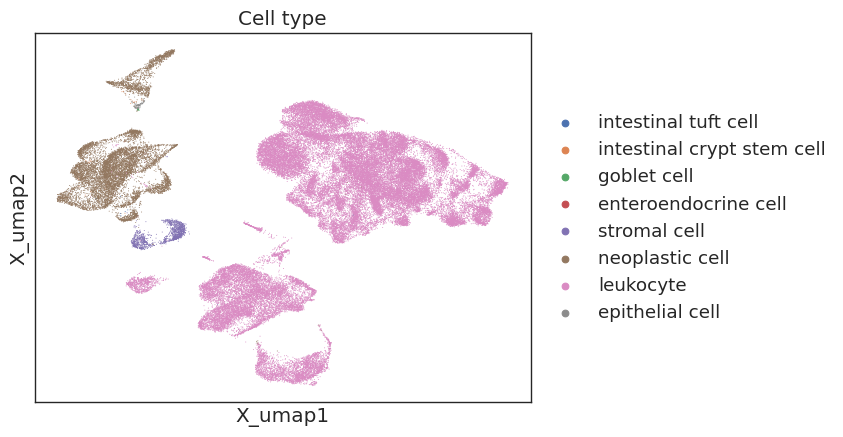\n\n\n## Compute tSNE\n\n\n```python\nadata.obsm["X_tsne"] = tsne(adata.obsm["X_pca"])\nsc.pl.embedding(adata=adata, basis="X_tsne", color="Cell type", save=".png")\n```\n\n saving figure to file figures/X_tsne.png\n\n\n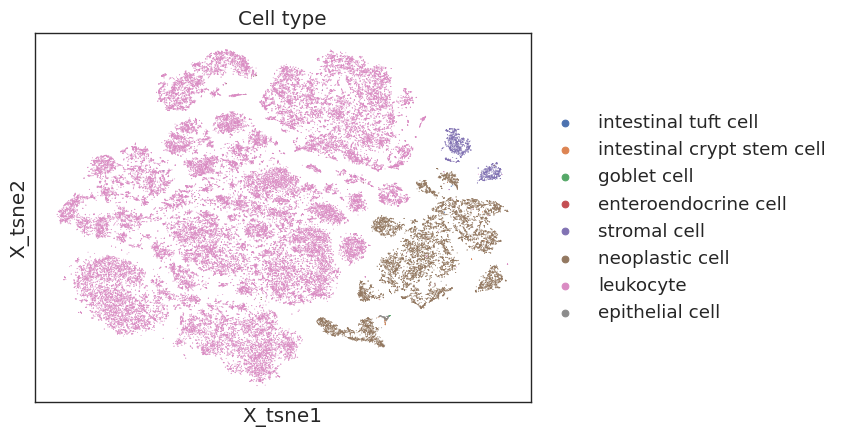\n\n\n## Compute Louvain clustering\n\n\n```python\nresolution = 1\nadata.obs[f"Louvain clustering resolution = {resolution}"] = louvain(adata.obsm["X_pca"], resolution=resolution)\nsc.pl.embedding(adata=adata, basis="X_umap", color=f"Louvain clustering resolution = {resolution}", save=".png")\n```\n\n saving figure to file figures/X_umap.png\n\n\n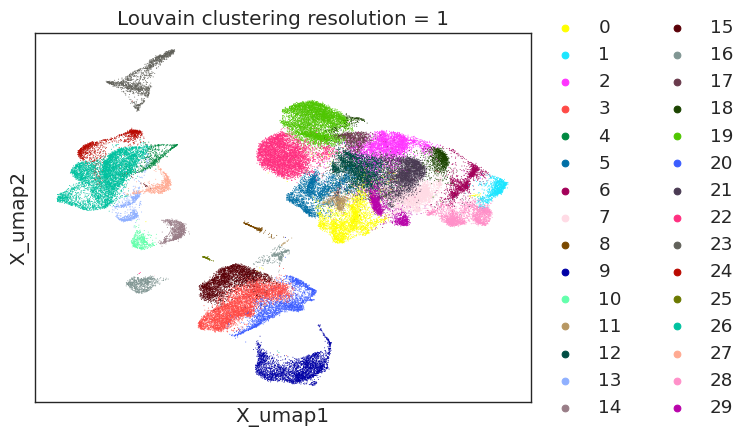\n\n',image_path:"https://cdn-assets.bioturing.com/documentation/BioFlexSdk",created_at:1756451917,updated_at:1756451917},{id:"51bed02b-c19f-4c6c-92f9-d1e8d7aa1c69",name:"Exporting and cloning public and private in-house data",platform:"COMMON_FEATURES",document_key:"COMMON_FEATURES_EXPORTING",content:'# Exporting and cloning public and private in-house data\n\n## 1. Exporting Private Data in BBX\n\n### Step 1: Open Your Study in BBrowserX\n\n- Navigate to the study that you want to export within BBrowserX.\n\n<p align=center><img src="./img/Exporting/Exporting_Study.png"></p>\n\n_<p align=center>Figure 1. Opening a Study in BBrowserX_\n\n### Step 2: Access the Export Function\n\n- Click on the **_Export_** button located at the top right corner of the BBrowserX interface.\n\n<p align=center><img src="./img/Exporting/Exporting_Export_button.png" width=600x></p>\n\n_<p align=center>Figure 2. Export Button in BBrowserX_\n\n### Step 3: Choose the Export Format\n\n- **Seurat Object**:\n\n - Exports the dataset as an `.rds` file, which is used primarily in R for single-cell RNA-seq analysis within the Seurat package.\n - **Data Included**: All assay data, including normalized data, scaled data, and any dimensionality reductions (e.g., PCA, UMAP). Metadata about cells, such as cell type annotations or clustering results, is also included.\n - **Example**: Exporting a Seurat object might be chosen if your downstream analysis requires Seurat-specific functions, like differential gene expression analysis in R.\n\n- **Scanpy Object**:\n\n - Exports the dataset as an `.h5ad` file, which is compatible with the Python-based Scanpy library.\n - **Data Included**: Similar to Seurat, this includes normalized data, and metadata. However, it also supports specific formats better suited for Python, such as AnnData structures.\n - **Example**: If you plan to analyze your data in Python, exporting as a Scanpy object allows you to take advantage of Scanpyâs extensive visualization and analysis tools.\n\n### Step 4: Metadata Export\n\n- **Metadata**:\n - Metadata includes information about the cells, such as cell type labels, sample IDs, or experimental conditions.\n - When exporting, you can either include all metadata fields or choose specific ones by selecting ***Edit*** button > ***Current metadata***\n\n<p align=center><img src="./img/Exporting/Exporting_Export_selected_metadata.png" width=800x></p>\n\n_<p align=center>Figure 3. Metadata Export Options in BBrowserX_\n\n### Step 5: Confirm Export\n\nYou can either export data to Local computer or to your S3 bucket. After select file location, the exporting process will begin.\n\n<p align=center><img src="./img/Exporting/Exporting_Save_options.png" width=900x></p>\n\n_<p align=center>Figure 4. Save options_\n\n## 2. Exporting Public Data in T2D\n\n### Step 1: Select a Public Dataset\n\n- Within Talk2Data, choose the public dataset you wish to export.\n- **Example**: Letâs say youâre interested in a publicly available dataset on immune cell response. Select this study from the public datasets available in Talk2Data.\n\n <p align=center><img src="./img/Exporting/Exporting_Explore_public_study.png" width=900x></p>\n\n_<p align=center>Figure 5. Selecting a Public Dataset in Talk2Data_\n\n### Step 2: Initiate Export\n\n- Click the **_Export_** button, similar to BBrowserX, and select the preferred export format (Scanpy or Seurat).\n\n<p align=center><img src="./img/Exporting/Exporting_Export_public_study.png" width=800x></p>\n\n_<p align=center>Figure 6. Export Button in Talk2Data_\n\n\n### Step 3: License Warning and Confirmation\n\n- A warning message will appear, indicating that exporting this dataset will c
1ost your data license. This message informs users about the current data download/license limit.\n\n **Notice**: Even if you sub-clustered and then export public data, the system will still count for whole dataset. However, each public dataset is only counted once and you can then export the same dataset without costing data license.\n\n\n<p align=center><img src="./img/Exporting/Exporting_License_warning.png" width=600x></p>\n\n_<p align=center>Figure 7. Warning Message for Public Data Export in Talk2Data_\n\n### Step 4: Complete the Export\n\nYou can either export data to Local computer or to your S3 bucket. After select file location, the exporting process will begin.\n\n<p align=center><img src="./img/Exporting/Exporting_Export_log.png" width=600x></p>\n\n_<p align=center>Figure 8. Export Progress Log in Talk2Dat_\n\n### Metadata Considerations\n\n- When exporting public data, metadata can include crucial details such as patient demographics, treatment conditions, or other annotations. Ensure that the metadata you need is included in your export by reviewing the available fields.\n\n## 3. Cloning public study to Private Server in BBX\n\nThis option appears of you are using a private server and would like to clone a public study to your private server to be shared among your research group.\n\n### Step 1: Select a Public Dataset\n\n- Within Talk2Data, choose the public dataset you wish to export and click on ***Explore*** button to navigate to the single-study interface.\n\n### Step 2: Access Export Options\n\n- Click on the **_Export_** button at the top right of the interface.\n\n<p align=center><img src="./img/Exporting/Exporting_Clone_to_private_server.png" width=600x></p>\n\n_<p align=center>Figure 9. Export Button for Cloning to Private Server_\n\n### Step 3: Select ***Clone to Private Server***\n\n- In the dropdown menu, choose ***Clone to Private Server***. This option allows you to duplicate your study, including all annotations, clusters, and metadata, onto a secure private server for shared access.\n\n### Step 4: Confirmation and Execution\n\n- Cloning public study to private server will also cost your data license. Confirm before proceeding the cloning process.\n- You will then be navigated to BBrowserX under the ***BioTuring Public Studies*** working group where the cloned study will be saved.\n\n<p align=center><img src="./img/Exporting/Exporting_Create_public_study.png" width=900x></p>\n\n_<p align=center>Figure 10. Submission Log for Cloning Public Study_\n\n- This option is particularly useful for collaborative projects where multiple researchers need access to the same dataset without each having to download and process the data independently.\n\n## 4. Downloading a Selected Group of Cells in a Study\n\n### Step 1: Select Cells of Interest\n\n- Select cells of interest by either clicking on the categorical metadata, or by dragging along the distribution plot in a numerical metadata, or by drawing on scatter plot with the lasso tool.\n\n<p align=center><img src="./img/Exporting/Exporting_Select_cells.png" width=900x></p>\n\n_<p align=center>Figure 11. Selecting Cells in BBrowserX_\n\n### Step 2: Use the Sub-clustering Feature\n\n- Click on the ***Sub-clustering*** button to isolate the selected cells. The selected group of cells will be highlighted, and the number of cells will be updated in the interface.\n\n<p align=center><img src="./img/Exporting/Exporting_Subclustering.png" width=900x></p>\n\n_<p align=center>Figure 12. Sub-Clustering Selected Cells in BBrowserX_\n\n### Step 3: Export the Selected Cells\n\n- Click the **_Export_** button and choose the appropriate format (Scanpy or Seurat). The number of exported cells will appear on the top right of the screen.\n\n<p align=center><img src="./img/Exporting/Exporting_Export_subcluster.png" width=900x></p>\n\n_<p align=center>Figure 13. Exporting Selected Cells in BBrowserX (Sub-clustered)_\n\n### Additional Metadata Note\n\n- Metadata specific to the subpopulation, such as differentiation states or activation markers, can be critical in your analysis. Ensure this information is retained in the export by reviewing the metadata options.\n',image_path:"https://cdn-assets.bioturing.com/documentation/CommonFeature",created_at:1756451098,updated_at:1756451098}
1,{id:"a27f624d-263b-43f8-814f-d131b55d5422",name:"AUCell Enrichment",platform:"COMMON_FEATURES",document_key:"COMMON_FEATURES_AUCELL_ENRICHMENT",content:'# AUCell Enrichment\n\n## Introduction\n\nAUCell Enrichment is an analytical tool used across BBrowserX, Talk2Data and BioTuring Lens, adopting AUCell algorithm ([Aibar et al., 2017](https://www.nature.com/articles/nmeth.4463)) to identify cells in a single-cell dataset with an active gene set. To calculate the AUCell score, the expression levels of genes within the gene set of interest are compared to the expression levels of all other genes in the cell using a ranking-based approach. A high AUCell score means that the gene set is highly enriched in a cell.\n\n## I. AUCell Enrichment in BBrowserX\n\n### 1. Perform AUCell Enrichment\n\n<p align="center"><img src="./img/AUCell_Enrichment/AUC_Figure_Accessing_and_setting_up_AUCell_enrichment_analysis_through_BBrowserX_interface.png"></p>\n\n_<p align="center">Figure 1. Accessing and setting up AUCell enrichment analysis through BBrowserX interface</p>_\n\n- (1) Click the **âAUCell Enrichmentâ** tool in the Toolbar, a pop-up window will appear\n- (2) In the **âSave asâ** field, type in name of the Enrichment test\n- (3) In the **Gene set** field, select a saved gene set or input gene names directly. Refer to **âGene query** for more information on saving a gene set\n- (4) Press the **âRUNâ** button to run the AUCell Enrichment test\n\nAfter running the AUCell Enrichment test,\n\n<p align="center"><img src="./img/AUCell_Enrichment/AUC_Figure_Perform_AUCell_Enrichment.png"></p>\n\n_<p align="center">Figure 2. Perform AUCell Enrichment</p>_\n\n- (1) A new numerical metadata field named _âAUCell Score - [Enrichment analysis name]â_ will be created under _âDefault metadataâ_. This metadata contains the AUCell scores for each cell of your dataset.\n- (2) A distribution plot of the AUCell scores and a bar chart displaying quartile and median scores are included in this metadata.\n- (3) The scatter plot will show your dataset colored according to the enrichment level.\n\n### 2. Explore the results of an AUCell Enrichment test\n\nYou can explore the AUCell Enrichment test results directly on the scatter plot by hovering your mouse to the cells. The AUCell scores will be shown as you point at a cell.\n\nOn the other hand, click and drag along the Distribution plot under the Metadata panel to select cells based on their AUCell scores. Once you\'ve defined a specific range, the _Selected range_ will appear under the Distribution graph, and you can adjust it by typing or pasting a value.\n\n## II. AUCell Enrichment across other platforms\n\n### 1. Talk2Data\n\nNo difference compared to AUCell Enrichment in BBrowserX\n\n### 2. BioTuring Lens\n\n#### Single-cell spatial dataset\n\n<p align="center"><img src="./img/AUCell_Enrichment/AUC_Figure_AUCell_Enrichment_test_result_for_single-cell_spatial_dataset.png"></p>\n\n_<p align="center">Figure 3. AUCell Enrichment test result for single-cell spatial dataset</p>_\n\n- (1) When viewing the AUCell Enrichment result, the cell center is colored according to the AUCell score.\n- (2) When you click and drag on the Distribution plot in the Metadata panel to select cells based on their AUCell scores, cells within the chosen region will display a white border around their center.\n\n#### Single-cell spatial dataset\n\n<p align="center"><img src="./img/AUCell_Enrichment/AUC_Figure_AUCell_Enrichment_test_result_for_bulk_spatial_dataset.png"></p>\n\n_<p align="center">Figure 4. AUCell Enrichment test result for bulk spatial dataset</p>_\n\nIn a bulk spatial dataset, each spot is colored according to AUCell score. When you click and drag along the Distribution plot to select spots with a desired score, those within the selected region will be highlighted with a white border.\n',image_path:"https://cdn-assets.bioturing.com/documentation/CommonFeature",created_at:1756451009,updated_at:1756451009},{id:"d9242508-1789-4e81-a5a2-f3e9ee2951be",name:"Cell Search",platform:"COMMON_FEATURES",document_key:"COMMON_FEATURES_CELL_SEARCH",content:'# Cell search\n\n## Introduction\n\nCell search is an advanced algorithm to search for similar cell populations in BioTuringâs single-cell database. The algorithms are not based on annotations from the authors, but on the expression profile of each cell in the context of millions of cells, to identify populations that share similar characteristics with your selected cells.\n\nDepending on the level of heterogeneity of the selected population, your selected cells will be analyzed and divi
1ded into different groups based on their gene expression. All cell populations that have similar biological signatures to each group will be retrieved and classified into different cell types.\n\nThis method helps uncover new insights in cell biology by revealing unexpected similarities among cell types. It refines or suggests annotations for cell populations based on actual gene expression, rather than relying solely on potentially biased or incomplete previous annotations. By integrating data from multiple studies, analyses become more robust and comprehensive. Additionally, users can easily create custom datasets by extracting cells of interest, allowing focused studies on specific cell populations.\n\n## Performing cell search in BBrowserX\n\n## I. Initiating cell search in scRNAseq dataset\n\nTo run your cell search analysis, first, select the groups/clusters of cells you want to run the analysis with.\n\n1. Select the group/clusters of cells in different ways:\n\n - Clicking on the cluster name in the metadata panel\n - Directly clicking on the cluster in the scatter plot\n - To select multiple clusters, hold down Ctrl/Cmd\n - Using the Lasso tool to draw around the cluster(s) you wish to select\n\n2. After selecting the groups of cells, click on âSub-clusteringâ\n3. Click on the "Cell Search" button located on the Toolbar to start the algorithm\n\n<p align="center"><img src="./img/Cell_search/CS_1.png"></p>\n\n_<p align="center">Figure 1. Select cell cluster(s) to run cell search analysis in BBrowserX</p>_\n\n<p align="center"><img src="./img/Cell_search/CS_2.png"></p>\n\n_<p align="center">Figure 2. Cell Search matched studies output</p>_\n\n## II. Navigate through the result page\n\n### 1. Matched populations\n\nThe result page is a visual representation of matched populations in a scatter plot. The number of cells from the selected population, identified cell type, and number of matched cells are displayed.\n\nThe algorithm considers the expression profile to group cells with similar gene expression patterns across a single-cell RNA sequencing database.\n\n### 2. Result page and analysis\n\n- **Scatter plot** in the center of the page displays the matched populations\n- **Metadata panel** shows the Study ID of the datasets containing the cell populations\n- **Gene query box** allows you to see the expression of any genes across the populations. Since the cells are from different datasets, we use the smoothed-binary unit. See [EXPLORE GENE EXPRESSION]() for more information about expression units\n\n1. Use the **Explore** button next to a cell type to be directed to a new page to analyze the matched populations in detail\n2. Click the **Important genes** button in the top left corner to see the list of signatures representing the biological similarity between these cells. All the gene signatures will be added to the gene query box\n3. Click on the <img src="./img/Cell_search/CS_3.png" width=25x> icon to jump directly to a study\n4. Switch to **Authorsâ cell types** to look at the original cell type annotations\n\n<p align="center"><img src="./img/Cell_search/CS_4.png"></p>\n\n_<p align="center">Figure 3. Identified cell population</p>_\n\n## III. Detailed analysis of cell types for each cell type identified by the cell search\n\n- **Signature genes:** List of genes significant to the cell populationâs biological character.\n- **Matched cell counts and studies:** The number of matched cells and the top 5 studies contributing to the result.\n- **Exploration tools:** Direct links to explore the biological significance and literature pertaining to the identified cell populations.\n- **Metadata panel:** On the right is the metadata panel, allowing you to toggle between viewing results by pseudotime value or cell state.\n- **Custom dataset creation:** The **Create custom datasets** button enables extraction of all matched cells into a new, analyzable dataset for further analysis of the matched populations.\n\n## Performing cell search in BioTuring Lens\n\n## Overview of cell search in spatial context\n\nThe Cell Search feature is a robust algorithm designed for identifying similar cell populations across BioTuring\'s single-cell database. In spatial transcriptomics, this feature is particularly valuable as it enables the matching of cell populations to provide references of their cell types.\n\n### 1. Initiating cell search in spatial datasets\n\n1. Select the spatially defined cell population by using the lasso tool or click directly on a cluster\n2. Utilize the **Cell Search** button on the Toolbar\n\n<p align="center"><img src="./img/Cell_search/CS_5.png"></p>\n\n_<p align="center">Figure 4. Select cell cluster(s) to run cell search analysis in BioTuring Lens</p>_\n\n### 2. Result interpretation and navigation\n\n1. The scatter plot will showcase the t-SNE/UMAP from those similar populations\n2. Side panels will detail matched cell counts and top 5 studies involved\n3. **EXPLORE** button will be available to analyze the matched populations\n\n<p align="center"><img src="./img/Cell_search/CS_6.png"></p>\n\n_<p align="center">Figure 5. Cell Search matched studies output</p>_\n\n### 3. Spatial signature identification\n\n- The Cell Search feature becomes more useful by comparing cluster
1s from spatial scRNAseq datasets with those from standard single-cell RNA sequencing.\n- This comparative analysis identifies key genes that define a cell population and unique spatial signature. Understanding these genes is essential for grasping cell function and interaction in their physical environment.\n',image_path:"https://cdn-assets.bioturing.com/documentation/CommonFeature",created_at:1756450976,updated_at:1756450976},{id:"59398514-33a1-471b-a2a0-2f6cc71f514e",name:"Cell Type Prediction",platform:"COMMON_FEATURES",document_key:"COMMON_FEATURES_CELL_TYPE_PREDICTION",content:'# Cell Type Prediction\n\n## Introduction\n\nAnnotating cells in your single-cell dataset can be difficult and time consuming. BioTuring provides you different ways to quickly predict and label your cells. To run the prediction on the dataset, click on **Cell Type Prediction** button and select tab that corresponds to the method you would like to use:<br>\n\n- **MetaReference** Prediction\n- **Model-based** Prediction\n- Prediction using user\'s **Gene sets**\n- Prediction using existed **Metadata**\n\n<p align="center"><img src="./img/CTP/CTP_1.png" width=650x></p>\n\n_<p align="center">Figure 1. Cell Type Prediction tool_\n\n## I. Predicting using MetaReference Prediction\n\n### 1. Method\n\n#### a. Database Preparation\n\nFirst, we establish a database for prediction from a collection of 2,087 individual studies.\nTo ensure consistency across these studies, a critical first step is standardizing the authors\' metadata.\nThis standardization process creates a common language for understanding the data.<br>\nNext, within each of the 2,087 studies, the specific gene MetaReference associated with each cell type were meticulously identified through a combination of manual and computational effort. This process yielded a massive list containing 16,071 gene markers for a total of 618 distinct cell types.\n\n#### b. Prediction\n\nThe cell type prediction takes the input as an RNA matrix and a clustered metadata. For each cluster, we identify the gene-marker list using the same approach as the database creation. Next, the similarity score between this list and the existing list in the database is calculated by the [Rank-biased Overlap (RBO)](https://dl.acm.org/doi/10.1145/1852102.1852106) method. Finally, a majority voting approach is used to predict the cell type for each cluster.\n\n### 2. Running your prediction\n\n#### a. Predict with default reference\n\nBy selecting predict with default reference, all studies from the database will be used as the reference.\n\n- Select **MetaReference** tab and choose the metadata corresponding to the clusters of cells need to be annotated\n\n - By default, a Louvain clustering with resolution = 1 will be automatically performed to be input as the selected metadata.\n - Select to annotate your cells using either **Major cell type** or **Sub cell type**\n\n<p align="center"> <img src="./img/CTP/CTP_2.png">\n\n_<p align="center">Figure 2. Cell Type Prediction using MetaReference method_\n\n- Click **PREDICT WITH DEFAULT REFERENCE** to start the annotation process. A metadata will be created based on the default prediction, you can further explore the annotation results along with supporting datasets before making the final decision.\n\n<p align="center"> <img src="./img/CTP/CTP_19.png">\n\n_<p align="center">Figure 3. Explore supporting datasets and default MetaReference metadata_\n\n#### b. Predict with customize reference\n\nThe added value of filtering in MetaReference prediction lies in its ability to tailor the reference data to the specific characteristics of your study, ensuring that only the most relevant studies and cell types are considered. Filtering allows for a more focused analysis, reducing noise and improving the interpretability of the results. Additionally, the ability to customize clustering parameters through Louvain clustering ensures that the granularity of the predictions matches the unique needs of your dataset, further enhancing the precision of cell type annotations.\n\nAfter accessing MetaReference Cell Type Prediction, select **CUSTOMIZE REFERENCE** to navigate to the customize page.\n\n##### A. Filter studies\n\nUse this page to filter studies based on standardized ontology categories including Cell Type, Tissue, Condition, and Suspension Type to refine the database.\n\n<p align="center"> <img src="./img/CTP/CTP_20.png">\n\n_<p align="center">Figure 4. Filter reference library_\n\nFor example, you can filter for studies related to cardiovascular system b
1y following steps:\n\n- If you\'re interested in studies involving the cardiovascular system, check the **_Cardiovascular system_** box under the Tissue filter. You can further specify the exact tissue (e.g., **_heart, left cardiac atrium_**) by selecting the relevant sub-options.\n- The filtering will be reflected in the studies shown in the right panel, ensuring that only relevant studies are included in your reference.\n- After applying filter criteria, click <img src="./img/CTP/CTP_Reload.png" width=25x> button to reload the number of filtered studies.\n\nOnce the filtering steps are finished, click **PREDICT** to perform cell annotation using customize reference.\n\n##### B. Custom gene sets\n\nIf your research requires focusing on specific gene sets, move to the **Custom gene sets** tab. You can either select from predefined gene sets in your library or create a new gene set by inputting gene names. This custom gene set will be used to refine the prediction, focusing on the genes most relevant to your study, potentially leading to more accurate and contextually relevant predictions.\n\n<p align="center"> <img src="./img/CTP/CTP_21.png">\n\n_<p align="center">Figure 5. Custom gene sets_\n\nOnce the custom gene sets are selected/created, click **PREDICT** to perform cell annotation using customize reference.\n\n### 3. Result Page\n\nThe result page consists of a prediction result table in the middle and a maker genes viewer region in the right handed-side.\n\n<p align="center"> <img src="./img/CTP/CTP_15.png">\n\n_<p align="center">Figure 6. MetaReference result page_\n\n- **USE CUSTOM GENE SETS**: If custom gene sets are used during the prediction process, this button will appear allowing you to use all annotation based on the custom gene sets\n- **USE MAJOR CELL TYPE ANNOTATION**: Automatically use all the annotation in the major cell type level\n- **USE SUB CELL TYPE ANNOTATION**: Automatically use all the annotation in the sub cell type level\n- **SAVE TO METADATA**: Save the prediction result as a new metadata field\n- **Prediction parameters**: Click on this button to view detailed information of prediction parameters and customize reference (Filters and Gene sets)\n- Click on the <img src="./img/CTP/CTP_8.png" width=20x> button in the upper right corner to export the prediction results (**_.tsv_** file)\n\n#### a. Overview panel\n\n<p align="center"> <img src="./img/CTP/CTP_16.png">\n\n_<p align="center">Figure 7. Prediction table_\n\n- **Cluster**: The clusters included in the metadata field you choose when setup the prediction\n- _Prediction Table_:\n - **Gene set**: If custom gene sets are used during the prediction, the Gene set column will appear showing prediction result based on the custom gene set\n - **Major Cell Type**: The prediction result on the major cell type level\n - **Sub Cell Type**: The prediction result on the sub cell type level\n - **Agreement Rate**: The percentage shows the proportion of studies agree with the annotation\n- Hoover over each prediction to view information regarding the cell type. Click **EXPLORE** to navigate to the _[Details](#b-details-panel)_ panel showing the datasets that supports this particular predicting.\n- Click on the arrow next to the cell type you want to assign to your cluster\n- **Final Annotation**: Show the final label assigned to the cluster\n- Beside using the annotation suggested by the tool, you can type the annotation yourself also.\n\n<p align="center"> <img src="./img/CTP/CTP_4.png" width=450x>\n\n_<p align="center">Figure 8. Marker genes viewer region_\n\n- In the marker gene viewer, select an original cluster, the marker gene will be shown with the highest expressed gene on top. You will see the cluster coloured red on the mini scatter plot above.\n- Base on this list, you can also provide your own annotation for the cluster by typing in _Final annotation_ field. It will automatically update the _Prediction Table_.\n- Click **VIEW ALL MARKER GENES** to navigate to the _[Genes](#c-genes-panel)_ to visualize detail expression of each gene within the marker panel.\n\n#### b. Details panel\n\n<p align="center"> <img src="./img/CTP/CTP_9.png">\n\n_<p align="center">Figure 9. Heatmap within Details panel_\n\nThis section allows you to delve into the specifics of each cell group prediction, including the datasets that support the results.\n\nThe heatmap provides a visual representation of the similarity scores between the predicted cluster and various datasets within our database.\n\n- **X-axis**: Top Marker Genes - Displays the top marker genes associated with the cluster. You can customize the number of genes displayed (up to 100) using the _Genes displayed_ field.\n- **Y-axis**: Reference Datasets - Represents different datasets that support the predicted cell type. Click on any study to
1navigate to the [Studies](#d-studies-panel) panel for detailed information of each reference.\n- **Color by**: Choose between **Major cell type** or **Sub cell type** prediction results to color and view the heatmap.\n - Note on Sub Cell Type Coloring: _Grey nodes may appear when coloring by sub cell type due to some studies only providing major cell type classifications in their original data._\n- **Node color**: Each node is colored according to the cell type supported by the corresponding reference study.\n- **Node intensity**: The intensity of the color reflects the rank of the selected gene within the reference dataset. Higher intensity indicates a stronger association between the gene and the corresponding cell type.\n- **Node size**: The size of the node represents the similarity score between the predicted cluster\'s markers and the reference dataset\'s markers. Larger nodes indicate a higher similarity score.\n- **Node scale**:\n - **Absolute Mode**: Node sizes directly correspond to the absolute similarity score, ranging from 0 to 1.\n - **Relative Mode**: Node sizes are scaled relative to the minimum and maximum similarity scores within the visualization. This mode allows for better visualization of variations within the data, especially when the overall range of similarity scores is relatively small.\n- Click **DOWNLOAD IMAGE** button to save the heatmap image\n- Hover over any node to view detailed information, including:\n - Study ID: Unique identifier for the reference study.\n - Author\'s annotation: Cell type annotation provided by the study authors.\n - Author\'s markers: Marker genes identified in the reference study.\n - Overlap: The number of genes that match between the predicted cluster\'s marker list and the reference dataset\'s marker list.\n - Similarity score: The similarity score between two lists of marker genes is calculated using [Rank Biased Overlap](https://doi.org/10.1145/1852102.1852106) (RBO). Essentially, RBO gives more weight to genes that appear near the top of the ranked list.\n - Rank: The rank represents the position of a gene in the list of positive marker genes from the reference dataset. This list is ordered based on the wLog2FC score, with higher scores indicating stronger markers.\n\n<p align="center"> <img src="./img/CTP/CTP_17.png" width=750x>\n\n_<p align="center">Figure 10. Assign final annotation to the selected cluster_\n\n- Click on a cell type to highlight all the studies support the prediction. And select **ASSIGN AS FINAL ANNOTATION** for the cluster.\n- To switch to another cluster, either select cluster in the _Cluster_ field or click on the scatter plot.\n\n#### c. Genes panel\n\nThis section lets you quickly view different information related to the genes and theirs expression among your dataset.\n\nSelect a cluster in the marker gene viewer box, the whole marker genes list will be automatically updated to the gene query panel.\n\n<p align="center"><img src="./img/CTP/CTP_12.png">\n\n_<p align="center">Figure 11. Genes panel_\n\nClick on any gene tag or search by typing on the search box to view the expression of that gene on the scatter plot. You can save the gene set or call a previous saved gene set of yours to view the expression and the related information.\n\nOn the Scatter plot, you can:\n\n- Zoom in/Zoom out by scrolling your mouse or by selecting <img src="./img/CTP/CTP_Zoom_in.png" width=30x> or <img src="./img/CTP/CTP_Zoom_out.png" width=30x> icons\n- Reset the view by selecting <img src="./img/CTP/CTP_Reset.png" width=30x> icon\n- Change the size of the dots and/or switch between dark/light mode by selecting <img src="./img/CTP/CTP_Config.png" width=30x> icon\n- Change the unit of expression by selecting one gene and click on **Unit** button\n - Log Normalized value\
1n - Raw value\n - Smoothed binary\n\n<p align="center"><img src="./img/CTP/CTP_13.png" width="850">\n\n_<p align="center">Figure 12. Genes information table_\n\nUnder the scatter plot is Gene information table corresponding to the genes queried in the Genes query panel.\n\n- Gene Symbol\n- **Log<sub>2</sub>FoldChange**: Prioritizes the differentially expression of each marker genes between clusters\n- **Weighted Log<sub>2</sub>FoldChange**: Prioritizes marker genes that are specifically expressed within a cluster, characterized by high within-cluster coverage and low outside-cluster coverage\n\n$\\text{Weighted } Log_2 \\text{(Fold Change)} = Log_2 \\text{(Fold Change)} \\times$ $\\text{Within-cluster Coverage} - \\text{Outside-cluster Coverage} \\over 100$ $\\times$ $100- \\text{Outside-cluster Coverage} \\over 100$\n\n- Within-cluster Coverage\n- Outside-cluster Coverage\n- Gene rank\n\n#### d. Studies panel\n\nThe Studies panel provides detailed information for the top 50 reference studies with the highest similarity scores to your predicted cell groups. This panel offers valuable insights into existing research and potential connections to your findings.\n\n<p align="center"><img src="./img/CTP/CTP_18.png">\n\n_<p align="center">Figure 13. Studies panel_\n\n- Click on the title of any study to navigate to the original paper.\n- The top-right of the Study tab has a search bar that allows you to filter studies based on specific terms.\n- Click on the <img src="./img/CTP/CTP_8.png" width=20x> button to export the study list (**_.tsv_** file).\n\n### 4. View previous results\n\nYou can view previous Marker-based **Cell Type Prediction** results by accessing the **Analysis Result**.\n\n<p align="center"><img src="./img/CTP/CTP_11.png" width=850x>\n\n_<p align="center">Figure 14. View previous results_\n\n## II. Predicting using Model-based Prediction\n\n### 1. Method\n\n#### a. Database Preparation\n\nFirst, we iterate through each dataset in the database to assign expressed and non-expressed genes to each cell using a [`smooth binarizer`](https://www.biorxiv.org/content/10.1101/2022.05.05.490711v1.full.pdf) Then, we identify significant marker genes for each cell type based on a scoring system called the F-beta score. Note that a single cell type may have more than one significant marker gene combination associated with it in the database. The key difference between versions 1, 2, and 3 lies solely in the size of the database used for this analysis.\n\n#### b. Prediction\n\n<u>Versions 1 and 2:</u>\n\n- A "smooth binarizer matrix" is generated for each dataset. This matrix simplifies the analysis by classifying genes in each cell as either expressed (value = 1) or non-expressed (value = 0).\n- For each cell in the dataset, the models search for a perfect match with the established marker genes in the database. This means searching for cells where all the genes in list are either completely expressed (value = 1) or completely not expressed (value = 0) in the smooth binarizer matrix.\n- If a perfect match is found with a marker gene list, the cell is confidently assigned the corresponding cell type.\n\n<u>Version 3:</u>\n\n- Apply the [AUCell](https://www.nature.com/articles/nmeth.4463) method to select the most confidently classified cells from the existing marker genes in the database\n- Leverage the Local Outlier Factor algorithm to detect "unknown" cells\n\n<u>Smooth prediction:</u>\n\n- For cells lacking a perfect match of version 1 and 2, and for the remaining un-classified cells in version 3, the k-Nearest Neighbors is employed to assign a cell type based on its nearest neighbors among the identified confidently classified cells.\n\n### 2. Running your prediction\n\nSelect the **Model-based** tab and select the version of model you would like to run. Click **PREDICT** and the result will be saved as a new metadata.\n\n<p align="center"> <img src="./img/CTP/CTP_5.png" width=750x>\n\n_<p align="center">Figure 15. Cell Type Prediction using Model-based method_\n<br>\n\n## III. Predicting using your Gene sets\n\n### 1. Method\n\nYou can use your own list of Marker genes as reference for the annotation. To do that, please prepare a group of gene sets containing the cell type and its markers before making the annotation.\n\n### 2. Running your prediction\n\nSelect the **Gene sets** tab and choose the group of gene sets containing your reference markers lists. After selecting **PREDICT**, the platform will labels your cells based on the reference lists and the result will be saved as a new metadata field.\n\n<p align="center"> <img src="./img/CTP/CTP_6.png" width=750x>\n\n_<p align="center">Figure 16. Cell Type Prediction using Gene sets_\n<br>
1\n\n## IV. Predicting using existed Metadata\n\n### 1. Method\n\nThis function allows you to use one metadata field annotation part of the dataset as training labels for the algorithm to learn and annotate the whole dataset accordingly. This function mostly used in BioTuring Lens single-cell when pathologist can create new metadata field of annotation based on histological information. Our platform will then used this information to make the prediction for the rest of the dataset\n\n### 2. Running your prediction\n\nSelect the **Metadata** tab and choose the suitable metadata field. Click **PREDICT** and the result will be saved as a new metadata field.\n\n<p align="center"> <img src="./img/CTP/CTP_7.png" width=750x> <br>\n\n_<p align="center">Figure 17. Cell Type Prediction using Metadata_\n',image_path:"https://cdn-assets.bioturing.com/documentation/CommonFeature",created_at:1756450937,updated_at:1756450937},{id:"f9dfc427-10aa-4f36-aa2e-52f94ab5798b",name:"Clonotype",platform:"COMMON_FEATURES",document_key:"COMMON_FEATURES_CLONOTYPE",content:'# Clonotype Analysis\n\n## Introduction\n\nThe analysis of T-cell receptor (TCR) and B-cell receptor (BCR) repertoires through Clonotype analysis provides profound insights into the adaptive immune system\'s specificity and diversity. These analyses are crucial for understanding immune responses at the single-cell level, enabling the tracking of clonal expansion, the identification of antigen-specific cells, and the decoding of immune system dynamics in health and disease. By integrating TCR and BCR sequencing data with single-cell RNA-seq, researchers can connect functional gene expression profiles with specific clonal lineages, adding a layer of immunological insight to single-cell analyses. BBrowserX facilitates this integration with data from 10X Chromium single-cell profiling, highlighting the necessity of the All contig annotations file from Cell Ranger V(D)J output. This combination reveals not only the heterogeneity within populations of immune cells but also how individual clones respond to pathogens, vaccines, and therapies, making it a powerful tool for immunological research and potential personalized medicine applications..\n\n## I. Methods for Uploading Data\n\n### 1. Importing Clonotype Data\n\nClick the **Clonotype** button on the Sidebar, then select the type of data: **TCR** or **BCR**.\n\n<p align="center"><img src="./img/Clonotype/Clonotype_selection.png" width="\n500px">\n\n_<p align="center">Figure 1. Selection of clonotype_\n\nIn the pop-up window, click the **UPLOAD** button to upload the file from your local computer. For cloud-stored files, import the file from **SHARED DIRECTORY** or **SHARED AMAZON S3**. If importing from your Amazon S3, choose the **YOUR AMAZON S3** section.\n\n<p align="center"><img src="./img/Clonotype/Clonotype_location.png" width="300px">\n\n_<p align="center">Figure 2. Selection of file location_\n\nOnce you have uploaded the data, you will be immediately directed to the clonotype page when clicking on the **Clonotype** button. You can always change the data file with the <img src="./img/Clonotype/Clonotype_changefile.png" width="80x"> button in the top right corner.\n\n### 2. Combining multiple batches\n\nWhen combining multiple batches, to avoid duplicated barcodes between batches, we add the batch name prefixes.\nPlease follow below instructions:\n\n#### a. Rename the batches from the submission step\n\nBy default the file names will be used as batch names. You can rename it according to experimental conditions for easier tracking (or you can keep it as original if you don\'t want to rename it).\n\n<p align="center"><img src="./img/Clonotype/Clonotype_rename.png">\n\n_<p align="center">Figure 3. Renaming the batches for combining multiple batches_\n\n#### b. Adding the prefixes when merging clonotype files\n\nEach clonotype file requires at least these columns:\n\n| `barcode` | `length` | `chain` | `v_gene` | `d_gene` | `j_gene` |\n| --------- | -------- | ------- | -------- | -------- | -------- | \n\n`c_gene` | `cdr3` | `cdr3_nt` | `reads` | `umis` | `raw_clonotype_id` |\n-------- | ------ | --------- | ------- | ------ | ------------------ |\n\nThen, you just need to add the prefix to the columns `barcode` and `raw_clonotype_id`. For example:\n\n```\nCS000099-705.clonotype:\nAAAGATGCACATGACT-1,.....,clonotype1\nAAAGATGCAGGACCCT-1,.....,clonotype2\n\nCS000099-705.clonotype:\nAAAGATGGTAGAGTGC-1,.....,clonotype1\nAAAGATGCAGGACCCT-1,.....,clonotype2\n\nThese two files will be merged as:\n\nControl_AAAGATGCACATGACT-1,.....,Control_clonotype1\nControl_AAAGATGCAGGACCCT-1,.....,Control_clonotype2\nCancer_AAAGATGGTAGAGTGC-1,.....,Cancer_clonotype1\nCancer_AAAGATGCAGGACCCT-1,.....,Cancer_clonotype2\n```\n\nAfter everything is set. Click the **Submit** button. The data is processed and the newly added will be shown on the **Study list**. Further, simply click on the study name to access and do further analysis.\n\n<p align="center"><img src="./img/Clonotype/Clonotype_submitdone.png">\n\n_<p align="center">Figure 4. Submitting multiple batch successfully_\n\n## II. Overview of Clonotype Data\n\nOn the **Summary** page, clonotype data is saved as different metadata fields and visualized on a scatter plot. You can set a cut-off value for the minimum number of cells for any metadata fields. The groups that contain fewer cells than the cut-off value will become **Unassigned** (1). Then, click the **SAVE TO METADATA** button to save the metadata you create by setting a cut-off value (2).\n\n<p align="center"><img src="./img/Clonotype/Clonotype_settings.png" width="300px">\n\n_<p align="center">Figure 5. Setting legend cutoff and saving clonotype input to metadata as its own label_\n\nOn the sidebar, there are shortcuts for you to generate Composition charts (1) and perform Differential Expression (DEG) analysis (2). To get to know these two analyses, please refer to the Guideline document for Composition analysis and Differential Expression analysis.\n\n<p align="center"><img src="./img/Clonotype/Clonotype_shortcuts.png" width="300px">\n\n_<p align="center">
1Figure 6. Analysis shortcuts within Clonotype analysis_\n\n## III. Diversity Analysis\n\nDiversity analysis of clonotypes is a challenging task. Since some clonotypes are very rare compared to others, and thereâs a limitation on the sample size, the clonotypes captured in a sample may not represent the whole clonotype population.\n\nOn BBrowserX, we use **hill numbers**, a mathematically unified family of diversity indices that incorporate relative abundance and richness, as a framework for clonotype diversity analysis.\n\n### 1. Hill numbers\n\nHill numbers are defined as:\n\n$$\n{^q}D = \\left(\\sum_{i=1}^{S} p_i^q\\right)^{1/(1-q)}\n$$\n\nS is the number of clonotypes, p<sub>i</sub> is the relative abundance of the i<sub>th</sub> clonotype.\nThe parameter q (q â 1) quantifies the sensibility of the measure to the relative abundance of each clonotype.\n\n- When q = 0, the difference in the proportion of each clonotype is completely disregarded, only the number of clonotypes, or clonotype richness, is counted.\n\n$$\n{^0}D = S\n$$\n\n- When q = 1, (\\*) is undefined, but the limit when q approaches 1 results in the exponential of the Shannon index. In this case, the measure weighs clonotypes in proportion to their frequency.\n\n$$\n{^1}D = \\lim_{q \\to 1} {^q}D = \\exp\\left(-\\sum_{i=1}^{S} p_i \\log p_i\\right)\n$$\n\n- When q = 2, the clonotypes with the higher frequency in the population are weighted more than rare clonotypes. This is the inverse Simpson index.\n\n$$\n{^2}D = 1/\\sum_{i=1}^{S}p_{i}^{2}\n$$\n\n### 2. Generating rarefaction curves with hill numbers\n\nIn the Diversity analysis page, you can adjust parameters above the graph.\n\n<p align="center"><img src="./img/Clonotype/Clonotype_diversity_analysis.png">\n\n_<p align="center">Figure 7. Diversity analysis graph parameters_\n\n- (1) Select a factor to estimate diversity on the dropdown menu\n- (2) **Hill numbers**: You can change the order of diversity q.\n - q = 0, richness.\n - q = 1, exponential Shannon index.\n - q = 2, inverse Simpson index.\n- (3) **Chart type**\n - **Sample-size based** diversity accumulation curve\n - **Coverage based** diversity accumulation curve\n- (4) The solid part of the curve is the Interpolated estimation, and the dashed line is the Extrapolated estimation, which is up to twice the sample size. The 95% confidence intervals are shown in lighter shades.\n\n<p align="center"><img src="./img/Clonotype/Clonotype_TCR_diversity.png">\n\n_<p align="center">Figure 8. TCR diversity and clonal expansion characteristics_\n\n### 3. Interpretation\n\n**Y-Axis (Vertical):**\n\n- This represents the estimated diversity, which in this context is the estimated number of unique T-cell receptors (TRA CDR3) in the sample. A higher value indicates greater diversity in T-cell receptor sequences.\n\n**X-Axis (Horizontal):**\n\n- This shows the number of cells per clone. It generally represents the sample size or the number of cells analyzed for a specific T-cell clone.\n\n**Scales:**\n\n- Both axes are on a linear scale. The X-axis goes from 0 to approximately 210,000, while the Y-axis ranges from 0 to approximately 40,000.\n\n**Curves and Interpretation:**\n\n- Two curves are shown. The purple curve corresponds to T-cell large granular lymphocyte leukemia, while the green curve corresponds to the normal condition.\n- The continuous lines represent interpolation within the data range, while the dotted lines represent extrapolation beyond the collected data range.\n- The steeper curve (green) typically indicates a higher rate of unique TCR accumulation as the number of cells increases, suggesting greater diversity among the normal T-cells. The flatter curve (purple) reflects a slower increase, indicating lower diversity, common in T-cell large granular lymphocyte leukemia, where clonal expansion of certain T-cells is observed.\n- The difference between the two curves illustrates the contrast in T-cell receptor diversity between normal and leukemic samples.\n\nIn summary, this chart helps visualize TCR diversity and provides insights into the clonal expansion characteristics of different c
1onditions, such as in T-cell large granular lymphocyte leukemia versus normal conditions. The higher the diversity, the more varied the immune response; lower diversity can indicate potential issues like clonal expansion, suggesting an imbalance in the immune system.\n\n## IV. Overlap analysis\n\nThis feature analyzes the similarity of different groups, for example, how many CDR3 sequences are shared between different patients. The result is presented on a hierarchical cluster heatmap with similar groups sitting next to each other.\nTo use this analysis, set parameters at the top of the page.\n\n<p align="center"><img src="./img/Clonotype/Clonotype_overlap_analysis_parameter.png">\n\n_<p align="center">Figure 9. Overlap analysis parameters_\n\n- (1) **Overlapped factor**: Select a factor from the dropdown menu.\n- (2) **Group by**: Select a metadata field. Different groups of the metadata field will be\n compared based on the similarity of the overlapped factor.\n- (3)**Method**: How the scores are calculated.\n- **Jaccard score**: the score between two groups is calculated as below:\n\n$$\n\\frac{\\text{Number of unique factors that appear in both groups}}{\\text{Number of unique factors that appear in at least one group}}\n$$\n\n- **Raw count:** based on the raw numbers.\n\n<p align="center"><img src="./img/Clonotype/Clonotype_clonotype_similarity.png">\n\n_<p align="center">Figure 10. Assess clonotype similarity across various T-cell subsets_\n\nThis heat map presents an overlap analysis derived from single-cell RNA sequencing (scRNA-seq), allowing us to assess clonotype similarity across various T-cell subsets.\n\n### 1. Components\n\n- Rows and Columns: The row and column labels represent distinct cell populations, reflecting the categorization of T-cell subsets from the scRNA-seq data.\n- Color Scale: The color gradient is used to represent the degree of overlap or correlation, where warm colors (shades of orange and red) signify a higher degree of overlap, while cooler tones (like yellow) indicate less overlap.\n- Numerical Values: These values within the cells of the heat map quantify the overlap, commonly using a metric like the Jaccard index. This index measures the proportion of shared elements (in this case, clonotypes) relative to the union of elements from both groups.\n\n### 2. Interpretation\n\n- Diagonal Cells: These cells represent the overlap within the same cell subset, with generally higher values due to the self-referential nature of these comparisons.\n- Off-Diagonal Cells: These cells indicate the degree of overlap between different subsets. The color intensity and numerical values reflect how much these subsets share in terms of clonotypes, providing insights into potential similarities or functional relationships among these cell types.\n\n### 3. Key Observations\n\n- High Overlap: Regions of the heat map with intense colors and high numerical values, such as those between CD4+ T effector memory and CD4+ T central memory, indicate significant clonotype overlap, suggesting a shared T-cell receptor (TCR) repertoire.\n- Low Overlap: Lighter regions, with lower numerical values, like those between CD8+ T naive and CD4+ T central memory, suggest minimal clonotype overlap, indicating distinct TCR repertoires.\n\nOverall, this heat map provides a comprehensive visual representation of the degree of clonotype sharing across different T-cell subsets in the scRNA-seq data. This type of analysis can be valuable in understanding the diversity and potential lineage relationships within the T-cell compartment, contributing to studies in immunology and cellular differentiation.\n\n## V. CDR3 spectratyping\n\nCDR3 spectratyping is a process to understand the diversity and distribution of the CDR3 regions of T-cell receptors (TCR) within a population of T-cells. In the study of T-cell large granular lymphocyte leukemia (T-LGLL), CDR3 spectratyping becomes highly relevant. The CDR3 region is the most variable part of the TCR, responsible for recognizing and binding to specific antigens presented by the major histocompatibility complex (MHC) on antigen-presenting cells. This variability is crucial for the immune system to re
1cognize a wide array of antigens.\nThis tool provides the probability density plots for the distribution of CDR3 lengths.\n\n<p align="center"><img src="./img/Clonotype/Clonotype_propability_density.png">\n\n_<p align="center">Figure 10. Probability density plots of the distribution of CDR3 lengths_\n\n- (1) Select a factor on the dropdown menu\n- (2) On the metadata panel on the right-hand side, you can select a metadata field to split the plots by different groups of the field.\n',image_path:"https://cdn-assets.bioturing.com/documentation/CommonFeature",created_at:1756450859,updated_at:1756450859},{id:"f411b5eb-5736-402e-85c1-3085fcbddc70",name:"Composition",platform:"COMMON_FEATURES",document_key:"COMMON_FEATURES_COMPOSITION",content:'# Composition\n\n## Introduction\n\nComposition is an informative tool used across BBrowserX, Talk2Data and BioTuring Lens, allowing users to have a comprehensive view of group proportions within a dataset or customized atlas. Moreover, it lets users easily select and customize compared groups to tailor their analysis.\n\n## I. Composition analysis in BBrowserX\n\nComposition tool allows you to choose up to 4 metadata fields. When you pick a categorical metadata field on the main page, a composition chart for that field is created as soon as you enter the page. In the example below, we want to look at the cell type composition under different conditions. So, we set _Condition_ and _Cell type_ for the first two metadata fields. The remaining fields are left unassigned with a None value. Finally, click **GENERATE CHART**.\n\n1. Select the metadata from the dropdown menu. The number shown next to each field in brackets is the number of groups in that field.\n2. A composition chart has a tree structure with each level aligning to each metadata field you assigned.\n The size of a node at each level represents its percentage in its parent.\n3. The bar chart on the right displays cell counts per group and their percentages in the whole dataset.\n4. Hover over a node or a bar to see more details.\n5. You can also access the Differential Expression tool using the shortcut on the top right corner. For more details on [Differential Expression]().\n\n<p align="center"><img src="./img/Composition/Composition_23.png"></p>\n\n_<p align="center">Figure 1. Create composition chart_\n\n### 1. Adding expression heatmap to composition chart\n\nAfter creating the composition chart, you can check gene expression levels within each group.\n\n1. Typing or pasting genes into the left-side query box. An expression heatmap will replace the bar chart.\n2. The size of a circle represents the percentage of cells that express the gene, or the coverage.\n3. The color represents the expression level of the gene in the datasets. The darker the color, the higher the level of gene expression.\n4. Hover the mouse over a circle to see details about the mean expression of a gene and the number of cells expressing that gene.\n5. You can save the current image by clicking on the icon <img src="./img/Composition/Composition_24.png" width=25x> or export the figure to Vinci for further editions using the icon <img src="./img/Composition/Composition_25.png" width=25x>\n6. To export the data table, you can click on the icon <img src="./img/Composition/Composition_27.png" width=30x>\n\n<p align="center"><img src="./img/Composition/Composition_26.png"></p>\n\n_<p align="center">Figure 2. Adding expression heatmap_\n\n### 2. Adding components to composition chart\n\n- Categorial metadata field: A bar chart represents the composition of each group based on that chosen category.\n- Numerical metadata field: A bubble heatmap displays the values of each group.\n\n## II. Composition tool across other platforms\n\nThe Composition tool is available in **BBrowserX**, **Talk2Data**, and **BioTuring Lens**, offering a nearly identical structure and functions, with only a few exceptions:\n\n### 1. Talk2Data\n\nIf you\'re analyzing a custom atlas made from various studies and you add a gene expression heatmap to the composition chart, it\'ll differ from BBrowserX\'s heatmap. Each bubble displays gene expression in the group using average rank instead of mean expression.\n\nThis difference addresses batch effects when merging data from different studies. Weâve taken 2 steps: (1) ranking gene expression in cells from 1 to 5000, with rank 5000 being the highest expression. (2) using a true/false transformation to indicate if a gene is expressed in a cell. For instance, if gene A has a rank of 4321 in cell B, it means gene A is expressed in cell B and holds the rank 4321. For more detail, look at [doc]().\n\n<p align="center"><img src="./img/Composition/Composition_28.png"></p>\n\n_<p align="center">Figure 3. Composition tool in BBrowserX vs. composition tool in Talk2Data_\n\n### 2. BioTuring Lens\n\n- **Bulk spatial:** When using the Composition tool to analyze bulk spatial datasets, hovering over a node of a group displays the number of spots in that group instead of the number of cells.\
1n\n<p align="center"><img src="./img/Composition/Composition_29.png"></p>\n\n_<p align="center">Figure 4. Composition tool to analyze bulk spatial datasets_\n\n- **Single-cell spatial:** No difference compared to the Composition tool in BBrowserX.\n\n<p align="center"><img src="./img/Composition/Composition_30.png"></p>\n\n_<p align="center">Figure 5. Composition tool to analyze single-cell spatial datasets_\n',image_path:"https://cdn-assets.bioturing.com/documentation/CommonFeature",created_at:1756450746,updated_at:1756450746},{id:"76722b3f-1051-4360-8817-3247f3f3ab44",name:"Differential Expression",platform:"COMMON_FEATURES",document_key:"COMMON_FEATURES_DIFFERENTIAL_EXPRESSION",content:'# Differential Gene Expression (DGE) Analysis\n\n## Introduction\n\nDifferential Gene Expression (DGE) analysis compares gene expression levels among different cell groups, revealing up-regulated or down-regulated genes and insights into cell responses and functions. It helps identify differences in gene transcript abundance using statistical tests between any two cell groups in a dataset. Statistical analyses like the t-test, Wilcoxon rank-sum test, or more complex models compare gene expression levels after defining cell populations. Corrections for multiple testing, such as the Bonferroni or Benjamini-Hochberg procedures, are applied to control the false discovery rate due to the large number of genes.\n\n## Creating a new DGE analysis in BBrowserX\n\n## I. Performing DGE in a single-cell RNA seq dataset\n\nTo perform DGE, click on the **Differential Expression** button on the Sidebar. You will be directed to the DGE settings page.\n<br>\n\n<p align="center"><img src="./img/Differential_Expression/DEG_Figure_Feature_of_performing_DGE_analysis.png"></p>\n\n_<p align="center">Figure 1. Feature of performing DGE analysis </p>_\n\nThe panel on the right-hand side allows you to perform the following:\n\n### 1. Two groups\n\nDifferential gene expression (DGE) analysis helps you to explore the differences in the abundance of gene transcripts between any two groups of cells in a dataset using statistical tests. For example, it facilitates comparisons between cancer cells and normal cells.\n\nCreate an analysis:\n<br>\n\n<p align="center"><img src="./img/Differential_Expression/DEG_Figure_Two_groups_interface.png"></p>\n\n_<p align="center">Figure 2. Two groups interface </p>_\n\n- (1) **Title**: Set a title for your analysis. This will help you access your analysis on the history page.\n- (2) **First group/Second group**: This toggle button is for switching between the two groups. After selecting cells for a group, switch to the other group.\n- (3) **Group name**: Set a name for the current group. A name helps you to distinguish between the two groups. If you leave this field empty, the two groups will be referred to as *âGroup 1â* and *âGroup 2â*.\n- (4) Three methods for assigning cells to a group:\n - **Metadata**: First, select a categorical metadata field, then select one of the groups in the field\n - **Lasso**: Use the lasso tool to select cell clusters on the scatter plot on the left. Press the `Ctrl` (Windows)/`Cmd` (MacOS) key to select multiple clusters.\n - **Composition**: Generate a composition chart and select a group by clicking on a node on the chart. You can select multiple groups.\n- (5) **Genes select**: Choose what genes to be **Include** or **Exclude** in the DGE test. Hold and drag along the **Expression coverage** bar to set a threshold for cells expressed the selected gene. By default, all gene will be included with the expression coverage over 10%. More detail to be shown in section _[3. Rationale for including/excluding gene sets or setting expression coverage thresholds](#3-rationale-for-includingexcluding-gene-sets-or-setting-expression-coverage-thresholds)_ below.\n- (6) **Method**: Choose between three statistical methods Venice, t-test, Wilcoxon. More detail to be shown in section _[4. Statistical Method](#4.-Statistical-Method)_ below.\n\nOnce the parameters are set, click **RUN** to perform DGE analysis.\n\n### 2. Pairwise Comparisons\n\nThis feature facilitates pairwise comparisons across multiple groups within a metadata field, allowing you to conduct multiple analyses effortlessly. For instance, you can compare different subtypes of T cells in an immune response with just one click.\n<br>\n\n<p align="center"><img src="./img/Differential_Expression/DEG_Figure_Pairwise_comparisons_setup_interface.png"></p>\n\n_<p align="center">Figure 3. Pairwise comparisons setup interface</p>_\n\n### 3. Rationale for including/excluding gene sets or setting expression coverage thresholds\n\n- **Including/excluding gene sets**\n - Biological relevance: Gene sets might be included or excluded based on their biological relevance to the study. For example, in a cancer study, genes known to be involved in oncogenic pathways might be specifically included.\n - Quality of data: Genes with poor quality data (e.g., very low expression across most cells) are often excluded to improve the robustness of the analysis.\n- **Expression coverage threshold** (e.g., >10%)\n - Reducing noise: Setting a threshold (like a gene must be expressed in at least 10% of cells) helps in filtering out genes that are only sporadically expressed, as their expression might be due to technical noise rather than true biological signal.\n - Focus on biologically meaningful genes: This threshold ensures the focus is on genes that are sufficiently expressed to potentially play a significant role in the cell populations being studied.\n\n### 4. Statistical Method\n\n- **Venice**: This is a non-parametric statistical test for single-cell data developed by BioTuring [(Vuong et al. 2020)](https://www.bi
1orxiv.org/content/10.1101/2020.11.16.384479v1). Venice divides the probability distribution of the gene expression level of a group into multiple intervals instead of looking at only the mean expression values. Therefore, this algorithm performs well even in cases where the mean expression values may not be distinguishable. When benchmarked against 14 other methods, Venice showed great accuracy, in short running time.\n- **T-test**: Studentâs t-test.\n- **Wilcoxon**: Wilcoxon rank sum test.\n\n## II. Navigating the DGE output page\n\nThe DGE result is shown on a summary table, a volcano plot, scatter plots, and a probability density plot as below.\n\n### 1. The magnitude of change and adjusted p-value\n\nThe magnitude of change (**Log<sub>2</sub>(FC)**) and adjusted p-value (**FDR**) of each gene are shown. The default cut-off for adjusted p-value is 0.05. The table is sorted by FDR values by default, with the lowest values appearing first.\n\n- You can filter the genes by changing the Log<sub>2</sub>(FC) or FDR cut-off.\n- Click on the <img src="./img/Differential_Expression/DEG_Sorting_icon.png" width=20x> icon next to a header to change the sort settings.\n- Click on a gene name to select a gene. By default, the gene with the highest adjusted p-value is selected.\n- Check the box next to a gene name to display its label on the volcano plot.\n- Click on the <img src="./img/Differential_Expression/DEG_Download_icon.png" width=20x> button to export the result for further analysis.\n\n### 2. Volcano plot\n\nEach dot represents a gene. The x-axis is the magnitude of change, and the y-axis is the p-value. The genes which are checked on the summary table will be labeled on the volcano plot. Clicking on a dot will select the gene that the dot represents\n\n### 3. Probability density plot\n\nThe probability density functions of the log-normalized expression values of the selected gene within each group along with the box plots are presented. The circles on the bottom left of the plot represent the coverage.\n\n### 4. Scatter plot\n\nThe expression of the selected gene within each group in log-normalized unit is presented.\n<br>\n\n<p align="center"><img src="./img/Differential_Expression/DEG_Figure_DGE_analysis_summary_table.png"></p>\n\n_<p align="center">Figure 4. DGE analysis summary table</p>_\n\nYou can perform DGE on the same groups with a different method by clicking the <img src="./img/Differential_Expression/DEG_Setting_icon.png" width=20x> icon in the top right corner. All analyses with different methods will be saved to your history. There are shortcuts in the top right corner to generate a heatmap of 600 significant or find potential pathways that are enriched in each group using the WikiPathway workflow system.\n\n## III. Navigating the DGE history page\n\nWhen you are on the DGE page, instead of creating a new analysis, you can scroll down to see all DGE analyses you performed on a dataset. The information displayed for each analysis includes the title, the two groups being compared, the method used, and the creation date.\n<br>\n\n<p align="center"><img src="./img/Differential_Expression/DEG_Figure_Accessing_past_DGE_analysis_results_and_management.png"></p>\n\n_<p align="center">Figure 5. Accessing past DGE analysis results and management</p>_\n\nDGE history of all datasets can also be accessed via **Analysis results** on BBrowserX.\n<br>\n\n<p align="center"><img src="./img/Differential_Expression/DEG_Figure_Accessing_analysis_results.png"></p>\n\n_<p align="center">Figure 6. Accessing analysis results</p>_\n\n## DGE in Spatial Transcriptomics data\n\n## I. Navigating the DGE output combining spatial context with gene expression\n\n- Spatial transcriptomics allows researchers to map where in a tissue or organ specific gene expression patterns occur. This is crucial for understanding the spatial organization of different cell types and how they interact in their native environment.\n- Resolution and coverage:\n - The resolution can vary from single-cell to larger tissue areas, impacting the granularity of DGE analysis.\n - Higher resolution methods can pinpoint individual cells, while lower resolution methods might analyze gene expression in clusters of cells.\
1n- Data complexity and analysis:\n - The data include not only the expression levels of genes but also their spatial coordinates, requiring specialized computational tools and analysis methods.\n - DGE analysis involves comparing gene expression across different spatial regions to identify patterns associated with specific tissue structures or disease states.\n\n## II. Creating a new DGE analysis in BioTuring Lens\n\nTo perform DGE, click on the **Differential Expression** button on the Sidebar. You will be directed to the DGE settings page. The panel on the right-hand side allows you to fill in:\n\n- (1) **Title**: Set a title for your analysis. This will help you access your analysis on the history page.\n- (2) **First group/Second group**: This toggle button is for switching between the two groups. After selecting cells for a group, switch to the other group.\n- (3) **Group name**: Set a name for the current group. A name helps you to distinguish between the two groups. If you leave this field empty, the two groups will be referred to as *âGroup 1â* and *âGroup 2â*.\n- (4) Two methods for assigning cells to a group:\n - **Metadata**: First, select a categorical metadata field, then select one of the groups in the field.\n - **Composition**: Generate a composition chart and select a group by clicking on\n a node on the chart. You can select multiple groups.\n- (5) **Method**: select one of the three available DGE methods (Venice, t-test, and Wilcoxon).\n\nAfter filling in, click the **RUN** button.\n\n**Bulk tissue transcriptomics**: Enables DGE analysis of bulk tissue samples, providing an averaged gene expression profile of all cells in the sampled area. However, this approach might miss cellular heterogeneity and subtle expression patterns present only in specific cell types.\n<br>\n\n<p align="center"><img src="./img/Differential_Expression/DEG_Figure_DGE_interface_in_BioTuring_Lens.png"></p>\n\n_<p align="center">Figure 7. DGE interface in BioTuring Lens for Bulk tissue</p>_\n\n**Single-cell spatial transcriptomics**: Enables DGE analysis of individual cells within their spatial context, allowing for the identification of cell-type-specific expression patterns and their distribution within the tissue.\n\n## Strategies for DGE analysis in multi-batch atlases in Talk2Data\n\n- **Batch correction and normalization**:\n - Batch correction is required before running the DGE analysis.\n - Techniques like Harmony (which is required in the customized atlas before conducting DEG analysis) or other integration methods.\n - The goal is to adjust the data such that the batch effect is minimized while retaining biological variation.\n- **Feature selection**: Identifying and focusing on highly variable genes across batches, which are more likely to represent true biological signals.\n- **Statistical analysis**: After batch correction, standard DGE methods (like Wilcoxon, t-test, or more advanced models like Venice) can be applied.\n',image_path:"https://cdn-assets.bioturing.com/documentation/CommonFeature",created_at:1756450641,updated_at:1756450641},{id:"43ff4152-56c8-4e2d-9450-86284c2e8535",name:"Enrichment Analysis",platform:"COMMON_FEATURES",document_key:"COMMON_FEATURES_ENRICHMENT_ANALYSIS",content:'# Enrichment Test\n\n## Introduction\n\n_Enrichment Test_ is an analytical tool used across BBrowserX, Talk2Data and BioTuring Lens. This tool uses the average AUCell scores to evaluate the enrichment level of different gene sets across groups of cells. Then F-score is used to rank gene sets based on their enrichment levels. Higher F-scores indicate gene sets that are more reliably and accurately identified as enriched.\n\n## I. Enrichment Test in BBrowserX\n\nIn the BBrowserX single study interface, you will find the **Enrichment Test** button on the Sidebar.\n\n<p align="center"><img src="./img/Enrichment_Test/ET_Figure_Enrichment_Test_in_BBX.png"></p>\n\n_<p align="center">Figure 1. Enrichment Test in BBrowserX</p>_\n\n### 1. Performing an Enrichment Test\nTo perform an _Enrichment Test_, choose the tool from the Sidebar. You will be delivered to the management page of the _Enrichment Test_.\n\n<p align="center"><img src="./img/Enrichment_Test/ET_Figure_Enrichment_Test_management_page.png"></p>\n\n_<p align="center">Figure 2. Enrichment Test management page</p>_\n\n- (1) **NEW ENRICHMENT TEST**: click this button to generate a new _Enrichment Test_\n- (2) Search box: type/paste a result title to search for _Enrichment Test_ results\n- (3) Tick this checkbox to choose a list of results for deleting\n- (4) **EXPLORE**: click this button to explore one _Enrichment Test_ result\n- (5) Select this vertical ellipsis to **Rename** or **Delete** 1 result\n\nBy choosing to generate a **NEW ENRICHMENT TEST**, a pop-up window will appear for you to set up the test conditions.\n\n<p align="center"><img src="./img/Enrichment_Test/ET_Figure_Perform_Enrichment_Test.png" width=500x></p>\n\n_<p align="center">Figure 3. Perform Enrichment Test</p>_\n\n- (1) **Title** field: enter a name for the Enrichment Test\n- (2) **Metadata level** fields: choose up to 3 levels of metadata field to compare the gene enrichment levels between groups. Metadata level 1 defines the main groups for c
1omparison while metadata level 2 and 3 will be further branched according to metadata level 1.\n- (3) **Published gene sets**: you can pick one published gene set from the Molecular\n Signatures Database (MSigDB) to test for their enrichment level within the dataset.\n- (4) **Your gene sets**: you can pick a specific gene set that you had uploaded/saved in BBrowser X to test for their enrichment level within the dataset.\n- (5) **GENERATE ENRICHMENT**: when you are ready with the test conditions, click this button to perform an _Enrichment Test_.\n\n### 2. Exploring _Enrichment Test_ results\n\nAfter generating a new _Enrichment Test_, you will be delivered to the result page.\n\n<p align="center"><img src="./img/Enrichment_Test/ET_Figure_Enrichment_Test_result_page.png"></p>\n\n_<p align="center">Figure 4. Enrichment Test result page</p>_\n\n- (1) A summary table for enriched gene sets arranged according to their F-score\n- (2) A heatmap showing enrichment levels by mean AUCell scores of chosen enriched gene sets from the summary table across different metadata fields. By default, the BBrowserX will display up to top 10 gene sets with the highest F-score.\n- (3) By default, the violin plot shows the AUCell scores of the gene set with highest F-score\n across different condition groups.\n- (4) **Export**: you can export the results in the form of either Heatmap image **_(.png)_** or Violin image **_(.png)_** or Heatmap data **_(.tsv)_** or Enrichment result **_(.tsv)_**.\n\nTo explore the Enrichment Test result page, you can set a cut-off value for the enrichment gene list by adjusting the F-score value or p-value. Furthermore, you can tick the checkbox next to the gene set name to include or exclude that set in the heatmap. By choosing the gene set name, the violin plot will show the AUCell scores of that gene set across different conditions groups.\n\n<p align="center"><img src="./img/Enrichment_Test/ET_Figure_Set_a_cut-off_value_and_arrange_the_Enrichment_Test_results.png" width=500x></p>\n\n_<p align="center">Figure 5. Set a cut-off value and arrange the Enrichment Test results</p>_\n\n- (1) Type/paste or adjust the arrow of **F-score** value and **p-value** to change the cut off values of the summary table\n- (2) Click the arrow next to **NAME** to arrange the summary table alphabetically or click the arrow next to **F-SCORE** or **P-VALUE** to arrange the summary table from largest to smallest values or vice versa\n\nRegarding the violin plot, if you click <img src="./img/Enrichment_Test/ET_Information_gene_set_icon.png" width=20x> icon on the upper left corner, a pop-up window will appear showing detailed information about the selected gene set.\n\n<p align="center"><img src="./img/Enrichment_Test/ET_Figure_Detail_information_about_a_gene_set.png"></p>\n\n_<p align="center">Figure 6. Detail information about a gene set</p>_\n\n## II. Enrichment Test across other platforms\n\nEnrichment Test is also available in other platforms including Talk2Data and BioTuring Lens (for both single-cell and bulk spatial datasets). The steps and interfaces are similar to what we described for the BBrowserX platform.\n',image_path:"https://cdn-assets.bioturing.com/documentation/CommonFeature",created_at:1756450559,updated_at:1756450559},{id:"8c8de8ac-6652-44d9-9b0e-83d4699c66c6",name:"Gene Query and Visualization",platform:"COMMON_FEATURES",document_key:"COMMON_FEATURES_GENE_QUERY_AND_VISUALIZATION",content:'# Gene query and visualization\n\n## Introduction\n\nThe gene query panel is an essential part of single-study interface across BioTuring\'s platforms, including BBrowserX, Talk2Data, and BioTuring Lens. It provides users with important tools to explore the gene expression level of any cell in a dataset and create different types of visualizations. This panel contains a gene query box and visualization tools at the top.\n\n<p align="center"><img src="./img/Gene_query_and_visualization/GQNV_Gene_query_panel.png" width=600x></p>\n\n_<p align="center">Figure 1. Gene query panel</p>
1_\n\n## I. Gene query and visualization in BBrowserX\n\n### 1. Gene query\n\n\nTo query for gene(s), type in or copy/paste gene name into the _Input genes_ box. While typing a gene name, genes that match your input will be listed below. Select a suggestion to add the gene to the search list. In case using copy/paste method, you can paste one gene or a list of genes that are separated by commas, spaces, or line breaks.\n\nAdded gene(s) will be shown on the box in individual tags. To delete a gene, click <img src="./img/Gene_query_and_visualization/GQNV_Delete_icon.png" width=20x> icon within the gene tag. To refresh the gene query box, select <img src="./img/Gene_query_and_visualization/GQNV_Refresh_icon.png" width=20x> icon.\n\n#### a. Query one gene\n\nTo query one gene, you can do as follow:\n\n- Type in or copy/paste 1 gene and click <img src="./img/Gene_query_and_visualization/GQNV_Search_icon.png" width=20x> icon or press `enter` or `return`\n- In case you already had a list of genes, click a tag to query for gene expression of that specific gene. The selected tag will be highlighted with a darker color.\n\nWhen query for a gene, by default the scatter plot will be colored by the expression level of the queried gene in Log normalized unit.\n\n<p align="center"><img src="./img/Gene_query_and_visualization/GQNV_Query_one_gene.png" width=800x></p>\n\n_<p align="center">Figure 2. Query one gene</p>_\n\nYou can change gene expression unit by selecting **Unit** button at the top left corner of the scatter plot. There are three types of units used on BBrowser X to show the expression level of a gene:\n\n- **Log-normalized**: Log-normalized value are calculated as _log<sub>e</sub>(reads per million + 1)_\n- **Raw value**: Raw expression value of a gene is the UMI counts or the number of sequence reads mapped to the transcript of that gene.\n- **Smoothed-binary**:\n - Smoothed-binary unit ([Vuong et al. 2022](https://doi.org/10.1101/2022.05.05.490711)) represents the gene expression level in a cluster as boolean values: either âexpressedâ or ânot expressedâ.\n - We use an entropy approach for choosing a gene expression cutoff that minimizes the clustering information loss. This approach, when combined with the k-nearest neighbor smoothing algorithm, can help remove the background noise without overlooking drop-outs.\n\nOn the distribution plot of each unit type, you can click and drag along to select a group of cells based on gene expression value. Further adjust the selected range by changing the min and max value.\n\n<p align="center"><img src="./img/Gene_query_and_visualization/GQNV_Select_a_group_of_cells_based_on_gene_expression.png" width=800x></p>\n\n_<p align="center">Figure 3. Select a group of cells based on gene expression</p>_\n\nAfter selecting a group of cells, you can process further in two ways:\n\n- Save and annotate the selected cells as a new metadata by choosing **Label** button\n- Select **Sub-clustering** to sub-cluster the selected cells and perform downstream analysis. Please refer to [Sub-clustering guideline]() for more information.\n\nClick on the **Color by** button in the top left corner of the scatter and select **Metadata** to switch back to color the scatter plot by Metadata or **Gene panel (binary)** to color cells based on whether they express the selected gene or not.\n\n<p align="center"><img src="./img/Gene_query_and_visualization/GQNV_Color_by_Metadata.png" width=800x></p>\n\n_<p align="center">Figure 4. Color by Metadata</p>_\n\n#### b. Query two genes\n\nTo query for co-expression of two genes, input two genes and then click <img src="./img/Gene_query_and_visualization/GQNV_Search_icon.png" width=20x> icon.\n\nWhen you query for two or more genes (a gene panel), the expression of a gene in a cell is based on whether at least one transcript of that gene is detected in the cell. In other words, a cell is identified as expressing a gene when the raw count and log-normalized expression of that gene in the cell are larger than zero.\n\nThe scatter plot will be colored based on the co-expression of two genes with yellow representing the co-expressed cells.\n\n<p align="center"><img src="./img/Gene_query_and_visualization/GQNV_Query_two_genes.png" width=800x></p>\n\n_<p align="center">Figure 5. Query two genes</p>_\n\nClick on a color block of the distribution plot to select cells. In the figure above, cells expressing CD2 are selected.\n\n#### c. Query three or more genes\n\nTo query for co-expression of three or more genes (gene panel), type or copy/paste the gene panel into the _Input genes_ box or choose your saved gene set in **MY GENE SETS** and then click <img src="./img/Gene_query_and_visualization/GQNV_Search_icon.png" width=20x> icon.\n\nWhen query for a gene panel, the scatter plot will be colored based on the _Matched count_ unit. This unit represent cells express from 1 gene to all the gene panel.\n\n<p align="center"><img src="./img/Gene_query_and_visualization/GQNV_Query_three_or_more_genes.png" width=800x></p>\n\n_<p align="center">Figure 6. Query three or more genes</p>_\n\nEach bar on the _Matched count_ distribution plot represents the cells that express a specific number of genes within the gene panel. You can click and drag along the plot to select cells. For example, in figure 6 cells that expressing one to three genes of the gene panel are selected.\n\nFor a gene panel that you input into the gene query box, select **SAVE THIS GENE SET** to save the gene and set for later use. Your gene sets can also be accessed in your library. Please refer to [Workspace management]() guideline to find more information of how to upload and manage your own get sets.\n\n<p align="center"><img src="./img/Gene_query_and_visualization/GQNV_Save_this_gene_set.png" width=600x></p>\n\n_<p align="center">Figure 5. Save a gene set</p>_\n\n### 2. Visualization tools\n\nOn top of the gene query box are six visualization plots to visualize gene expression besides the scatter plot. These include violin plot, bar chart, bubble heatmap, circos plot, intersection plot, and coexpressed genes plot.\n\n#### a. Violin plot\n\nClick <img src="./img/Gene_query_and_visualization/GQNV_Violin_plot_icon.png" width=20x> icon to be directed to the Violin plot page.\n\n<p align="center"><img src="./img/Gene_query_and_visualization/GQNV_Violin_plot_page.png"></p>\n\n_<p align="center">Figure 6. Violin plot page</p>_\n\n- (1) **Violin plot**: The white dot represents mean values. Hover your mouse over a plot to see detailed information about Mean, Median, Q1, Q3, Q1 - 1.5IQR, Q3 + 1.5IQR\n- (2) **Gene query panel**: Quer
1ied genes will be plotted on Violin plot. To make a new plot, change the input genes and click <img src="./img/Gene_query_and_visualization/GQNV_Search_icon.png" width=20x> icon.\n- (3) **Numerical metadata**: Besides plotting gene expression, you can choose a numerical metadata to be plotted on the Violin plot. Below is one example of plotting AUCell score.\n\n<p align="center"><img src="./img/Gene_query_and_visualization/GQNV_Plot_Numerical_metadata.png"></p>\n\n_<p align="center">Figure 7. Plot Numerical metadata</p>_\n\n- (4) **Categorical metadata**: Select a metadata field to generate plots for each group of the field. Check/uncheck a box next to a group label to show/hide the respective plot\n- (5) **Split by**: Select a metadata to split the plots by different groups of the selected metadata fields\n- (6) **Change unit**: Switch between different gene expression units, including _Log normalized_, _Raw value,_ and _Smoothed binary_\n- (7) **Export options**: Choose to export your plots in different formats\n - **Export Data**: Export plot as a data table (**_.csv_** file)\n - **Export to vinci**: Export plot to vinci for further editing\n - **Export image**: Export plot as an image (**_.png_** file)\n\n#### b. Bar chart\n\nClick <img src="./img/Gene_query_and_visualization/GQNV_Bar_chart_icon.png" width=20x> icon to be directed to the Bar chart page.\n\n<p align="center"><img src="./img/Gene_query_and_visualization/GQNV_Bar_chart_page.png"></p>\n\n_<p align="center">Figure 8. Bar chart page</p>_\n\nAll functions are similar to that of the [Violin plot](#a-violin-plot). The error bars represent the 95% confidence intervals. Hover the mouse over a plot to see the detailed information about mean expression value of each group.\n\n#### c. Bubble heatmap\n\nClick <img src="./img/Gene_query_and_visualization/GQNV_Bubble_heatmap_icon.png" width=20x> icon to be directed to the Bubble heatmap page.\n\n<p align="center"><img src="./img/Gene_query_and_visualization/GQNV_Bubble_heatmap_page.png"></p>\n\n_<p align="center">Figure 9. Bubble heatmap page</p>_\n\nThe sizes of the dots represent the percentages of cells that express the gene, or the coverage. The color represents the level of expression of a gene. The darker the color, the higher level of gene expression. Hover the mouse over a plot to see the detailed information about mean expression value, number and percentage of cells expressing the gene within the group.\n\nClick on the **Scale mode** toggle button to switch between **Absolute** and **Relative**:\n\n- **Absolute**: The sizes of the circles are scaled from 1% to 100%.\n- **Relative**: The sizes of the circles are scaled from the smallest value to the largest value. This mode amplifies the difference between two values.\n\nOther function are similar to that of the [Violin plot](#a-violin-plot).\n\n#### d. Circos plot\n\nClick <img src="./img/Gene_query_and_visualization/GQNV_Circos_plot_icon.png" width=20x> icon to be directed to the Circos plot page.\n\n<p align="center"><img src="./img/Gene_query_and_visualization/GQNV_Circos_plot_page.png"></p>\n\n_<p align="center">Figure 10. Circos plot page</p>_\n\nA flow represents the expression level of a gene in a group. Hover the mouse over a plot to see the detailed information about mean expression value, number and percentage of cells expressing the gene within the group.\n\nOther function are similar to that of the [Violin plot](#a-violin-plot).\n\n#### e. Intersection plot\n\nClick <img src="./img/Gene_query_and_visualization/GQNV_Intersection_plot_icon.png" width=20x> icon to be directed to the Intersection plot page.\n\n<p align="center"><img src="./img/Gene_query_and_visualization/GQNV_Intersection_plot_page.png"></p>\n\n_<p align="center">Figure 11. Intersection plot page</p>_\n\nThe matrix at the bottom shows different combinations of the input genes, and the bars represent the number of cells that express the respective combinations. We support generating intersection plot for up to 4 genes.\n\nOther function are similar to that of the [Violin plot](#a-violin-
1plot).\n\n#### f. Coexpressed genes plot\n\nClick <img src="./img/Gene_query_and_visualization/GQNV_Coexpressed_genes_plot_icon.png" width=20x> icon to be directed to the Coexpressed genes plot page.\n\n<p align="center"><img src="./img/Gene_query_and_visualization/GQNV_Coexpressed_genes_plot_page.png"></p>\n\n_<p align="center">Figure 12. Coexpressed genes plot page</p>_\n\nThe Coexpressed genes plot displays the level of co-expression between pairs of genes within the atlas based on the Jaccard score:\n\n- When you query a list of genes, the co-expression matrix will show the co-expression level of all the combinations of two genes from the list.\n- When you query for one gene, the co-expression matrix will show up to 50 genes with the highest co-expression levels in the dataset with the gene you query. By default, BBrowserX shows the top 10 co-expressed genes. You can choose to show more genes (up to 50 genes).\n\n<p align="center"><img src="./img/Gene_query_and_visualization/GQNV_Co-expressed_genes_plot_query_one_gene.png"></p>\n\n_<p align="center">Figure 13. Query one gene within the Coexpressed genes plot</p>_\n\nThe co-expression level of each pair is represented by a dot. The sizes and colors of the dots reflect the Jaccard scores.\n\nClick on the **Scale mode** toggle button to switch between **Absolute** and **Relative**:\n\n- **Absolute**: The sizes and colors of the dots are scaled from 0 to 1.\n- **Relative**: The sizes and colors of the dots are scaled from the smallest value to the largest value. This mode amplifies the difference between two values.\n\nOn the main plot, hover your mouse over a dot to see details about the Jaccard score and the number of cells co-expressing the two genes. Click on the dot to see a Venn diagram describing the co-expression of two genes and the Correlation plot on the panel and on the right-hand side. You can export the Correlation plot as an image by selecting <img src="./img/Gene_query_and_visualization/GQNV_Export_icon.png" width=20x> icon (**_.png_** file).\n\nFor the Coexpressed genes plot, you can either export the plot as a data table (**_.csv_**) or export to vinci for further editing.\n\n### 3. Shortcut to Differential Expression analysis\n\nFrom Visualization tools page, you can select **DIFFERENTIAL EXPRESSION** button to navigate to DGE analysis. Please refer to [Differential Expression]() guideline for detailed information.\n\n## II. Gene query and visualization in other platforms\n\n### 1. Gene query and visualization in Talk2Data\n\nFor single study exploration, gene query and visualization is similar to BBrowserX.\n\nFor custom atlas exploration, when query one gene, you will be able to choose between two units:\n- **Normalization**: Similar to that of [BBrowserX](#a-query-one-gene)\n- **Rank**: A ranking system of 5000 ranks with rank 5000 being the gene with highest expression value. Please refer to Talk2Data [Main Interface]() guideline for detailed information of data preprocessing.\n\n<p align="center"><img src="./img/Gene_query_and_visualization/GQNV_Rank_unit.png"></p>\n\n_<p align="center">Figure 14. Rank unit</p>_\n\nThese units are also applied for other plots within the Visualization tool.\n\nOther information is similar to that of [BBrowserX](#i-gene-query-and-visualization-in-bbrowserx).\n\n### 2. Gene query and visualization in Lens for spatial single-cell dataset\n\nWhen querying gene in a spatial single-cell dataset using Lens for spatial single-cell dataset, the scatter plot will be colored based on gene expression in the _Cell centers_ layer. For each gene tag, the color dot represents the color of _Transcripts_.\n\n<p align="center"><img src="./img/Gene_query_and_visualization/GQNV_Lens_sc_query.png"></p>\n\n_<p align="center">Figure 15. Query gene in spatial single-cell dataset</p>_\n\nOther information is similar to that of [BBrowserX](#i-gene-query-and-visualization-in-bbrowserx).\n\n### 3. Gene query and visualization in Lens for spatial bulk dataset\n\nWhen querying one gene in a spatial bulk dataset using Lens for spatial bulk dataset, you will be able to choose between three gene expression units:\n- **Log<sub>1p</sub>(TPM)**: values are calculated as: log<sub>e</sub>(transcripts per million + 1). Transcripts per million represents the number of the queried geneâs transcripts out of a million sequenced transcripts.\n- **Raw value**: Similar to that of [BBrowserX](#a-query-one-gene)\n- **Binary**:Similar to that of [BBrowserX](#a-query-one-gene)\n\n<p align="center"><img src="./img/Gene_query_and_visualization/GQNV_Lens_bulk_query.png"></p>\n\n_<p align="center">Figure 16. Query gene in spatial bulk dataset</p>_\n\nOther information is similar to that of [BBrowserX](#i-gene-query-and-visualization-in-bbrowserx).',image_path:"https://cdn-assets.bioturing.com/documentation/CommonFeature",created_at:1756450489,updated_at:1756450489},{id:"bd2b6f58-eab1-466c-af57-16def8c2a950",name:"Marker Genes",platform:"COMMON_FEATURES",document_key:"COMMON_FEATURES_MARKER_GENES",content:'# Marker Genes\n\n## Introduction\n\nMarker Genes is a feature within BBrowserX that allows you to find a gene panel - a set of differentially expressed genes, that help distinguish a group of cells from other cells within the dataset. In many cases, the expression of only one gene is not enough to tell a group apart, especially at the subtype level. Therefore, a combination of multiple genes is an effective solution to tackle this problem.\n\n## I. Selecting cells of interest\n\nPrior to performing Maker Genes anal
1ysis, you need to select a group of cells of interest. There are three ways to select cells:\n\n- **Categorical metadata fields**: select a group by clicking on the group name. Selecting multiple groups of cells at a time by holding `Ctrl` (Windows)/`Cmd` (MacOS) then choosing the groups.\n- **Numerical metadata fields**: on the distribution plot, click and drag along the desired range. Cells within the range will be selected.\n- **Lasso tool**: on the scatter plot, you can either click and select the group(s) according to the metadata field or use the **Draw selection** tool to draw around the desired cells.\n<br>\n<p align="center"><img src="./img/Marker_Genes/MG_Figure_Multiple_ways_to_select_cells_of_interest.png"></p>\n\n_<p align="center">Figure 1. Multiple ways to select cells of interest</p>_\n\n## II. Finding Marker Genes\n\nChoose the **Marker Genes** tool on the Sidebar to find Marker Genes of the selected cells.\n<br>\n\n<p align="center"><img src="./img/Marker_Genes/MG_Figure_Marker_Genes_tool.png"></p>\n\n_<p align="center">Figure 2. **Marker Genes** tool</p>_\n\nThe results page includes a gene panel table, a scatter plot, a metadata panel, and a decision tree. The gene panel with the highest F1 score is selected by default. On the scatter plot, the **All matches** cells appear in dark red color indicating cells expressing the selected panel, while **Othersâ** are cells not expressing the gene panel.\n<br>\n\n<p align="center"><img src="./img/Marker_Genes/MG_Figure_Marker_Genes_results_page.png"></p>\n\n_<p align="center">Figure 3. Marker Genes results page</p>_\n\n### 1. Configuring the gene panel table\n\nGene panels are arranged according to their F1 score in the table. By default, the **Maximum gene panel size** will be 2. You can adjust the gene panel size by filling in the number of gene or click <img src="./img/Marker_Genes/MG_Change_gene_panel_size_icon.png" width=20x> to increase/decrease gene panel size, then click **FIND**.\n\nBy choosing **Include negative genes**, the platform will use both expressed genes and not-ex
1pressed genes to define a panel. These negative genes are listed as red tags in the **NOT EXPRESS** column. Note that in this case, the âAll matchedâ cells on the scatter plot are cells expressing genes in the **EXPRESS** column and not expressing genes in the **NOT EXPRESS** column and vice versa for **Others** cells.\n<br>\n\n<p align="center"><img src="./img/Marker_Genes/MG_Figure_Configuring_gene_panel_table.png"></p>\n\n_<p align="center">Figure 4. Configuring gene panel table</p>_\n<br>\nAfter choosing one gene panel from the table, the selected panel will appear above the scatter plot. Click on the gene tag to quickly view the expression of the gene among the cell populations (1). You can switch between different metadata fields (2) and check or uncheck the checkbox next to cell groups in the metadata panel to show/hide that group of cells on the scatter plot (3).\n<br>\n\n<p align="center"><img src="./img/Marker_Genes/MG_Visualization_on_scatter_plot.png"></p>\n\n_<p align="center">Figure 5. Visualization on scatter plot</p>_\n\n### 2. Decision tree\n\nThe decision tree visualizes how the selected gene panel helps distinguish the selected group from the rest. A flow represents a cell group. By changing a chosen gene panel in the gene panel table, the decision tree will also change accordingly.\n\nThe default scale mode is **Absolute**, meaning that the sizes of different flows in the chart are proportional to the number of cells in each group. In case the number of cells in different groups varies considerably, you can change the scale mode to **Relative**.\n<br>\n\n<p align="center"><img src="./img/Marker_Genes/MG_Figure_Scale_modes_of_the_Decision_tree.png"></p>\n\n_<p align="center">Figure 6. Scale modes of the Decision tree</p>_\n<br>\nBy default, only the flow representing the selected group has color, the rest is gray. You can change the color mode to **All metadata fields** to visualize all groups on the tree. When changing metadata fields, the color within the Decision tree will change accordingly. Hovering your mouse over the flow to see detailed information of the cell number within groups.\n<br>\n\n<p align="center"><img src="./img/Marker_Genes/MG_Figure_Color_modes_of_the_Decision_tree.png"></p>\n\n_<p align="center">Figure 7. Color modes of the Decision tree</p>_\n',image_path:"https://cdn-assets.bioturing.com/documentation/CommonFeature",created_at:1756450398,updated_at:1756450398},{id:"ca248a1b-24bb-4b2f-8204-da0cfe58584a",name:"Pseudotime",platform:"COMMON_FEATURES",document_key:"COMMON_FEATURES_PSEUDOTIME",content:'# Pseudotime | Py-Monocle\n\n## Introduction\n\nPseudotime generates a trajectory illustrating the order and branching points in cellular development, facilitating visualization and comprehension of dynamic cellular changes in biological processes.\n\n### Algorithm\n\nPreviously, BioTuring supported Monocle 2 ([Qiu, Xiaojie, et al., 2017](https://www.nature.com/articles/nmeth.4402)) in BBrowserX. In this version, we introduce you to the [Py-Monocle](https://github.com/bioturing/py-monocle), which is tailored for computing pseudotime on the large single-cell database. The team has implemented the algorithm in Python based on [Monocle 3 R package](https://github.com/cole-trapnell-lab/monocle3), with optimized steps to enhance the efficiency.\n\n## I. Create a new Pseudotime analysis\n\n### 1. Create principal graph\n\nTo run your Pseudotime time analysis, first, select the groups/clusters of cells you want to run the analysis with.\n\n1. Select the suitable metadata field\n2. Select the group/clusters of cells by:\n - Click on the name of the cluster on metadata panel\n - Select the cluster by clicking directly on the scatter plot\n - If you want to select multiple clusters, hold ctrl/cmd to select the clusters\n - Use the Lasso tool to draw around the cluster(s) you want to select\n - Click on **Sub-clustering**\n3. Once you have the cluster(s) selected, click on the **Pseudotime** button on the Sidebar\n4. Select the metadata fields in the pop-up to create the principal graph\n5. Click **Run** to start the analysis\n<p align="center"> <img src="./img/Pseudotime/Pseudotime_1.png">\n\n_<p align="center"> Figure 1. Select cell cluster(s) to run pseudotime analysis_\n\n<p align="center"> <img src="./img/Pseudotime/Pseudotime_2.png">\n\n_<p align="center"> Figure 2. Create a principal graph_\n\n### 2. Select root cell\n\nAfter creating the principal graph, the platform displays a
1scatter plot that includes all the selected cells along with the principal graph and centroids.\nOn the right of the scatter plot, you can:\n\n- (1) Title the analysis\n- (2) Set the root cell: Choose a centroid as the trajectory\'s root by clicking on it; the chosen centroid number will appear in the \'Root cell\' section.\n _Note this number if you plan to analyze with a different centroid/root._\n- (3) Color cells based on a selected metadata field\n- (4) Zoom in/out\n- (5) Reset image setting\n- (6) Adjust point size\n- (7) Adjust cells and graph opacity\n- (8) Once you\'ve selected the root cell, click \'Run\' to complete the analysis\n\n<p align="center" > <img src="./img/Pseudotime/Pseudotime_3.png"> <br>\n<p align="center"> Figure 3. Select root cells in the principal graph\n\n## II. Navigate through the result page\n\nAfter running the analysis, the platform displays a result page with three main regions:\n\n### 1. Scatter plot\n\nThe central scatter plot depicts the trajectory tree, with cells colored based on their pseudotime values by default. Various buttons on the scatter plot allow you to:\n\n- (1) Zoom in/out\n- (2) Reset the view\n- (3) Export the image to Vinci for further modification\n- (4) Adjust the cell point size\n- (5) Choose projection to map all cells along the trajectory tree\n\n<p align="center"> <img src="./img/Pseudotime/Pseudotime_4.png">\n\n_<p align="center">Figure 4. Navigating the trajectory tree_\n\n<p align="center"> <img src="./img/Pseudotime/Pseudotime_5.png">\n\n_<p align="center"> Figure 5. Using the projection feature to map all cells along the trajectory tree_\n\nBelow the trajectory tree, a scatter plot displays pseudotime on the x-axis and cell states on the y-axis. Click the button to export the figure to Vinci for further editing.\n\n<p align="center"> <img src="./img/Pseudotime/Pseudotime_6.png">\n\n_<p align="center">Figure 6. Scatter plot of cell state and pseudo-time_\n\n### 2. Gene table\n\nOn the left, the gene table presents genes along with their false discovery rate (FDR) values:\n\n- (1) Click on a gene directly or search for it; its expressions will be displayed on the trajectory figure\n- (2) Click **Export** to save it\n- (3) Sort the table by gene name or FDR value\n\n<p align="center"> <img src="./img/Pseudotime/Pseudotime_7.png">\n\n_<p align="center">Figure 7. Navigating gene panel_\n\n### 3. Metadata panel\n\nOn the right is the metadata panel, allowing you to toggle between viewing results by pseudotime value or cell state.\n\n<p align="center"> <img src="./img/Pseudotime/Pseudotime_8.png">\n\n_<p align="center">Figure 8. Metadata panel to switch between the pseudotime and cell state results_\n\nClick **INTERACTIVE HEATMAP** to visualize genes on a heatmap. Refer to the _View Heatmap_ documentation for more details.\n\n<p align="center"> <img src="./img/Pseudotime/Pseudotime_9.png">\n\n_<p align="center">Figure 9. Visualize genes with a heatmap_\n\nClick **SAVE TO METADATA** to store the pseudotime analysis results, including Pseudotime and Cell state, in the metadata. Proceed with additional analyses using the main BBrowserX interface.\n\n<p align="center"> <img src="./img/Pseudotime/Pseudotime_10.png">\n\n_<p align="center">Figure 10. Proceed to analyze the saved pseudotime analysis results in BBrowserX interface_\n\n<p align="center"> <img src="./img/Pseudotime/Pseudotime_11.png">\n\n_<p align="center">Figure 11. Proceed to analyze the saved cell state analysis results in BBrowserX interface_\n\n## III. Access previous results\n\nAccessing previous pseudotime analysis results can be done in two ways:\n\n- (1) Utilizing the shortcut button on the Pseudotime interface\n- (2) Navigating to the **Analysis results** folder\n\n<p align="center"> <img src="./img/Pseudotime/Pseudotime_12.png">\n\n_<p align="center">Figure 12. Access the pseudotime results with a shortcut from the pseudotime interface and from BBrowserX interface_\n\nNot only are the results of this new version stored here, but also the pseudotime results from previous versions (utilizing Monocle2).\n',image_path:"https://cdn-assets.bioturing.com/documentation/CommonFeature",created_at:1756450362,updated_at:1756450362},{id:"fe79e409-1236-4b60-a305-0ce3ec7d470d",name:"Introduction",platform:"DOCUMENT_PIXEL",document_key:"DOCUMENT_PIXEL_SEGMENTATION",content:'# BioTuring Pixel\n\n## Introduction\n\nSegmentation is a major challenge in analyzing spatial omics data. To address this, in this early version of BioTuring Pixel provides a leveraged ver
1sion of `Cellpose` with new implementations from BioTuring. This combination offers faster processing, improved accuracy, and lower memory requirements.\n\n## Models for segmentation\n\n### I. BioTuring `CellPose`\n\n#### 1. Create and manage your projects\n\nAfter launching the application, the first interface provides information on the workflow.\n\nOn the Dashboard, you can view some prepared examples and all the projects created by you. Search for a project and/or switch between gallery view or list view <img src="./img/Pixel/ES_1.png" width="250px">\n\nTo start your project, click on **New project** button. You have two options to upload your image:\n\n- Connect and upload image via Amazon S3 bucket: [Click here](https://studio.bioturing.com/document/working-with-file#cloud-storage) for further details\n\n<p align="center"> <img src="./img/Pixel/ES_2.png" width="850px">\n\n_<p align="center">Figure 1. Upload via Amazon S3_\n\n- Upload from your local computer:\n 1. Name your project\n 2. Select files/folder to upload. You can upload multiple files at a time\n 3. When a file has finished uploading, you can select the file\n 4. And create a new project with the selected file. The rest files will be uploading in background.\n\n<p align="center"> <img src="./img/Pixel/ES_3.png" width="700px">\n\n_<p align="center">Figure 2. Upload via local computer_\n\nYou can also view an example or revisit an existed project from dashboard by double click on it.\n\n#### 2. Running segmentation\n\nAfter creating/entering a project, here is the main interface:\n\n<p align="center"> <img src="./img/Pixel/ES_4.png" width="800px">\n\n_<p align="center">Figure 3. Main interface_\n\n<u> **1. Image viewer:**</u> View and interact with your image and the segmentation result\n\nUse different tools to interact with your image:\n\n| Tool | Description |\n| ---------------------------------------- | -------------------------------------------------------------- |\n| <img width="30px" src="./img/Pixel/ES_5.png"> | Reset to the default view |\n| <img width="30px" src="./img/Pixel/ES_6.png"> | Zoom in |\n| <img width="30px" src="./img/Pixel/ES_7.png"> | Zoom out |\n| <img width="30px" src="./img/Pixel/ES_8.png"> | User ruler to measure distance between two points on the image |\n| <img width="30px" src="./img/Pixel/ES_9.png"> | Turn on/off the minimap |\n| <img width="30px" src="./img/Pixel/ES_10.png">
1 | Capture the current view |\n\n<u> **2. Image settings:**</u> Change the settings applied to your image\n\n- **Adjustment**: Adjust the lightness of your image\n\n<p align="center"> <img src="./img/Pixel/ES_11.png" width="550px">\n\n_<p align="center">Figure 4. Images settings_\n\n- **Channel**:\n\n - Click on the name of the chanel to change chanel\n - Click on the color box to assign a new color to your channel\n\n<p align="center"> <img src="./img/Pixel/ES_12.png" width="350px">\n\n_<p align="center">Figure 5. Assign color to channel_\n<br>\n\n - Click and drag the slider: From left to right to discard all the low intensity signal. From right to left to bring all the point with high intensity to a same value.\n\n<p align="center"> <img src="./img/Pixel/ES_13.png" width="350px">\n\n_<p align="center">Figure 6. Click and drag the color slider_\n\n<br>\n\n - Click on the eye icon to turn on/off the channel\n - Click on reset icon to reset the chanel to its default value\n\n- Click on **Reset to default** to reset all channels\n\n<u> **3. Toolbar:**</u> Segmentation tool\n\nSelect **Segment cell** tool on Toolbar to start your segmentation.\n\nIn the _Segment cell_ feature, you can either run a new segmentation with the supported model or upload a segmentation result obtained outside BioTuring system.\n\n- Click on **Upload boundaries** and select the result file matching with the image in your project.\n\n- In this first version of BioTuring Pixel, we support a leveraged version of the `Cellpose` model with an implementation from BioTuring. You can choose between different models in next release.\n\n- Click on **New segmentation** to start\n\n- A preview of the segment result in a random sections (samples) will appear.\n\n- To the left is the preview of random section/sample. Click on **New sample** to view more samples\n<p align="center"> <img src="./img/Pixel/ES_14.png" width="750px">\n\n_<p align="center">Figure 7. Add sample_\n\n<br>\n\n- On each sample:\n\n| Tool | Description |\n| ------------------------------------------ | -------------------------------------------------------------------------------------------------------- |\n| <img src="./img/Pixel/ES_15.png" width="30px"> | Show the log of the sample, please send us this information if you encounter issue with sampling process |\n| <img src="./img/Pixel/ES_16.png" width="30px"> | Expand and view the specific sample |\n| <img src="./img/Pixel/ES_17.png" width="30px"> | Delete the sample |\n\nIn the right-hand side of the popup, there are several parameters to setup before performing segmentation for the full image\n\n- **Estimated cell diameter**:\n - This value provide the model an estimated of average cell diameter and help the model to segment the cells. Lower cell diameter, the model focuses more on small cells while higher cell diameter, the model focuses more on the larger cells.\n - This estimated value will be automatically calculated and updated whenever you create a new sample.\n - You can also set an estimated cell diameter before running the full segmentation. Note that the manually picked estimated value will only be applied for the full segmentation, not for the segmentation in the sample preview\n- **Channels**:\n\n - This let you choose to use either one or a combination of color channels to be the input of segmentation model.\n - Alter this parameter allows you to run different segmentation to reveal either nucleus boundaries or cell boundaries\n\n- After setting up the two parameters, click on **Segment** to start the segmentation on the whole image\n\nThe results produced by our platform and the one uploaded by you will be stored all in the **Segment cell** section.\n\nWith each boundaries:\n\n- Click on the result to show/hide the boundaries on the image\n- Click on **Change color** to change the color of the segmentation\n\n<p align="center"><img width="350px" src=./img/Pixel/ES_18.png>\n\n_<p align="center">Figure 8. Change color of the segmentation_\n\n- Or export the segmentation result file to use outside BioTuring Pixel\n- Click on <img width="20px" src="./img/Pixel/ES_19.png"> icon to **View the log**, **Edit name** or **Delete** the segmentation result\n',image_path:"https://cdn-assets.bioturing.com/documentation/Pixel",created_at:1756450298,updated_at:1756450298},{id:"93948a66-d32d-4ffa-b6fe-20fbb52da869",name:"Introduction",platform:"DOCUMENT_LENS",document_key:"LENS_INTRODUCTION",content:'# Introduction to BioTuring Lens\n\n## Introduction\n\nBioTuring Lens is an advanced platform designed for c
1omprehensive spatial transcriptomics and imaging analytics. This platform empowers researchers to delve into spatial data with unprecedented depth and clarity, providing tools for both bulk and single-cell spatial analyses. BioTuring Lens supports various technologies, including 10X Visium, Visium HD, Xenium, NanoString GeoMx DSP, CosMx, and more, facilitating the seamless integration and exploration of complex spatial datasets.\n\n## Overview of Spatial Public Dataset mining in Talk2Data\n\nYou can analyze an extensive collection of public datasets for spatial omics technologies in BioTuring Lens:\n- **Bulk Spatial Transcriptomics**: 197 studies, 1799 tissue sections, 52 tissues, and 62 conditionsââ.\n\n<p align="center"><img src="./img/Introduction_to_Lens/IntroLens_Bulk.png"></p>\n\n- **Single-cell Spatial Transcriptomics**: 2300 datasets with 125 million cells from human, mouse, and primate tissuesââ.\n\n<p align="center"><img src="./img/Introduction_to_Lens/IntroLens_Sc.png"></p>\n\n- **Spatial Proteomics**: 400+ images from multiple spatial proteomics technologies like CODEX and CyCIFââ.\n\n<p align="center"><img src="./img/Introduction_to_Lens/IntroLens_Proteomics.png"></p>\n\n## I. BioTuring Lens for Bulk Spatial Transcriptomics\n### What is Bulk Spatial Transcriptomics?\nBulk spatial transcriptomics refers to the analysis of gene expression in spatially resolved tissue sections, capturing the spatial context of gene expression across entire tissue samples. This approach allows researchers to map the spatial distribution of transcripts within a tissue, providing insights into tissue architecture, cellular interactions, and pathological states.\n\n### Data Supported by BioTuring\nBioTuring Lens supports data generated by leading spatial transcriptomics technologies, including:\n- **10X Visium**: A powerful platform for capturing spatial gene expression in high-resolution tissue sections.\n- **NanoString GeoMx DSP**: Allows for high-plex spatial profiling, enabling detailed analysis of gene expression in specific regions of interest.\n- **Visium HD**: An enhanced version of Visium, offering even higher resolution and finer spatial details.\n- **Curio Bioscience**: A versatile platform for high-throughput spatial omics analysis.\n\nPlease refer to [BioTuring Lens Submission guideline](Lens-Submission.md) for more detail of the file format requirements.\n\n### Distinct Features\n- **Interactive Image Viewer**: Visualizes gene expression data and annotations directly on tissue images, enabling easy navigation and exploration.\n- **Primary Analyses**: Includes differential gene expression, pathway analysis, and top expressed genes identification.\n- **Cell Type Deconvolution**: Leverages single-cell RNA-seq data to construct detailed cellular maps within tissues, enhancing sensitivity and resolutionâ using `Cell2Location`.\n- **Annotation Tools**: Allows users to select and save labels as metadata for further analysis.\n- **Louvain Clustering**: Groups similar wells/segments to uncover patterns in the data.\n- **AUCell Enrichment**: Identifies wells/segments enriched for active gene sets and biological processes.\n- **Seamless Transition**: Converts bulk spatial datasets into single-cell datasets for robust downstream analysis using the 2D embedded view.\n\n## II. BioTuring Lens for Single-cell Spatial Transcriptomics and Spatial Proteomics\n\n### A. Single-cell Spatial Transcriptomics\n#### What is Single-cell Spatial Transcriptomics?\nSingle-cell spatial transcriptomics involves analyzing gene expression at the single-cell level within the spatial context of tissues. This method provides high-resolution insights into cellular heterogeneity and interactions, facilitating a deeper understanding of tissue organization and function.\n\n#### Data Supported by BioTuring\nBioTuring Lens supports single-cell spatial data from various cutting-edge technologies:\n- **10X Genomics Xenium**: Integrates spatial and single-cell data to provide comprehensive views of gene expression.\n- **NanoString CosMx**: Enables high-plex spatial profiling at the single-cell level.\n- **Vizgen MERSCOPE**: Offers detailed spatial maps of gene expression in tissues.\n\nPlease refer to [BioTuring Lens Submission guideline](Lens-Submission.md) for more detail of the file format requirements.\n\n#### Distinct Features\n- **Cell-Cell Interaction Analysis**: Analyzes communication between individual cells, critical for understanding tissue function and disease progressionââ.\n- **Spatial Network Construction**: Uses graph theories to represent cells and their spatial relationships, facilitating the analysis of spatially variable genesââ.\n- **Moranâs I Score**: Identifies spatially variable genes by evaluating spatial autocorrelation of gene expressionââ.\n- **Visualization Tools**: Includes various plot types like bar charts, violin plots, and heatmaps to present gene expression data.\n\n### B. Spatial Proteomics\n\n#### What is Spatial Proteomics?\nSpatial proteomics involves the analysis of protein expression within the spatial context of tissues. This approach provides insights into the spatial distribution of proteins, revealing functional aspects of tissue organization and cellular interactions.\n\n#### Data Supported by BioTuring\nBioTuring Lens supports spatial proteomics data from multiple technologies, including:\n- **CODEX (CO-Detection by indexing)**: Enables highly multiplexed imaging of protein expression in tissues.\n- **CyCIF (Cyclic Immunofluorescence)*
1*: Allows for repeated rounds of staining and imaging to profile numerous proteins in the same tissue section.\n- **mIHC (Multiplexed Immunohistochemistry)**: A technique that enables the visualization of multiple proteins within a tissue section using different antibodies.\n\nPlease refer to [BioTuring Lens Submission guideline](Lens-Submission.md) for more detail of the file format requirements.\n\n#### Distinct Features\n- **Interactive Image Viewer**: Visualizes protein expression data on tissue images, facilitating exploration of spatial proteomics data.\n- **Primary Analyses**: Includes protein expression quantification, co-expression analysis, and pathway enrichment.\n- **Advanced Segmentation Tools**: Enables precise identification and quantification of proteins in specific cell types and tissue regions.\n',image_path:"https://cdn-assets.bioturing.com/documentation/Lens",created_at:1756450064,updated_at:1756450064},{id:"123b1a05-a8a8-4003-acc2-584d37273241",name:"Cell-cell Interaction",platform:"DOCUMENT_LENS",document_key:"LENS_CELL_CELL_INTERACTION",content:'# Cell-Cell Interaction in Spatial Transcriptomics\n\n## Introduction\n\nIn spatial transcriptomics, cell-cell interaction refers to how individual cells communicate, influence each other, and contribute to the function of a tissue or organism. These interactions are critical in many biological processes, such as development, immune responses, and disease progression.\n\n**Here\'s a breakdown of the process:**\n\n1. **Gene transcript probes**: The probes detect specific RNA transcripts within cells. Each probe, a small DNA or RNA piece, complements the target RNA. When a probe binds to its target transcript in a cell, it can be detected and quantified. This is often done using fluorescence, where each probe is labeled with a fluorescent dye.\n\n2. **Location-based analysis**:\n\n - **Mapping**: Cells in a tissue are initially spatially mapped using advanced imaging techniques that precisely locate individual cells in 3D space.\n - **Hybridization**: The gene transcript probes are applied to the tissue sample, where they hybridize or bind to their specific target transcripts within the cells.\n - **Detection**: The bound probes are detected and quantified.\n\n3. **Correlating Expression and Location**: Analyzing cell interactions includes examining signaling pathways, physical contact, and other forms of communication between neighboring cells.\n\n4. **Functional Interpretation**: For example, in a tumor, cancer cells might influence nearby immune cells, evident from alterations in gene expression patterns.\n\n## Performing Cell-Cell Interaction in Single-Cell Spatial Datasets\n\n#### I. Select a Cluster or Population of Cells\n\nThis analysis is currently available only for single-cell spatial technologies in BioTuring Lens single-cell version. You can apply it to your in-house data or a public dataset. The first step is selecting a cluster using the metadata overview dropdown.\n\nFor example, in this case we want to run the correlation of expression and location in the luminal epithelial cell population below.\n\n<p align="center"><img src="./img/Cell-to-cell_Interaction/Cell-to-cell_Sub-cluster.png" width=900x></p>\n\n_<p align="center">Figure 1. Managing metadata overview to select cells_\n\nTo isolate the population, use the sub-clustering feature before proceeding with the cell-cell interaction feature, as demonstrated below.\n\n<p align="center"><img src="./img/Cell-to-cell_Interaction/Cell-to-cell_Perform.png" width=900x></p>\n\n_<p align="center">Figure 2. Sub-clustering population_\n\n### II. Visualizing All Transcript Location-Based Analysis\n\nOnce the probes are bound, their locations (and thus the locations of the RNA transcripts they are bound to) are detected, often using fluorescence microscopy. This provides data on which genes are being expressed in each cell and where those cells are located. To visualize all locations where you observe cells interacting in the tissue, select the interacting gene transcript pair from the list by clicking on the arrow. Below, we display location 260 where there is a notable correlation in expression and location between CD8A and MLPH.\n\n<p align="center"><img src="./img/Cell-to-cell_Interaction/Cell-to-cell_Interacting_pair.png" width=900x></p>\n\n_<p align="center">Figure 3. Cells Interacting and their transcript pairs_\n\n### III. Saving All Locations of Selected Interacting Cells\n\nTo save the tissue location where cells exhibit a significant correlation in expression and location, click on the location icon in the left-hand corner to open the **Save Current Region** option.\n\n<p align="center"><img src="./img/Cell-to-cell_Interaction/Cell-to-cell_Region.png" width=900x></p>\n\n_<p align="center">Figure 4. Save current region_\n\n### IV. Measure Distance of Interacting Pairs of Cells\n\nIf you want to measure close proximal distances, select the ruler icon, drag, and create measurements for the interacting cells.\
1n\n<p align="center"><img src="./img/Cell-to-cell_Interaction/Cell-to-cell_Distance.png" width=500x></p>\n\n_<p align="center">Figure 5. Proximal distance measurement of interacting cells_\n',image_path:"https://cdn-assets.bioturing.com/documentation/Lens",created_at:1756449954,updated_at:1756449954},{id:"658924ee-7441-4e9a-95b8-a217d912de4d",name:"File Submission",platform:"DOCUMENT_LENS",document_key:"LENS_FILE_SUBMISSION",content:'# File Submission\n\n## I. Submit a study\n\nSubmitting data to our BioTuring Lens platforms is similar for both bulk and single-cell analysis. Before submitting your data, please make sure that:\n\n- Youâre in the right workspace: Your **Personal workspace** or a **Group workspace**\n- Select the right species: **Human/Mouse/Non-human primate/Others**\n\n<p align="center"><img src="./img/Lens-Submission/Submission_Select_workspace_and_species.png" width=800x></p>\n\n_<p align="center">Figure 1. Select workspace and species</p>_\n\nClick on **ADD STUDIES** to start the submission process. You will see a pop-up showing each platform\'s supported data format. Select the one corresponding to your data.\n\n<p align="center"><img src="./img/Lens-Submission/Submission_Data_format.png" width=800x></p>\n\n_<p align="center">Figure 2. Data format</p>_\n\n### 1. Set up a study\n\nIn BioTuring Lens for bulk spatial data, after selecting one data format, a pop-up of two sections will appear:\n\n<p align="center"><img src="./img/Lens-Submission/Submission_Set_up_a_bulk_spatial_dataset.png" width=600x></p>\n\n_<p align="center">Figure 3. Set up a bulk spatial dataset</p>_\n\n- **Study info**: Let you fill in some information related to your dataset. This is optional; if you donât fill this section, each point will be assigned as TBD\n- **Input files**: A quick guidance for files required for each data type is presented. For more details, view [File format instruction]() below.\n\nIn BioTuring Lens for single-cell spatial data, the pop-up includes an additional part:\n\n<p align="center"><img src="./img/Lens-Submission/Submission_Set_up_a_single-cell_spatial_dataset.png" width=800x></p>\n\n_<p align="center">Figure 4. Set up a single-cell spatial dataset</p>_\n\n- **Filtering params**: Similar to single-cell RNAseq data, this option lets you set up the filtering parameters.\n- **Platform**: Please select one of the supported platforms (data types). For more details on the required files, view [File format instruction]() below.\n\n### 2. Upload a study\n\nClick on Batch 1 to upload your first batch/sample in your dataset.\n\nBioTuring provides you with three ways of uploading your data:\n- From local computer: Only available for bulk spatial data\n - Note that BioTuring has disabled uploading spatial single-cell omics data from local computers/drives to our platform since uploading these big-size data can cause the browser to freeze and crash the uploading process.\n- From a shared directory\n- From your Amazon S3 bucket\n\n<p align="center"><img src="./img/Lens-Submission/Submission_Source_of_data.png" width=600x></p>\n\n_<p align="center">Figure 5. File location</p>_\n\n#### a. Uploading data from your local computer:\n\nClick on the **UPLOAD** button. You will be navigated to choose the file from your local computer. We suggest you organize all the required files for each batch in one folder. Hence you will be able to select all the required files at once.\n\n#### b.Uploading data from a shared directory\n\n#### c. Upload data from your Amazon S3 bucket\n\nBefore uploading, select **Configure** to configure our Amazon S3 bucket and you will be navigated to the management page.\n\n<p align="center"><img src="./img/Lens-Submission/Submission_Configure_S3.png" width=400x></p>\n\n_<p align="center">Figure 6. Configure Amazon S3</p>_\n\n<p align="center"><img src="./img/Lens-Submission/Submission_Add_bucket.png" width=800x></p>\n\n_<p align="center">Figure 7. Add new Amazon S3 bucket</p>_\n\nAccess **Settings** and choose **ADD NEW S3**. A pop-up window will appear for you to add all the required information to connect your BioTuring account with your S3 bucket. Please contact your IT department to obtain the required information.\n\nThen select **ADD** your bucket. After that, go back to add the study, now the Amazon S3 will be available and you can choose the files to upload. We suggest you organize all the required files for each batch in one folder. Hence you will be able to select all the required files at once\n\n### 3. Select/Preview files prior to uploading\n\nIn case your dataset contains 1 file, click on the file name and press **SELECT** button to upload the file.\n\n<p align="center"><img src="./img/Lens-Submission/Submission_Select_1_file.png" width=800x></p>\n\n_<p align="center">Figure 8. Select one file to submit</p>_\n\nIn case your dataset contains multiple files, we suggest you organize all the required files within one folder. Click on the folder name, and press **PREVIEW** button to verify the folder structure before uploading.\n\n<p align="center"><img src="./img/Lens-Submission/Submission_Preview_folder.png" width=800x></p>\n\n_<p align="center">Figure 9. Preview folder</p>_\n\n<p align="center"><img src="./img/Lens-Submission/Submission_Verify_folder_structure.png" width=800x></p>\n\n_<p align="center">Figure 10. Verify folder structure</p>_\n\nBy choosing to verify the folder structure, the pop-up window will be separated into two parts:\n- (1) Tab 1 lists out all the required files and auto-select the files/sub-folders with the similar names from your prepared folder. If the file/sub-folder names are not match, the red notice will appear as in figure 10.\n- (2) Tab 2 shows all the files in the selected folder. You can manually click and frag a file to the corresponding field in tab 1.\n- Once all the fields in tab 1 are filled, the **SELECT** button will light up allowing you to upload the folder.\n\n### 4. Submit a study\n\nAfter uploading batch 1, you can click on the <img src="./img/Lens-Submission/Submission_Add_batch_icon.png" width=20x> icon to add more batch and repeat steps in section [2. Submit a study](#2-upload-a-study) and [3. Select/Preview files prior to uploading](#3-selectpreview-files-prior-to-uploading).\n\nAfter uploading all batches and verifying all parameters, check the **Agree** box and click **SUBMIT** to submit your data to BioTuring Lens for further analysis.\n\nIf you encounter any difficulties while uploading your data, please click on **VIEW TASKS** in the management page and copy for us the **TASK ID** and screenshot the log and send us via email: [email protected] for further assistance.\n\n<p align="center"><img src="./img/Lens-Submission/Submission_Error.png" width=800x></p>\n\n_<p align="center">Figure 11. Task ID and Submission log</p>_\n\n## II. File format instruction\n\n### A. Bulk spatial dataset\n\n#### 1. Nanostring GeoMx\nFor this format, users are required to provide two specific input files exported from the NanoString GeoMx DSP:\n- `image.ome.tiff`\n- `BiologicalProbeQC.xlsx`\n\nTo learn more about the two files format, please refer to [NanoString Document Library](https://university.nanostring.com/page/document-library).\n\n#### 2. 10X Genomics Visium Spatial Gene Expression\nBioTuring Lens for Bulk spatial omics allows users to submit raw output files from the 10X Space Ranger pipeline and processed files from the userâs internal pipeline, including:\n- 10X Space Ranger output\n- Visium HD output\n- Seurat object\n- scanpy object\n\nThe detailed requirements for each format are described
1in the sections below.\n\n##### a. 10X Space Ranger output (Visium Folder)\nFor this format, users are required to provide four specific input files from the output of the 10X Space Ranger pipeline:\n- `image.tif`/`image.tiff`/`tissue_hires_image.png`/`tissue_lowres_image.png`\n- `scalefactors_json.json`\n- `tissue_positions.csv`/`tissue_positions_list.csv`\n- `filtered_feature_bc_matrix.h5`/`raw_feature_bc_matrix.h5`\n\n- `image.tif`/`image.tiff`/`tissue_hires_image.png`/`tissue_lowres_image.png`\n\n**Purpose**: The image file is the primary input file that contains the tissue image required for the visualization of the BioTuring Lens Bulk.\n\n**Format requirements**:\n- Users are encouraged to use the original, full-resolution tissue image from the slide scanner. BioTuring Lens accepts TIF, as well as pyramid TIFFs. This file should be the microscope image without fiducial frame (TIFF), NOT the output image from 10X Visium CytAssist.\n- BioTuring Lens also accepts the downsampled versions of the original tissue image from the Space Ranger pipeline: `tissue_hires_image.png` or `tissue_lowres_image.png`. These files make the data uploading and processing faster but give a lower-resolution image in the final output.\n\n- `scalefactors_json.json`\n\n**Purpose**: This file comprises scaling factors applicable to the tissue image of various resolutions.\n\n**Format requirements**: The file must be a JSON file and contains the following fields - as described in the [Space Ranger pipeline outputs](https://support.10xgenomics.com/spatial-gene-expression/software/pipelines/latest/output/spatial) from 10X Genomics:\n- **tissue_hires_scalef**: A scaling factor that converts pixel positions in the original, full-resolution image to pixel positions in tissue_hires_image.png.\n- **tissue_lowres_scalef**: A scaling factor that converts pixel positions in the original, full-resolution image to pixel positions in `tissue_lowres_image.png`.\n- **fiducial_diameter_fullres**: The number of pixels that span the diameter of a fiducial spot in the original, full-resolution image.\n- **spot_diameter_fullres**: The number of pixels that span the diameter of a theoretical 65μm spot in the original, full-resolution image.\n\n**Example**:\n```\n Unset\n {\n "tissue_hires_scalef": 0.17011142,\n "tissue_lowres_scalef": 0.051033426,\n "fiducial_diameter_fullres": 144.4773339857,\n "spot_diameter_fullres": 89.43834961021503\n }\n```\n- `tissue_positions.csv`/`tissue_positions_list.csv`\n\n**Purpose**: This text file contains a table with rows that correspond to spots. From Space Ranger v2.0 onwards, this file, previously named `tissue_positions_list.csv`, is renamed and includes a header column.\n\n**Format requirements**: The file must be a CSV (Comma-Separated Values) file, with columns corresponding to the following fields - as described in the [Space Ranger pipeline outputs](https://support.10xgenomics.com/spatial-gene-expression/software/pipelines/latest/output/spatial) from 10X Genomics:\n- **barcode**: The sequence of the barcode associated to the spot.\n- **in_tissue**: Binary, indicating if the spot falls inside (1) or outside (0) of tissue.\n- **array_row**: For Visium slide (6.5 mm Capture Area), the row coordinate of the\nspot in the array from 0 to 77. The array has 78 rows. For Visium slides (11 mm Capture Area), the row coordinate of the spot range from 0 to 127 as the array has 128 rows.\n- **array_col**: The column coordinate of the spot in the array. In order to express the "orange crate" arrangement of the spots, for Visium slides (6.5 mm Capture Area) this column index uses even numbers from 0 to 126 for even rows, and odd numbers from 1 to 127 for odd rows with each row (even or odd) resulting in 64 spots. For Visium slides (11 mm Capture Area) this column index uses even numbers from 0 to 222 for even rows, and odd numbers from 1 to 223 for odd rows with each row (even or odd) resulting in 111 spots.\n- **pxl_row_in_fullres**: The row pixel coordinate of the center of the spot in the full resolution image.\n- **pxl_col_in_fullres**: The column pixel coordinate of the center of the spot in the full resolution image.\n\n**Example**:\n\n```\n Unset\n barcode,in_tissue,array_row,array_col,pxl_row_in_fullres,pxl_col_in_fullres\n GTCACTTCCTTCTAGA-1,0,0,0,1832,11971\n CACGGTCTCCTTACGA-1,0,0,2,1832,11833\n ATAGCTGCGGATAAGA-1,0,0,4,1832,11695\n GTCAGTATGTCCGGCG-1,0,0,6,1832,11556\n ATGTACCAGTTACTCG-1,0,0,8,1831,11418\n ACGCTCAGTGCACCGT-1,0,0,10,1831,11280\n TCACTAACGTATAGTT-1,0,0,12,1831,11142\n CGGTTAGGCCTGGACG-1,0,0,14,1831,11004\n```\n\n- `filtered_feature_bc_matrix.h5`/`raw_feature_bc_matrix.h5`\n\n**Purpose**: Gene expression matrices in .h5 format containing the raw UMI counts for each spot and each gene. If users provide an unfiltered `raw_feature_bc_matrix.h5` file, BioTuring Lens Bulk will filter out the spots outside of the tissue using the information from the `tissue_positions.csv`/`tissue_positions_list.csv` file.\n\n**Format requirements**: The file must be an HDF5 (or H5) file that follows 10X Genomics [HDF5 Feature-Barcode Matrix Format](https://support.10xgenomics.com/spatial-gene-expression/software/pipelines/latest/advanced/h5_matrices).\n\n##### b. Visium HD\nBioTuring Lens Bulk supports uploading Visium HD with similar folder structure to that of Visium 10X Space Ranger outputs in section [a. 10X Space Ranger output (Visium Folder)](#a-10x-space-ranger-output-visium-folder).\n\nTo upload your Visium HD data, create a folder containing the following files for a specific region size:\n- **Matrix file**: `filtered_feature_bc_matrix.h5` or `raw_feature_bc_matrix.h5`\n- **Image file**: Choose one ***.tif*** or ***.png*** image from the *spatial* subfolder (*e.g:* `tissue_hires_image.png`)\n- **Position list**: Convert the `tissue_positions.parquet` file from the *spatial* subfolder to a ***.csv*** file. Below is the suggestion for converting using Python packages `panda` and `pyarrow`:\n\n```\n import pandas as pd\n df = pd.read_parquet("tissue_positions.parquet")\n df.to_csv("tissue_positions.csv", index=False)\n```\n- **Scale factors**: Include the `scalefactors_json.json` file from the *spatial* subfolder.\n\nSide notes:\n- All files above can be found within the ***Binned outputs*** folder.\n- You can choose different region sizes (_e.g:_ 2 \xb5m or 8 \xb5m) for analysis.\n\n##### c. Visium Seurat objects\nBioTuring Lens Bulk uses the function `readRDS` from [SeuratV4](https://satijalab.org/seurat/). The input Seurat object should be equivalent to the resulting Seurat object from calling the function `Read10X_Image` by Seurat.\n\n##### d. Visium 10X scanpy objects\nBioTuring Lens Bulk uses the function `read_h5ad` from [scanpy](https://scanpy.readthedocs.io/en/stable/). The input scanpy object should be equivalent to the resulting scanpy object from calling the function `read_visium` by scanpy.\n\n#### 3. Curio Bioscience\nFor this format, users are required to provide four specific input files exported from the [Curio Seeker bioinformatics pipeline](https://curiobioscience.com/sample-report/preview/?utm_medium=email&_hsenc=p2ANqtz-8oO8I7CL609dENOAzLR50sf4F8EaxmNrdTNhPByTTcJURb2rJ1FiRPVRWRILbwGS47taq_g
1-mvUVIPAtv5QP-iISAt1Q&_hsmi=220146367&utm_content=220146367&utm_source=hs_automation):\n- `MolecuesPerMatchedBead.mtx`\n- `genes.tsv`\n- `barcodes.tsv`\n- `MatchedBeadLocation.csv`\n\n### B. Single-cell spatial dataset\n#### 1. Transcriptomics dataset\n##### a. NanoString CosMx\nBioTuring Lens Single-cell allows users to submit raw output files exported from NanoString AtoMx. We currently support two versions of CosMx data. BioTuring Lens will automatically detect the version of input datasets to select necessary files/folders for indexing purposes.\n\n**Version 1**: Submission folder must contains these files and sub-folders:\n- ***celllabels***\n- ***rawmorphologyimages***\n- `tx_files.csv`\n- `fov_positions_file.csv`\n\n**Version 2**: Submission folder must contains these sub-folders:\n- ***cellstatsdir***\n - BioTuring pipeline will automatically prioritizes Morphology 3D sub-folder over Morphology 2D sub-folder. If users want to use Morphology 2D sub-folder then you need to delete the 3D one.\n- ***analysisresults***\n - This sub-folder usually contains another sub-folder which containing the FOVs folder. Users should upload the folder directly contains FOVs folder.\n- ***runsummary***\n\nSide note:\n- For CosMx Protein analysis data, users exchange ***analysisresults*** sub-folder with ***proteindir*** sub-folder\n\nThe instructions to export the required raw files can be found [here](https://university.nanostring.com/cosmx-smi-data-analysis-user-manual/1447805).\n\n##### b. 10X Geonomics Xenium\nBioTuring Lens Single-cell allows users to submit raw output files from the 10X Xenium Onboard Analysis pipeline. The submission folder must contains these files:\n- `experiment.xenium`\n- `cell_boundaries.csv.gz`\n- `transcripts.csv.gz`\n- `morphology_mip.ome.tif`\n - BioTuring pipeline only support `morphology_mip.ome.tif` images. You can create this image by finding the max intensity pixel-wise of all channels in the 3D image `morphology.ome.tif`.\n - We suggest users to convert using Python3 by downloading this code file [Converting_to_MIP.py](./files/convert_to_MIP.py) and open Terminal (Mac) or cmd (Windows) and type in:\n\n ```\n python3 convert_to_MIP.py <path to morphology.ome.tif file>\n ```\n\nThe detailed information about each file in the output can be found [here](https://www.10xgenomics.com/support/in-situ-gene-expression/documentation/steps/onboard-analysis/understanding-xenium-outputs).\n\n##### c. Vizgen MERSCOPE/MERFISH\nBioTuring Lens Single-cell allows users to submit raw output files from the MERSCOPE workflow. We currently support two versions of MERSCOPE data. BioTuring Lens will automatically detect the version of input datasets to select necessary files/folders for indexing purposes.\n\n**Version 1**: Submission folder must contains these files and sub-folders:\n- ***images***\n- ***cell_boundaries***\n- `detected_transcripts.csv`\n\n**Version 2**: Submission folder must contains these files and sub-folders:\n- ***images***\n- `cell_boundaries.parquet`\n- `detected_transcripts.csv`\n\nFor more information, visit https://vizgen.com/products/.\n\n#### 2. Proteomics dataset\nFor spatial proteomics dataset, users just need to upload images (TIF, QPTIFF) as different batches. Currently, we support proteomics datasets coming from CODEX, CyCIF, and mIHC technologies.\n\nNote that each image must contains protein information:\n- For `.tif`: ome_tiff => ome_metadata contains protein information\n- For `.qptiff`: QuPath => pages description contains protein information\n\n### C. General spatial data\nFor spatial data with expression and image, users need to prepare a folder containing these following files:\n- `matrix.h5`\n- `image.ome.tif`\n- `segmentation.tif`\n- `cell_centers.tsv`\n- `transcripts.tsv` (optional)',image_path:"https://cdn-assets.bioturing.com/documentation/Lens",created_at:1756449802,updated_at:1756449802},{id:"0c13e53e-deca-4620-baf4-d51894aae630",name:"Cell Type Deconvolution",platform:"DOCUMENT_LENS",document_key:"LENS_CELL_TYPE_DECONVOLUTION",content:'# Cell type Deconvolution\n\n## Introduction\n\nThe Cell type deconvolution is designed to identify precise cell types in spatial transcriptomic data and construct detailed cellular maps within tissue by leveraging cell-type-specific gene expression data obtained from single-cell RNA-seq. For this analysis, we support Cell2location ([Kleshchevnikov, Vitalii, et al](https://www.nature.com/articles/s41587-021-01139-4)), a Bayesian model that addresses technical variation and harnesses statistical power across locations, allowing the integration of single-cell and spatial transcriptomics with enhanced
1sensitivity and resolution.\n\nTo perform cell type deconvolution, click on the **Cell type deconvolution** button on the Sidebar.\n\n<p align="center"><img src="./img/Cell_type_deconvolution/Deconvolution_12.png" width=1000x></p>\n\n_<p align="center">Figure 1. Cell type deconvolution button location_\n\n## I. Navigating the cell type deconvolution history page\n\nWhen you click on the **Cell type deconvolution** button on the Sidebar, you will be directed to the page showing the list of all previous results of cell type deconvolution.\n\n<p align="center"><img src="./img/Cell_type_deconvolution/Deconvolution_13.png" width=800x></p>\n\n_<p align="center">Figure 2. Cell type deconvolution history page_\n\nThe information about the title, model, version, and created date of each deconvolution is shown.\n\n- Use the search box in the top right corner to search using keywords.\n- Click the **EXPLORE** button to explore the deconvolution.\n- Click the icon to rename or delete the deconvolution:\n - **Rename:** A pop-up window will appear allowing you to change the name of the deconvolution.\n - **Delete:** Delete the deconvolution.\n- To delete multiple items, check the boxes next to the titles. A delete button will appear at the top of the panel.\n\n## II. Creating a new deconvolution\n\nOn the Cell type deconvolution history page, click the **NEW DECONVOLUTION** button. A pop-up window will appear, as shown below.\n\n<p align="center"><img src="./img/Cell_type_deconvolution/Deconvolution_14.png" width=600x></p>\n\n_<p align="center">Figure 3. BioTuring models for cell type deconvolution_\n\n- **Title:** Assign a title for your deconvolution. This will help you access your deconvolution on the history page.\n- **BioTuring models:** This feature offers various tissue-specific BioTuring models for the deconvolution process. You can use this function to deconvolute cell types at either the major celltypes level or the cell subtype level. These models are constructed from the BioTuring single-cell database and come with cell-type annotations from the authors.\n To run the deconvolution using BioTuring models, select one of the available models and click on **GENERATE DECONVOLUTION**. As the deconvolution process is computationally intensive, the duration may vary depending on the number of samples in the study, ranging from 15 minutes to 1 hour.\n- **Your models:** To be updated\n\n## III. Navigating the cell type deconvolution result page\n\nThe cell type deconvolution result page has three dashboards to explore the results including Summary, Cell type composition, and Annotation.\n\n### 1. Summary\n\nThe abundance of various cell types in each sample is shown on individual slides, which are generated alongside the original slide. You can choose the sample and deconvolution components from the right panel. The color scale represents the estimated number of cells in each spot.\n\n<p align="center"><img src="./img/Cell_type_deconvolution/Deconvolution_15.png" width=1000x></p>\n\n_<p align="center">Figure 4. Summary dashboard_\n\n### 2. Cell type composition\n\nDifferent cell types can be observed its composition under different metadata fields, such as batches and/or conditions. The cell-type composition has four dropdown menus at the top of the page. For each dropdown menu, you can click on it and select one categorical metadata field. The number in brackets next to a metadata field is the number of groups within that field. You can check/uncheck the deconvolution components on the right panel to select or deselect them for observation. Then, click **GENERATE CHART**.\n\n<p align="center"><img src="./img/Cell_type_deconvolution/Deconvolution_16.png" width=1000x></p>\n\n_<p align="center">Figure 5. Cell type composition dashboard_\n\n- A composition chart has a tree structure with each level according to each metadata field you assigned.\n- The size of a node at each level represents the number of spots and its percentage in its parent.\n- The bar chart on the right-hand side provides information about the composition of the number of cells from selected cell types in each group.\n- The composition is determined by calculating the number of cells from different cell groups within the assigned spot groups. You can hover the mouse over a node, or a bar to see some more details.\n\n### 3. Annotation\n\nThis feature offers the option to select the deconvoluted cell type results and generate them as new metadata for subsequent analyses using distinct modes. You can choose the sample and cell types on the right panel.\n\n<p align="center"><img src="./img/Cell_type_deconvolution/Deconvolution_17.png" width=1000x></p>\n\n_<p align="center">Figure 6. Annotation dashboard_\n\nThere are two visualization options available, you can remove coloring from spots with low cell abundance by adjusting the selection bar at the bottom:\n\n- **Blend:** In this mode, colors represent different cell types, while opacity represents the number of cells of the respective cell type in the spots. When a spot contains multiple cell types, it will display a blended color representing the components.\n\n<p align="center"><img src="./img/Cell_type_deconvolution/Deconvolution_18.png" width=1000x></p>\n\n_<p align="center">Figure 7. Annotation dashboard - Blend mode_\n\n- **Distinct:** In this mode, each spot is colored according to the cell type that has the highest number of cells. To preserve these results as new metadata in the main metadata panel, simply click the "SAVE AS METADATA" button.\n\n<p align="center"><img src="./img/Cell_type_deconvolution/Deconvolution_19.png" width=1000x></p>\n\n_<p align="center">Figure 8. Annotation dashboard - Distinct mode_\n\n### 4. Export\n\nLocated on the top right panel, it provides the options to export results in different formats, including:\n\n- Current image (**_.png_**)\n- Deconvolution result (**_.tsv_**): export the full table containing columns with all deconvolution components and their respective scores for each spot in the rows.\n\n<p align="center"><img src="./img/Cell_type_deconvolution/Deconvolution_20.png" width=600x></p>\n\n_<p align="center">Figure 9. Deconvolution result table_\n\n- Convert the result to metadata: Transform and save the deconvolution results for each cell type as new numerical metadata in the main metadata panel.\n\nAfter clicking the button **Convert result to metadata** and receiving the _Success_ notification, a new metadata group will be generated in the main metadata panel, including all cell type results obtained from the deconvolution process.\n\n<p align="center"><img src="./img/Cell_type_deconvolution/Deconvolution_21.png" width=1000x></p>\n\n_<p align="center">Figure 10. Converted result presented as a new metadata group_\n\nWithin each cell type metadata, the deconvolution scores will be presented as numerical metadata and will be displayed in the associated slides.\n\n<p align="center"><img src="./img/Cell_type_deconvolution/Deconvolution_22.png" width=800x></p>\n\n_<p align="center">Figure 11. Deconvolution result for Epithelial Cell presented as numerical metadata and displayed in associated slide_\n',image_path:"https://cdn-assets.bioturing.com/documentation/Lens",created_at:1756392858,updated_at:1756392858},{id:"a94c5ea7-da25-4dbb-af6c-37192c72e98f",name:"Spatial Graph and Spatial Variable Genes",platform:"DOCUMENT_LENS",document_key:"LENS_SPATIAL_GRAPH_AND_SPATIAL",content:'# Spatial graph and Spatially variable genes\n\n## Introduction\n\nMost analyses rely on graph theories, where cells are represented as vertices and their spatial relationships as edges. We construct networks using spatial coordinates, indicating cell proximity and potential interactions.\nCommon methods for building spatial graphs include k-NN, radius, and Delaunay triangulation ([Palla et al., 2022;](https://www.nature.com/articles/s41592-021-01358-2) [Dries et al., 2021](https://genomebiology.biomedcentral.com/articles/10.1186/s13059-021-02286-2)). This yields a connectivity matrix showing connected cell pairs and a weighted matrix providing Euclidean distances between them.\n\n## I. Spatial network\n\nIn BioTuring Lens, features optimized from the Squidpy package ([Palla et al., 2022](https://www.nature.com/articles/s41592-021-01358-2)) facilitate spatial graph analysis. To start, go to BioTuring Lens\'s main interface and click the âSpatial graphâ icon in the toolbar.\nA pop-up window will appear, offering options to select methods and access previous results.\n\n<p align="center"><img src="./img/Spatially_variable_genes/SVG_Img1.png"></p>\n\n_<p align="center">Figure 1. Spatial graph pop-up window_\n\n### 1. Radius\n\nWith this method, users need to specify a radius that defines a region around a cell allowing for proximal interaction. All cells within the region are connected to the center cell.\n\n<p align="center"><img src="./img/Spatially_variable_genes/SVG_Img2.png" width=400x>\n\n_<p align="center">Figure 2. Selecting the radius method in spatial graph_\n\n### 2. K-nearest neighbors (KNN)\n\nIn simple terms, k-NN (k-nearest neighbors) connects each cell in the network to its closest neighboring cells (k).\nUsers also need to set a distance threshold. This threshold determines when connections should be disregarded. It\'s necessary because, in sparsely populated areas, the algorithm might link cells that are too far apart, which does not make sense in biological interactions.\n\n<p align="center"><img src="./img/Spatially_variable_genes/SVG_Img3.png" width=300x>\n\n_<p align="center">Figure 3. Selecting the k-NN method in Spatial graph_\n\nAfter selecting methods and configuring parameters, click "Run" to generate the graph. The history page records the method, parameters, and detected connections. To delete a previous result, click the "Delete" icon next to the analysis.\n\n<p align="center"><img src="./img/Spatially_variable_genes/SVG_4.png" width=800x>\n\n_<p align="center">Figure 4. Primary input for the spatial variable gene analysis_\n\nThe selected graph will serve as the primary input for the spatial variable gene analysis.\n\n## II. Spatially variable genes with Moran\'s I score\n\n### 1. Why Moran I?\n\nUnderstanding gene expression in spatial omics analysis is critical. One biological question is identifying spatially variable genes, which vary across samples and may relate to tissue-specific functions, cellular interactions, or environmental factors.\nMoran\'s I, a common statistical measure in spatial analysis, evaluates spatial autocorrelation of a variable. In genomics, Moran\'s I treats gene expression as a variable, helping identify genes with spatial patterns or trends.\n\nThe formula for Moranâs I score\n\n<p align="center"><img src="./img/Spatially_variable_genes/SVG_5.png" width=400x>\n\nzi = xi - mean: deviation\n\nwi,j: the spatial weight between observations\n\nW is the sum of all wi,j\n\nn: the number of spatial units\n\nHere\'s a simplified explanation of how the Moranâs I score for a gene is calculated:\n\n1. Compute the overall mean expression of the gene.\n2. Determine the difference between the expression of each cell and the overall mean, resulting in z-scores.\n3. Compute the sum of products between the z-scores of two connected cells within each pair of connected cells in the dataset.\n4. Normalize this summation by the sample variance and total number of connections.\n5. Assess the statistical significance of the Moran\'s I score by calculating the p-value of z-scores.\n\n### 2. Spatially variable genes anal
1ysis in BioTuring Lens\n\nTo begin the analysis of spatially variable genes, navigate to the main interface of BioTuring Lens and click on the âSpatially variable genesâ icon located in the sidebar.\n\n<p align="center"><img src="./img/Spatially_variable_genes/SVG_6.png" width=300x>\n\n_<p align="center">Figure 5. Access to spatially variable genes analysis in BioTuring Lens_\n\nUpon reaching the first page, you will find options to either create new analyses or access previous results. To initiate a new analysis, simply click on the âNEW ANALYSISâ button.\n\n<p align="center"><img src="./img/Spatially_variable_genes/SVG_7.png" width=500x>\n\n_<p align="center">Figure 6. Setting up a new spatially variable genes_\n\n1. Title: Input a title for the analysis\n2. Spatial graph: Select the spatial graph from the provided list, which encompasses all your spatial network run results\n3. Click âRUNâ to start the analysis\n\nOnce the analysis is complete, the result page will include **a spatially variable genes table, an image view, and a metadata panel**.\n\n<p align="center"><img src="./img/Spatially_variable_genes/SVG_8.png" width=900x>\n\n_<p align="center">Figure 7. Spatially variable gene analysis results page_\n\n- **Spatially variable genes table**\n\n - The table displays Moranâs I values and corresponding p-values for each gene, currently sorting all genes by Moranâs I values.\n - Positive Moran\'s I values suggest positive spatial autocorrelation, indicating similar gene expression patterns among neighboring cells. Negative values imply negative spatial autocorrelation, indicating dissimilar expression patterns among neighboring cells.\n <p align="center"><img src="./img/Spatially_variable_genes/SVG_9.png" width=400x>\n\n _<p align="center">Figure 8. Spatially variable genes table_\n\n- **Image view:** Upon selecting a gene from the table, the image view provides options to visualize:\n\n - Select âTranscripts" under layers to view the gene\'s transcript locations across the dataset.\n - When you select "Cell center" under Layers, you can visualize the normalized expression of this gene for each cell across the dataset.\n <p align="center"><img src="./img/Spatially_variable_genes/SVG_10.png" width=400x>\n\n _<p align="center">Figure 9. Select different layer options for visualization_\n\n- **Metadata panel**\n\n - This section allows users to use available metadata for visualization. When a gene is visualized under the âCell centerâ layer, hovering over it provides information about the cluster or group the cell belongs to based on the selected metadata.\n <p align="center"><img src="./img/Spatially_variable_genes/SVG_11.png" width=600x>\n\n _<p align="center">Figure 10. Metadata panel_\n',image_path:"https://cdn-assets.bioturing.com/documentation/Lens",created_at:1756392798,updated_at:1756392798},{id:"01a33ddf-1fed-4d33-afc4-b53d61890499",name:"Top-expressed Genes",platform:"DOCUMENT_LENS",document_key:"LENS_TOP_EXPRESSED_GENES",content:'# Top-expressed Genes\n\n## Introduction\n\nTop-expressed Genes is a tool available on BioTuring Lens for bulk spatial omics and single-cell spatial omics analytic platforms. This tool enables you to quickly find out top 10 most expressed genes among all genes in the dataset across the spots or cells of interest.\n\n## I. Top-expressed Genes on BioTuring Lens for Bulk spatial datasets\n\n###
11. Select spots of interest (SOI)\n\nPrior to finding Top-expressed Genes, you need to select the spot(s) of interest. There are three ways to perform spots selection.\n\n<p align="center"><img src="./img/Top-expressed_Genes/TEG_Figure_Select_spots_of_interest.png" width=700x></p>\n\n_<p align="center">Figure 1. Select spots of interest</p>_\n\n- **Categorical metadata field**: From the metadata panel, choose one categorical metadata field. Select a group of spots by choosing the group name. To select multiple groups, hold `Ctrl`(Windows)/`Cmd`(MacOS) and click group names.\n- **Numerical metadata field**: From the metadata panel, choose one numerical metadata field. Select and drag along the distribution plot to select spots. You can further fine-tune the _Selected range_ by adjusting the min and max values within the range.\n- **Image viewer region**: Select spots directly from the image viewer by using **Lasso selection** tool or **Segment selection** tool\n - **Lasso selection**: Select <img src="./img/Top-expressed_Genes/TEG_Lasso_tool_icon.png" width=20x> icon then click and drag on the image viewer to select SOI\n - **Segment selection**: Select <img src="./img/Top-expressed_Genes/TEG_Segment_selection_tool_icon.png" width=20x> icon then click individual spot that you want to include or exclude from the SOI. This tool allows you to fine-tune the SOI by choosing spot one by one. Combine Lasso tool with Segment tool to better define the region of interest.\n\nNote that for every selection methods, the selected spots will be highlighted with a white ring.\n\n### 2. Find top-expressed genes\n\nAfter finding SOI, select **Top-expressed Genes** tool from the Sidebar.\n\n<p align="center"><img src="./img/Top-expressed_Genes/TEG_Figure_Top-expressed_genes_tool.png"></p>\n\n_<p align="center">Figure 2. Top-expressed Genes tool</p>_\n\nTop 10 most expressed genes among the selected spots will be shown in the gene query panel.\n\n<p align="center"><img src="./img/Top-expressed_Genes/TEG_Figure_Top_10_most_expressed_genes.png"></p>\n\n_<p align="center">Figure 3. Top 10 most expressed gene in the SOI</p>_\n\nTo visualize the expression of all 10 genes across the dataset, click <img src="./img/Top-expressed_Genes/TEG_Search_gene_query_panel_icon.png" width=20x>. The co-expression of 10 genes in the dataset will be displayed as matched count unit on the image viewer region.\n\nTo visualize the expression of individual gene across the dataset, click on the gene name. By default, gene expression unit will be Log<sub>1p</sub>(TPM). Choose **Unit** button on the image viewer to change to either **Raw value** (raw count) or **Binary** (spots express or not express the gene) unit.\n\n<p align="center"><img src="./img/Top-expressed_Genes/TEG_Figure_Visualize_genes_expression.png"></p>\n\n_<p align="center">Figure 4. Visualize genes expression</p>_\n\nTo visualize gene expression on your SOI separately, select SOI then choose **Sub-clustering** tool from the Toolbar and visualize gene expression similarly.\n\n<p align="center"><img src="./img/Top-expressed_Genes/TEG_Figure_Visualize_top-expressed_genes_sub-clustering.png"></p>\n\n_<p align="center">Figure 5. Visualize gene expression after sub-clustering</p>_\n\nFrom the Top-expressed Genes result, you can save the gene set by choosing **SAVE THIS GENE SET** > **CREATE**. This gene set can be found in **MY GENE SETS** section.\n\n<p align="center"><img src="./img/Top-expressed_Genes/TEG_Figure_Save_this_gene_set.png" width=600x></p>\n\n_<p align="center">Figure 6. Save the gene set</p>_\n\n## II. Top-expressed Genes on BioTuring Lens for Single-cell spatial datasets\n\n###
11. Select cells of interest (COI)\n\nPrior to finding Top-expressed Genes, you need to select the cell(s) of interest. There are three ways to perform cells selection.\n\n<p align="center"><img src="./img/Top-expressed_Genes/TEG_Figure_Select_cells_of_interest.png" width=700x></p>\n\n_<p align="center">Figure 7. Select cells of interest</p>_\n\n- **Categorical metadata field**: From the metadata panel, choose one categorical metadata field. Select a group of cells by choosing the group name. To select multiple groups, hold `Ctrl`(Windows)/`Cmd`(MacOS) and click group names.\n- **Numerical metadata field**: From the metadata panel, choose one numerical metadata field. Select and drag along the distribution plot to select cells. You can further fine-tune the "Selected range" by adjusting the min and max values within the range.\n- **Image viewer region**: Select cells directly from the image viewer by using **Lasso selection** tool or **Segment selection** tool\n - **Lasso selection**: Select <img src="./img/Top-expressed_Genes/TEG_Lasso_tool_icon.png" width=20x> icon then click and drag on the image viewer to select COI.\n - **Segment selection**: Select <img src="./img/Top-expressed_Genes/TEG_Segment_selection_tool_icon.png" width=20x> icon then click individual spot that you want to include or exclude from the COI. This tool allows you to fine-tune the COI by choosing cell one by one. Combine Lasso tool with Segment tool to better define the region of interest.\n\nNote that for every selection methods, the cell centers of the selected cells will be highlighted with a white ring.\n\n### 2. Find top-expressed genes\n\nAfter finding COI, select **Top-expressed Genes** tool from the Sidebar.\n\n<p align="center"><img src="./img/Top-expressed_Genes/TEG_Figure_Top-expressed_genes_tool_sc.png"></p>\n\n_<p align="center">Figure 8. Top-expressed Genes tool</p>_\n\nTop 10 most expressed genes among the selected spots will be shown in the gene query panel.\n\n<p align="center"><img src="./img/Top-expressed_Genes/TEG_Figure_Top_10_most_expressed_genes_sc.png"></p>\n\n_<p align="center">Figure 9. Top 10 most expressed gene in the COI</p>_\n\nTo visualize the expression of all 10 genes across the dataset, click <img src="./img/Top-expressed_Genes/TEG_Search_gene_query_panel_icon.png" width=20x>. The co-expression of 10 genes in the dataset will be displayed as matched count unit on the image viewer region.\n\nTo visualize the expression of individual gene across the dataset, click on the gene name. By default, gene expression unit will be the **Normalized**. Choose **Unit** button on the image viewer to change to either **Raw value** (raw count) or **Binary** (cells express or not express the gene) unit.\n\n<p align="center"><img src="./img/Top-expressed_Genes/TEG_Figure_Visualize_genes_expression_sc.png"></p>\n\n_<p align="center">Figure 10. Visualize genes expression</p>_\n\nTo visualize gene expression on your COI separately, select COI then choose **Sub-clustering** tool from the Toolbar and visualize gene expression similarly.\n\n<p align="center"><img src="./img/Top-expressed_Genes/TEG_Figure_Visualize_top-expressed_genes_sub-clustering_sc.png"></p>\n\n_<p align="center">Figure 11. Visualize gene expression after sub-clustering</p>_\n\nFrom the Top-expressed Genes result, you can save the gene set by choosing **SAVE THIS GENE SET** > **CREATE**. This gene set can be found in **MY GENE SETS** section.\n\n<p align="center"><img src="./img/Top-expressed_Genes/TEG_Figure_Save_this_gene_set_sc.png" width=600x></p>\n\n_<p align="center">Figure 12. Save the gene set</p>_\n',image_path:"https://cdn-assets.bioturing.com/documentation/Lens",created_at:1756392707,updated_at:1756392707}];var Z=t(9355),J=t(9577),ee=e=>{var n;let{defaultValue:t,value:i,onChange:a,placeholder:s,className:r,autoFocus:l,inputRef:c}=e,d=void 0!==i,[p,u]=(0,f.useState)(null!==(n=null!=t?t:i)&&void 0!==n?n:""),g=(0,f.useCallback)((0,H.D)(async e=>{a(e)},500),[]);return(0,f.useEffect)(()=>{d&&i!==p&&u(i)},[i]),(0,o.jsx)(M.Z,{allowClear:!0,placeholder:null!=s?s:"Search",className:null!=r?r:"w-80 h-8",prefix:(0,o.jsx)(J._,{size:16,color:"rgba(0,0,0,.65)"}),onChange:e=>{var n;let t=null!==(n=e.target.value)&&void 0!==n?n:"";u(t),g(t)},value:p,autoFocus:l,ref:c})},en=t(9464);let et=[{key:a.BBROWSERX_PRO,label:"BBrowserX Pro Introduction",documentKey:a.BBROWSERX_PRO_INTRODUCTION},{key:a.SPATIALX,label:"SpatialX Guideline",documentKey:a.SPATIALX_GUIDELINE},{key:a.DOCUMENT_TALK2DATA_V5,label:"Talk2Data V5 Guideline",documentKey:a.DOCUMENT_TALK2DATA_V5_GUIDELINE},{key:a.DOCUMENT_TALK2DATA_V4,label:"Talk2Data V4 Cell Types Search",documentKey:a.DOCUMENT_TALK2DATA_V4_CELL_TYPES},{key:a.SMARTBULK,label:"SmartBulk Introduction",documentKey:a.SMARTBULK_INTRODUCTION},{key:a.DOCUMENT_BIO_VINCI,label:"BioVinci Introduction",documentKey:a.DOCUMENT_BIO_VINCI_INTRO},{key:a.DOCUMENT_BIOFLEX,label:"Bioflex SDK Quick Start Guide",documentKey:a.DOCUMENT_BIOFLEX_GET_STARTED}],ei=()=>
1{let e=(e,n)=>{window.location.href="/documentation/?tab=".concat(e,"&documentation=").concat(n)};return(0,o.jsx)("div",{className:"flex flex-col gap-2",children:et.map(n=>(0,o.jsxs)("div",{className:"flex items-center gap-2 cursor-pointer p-1 hover:bg-black/5 rounded-md",onClick:()=>e(n.key,n.documentKey),children:[(0,o.jsx)(en.z,{size:16,color:"rgba(0,0,0,.65)"}),(0,o.jsx)("h3",{children:n.label})]},n.key))})},ea=e=>{let{results:n}=e,t=e=>{window.location.href="/documentation/?tab=".concat(e.platform,"&documentation=").concat(e.document_key,"#").concat(e.id)},i=(0,f.useMemo)(()=>{let e=new Set;return n.filter(n=>{let t="".concat(n.platform,"::").concat(n.document_key,"::").concat(n.id);return!e.has(t)&&(e.add(t),!0)})},[n]),a=(0,f.useMemo)(()=>i.reduce((e,n)=>(n.id&&(e[n.platform]=[...e[n.platform]||[],n]),e),{}),[i]);return(0,o.jsx)("div",{className:"docs-search-scroll flex flex-col gap-2 max-h-[500px] overflow-y-auto pr-1",children:Object.entries(a).map(e=>{var n;let[i,a]=e;return(0,o.jsxs)("div",{children:[(0,o.jsx)("h3",{className:"text-xl font-semibold",children:null!==(n=R[i])&&void 0!==n?n:i}),a.map(e=>(0,o.jsxs)("div",{className:"flex items-start gap-2 p-1 cursor-pointer hover:bg-black/5 rounded-md",onClick:()=>t(e),children:[(0,o.jsx)("div",{className:"pt-1 flex justify-center items-center rounded-md",children:(0,o.jsx)(en.z,{size:16,color:"rgba(0,0,0,.65)"})}),(0,o.jsxs)("div",{className:"flex flex-col",children:[(0,o.jsxs)("h3",{className:"text-sm text-black",children:[e.title," - [",e.name,"]"]}),(0,o.jsx)("p",{className:"text-sm text-black/65 w-[540px] pr-2 overflow-hidden text-ellipsis whitespace-nowrap",children:e.content})]})]},"".concat(e.platform,"::").concat(e.document_key,"::").concat(e.id)))]},i)})})},eo=e=>e.replace(/`+/g,"").replace(/!\[([^\]]*)\]\([^)]+\)/g,"$1").replace(/\[([^\]]+)\]\([^)]+\)/g,"$1").replace(/\*\*([^*]+)\*\*/g,"$1").replace(/\*([^*]+)\*/g,"$1").replace(/<[^>]+>/g,"").trim(),es=e=>e.normalize("NFD").replace(/[\u0300-\u036f]/g,"").replace(/[^\w\s-]/g,"").trim().toLowerCase().replace(/\s+/g,"-"),er=e=>e.replace(/```[\s\S]*?```/g," ").replace(/`[^`]*`/g," ").replace(/!\[[^\]]*\]\([^)]+\)/g," ").replace(/\[([^\]]+)\]\([^)]+\)/g,"$1").replace(/<[^>]+>/g," ").replace(/[#>*_~-]/g," ").replace(/\s+/g," ").trim(),el=e=>{let n=e.content.split(/\r?\n/),t=[],i="",a=[],o=()=>{if(!i)return;let n=eo(i);if(!n)return;let o=er(a.join(" ")).slice(0,280);t.push({id:"".concat(es(n)),title:n,content:o,platform:e.platform,document_key:e.document_key,name:e.name})};for(let e of n){let n=e.match(/^#{1,6}\s+(.*)$/);if(n){o(),i=n[1],a=[];continue}a.push(e)}return o(),t},ec=e=>{let{open:n,onClose:t}=e,{data:i}=(0,q.XS)(),[a,s]=(0,f.useState)(""),[r,l]=(0,f.useState)([]),c=(0,f.useRef)(null),d=(0,f.useMemo)(()=>{var e,n;return(null!==(n=null==i?void 0:null===(e=i.data)||void 0===e?void 0:e.list)&&void 0!==n?n:Q).flatMap(e=>el(e))},[i]),p=(0,f.useRef)(null),u=(0,f.useRef)(new Map);return(0,f.useEffect)(()=>{let e=new Z.gm({tokenize:"forward",cache:!0}),n=new Map;d.forEach((t,i)=>{let a="".concat(t.title,"\n").concat(t.content,"\n").concat(t.platform,"\n").concat(t.document_key);e.add(i,a),n.set(i,t)}),p.current=e,u.current=n},[d]),(0,f.useEffect)(()=>{n&&(s(""),l([]),setTimeout(()=>{var e;null===(e=c.current)||void 0===e||e.focus()},0))},[n]),(0,o.jsx)(K.Z,{open:n,onCancel:t,width:640,title:"Search Documentation",centered:!0,height:600,footer:null,children:(0,o.jsxs)("div",{className:"flex flex-col py-4",children:[(0,o.jsx)(ee,{placeholder:"What are you searching for?",value:a,onChange:e=>{let n=e.trim();if(s(e),!n||!p.current){l([]);return}let t=p.current.search(n,{limit:12}),i=u.current;l(t.map(e=>i.get(e)).filter(e=>!!e))},className:"w-full",autoFocus:!0,inputRef:c}),(0,o.jsx)(Y.Z,{className:"my-4"}),r.length>0&&(0,o.jsx)(ea,{results:r,keyword:a}),0===r.length&&a&&(0,o.jsx)("div",{className:"mt-4",children:(0,o.jsx)(W.Z,{description:"No results found"})}),0===a.length&&!r.length&&(0,o.jsx)(ei,{})]})})};var ed=t(3708);let ep=()=>{let[e,n]=(0,f.useState)(!1),t=(0,j.useRouter)(),[i,s]=(0,f.useState)(""),r=(0,j.use
1SearchParams)(),l=r.get("tab"),d=r.get("documentation"),[p,u]=(0,f.useState)(""),[g,m]=(0,f.useState)([]),[h,b]=(0,f.useState)(void 0),[w,_]=(0,f.useState)(void 0),[S,v]=(0,f.useState)({id:""}),{isLoading:x,data:A}=(0,q.EI)(S.id),T=(e,n)=>{let i=new URLSearchParams(r.toString());i.set("tab",e),i.set("documentation",n),t.replace("/documentation?".concat(i.toString()))};(0,f.useEffect)(()=>{C(d||a.DOCUMENT_BIO_ECOSYSTEM_INSTALL,l||a.DOCUMENT_BIO_ECOSYSTEM)},[l,d]),(0,f.useEffect)(()=>{if(!A||A.status===P.K.ERROR)return;let{document:{content:e,image_path:n,document_key:t}}=A.data;if(t===a.LENS_FILE_SUBMISSION){let t=(0,c.pZ)("/documentation/files");u(e.replaceAll("./img",n).replaceAll("./files",t)),m(U(e));return}u(e.replaceAll("./img",n)),m(U(e))},[A]),(0,f.useEffect)(()=>{s(window.location.hash)},[]),(0,f.useEffect)(()=>{i&&p&&setTimeout(()=>{let e=i.slice(1);(0,V.c)(e)},800)},[i,p]);let C=(0,f.useCallback)((0,H.D)(async(e,n)=>{b(e),_([n]),v({id:e})},500),[]);return(0,ed.P)("Mod+K",()=>{n(!0)}),(0,o.jsxs)(o.Fragment,{children:[(0,o.jsx)("div",{className:"w-full bg-white documentation-container pt-[70px] min-h-screen",children:(0,o.jsxs)("div",{className:"flex flex-col md:flex-row mx-auto my-0 pb-20 gap-4 ",children:[(0,o.jsx)(F,{onClick:e=>{window.scrollTo({top:0,behavior:"smooth"});let{key:n,keyPath:t}=e,i=t[1]||"";s(""),T(i,n),b(e.key)},currentKey:h,currentTab:w,onOpenTab:e=>{_(e)},onSearchClick:()=>n(!0)}),(0,o.jsx)(B,{loading:x,content:p,toc:g,status:null==A?void 0:A.status}),A&&A.status===P.K.ERROR&&(0,o.jsx)("div",{className:"markdown-body p-4 max-w-3/4 flex justify-center min-h-screen",children:(0,o.jsx)(W.Z,{className:"pt-24",image:W.Z.PRESENTED_IMAGE_SIMPLE,description:(0,o.jsx)($.Z.Text,{className:"text-lg",children:"Documentation not found in the specified path."})})}),(0,o.jsx)(y,{})]})}),(0,o.jsx)(ec,{open:e,onClose:()=>{n(!1)}})]})};var eu=t(3835),eg=t(5386);let em=new eu.S({defaultOptions:{queries:{refetchOnWindowFocus:!1,staleTime:5e3}}});function eh(){return(0,o.jsx)(l.HS.Provider,{value:"documentation",children:(0,o.jsxs)("div",{className:"".concat(r().className," min-h-screen bg-white"),style:{"--accent":"#68DAE5","--acent-lighter":"#92EFF8","--separator-gradient":"linear-gradient(180deg, rgba(227, 250, 255, 0) 0%, #68DAE5 103.03%)","--color-1":"177 100% 38%","--color-2":"177 100% 28%","--color-3":"177 100% 76%","--color-4":"177 100% 50%","--color-5":"176 100% 86%"},children:[(0,o.jsxs)(p(),{children:[(0,o.jsx)("title",{children:"BioTuring - Documentation"}),(0,o.jsx)("meta",{name:"description",content:"Unlock the power of biological data through AI Innovation"}),(0,o.jsx)("link",{rel:"apple-touch-icon",sizes:"180x180",href:(0,c.pZ)("/documentation/favicon/apple-touch-icon.png")}),(0,o.jsx)("link",{rel:"icon",type:"image/png",sizes:"32x32",href:(0,c.pZ)("/documentation/favicon/favicon-32x32.png")}),(0,o.jsx)("link",{rel:"icon",type:"image/png",sizes:"16x16",href:(0,c.pZ)("/documentation/favicon/favicon-16x16.png")}),(0,o.jsx)("meta",{property:"og:title",content:"BioTuring"}),(0,o.jsx)("meta",{property:"og:type",content:"website"}),(0,o.jsx)("meta",{property:"og:description",content:"Explore BioTuring tutorials with step-by-step guides to analyze single-cell data, visualize results, and leverage BioTuring tools for faster, deeper biological insights."}),(0,o.jsx)("meta",{property:"og:url",content:"https://bioturing.com/documentation"}),(0,o.jsx)("meta",{property:"og:image",content:(0,c.pZ)("/documentation/tutorials-thumbnail.jpg")})]}),(0,o.jsx)(g(),{src:"https://www.googletagmanager.com/gtag/js?id=G-77C3ZY007K",strategy:"afterInteractive"}),(0,o.jsx)(g(),{id:"gtag-init",strategy:"afterInteractive",children:"\n window.dataLayer = window.dataLayer || [];\n function gtag(){dataLayer.push(arguments);}\n gtag('js', new Date());\n gtag('config', 'G-77C3ZY007K');\n "}),(0,o.jsxs)(eg.aH,{client:em,children:[(0,o.jsx)(m.Z,{}),(0,o.jsx)(ep,{}),(0,o.jsx)(h.Z,{})]})]})})}},2269:function(e,n,t){"use strict";t.d(n,{EI:function(){return p},XS:function(){return m},iQ:function(){return u},KY:function(){return g}});var i=t(3943),a=t(2367),o=t(8191),s=t(2074);let r=async e=>{try{let n=await fetch(s.UX,{method:"POST",mode:"cors",headers:{"Content-Type":"application/json"},body:JSON.stringify({id:e})});if(!n.ok)return{data:null,status:o.K.ERROR};let t=await n.json();return(null==t?void 0:t.status)===0?{data:t.data,status:o.K.SUCCESS}:{data:null,status:o.K.ERROR}}catch(e){return console.error("getDocumentAPI error:",e),{data:null,status:o.K.ERROR}}},l=async e=>{try{let n=await fetch(s.DU,{method:"POST",mode:"cors",headers:{"Content-Type":"application/json"},body:JSON.stringify(e)});if(!n.ok)return{data:null,status:o.K.ERROR};let t=await n.json();return(null==t?void 0:t.status)===0?{data:t.data.list,total:t.data.total,status:o.K.SUCCESS}:{data:null,total:0,status:o.K.ERROR}}catch(e){return console.error("getScseClubAPI error:",e),{data:null,total:0,status:o.K.ERROR}}},c=async()=>{try{let e=await fetch(s.n1,{method:"POST",mode:"cors",headers:{"Content-Type":"application/json"},body:JSON.stringify({limit:1e3,offset:0})});if(!e.ok)return{data:null,status:o.K.ERROR};let n=await e.json();return(null==n?void 0:n.status)===0?{data:n.data,status:o.K.SUCCESS}:{data:null,status:o.K.ERROR}}catch(e){return console.error("getDocumentAPI error:",e),{data:null,status:o.K.ERROR}}},d=async e=>{try{let n=await fetch(s.D4,{method:"POST",mode:"cors",headers:{"Content-Type":"application/json"},body:JSON.stringify(e)});if(!n.ok)return{data:null,status:o.K.ERROR};let{results:t}=await n.json();if(t&&(null==t?void 0:t.A.status)===200){let e=t.A.frames;return{data:function(e){let n={};
1return e.forEach(e=>{let t=e.schema.fields[1].labels.site,i=e.data.values[1],a=i[i.length-1];n[t]=a}),n}(e),status:o.K.SUCCESS}}return{data:null,status:o.K.ERROR}}catch(e){return console.log("error: ",e),{data:null,status:o.K.ERROR}}},p=e=>(0,i.a)({queryKey:["docuemntation-query",e],queryFn:()=>r(e),staleTime:3e5,enabled:!!e,retry:1}),u=e=>(0,i.a)({queryKey:["domain-status-query",e],queryFn:()=>d(e),staleTime:6e4,retry:1,placeholderData:a.Wk,enabled:null!==e}),g=e=>(0,i.a)({queryKey:["scse-club-query",e],queryFn:()=>l(e),staleTime:3e5,enabled:!!e,placeholderData:a.Wk,retry:1}),m=()=>(0,i.a)({queryKey:["documentations-query"],queryFn:()=>c(),staleTime:3e5,retry:1})}},function(e){e.O(0,[3549,4502,1385,8716,2952,6140,2346,4631,37,1216,6948,8139,2888,9774,179],function(){return e(e.s=8725)}),_N_E=e.O()}]);
Line numbers count LF bytes from the start of the resource, as the search results do. Vendor segments are library code the classifier recognised; they are stored but not indexed. Bytes are shown as Latin1 characters, one per byte.